

Manage contacts easily
You can also easily manage all the contacts you have in your chatbot.
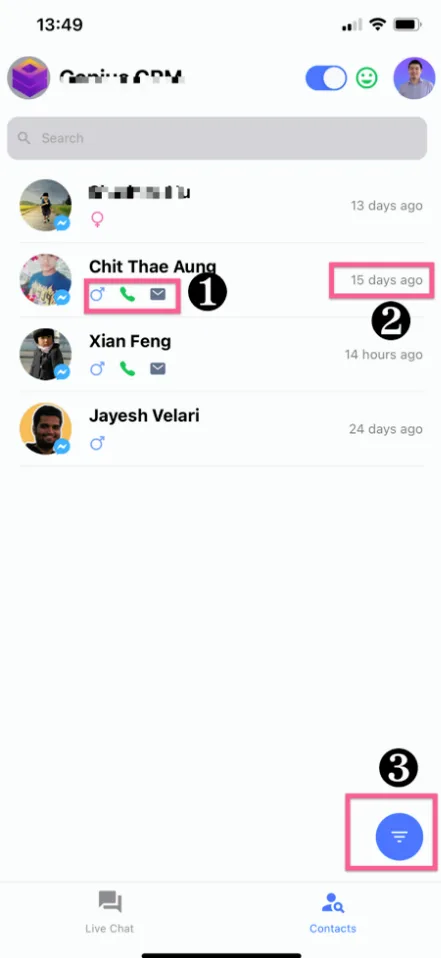
Point 1: You will find the 3 icons below the contact, which show the user's gender, email or phone number.
You will also find the social channel icon in the bottom right corner of the contacts.
Point 2: You will see the time of the last interaction with the user. Note that social channels have different windows for you to contact the user.
Point 3: You will be able to filter the contact by various rules.
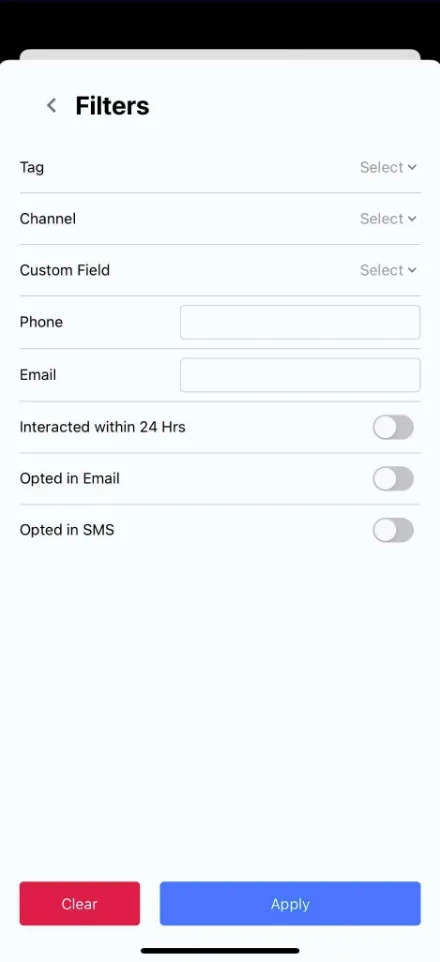
You can filter contacts by tag, custom field, channel, phone number, email, interaction within the 24-hour window, or email and SMS opt-in status.
If you click on a contact, you will find more details about them.
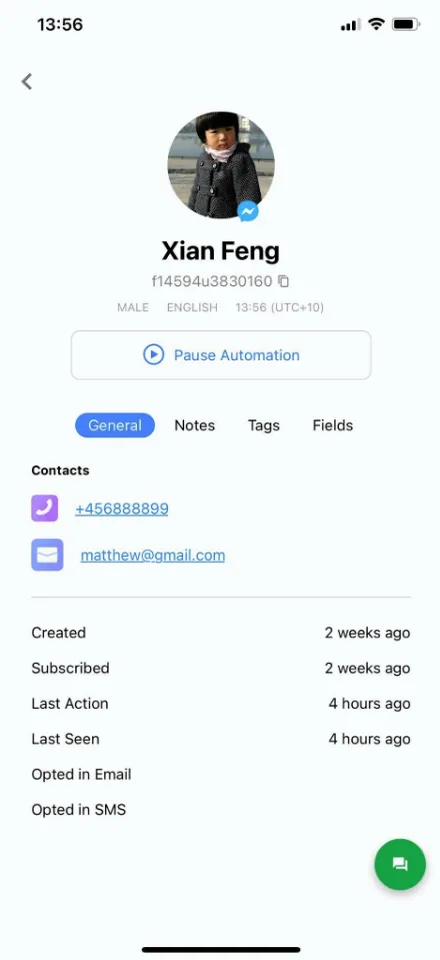
On the General tab, you will find the phone number, the email, the creation time, the subscription time, the time of the last interaction, the last time the contact was seen, and also the email and SMS opt-in status.
You can also easily update the phone number and email.
You can also switch between the tabs to check the user's notes, tags and custom fields. You can delete the tags or change the user's custom fields.
If you click the green chat icon in the bottom right corner, you will be redirected to the conversation with the contact.
You can start a conversation with the user if you wish. You can send an SMS or email to the user if they are outside the contact window.
You can manually pause the automation just below the contact's profile picture.