Set Up Your Live Chat Settings App
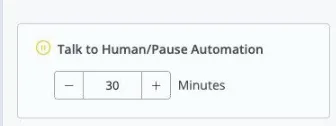
After you use the “Falar com humano/Pause Automation” action in the flow builder, it will pause the automation and enable live chat.
After you use the “Falar com humano/Pause Automation” action in the flow builder, it will pause the automation and enable live chat.
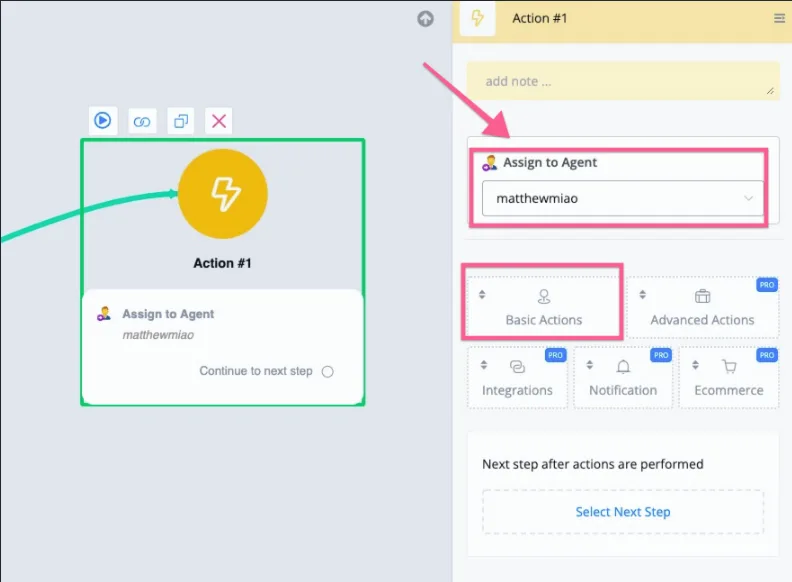
You will find the “Assign to Agent” action under Basic Actions, and then you select the team members you want to assign the conversation to.
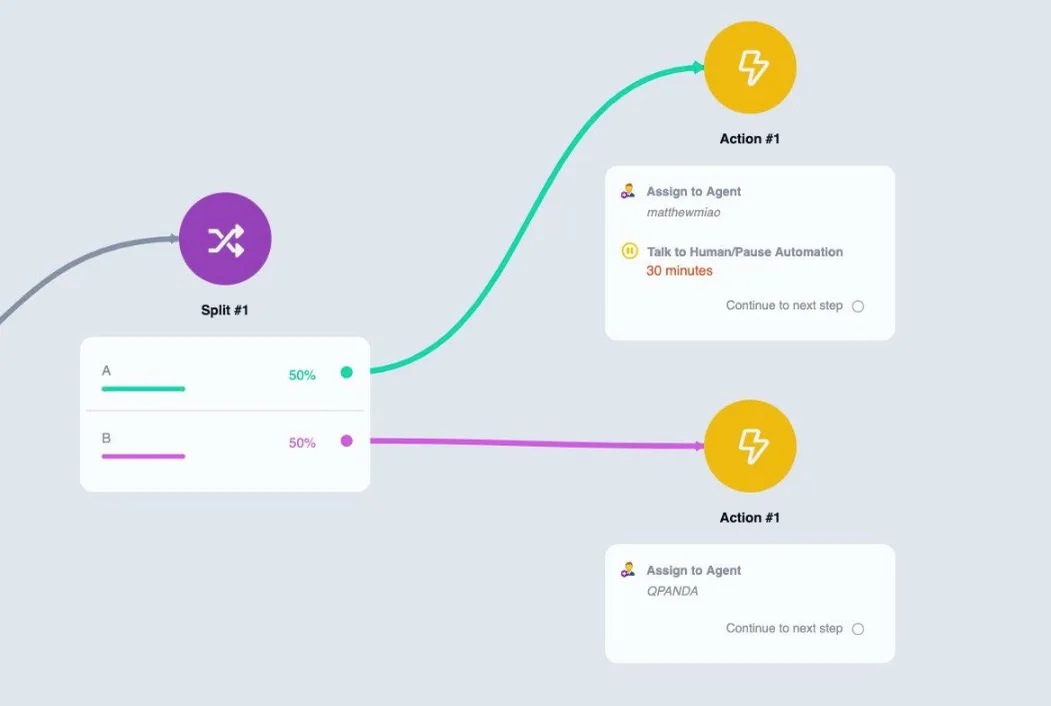
You can set your own rules to assign the conversation as soon as the user “pauses the notification”. For example, you can use “Random” to randomly draw and assign the conversation/tickets.
You can also assign the conversation according to the time and the day of the week.
You can also assign the conversation based on the selection the user makes in the channel. For example, when they want to contact different departments in your company.
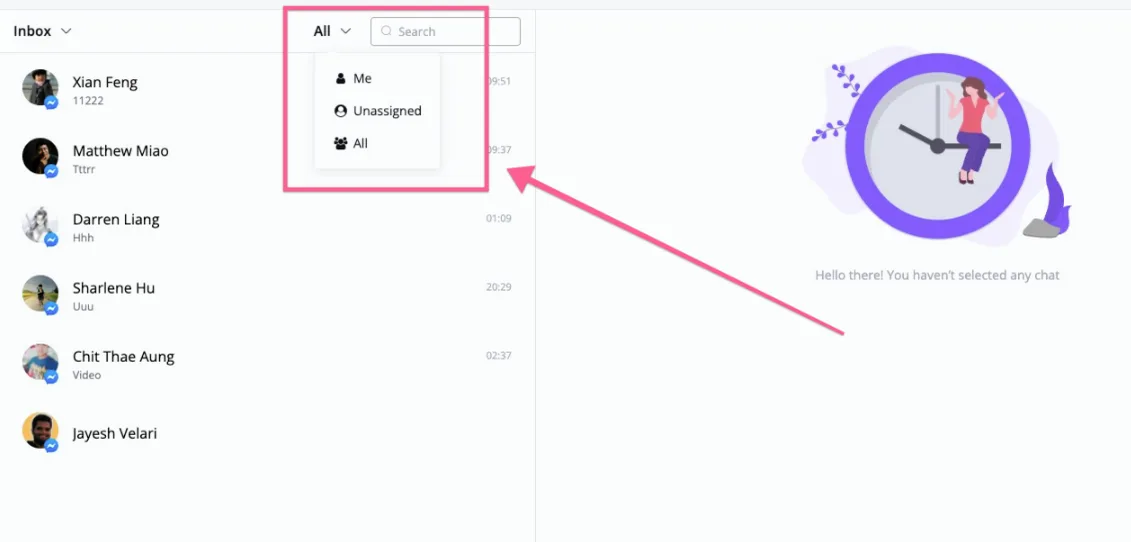
In the live chat window, you can first check the “unassigned” and “all” conversations, in addition to the conversations assigned to you.
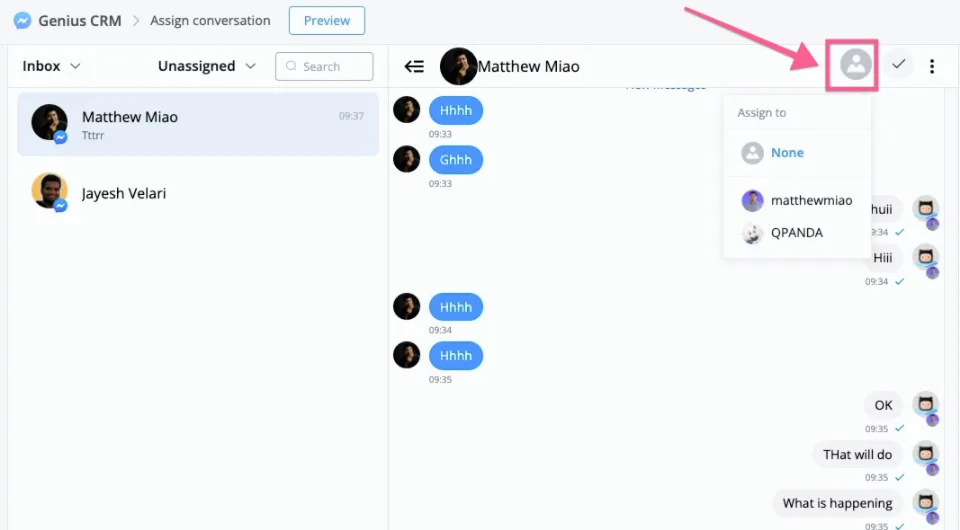
When you open an unassigned conversation, you can click the live chat “Icon” and select the team member to assign this conversation to.
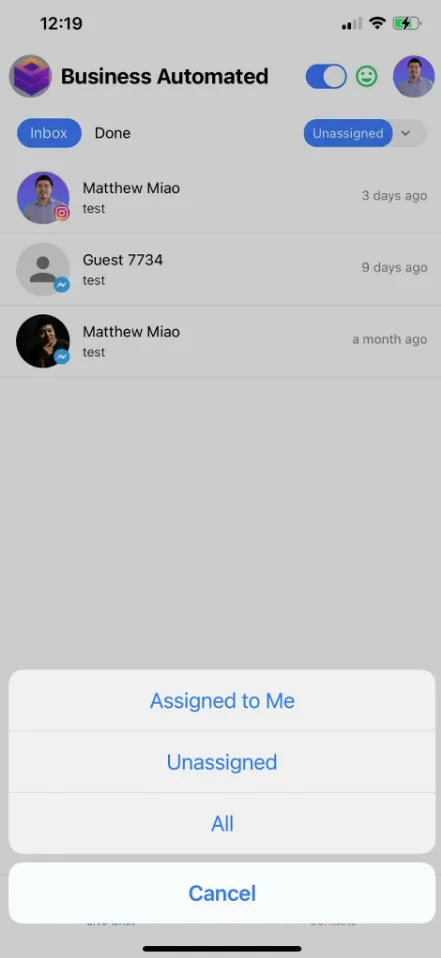
You can also assign the conversation in our mobile app by selecting the “unassigned” conversation in the top right corner.
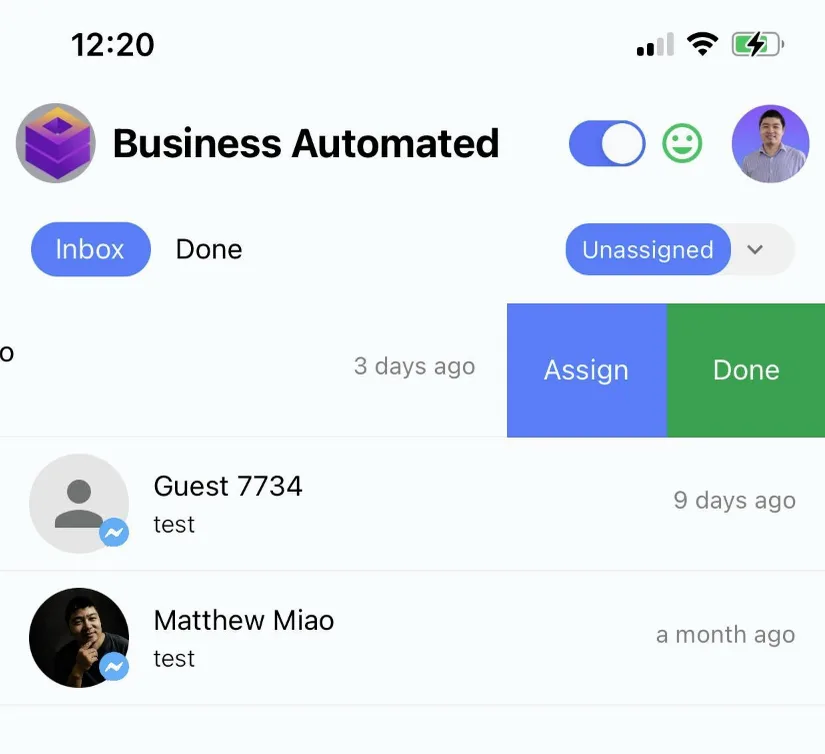
Then all unassigned conversations will be displayed. You can swipe the conversation to the left and select the “Assign” action to assign it to one of your team members.
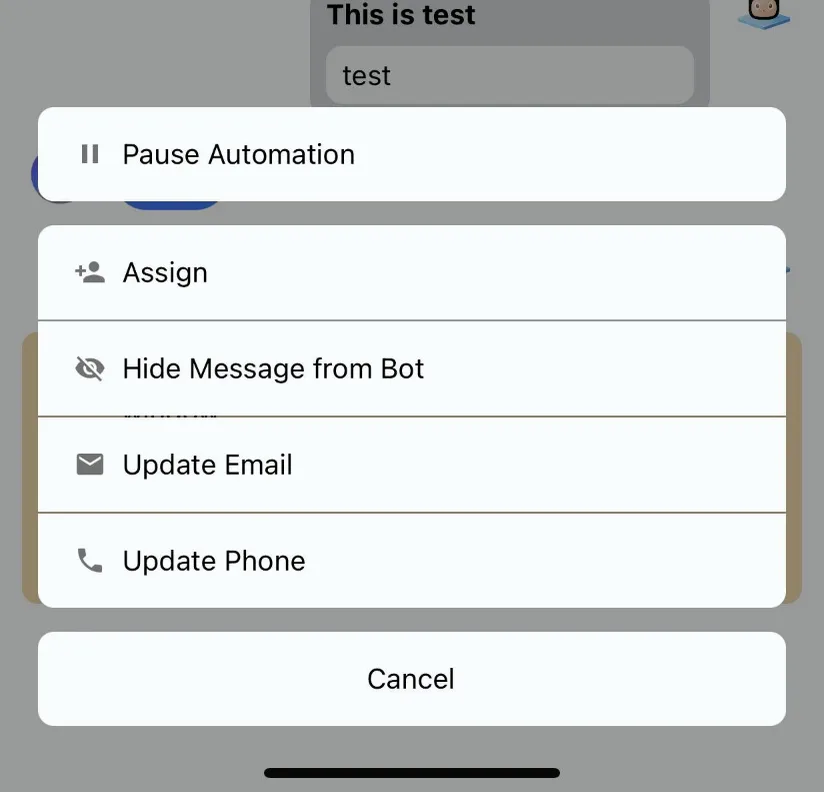
You can also click the conversation and select the “...” in the top right corner, which will open more options for the current user.
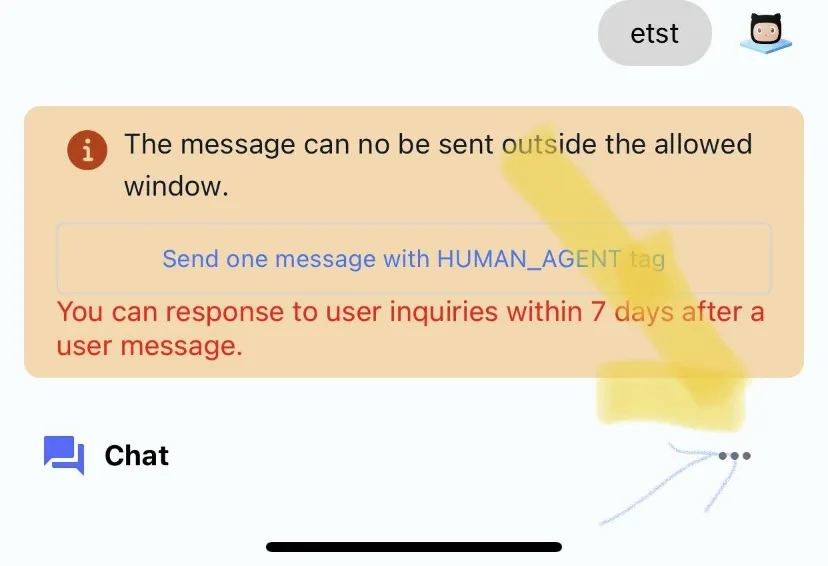
And then you can select “Assign” and choose the team member.