

OpenAI Intent Detection
NicoChat, with its native OpenAI integration, has released an intent detection system that allows users to collect parameters based on the intent of the query provided.
The feature only works with OpenAI integrated, so let's establish the connection between OpenAI and NicoChat.
Follow the steps to integrate your OpenAI account with your NicoChat account.
Log in using your credentials.
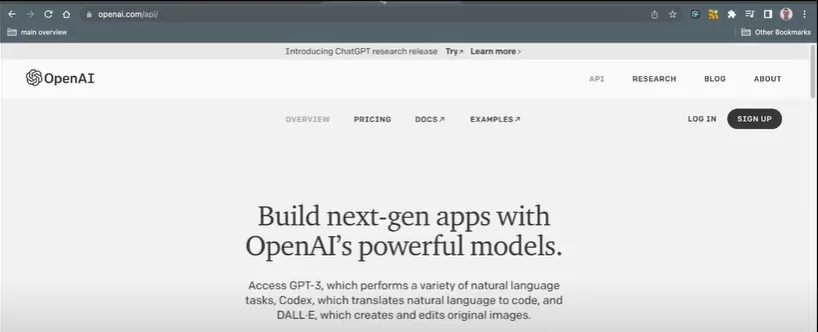
Click the “Personal” tab in the top right corner.
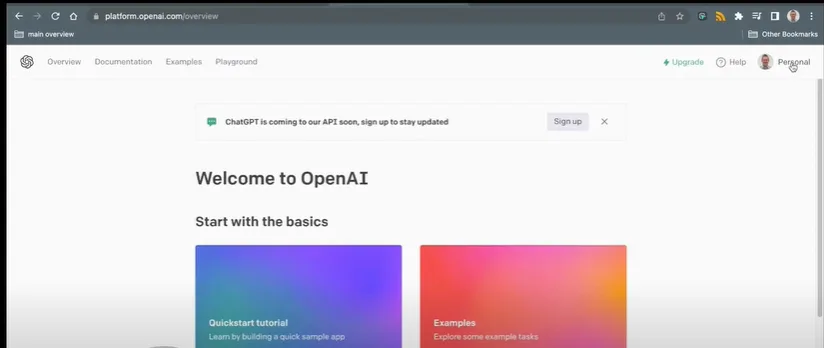
From here, you will be able to generate an API key.
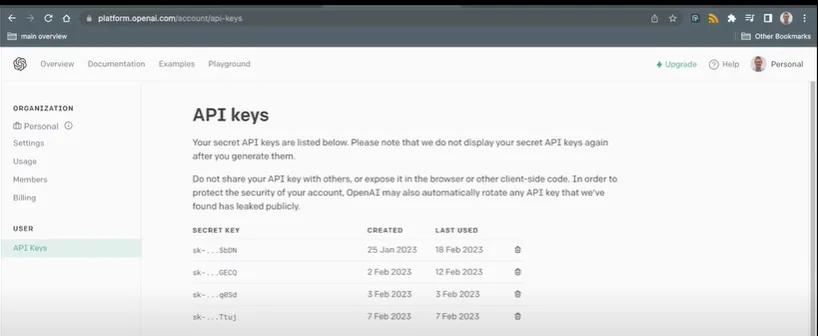
[Note: you will only be able to see your API key once]
Paste the API Key into NicoChat and click “Save” to establish the connection.
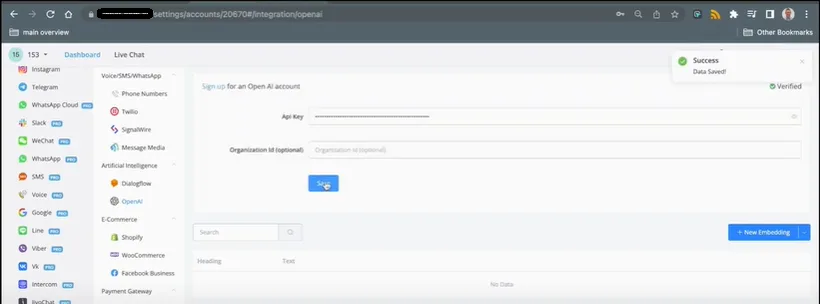
Your account has been successfully connected to NicoChat.
To use intents, go to the Automation tab of your channel.
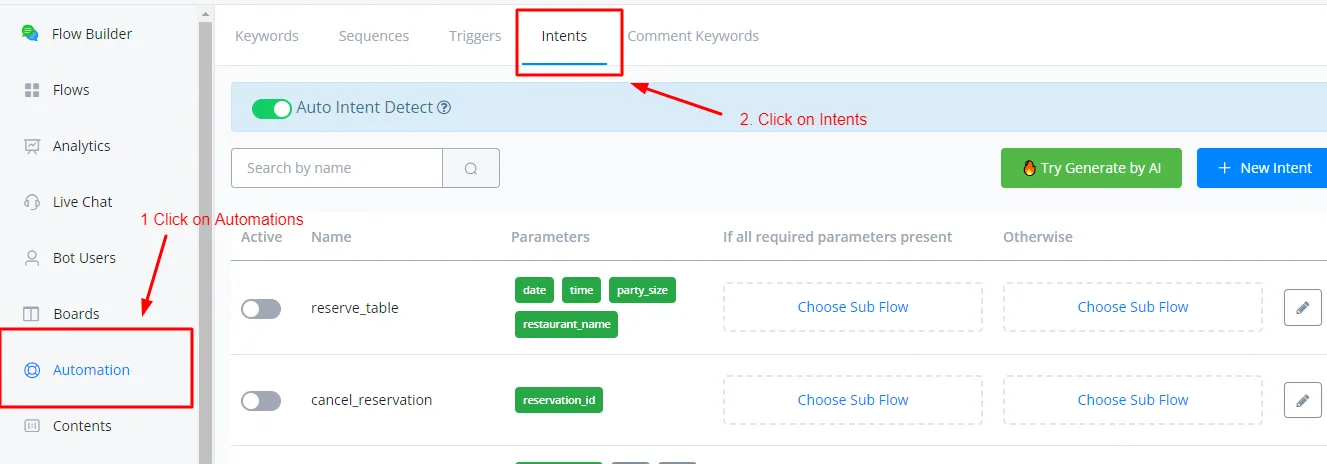
Enable the “Automatic intent detection” option. If an error appears here, check that your OpenAI account is properly integrated.
Then click “+ New Intention”.
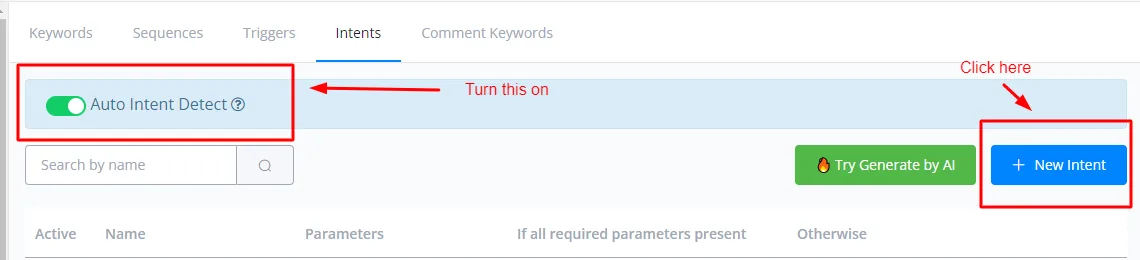
In the creation window, you will see the following settings:
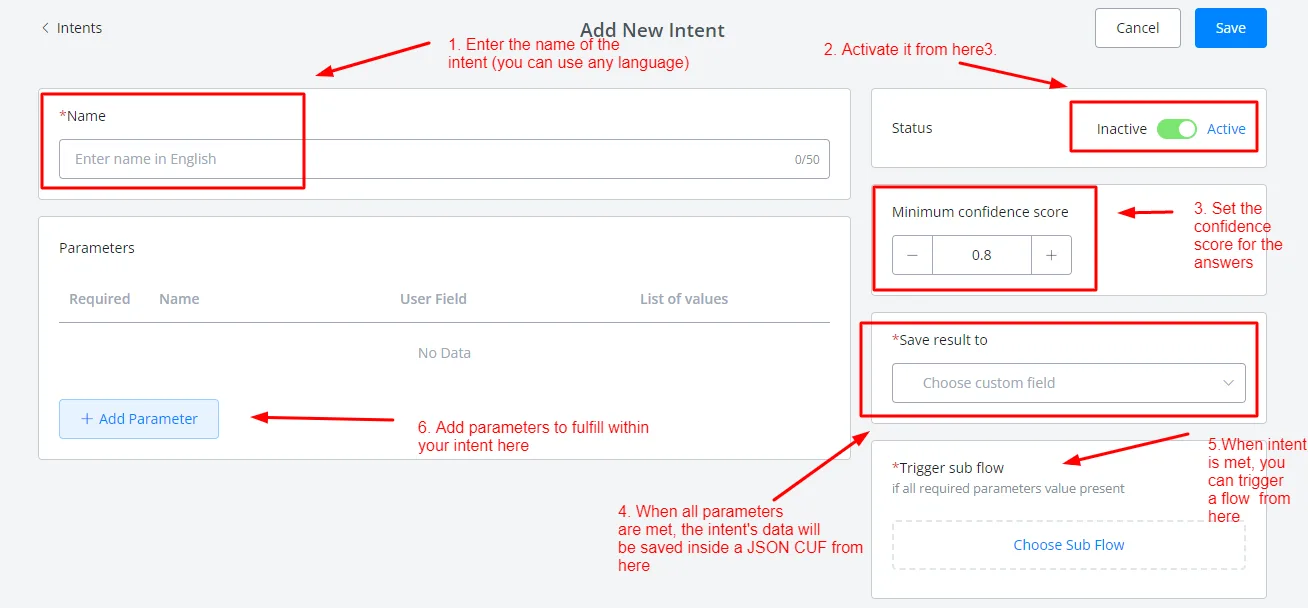
Click +Add Parameter to create a parameter.
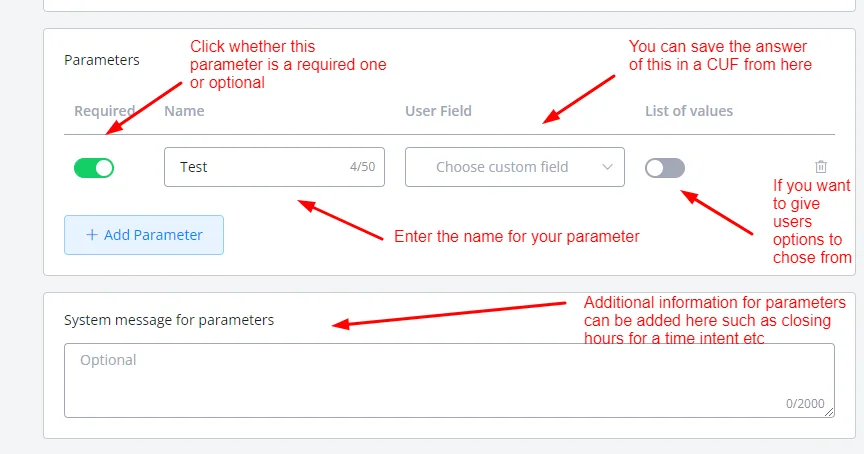
In the List of values tab, we offer some options for the contact to choose from. Use this when you want to limit the data received in the intent's reply.
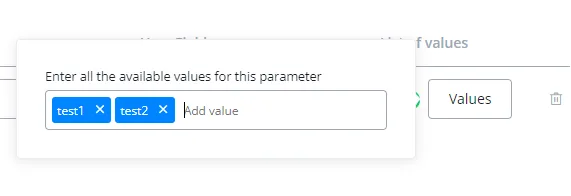
You can add values by clicking the “Values” tab and entering the probable values for the intent.
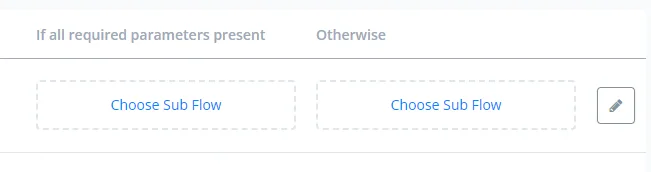
Finally, you need to choose the SubFlow that will be triggered according to the status of the intent.
After an intent cycle ends, NicoChat saves the intent parameter values in the custom contact fields. Because of that, the next time the contact interacts with the channel, the old values will be fetched.
It is therefore important to clear the contact fields at the end of the intent cycle. The intent system looks for the value of the parameters whether they are empty or not; if an old value is stored, it will automatically be marked as completed.
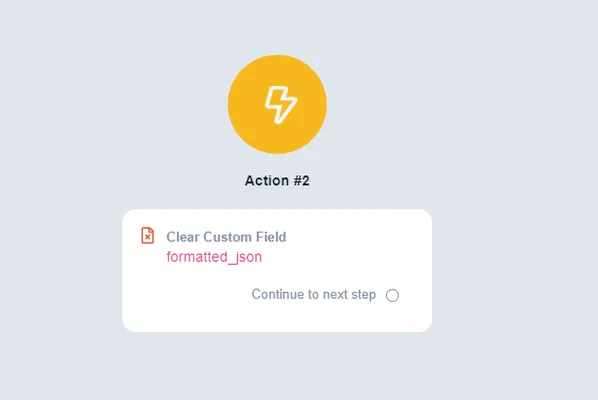
You can build this automation inside the flow by saving the intents directly in the JSON CUF, instead of individual custom contact fields, and then placing an action node in the attached SubFlow to clear the values.
Intents are triggered in the same way as a keyword or comment automation. The contact types a question or a statement and, following the hierarchy of the automations, the intent detection feature checks the intent of the sentence based on the keywords used and on the confidence score you have set.
When an intent is recognized, the collection of the parameter values begins; the final attached flow is only triggered after all the parameters have been filled in.
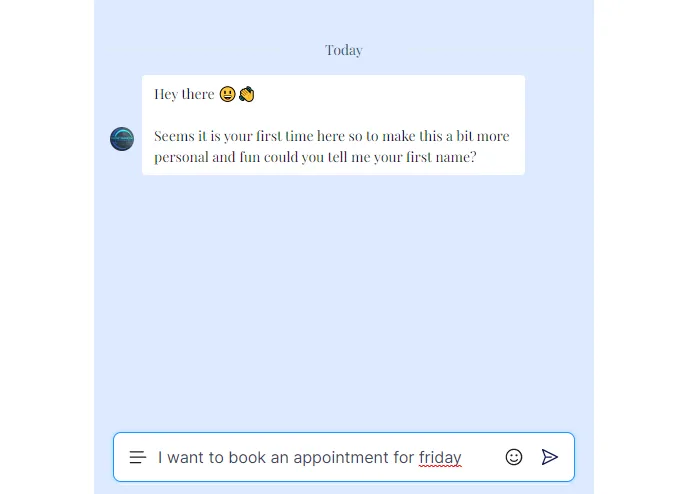
The following sentence should trigger an appointment scheduling intent, if you have configured it that way. And that is how the intent system works on the live channel.
In the intent detection feature, token consumption depends on the number of parameters the intent has to fill in and on the confidence score. That is: the more parameters, the more tokens consumed; likewise, the higher the confidence score, the more tokens consumed when detecting the intent.