Messages and History
Takes the entire LiveChat and turns it into assistant/user in JSON format
Takes the entire LiveChat and turns it into assistant/user in JSON format
This function will save the conversation history in JSON format as follows:
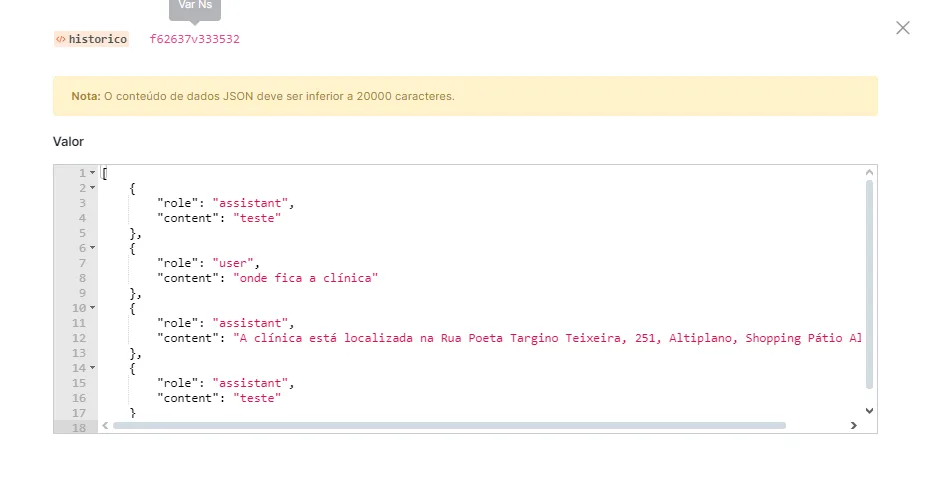
To do this, just enter the maximum amount of messages that will be saved.

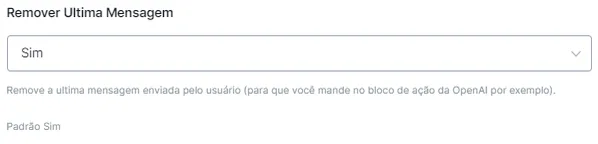
Next, if you want new messages to be updated after the limit is reached, leave the “Remover Última Mensagem” option set to “yes”.
To finish, just enter where the history will be saved.
This function will save the conversation history in a text format as follows:
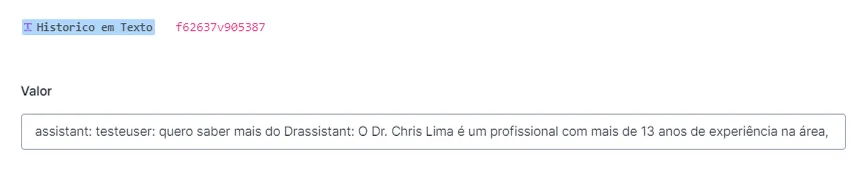
To do this, just enter the maximum amount of messages that will be saved.
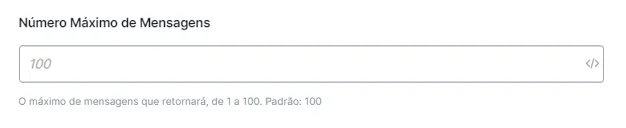
To finish, just enter where the history will be saved.
This action is useful for sending a message to a salesperson, to an agent, to a specific employee. You can inform them, for example, that a customer is waiting for a quote.
To start, you must select the channel that will start the flow.

Next, enter the message you want to send and select the UserNS.
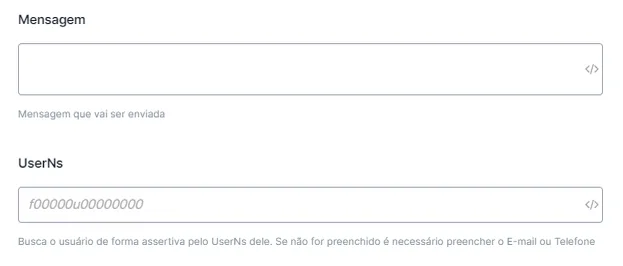
If you do not enter the UserNS or it is not found, it will search by phone and/or e-mail, if entered.
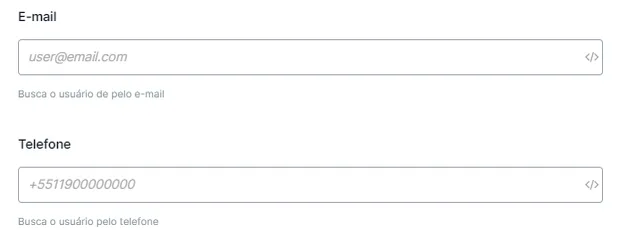
Next, select whether or not a new user should be created when the user is not found.
Gets the entire message history between user, bot and agent. Formatted as Text.
To start, you must enter whether or not audio and text should be interpreted, and the prompt (optional, enter it according to your need).
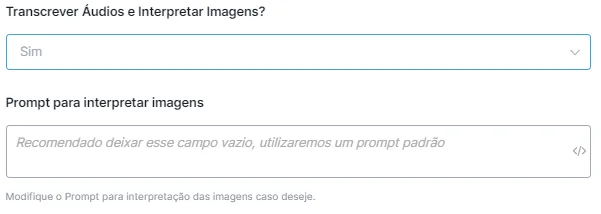
In the flow, you must pause the automation so that any interaction made by the user does not activate it, and then start it again and activate the retrieval of the history in text.
- Add an action block.
- Add a “Falar com Humano/Pausar Automação”. The time here does not matter, it only has to be longer than the one in step 3.
- Add a Smart Delay (here you set the delay time, such as 30 seconds).
- Add a “Retomar Automação”.
- Add the Nicotools “Get Set of Last User Messages - Multi Input” to get the messages received within the time set in step 3.
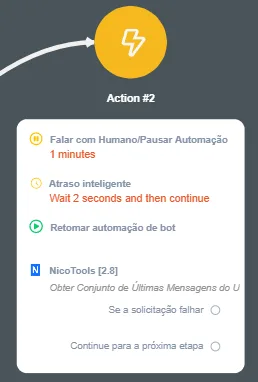
This function will save the conversation history in a text format as follows:
To do this, just enter the maximum amount of messages that will be saved.
To finish, just enter where the history will be saved.
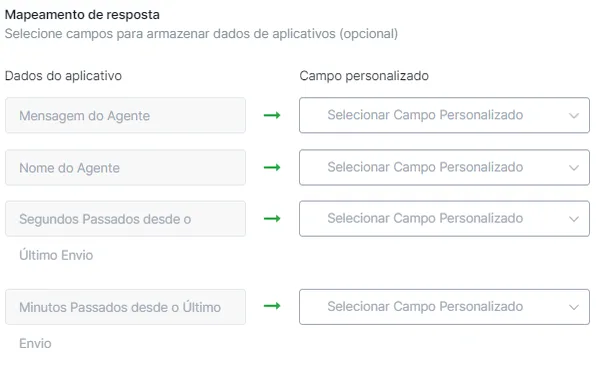
Gets the last message sent by an agent and calculates how much time has passed since then.
First, you must enter whether you want to return an error for this action if no agent message is found in the last 100 messages.
Next, just enter the outputs for the results you want.
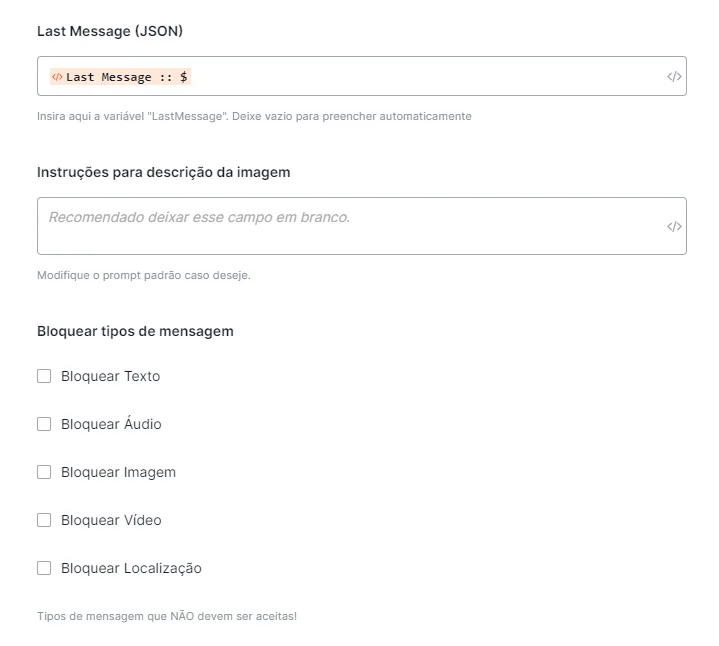
Processes the last message received, transcribing audio, describing an image or providing the text. Useful when you want to let the user send any type of message.
First, you must enter the last message variable and the prompt (this first part is optional; if you do not change it, it will be filled in automatically).
Next, you must select the type of message that will not be identified.
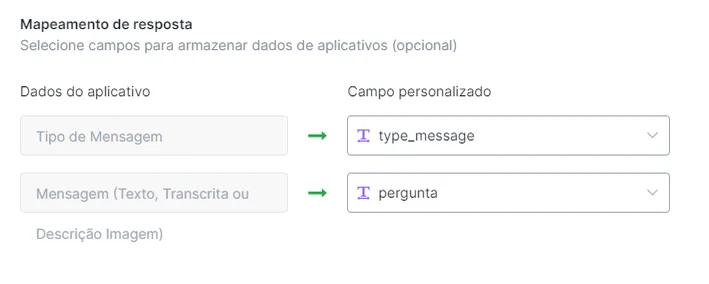
Then map the result to get the message received:
There are two practical applications:
- Insert this action at the beginning of the flow to get the message initially sent by the user, the message that triggered the flow.
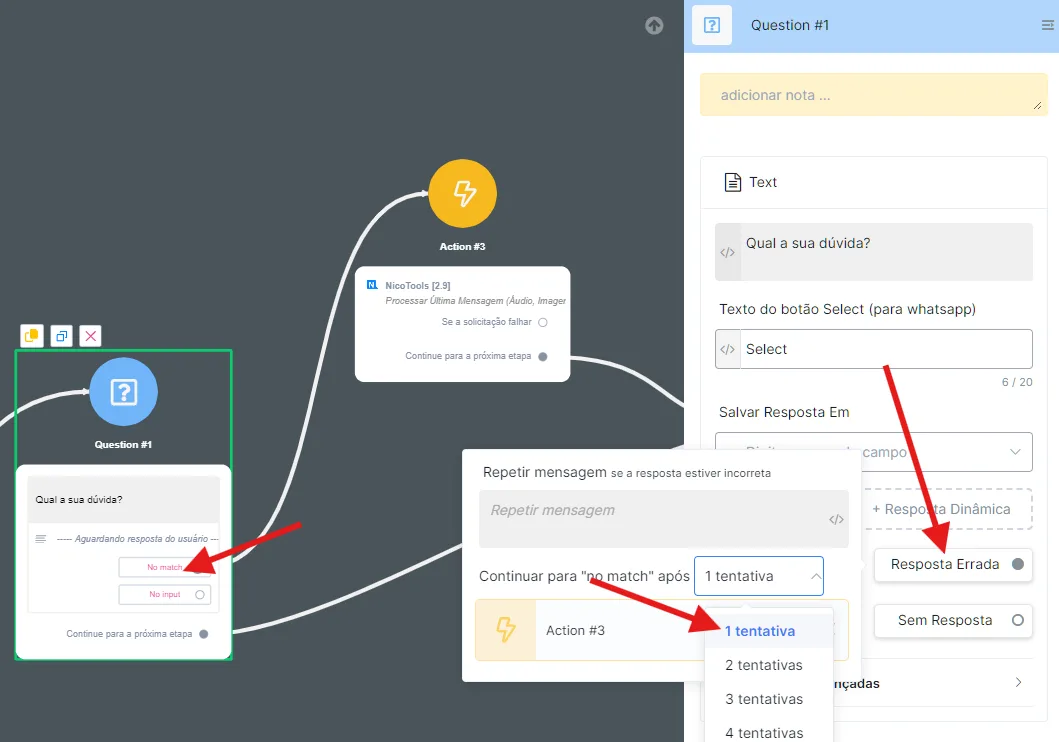
- Insert it in the “Wrong Answer” of a question block to accept any type of message from the user, as shown in the image below:
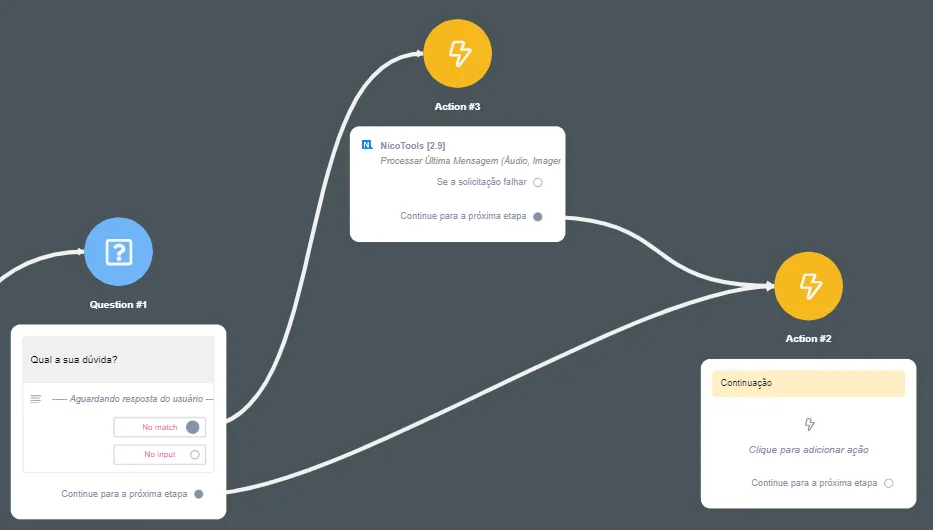
Do not forget to set the “Wrong Answer” to only 1 attempt: