Tag Added / Removed
Tags help you identify and separate the information from your chats so you can make well-informed decisions.
Let's suppose you have a flow that asks users whether they are interested in a trip to Europe or to Asia. Next, we will tag the users according to their answer.
We will look at the following actions in the Tags options.
- How to create a tag.
- Use tags in the flow.
- Track tags in Live Chat.
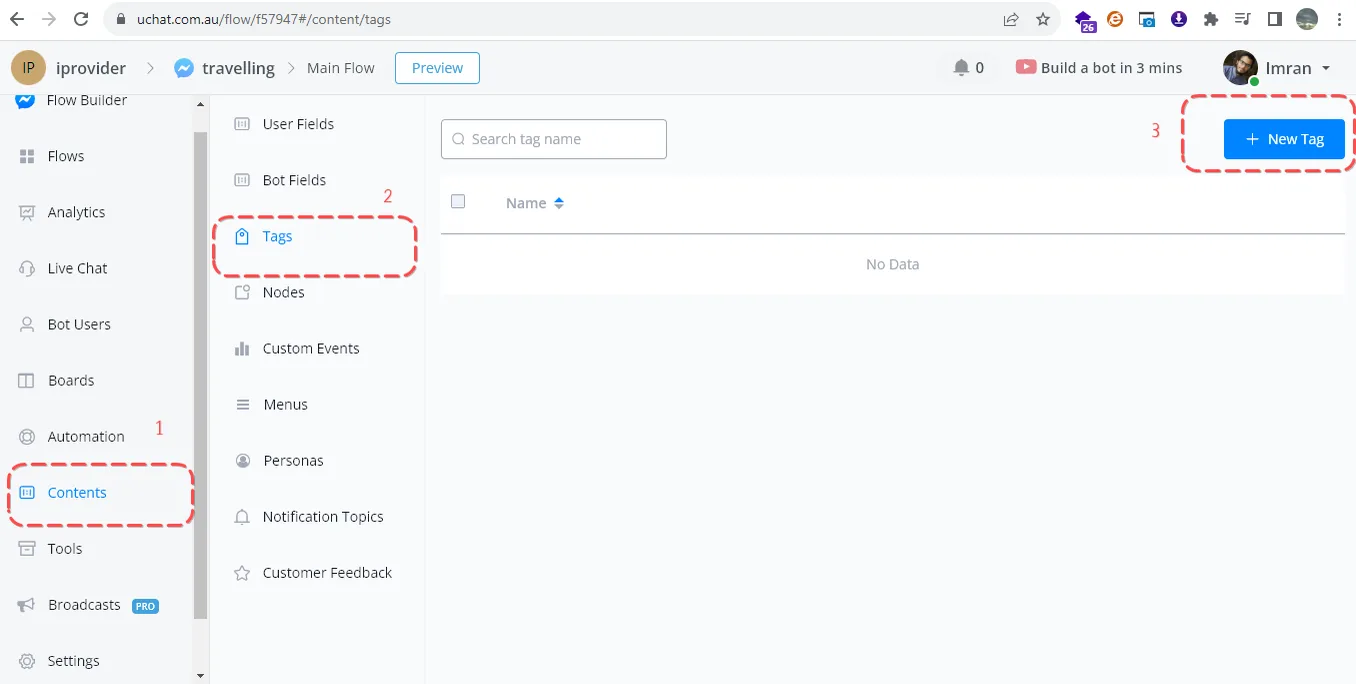
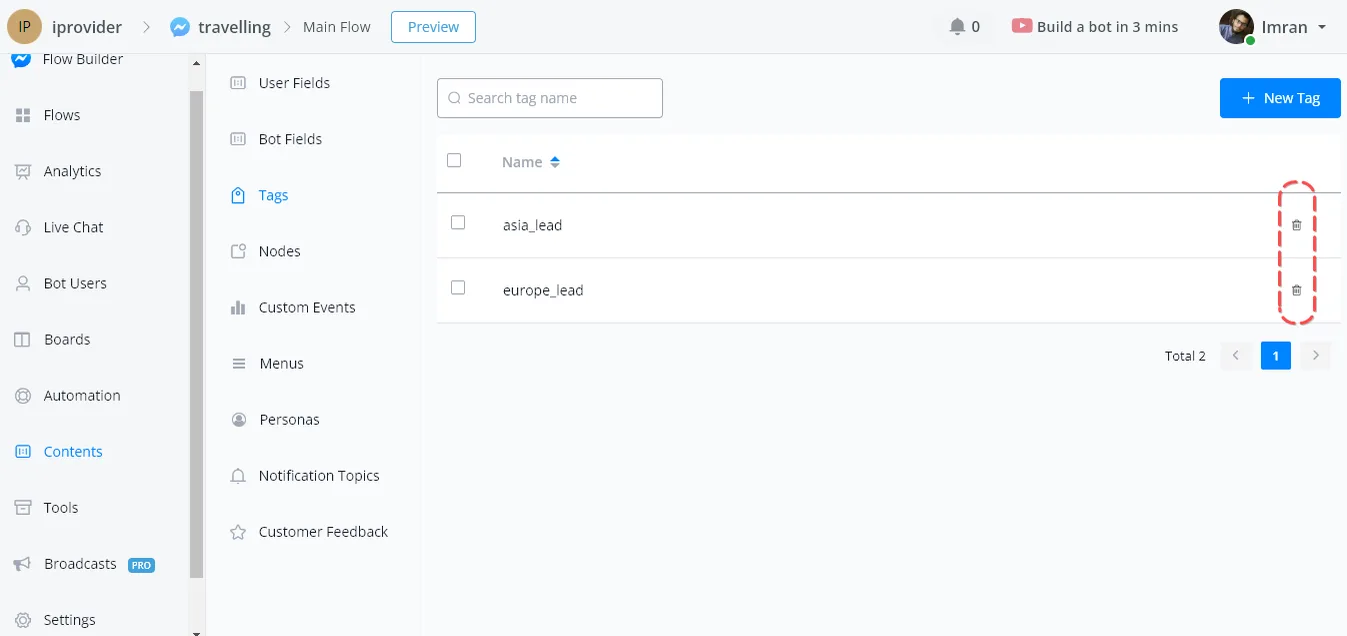
Click Contents and select the Tags option. We will use this window to create or delete any tag. Now click the New Tag button.
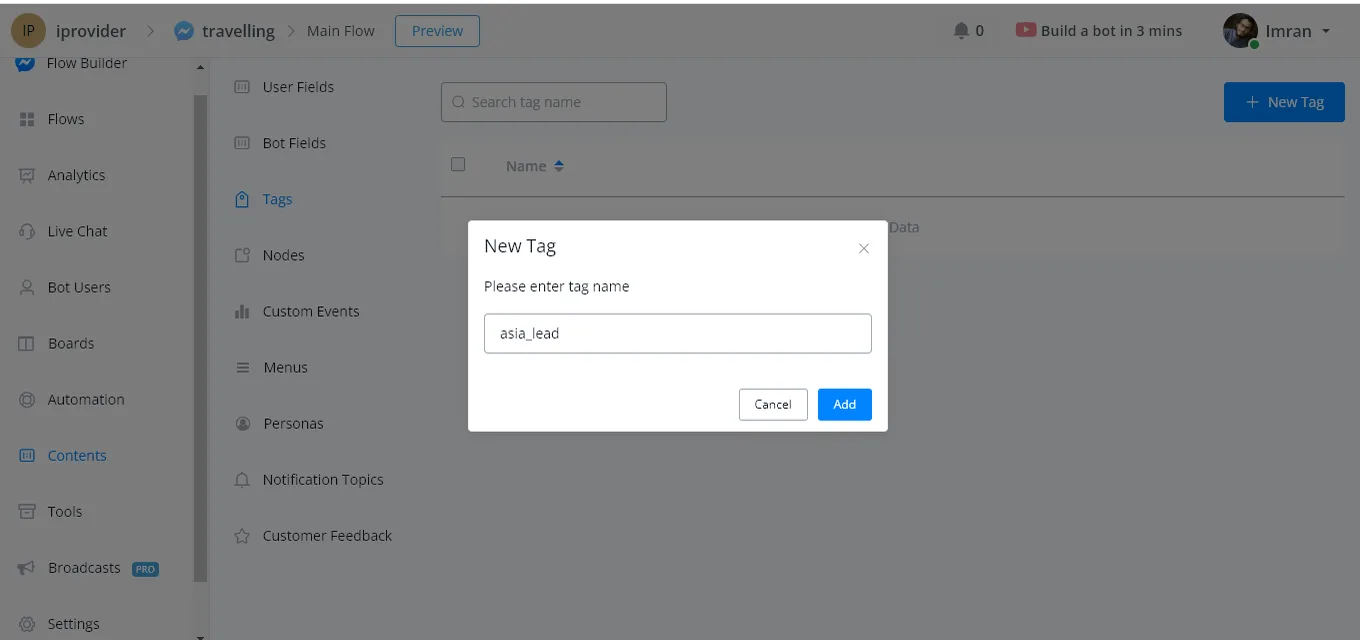
Now create the asia_lead tag for the users who choose Asia in the trip option. The same applies to the Europe lead tag.
These tags can be deleted through the option on the far right of the table.
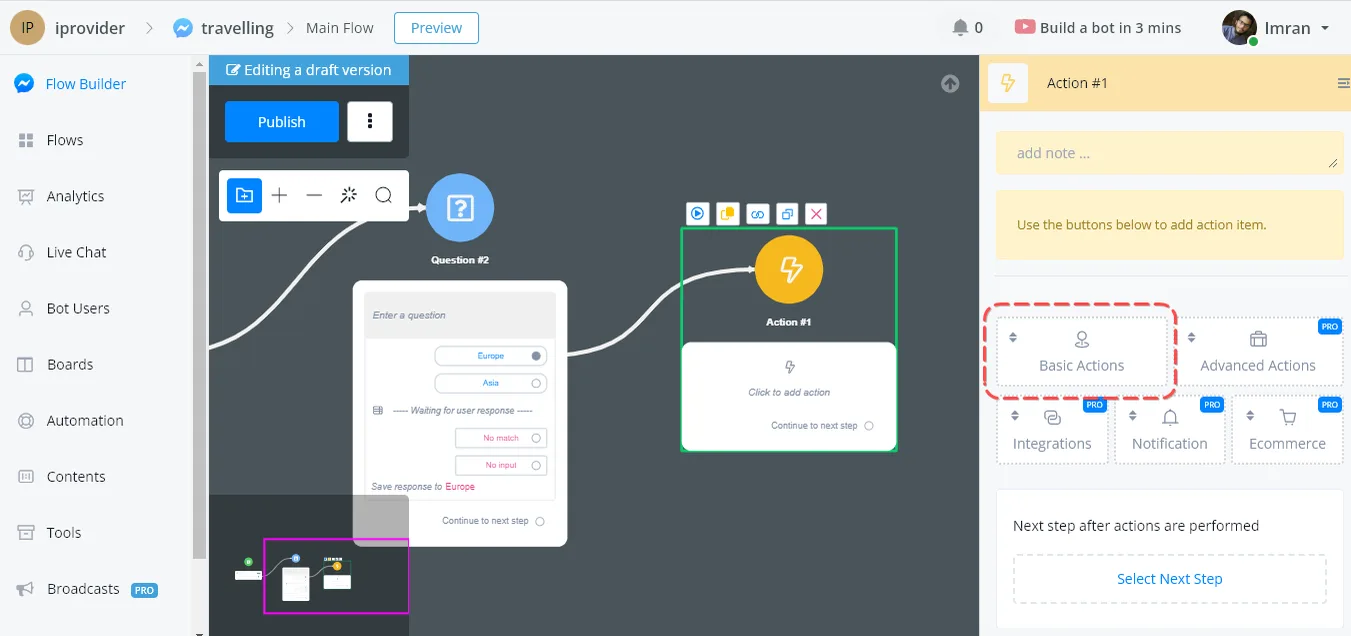
Go to the Flow, choose Basic Action and select the Add Tag option.
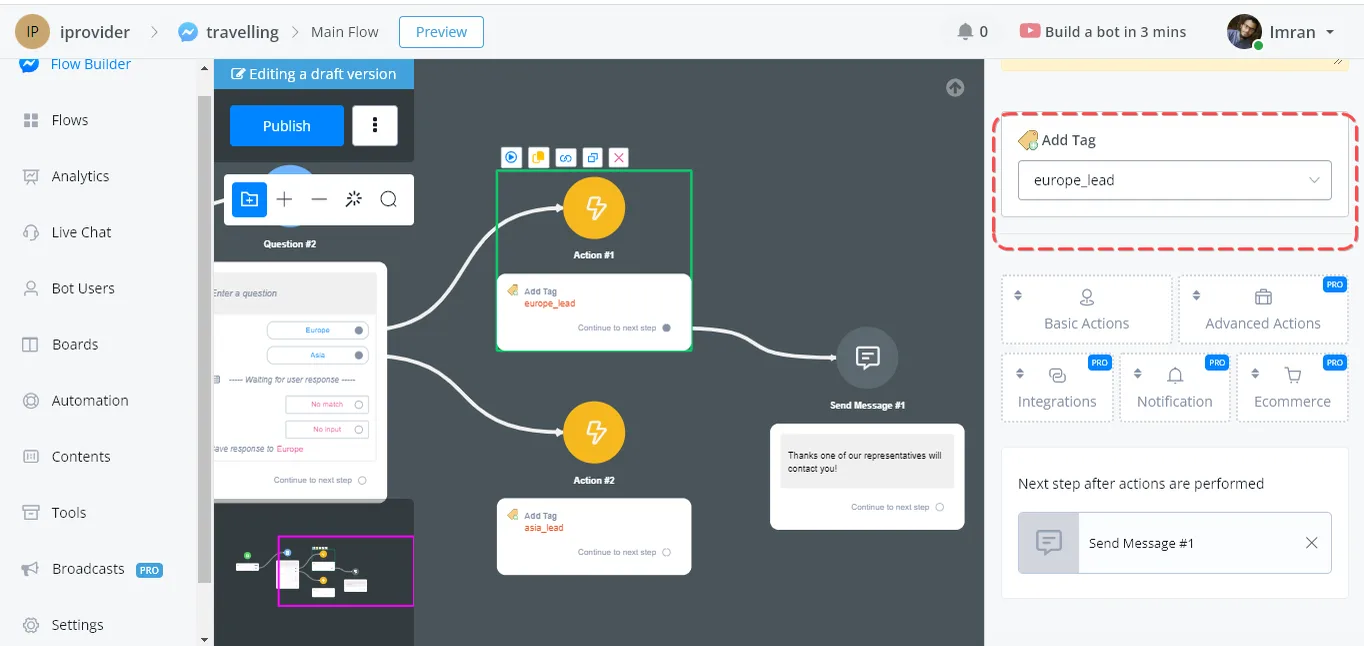
Here, select the appropriate tag for the users who choose Europe as their vacation destination; do the same for the destinations in Asia.
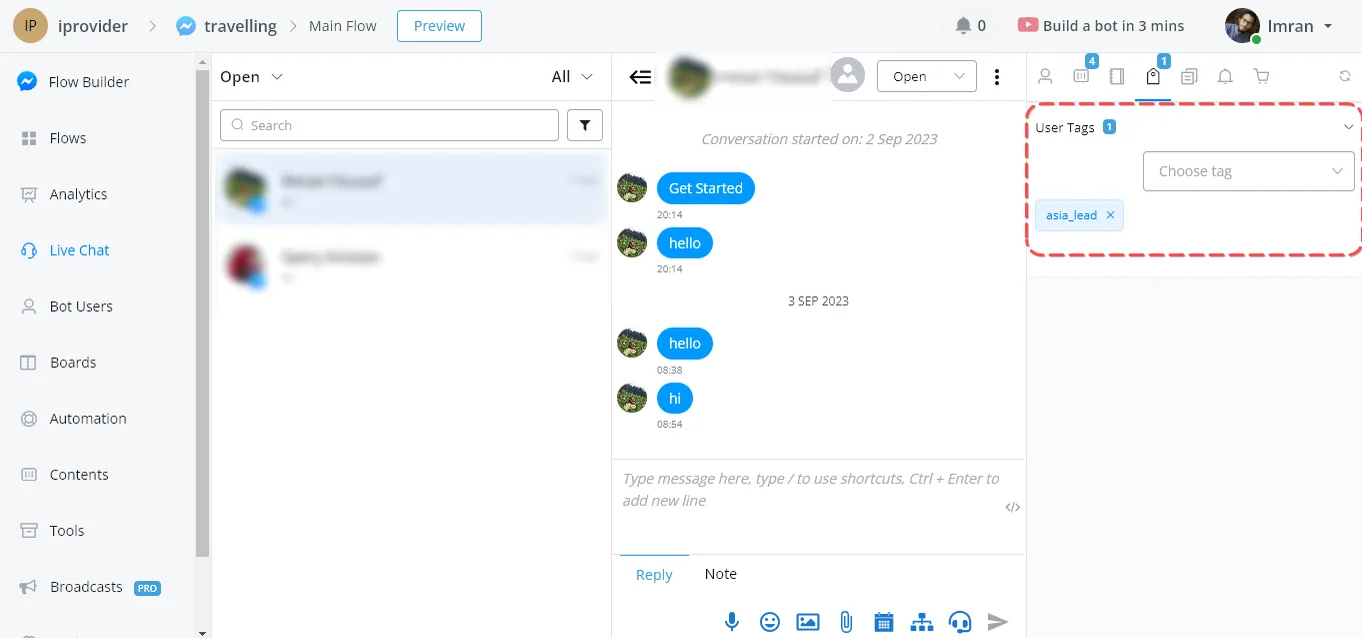
Now run this flow and see its effect in the Live Chat section.
There the agent can see the user's tags and can also add or delete tags manually, according to the situation.
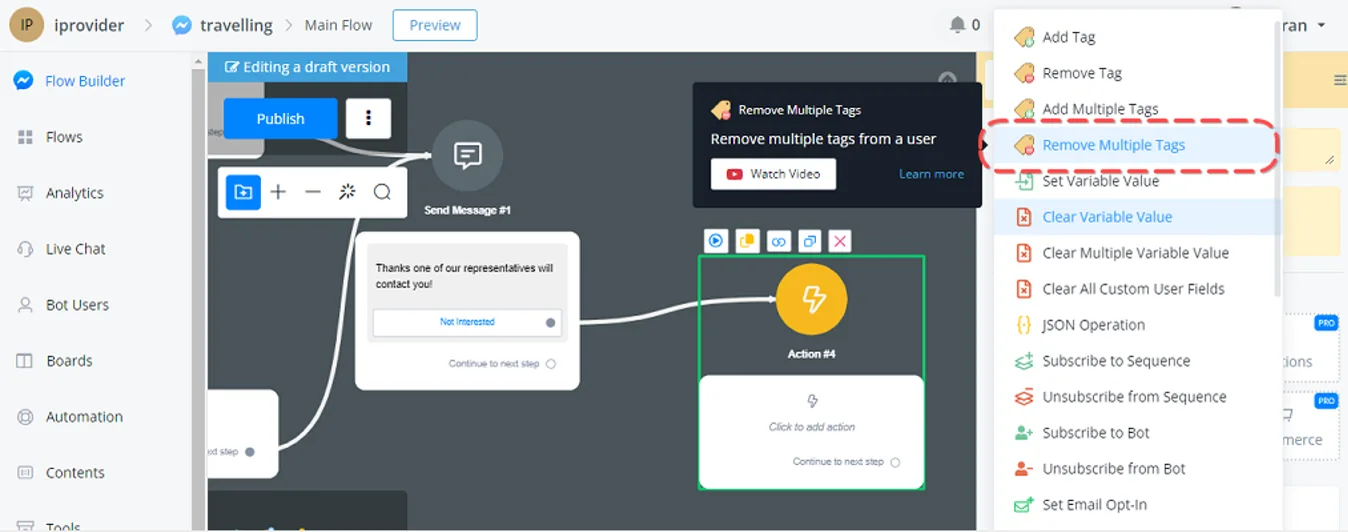
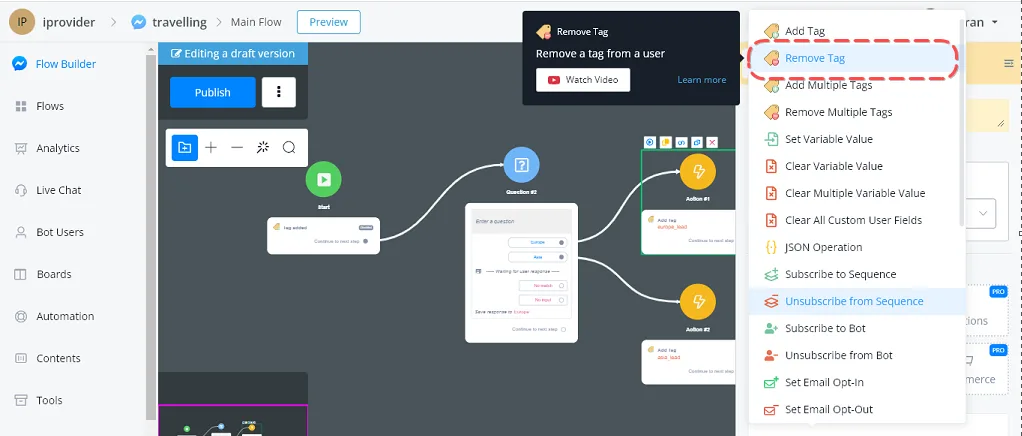
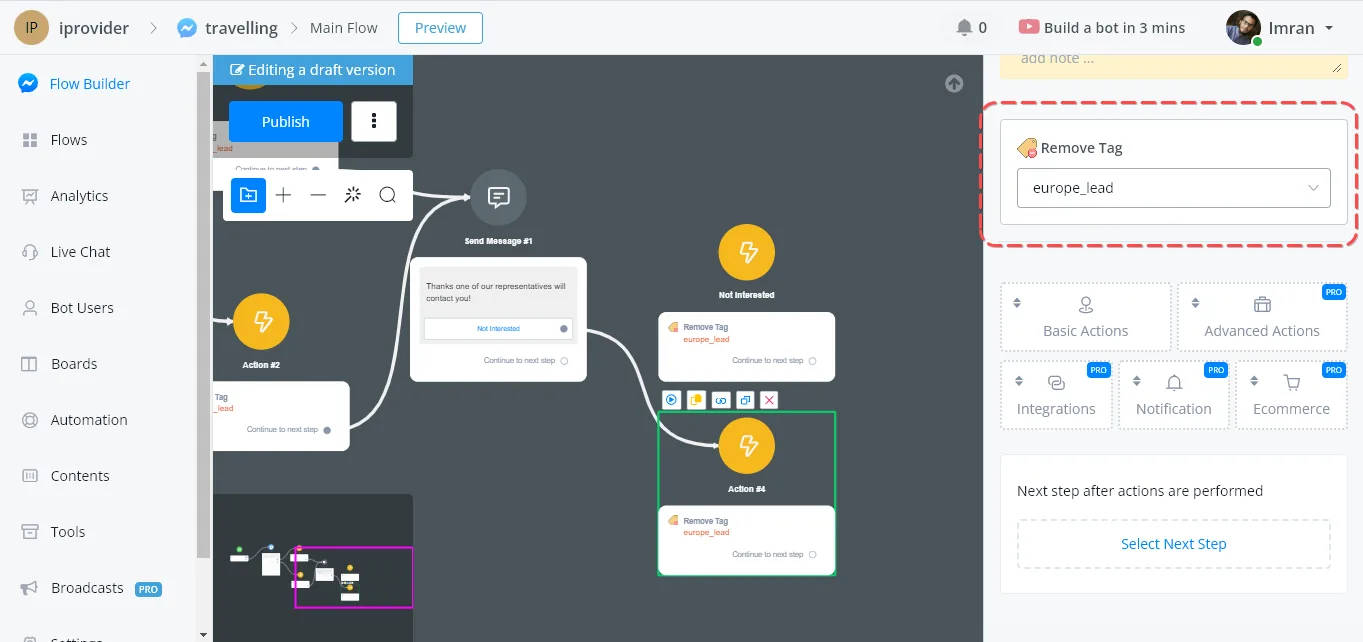
Removing tags is also done through the Basic Action option. Let's suppose a scenario in which the user is not interested in talking to a chat representative.
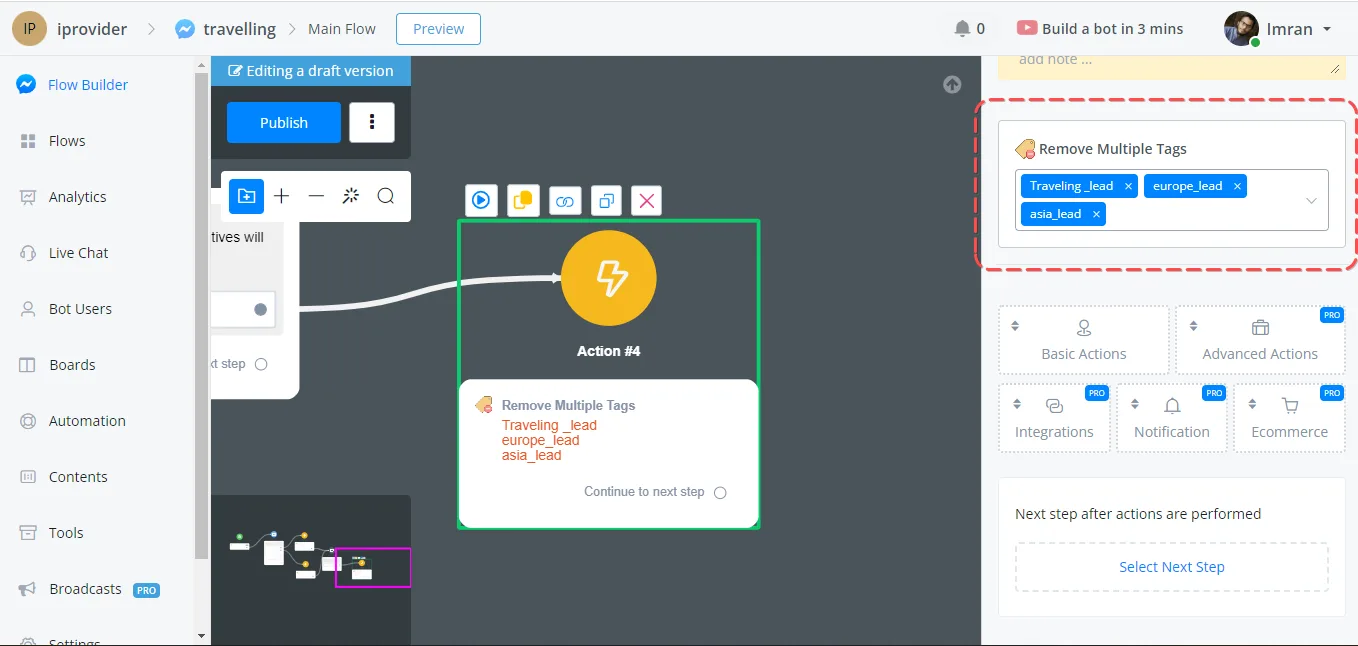
What we did was add a primary action: when a button is selected, we trigger this action, which removes the tags we had selected earlier in our chat.
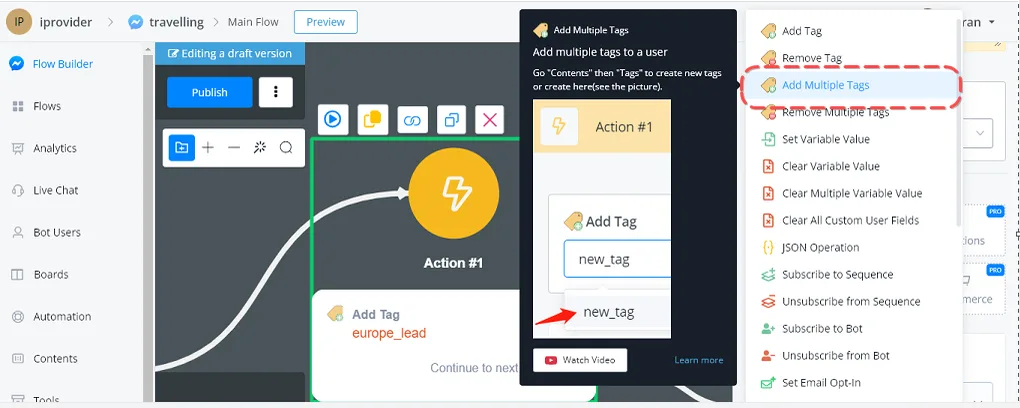
This option allows the chat builder to add several tags at once. So whenever a user chooses a destination in Europe or Asia, we will add more than one tag. Just go to the Basic option and select “Add Multiple Tags”.
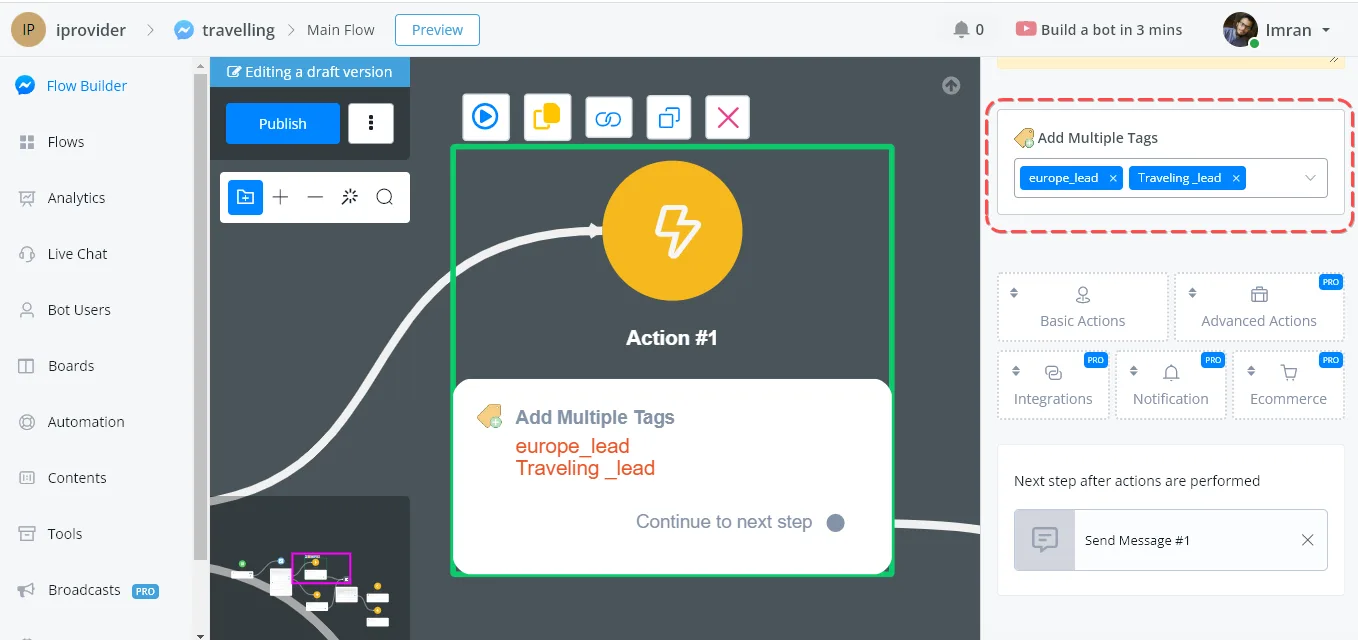
Here you can select the Tags already created in the Content section.
This option allows the chat builder to remove several tags at once. So if the user chooses a destination in Europe or Asia but, at the end of the chat, presses the button indicating that they are not interested in the conversation, we will remove the tags through the Remove Multiple Tags option.