Order Paid / Placed / Processed / Shipped / Completed / Cancelled / Refunded (Trigger)
We will walk you through setting up triggers for the various order statuses in NicoChat and creating the corresponding automated responses. By following these steps, you will organize your order management better and improve communication with customers.
We will show you how to set up triggers for different order statuses and respond with specific flows according to the status. Here is the step-by-step:
You can set up triggers inside a flow or through the Automation tab.
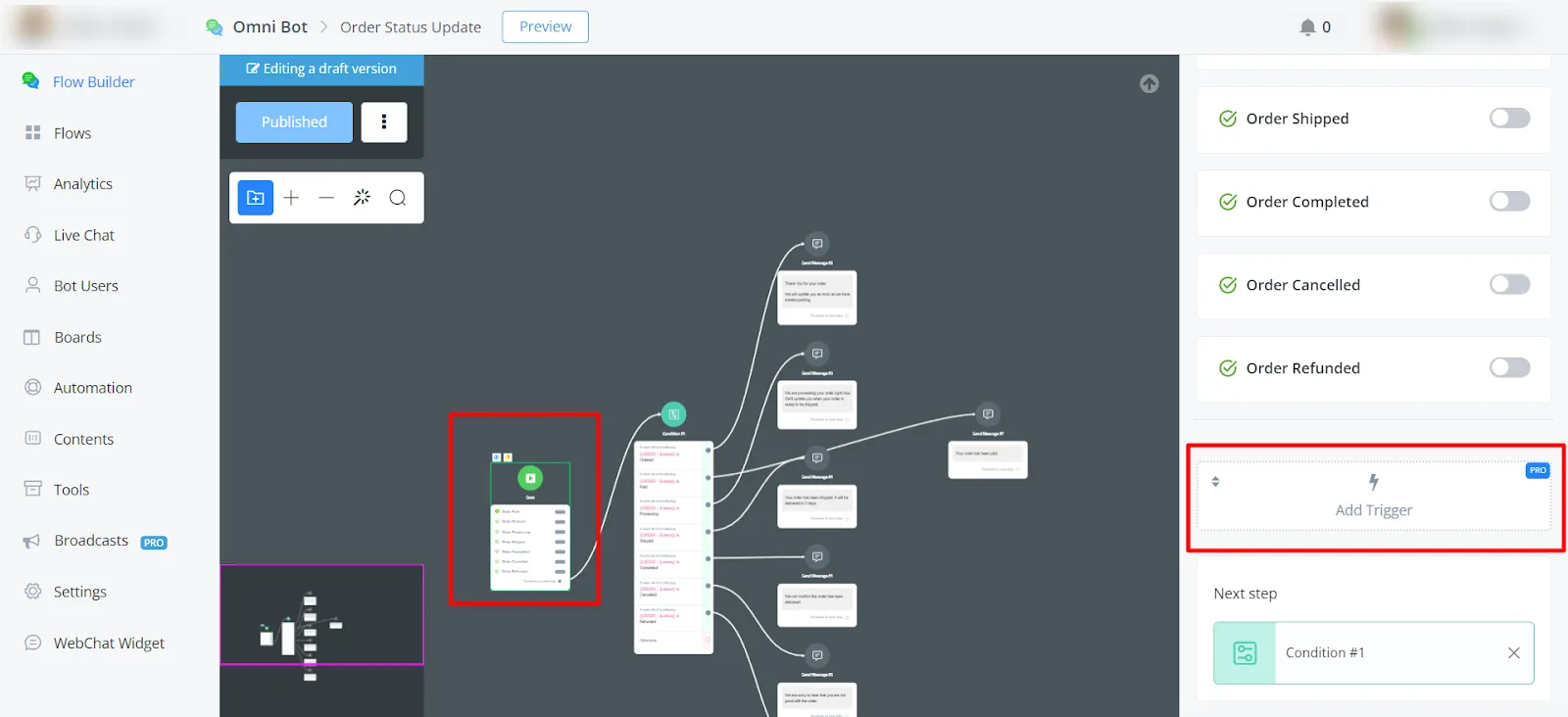
- Navigate to the desired flow.
- Add a new trigger.
- Select the appropriate order status from the available options, such as "Order Paid", "Order Processing", "Shipped", "Completed", "Cancelled" and "Refunded".
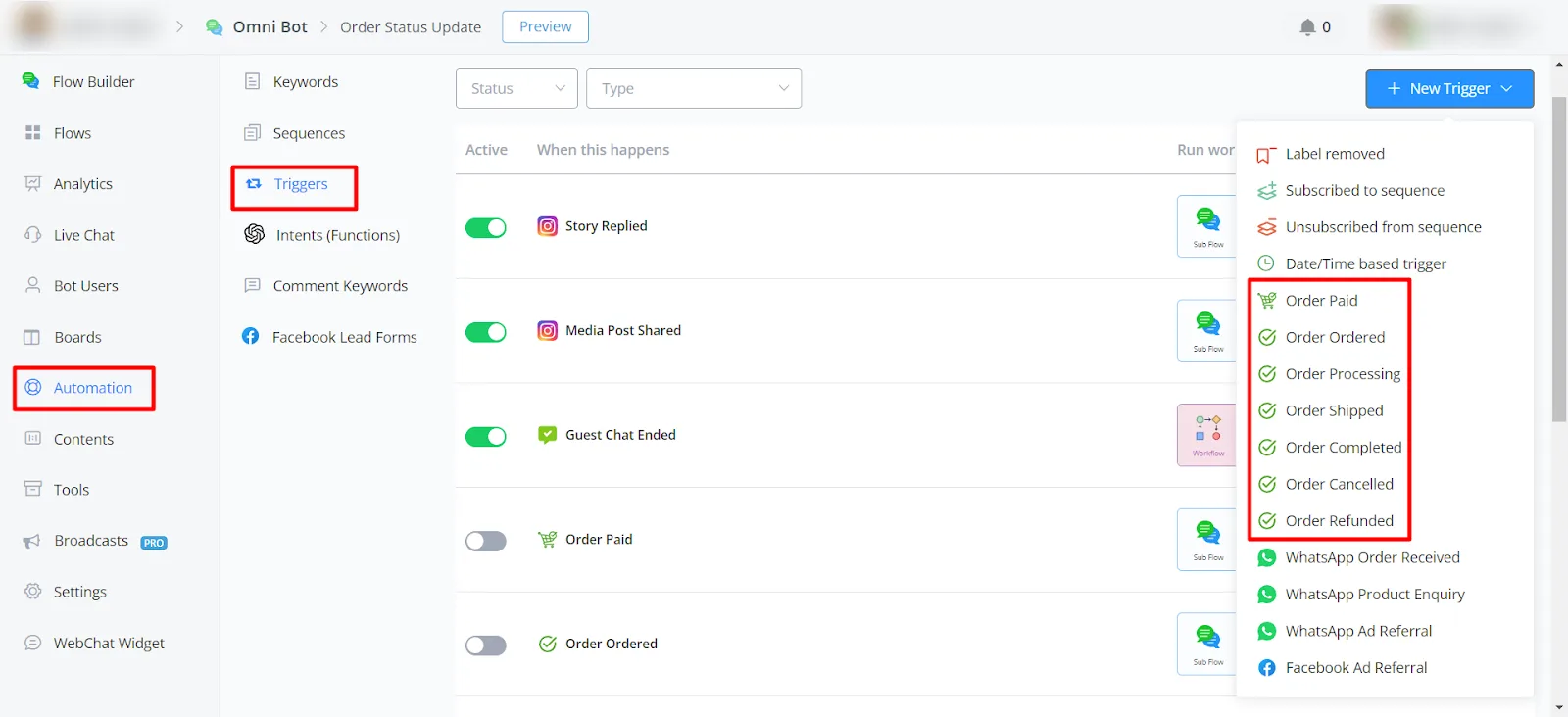
- Go to the Automation tab.
- Click "Triggers".
- Select "New Trigger" in the top right corner.
- Choose any of the order statuses.
We recommend redirecting all order statuses to a single flow and, inside it, using conditions to send customers the appropriate follow-up message.
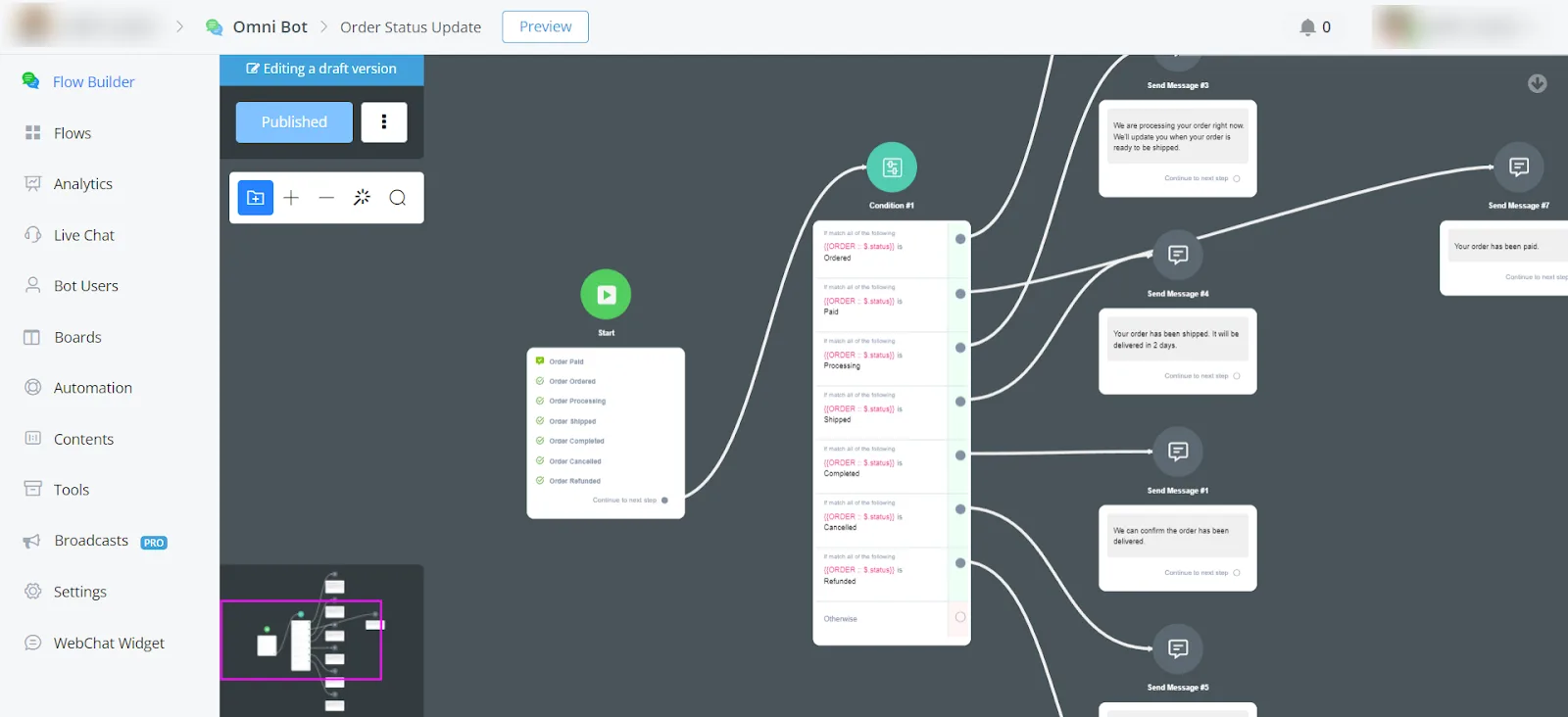
Let's walk through an example flow in which an order is placed and status updates are triggered.
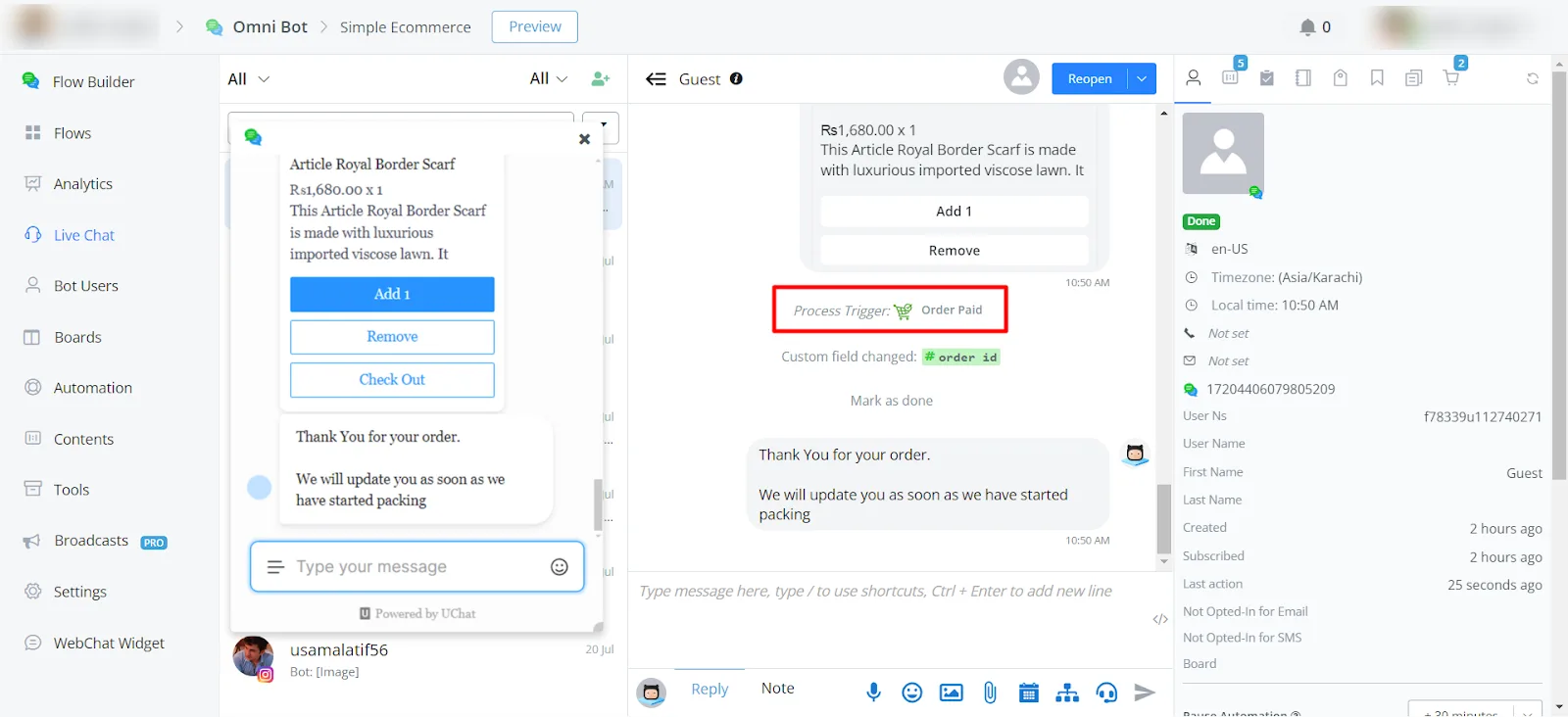
All the Order information is stored in the JSON variable ORDER, where you can access it.
- Order status updates:
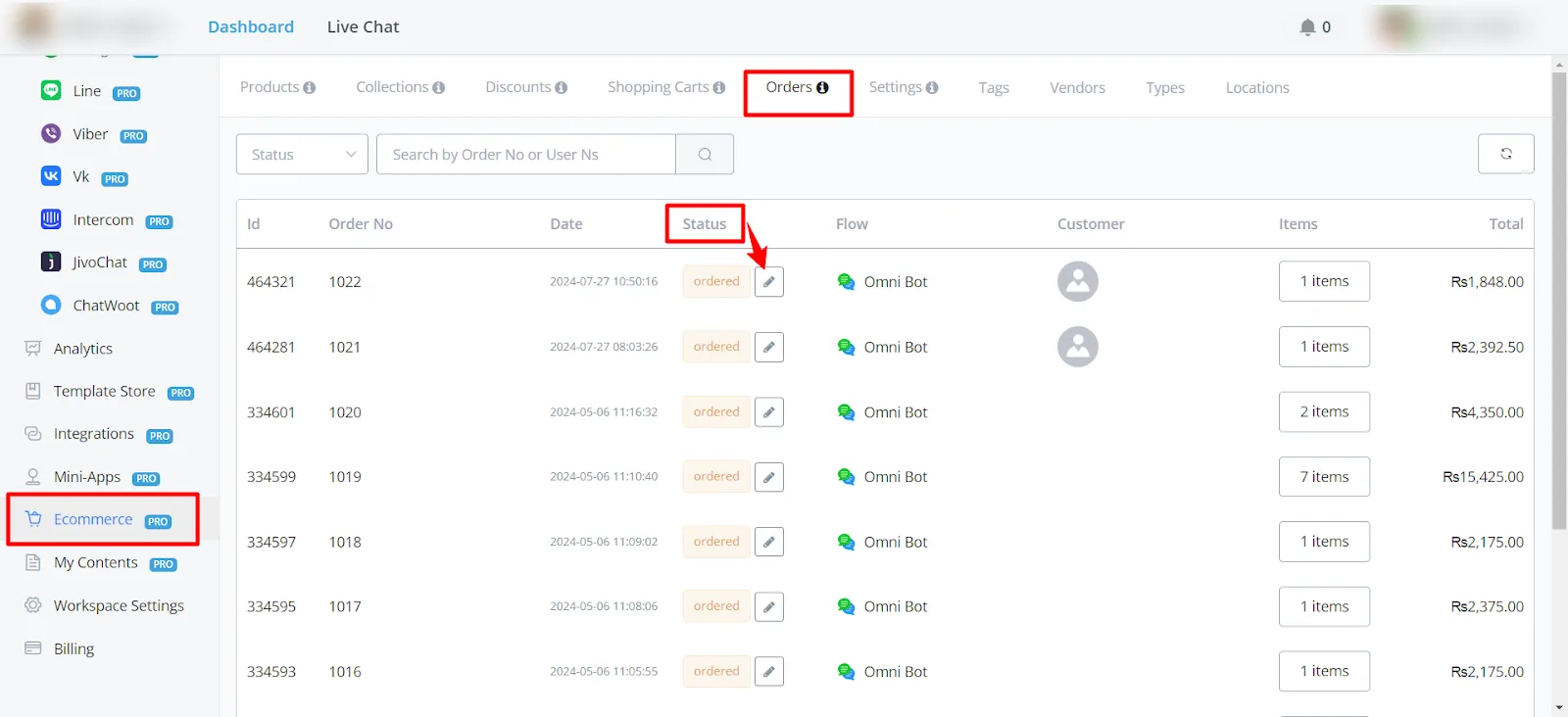
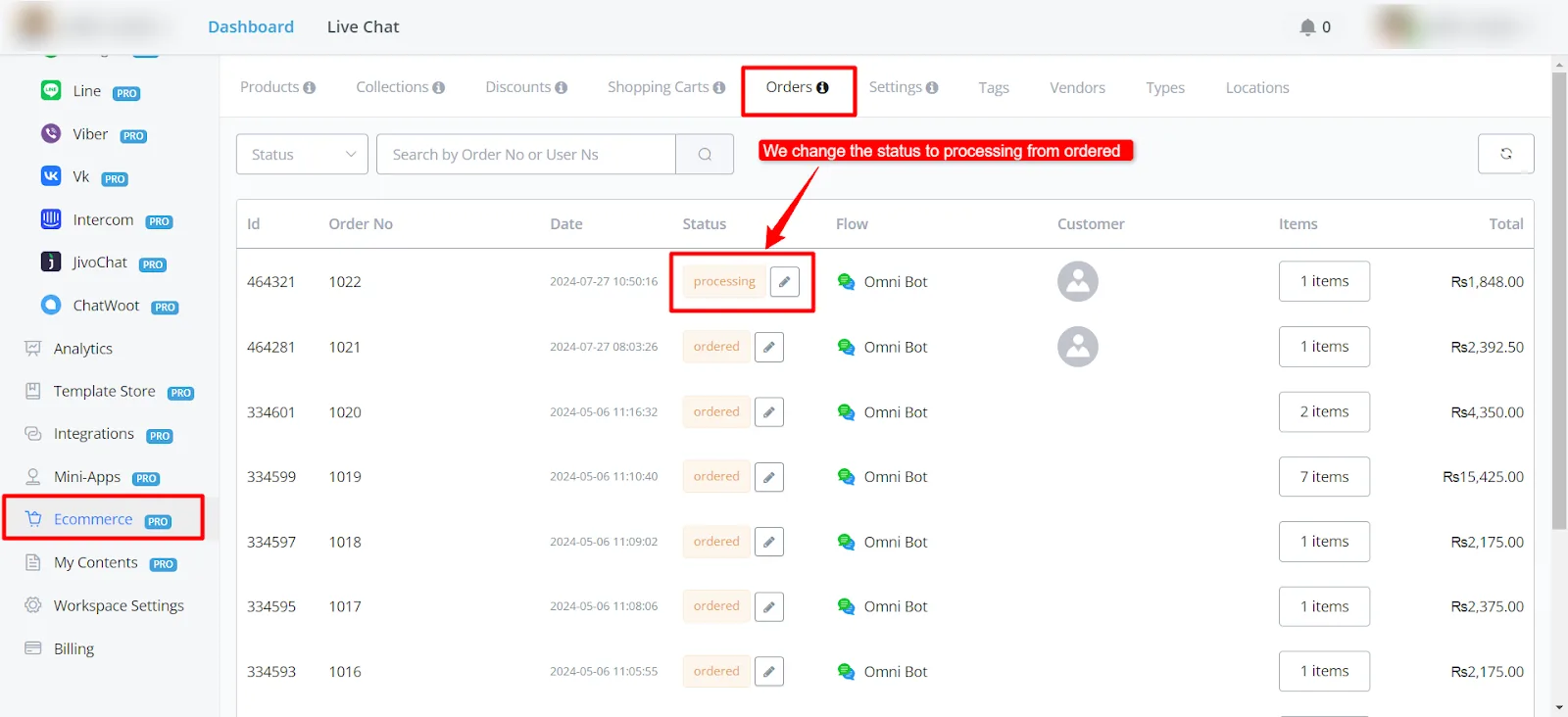
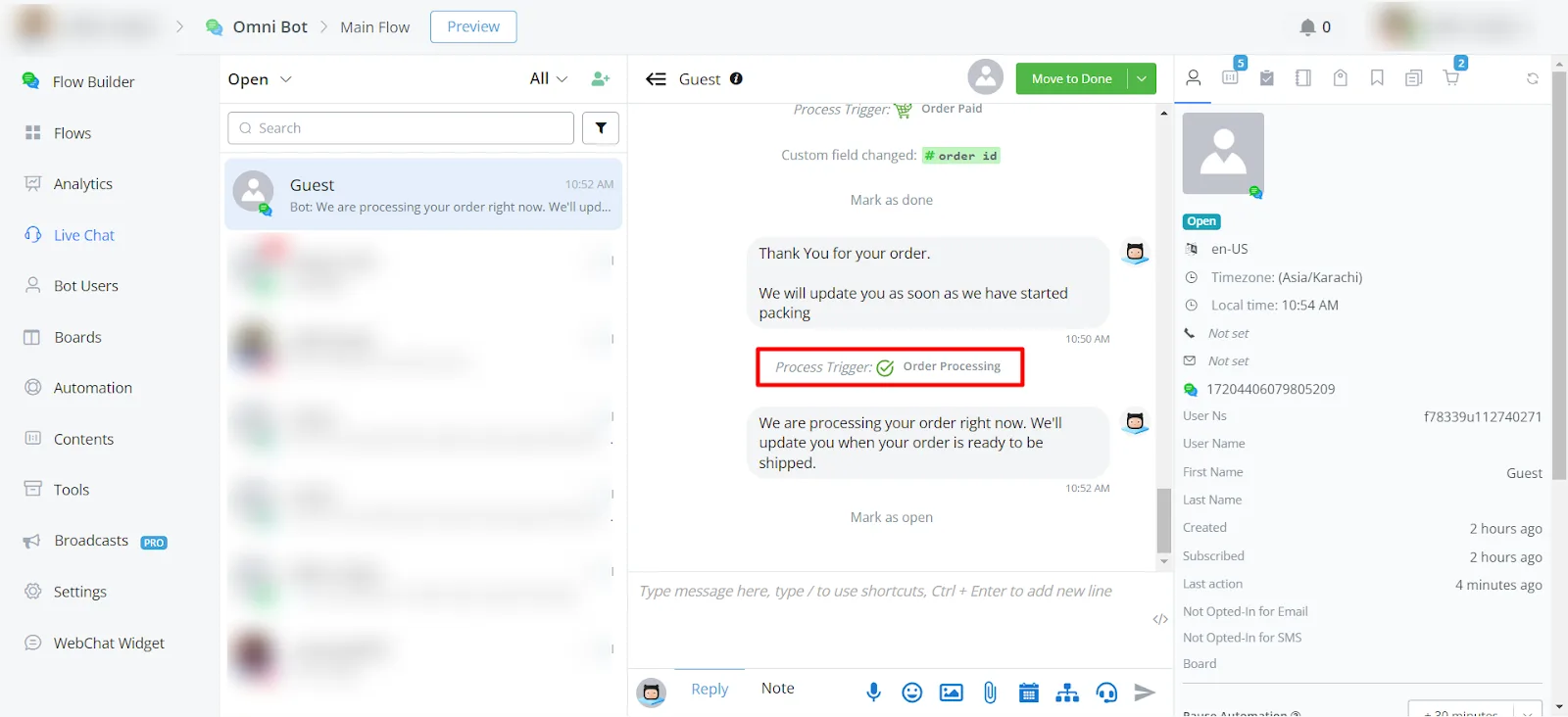
- Processing: Update the status to "Processing" and save. You will receive a message stating that your order is being processed and that you will be notified when it is ready to ship.
- Shipped: Change the status to "Shipped" and save. A message informs you that your package has been shipped and provides the tracking information.
- Completed: Set the status to "Completed" and save. A confirmation message thanks you for your order and expresses hope for future business.
- Cancelled: Update the status to "Cancelled" and save. You will receive an apology and confirmation that the order has been cancelled.
- Refunded: Change the status to "Refunded" and save. A message informs you that the refund has been processed and provides the estimated time for it to reach your account.