

Get Products
How to use the "Get Products" feature in NicoChat
The "Get Products" feature lets you search and manipulate the products listed in your e-commerce store. Below is a step-by-step guide on how to set up this feature:
- Access the "Get Products" action
In your automation flow, add a new action node and select "Ecommerce". From the options, choose "Get Products" to start the configuration.
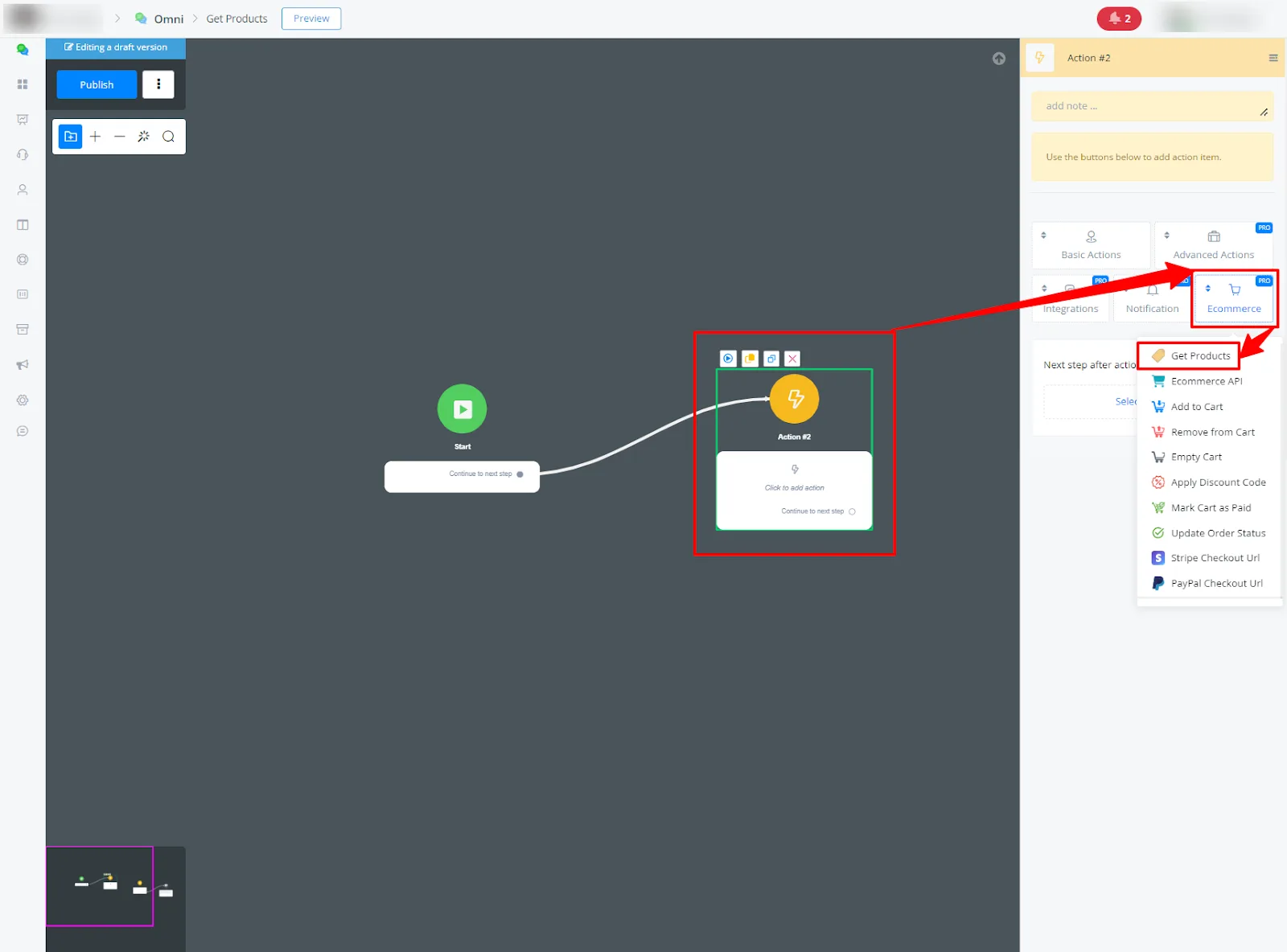
- Edit the action
Next, click "Edit Action" to customize the call parameters.
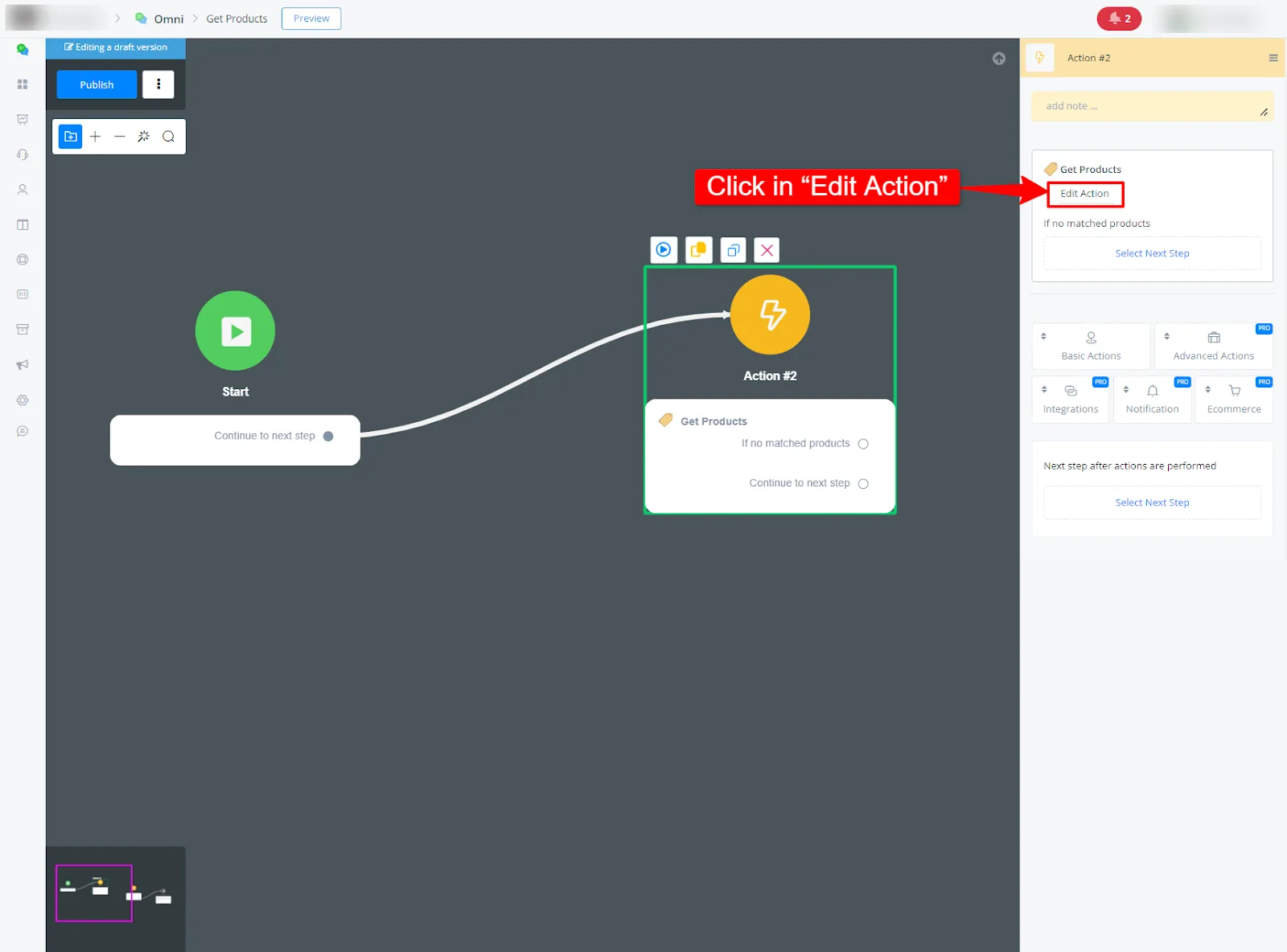
- Configure the call parameters
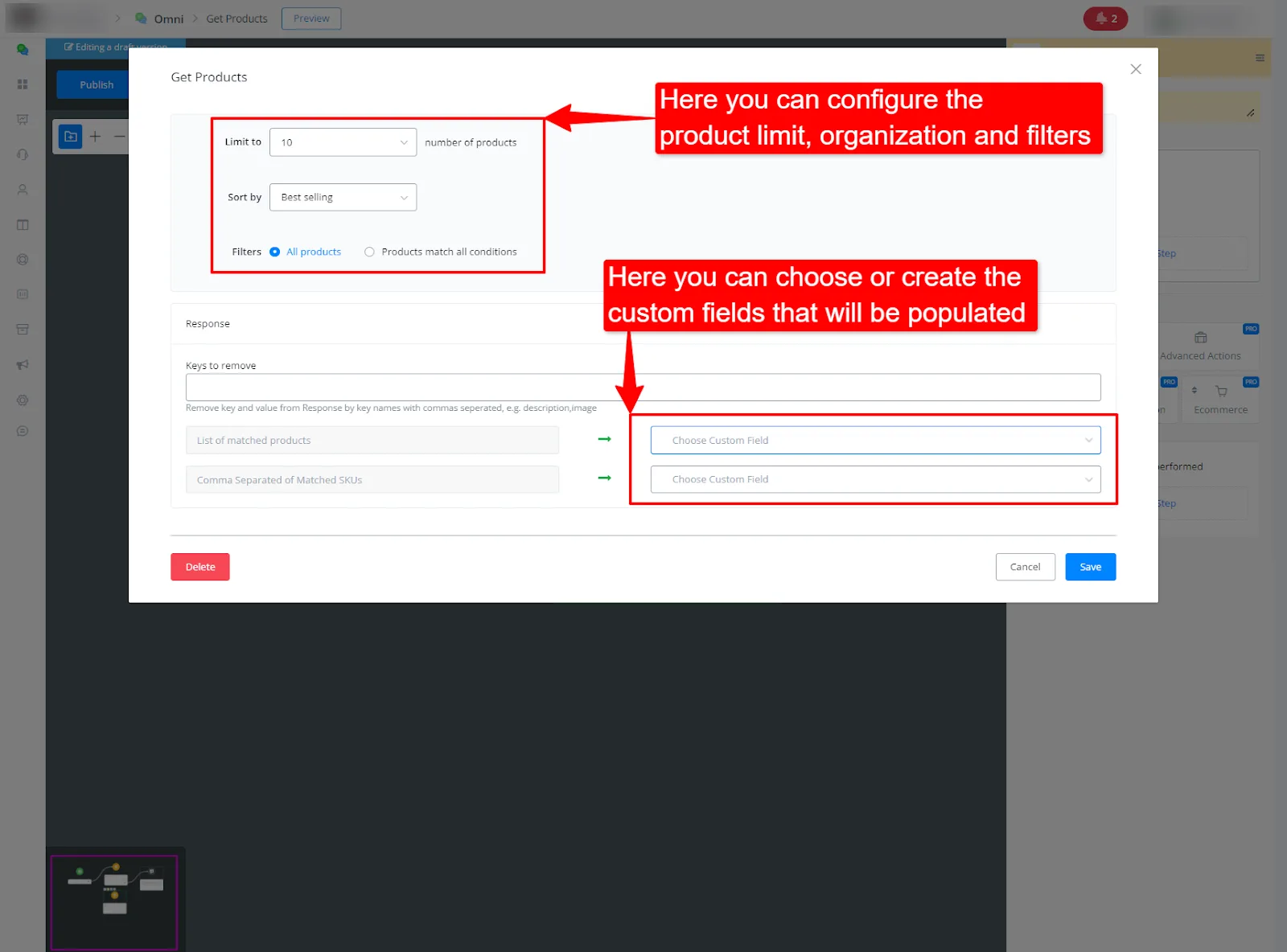
In the configuration window, you can adjust the following parameters:
- Limits: set the limit of products to be returned in the query.
- Sort by: choose how the products should be sorted (by price or by bestsellers, for example).
- Filters: select the filters you want to apply, such as category or availability.
- Custom Fields: choose or create the custom fields that will be populated with the product information.
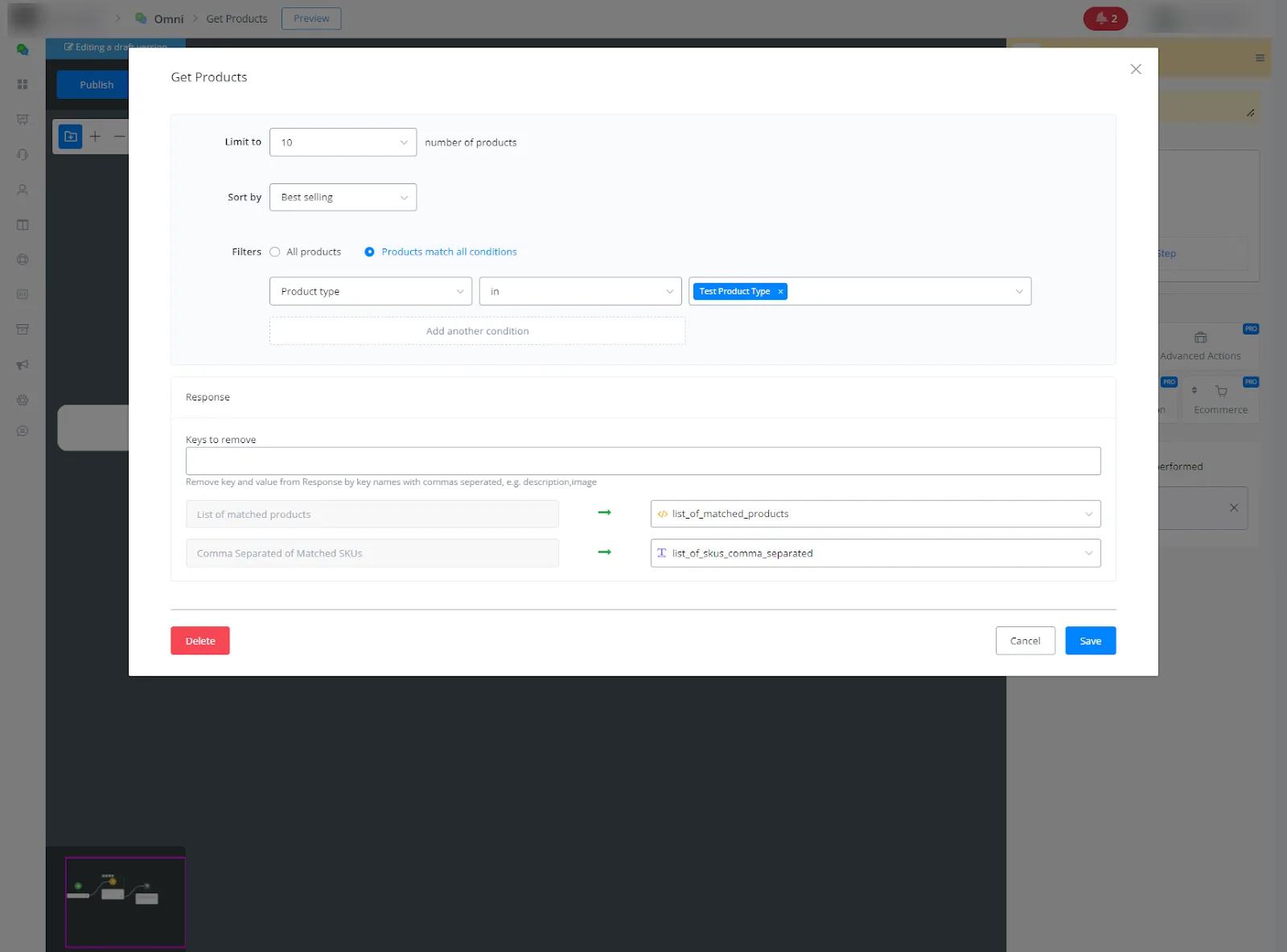
- Configuration example
Here is an example of how to set up the parameters to retrieve products with a specific filter and populate custom fields.
- View the generated JSON
After configuring the parameters, the example JSON for the call is generated automatically in the custom field you chose. This JSON can be displayed in a message or action node, for example, returning the products according to the defined settings. You can manually select the JSON data you want to work with.
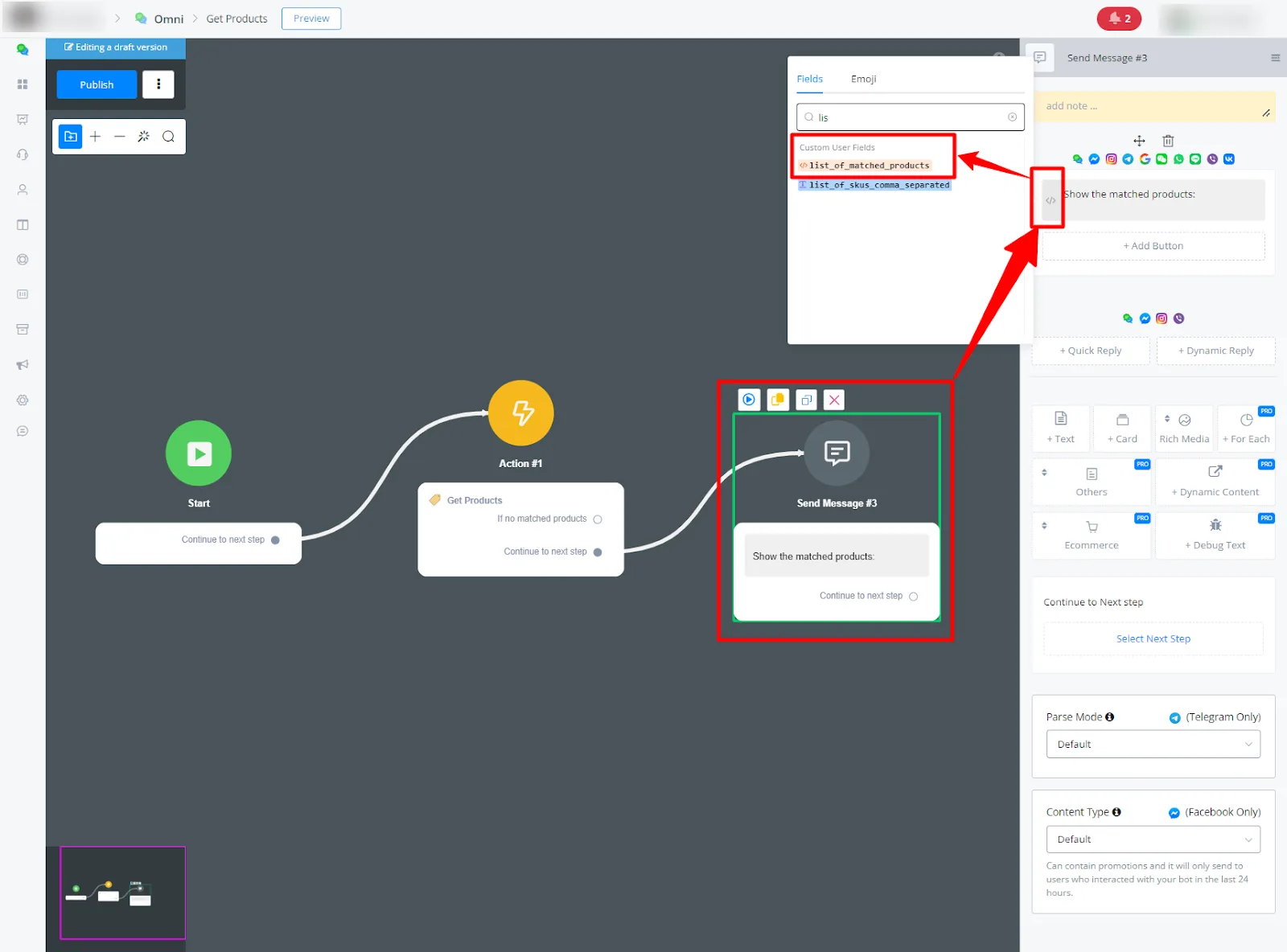
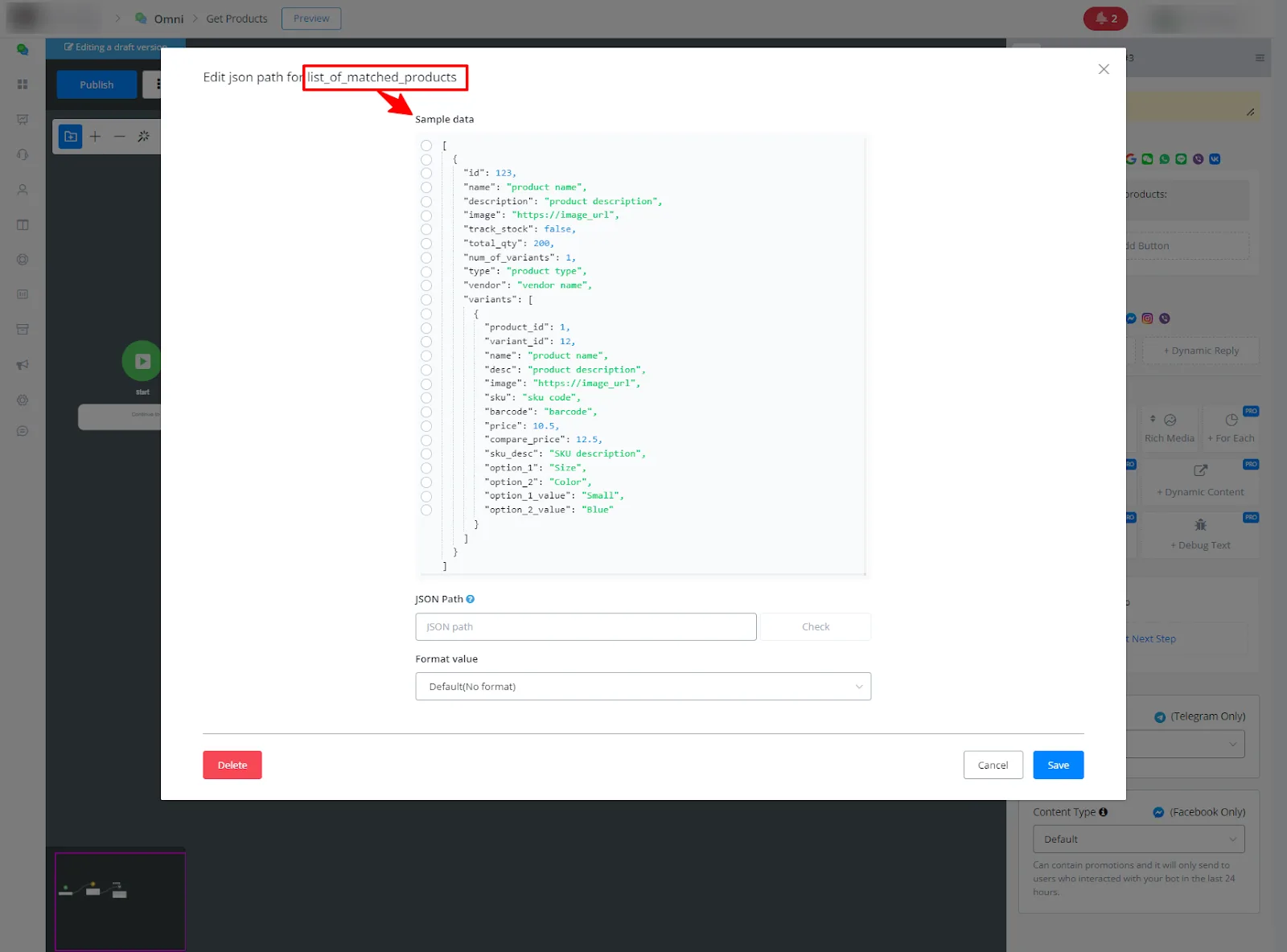
- Publish and test the configuration
Once all the settings are complete, click "Publish" and test the flow to make sure the products are returned as expected.
If you need more help, submit a ticket to the Question Forum.
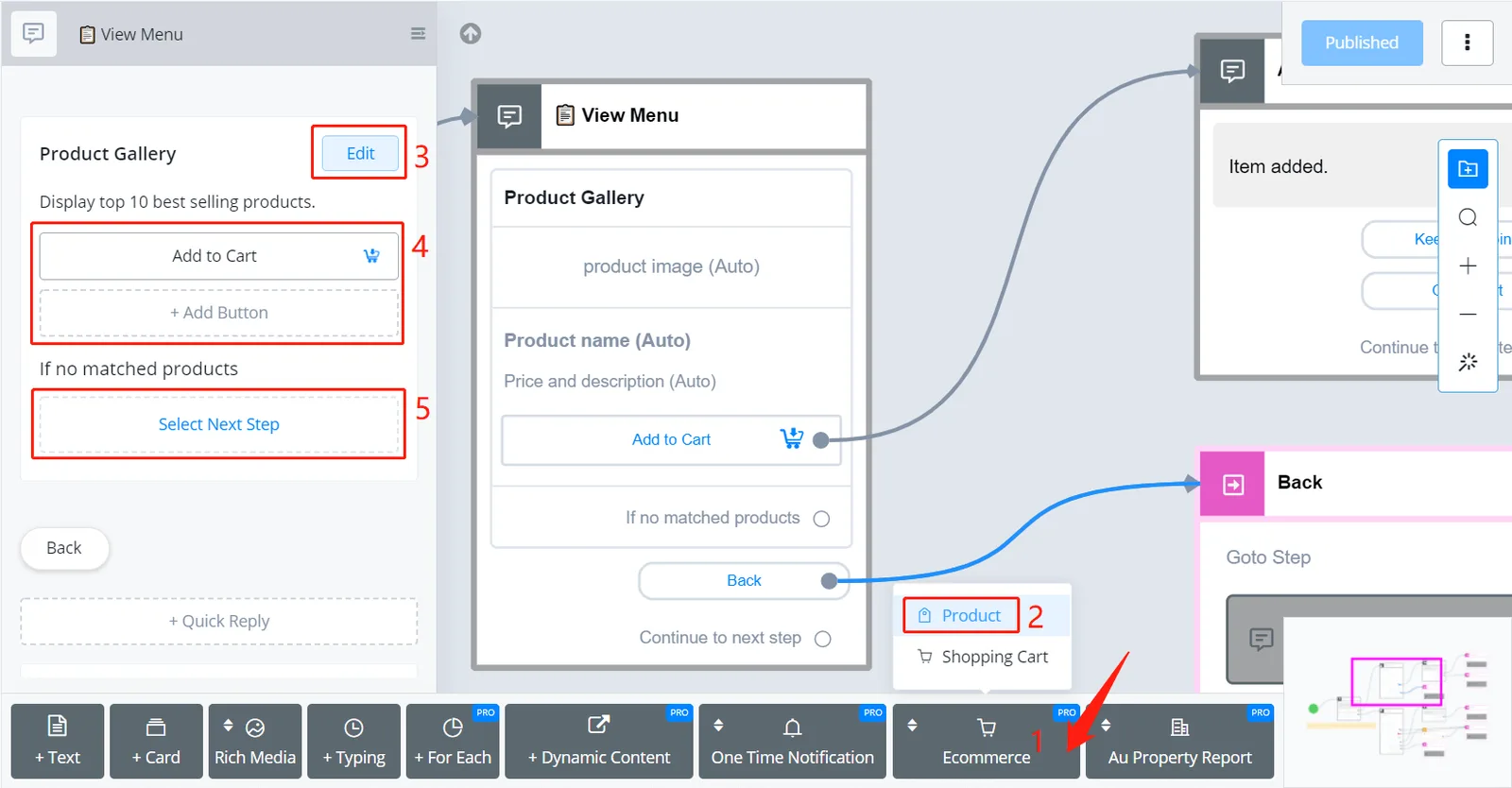
In a Send Message step, find "Ecommerce" (1) and "Product" (2) and click "Edit" (3). The buttons added in area 4 appear below each product. Don't forget to fill in the prompt in area 5, in case no product matches.
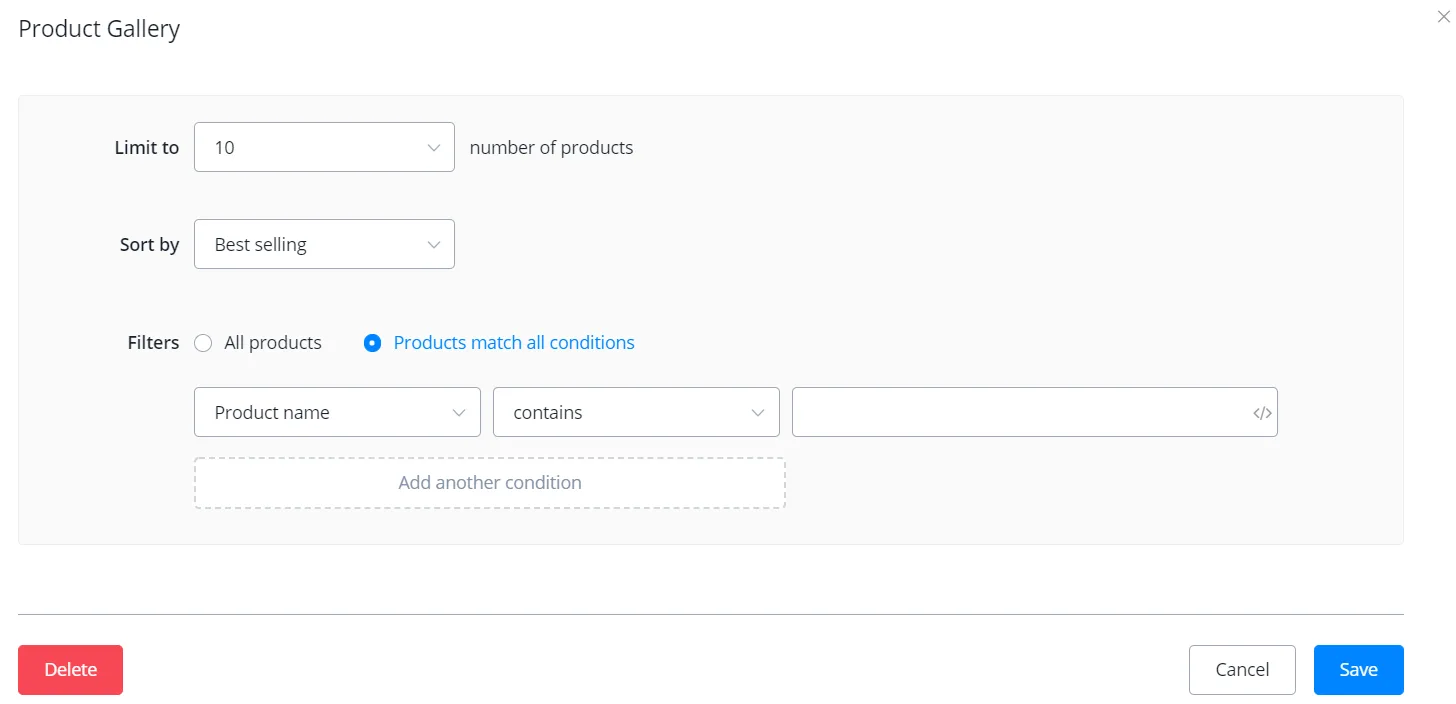
- Choose how many products to show, from 1 to 10.
- Select a sorting condition according to the user's choice.
- Set a filter with as many conditions as needed.