

Notification (Actions)
This action lets the flow send notifications through several channels, including:
- Slack
- SMS
- Phone call
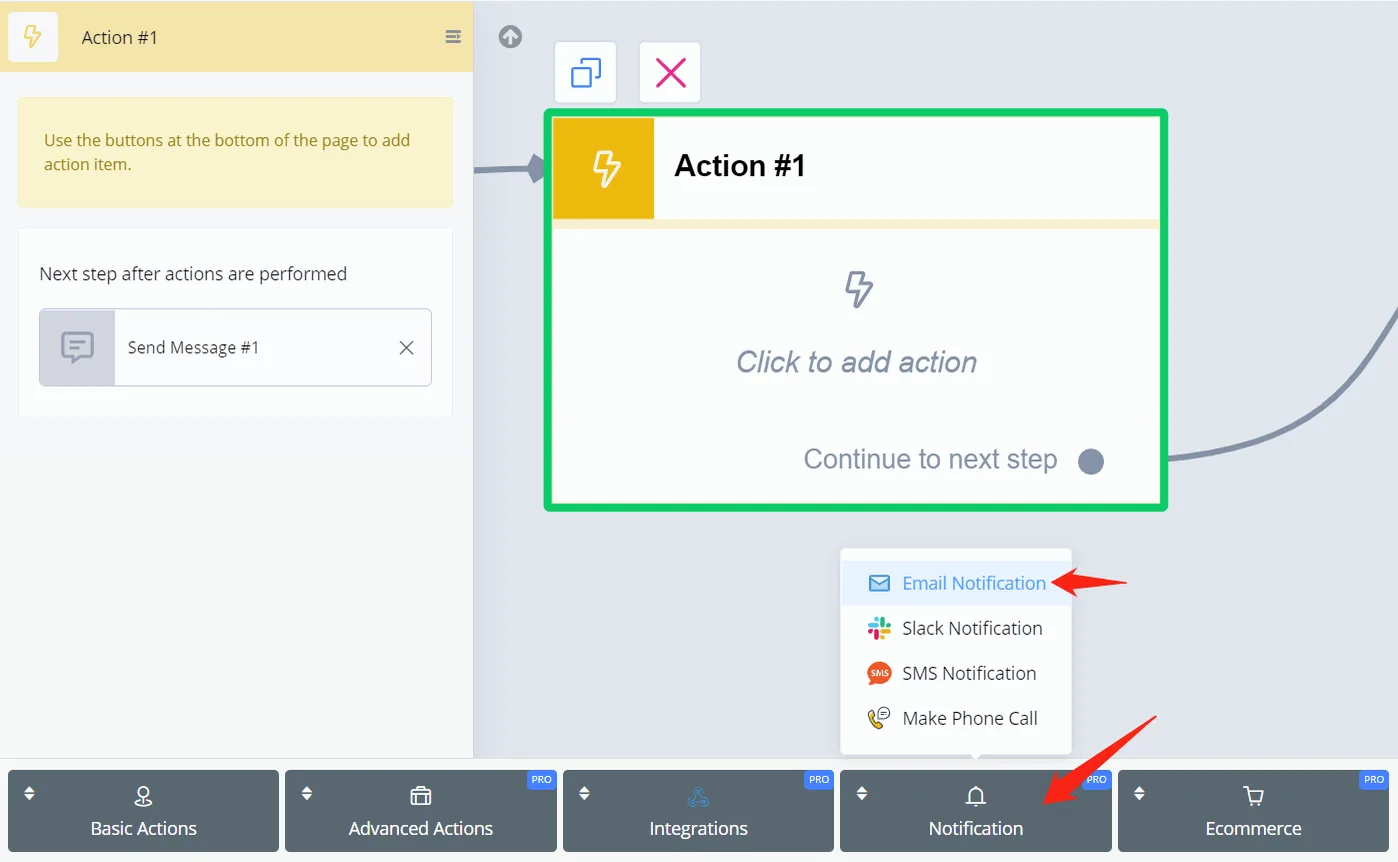
It is all in “Notification”, in your Action step.
To send an email notification, you need to set up your email integration first. See how to set up the email integration.
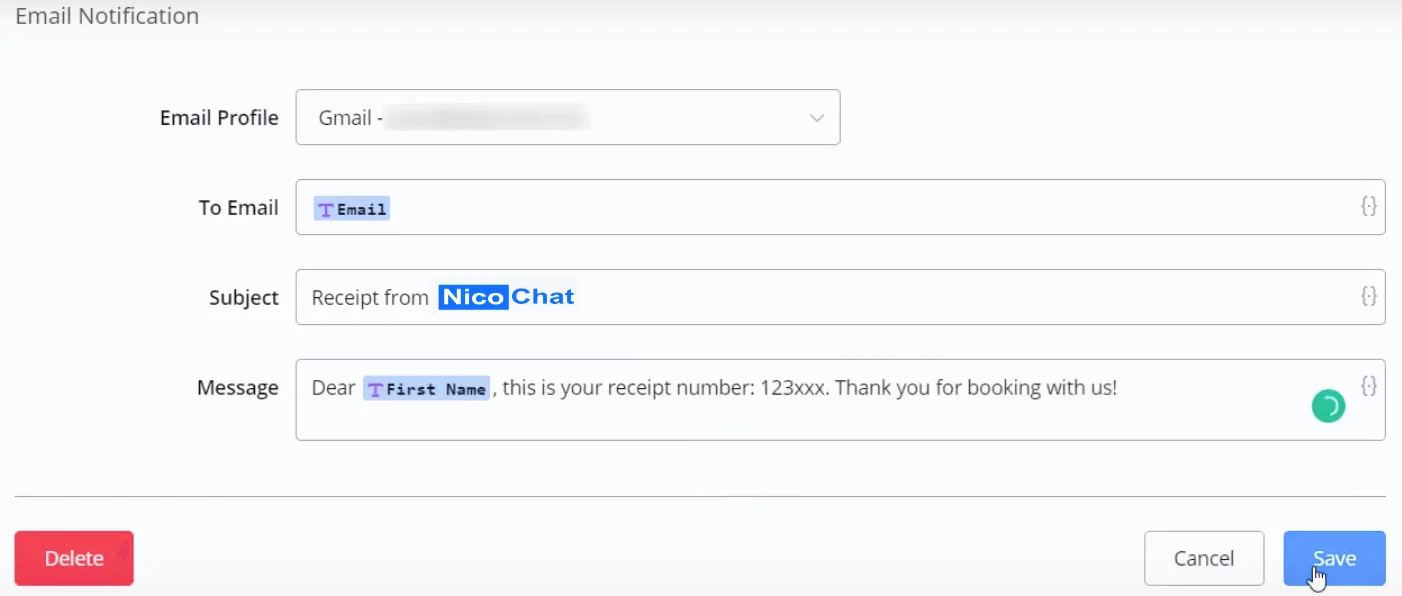
Unlike the "Send Email" step, the email notification only supports text messages. See the "Send Email" step on the "Email Integration" page if you need other message types, such as images, buttons, files, etc.
Put the sender's address in “Email Profile” and the receiver's address in “To Email”.
Likewise, to send a Slack notification, you need to set up your Slack integration first. See how to set up the Slack integration.
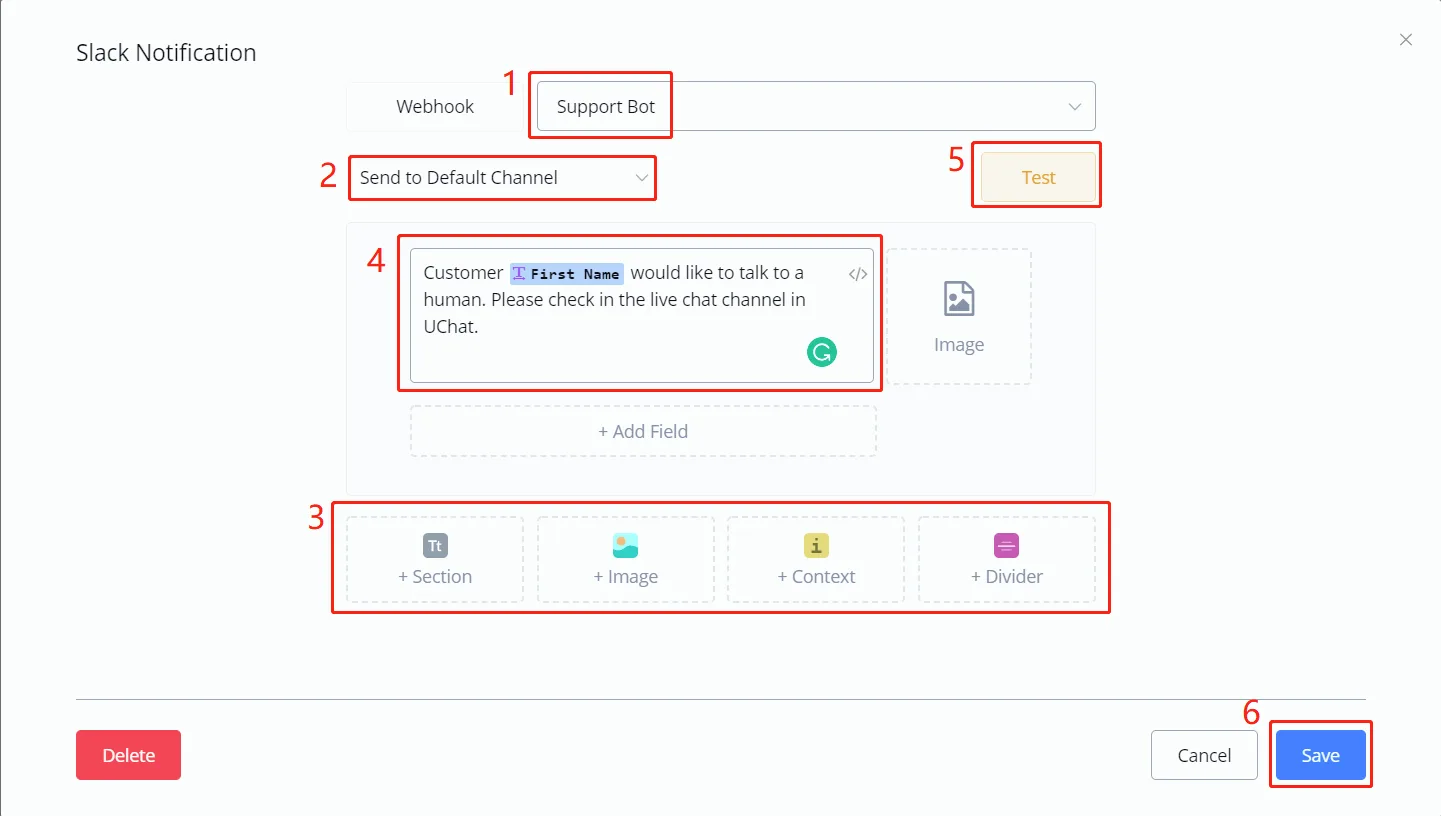
In the pop-up window,
- choose a webhook
- choose the default channel or name another one
- pick a message type and add as many as needed
- for example, in the "Section" type, put your message in area 4 and add a photo or field value if needed
- use the "Test" button to send the message and adjust whatever is needed
- when you are done, click "Save".
Set up a sender number before making an SMS notification. See how to add a phone number.
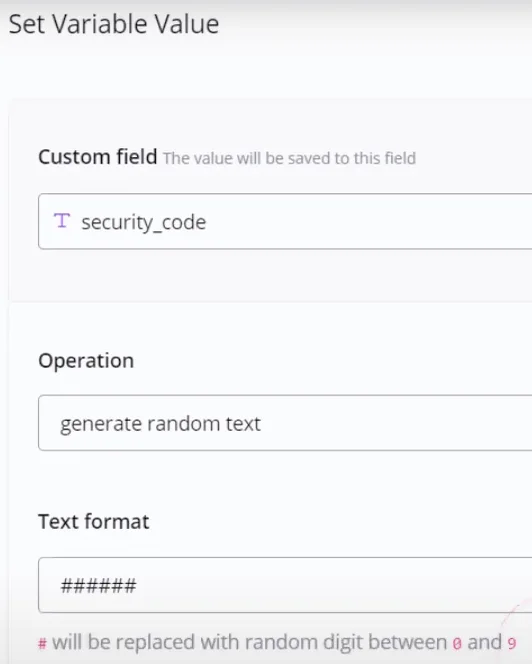
You can use the "generate random text" operation with a text variable to get a random security code and send it out for verification, as shown in the pictures.
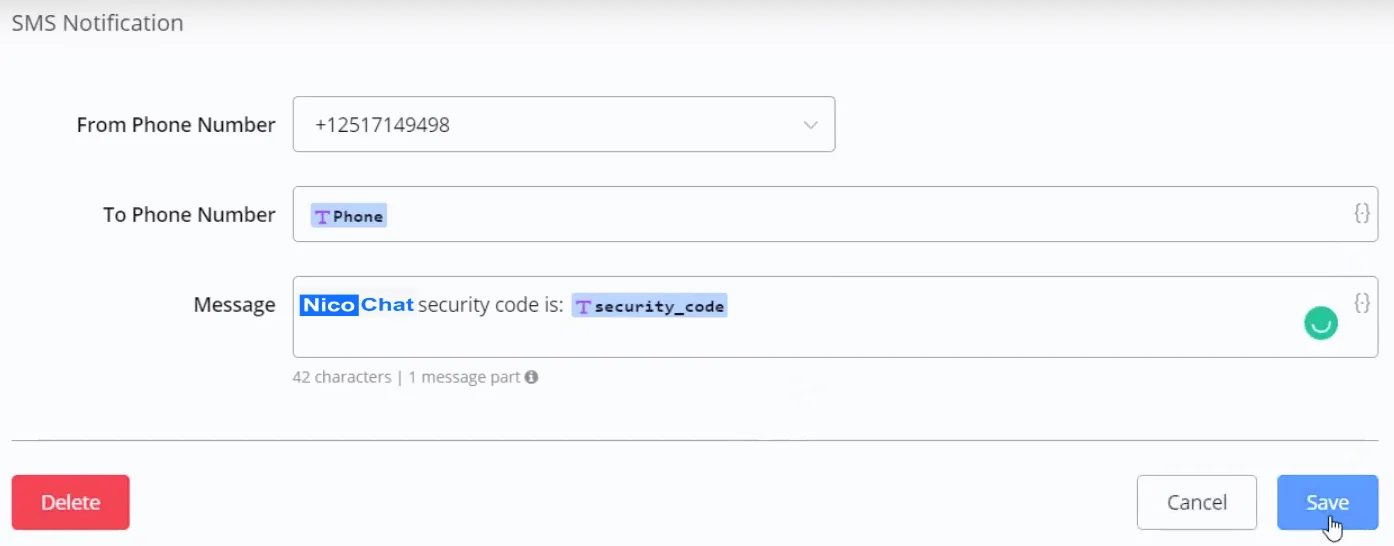
Choose a sender and a receiver, write the message and you are done!
Just like the SMS notification, a phone number is needed to make a phone call. See how to add a phone number.
Moreover, you need to create a voice flow connected to this phone number; otherwise, your Voice Bot will not know what to say.
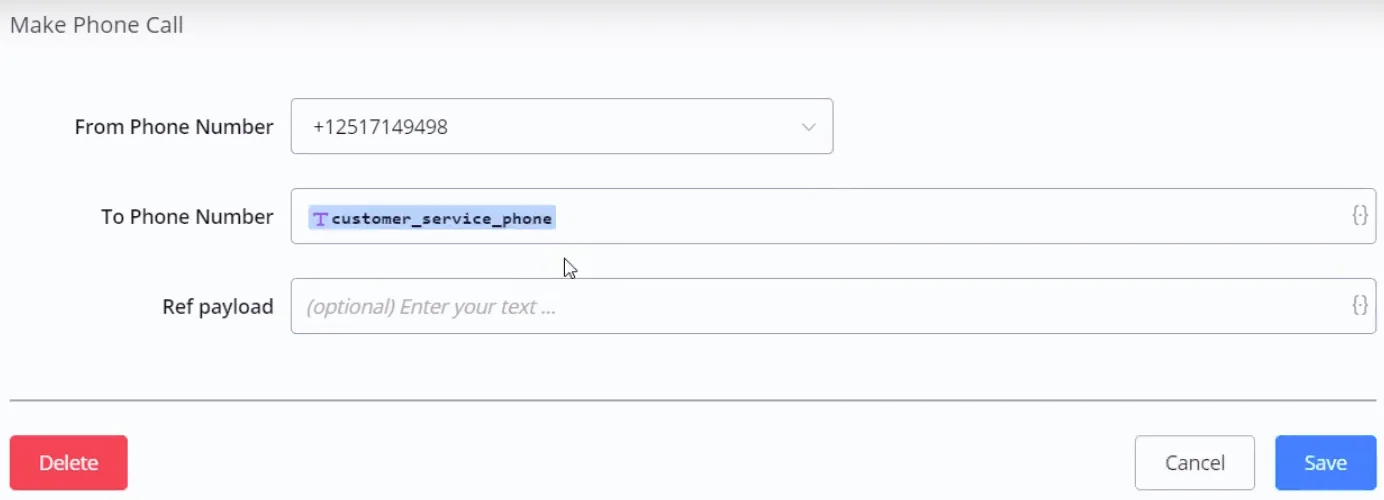
The ref payload is used to pass a message on to the Voice Bot.
For example, set the payload to "support" here in the notification action and in your voice flow:
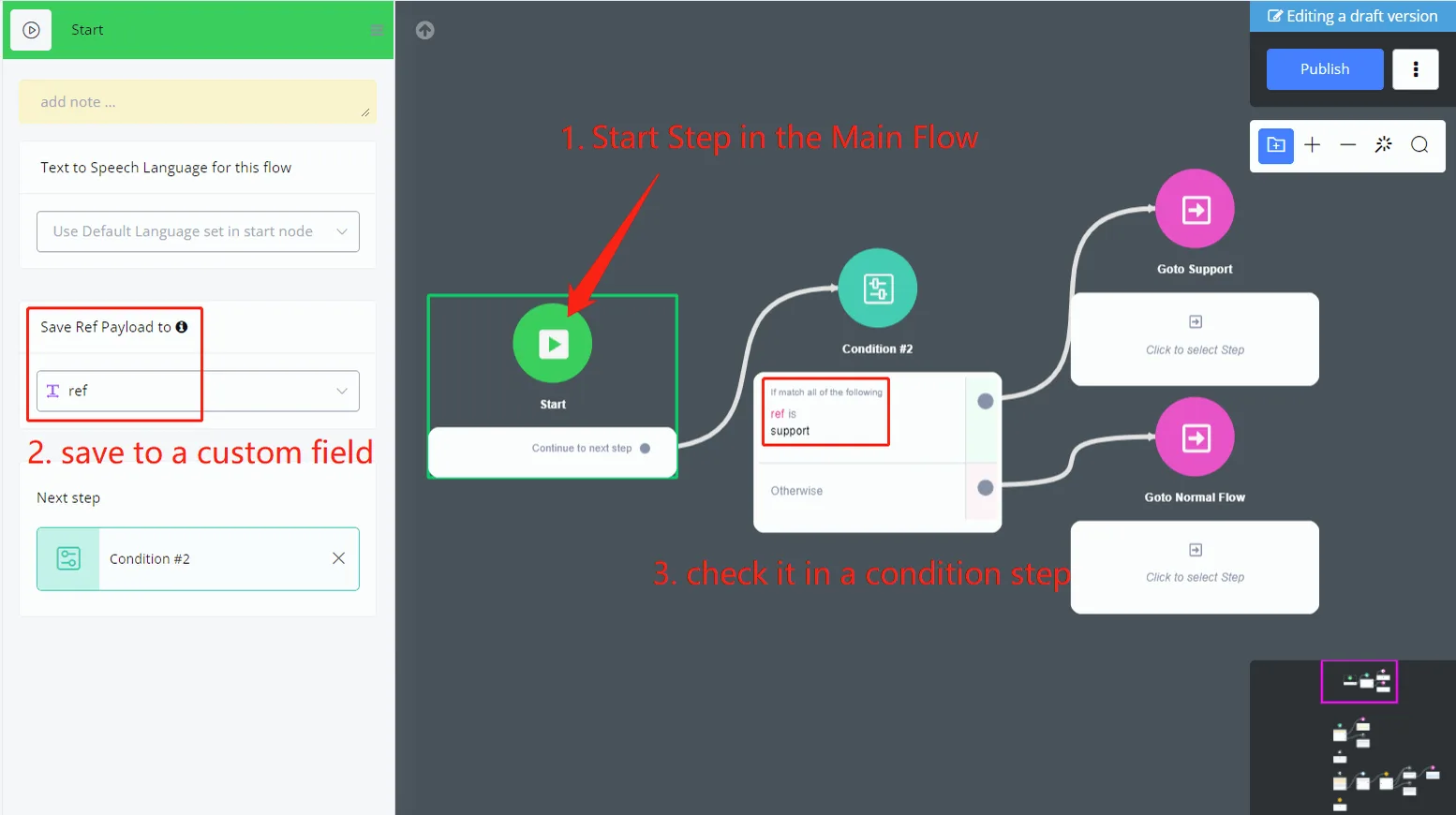
Go to the start step of your main flow and save the ref payload in a custom field.