Move to Board
We are just creating the Action Block and adding the Board function to it to test how it works.
Learn more about this feature here: Boards (Kanban, Pipeline)
We are just creating the Action Block and adding the Board function to it to test how it works.
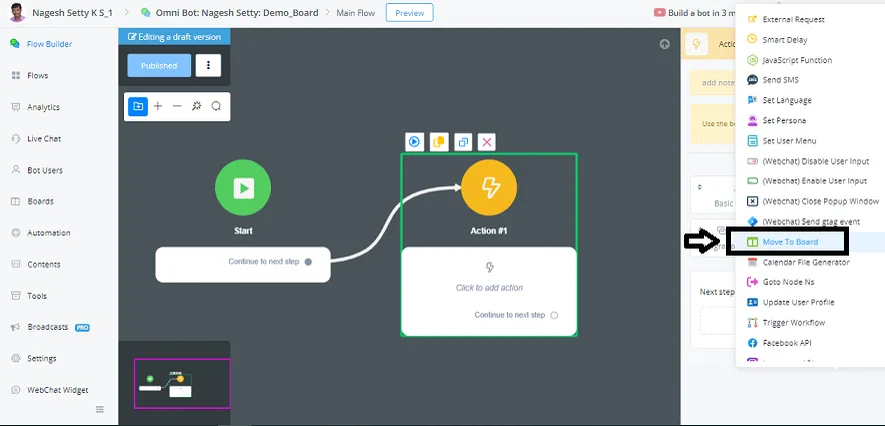
In the Action Block -> go to Advanced Actions -> Move to Board function.
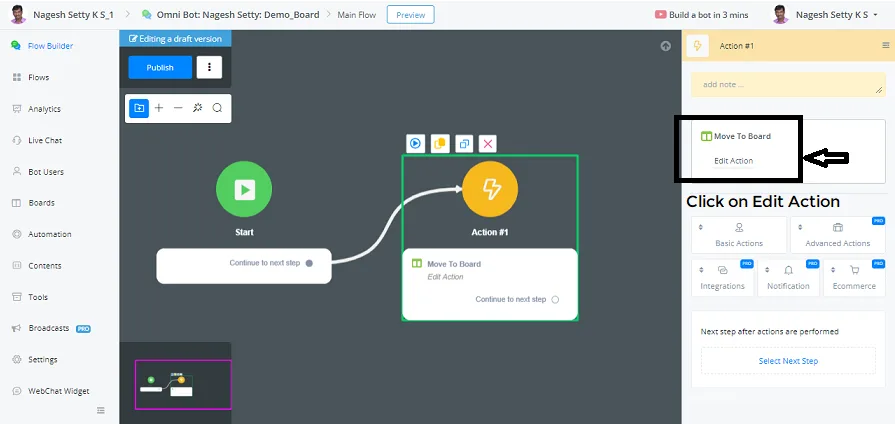
Next step -> Click on Edit Action in the Board Function.
You need to select the Topic to position the User at the end of a Process.
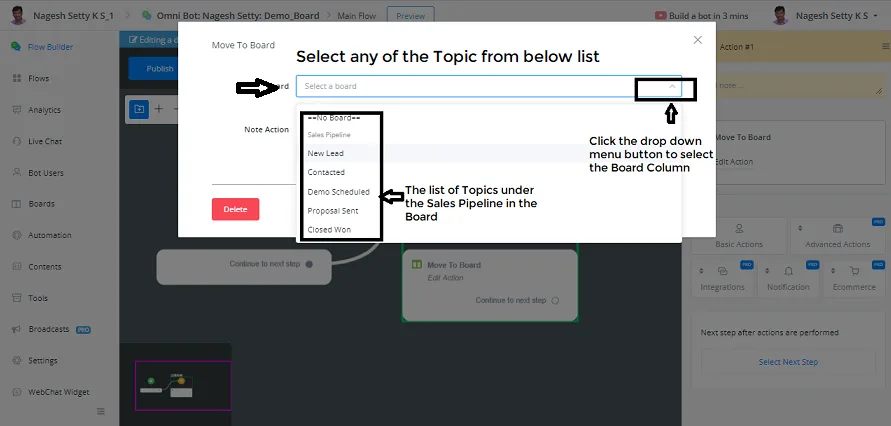
Now, let's say the user is arriving at the platform for the first time; so we select the topic New Lead.
You can also add a Note to the action taken, choosing among the 3 options in the drop-down menu:
- No change
- Update Note
- Clear Note
Now let's select Update Note in Note Action and Info in Note Type.
Since we are adding the user as a new lead, leave the note like this: {{First Name}} is our new sales lead.
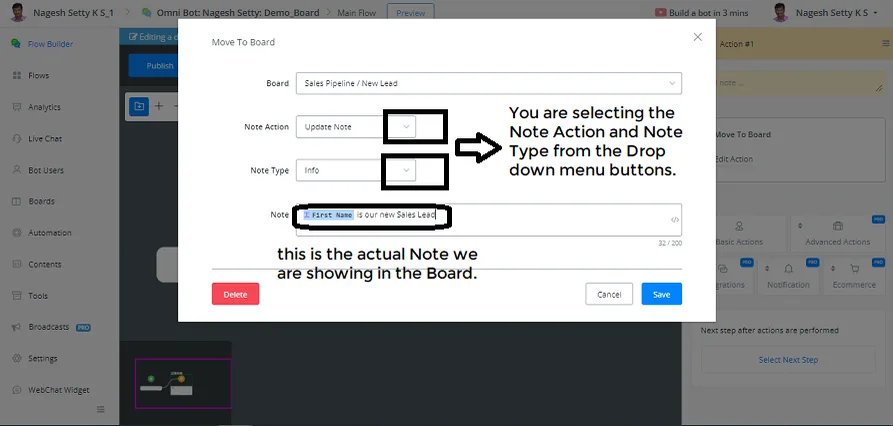
Now we can save the Note Details above in the Board.
Now let's preview this Action Block with the Board Function on the pop-up web page.
We don't see any action on the web page, because we are testing only the action block.
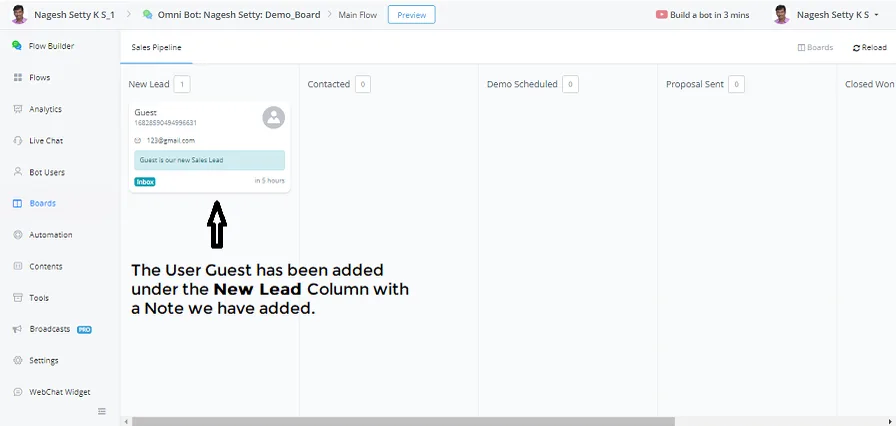
Now we close the test web page, open the board and refresh the page. See the magic:
In the New Leads column of the Board, the Guest user has been added. You can also see the Note: Guest is our New Sales Lead.
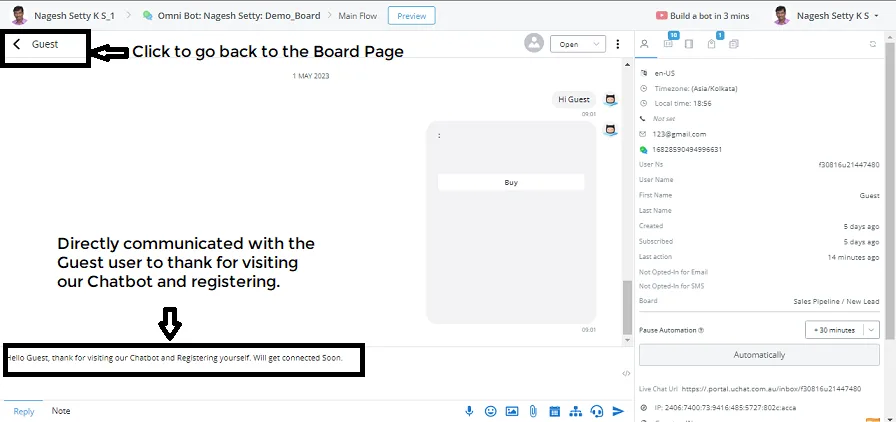
Now you can see the details by clicking on the Guest user and talk directly with them inside the platform, in NicoChat.
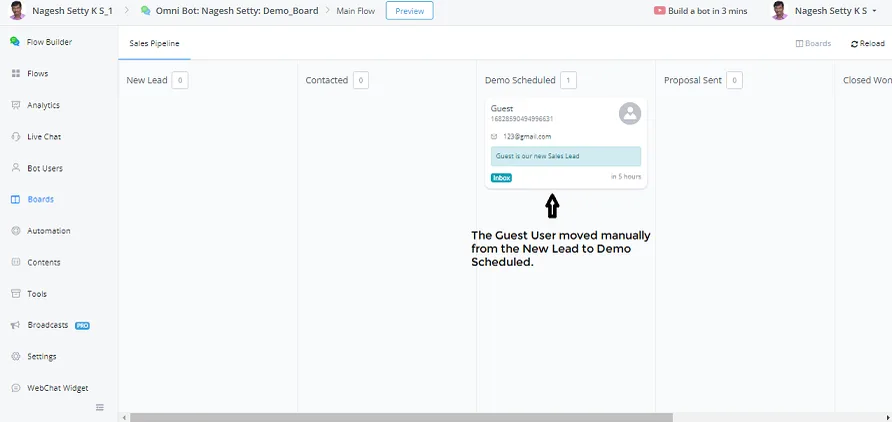
Now you can also drag them manually through the various stages, from left to right and from right to left.
We can also use Automation: each time a user performs a certain action, you can move them to the desired Board. It is possible to move them through all the stages of the Board.
Now we have manually moved the Guest user from New Lead to Demo Scheduled.
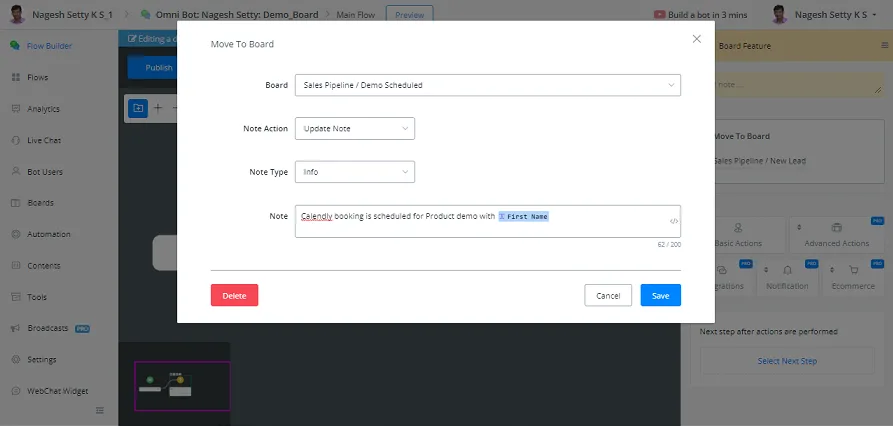
For example, to automate this: if a product demo has been scheduled with the Guest user using the Calendly integration, we can also trigger an Action with the Board Function, in which the following is done:
- Topic or Stage - Sales Pipeline / Demo_Scheduled is selected.
- Note action: Update Note
- Note type: Info
- Topic: The Calendly booking is scheduled for the product demo with {{First Name}}
This way, the Board parameters can be set when a Calendly appointment happens.