

Starred messages in Live Chat
Save important messages and come back to them later
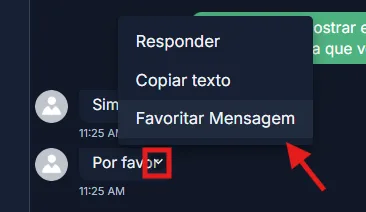
To save a message in Live Chat, open the message options and select Star message. A star appears on the message, and it joins your Starred messages list.
Use the star for what you will need later: customer requests, follow-up items, important answers, and useful parts of the conversation.
1
Open a conversation in Live Chat
2
Open the options for the message you want to save
3
Select Star message
The star appears on the message, showing that it was saved.
1
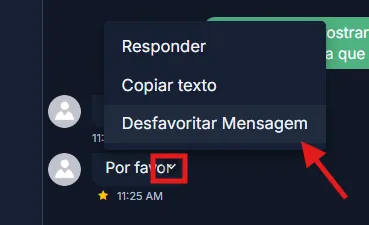
Open the message options
2
Select Unstar message
The message leaves your starred list.
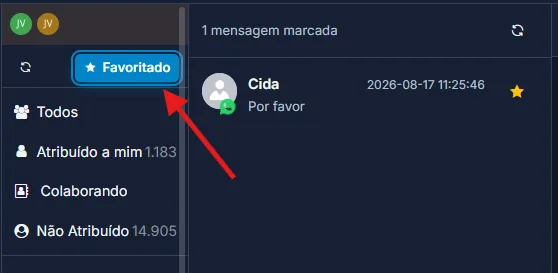
Open Starred messages in Live Chat to review everything you saved. Selecting a starred message opens the matching conversation at the exact point of that message.
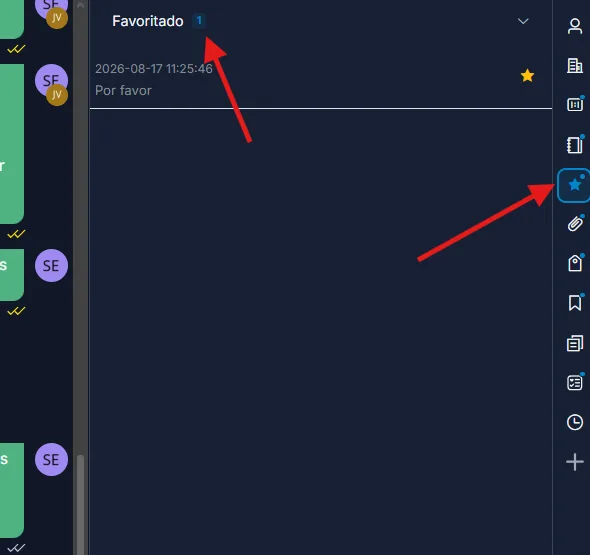
In the contact view, the starred message count shows how many messages you saved from that person. It is a quick way to spot conversations with important notes or pending follow-ups.
- Starring a message does not send any alert to the customer.
- Starring does not change or delete the original message.
- Starred messages are private to your account: each team member has their own list.
- You can star and unstar at any time.