Set Variable Value YouTube video (unavailable for embedding)
2026-08-12
This action allows you to store a value inside a variable or a custom field. It is very useful when you want to collect data from your users.
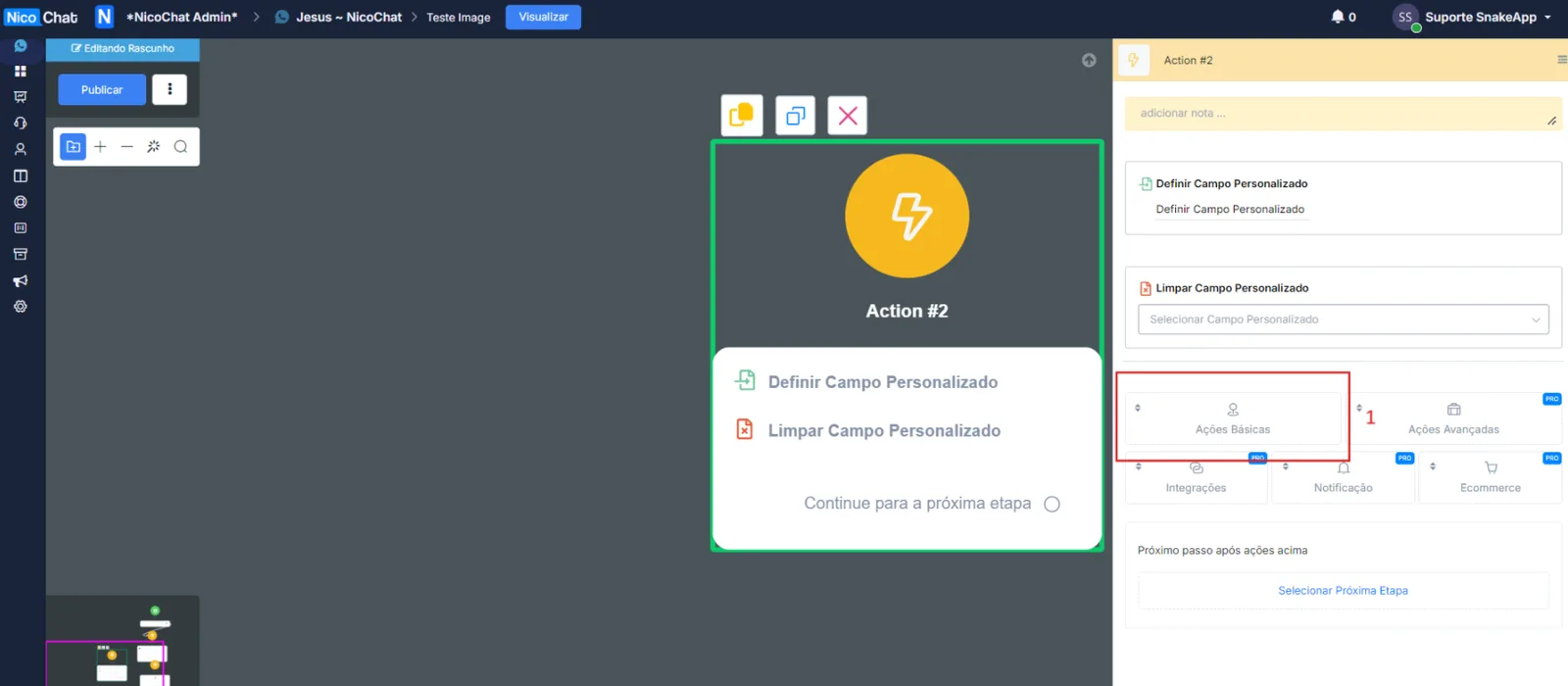
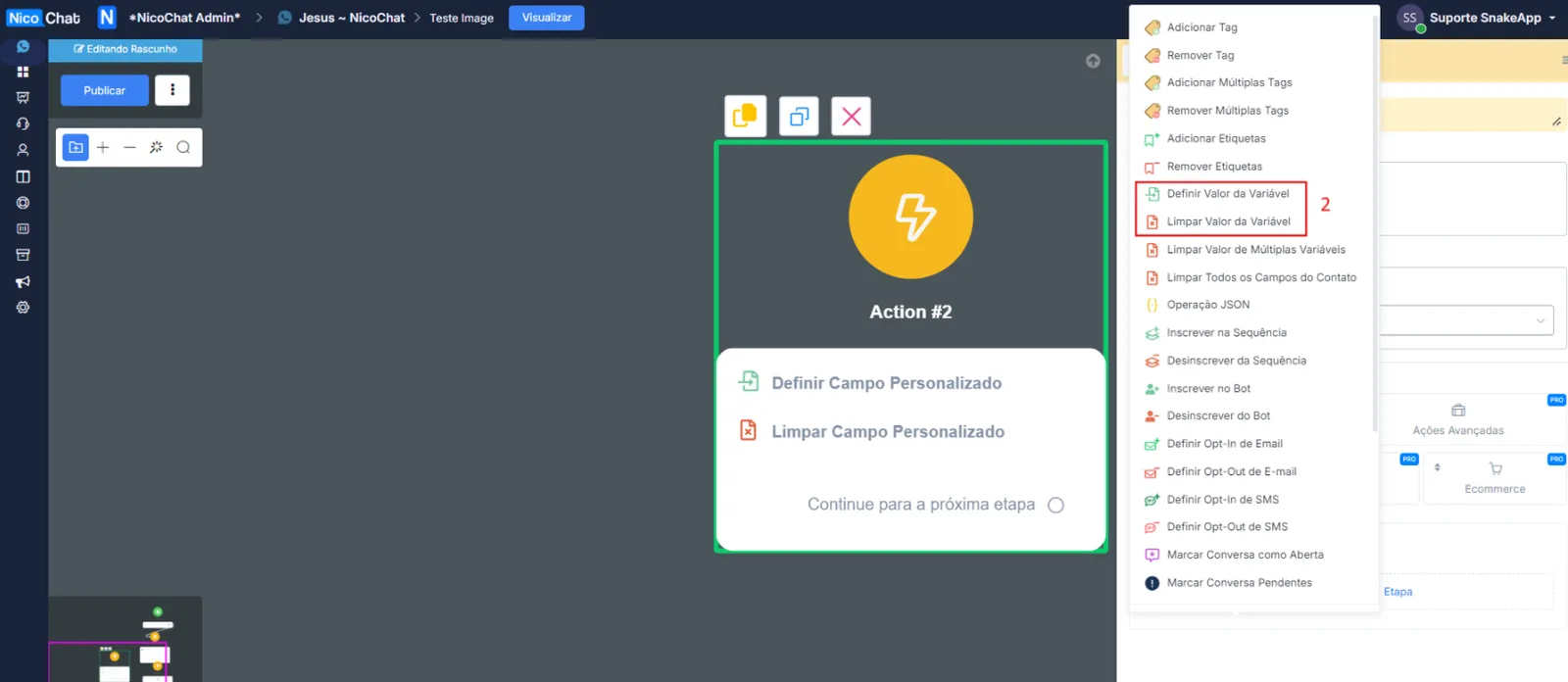
The different types of value After clicking the Set Custom Field action, you choose which custom field needs its value updated.
You can enter some data or even another custom field as the value.
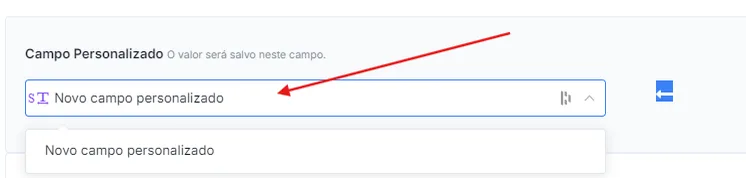
If you need to create a new custom field, just type the name and choose the type of custom field you want to create.
NicoChat provides several built-in operations to modify variables.
There are 6 types of variables in NicoChat:
Type
Store
Example
Operation
Text
letters, words, sentences...
Hi, NicoChat.
cut, change case, encode, decode...
Number
number
123.45
+ - x ÷, mod, power, log, root, round...
Boolean
"yes" or "no"
yes
assign
Date
date
2021-03-30
format, add months/weeks/days
DateTime
date and time
2021-03-30 16:52:00
format, add months/weeks/days/hours/minutes
JSON
a series of variables
{"name":"jack", "age":"10"}
load, get, update, remove, count, sum, average, sort, shuffle, reverse...
Clear Custom Field / Clear JSON To clear text, number, boolean, date and date and time variables, use the Clear Custom Field action.
To clear the JSON variable, use the Remove All Items operation in the JSON operation .
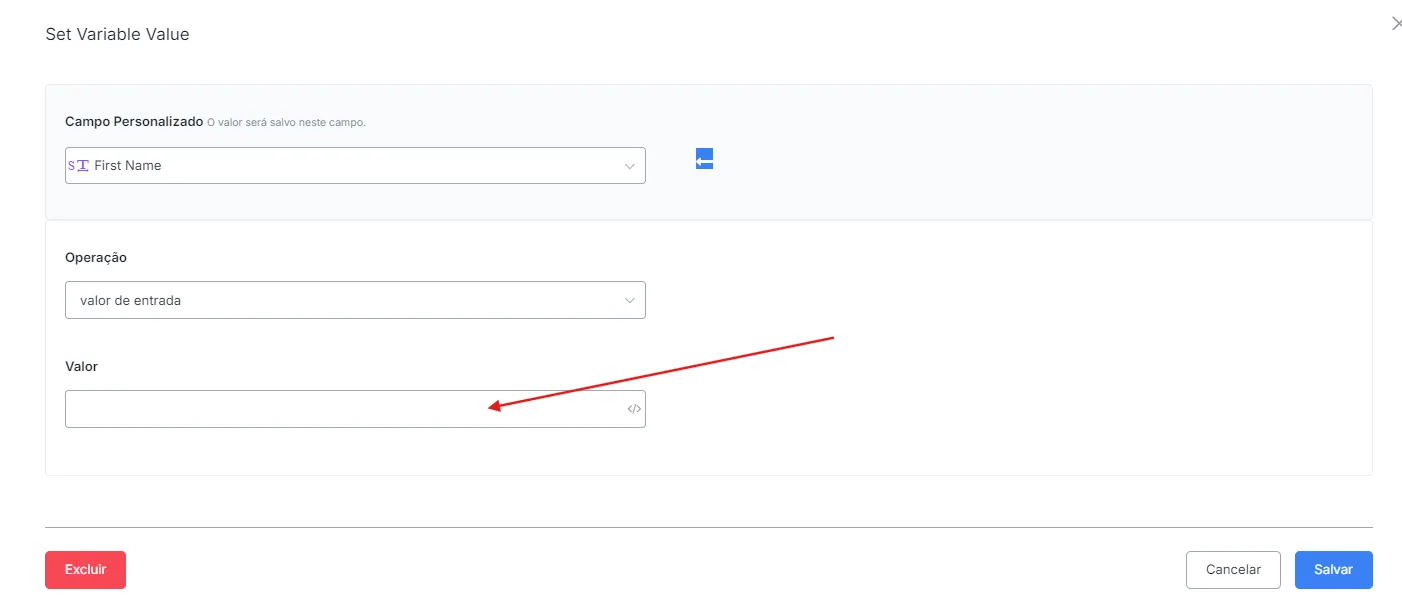
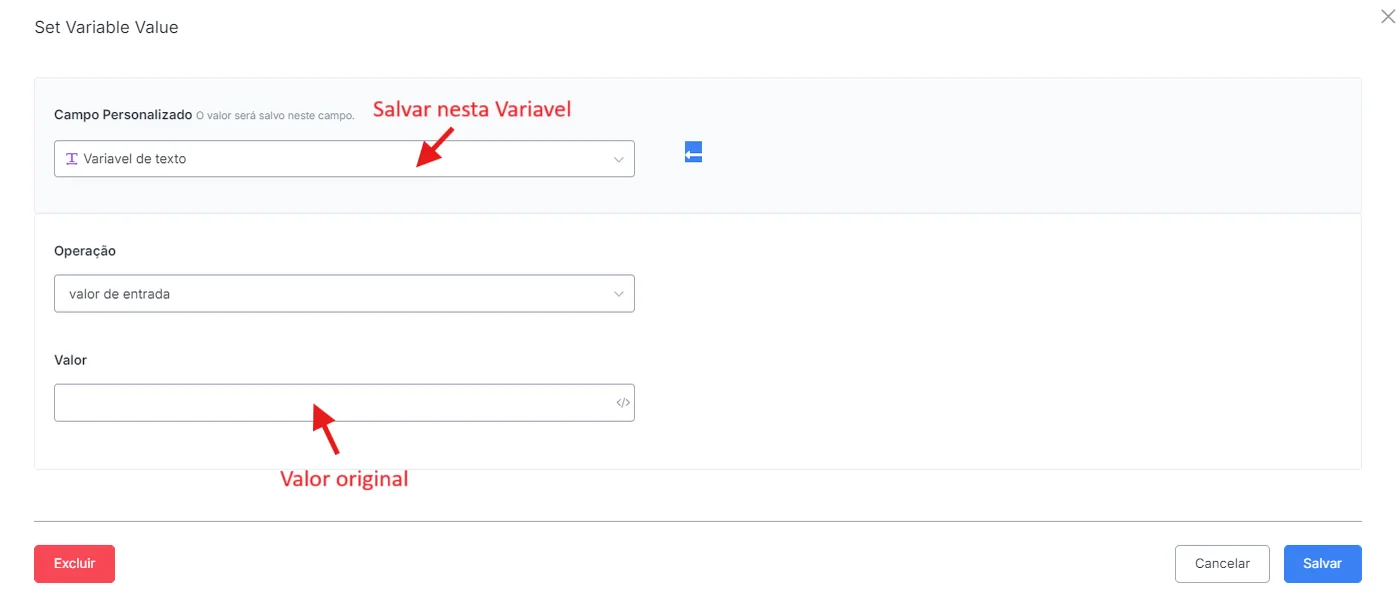
The "input value" operation is used to assign a value to a variable. It works for any type of variable.
Note
TIP - the "input value" for a text variable can be used to join several text variables. See in the image below where to put the original value and the operation value.
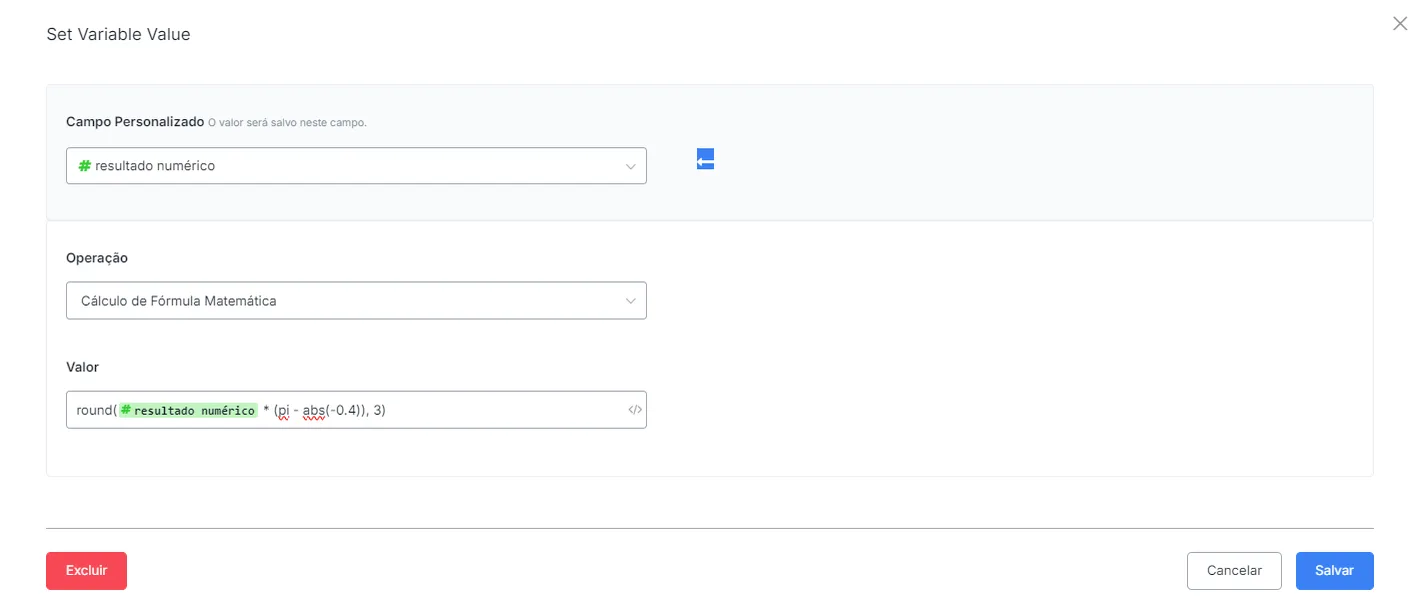
With this operation, you can now calculate formulas directly in the Action Step - "Set Variable Value" and in the Condition Step - "Value".
Supported math operations and functions:
+, -, *, e, pi, PI, abs(), min(), max(), ceil(), floor(), log(), pow(), round(), sqrt(), sin(), cos(), tan()
Attention
Note that if the formula is invalid, the system will return 0 for the number variable and empty for the text variable.
Description
e.g. before
e.g. after
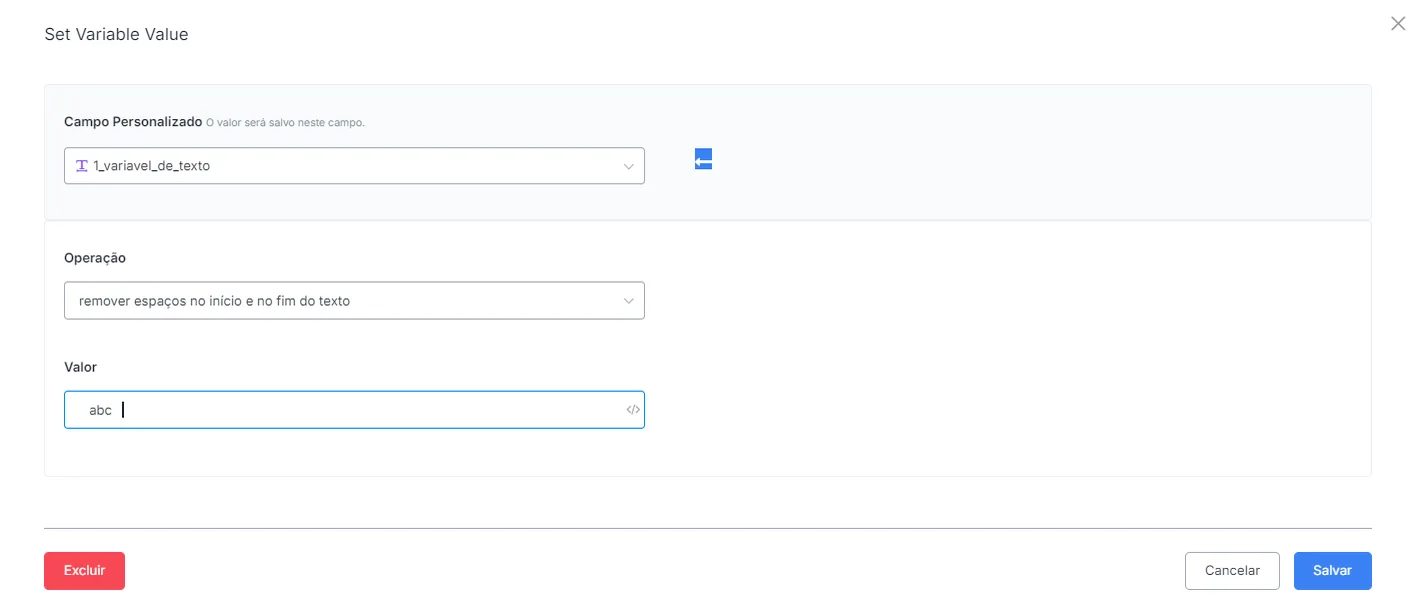
removes spaces before or after the text
" abc"
"abc"
Description
e.g. before
e.g. after
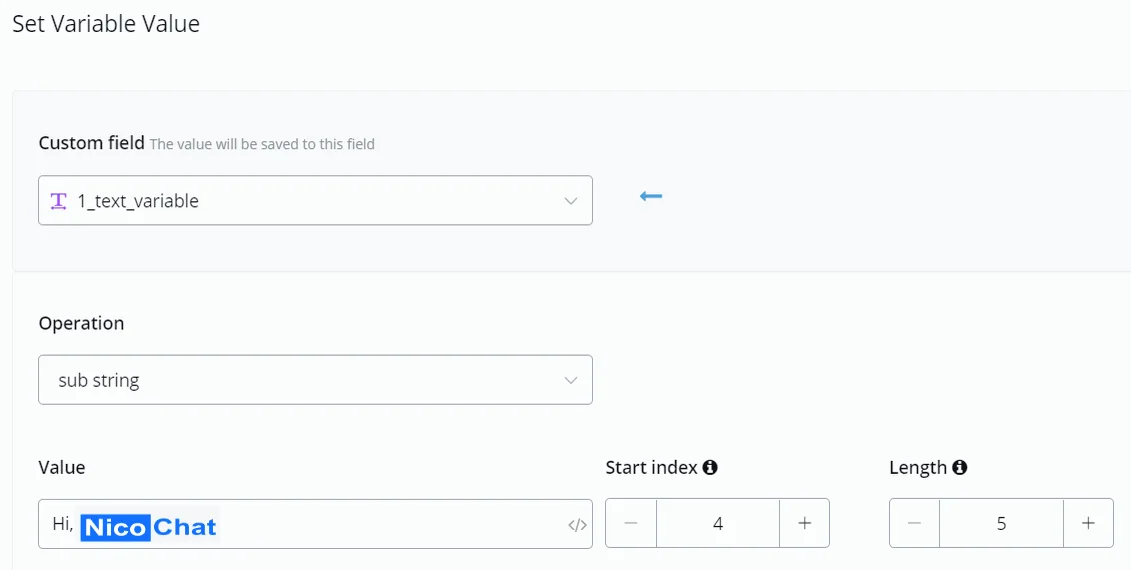
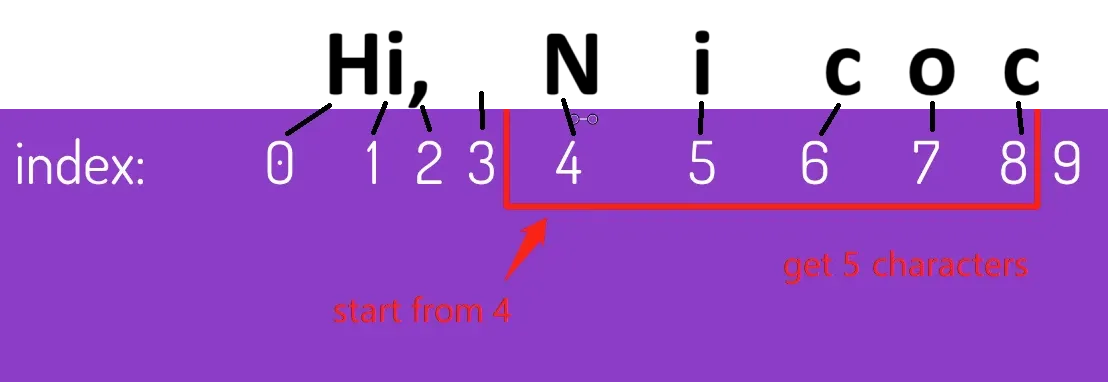
gets part of the text
"Hi, NicoChat!"
"NicoChat"
Note
Note - The index starts at 0. Every character counts, including space and punctuation.
Description
e.g. before
e.g. after
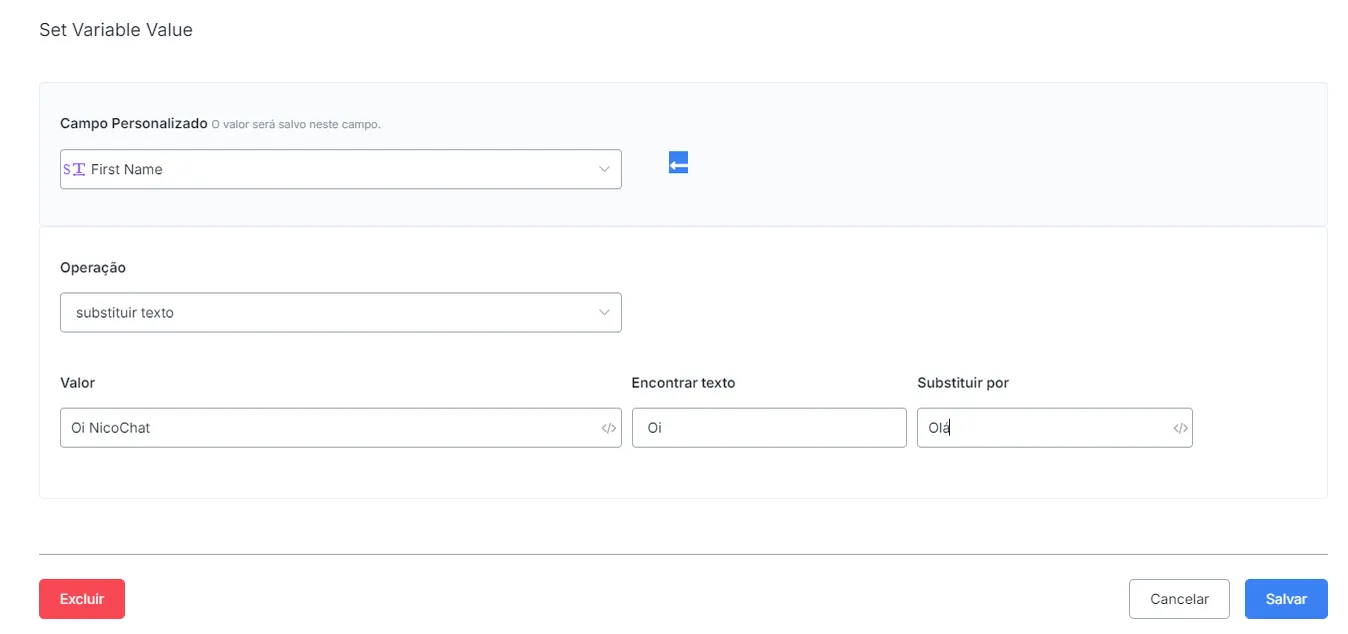
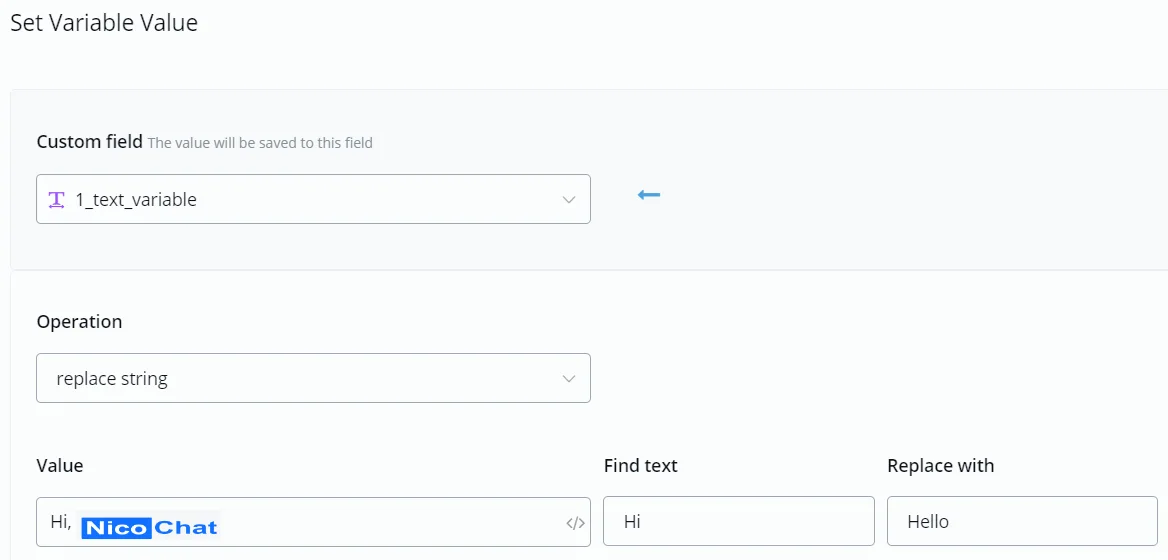
replaces part of the text
"Hi, NicoChat!"
"Hello, NicoChat!"
Note
Note - In case-sensitive situations, you must type exactly "Hi", and not "hi", "HI" or "hI".
Type
e.g. before
e.g. after
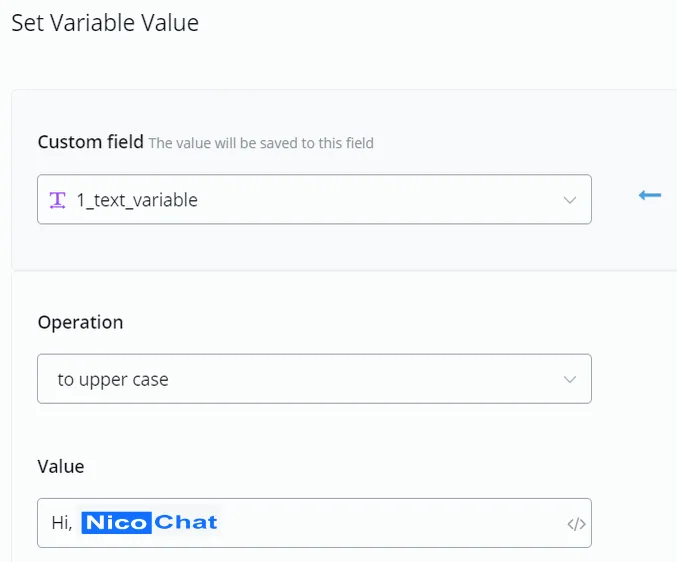
convert to lowercase
"Hi, NicoChat!"
"hi, nicochat!"
convert to uppercase
"Hi, NicoChat!"
"HI, NICOCHAT!"
Description
e.g. before
e.g. after
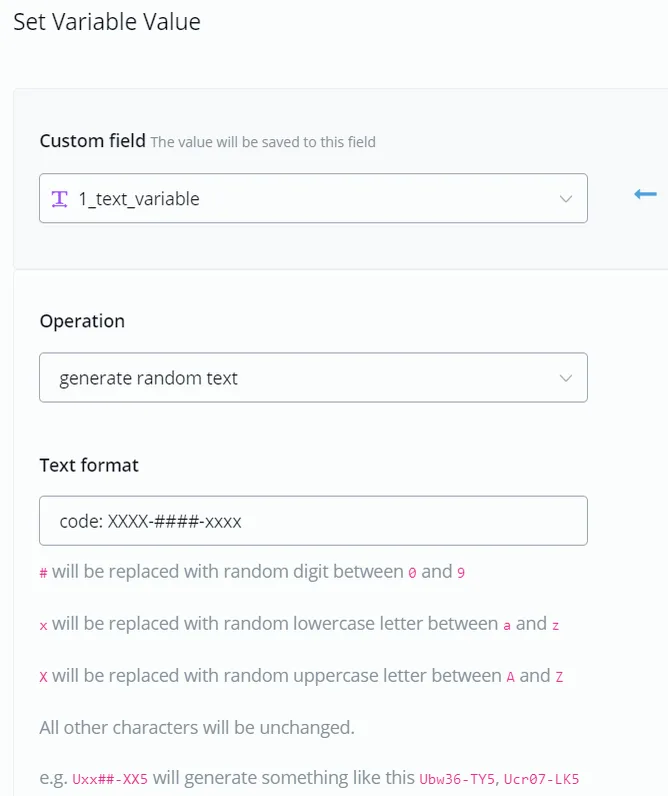
as the name suggests
"code: XXXX-####-xxxx"
"code: UBWT-3657-lkzb"
This feature is useful when you need to generate a unique verification code or a reference code.
Type
e.g. before
e.g. after
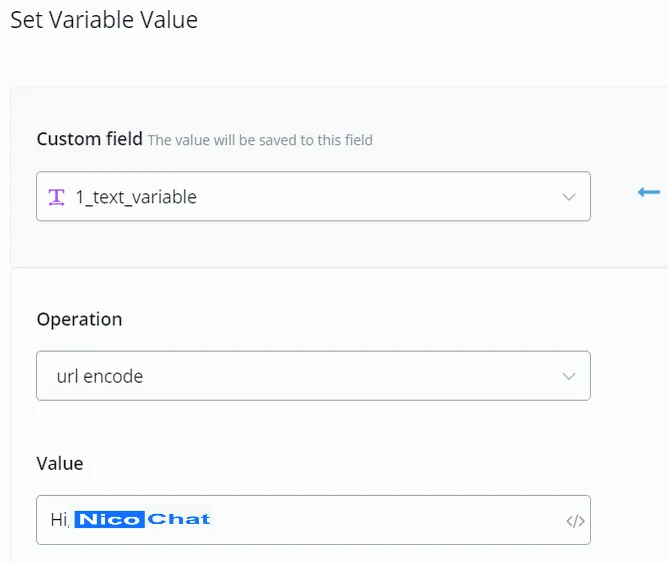
encode
"Hi, NicoChat!"
"Hi%2C%20NicoChat!"
decode
"Hi%2C%20NicoChat!"
"Hi, NicoChat!"
Description
e.g. before
e.g. after
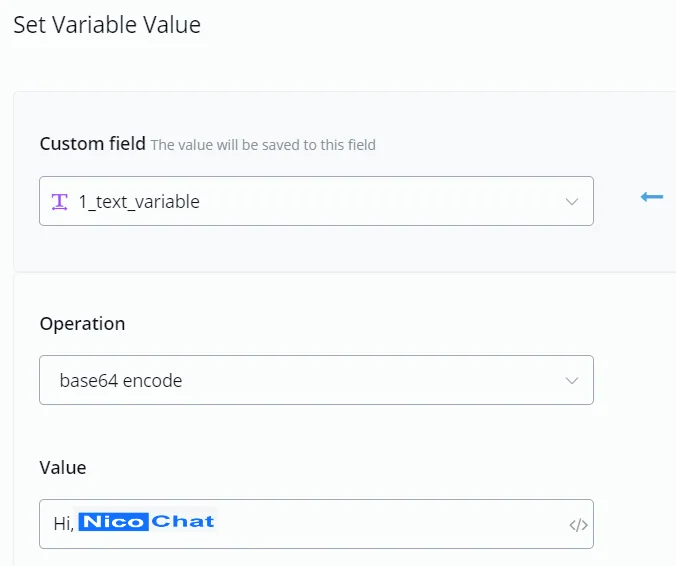
encode
"Hi, NicoChat!"
"SGksIE5pY29DaGF0IQ=="
decode
"SGksIE5pY29DaGF0IQ=="
"Hi, NicoChat!"
convert to friendly URL slug Description
e.g. before
e.g. after
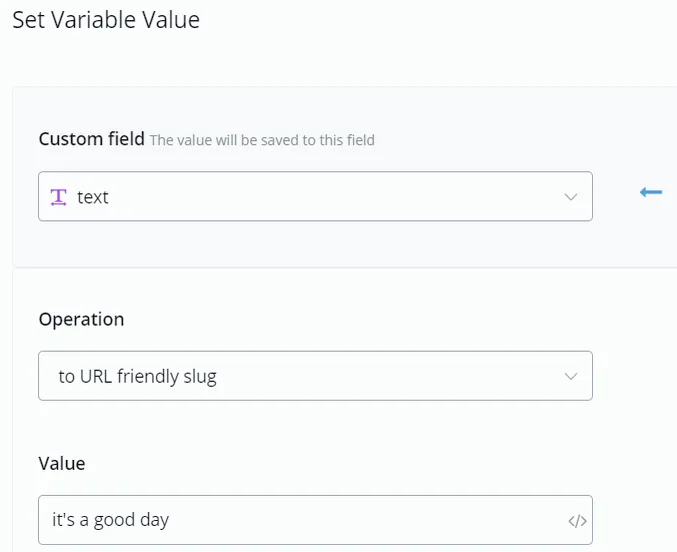
replaces spaces with hyphens and removes the remaining signs
"it’s a good day"
"its-a-good-day"
Description: gets part of the text.
Type
e.g. before
e.g. after
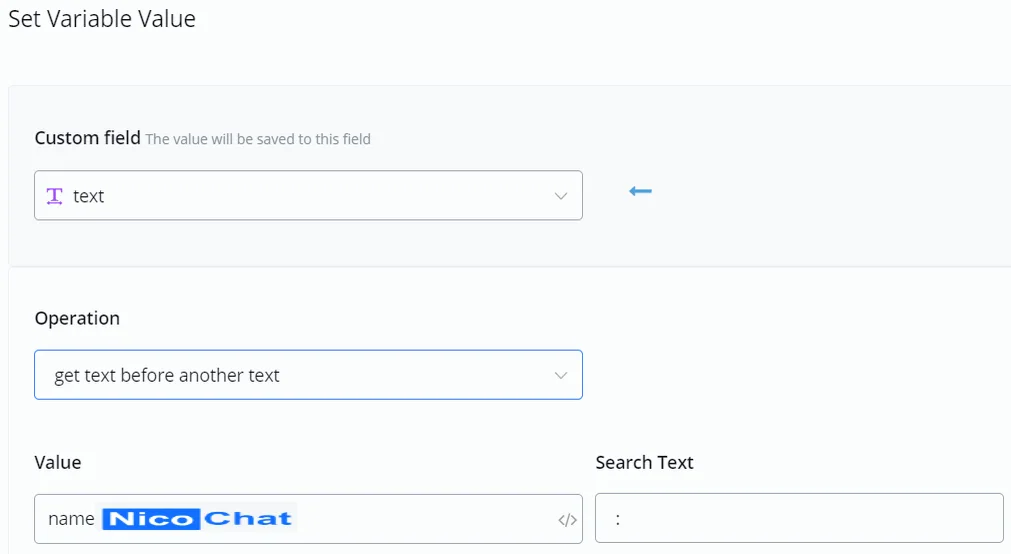
get text before another text
name: NicoChat, city: Melbourne
name
get the text before the last occurrence of another text
name: NicoChat, city: Melbourne
name: NicoChat, city
get text after another text
name: NicoChat, city: Melbourne
NicoChat, city: Melbourne
get the text after the last occurrence of another text
name: NicoChat, city: Melbourne
Melbourne
Description
e.g. before
e.g. after
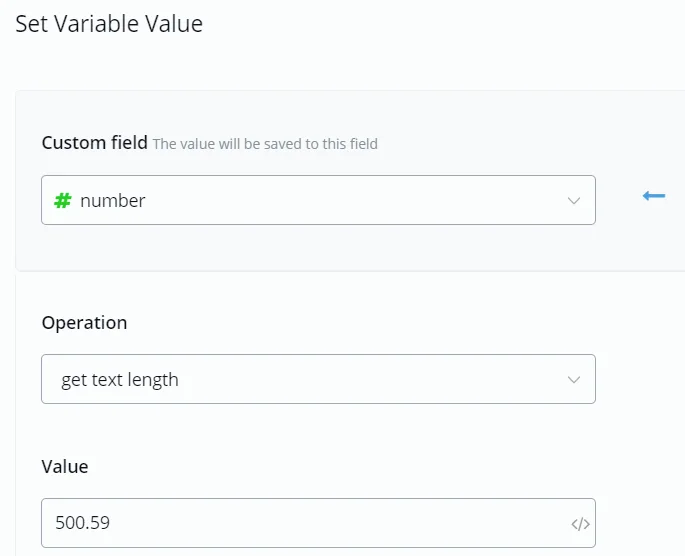
as the name suggests
500.59
6
Description
e.g. before
e.g. after
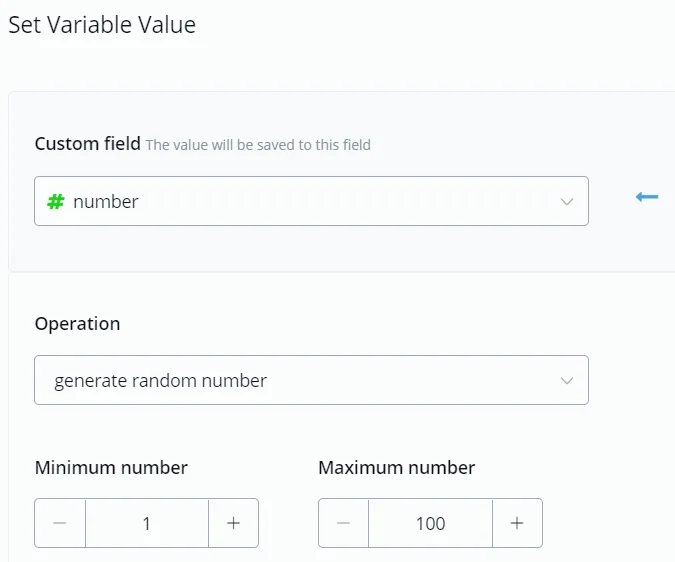
as the name suggests
n/a
56
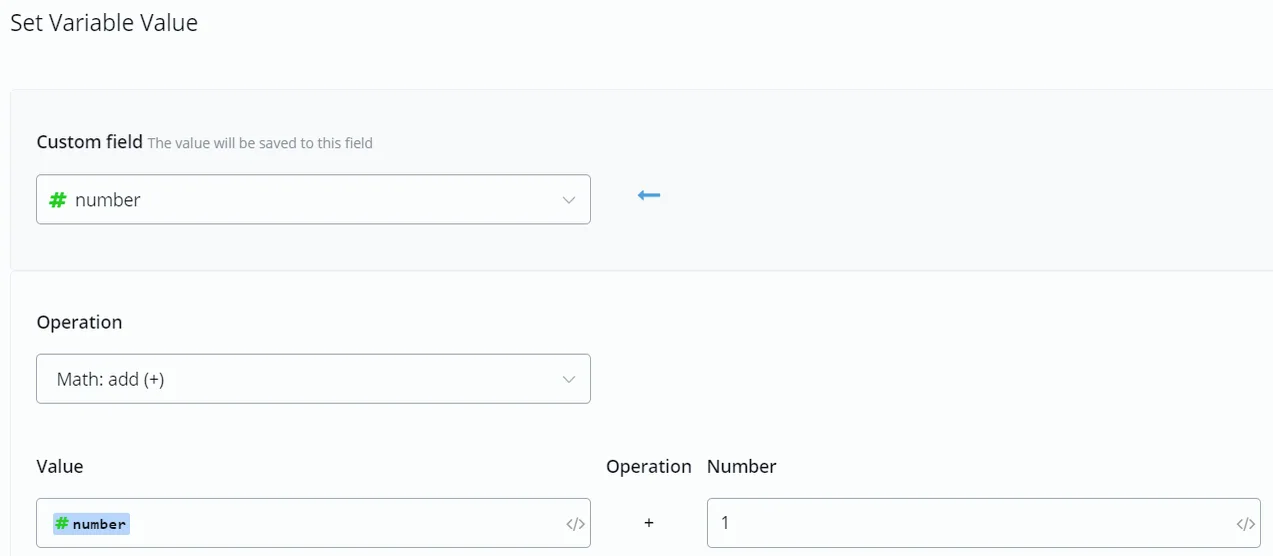
add / subtract / multiply / divide / modulus / power / natural logarithm / square root Description
e.g. before
e.g. after
Note
TIP - in "natural logarithm", when you are calculating log2(8) =? put 8 as “Value” and 2 as “Number”.
Description
e.g. before
e.g. after
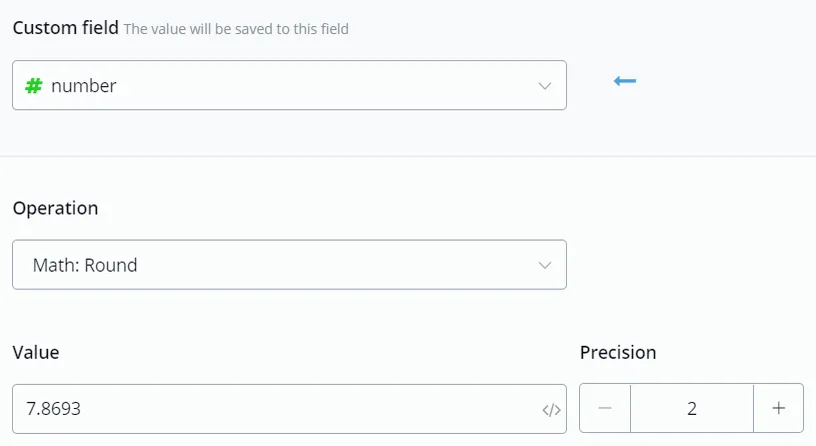
as the name suggests
7.8693
7.87
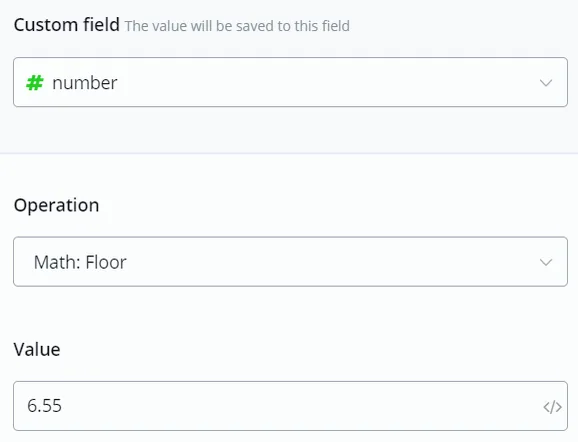
Description: gets an approximate integer.
Type
e.g. before
e.g. after
Description
e.g. before
e.g. after
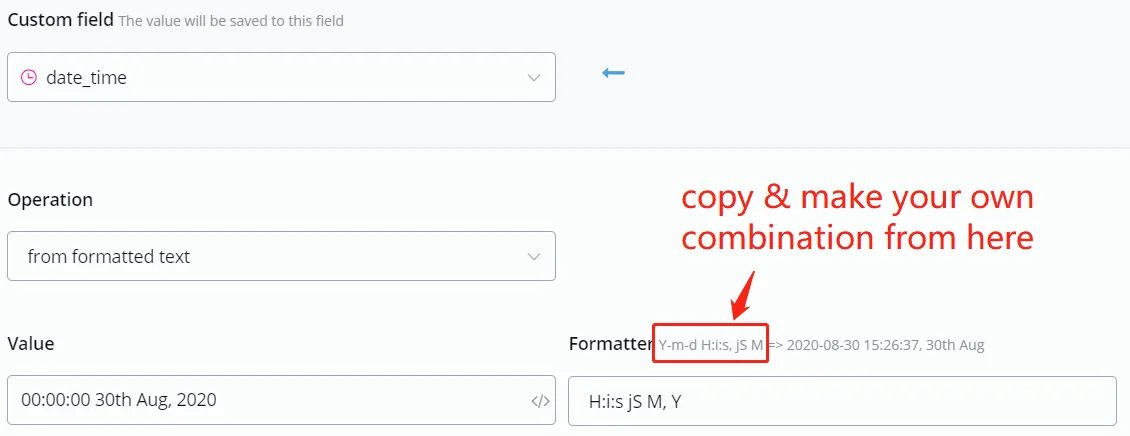
get the DateTime value from formatted text
00:00:00 30th Aug, 2020
2020-08-30 00:00:00
add minutes/hours/days/weeks/months Description
e.g. before
e.g. after
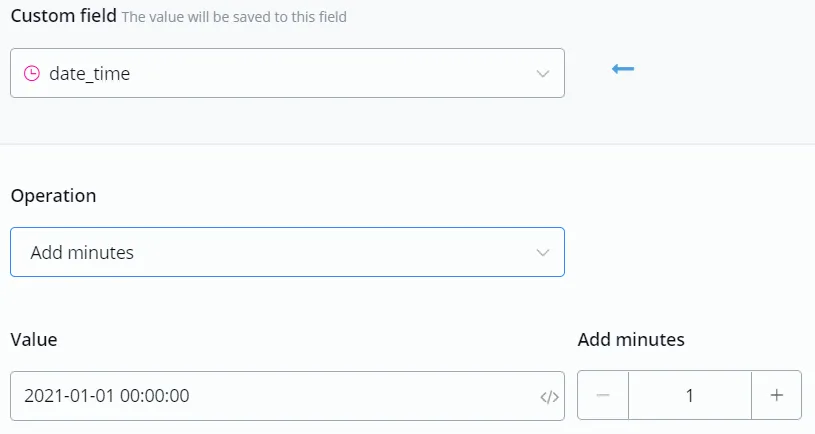
as the name suggests
2021-01-01 00:00:00
2021-01-01 00:01:00


%2014.32.31_52ca31e9-20241014-174252.webp)