

Building Basic Flows
Click a step to edit it: the "Edit Panel" appears next to the sidebar.
Click a step to edit it: the "Edit Panel" appears next to the sidebar.
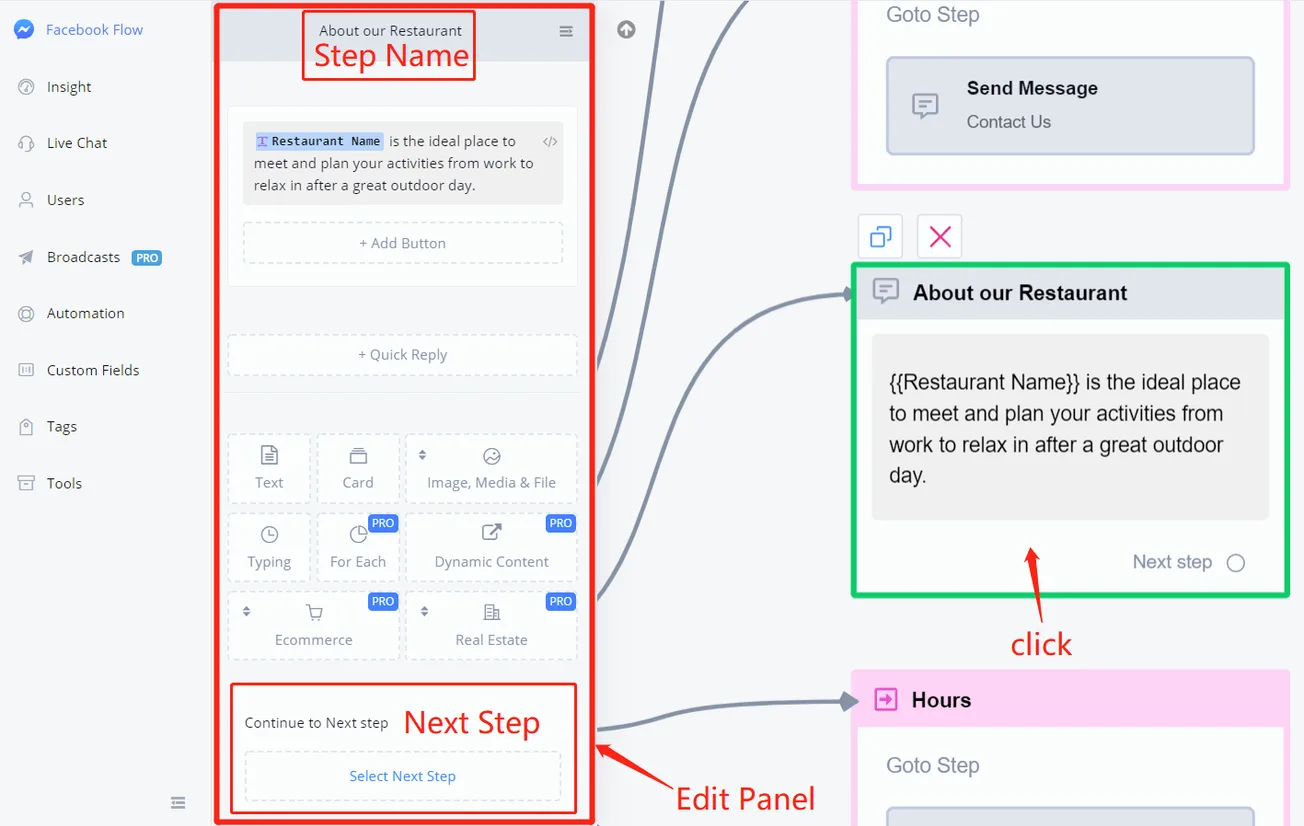
Click the step name to edit it. You can choose the next step at the bottom of the edit panel or drag the connectors from the circle to the tile of another step.
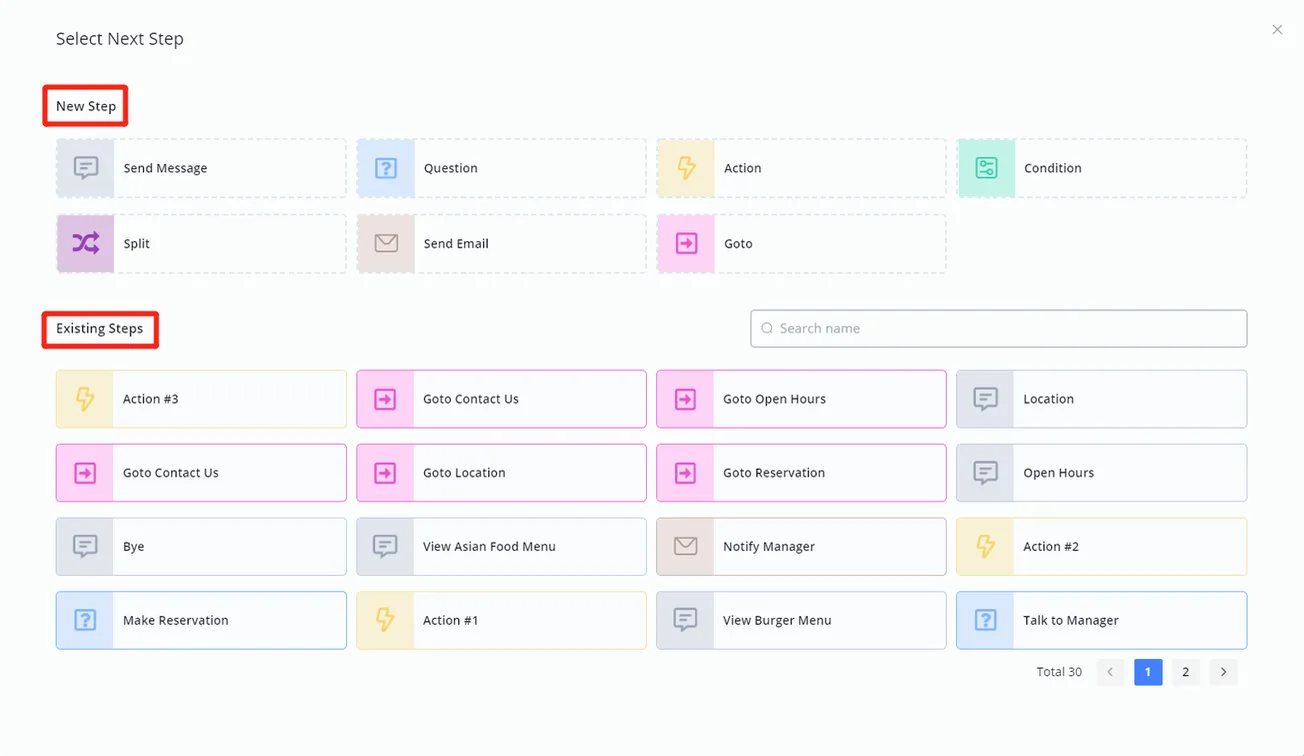
Create a new step or choose an existing one to be the next step. To drag connectors, see below:
We've just learned how to move the Flow Builder by clicking and dragging. Selecting multiple steps is similar: hold the Shift key and click and drag to cover the steps you want to select:
Alternatively, use ctrl + click to select them one by one:
The selected step gets a green border. After selecting multiple steps, click "Create New Screen" to organize them in a screen box or to move them to an existing subflow. To delete multiple steps, select them and press the "Delete" key on your keyboard:
After selecting one step or multiple steps, use Ctrl + C to copy and Ctrl + V to paste into:
- the same subflow
- other subflows in the same bot/flow
- different bots/flows, but on the same channels (the associated custom fields will be created automatically)
- different channels (unsupported features will be removed)
That's it for the Flow Builder overview!! 🎉 Try building your first flow now. 😎