TIP - It may be worth creating a flow first and opening it side by side while you read the following instructions (Facebook flow used as an example).
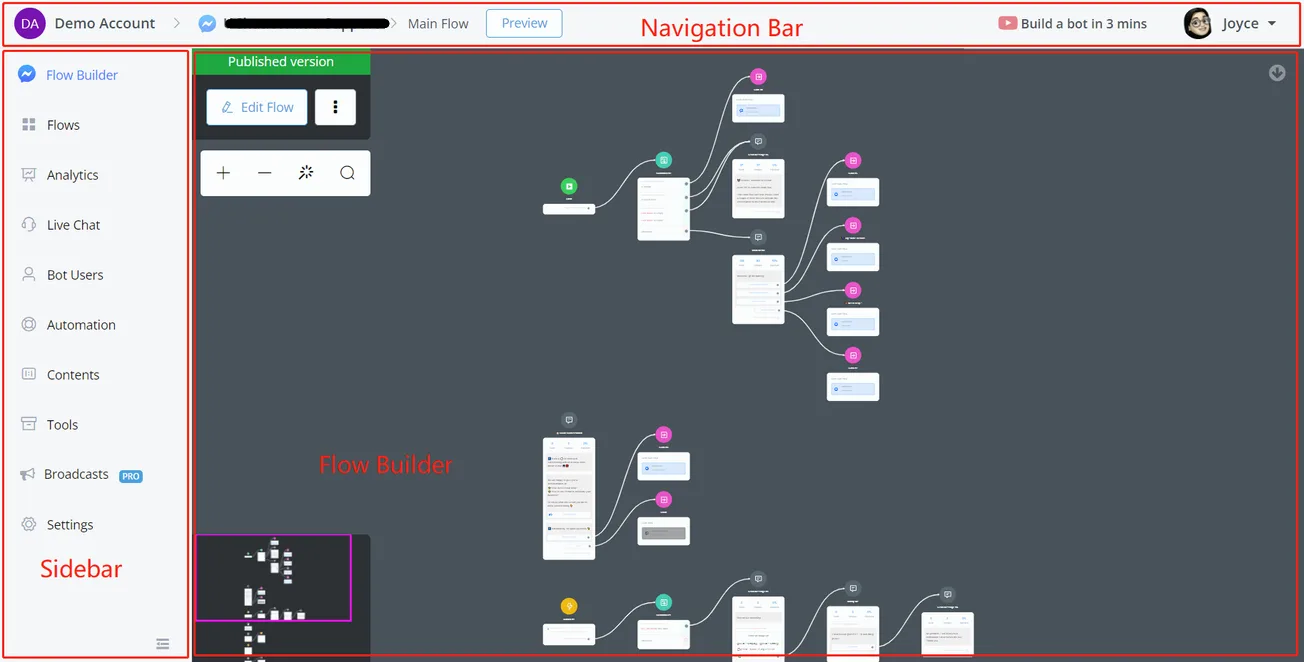
After entering a flow, this is what you will see:
Navigation bar
At the top there is a navigation bar. From left to right:
Part
Usage
"Demo Account"
current workspace, click to go back to the NicoChat dashboard
"NicoChat Support"
flow type and flow name, click to go back to "All Channels"
"Main Flow"
current subflow
"Preview"
preview the current subflow from the Start Step
"Build a bot..."
video tutorial widget
"Joice"
current user, click to access user settings, support and log out
Attention
Preview Feature - Please note that the "Preview" feature is not supported in all channels. The channels that support "Preview" are: Facebook, Telegram, WhatsApp, Line and Viber. For channels without Preview, search for "talk to bot" in the documentation.
Sidebar
On the left-hand side there is a sidebar. From top to bottom:
Section
Usage
Flow Builder
build subflows here
Flows
manage all your subflows
Statistics
channel data analysis
Live Chat
inbox for all conversations, where a human agent replies
Bot Users
manage the bot user profile. Import, export, search or delete bot users
Automation
manage keywords, sequences, triggers and comments
Content
manage custom fields, tags, OTN, personas, user menus and customer feedback
Tools
manage error logs, draft version tester, channel admins, URL triggers, multiple languages and shortcuts, Facebook Ads and webhooks
Broadcasts
send and manage broadcasts
Settings
(some are owner only) manage the bot users limit, Facebook greeting text, chat widget customization, ice breakers and authorized websites
Attention
Note - The features in Automation, Content, Tools and Settings can vary from channel to channel. In Settings, the owner usually sees all the options, such as the bot users limit, while the admin and the member see only part of them.
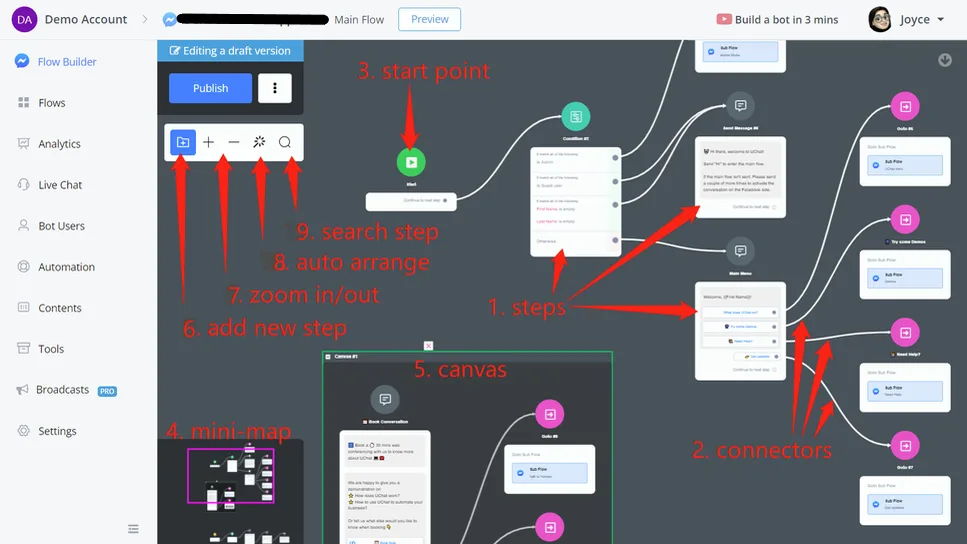
Flow Builder
Apart from those in the screenshot above, there are a few more tips for using the flow builder:
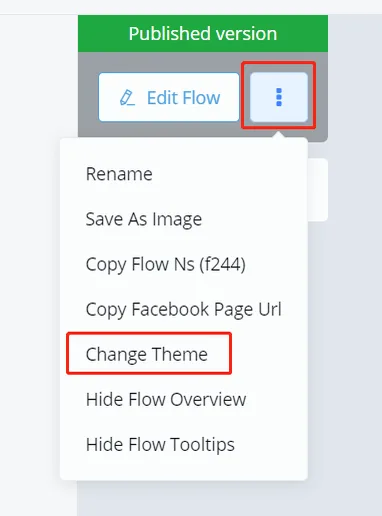
Change themes
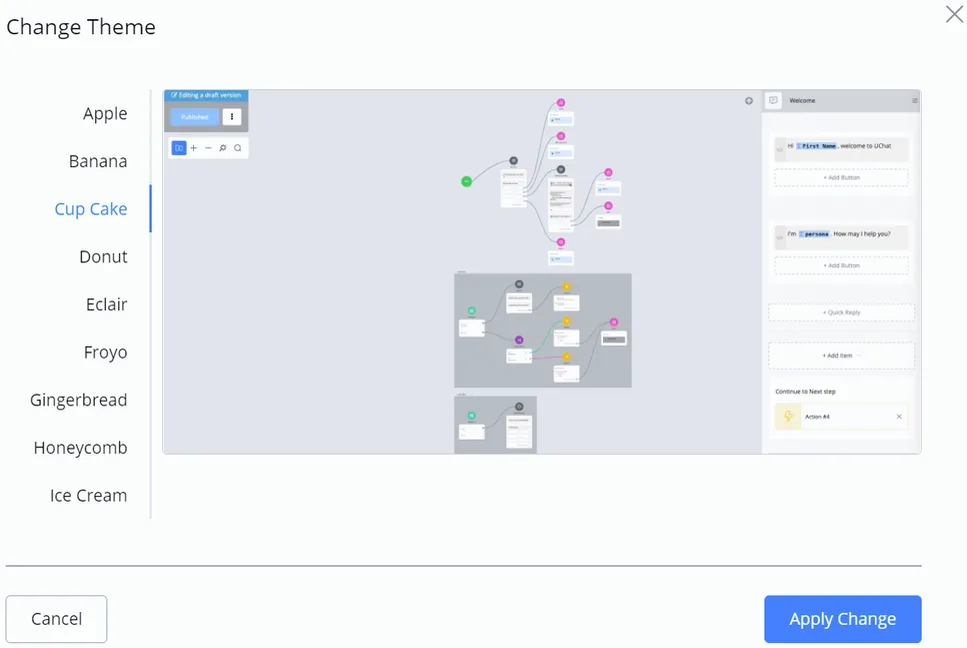
Before you start, pick your favourite theme by clicking "Change Theme":
choose one of them and click "Apply Change".
Hide mini-map or tips
The mini-map is useful when you need to move the work area. For example, when you click and drag inside a canvas, you move the whole canvas, not everything in the builder:
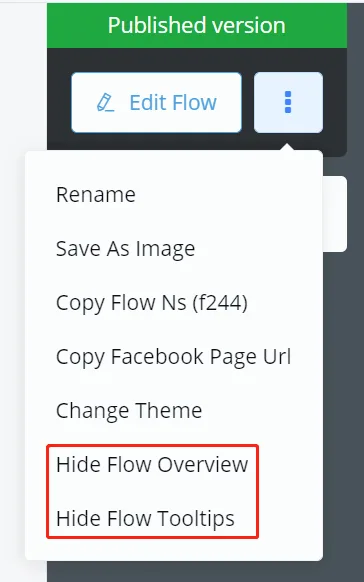
You can hide the mini-map by clicking the "Hide Flow Overview" option.
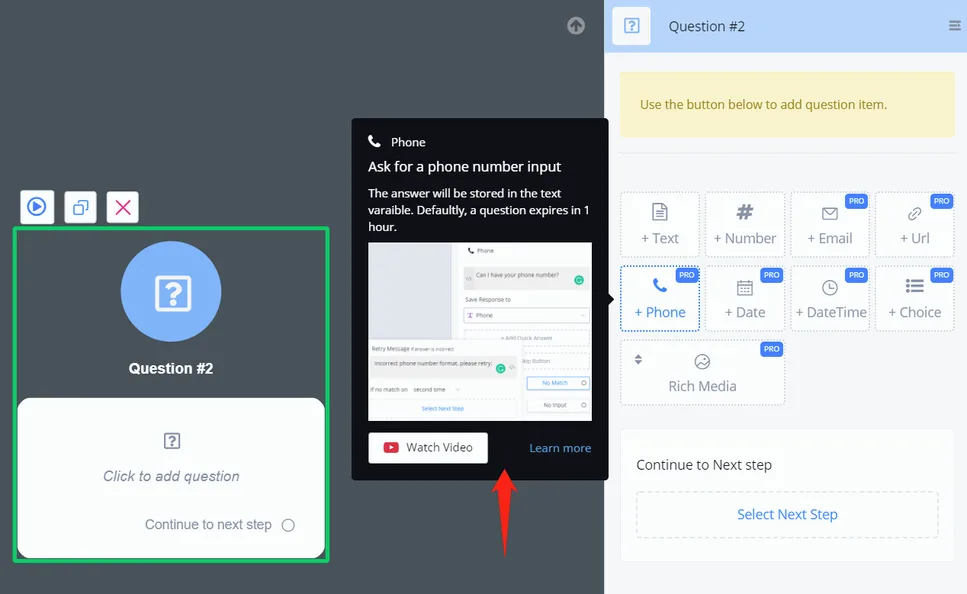
With tips, you see the description of every flow builder feature, like this:
The tip includes a title, description, image, video link and documentation link. This helps those who are getting started. Those who already know the system can disable the tips by clicking the "Hide Flow Tips" option.