

Live Chat agent groups
We have updated the Live Chat Agent feature.
We have updated the Live Chat Agent feature.
The feature is now called Agent Group.
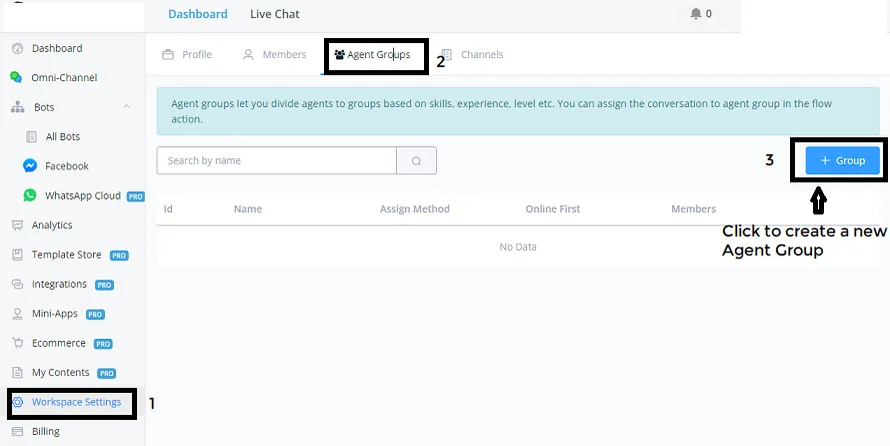
Let’s see where to find this feature:
Workspace Settings -> Agent Groups (this is the additional section we have just added).
Now you can click on “+ group ” to put a new group of Agents together and combine them as your needs require, to get the best possible assignment.
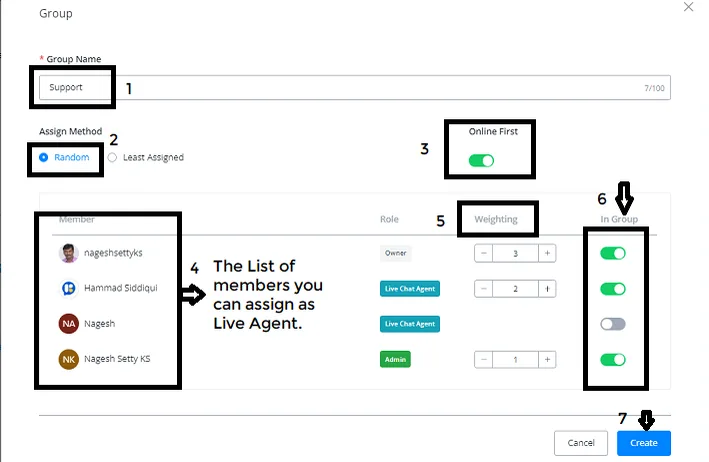
- Group Name: “Support ”
- Assign Method: “Random ”
- Random – corresponds to the round robin method
- Least Assigned – the Live Chat agent who does not have many tickets assigned.
Let’s select the Random Assign Method, since many users prefer random.
Online First: “Enable ” (very important feature)
As soon as the Agent is assigned, only then do we check whether they are Online.
If you want to do only Live Assignments, choose this option.
Members Overview: the members you can assign as a Live Agent.
Weight: you can also set the weight. The higher the number, the much greater the likelihood of this Chat Agent being assigned.
In Group: you decide which Members you want inside this newly created group and then set the weight options.
Once all the settings above are done, click the “Create” button.
Now this group appears in the default overview of Agent Groups.
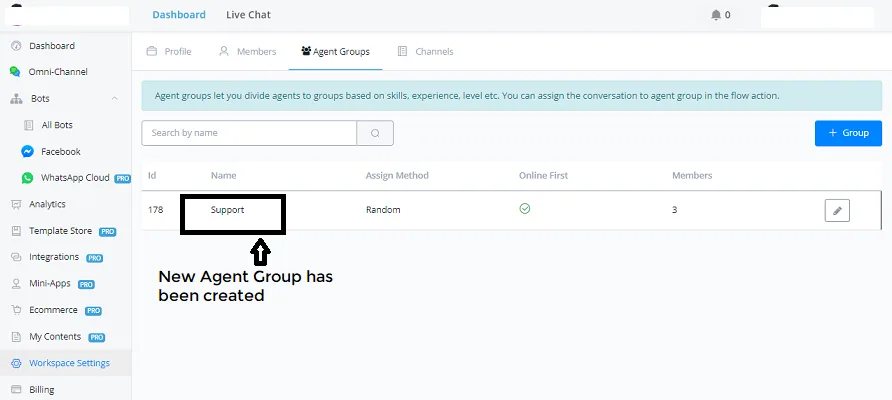
You can customize it by clicking the pencil icon, or create one more new group.
For example: if you have a sales team, a support team and a developer team, you can create all these kinds of group.
This is the new group assignment for Agents.
Now you can segment your agents into separate groups and, based on the Group, we will also be able to assign contacts accordingly.
Or, put another way: “How are we going to check whether the agent is online?”
This works a little differently from the usual live chat platforms.
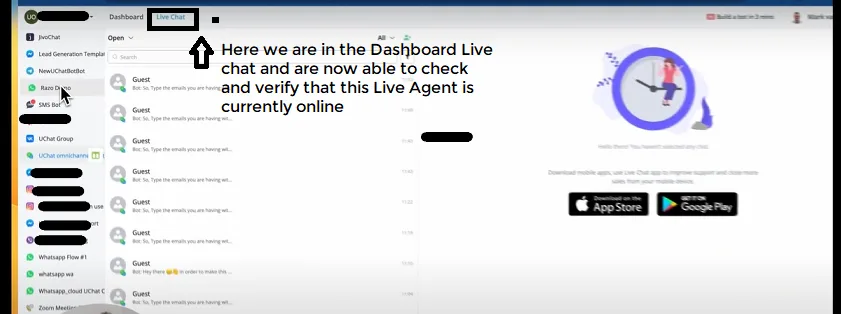
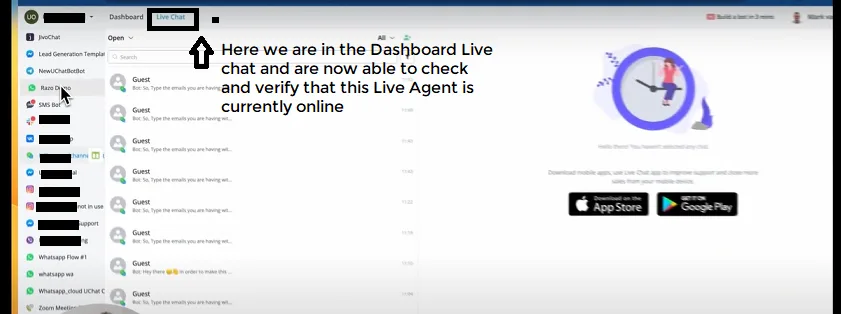
At NicoChat, we consider a Live Chat agent to be online when they have the Live Chat section open.
That is, when we open the Live Chat for a contact, we are able to check and confirm that this Live Chat agent (myself, in this case) is currently online.
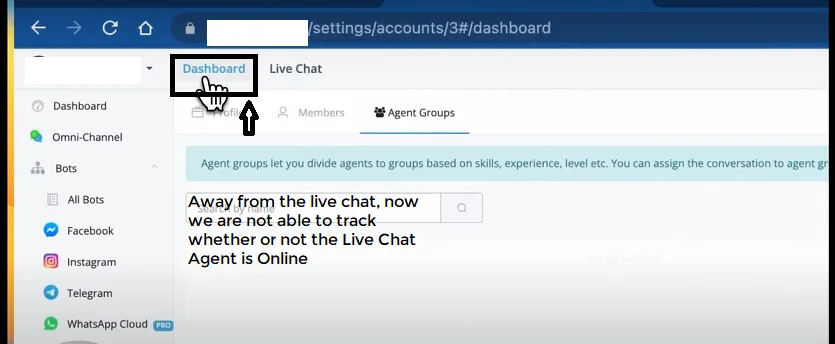
If you move away from this window, we can no longer track whether the Live Chat Agent is Online or not.
We need to make sure the Live Chat agent is online, with the Live Chat section open and in that browser tab.
Dashboard > Live Chat (from the top menu, next to Dashboard)
Open the Channel > Live Chat (select it from the left-hand menu). This is the Live Chat of individual channels.
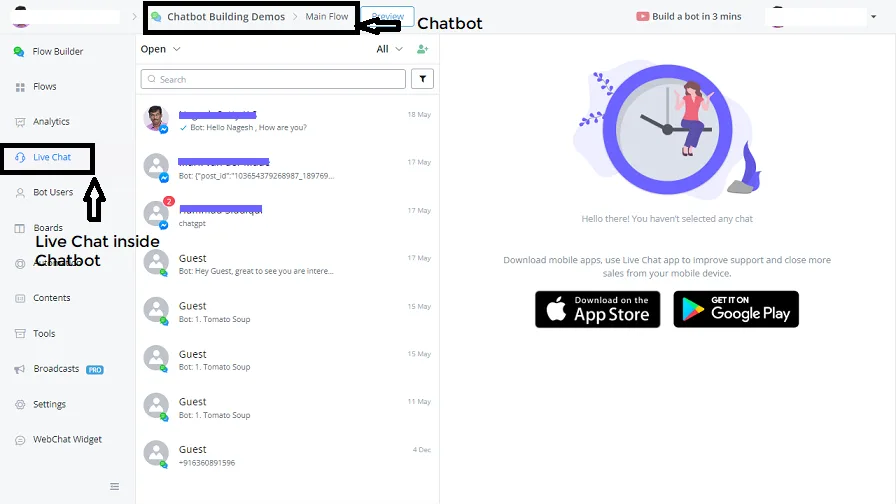
With this we can check the Agent’s Online status.
Keep the Chat page open on the Dashboard or inside the Channel — it does not matter, as long as the Agent is Online in this specific window.
Let’s create a sample workflow:
Create a subflow with the name “Live Chat Agent Assignment”
Action Block -> Basic Actions -> Assign to Agent or Assign to Agent Group.
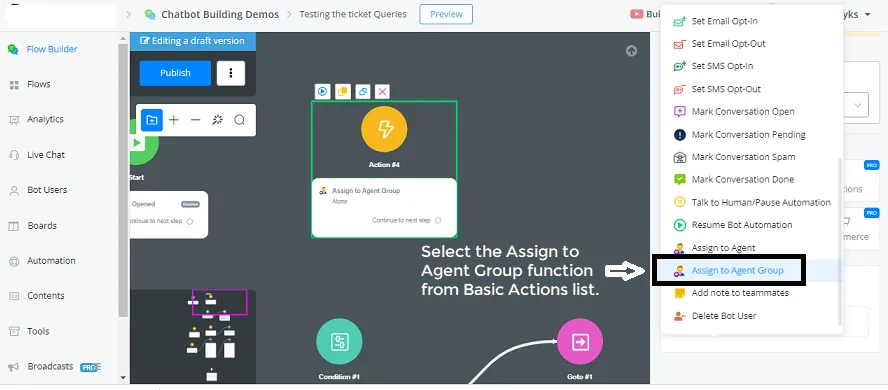
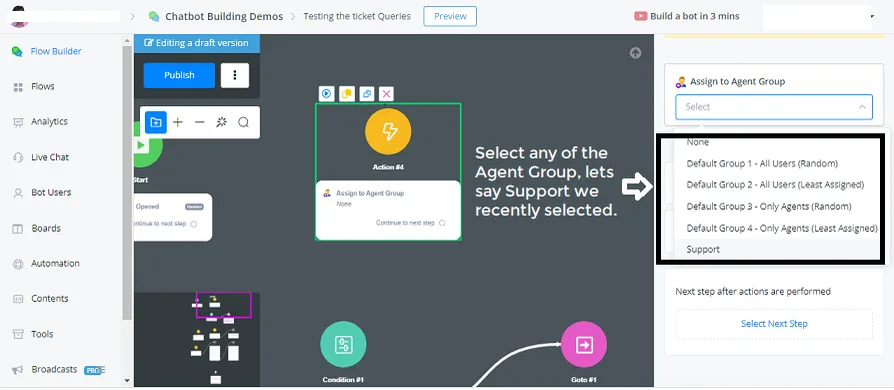
- Groups 1 and 2 assign to all the users or members of the workspace.
- Groups 3 and 4 assign only to those who have the Agent role permission.
- In case you do not want any of the presets you already have — for example, the Support Group you set up, into which we have already integrated all those settings and where we also make the team members available here inside.
Now you can check a few extra agent settings:
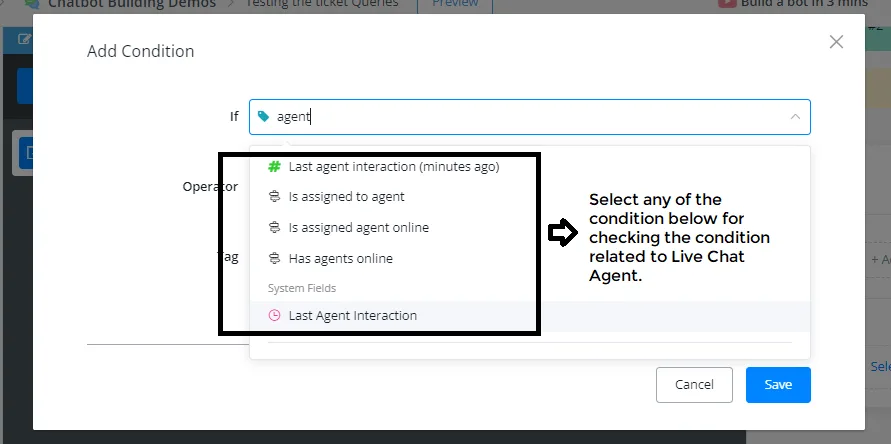
List of Conditions connected to the Agent:
- Last agent interaction (minutes ago)
- Is assigned to agent
- Is assigned agent Online
- Has agents Online
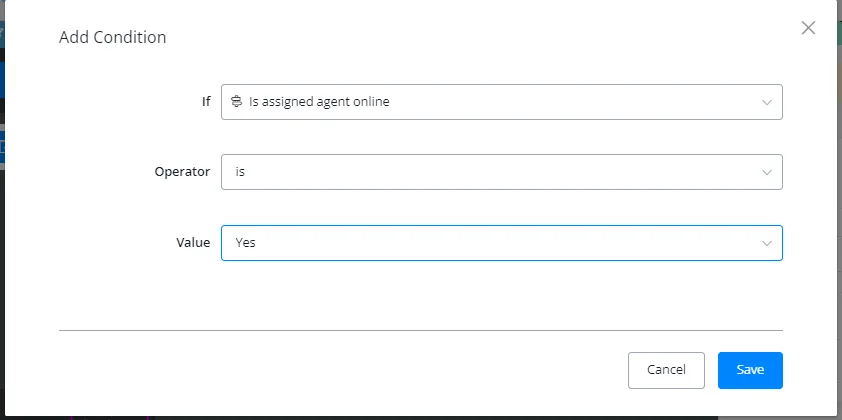
Let’s use “Is assigned agent Online” in the condition block.
If the agent is not online or is not in Live Chat, we can use this condition block and assign another agent.
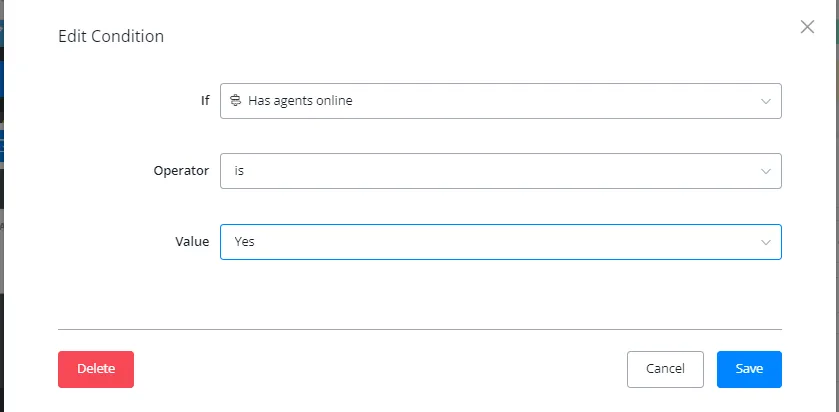
We also check whether the channel has any agent available online. If not, we can reply: “Okay, we do not have live chat support at the moment, but we will get back to you during specific Business Hours.”
We also have a System Field called “Last Agent Interaction”, with which you check the Last Agent Interaction within a given time frame.
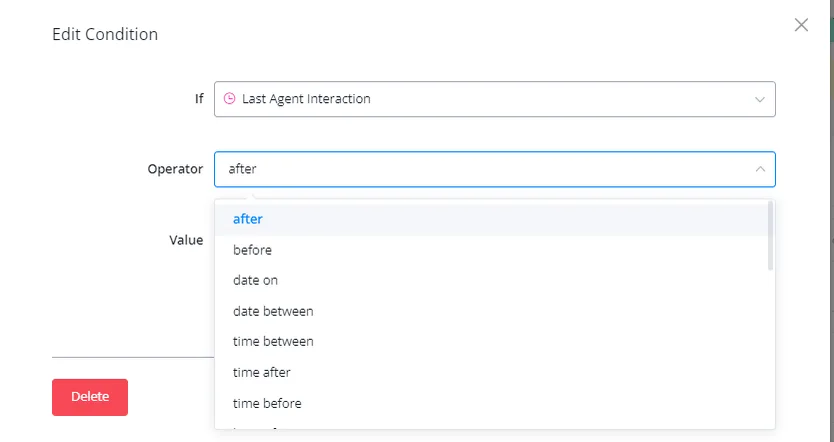
- After
- Before
- Date on
- Date between
- Time between
- Time after
- Time before
- We have a large set of conditions.
With these updates, we have brought really powerful features for assigning Live Chat Agents, for checking their Online Status and also for the last interaction time of each Agent.
With this, you can offer a much better customer support experience to your contacts.