Schedule Messages
This feature boosts efficiency by letting agents plan follow-up messages or send time-sensitive communications without needing to be online at that moment. To use it, just type your message, click the schedule icon and choose the desired time — and that's it.
In the live chat interface, type your message and click the schedule icon to choose the time it should be sent. Choose from preset times, such as 5 minutes, 10 minutes, 1 hour or up to 24 hours later. There is also a custom time option, with complete flexibility.
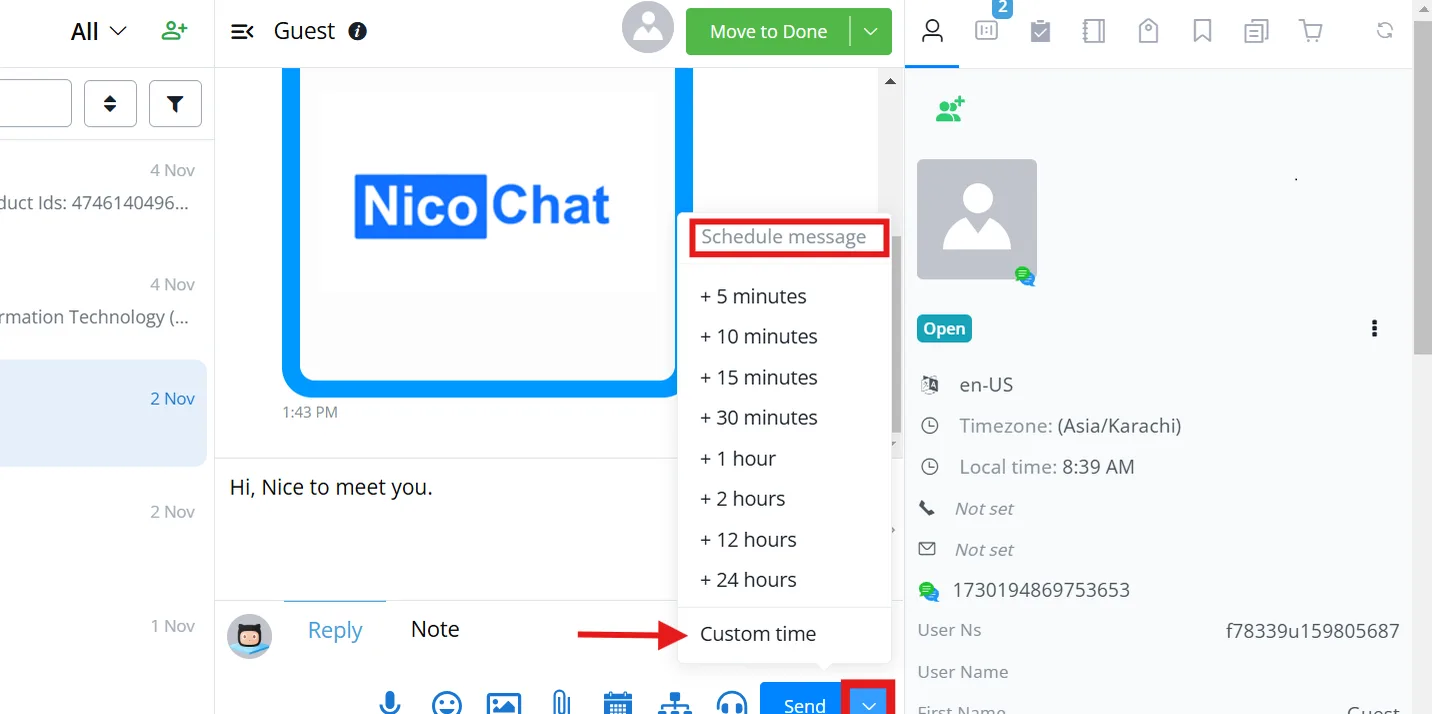
- Scheduled reply message
You can schedule a reply message directly in the chat. Adjust the time to fit your needs and view the list of all your scheduled messages for easy management.
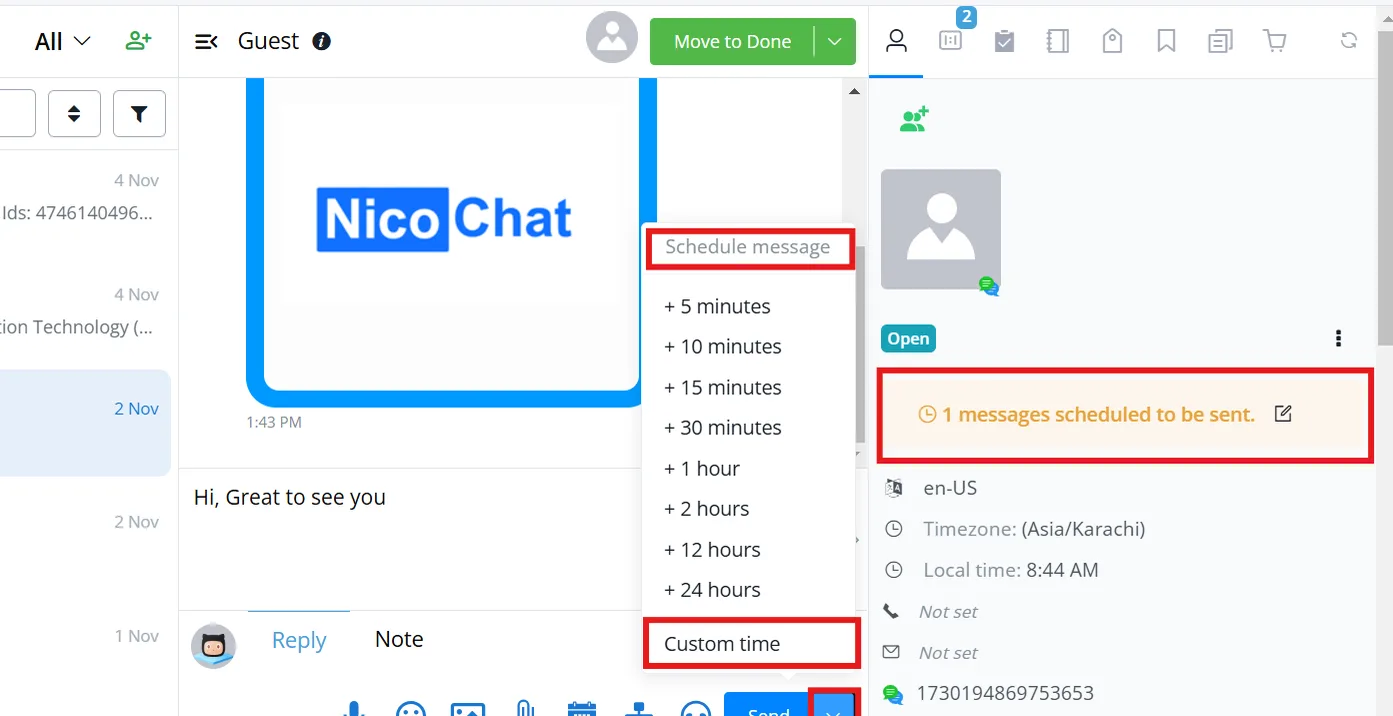
- Scheduled WhatsApp template message
Schedule WhatsApp template messages easily: select the template and the desired send time, which ensures smooth communication with WhatsApp users.
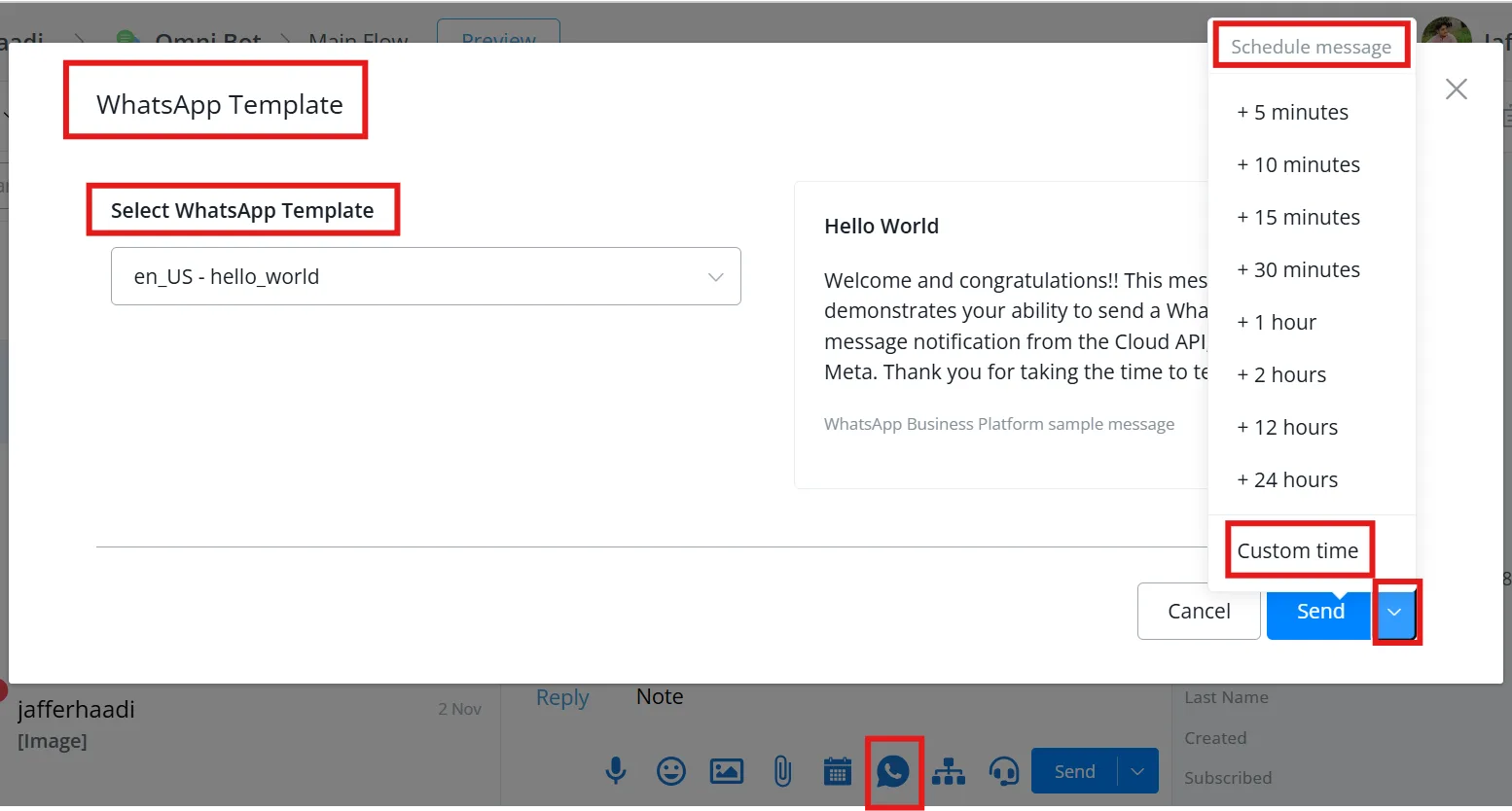
The custom time option lets you schedule messages based on your workspace's Time Zone. This way, messages reach recipients at exactly the right moment.
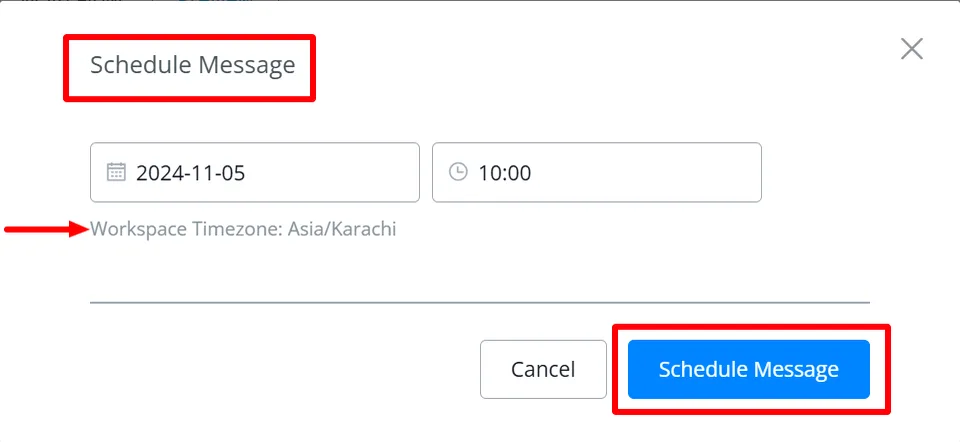
when choosing a custom time that exceeds 24 hours, it is required to use a WhatsApp template message. Regular messages are only allowed within the 24-hour window, so for any message scheduled beyond that limit, choose an approved WhatsApp template to ensure delivery.
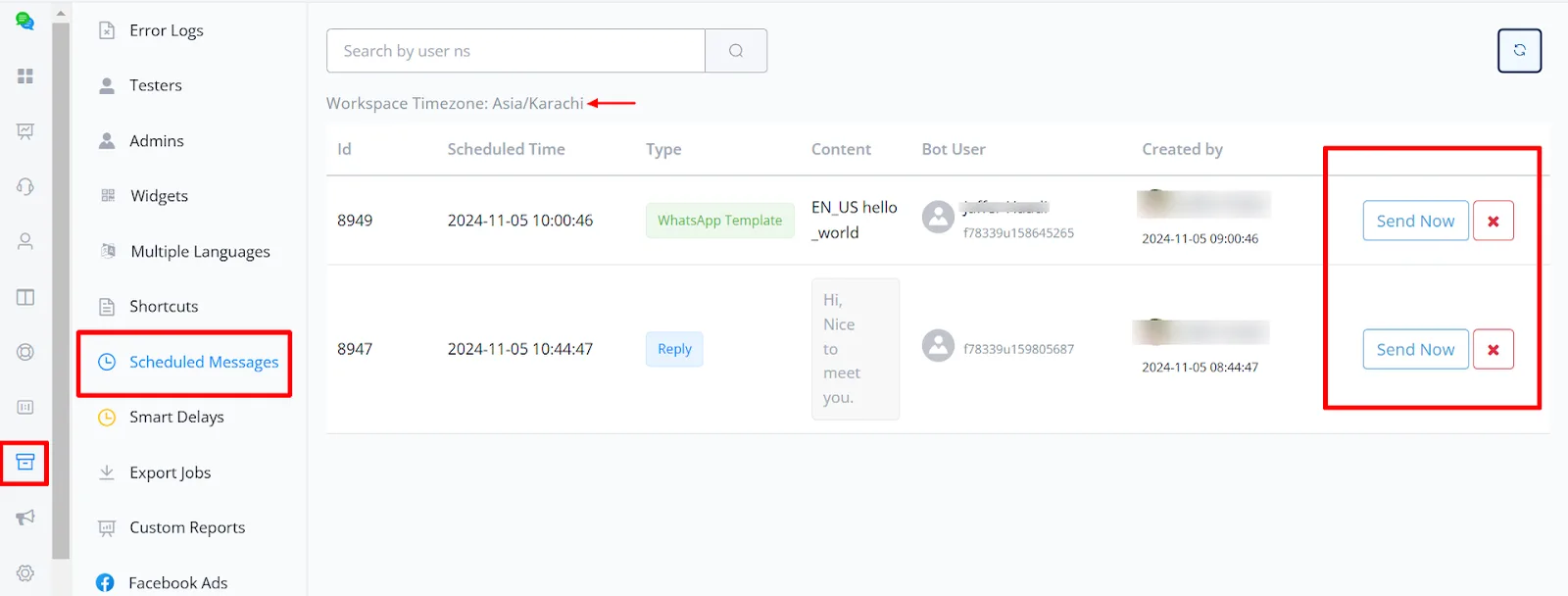
If needed, you can manage scheduled messages in live chat. You cannot change the content, but you can send the message immediately or cancel the scheduled delivery.
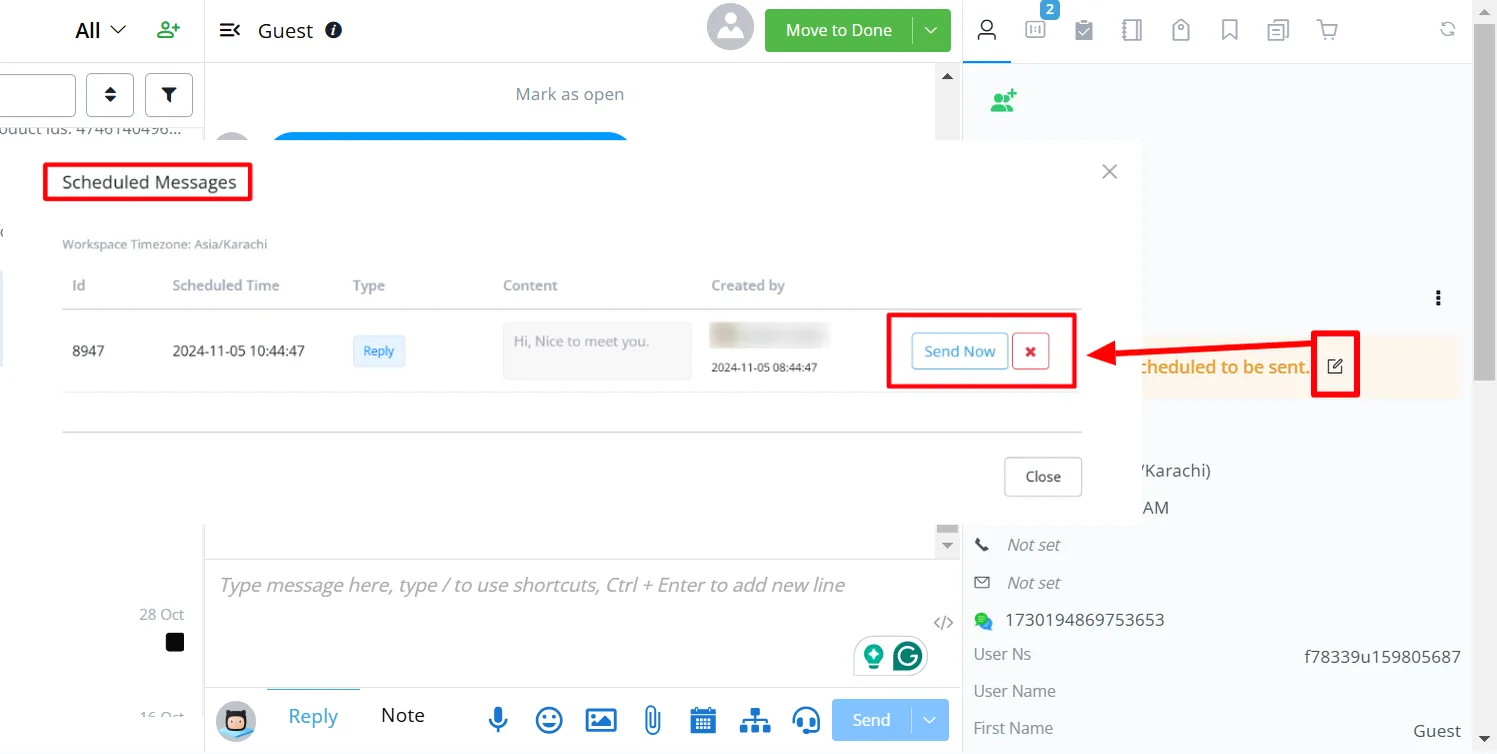
To view or manage all scheduled messages, go to Tools -> Scheduled Messages. There you will find an organized list with:
- Scheduled time
- Message type
- Message content or template
- Contact
- Created by
For each scheduled message, you can send it immediately or delete it.