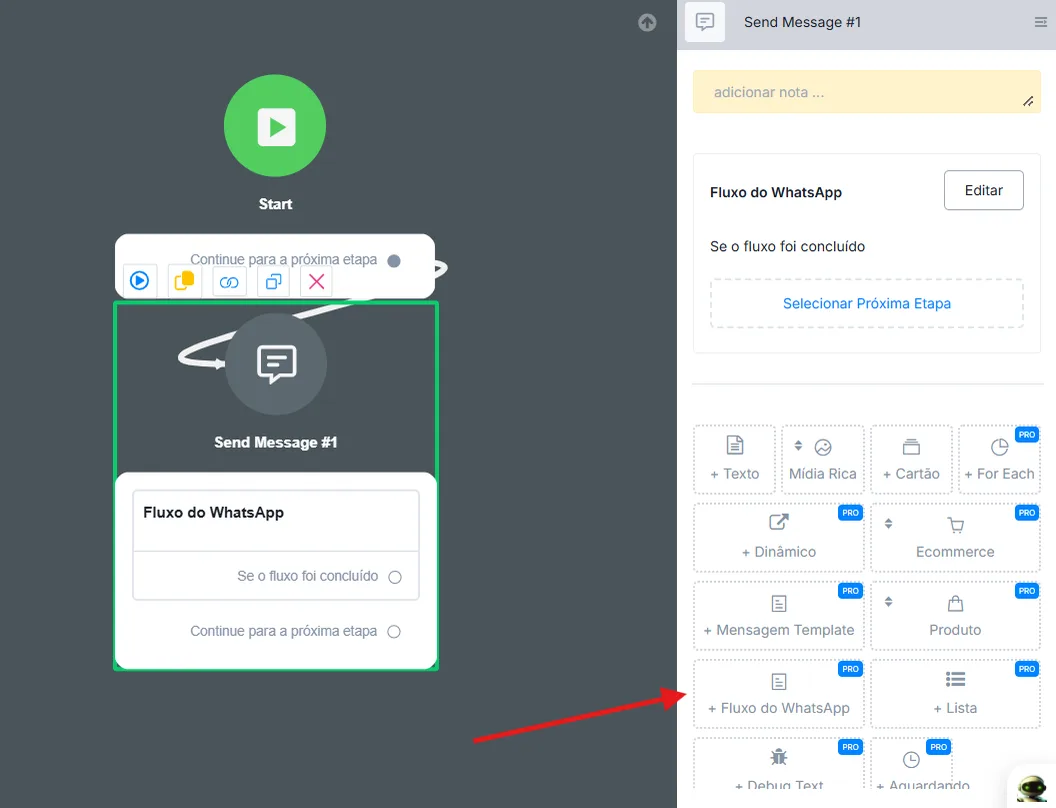
Using WhatsApp Forms
To use WhatsApp forms, the BM must be verified. Follow the WhatsApp API step-by-step guide to verify the BM.
- Go to Contents.
- Then to WhatsApp Flows.
- And finally, to +Create.
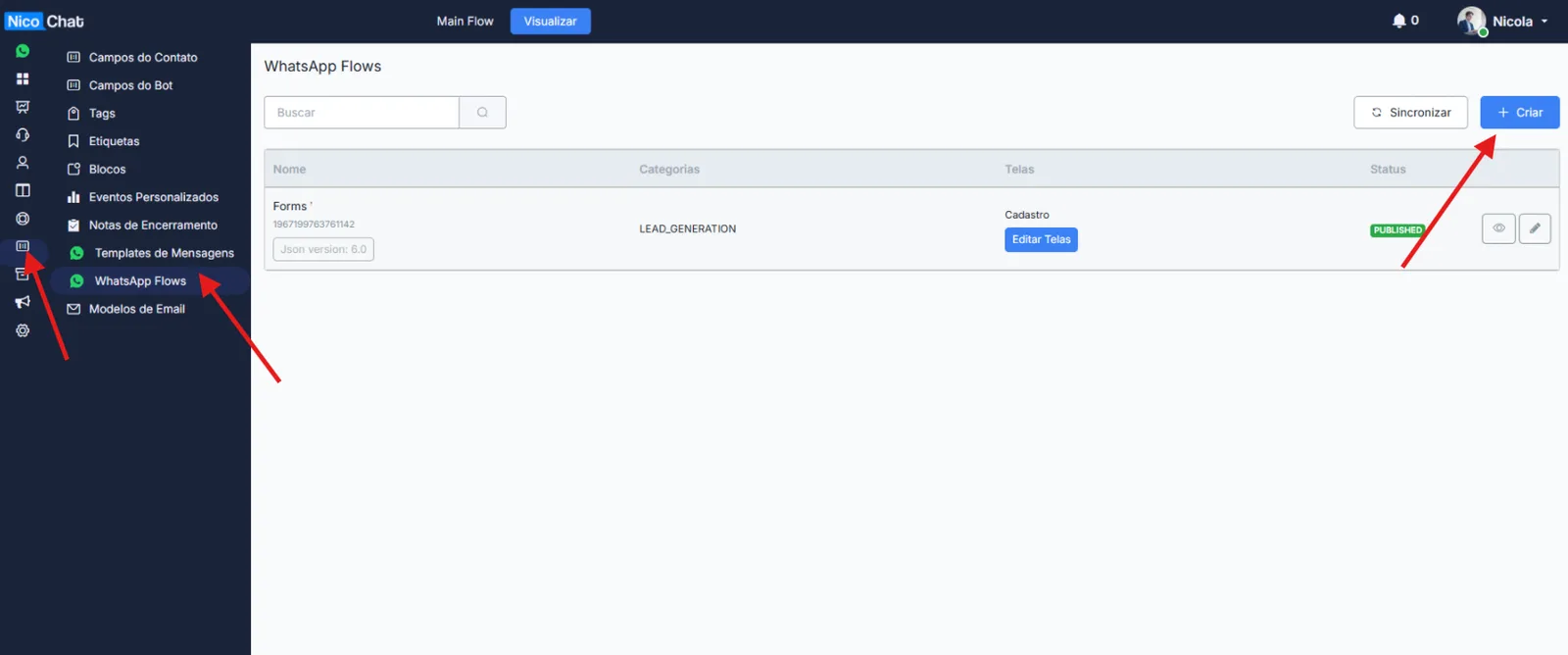
After clicking the +Create option, you will name your form and select the desired category:
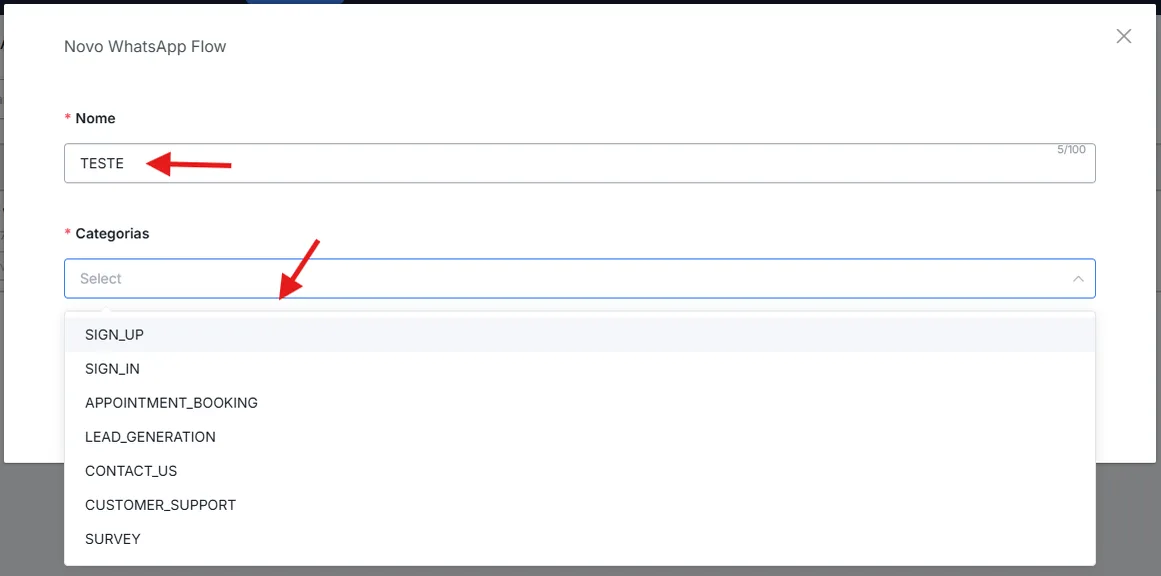
- SIGN UP: Registration form
- SIGN IN: Login form
- APPOINTMENT BOOKING: Scheduling form
- LEAD GENERATION: Form to collect the Lead's information
- CONTACT US: Form to collect the contact's information
- CUSTOMER SUPPORT: Customer support form
- SURVEY: Survey form.
Once the desired category for the form is selected, the next step is to edit the screens you want.

You will be redirected to the editing menu, where you will select each screen you want to insert into the form.
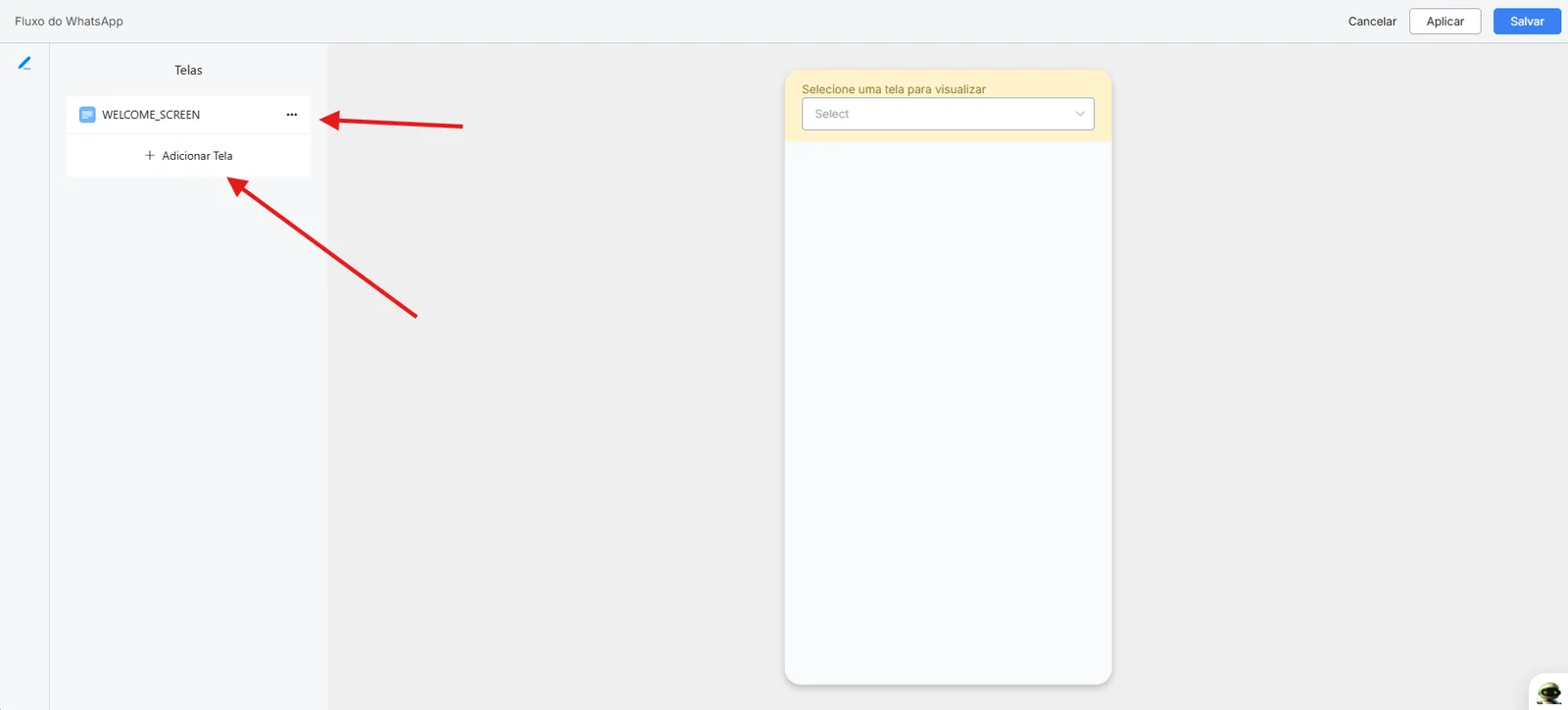
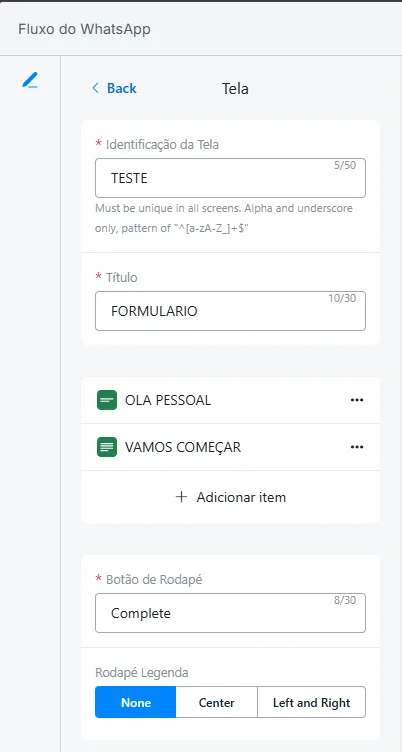
In this option, you define the identification of each screen, the title your form will have and the items you need.
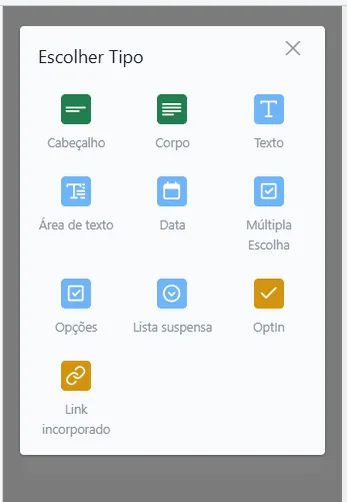
When you select add item, you choose the type of item you need in the form: Heading, Body, Text, text area, Date, Multiple Choice, Options, Dropdown, OptIn and Link.
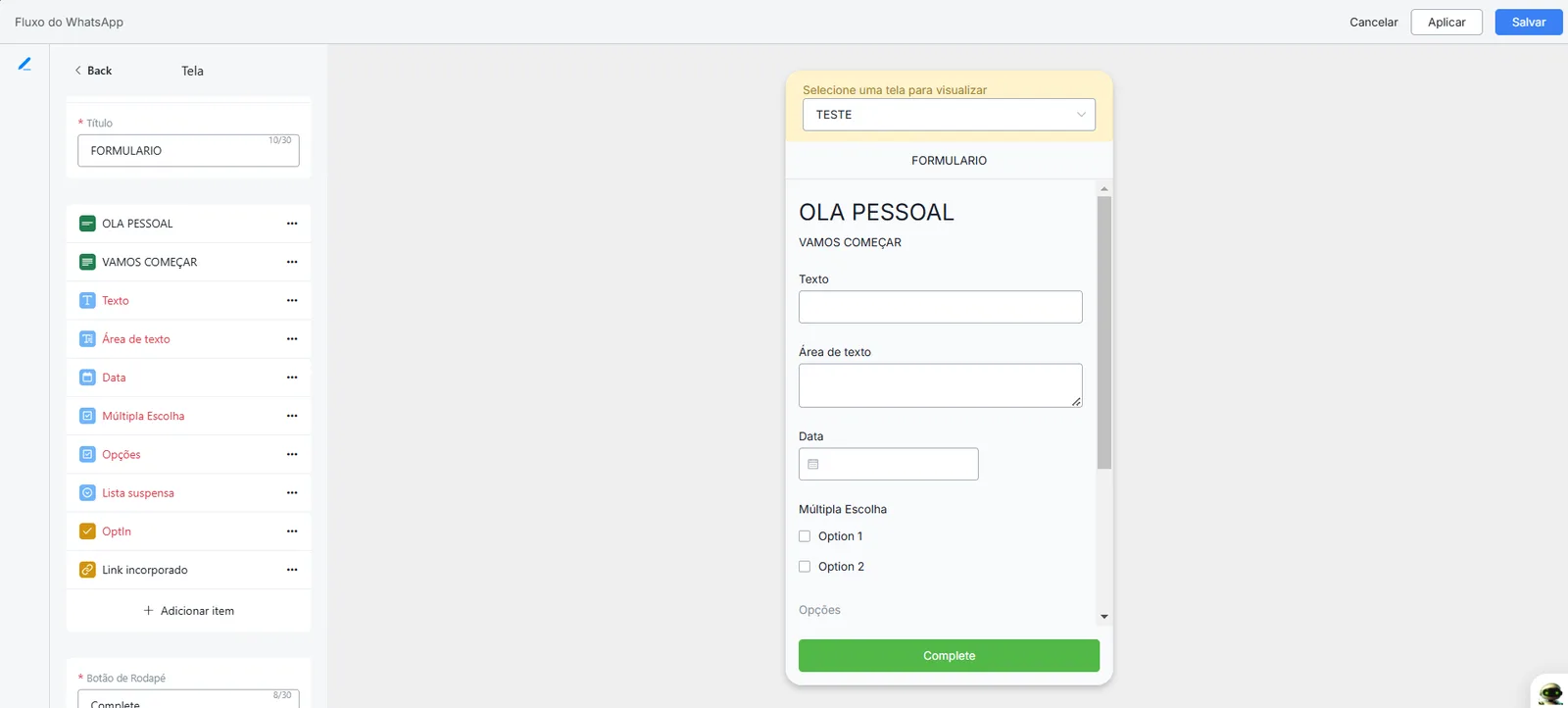
And your form will be ready.
Start a flow with a message block and select the WhatsApp Flow option.