

Message Template for WhatsApp API
Message templates must be submitted to Facebook for approval before they become available for use. Facebook is the one that reviews each template to prevent spam and to check that each message complies with the WhatsApp API guidelines.

Message templates must be submitted to Facebook for approval before they become available for use. Facebook is the one that reviews each template to prevent spam and to check that each message complies with the WhatsApp API guidelines.
A message template must be sent whenever the conversation is outside the customer service window, that is, when more than 24 hours have passed since the customer sent their last message to that business phone number.
You regularly use the message template to send notifications.
Templates use placeholders, written between double curly braces, that are replaced with dynamic content when the message is sent. Think of message templates as the starting point of a two-way conversation.
For more information about WhatsApp message templates, see the official Facebook documentation for the WhatsApp Business API.
You can find more information about pricing below:
developers.facebook.com/docs/whatsapp/pricing/conversationpricing
Charges for conversations are based on the user's phone number. Rates for business-initiated conversations and user-initiated conversations vary by market (country or region). See Rates for specific pricing information.
Here are some tips to get your templates through the review process:
Clarity: be specific and clear. Reviewers may not know the customer's business and may need more clarity. Avoid promotions: upsell, unsolicited messages, sending polls to collect data and the use of certain phrases that sound promotional are all considered promotion.
Spelling: check for spelling and grammatical errors and use the appropriate formatting (for example, double curly braces for parameters).
Name: make the name of your message template clear. Instead of using a name like template_014, use bus_ticket_details. Remember that someone from Facebook will review your templates. Providing more clarity gives reviewers the context about how the template will be used.
Create context: if you need to write a message template to reopen the 24-hour window, we suggest starting with some mention of the topic of the previous conversation.
Choose an appropriate category: do not forget to use the correct message template type. Choosing the correct one will increase the chances of your templates being approved and will provide more information to WhatsApp during the approval process.
The categories you can choose are listed below.
Header (optional): you can add a title or choose which type of media you will use in this header. Image, PDF and video are accepted.
Account Update:
let customers know about updates or changes to their accounts. You can use this to notify the message recipient of a change to the account settings.
- Preferences are updated
- Settings have been changed
- The subscription has expired
- The profile has changed
Alert update:
send important updates or news to customers.
Appointment update:
send confirmations, reminders or other updates to customers about their appointments. For example:
- Changes to the appointment time
- Changes to the appointment location
- The appointment was canceled
Auto-reply:
send automatic replies to customers when your business is not online or available to respond immediately.
Issue resolution:
respond to questions, concerns or feedback from customers about your business. For example:
- The issue was resolved
- The issue status is updated
- The issue requires a request for additional information
- Notify the message recipient about something informational, such as business hours
/hours of availability
One-time password:
send automatically generated verification codes so customers can securely access their accounts.
Payment update:
send a message to customers about the payment. For example:
- Send an out-of-stock notification
- Notify that an auction has ended
- The status of a payment transaction has changed
- Send a receipt
Personal finance update:
send a message to customers about their personal finances. For example:
- Bill payment reminders
- Scheduled payment reminder
- Payment receipt notification
- Funds transfer confirmation or update
- Other transactional activities in financial services
Reservation update:
send confirmations, reminders or other updates to customers about their reservations. For example:
- Location changes
- The cancellation was confirmed
- The hotel reservation was canceled
- Changes to the car rental pick-up time
- Room upgrade confirmed
- Itinerary changes
Shipping update:
send shipping updates to customers about their orders. For example:
- The product is shipped
- The status changes to in transit
- The product is delivered
- The shipment is delayed
Ticket update:
send shipping updates to customers about their orders. For example:
- Changes to the concert start time
- Changes to the event location
- The show was canceled
- A refund opportunity is made available
Transportation update:
send shipping updates to customers about their orders. For example:
- Changes to the flight status
- The ride was canceled
- The trip has started
- The ferry has arrived
If no specific category fits, you can choose auto-reply.
.webp)
Media templates have more building blocks and features, and are formed by the following blocks:
- Header:
The header is optional and serves as the title or header of your template. It supports the following: text, image, document and video - Body:
The body must contain the most important text of your template. It accepts text only - Footer:
The footer supports text only and can be used to provide less relevant information in your message template - Button:
The button adds interactivity to your templates. There are two main types.
Quick Reply Button:
used to get quick answers from your customer, at most 3 quick reply buttons per template. Call to action button:
at most one URL and one phone number per template.
Please note:
- All templates require a body; header, footer and buttons are optional.
- All media examples must be URLs that point to a valid media file.
In this section, you will need to access your WhatsApp Business Manager account. Select the Business Manager account from the drop-down menu, if there is one, and select “message template”.
Note: the WhatsApp test number does not allow you to create message templates. You need to use a new, real phone number to create a new message template.
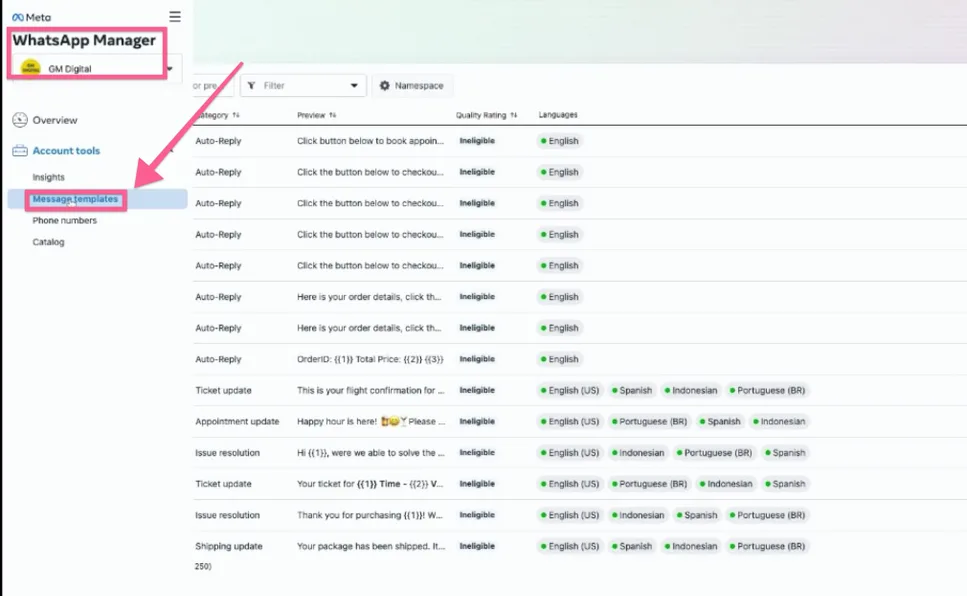
Then click “Create message template” in the top right corner of the dashboard.
You need to fill in the template name and select the message category and the languages.
Create standard templates (text only):
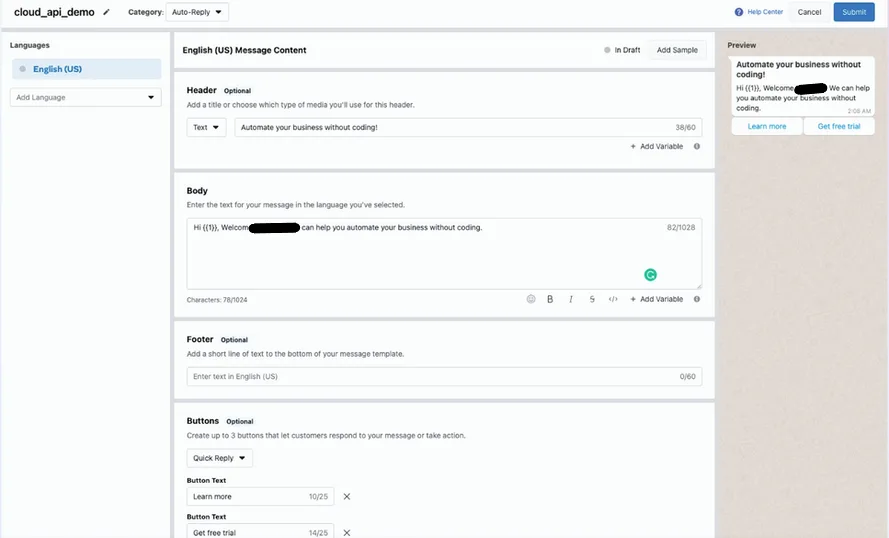
Below is the message template we created and, after creating the template, submit it to Facebook for review.
If you follow the best practices, your template will be approved soon.
As soon as the message template is approved, you will see the approval icon below.
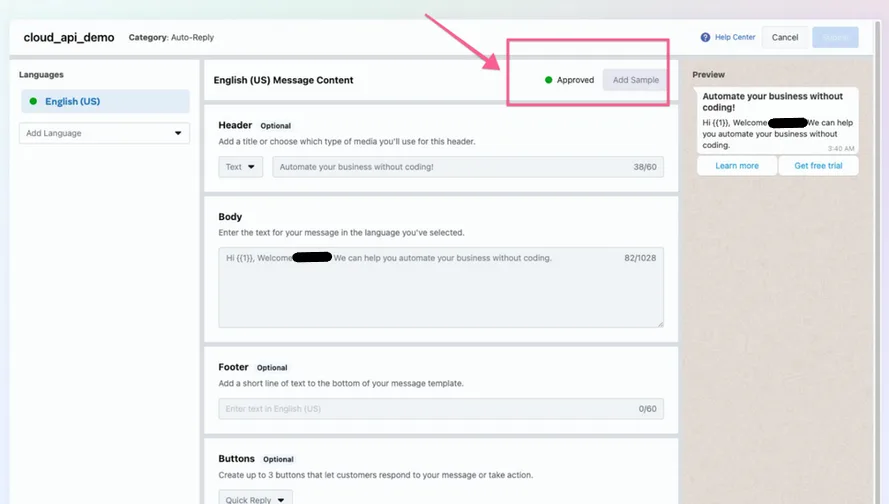
Now you can go back to NicoChat and access the WhatsApp channel.
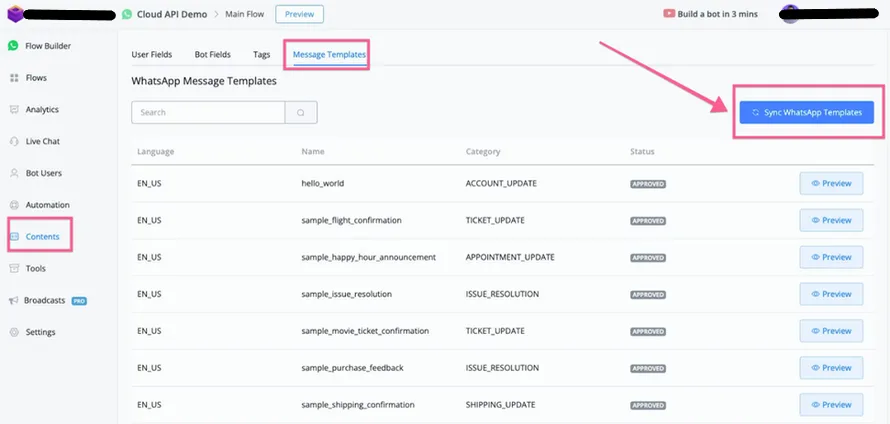
After going to Content → Message Templates and clicking “ Sync WhatsApp Template ”, you will see that all approved templates will be synced back to NicoChat.