

WhatsApp native eCommerce - product catalog message
You can showcase and share your products and services with your customers so they can browse the items and add them to the cart without leaving the chat.
Please note:
- test WhatsApp phone numbers do not support testing product catalog messages.
- Also, the WhatsApp Cloud API already supports product catalog features.
To use products and catalogs in your WhatsApp Business API account, follow the steps below.
First, you need to upload your inventory to Facebook. You can use the API or Facebook's Commerce Manager to do that.
Your inventory needs to be uploaded to Facebook in a catalog format — see About Catalogs for more information.
If you already have a Facebook catalog set up, we suggest that you leverage that catalog for WhatsApp commerce use cases.
If you need to create a catalog, there are two possibilities:
You can upload only one catalog per WhatsApp Business Account (WABA), but the same catalog can belong to multiple phone numbers.
Now, back in NicoChat, go to the WhatsApp API channel and click “View Catalog”: it pulls all the catalogs under your current business account.
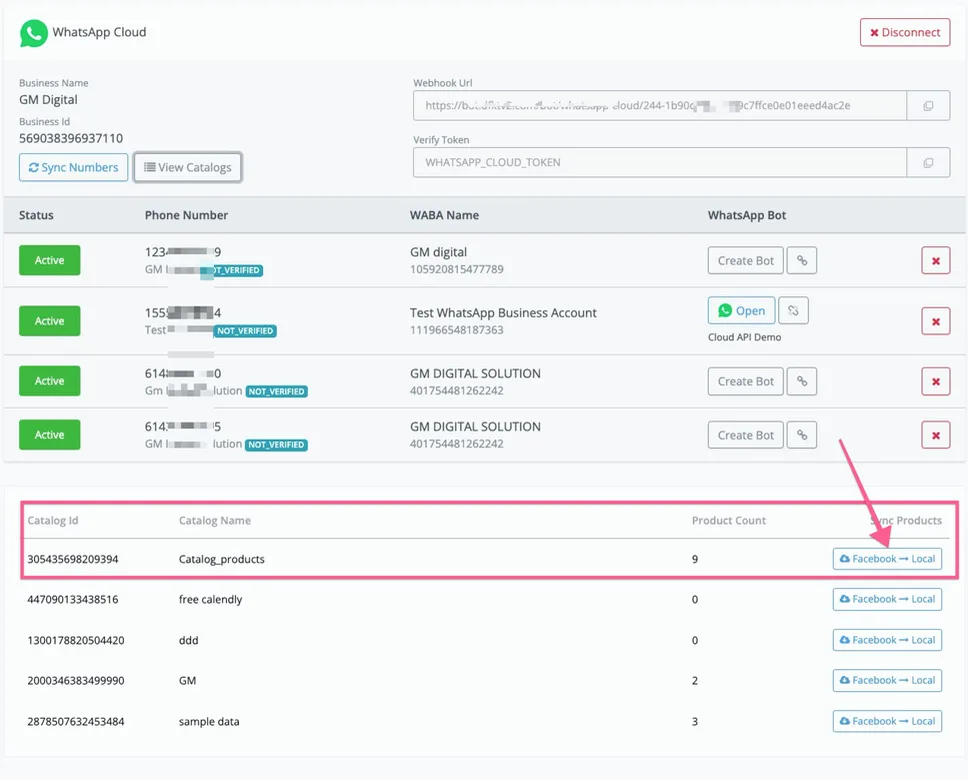
Then select the “Facebook to Local” button, as shown in the image above. This lets you sync all the products in your Facebook catalog with our built-in eCommerce.
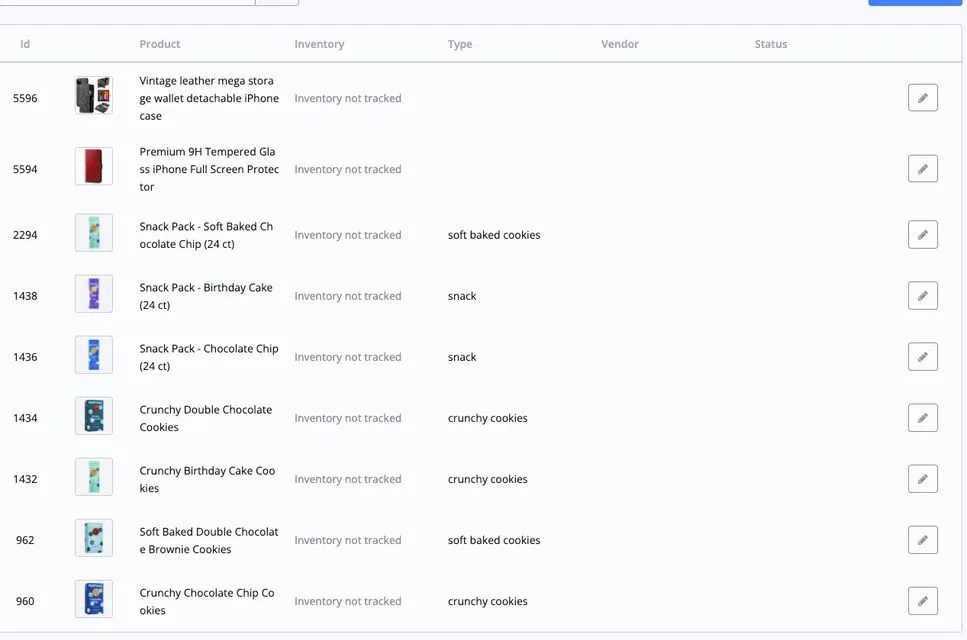
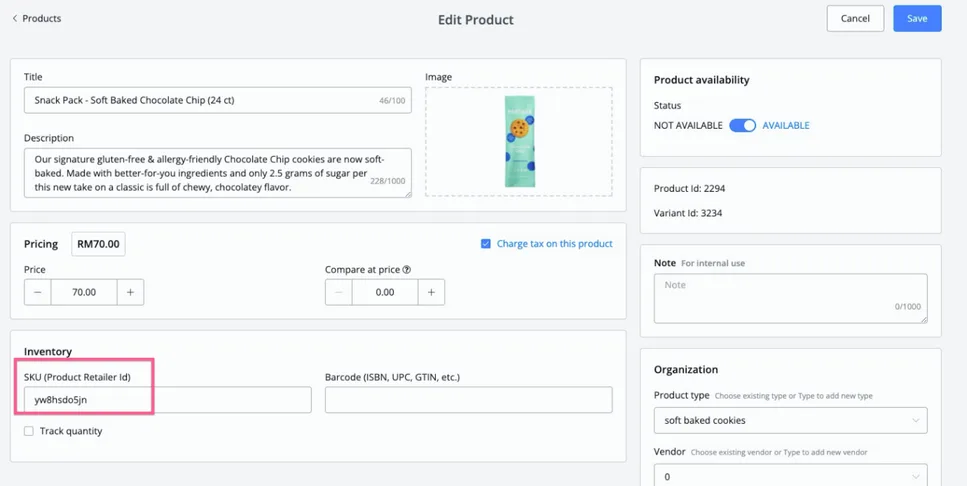
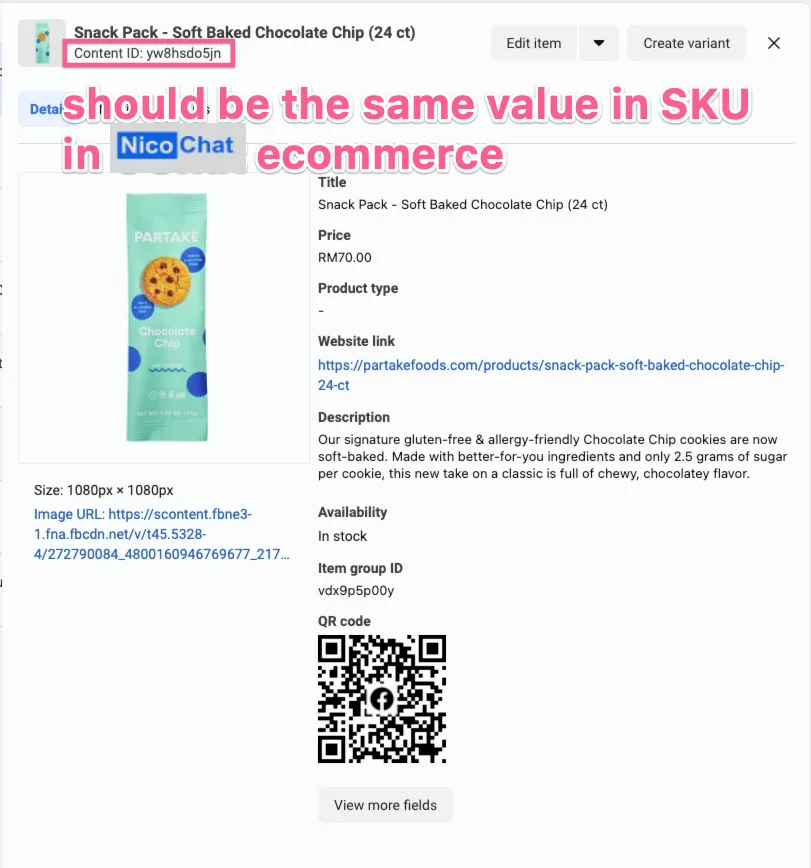
And the most important thing here is to make sure that the “SKU” in NicoChat is the same as the “ContentID” in your Facebook Catalog.
Here is the same value in the Facebook Catalog.
You need to connect your WhatsApp number to a product catalog. Only after that will you be able to send product catalog messages.
After syncing the product catalog with NicoChat's built-in eCommerce, you can already use send product in the message node.
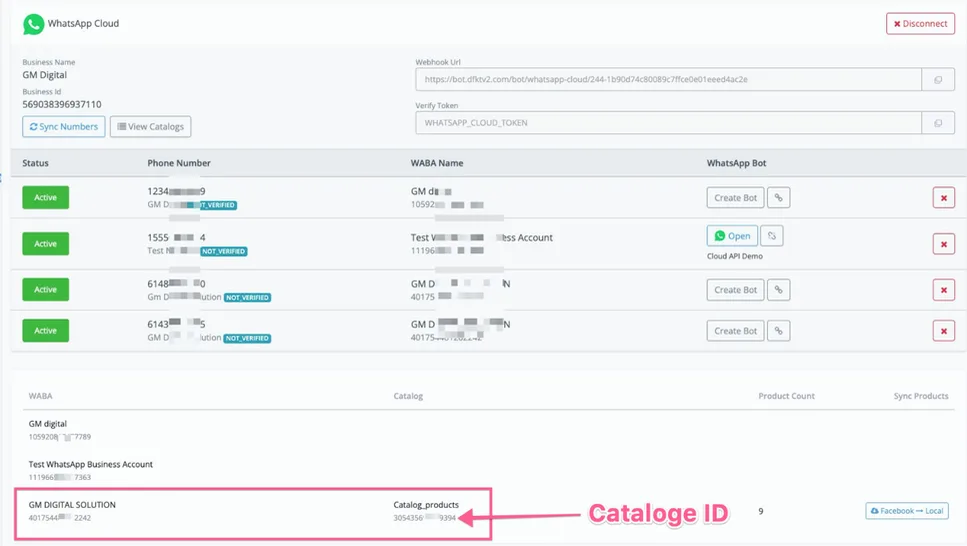
If you go to the WhatsApp Cloud API and click “View catalog”, you will see the ID of the catalog that is connected to your WABA account.
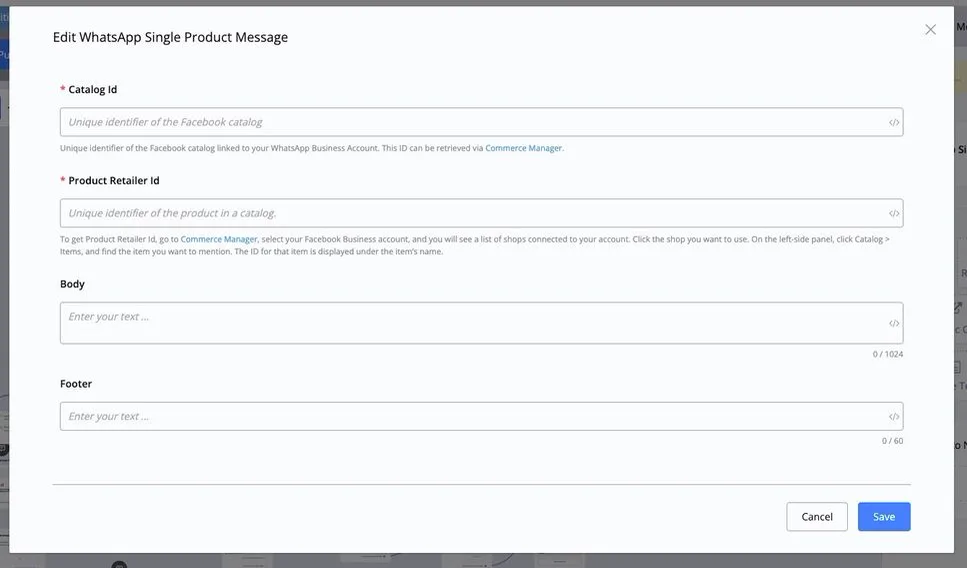
You can choose to send a single product message or multiple product messages
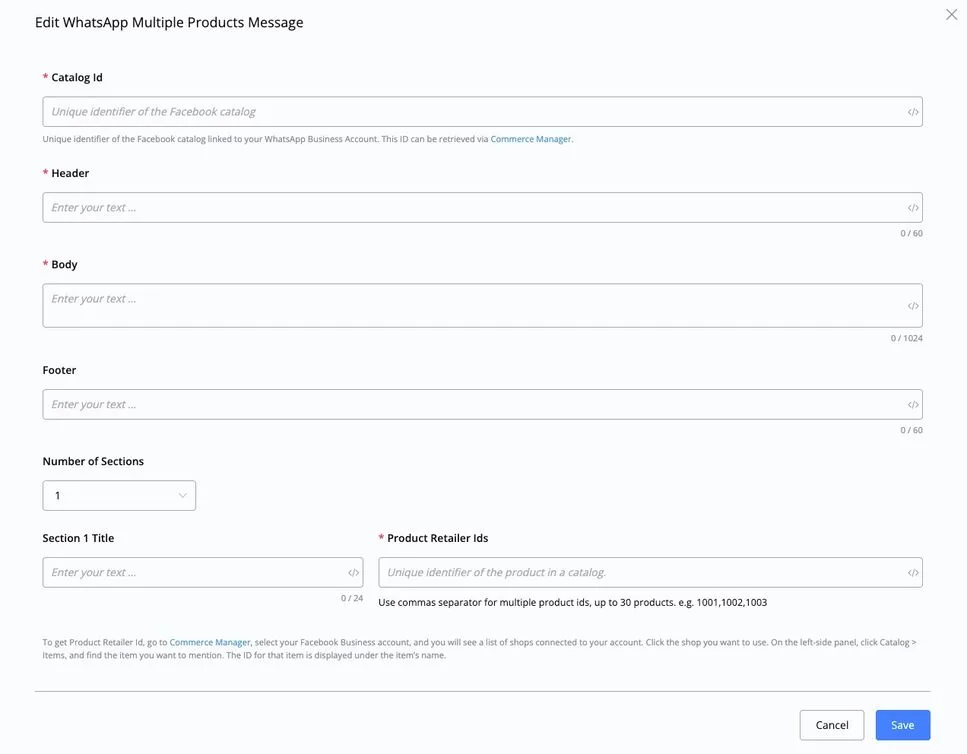
If you are going to send multiple product messages, you can select how many sections you want to include and then choose the retail IDs (which are the contentIDs in the Facebook Catalog).
If you have already synced the Facebook Catalog with NicoChat eCommerce, you can use the “Get Products” action to dynamically populate the retail IDs.
Go to Actions, select “ecommerce” and then “Get Products”.
.webp)
You can use built-in filters to dynamically populate the retail IDs that will be used when sending product catalog messages.
You will learn more about how to set up a “WhatsApp product inquiry trigger”. It fires the message every time your customer sends an inquiry on the product detail page.
The WhatsApp order received trigger fires when the user sends the cart.
You can use the value inside this trigger to generate the checkout link for the user.
You can find more details in the video below: