

Advanced CRM (Pipeline)
This feature is a paid NicoChat add-on. Before you start using it, purchase it in the Addons tab.
Open the playlist below to watch the full Pipeline course:
In your workspace dashboard, click “Pipelines”.
Click the “+List” button to create a new list.
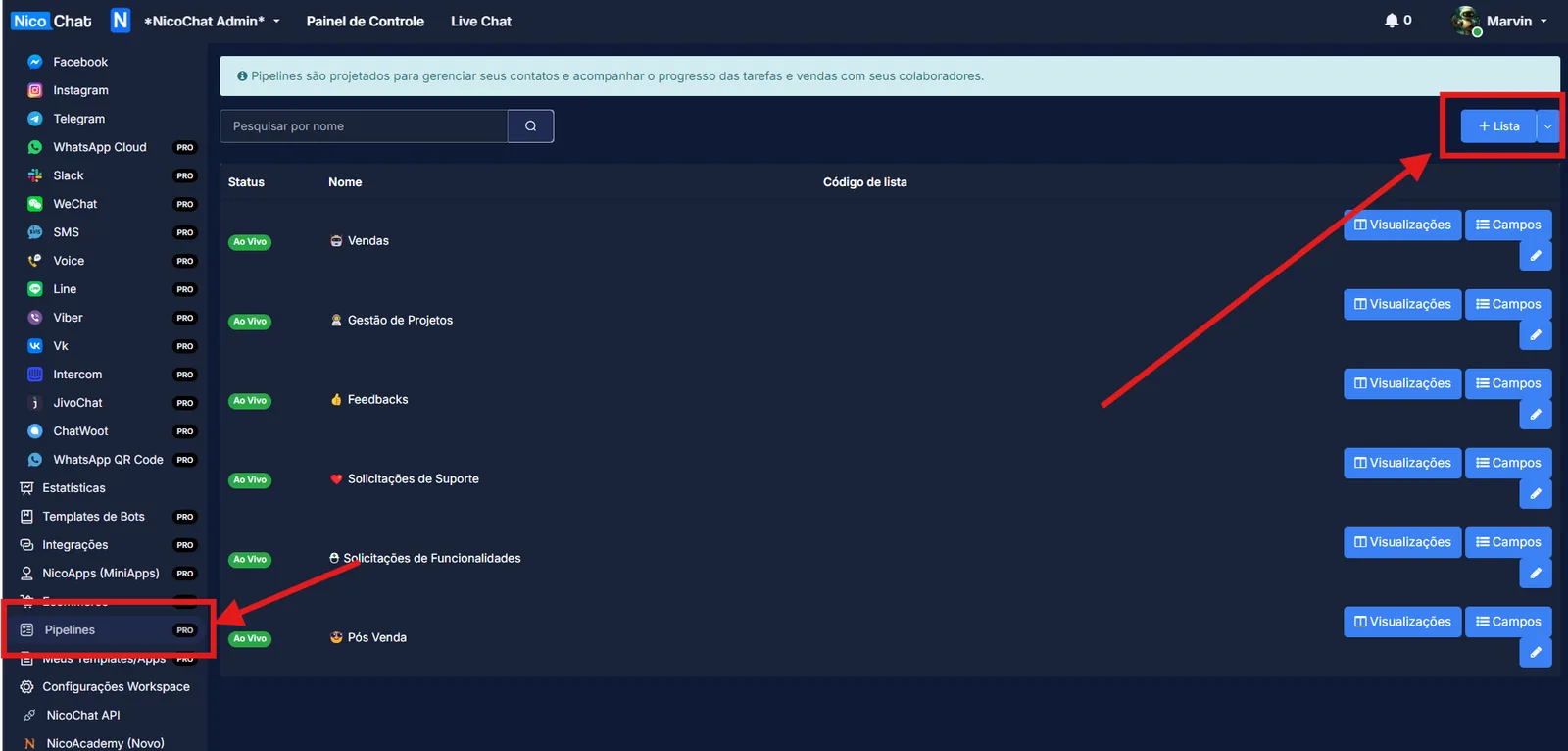
Once that is done, click the “Create” button.
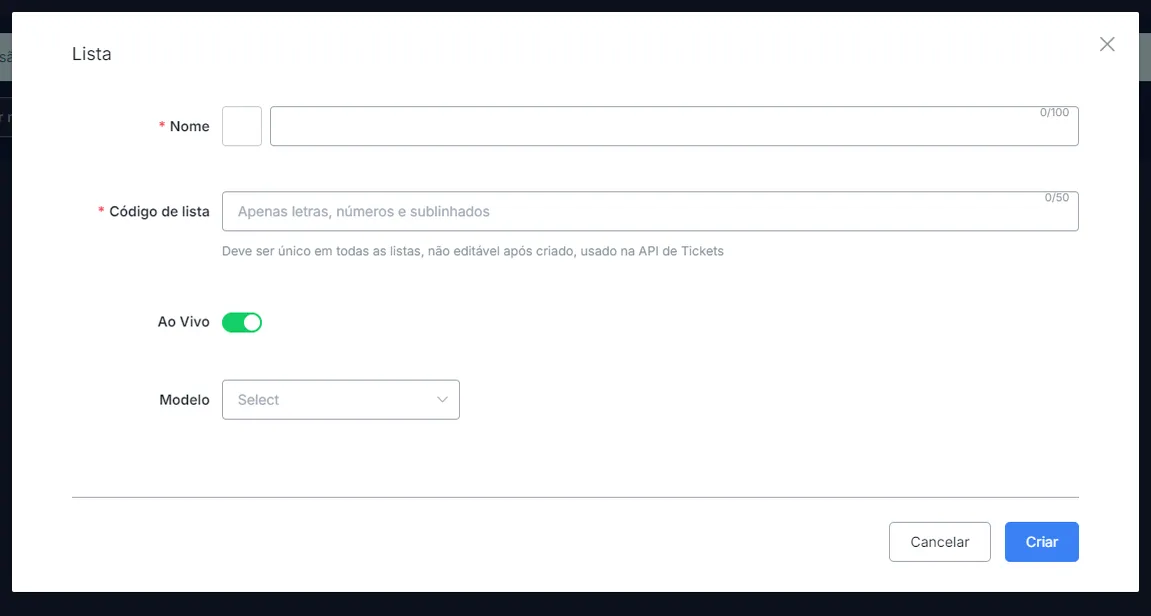
The view shows how many items currently exist in a list. This can match the number of tickets present in a specific template.
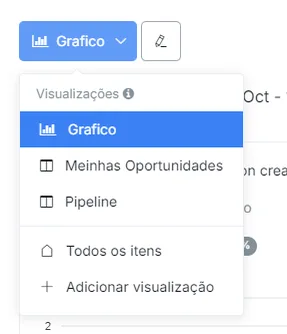
You can use the preexisting filters to filter the results, and you can also see every item by clicking the “All items” view.
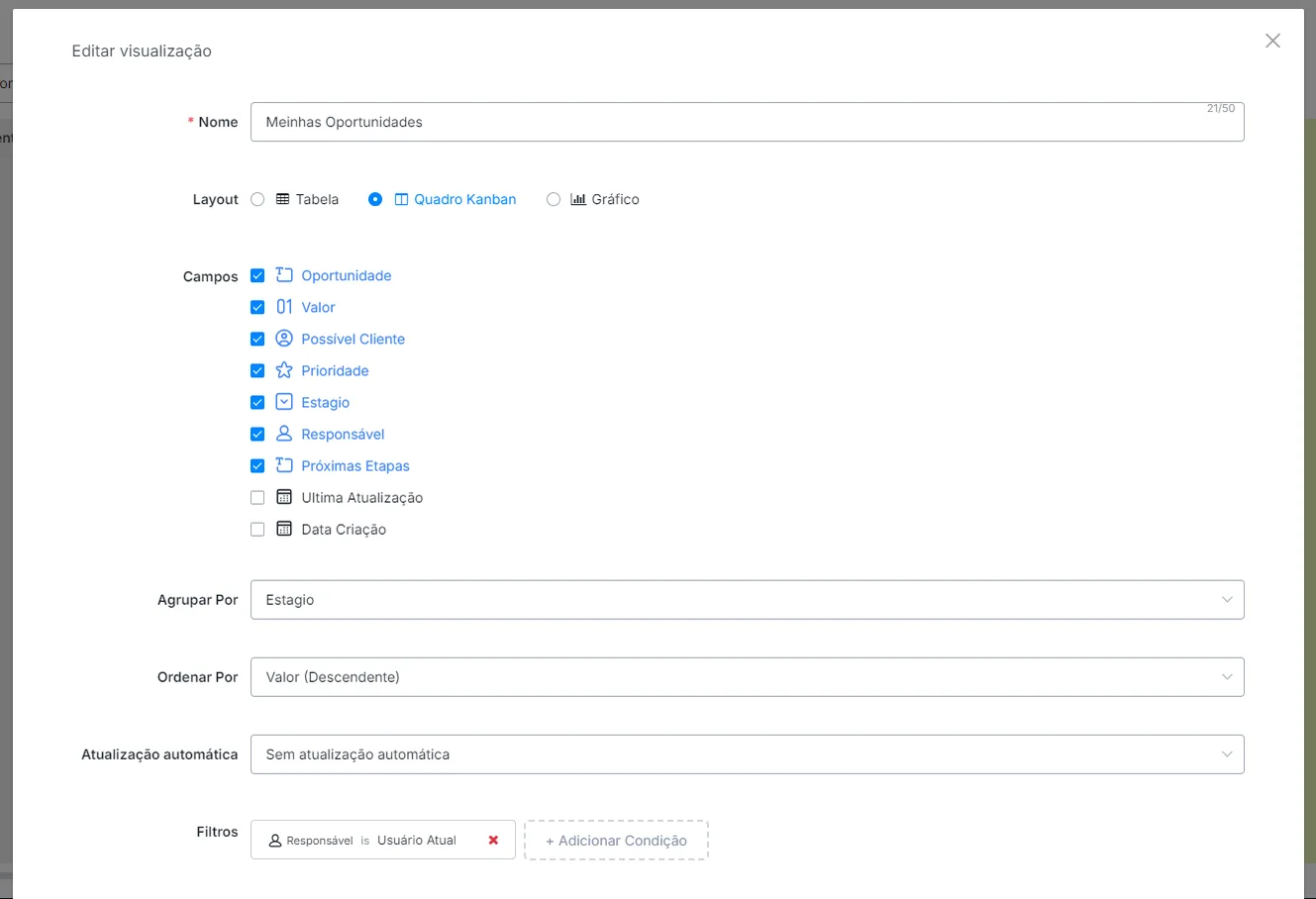
You can also create a new view and change the response according to the result you want.
You can also filter the items based on their current status. The statuses shown above are the ones currently available for use.
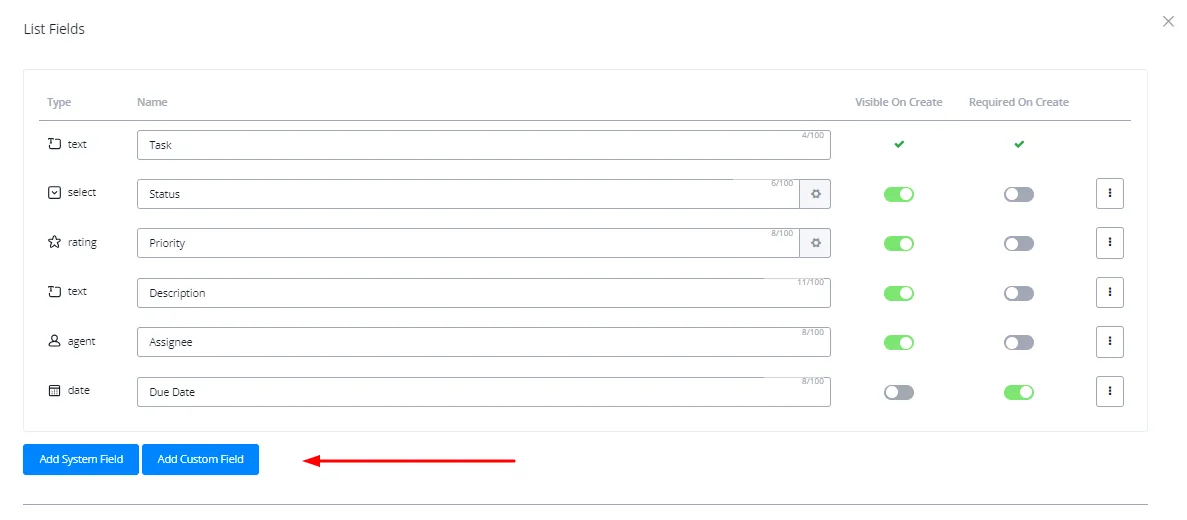
The Fields option lets you add, remove or make certain fields required when adding an item to the list. You can use the preexisting fields, both the available System Fields and the Custom Fields.
This lets you make any field you need required when adding an item to the list.
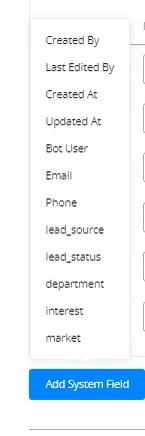
The following System Fields are currently available:
For custom fields, you can use these CUF types. The maximum number of fields allowed decreases with every field you add to the template.
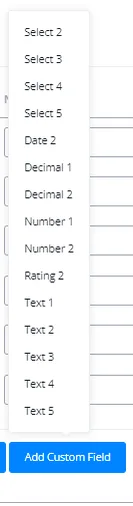
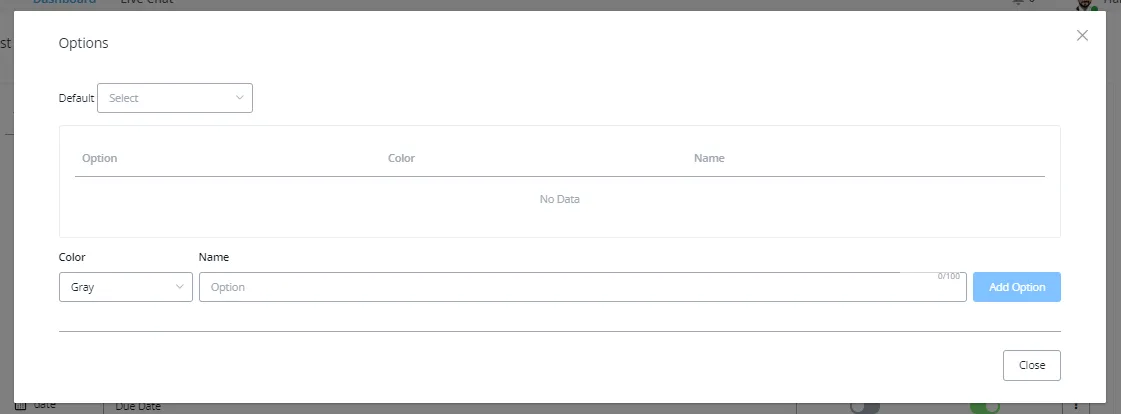
For CUFs of the Select type, you can add a dropdown menu with the options to be selected.
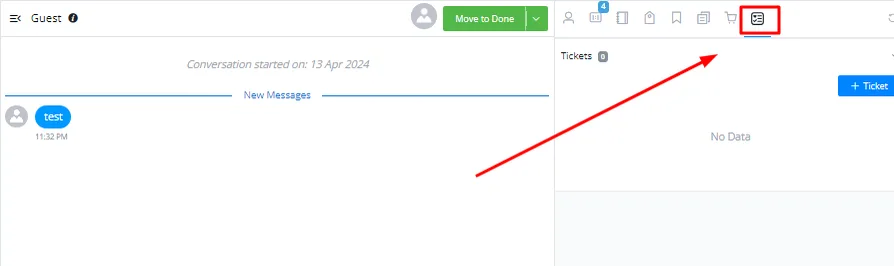
In LiveChat, you can open a conversation and add an item to the Pipeline in the contact overview section.
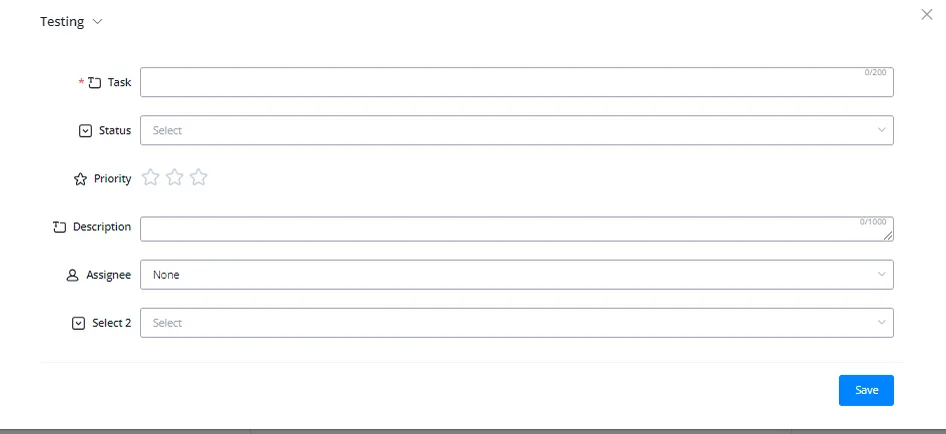
You will be asked for the required fields you configured for the template, and the item will then be added to the list.
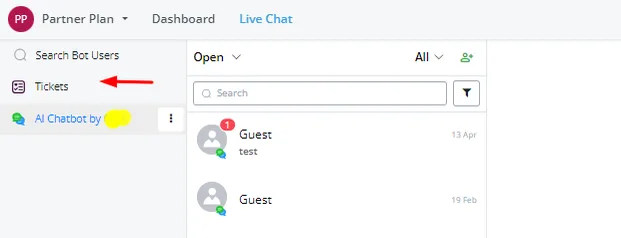
You can also open the CRM section in the Overview tab of the workspace LiveChat.
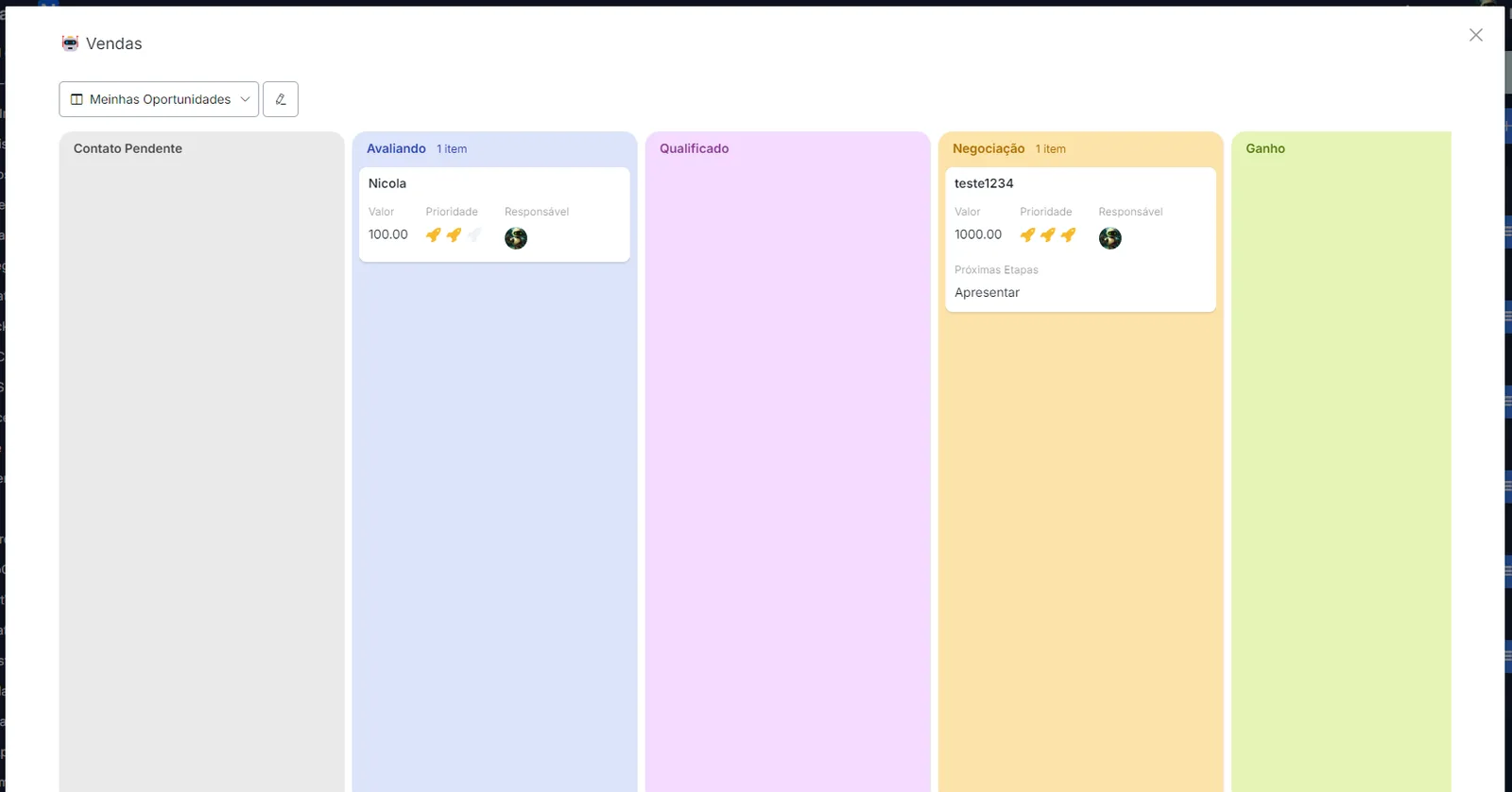
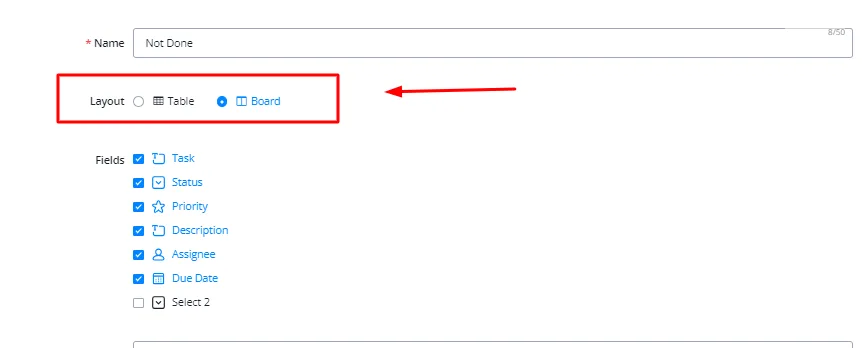
You can also change the order of the tasks by dragging them up and down, according to priority or your own preference. To do so, click “Edit View” and change from “Table” to “Kanban Board”.
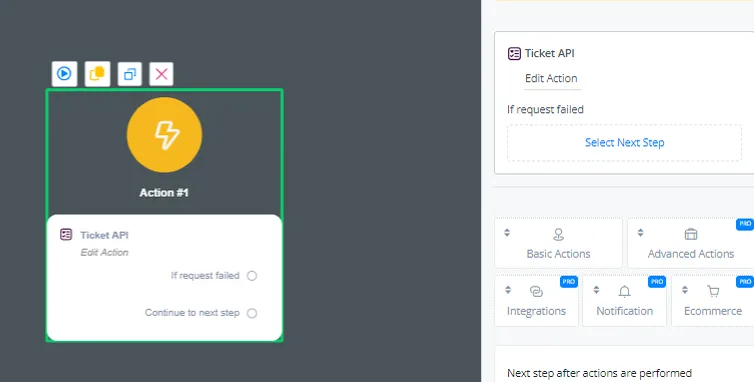
You can also create items for the Pipeline using the “Ticket API” action, in the advanced actions tab of the action block.
The following actions are available:
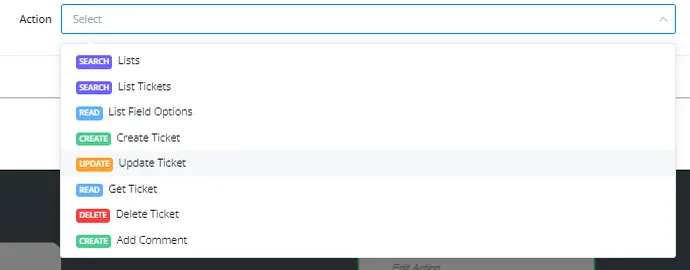
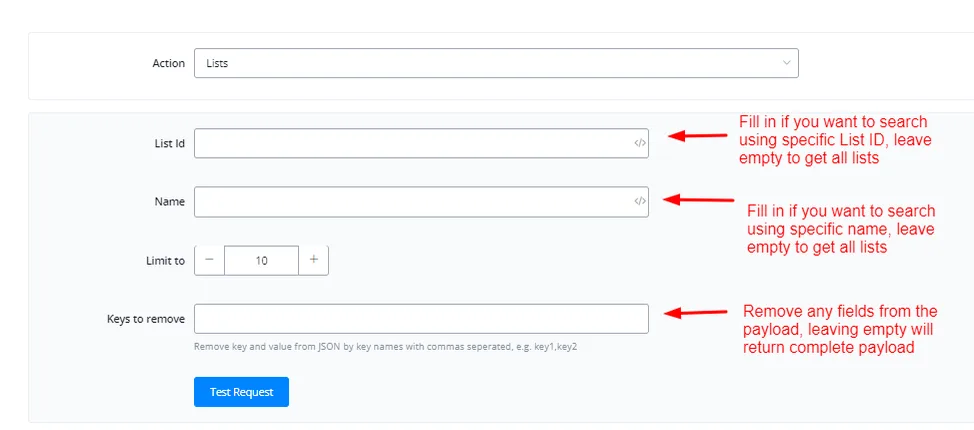
- Pipelines - Gets all the available Pipelines
- List Tickets - Fetches all the items available in the list
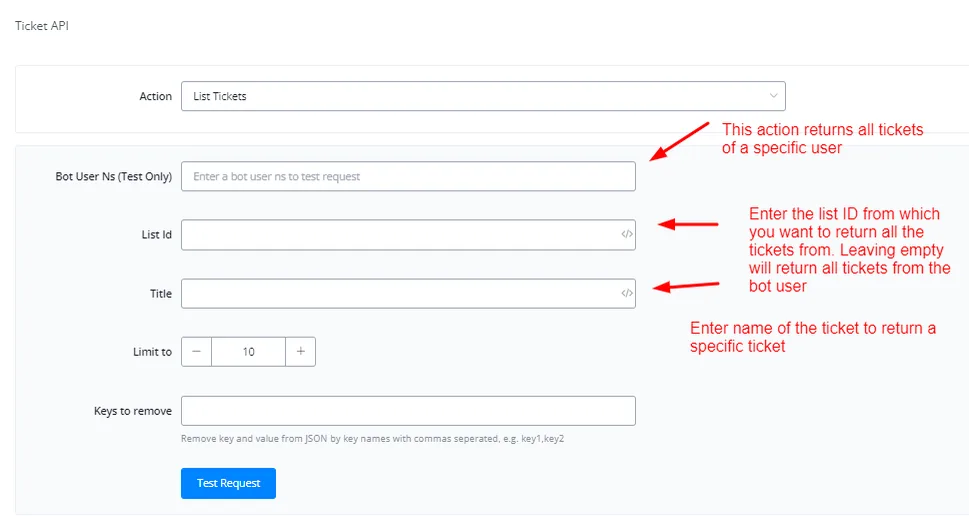
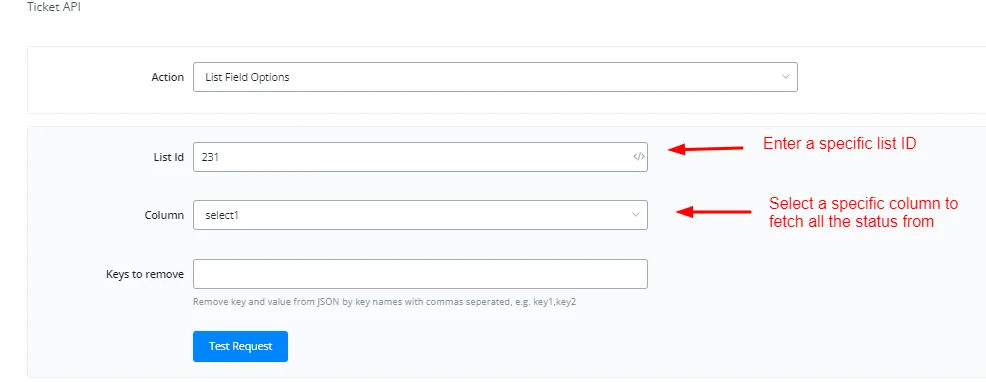
- Pipeline Field Options - Fetches all the fields available in a specific Pipeline
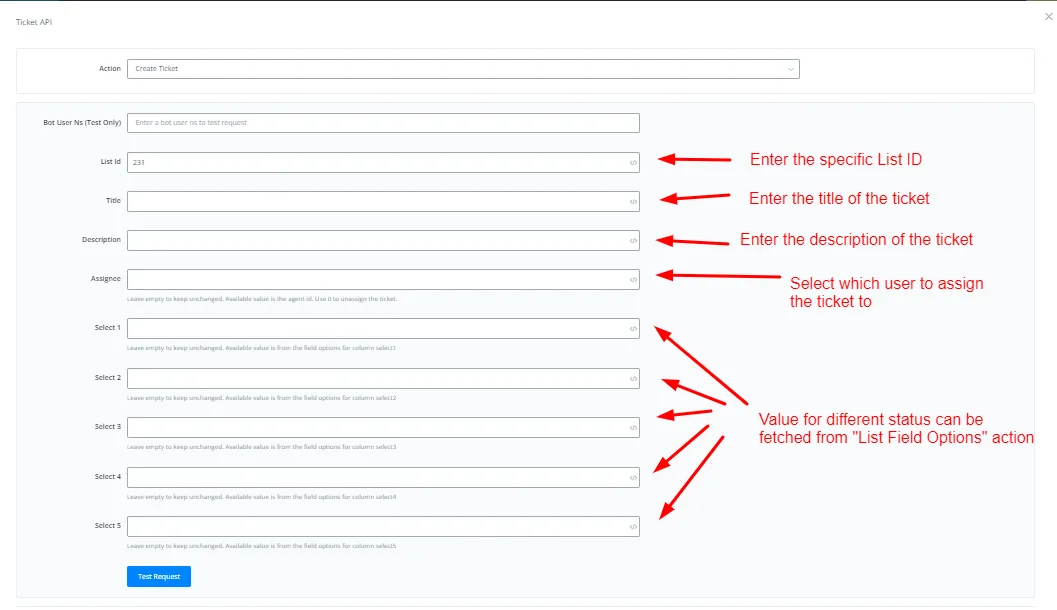
- Create Ticket - Creates and adds an item to the list
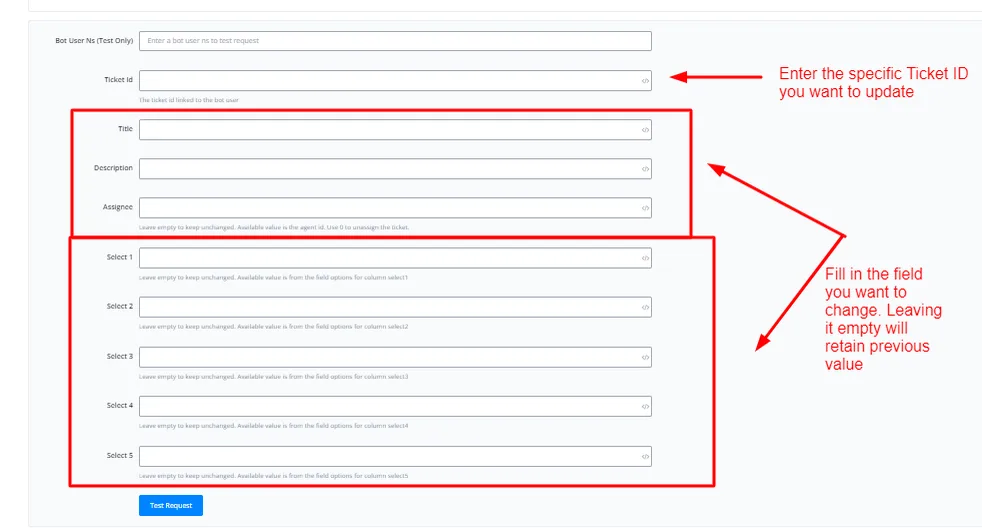
- Update Ticket - Updates an existing item
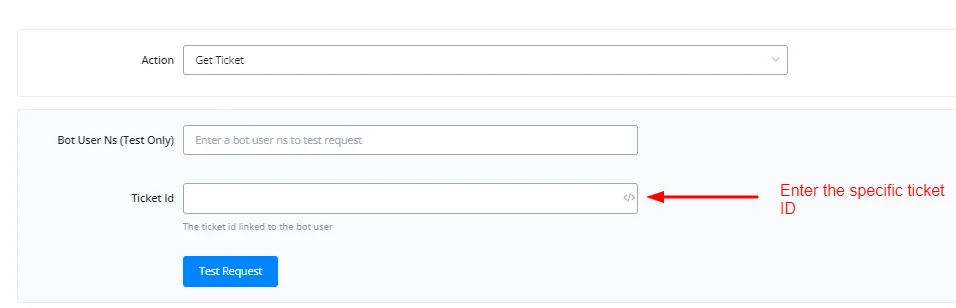
- Get Ticket - Gets the information of a specific Ticket
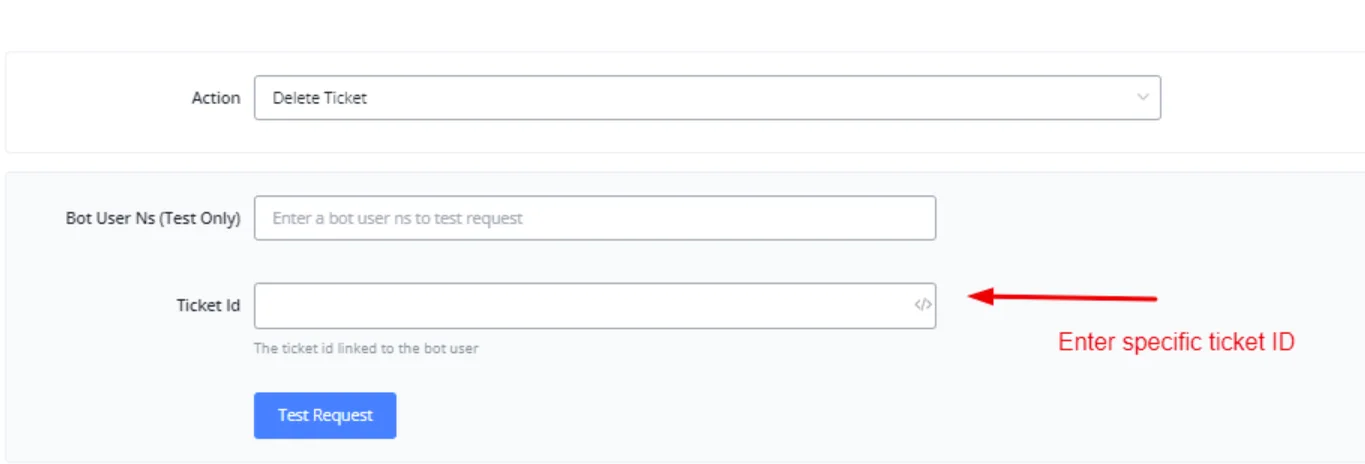
- Delete Ticket - Deletes an existing item
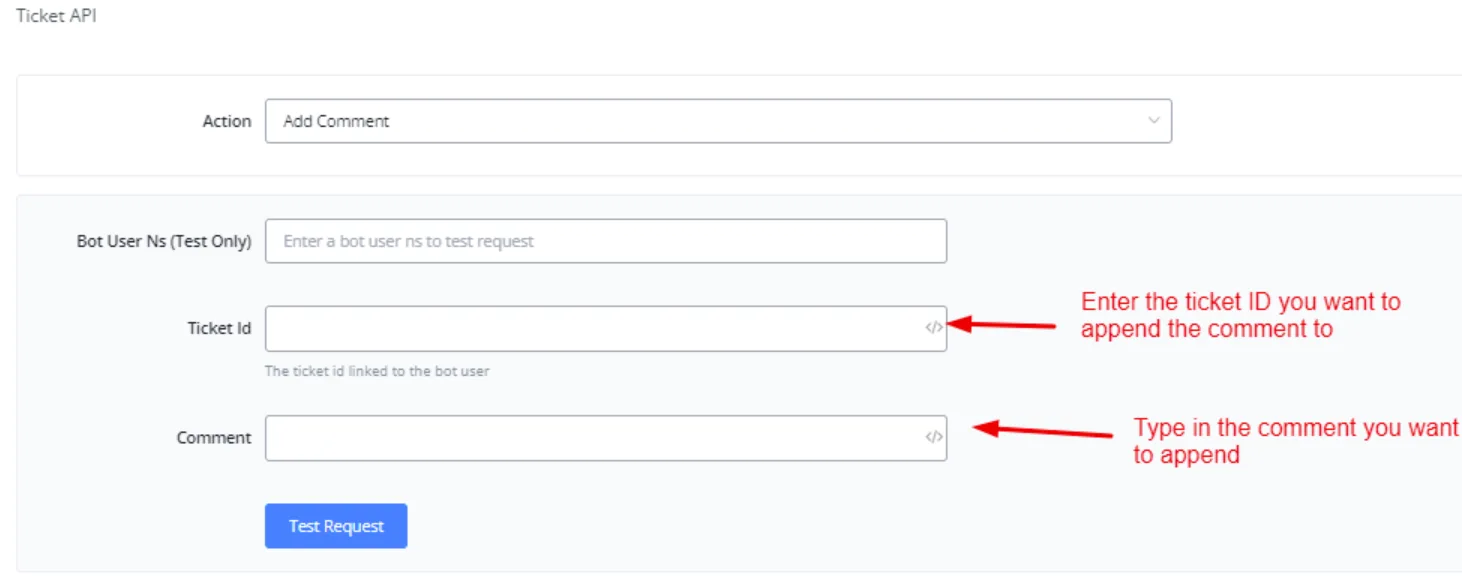
- Add Comment - Adds a comment to an existing item
You can also use the triggers available for the tickets feature. We currently support the following triggers.

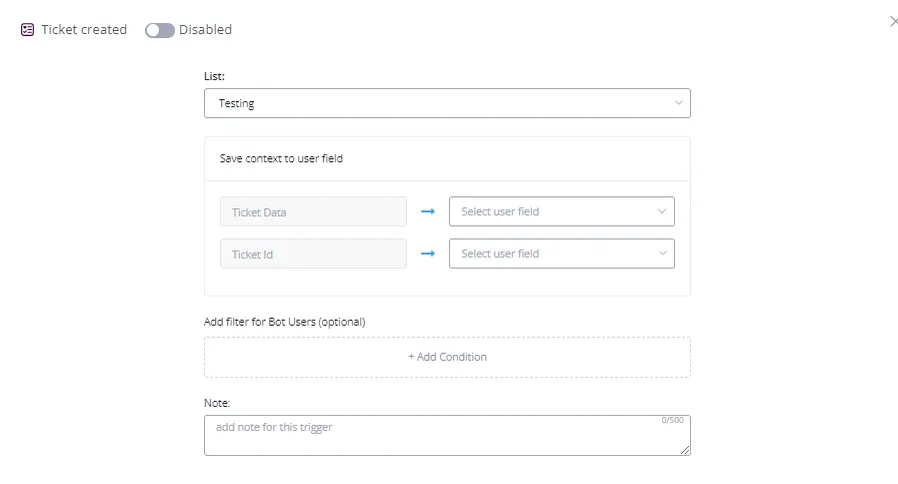
You can save the data received in a JSON payload and, based on that information, trigger certain automations.