Using NicoApps
Before integrating the app into the flow builder, you need to install it — even if you are the one who created it.
Before integrating the app into the flow builder, you need to install it — even if you are the one who created it.
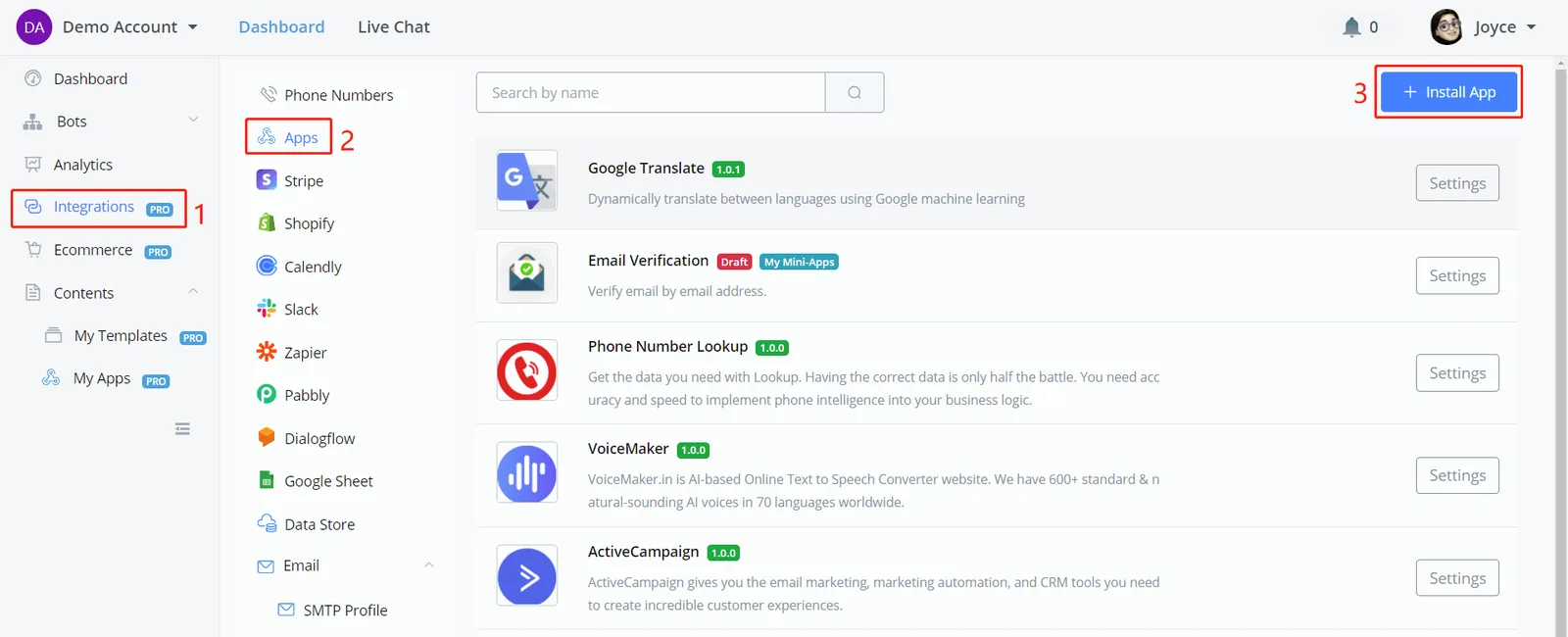
Follow steps 1, 2 and 3. In the NicoApps store, you can see all the apps published by NicoChat or by other users.
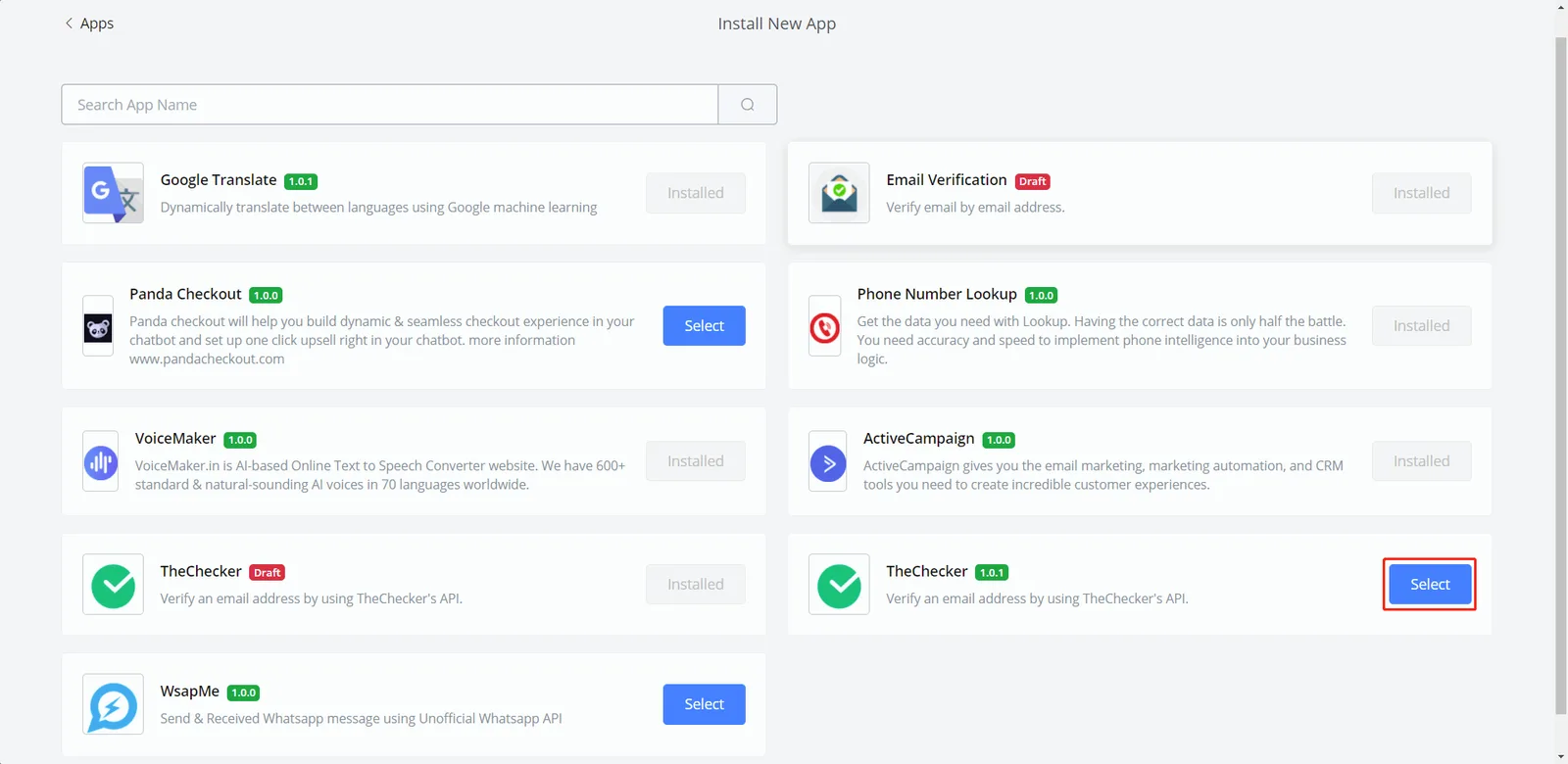
In the screenshot above:
- apps with a green label — for example, "1.0.1" — are apps published by third parties;
- apps with a red "Draft" label are apps created by you. Nobody but you can see them until you publish them.
Click the blue "Select" button to view the app:
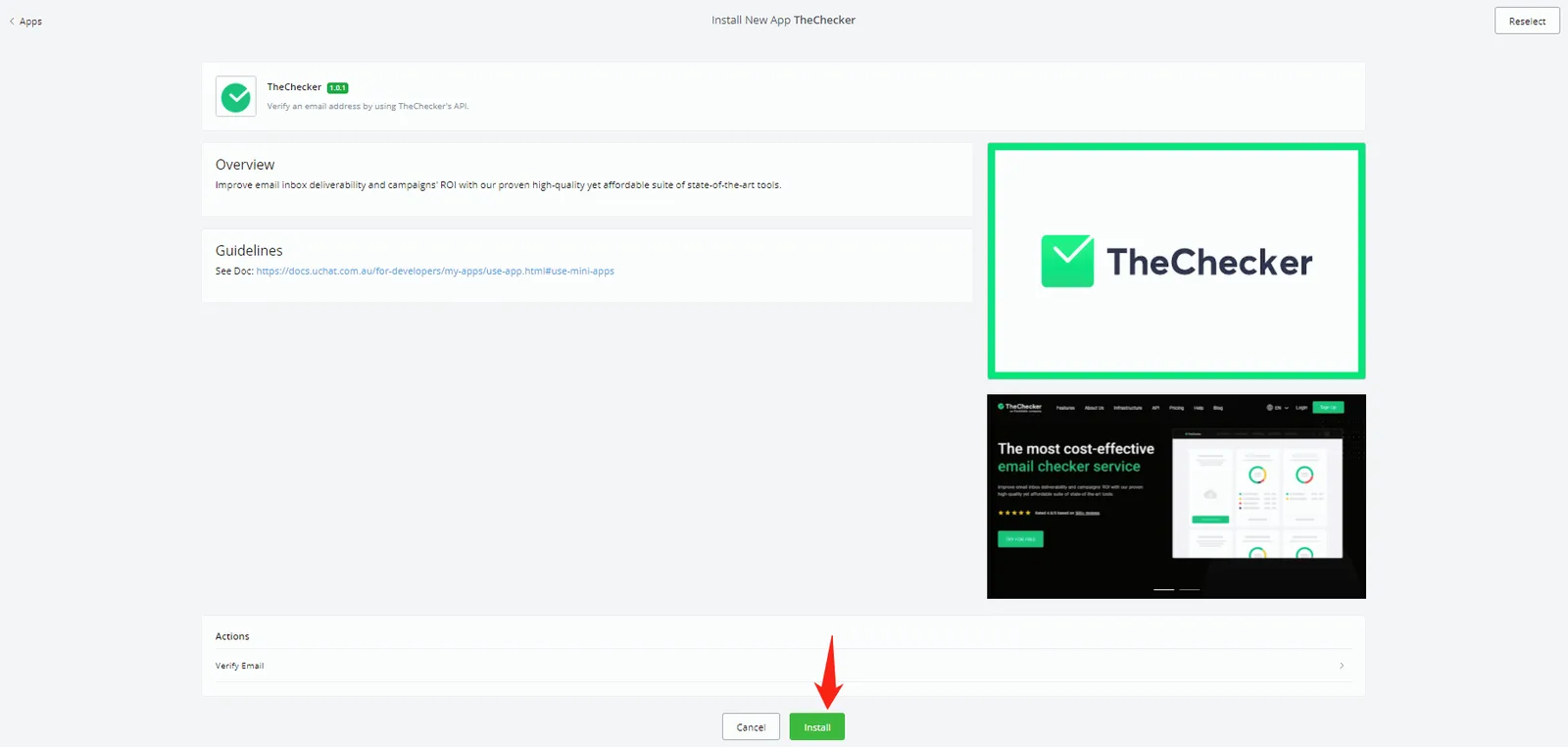
You can preview the actions the app provides, along with descriptions, guidelines and other details. Click "Install"; if an API key is required, a pop-up window will appear:
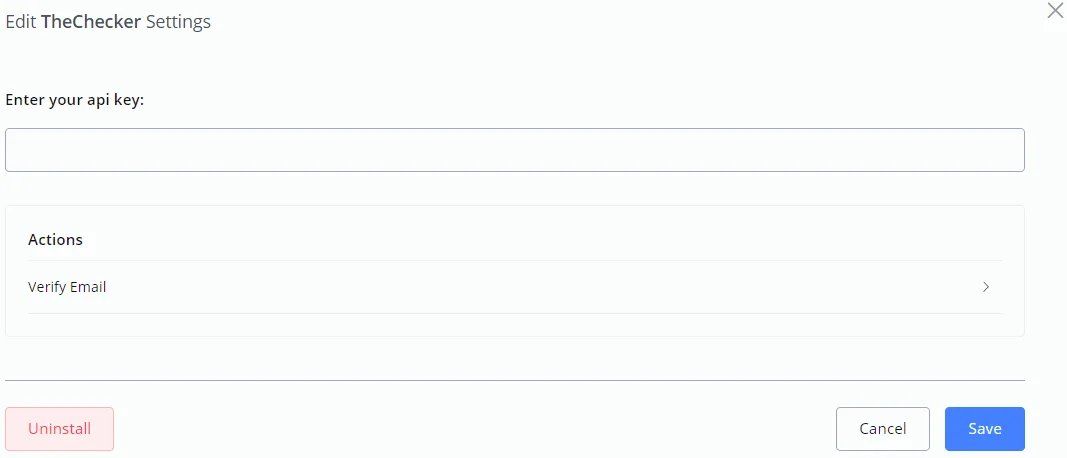
Fill in the key and click "Save".
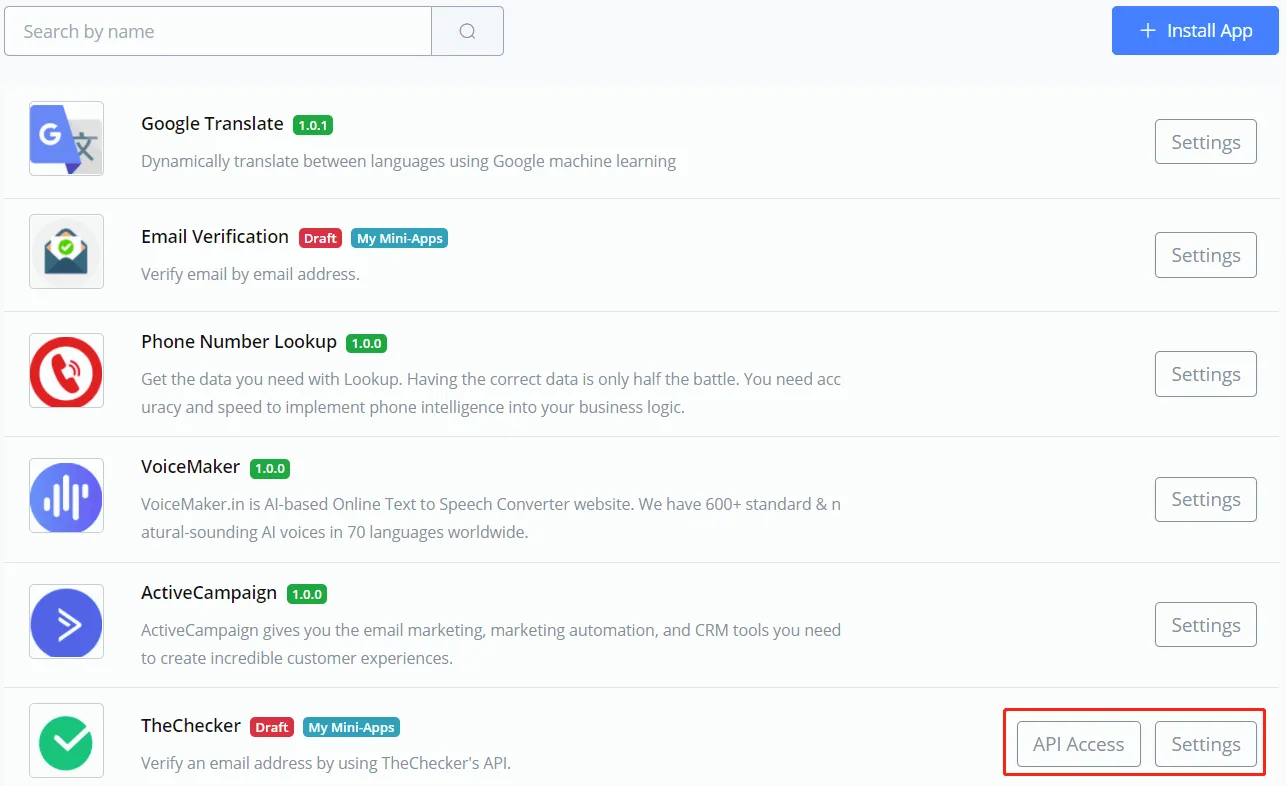
You can also change the key later by clicking the "Settings" button next to the app. In addition, if the app needs access to your flow, you will see an "API Access" button, as in the image above.
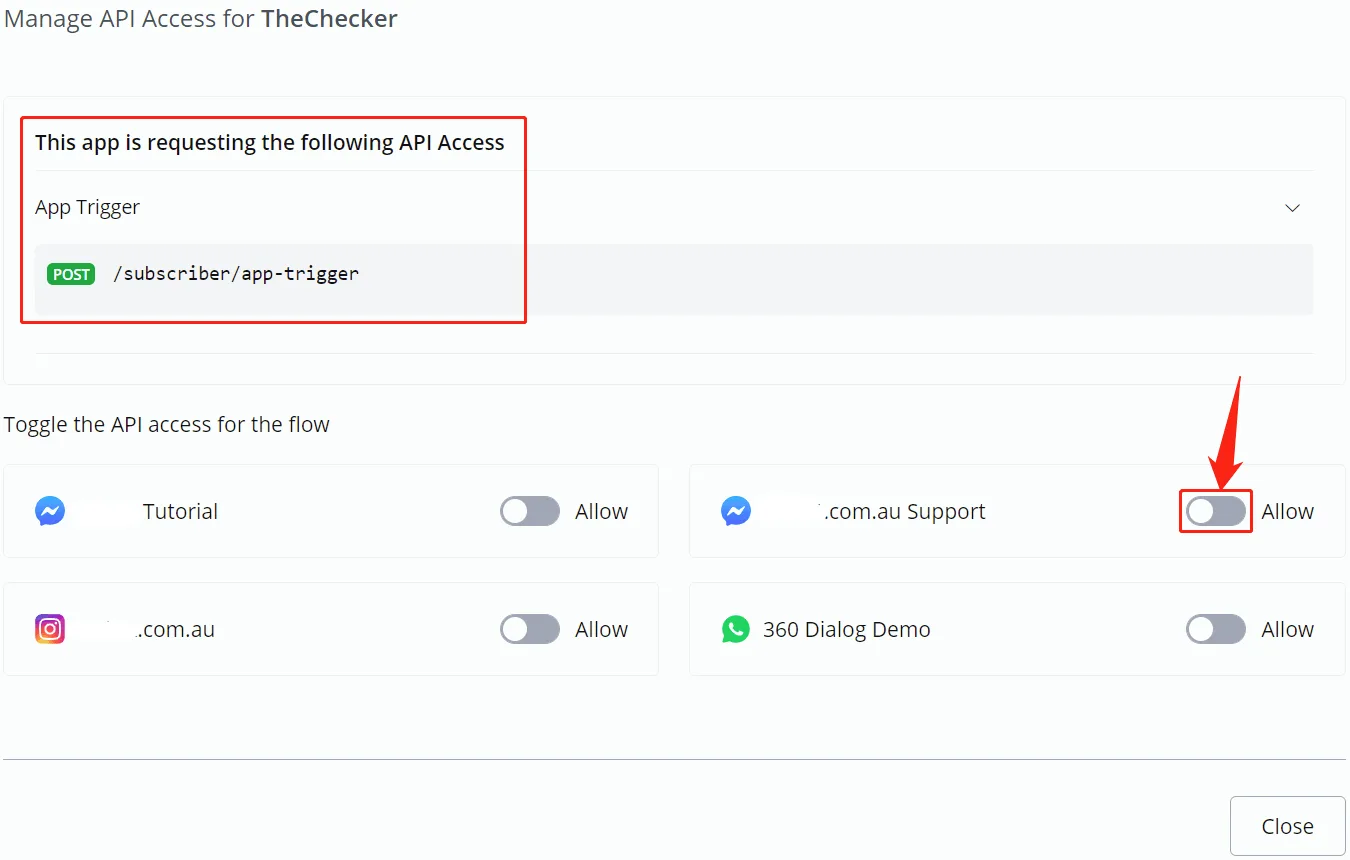
Before using the app, check which APIs it wants to access and enable the flow you allow it to access; otherwise, you will not be able to use some of its actions. This way, your flows stay protected against unauthorized access.
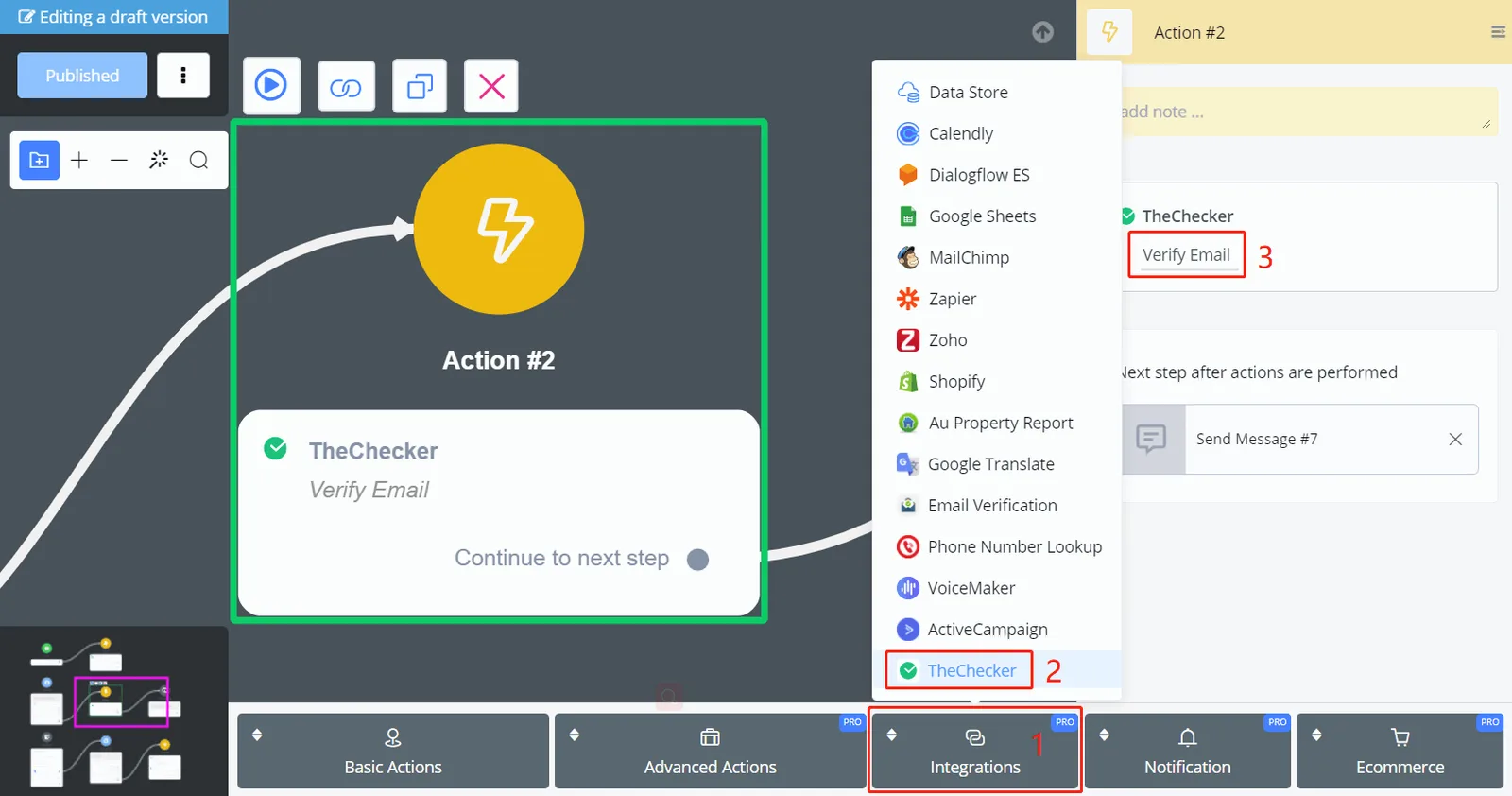
Great job! Now the app appears in the Action steps, just like any other native integration.