Slack - Agent
The NicoChat Agent bot lets you handle live chat support across all the 12+ channels NicoChat supports.
- You can receive push notifications in the Slack app
- You can reply and send audio, text, images, and files to the user directly on Slack
- You can include a team member in the group chat.
- You can easily resume automation or check the contact details.
After the automation is paused, you can chat with customers across all the 12+ social channels, send images, files, and subflows directly in Slack, and still resume automation and check the lead's details and contact information.
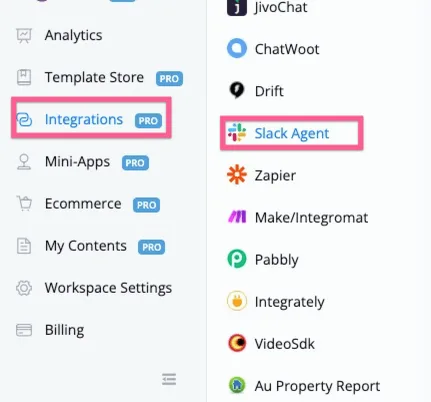
Log in to the NicoChat dashboard, go to Integration, find the Slack agent, and click “Connect Slack Account”.
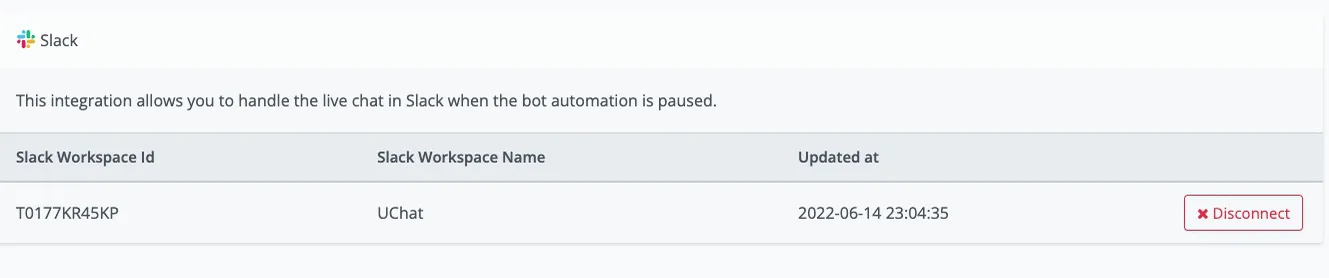
After clicking “Connect Slack Account”, you will be redirected to the authorization window.
Click “Allow”: you will be redirected back to NicoChat, with your Slack workspace connected.
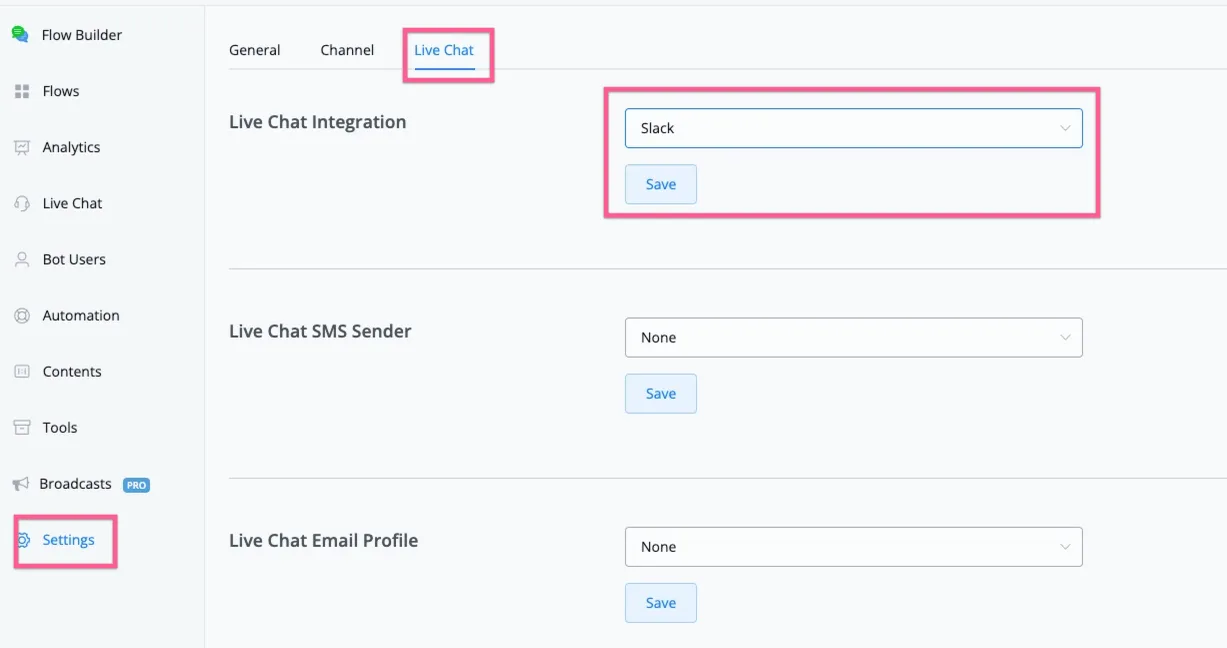
To use Slack for live chat support, go to Channels, then Settings, and then “Live Chat”.
Select “Slack” as the live chat integration, as shown in the image below:
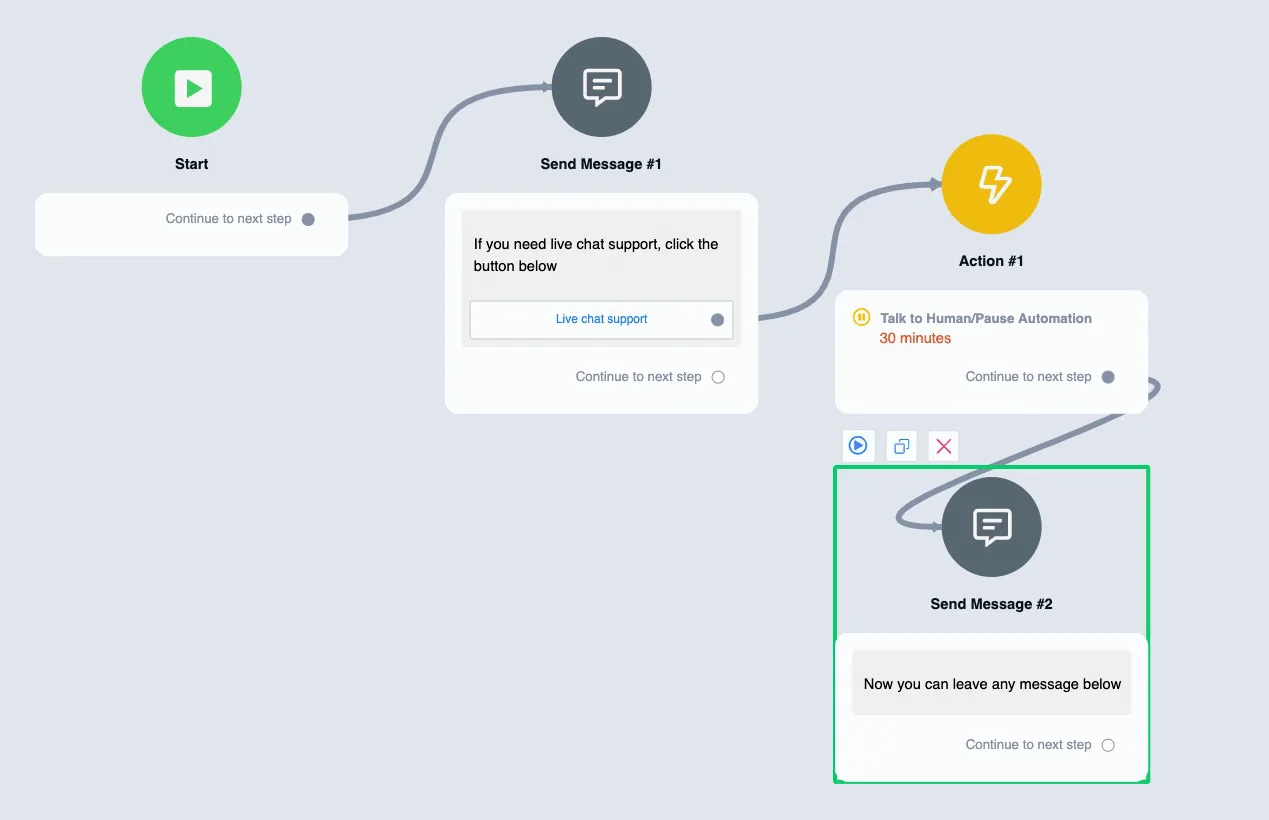
In any of the channels, if you use “Talk to Human/Pause Automation”, all the following messages will be forwarded to Slack.
Check the sample flow you can build and test.
You will receive the live chat in the new channel created, as shown in the image below:
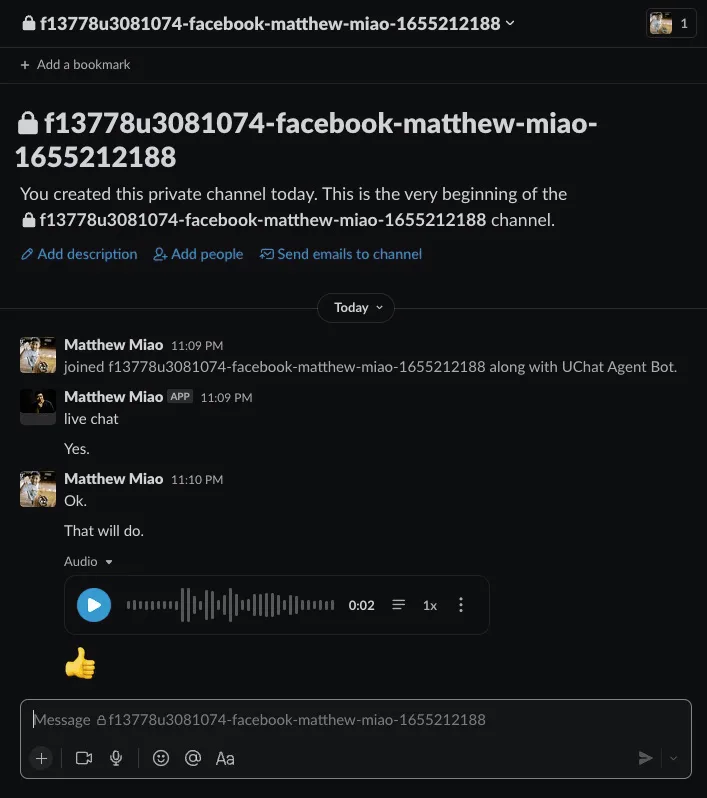
This way you can reply to customers with audio, images, files, and emojis.
You can also invite your team members to the channel.
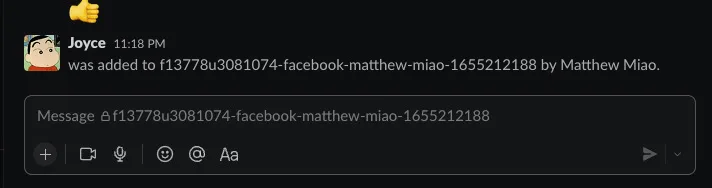
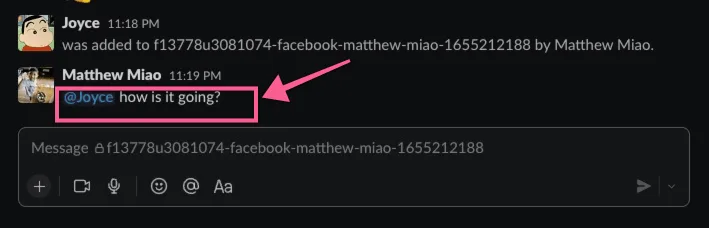
And in the group chat you can talk with your team member using @teammember; the conversation between team members is not sent back to the user.
Like the message below: it will not be sent to customers.
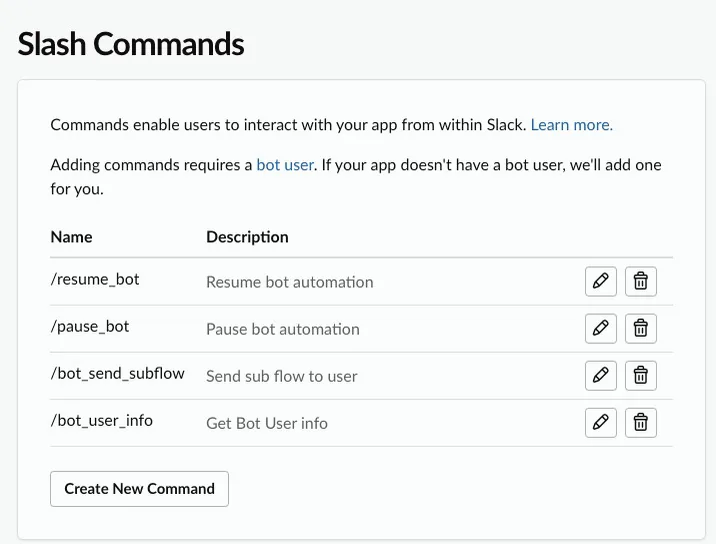
If you type /bot in the chat, the slash commands are triggered to help you with more actions. Currently, we offer the 4 actions below:
- Resume_bot: with this action, the user goes back to the automation
- Pause_bot: with this action, the user's automation is paused
- Bot_send_subflow: you can send a subflow to the user; after they receive the flow, they go back to the automation
- Bot_user_info: brings up the contact information for your reference.