

Shopify - MCP
The Shopify MCP Server lets NicoChat connect directly to your Shopify store. With this integration, the AI can search for products and look up shopping cart details.
The Shopify MCP Server lets NicoChat connect directly to your Shopify store.
With this integration, the AI can search for products, look up shopping cart details, update cart items and even access the store's policies and FAQs, always based on the permissions you configure.
Creating the MCP URL in Shopify is quite simple:
You just need to add the following path to the end of your store's URL:
/api/mcpIf your Shopify store URL is:
https://d649ac-79.myshopify.comYour full MCP URL will be:
https://d649ac-79.myshopify.com/api/mcpCurrently, this integration works without additional authentication, so inside NicoChat you will select the Nenhum option in the authentication field.
👉 If Shopify requires a token or a header in the future, the configuration can be adjusted, but in the current scenario you just use the URL.
- In the NicoChat side menu, go to:
Centro de IA → Servidores MCP → Adicionar Servidor MCP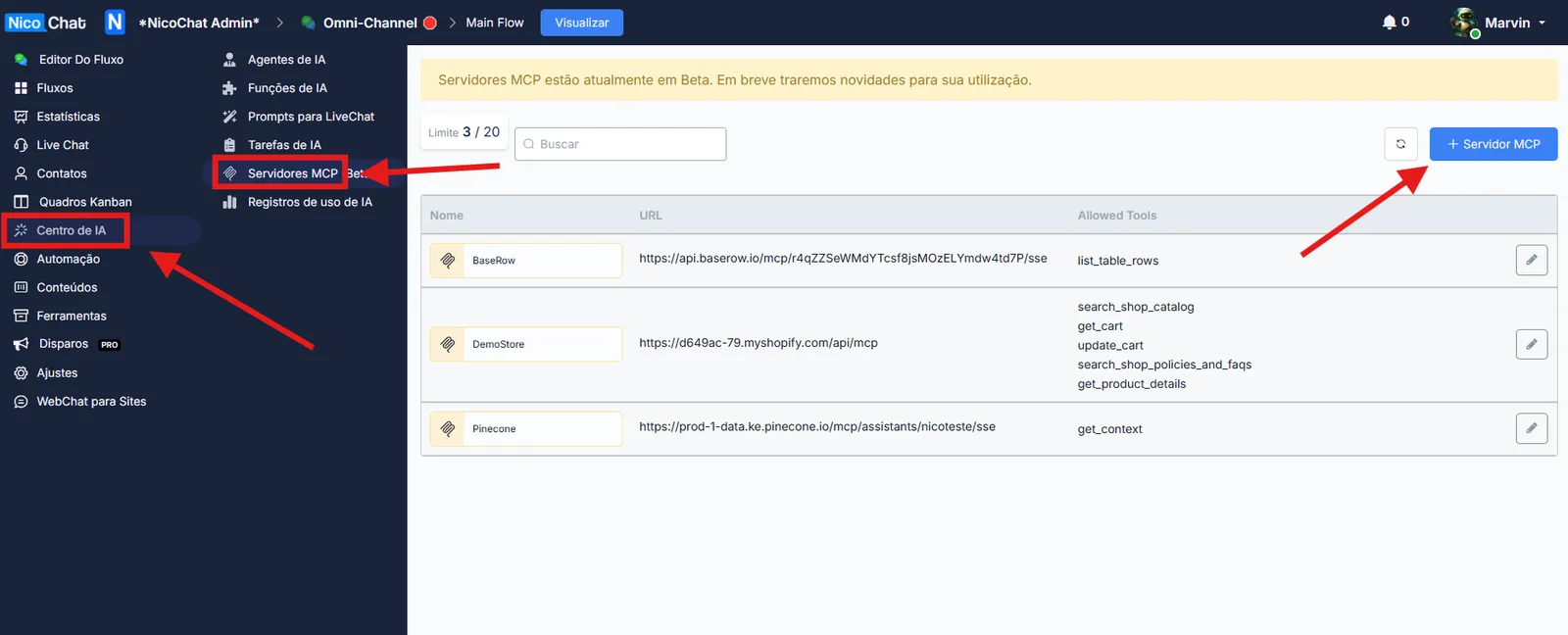
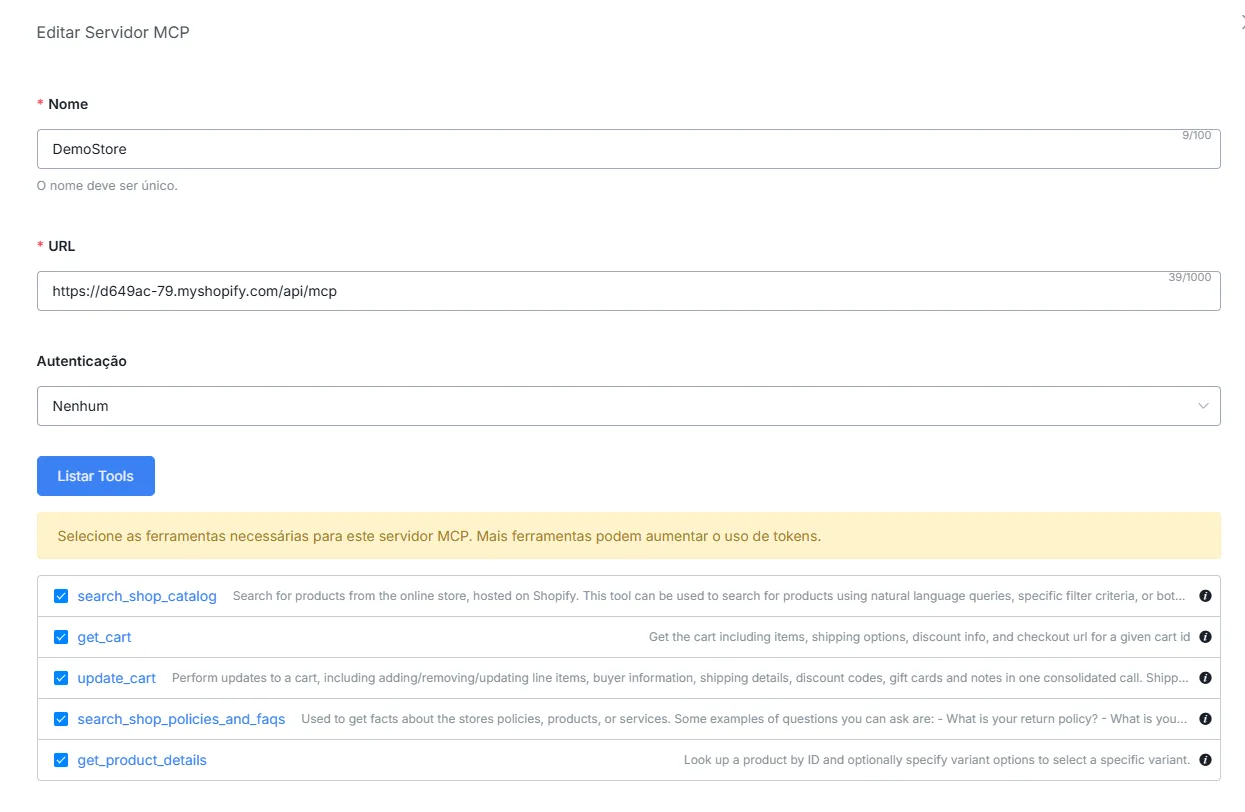
- Fill in the fields as follows:
DemoStore or MinhaLojaShopify)https://sualoja.myshopify.com/api/mcp)- Click List Tools so that NicoChat loads the tools available on that MCP Server.
search_shop_catalog→ Search for products in the store catalog.get_cart→ Get the shopping cart items.update_cart→ Update, add or remove cart items.search_shop_policies_and_faqs→ Look up store policies and FAQs.get_product_details→ Details of a specific product.
✅ Select only the tools you really want to enable.
- Avoid enabling unnecessary tools, to minimize token consumption and reduce the risk of unwanted actions.
- Expose only the functions that the NicoChat AI will really need to use in your flow.
📌 Learn more about how to configure this in your flow at:
👉 MCP Servers