

Shopify - Abandoned cart
If you run an ecommerce store, cart abandonment can be one of the main reasons you are losing revenue. Studies suggest that most stores live with an estimated cart abandonment rate of 30% to 45%. If your business is small or medium-sized, that figure can be the difference between merely surviving and making a profit.
Many businesses use automations, such as email marketing and active outreach, to recover carts. In 2023, however, there are more targeted methods that are more effective than traditional email marketing and, in many cases, more cost-effective.
Today we are going to learn how to build this automation for your Shopify store using NicoChat.
The first step to creating this automation is to connect your Shopify store to NicoChat. To establish the connection, we are going to create a custom app inside your Shopify store, which works as a bridge between the store and NicoChat.
To create a custom app, click the Settings tab in the bottom-left corner of your Shopify admin panel.
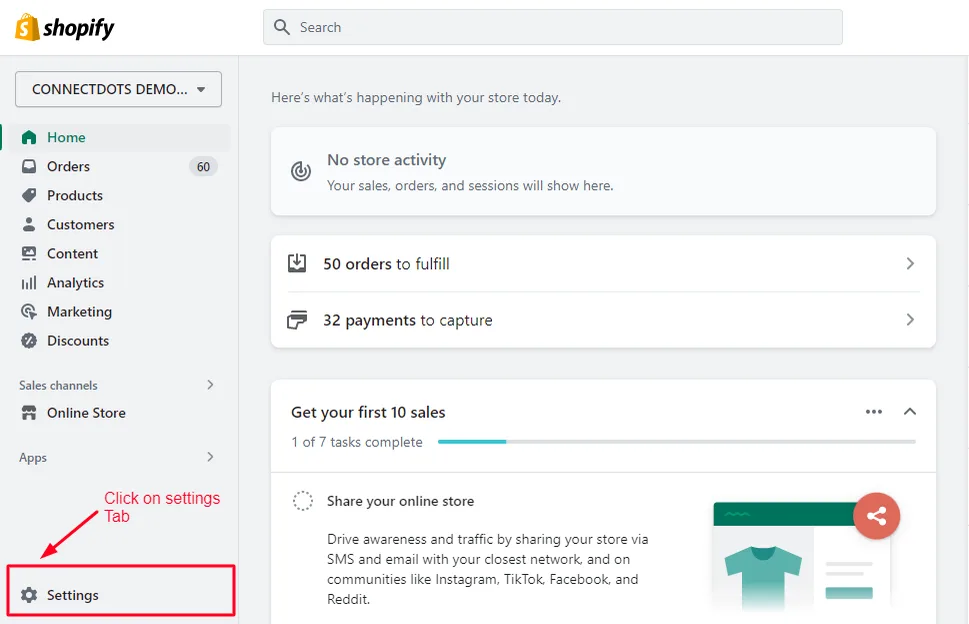
Scroll down the page a little and click the “Apps and sales channels” tab.
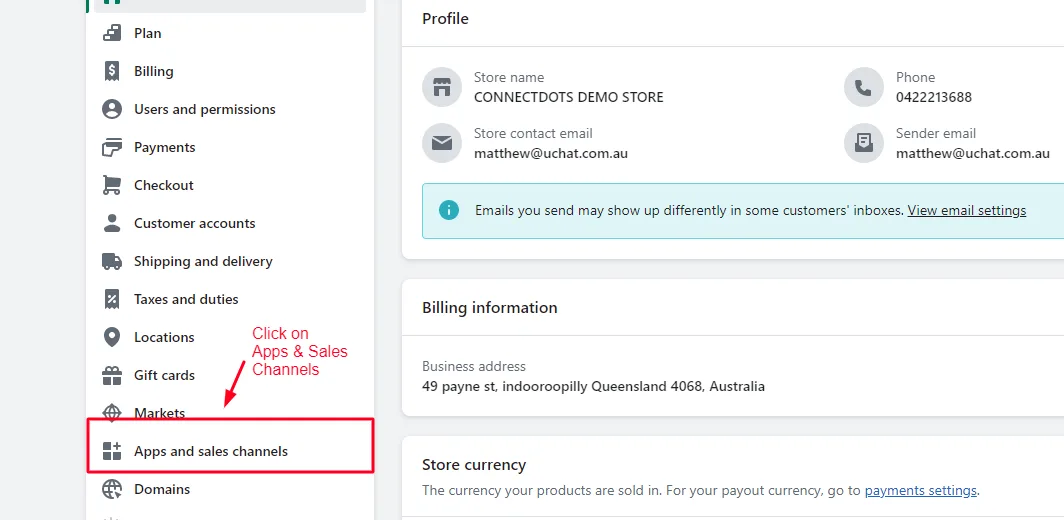
Click “Develop apps”.
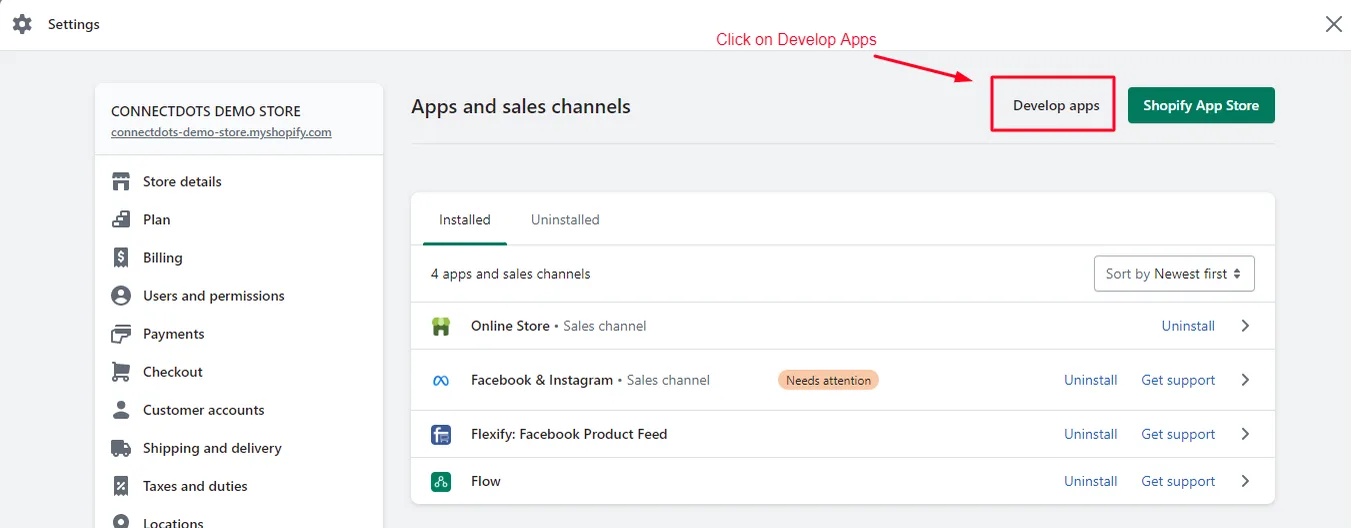
Click “Create app”.
.webp)
Fill in the details, such as the name of the custom app, and select the account the app is being created for. If you are not the store owner, you need developer privileges in order to create an app.
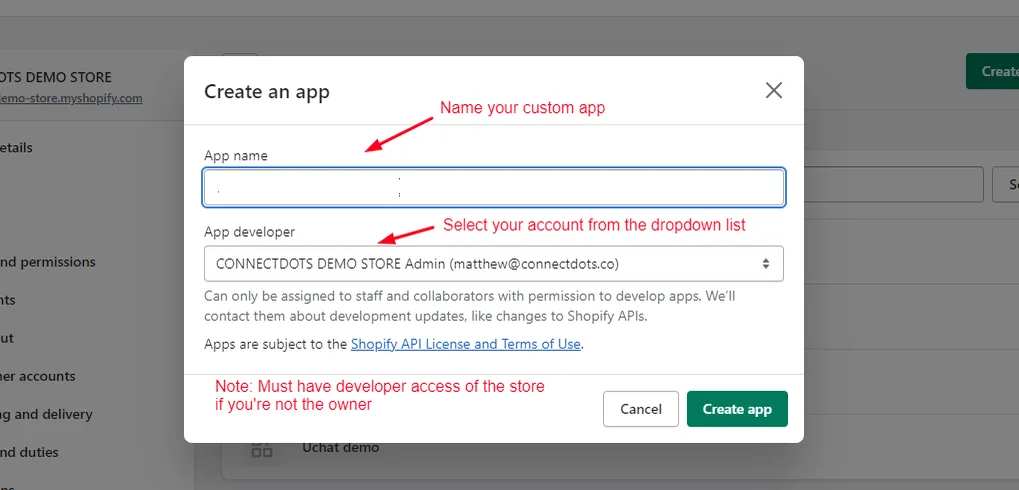
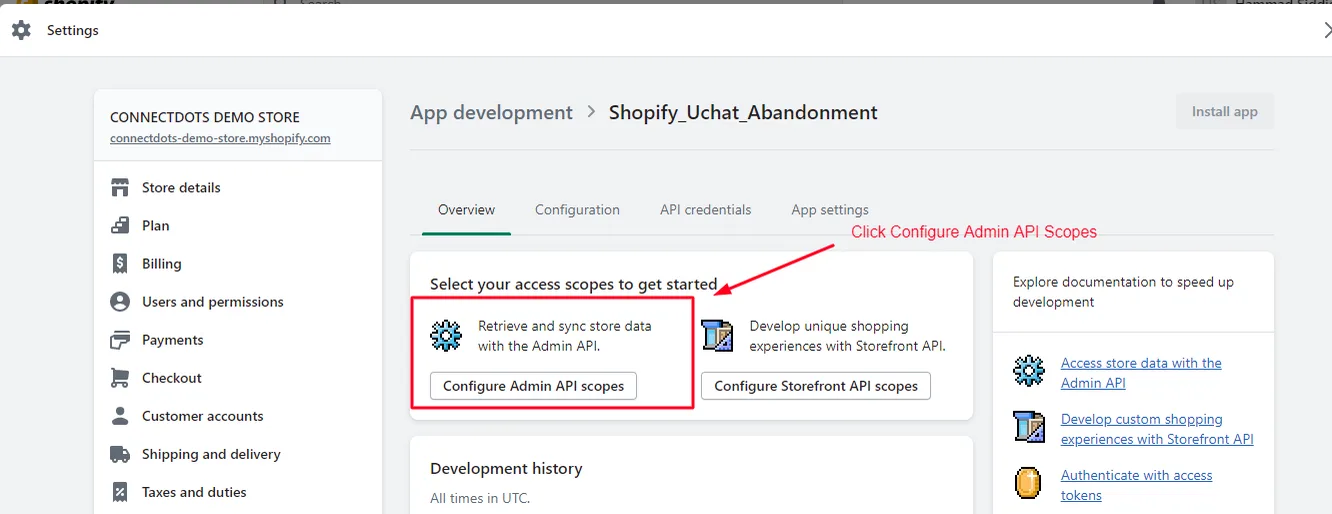
Now we are going to configure the admin scopes to grant the permissions required to set up the abandoned cart flows correctly. Click “Configure Admin API scopes”.
We need permissions for products, product listings and product fulfillment. Select the permissions below.
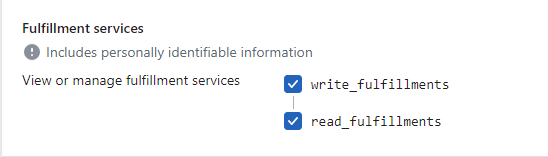
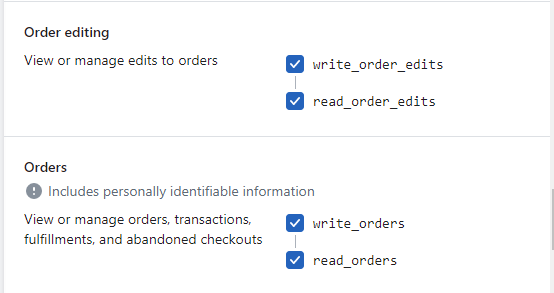
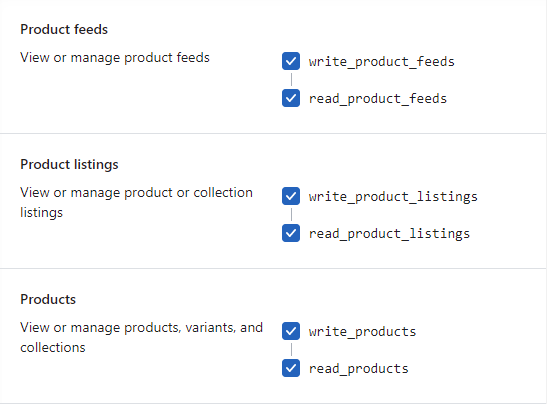
Next, click Save and then “API credentials” to install the app.
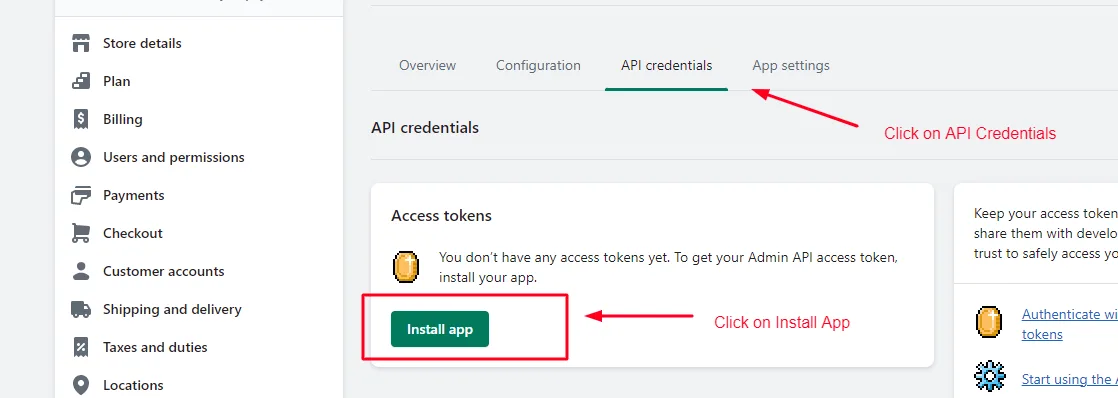
After installing the app, we need to write down the data that is now displayed. It is required to establish the connection between NicoChat and your store. Save all the data as shown below.
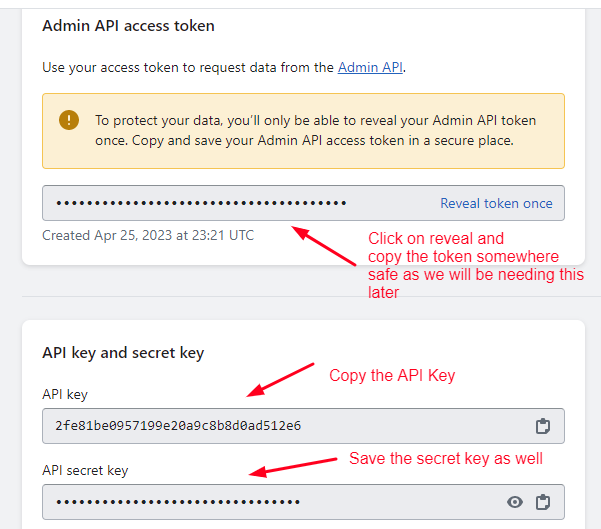
The last piece of data we need is the store domain, which appears when you click the store name in the admin panel.
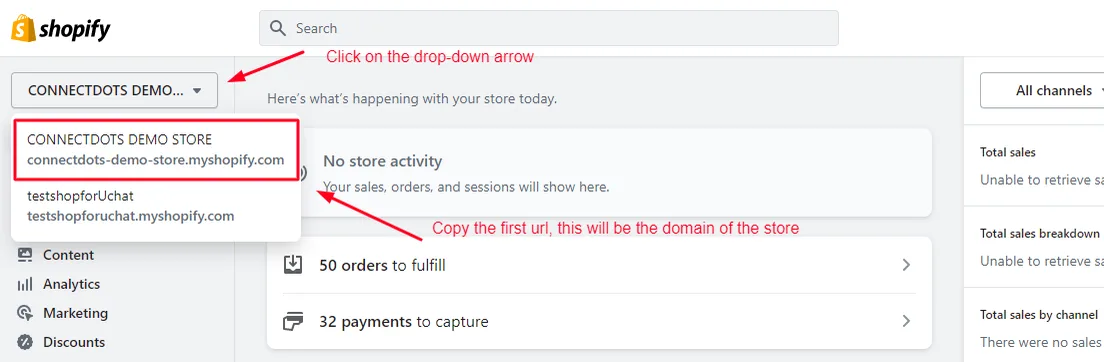
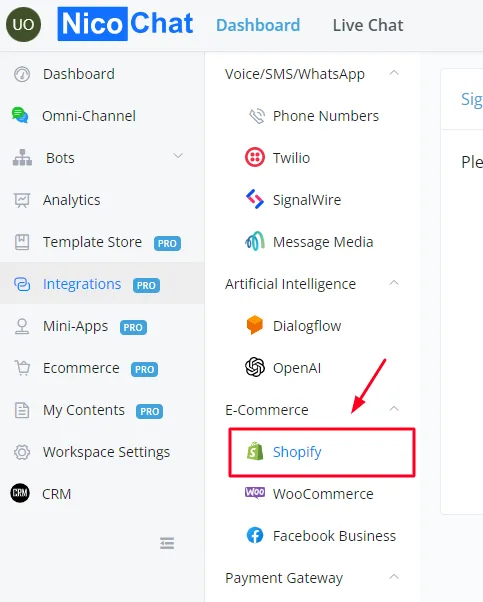
In the NicoChat dashboard, click Integrations in the left side menu. Then select Shopify from the dropdown list.
Fill in all the information we copied in the previous step and click the Save button to create the connection.
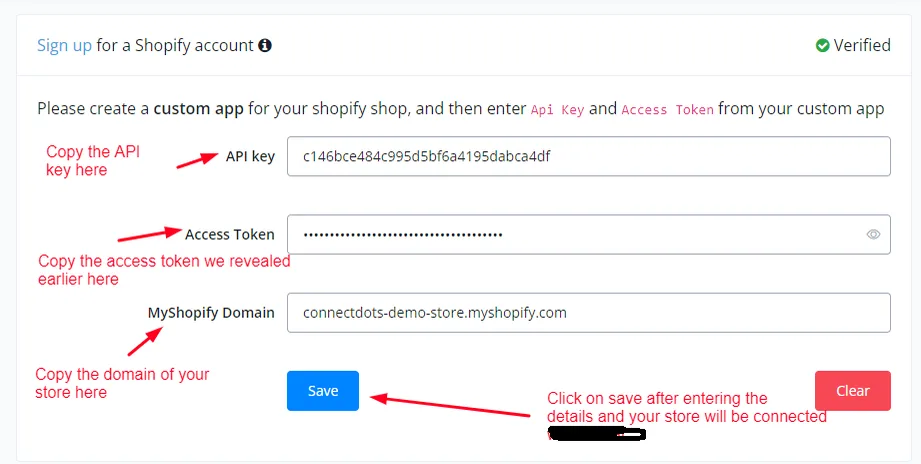
Congratulations, your store is integrated with NicoChat. Now we are going to set up a basic ecommerce flow.
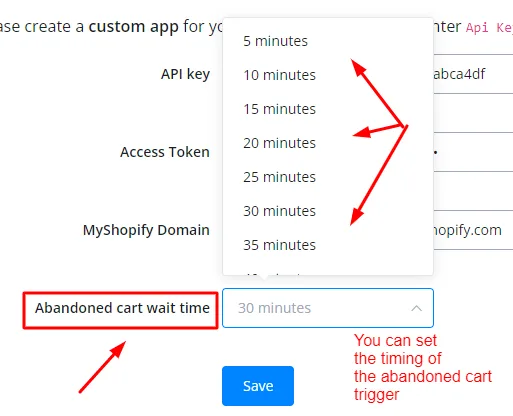
You can set the abandoned cart trigger timings according to your use case.
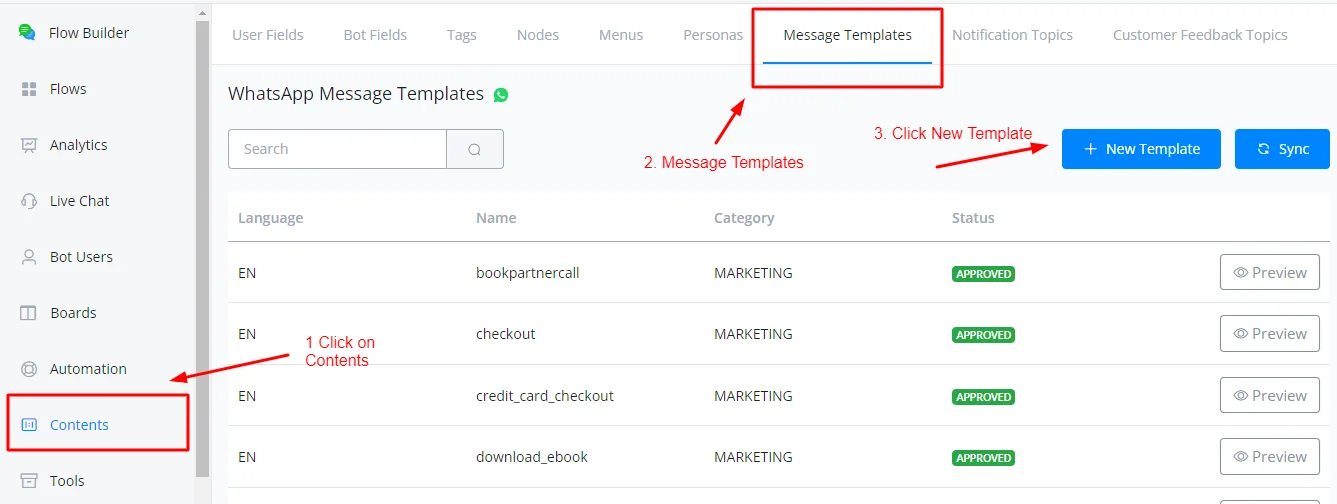
Go to your flow builder and click Content, in the bottom-left corner of the screen. Open Message Templates and click “+ New Template”.
Start filling in the template details as instructed below:
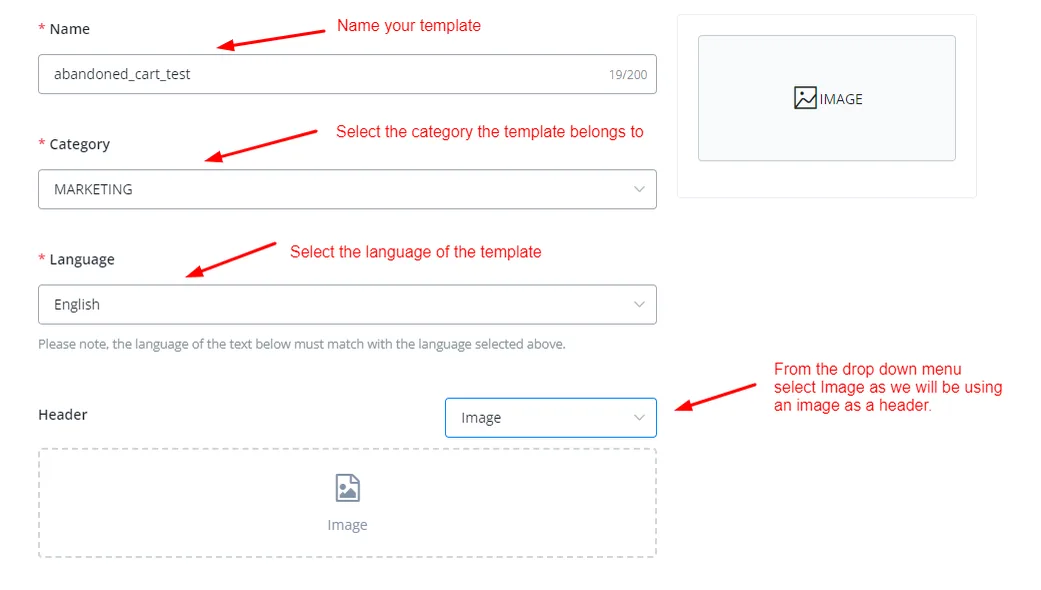
We need to provide a sample image so that Meta approves our template. Click the Image tab and paste the sample URL.
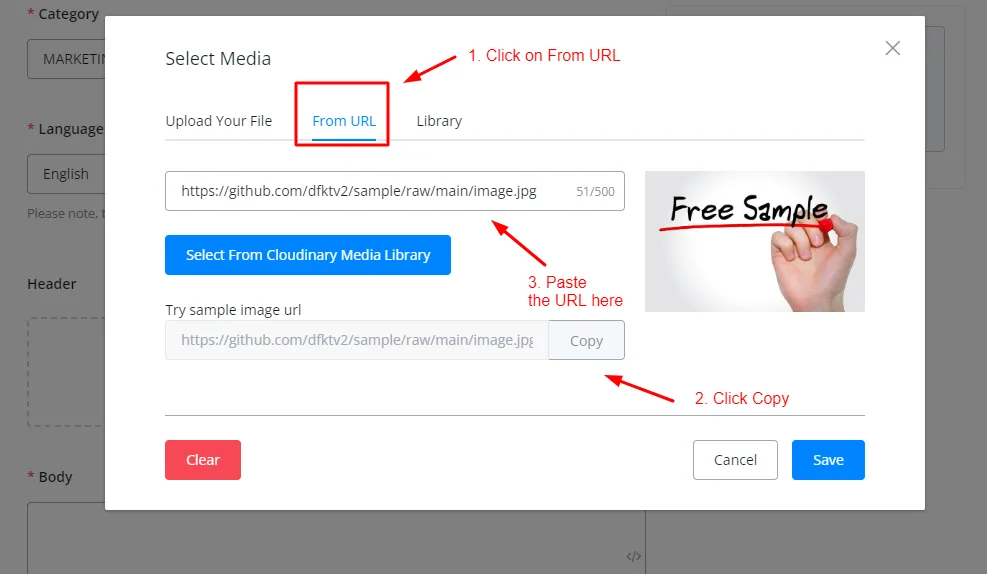
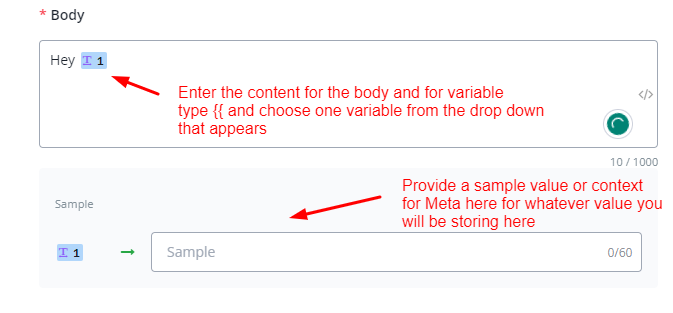
Click Save. Start filling in the template body like this:
For the URL button, choose a dynamic button as follows:
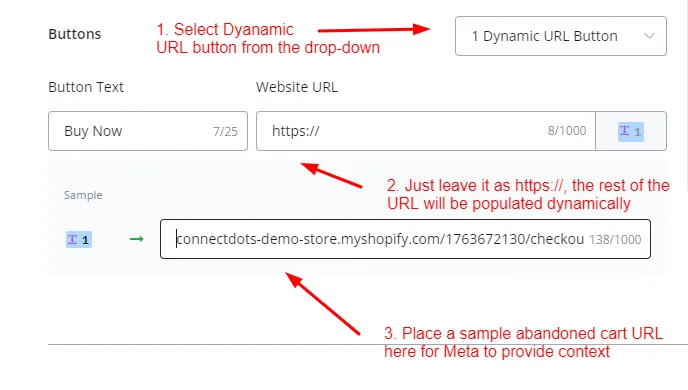
Click “Submit for review” and wait for your template to be approved.
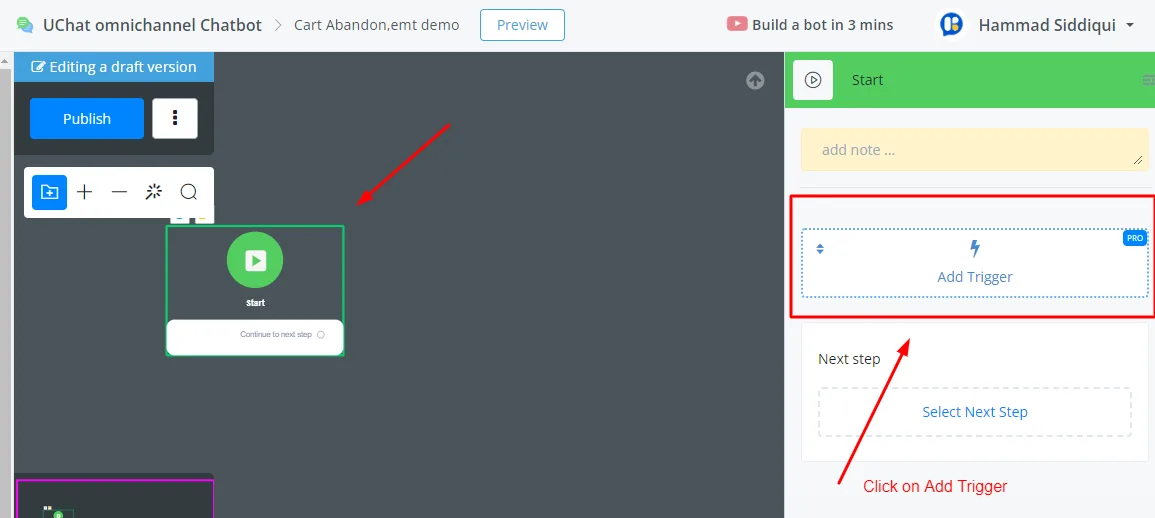
As a final step, create a new subflow. After creating it, click the Start node.
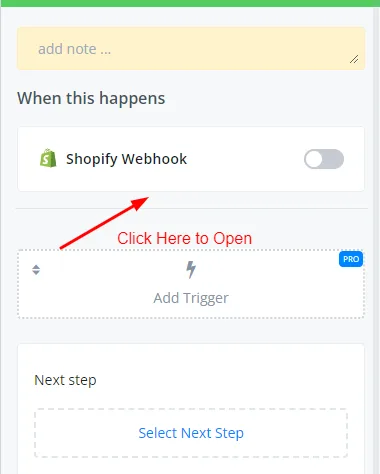
In the dropdown menu, scroll down, click “Shopify Webhook” and select the webhooks.
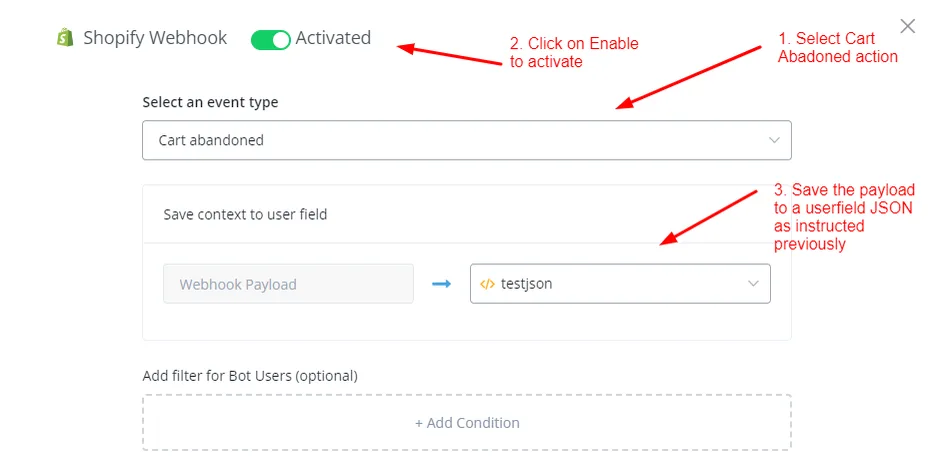
Select “Cart Abandoned” from the dropdown menu and map the variables as follows:
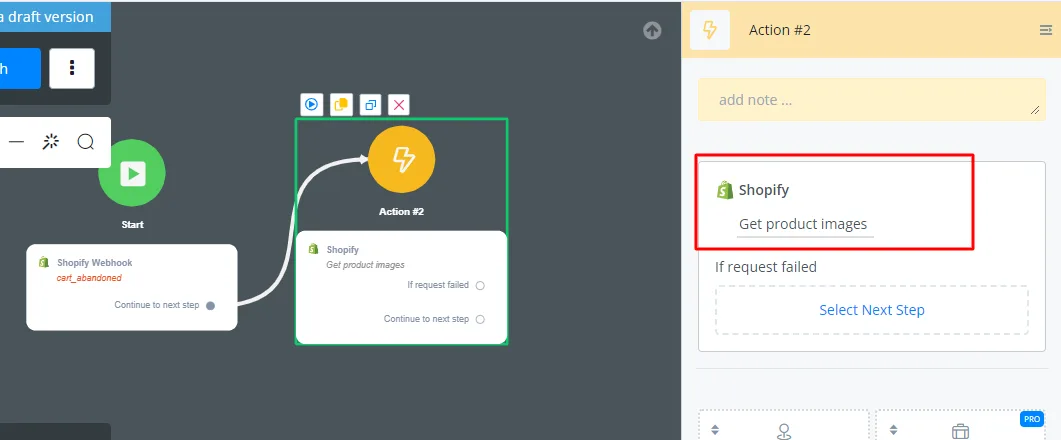
Now create another action flow and select Shopify in the Integrations tab. Then select “Product Images”.
Enter the JSON variable in which you saved the trigger payload and select the proper attribute in the Product Id field.
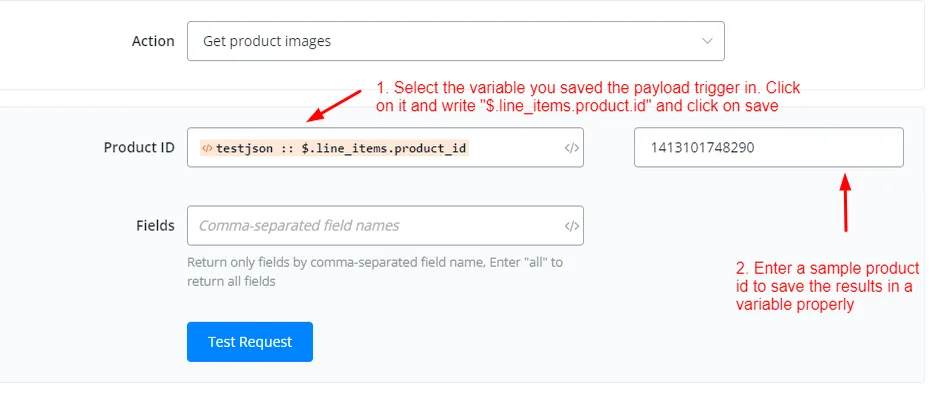
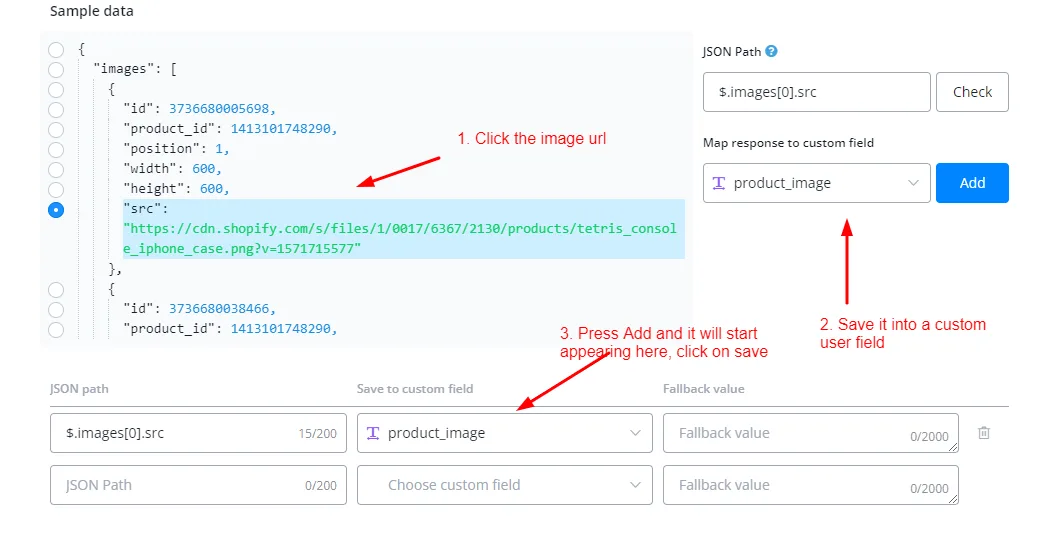
Click Test Request to preview the sample data.
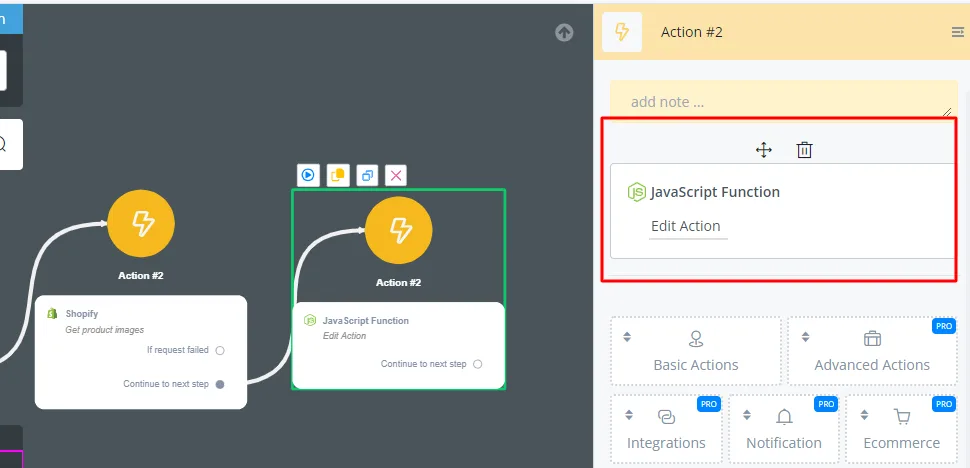
We need to shorten the URL dynamically so that we can use it inside our template. Create a JS node from the action block.
Use the JSON variable in which you saved the trigger payload again and use the abadoned_checkout_url attribute.
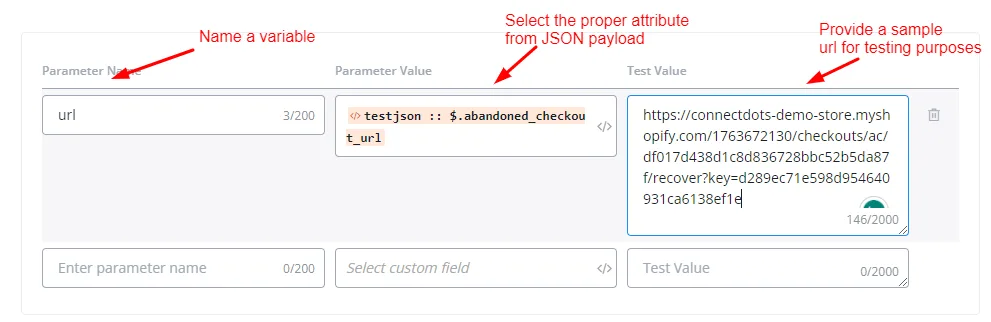
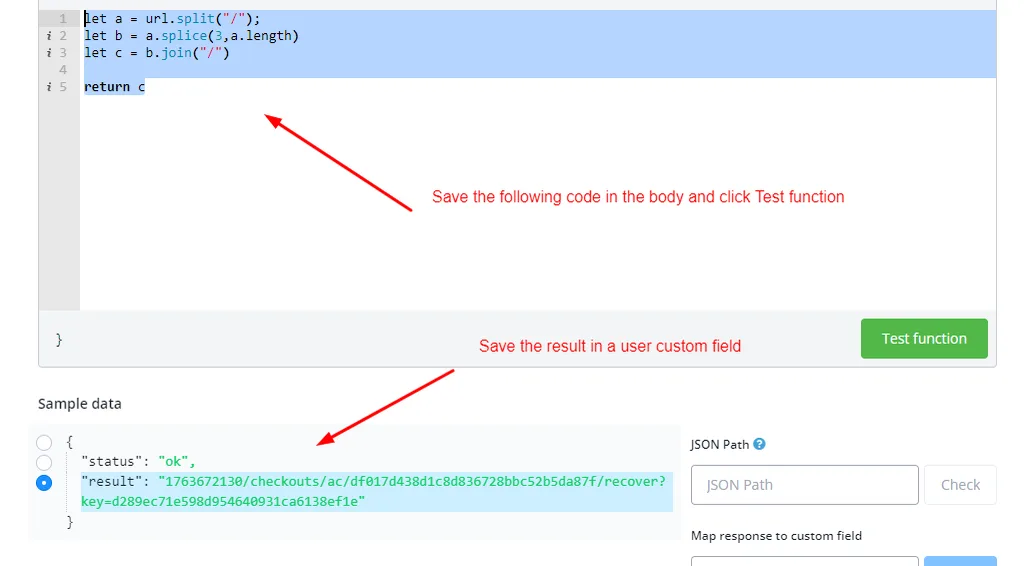
Paste the following code into the body and save the result in a variable, like this:
let b = a.splice( 3, a.length)
let c = b.join( "/" )
return c
let b = a.splice( 3, a.length)
let c = b.join( "/" )
return c
Save the code output in a CUF, like this:
We now have everything we need to send a template to the customer.
Create another action block and select “WhatsApp Template Notification” in the Notifications tab.
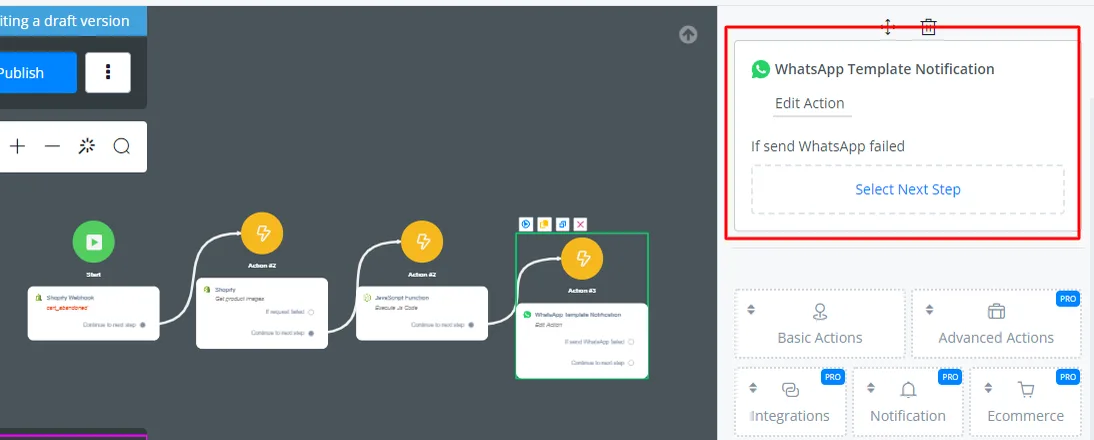
Select the phone number you want to use to send the WhatsApp template to the customer and choose the template you want to send.
Fill in the template with the CUFs we saved and fetched earlier.
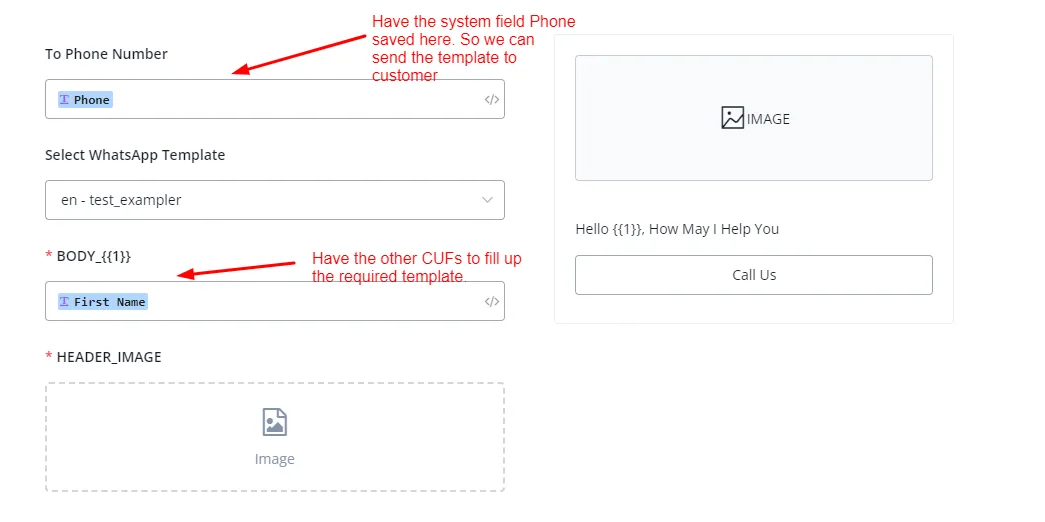
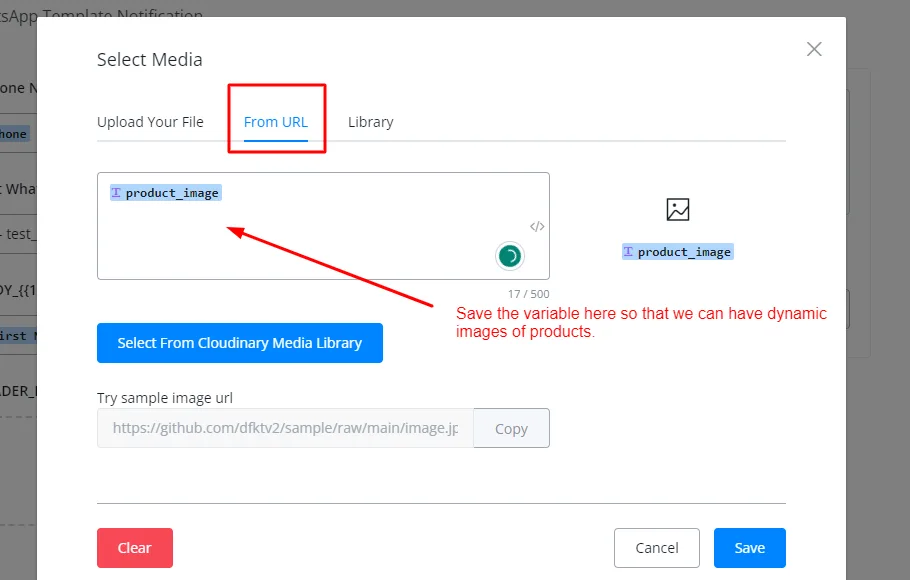
After filling in all the CUFs in the template, click Save. The flow is ready.
In this article, we first saw how to integrate our Shopify store with NicoChat. Then we built a basic ecommerce flow using the feature and the native actions that NicoChat offers for Shopify.
Finally, we used the abandoned cart triggers and built a cart recovery flow.