

S3 Storage
Simple Storage Service, or S3, is a data storage service offered by several cloud companies, such as AWS (where it is known as an S3 bucket). S3 stores many types of data and is known for its simple integration and automatic data management, which saves you the work of running a database on your own.
Bruno Keller, a member of our community, put together a great video showing how to set up S3 Storage in NicoChat using BlackBase.

Open your S3 dashboard and create a new bucket.
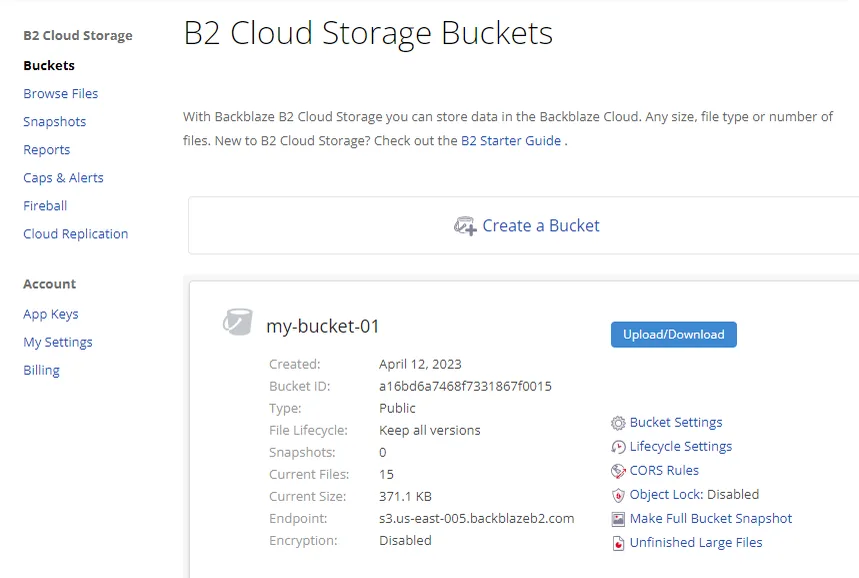
When creating the bucket, make sure it has read and write permission and that it is a public bucket.
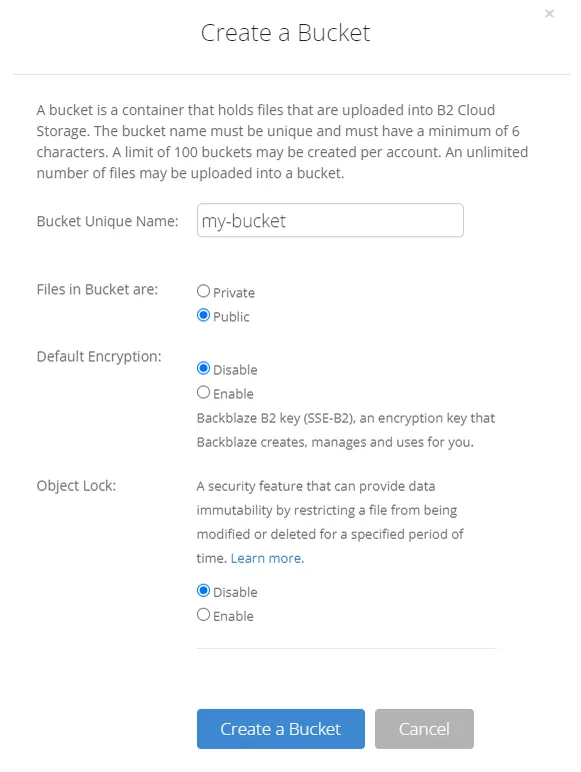
.
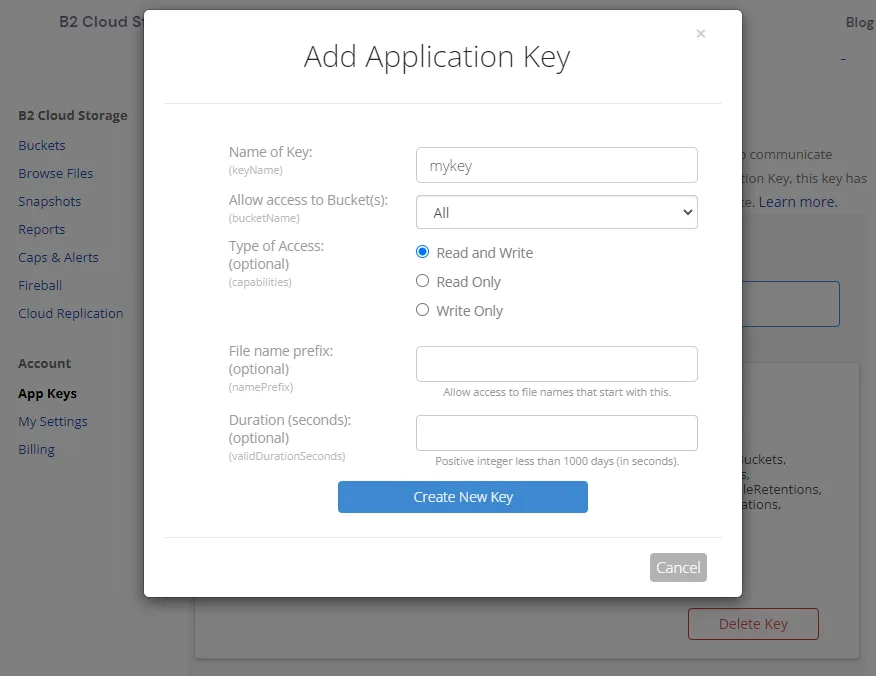
In the "App Keys" side menu, you can add a new application key; it must have read and write permission.
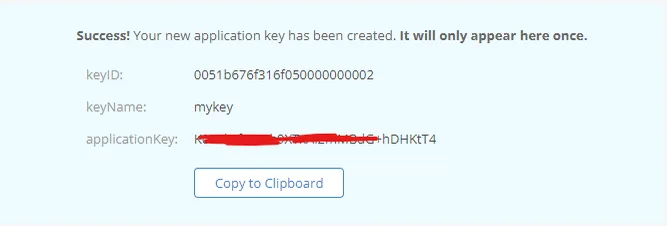
After creating the key, save or copy its details.
In the NicoChat dashboard, click Integration and then the S3 Storage option.
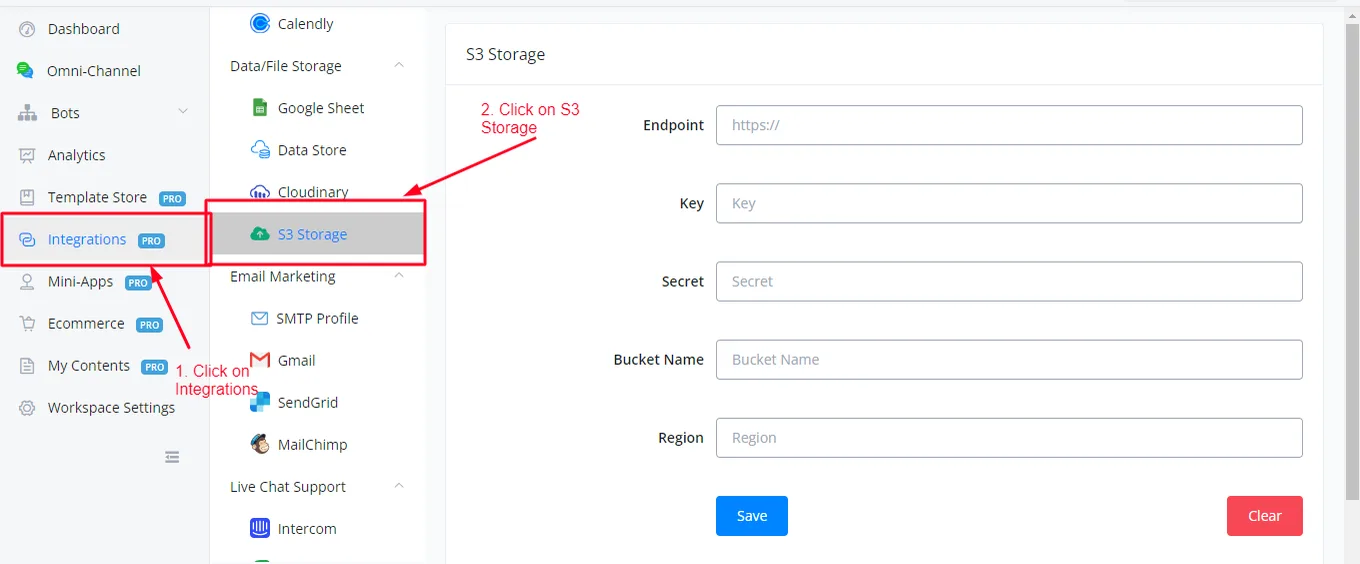
Fill in the fields with your bucket details and click Save. Your S3 storage is now integrated with NicoChat and ready to use.
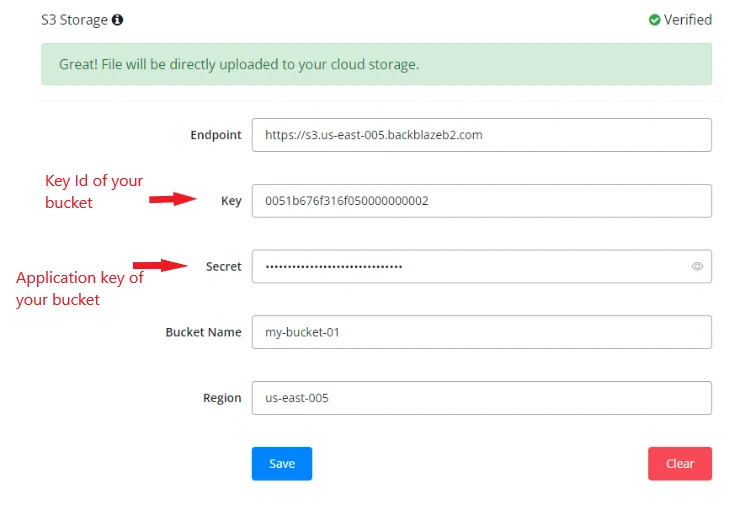
S3 storage replaces NicoChat's default storage server. This way, every file (photos, videos, PDFs, media files, and so on) you upload goes straight to your S3 bucket instead of NicoChat's server.
This helps keep your data safe if NicoChat has an outage and ensures your flows keep working properly.
One example of implementation is to create a Send Message node and upload an image using the Rich Media feature.
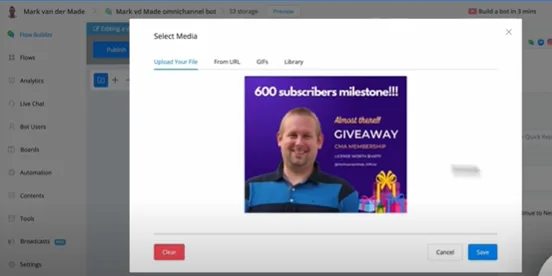
When the upload finishes, save the flow and publish it.
Click the node again and look at the URL of the image you just uploaded.
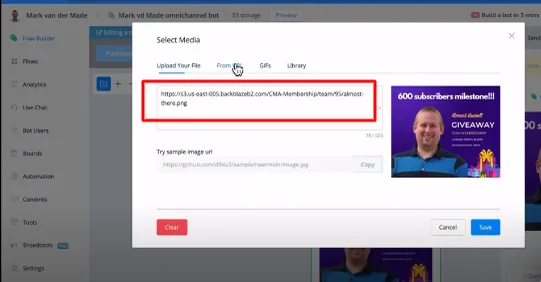
The image URL no longer points to NicoChat's default server; it now points to your S3 bucket.
This way, after integration, all your files are uploaded directly to your bucket.