

Pipedrive
This detailed guide will help you install the NicoApp, integrate with Pipedrive and use the various functions available. Follow the steps below to set up and optimize your use of NicoChat with Pipedrive.
Thank you for your patience and understanding.
This detailed guide will help you install the NicoApp, integrate with Pipedrive and use the various functions available. Follow the steps below to set up and optimize your use of NicoChat with Pipedrive.
- Go to the NicoChat Page.
- Navigate to the NicoApps section and select "Install NicoApp".
- Choose "Pipedrive" from the available options.
- Enter your domain in the format "https://sua-empresa.pipedrive.com" and click "Connect".
- Log in to your Pipedrive account to complete the setup.
.webp)
After installing the NicoApp, you can start integrating and using the Pipedrive functions. Follow the steps below:
- In NicoChat, open the flow where you want to add the integration.
- Inside the flow, open an action block.
- Navigate to the "Integrations" section and select "Pipedrive".
- Choose the desired action, fill in the required data and you're done!
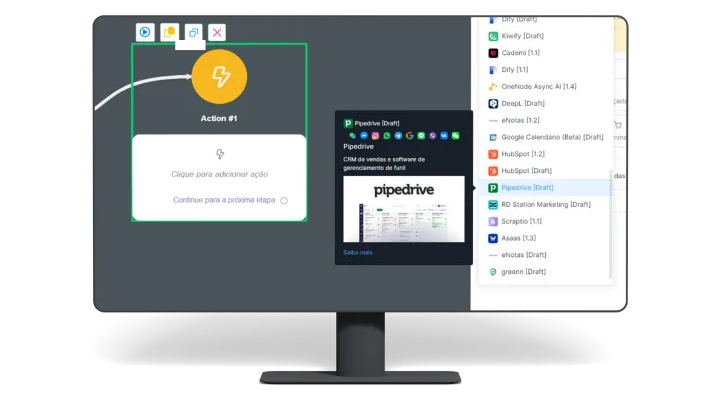
Below are the actions available for the different categories in Pipedrive:
- Search Person (READ): Retrieves information about a person.
- Create Person (CREATE): Creates a new person in Pipedrive.
- Edit Person Photo (UPDATE): Updates a person's photo.
- Edit Person (UPDATE): Edits a person's information.
- Get Person Data by ID (READ): Retrieves specific data of a person by ID.
- Remove Person (DELETE): Removes a person from Pipedrive.
- Search Organization (READ): Retrieves information about an organization.
- Create Organization (CREATE): Creates a new organization in Pipedrive.
- Edit Organization (UPDATE): Edits an organization's information.
- Merge Organizations (UPDATE): Merges two or more organizations.
- Get Organization by ID (READ): Retrieves specific data of an organization by ID.
- Remove Organization (DELETE): Removes an organization from Pipedrive.
- Search Lead (READ): Retrieves information about a lead.
- Create Lead (CREATE): Creates a new lead in Pipedrive.
- Edit Lead (UPDATE): Edits a lead's information.
- Get Lead by ID (READ): Retrieves specific data of a lead by ID.
- Remove Lead (DELETE): Removes a lead from Pipedrive.
- Search Deal (READ): Retrieves information about a deal.
- Create Deal (CREATE): Creates a new deal in Pipedrive.
- Duplicate Deal (CREATE): Duplicates an existing deal.
- Edit Deal (UPDATE): Edits a deal's information.
- Merge Deal (UPDATE): Merges two or more deals.
- Get Deal by ID (READ): Retrieves specific data of a deal by ID.
- Remove Deal (DELETE): Removes a deal from Pipedrive.
- Update Free Field (UPDATE): Updates a free text custom field.
- Update Option Field (UPDATE): Updates an option custom field.
- Update User Field (UPDATE): Updates a user custom field.
With NicoChat integrated with Pipedrive, you can manage your sales and customer interactions efficiently and automatically. This documentation covers the essential steps for installing and using the available functions. Follow these instructions to make the most of NicoChat's resources together with Pipedrive.