

Pinecone - MCP (Tool for vector search - RAG)
The Pinecone MCP Server lets NicoChat connect directly to your Pinecone vector database. With it, the AI can run vector searches (RAG) and embedding insertion.
The Pinecone MCP Server lets NicoChat connect directly to your Pinecone vector database.
With it, the AI can efficiently run vector searches (RAG), insert embeddings and retrieve relevant context.
- Go to your Pinecone account dashboard:
www.pinecone.io/ - In the side menu, click “Assistants”.
- Click “Create Assistant”.
- Choose a name for your Assistant (example:
nicochat-assistant). - Once created, Pinecone will show the unique MCP Server URL, which will look like this:
texto
https://prod-1-data.ke.pinecone.io/mcp/assistants/nicoteste/sseCopy the URL exactly as provided.
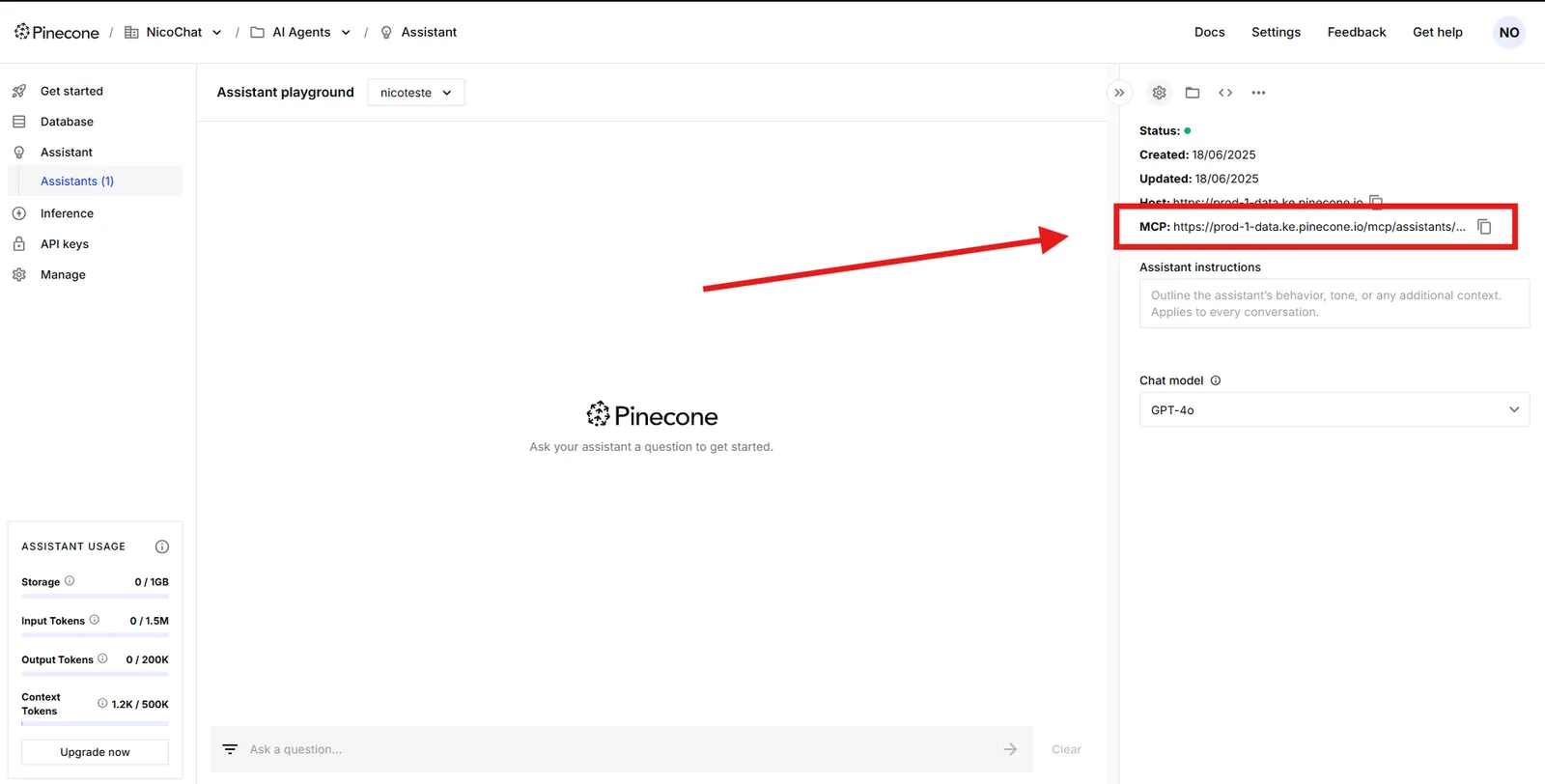
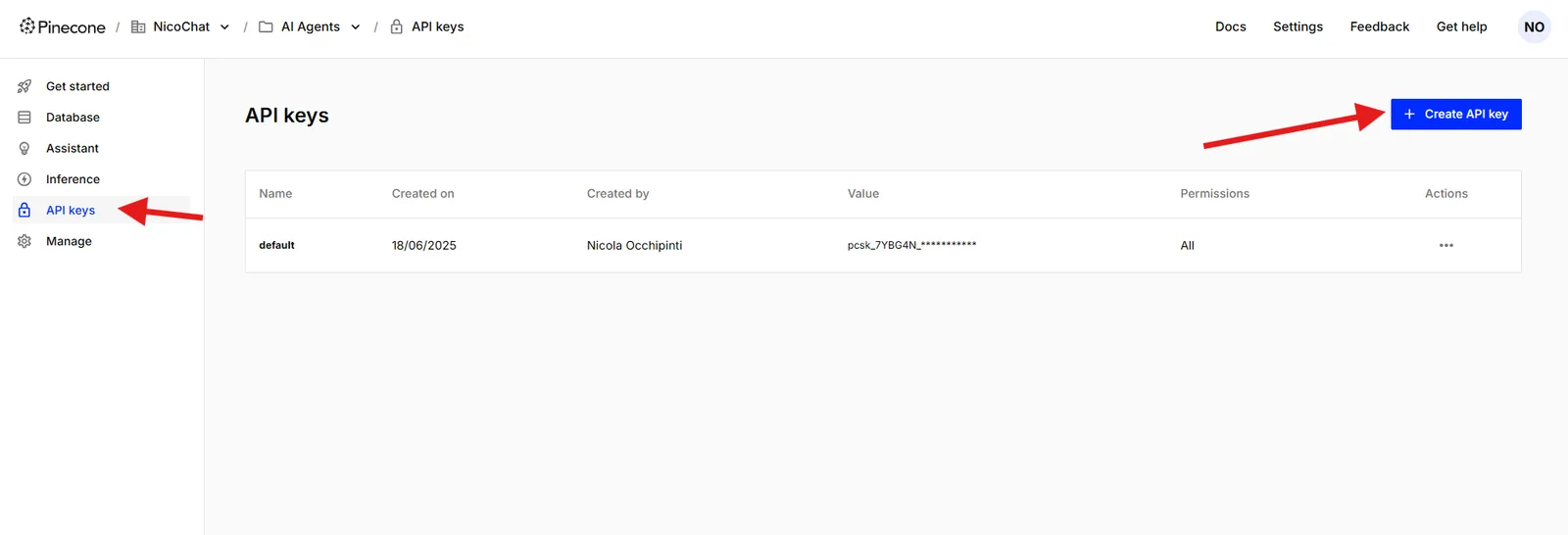
Authentication is done with a Bearer Token, using your Pinecone API Key.
Follow these steps:
- In the Pinecone dashboard, go to the API Keys section.
- Generate a new key or copy the existing one.
- Store this API Key securely — it will be used inside NicoChat.
- In the NicoChat side menu, go to:
texto
Centro de IA → Servidores MCP → Adicionar Servidor MCP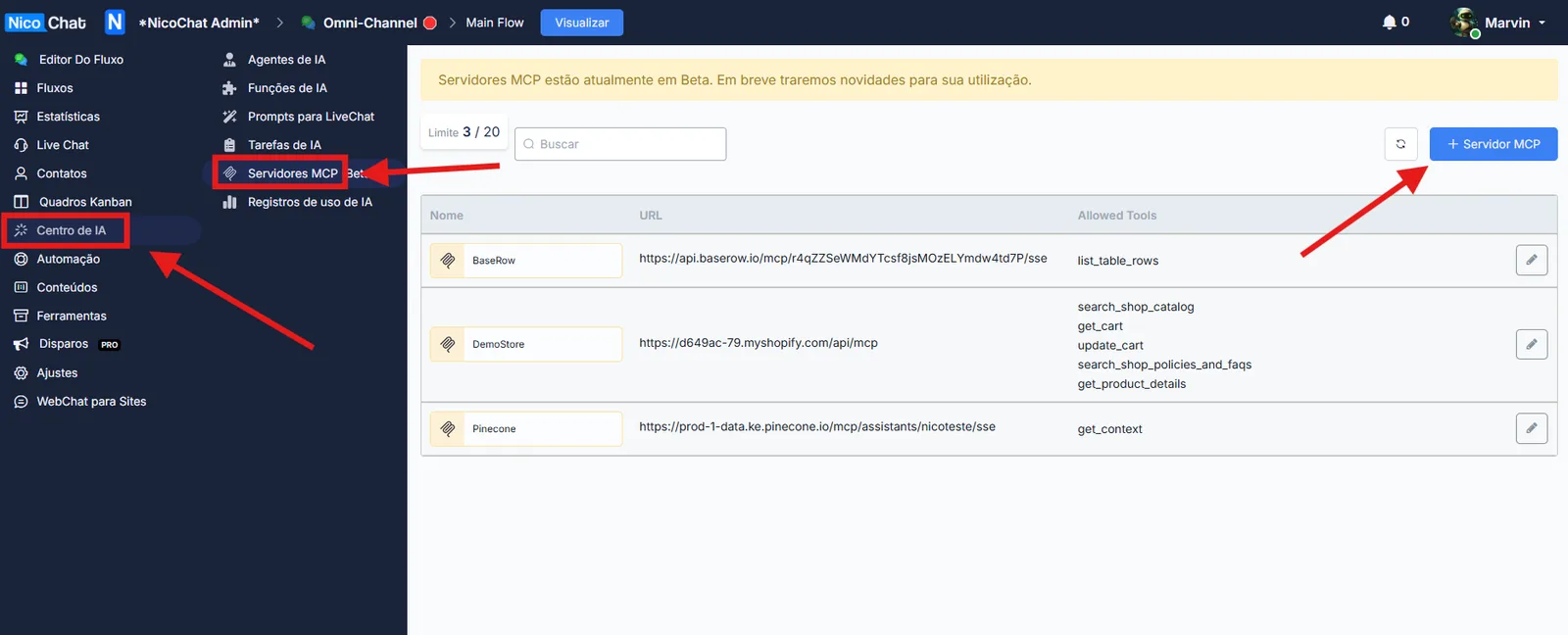
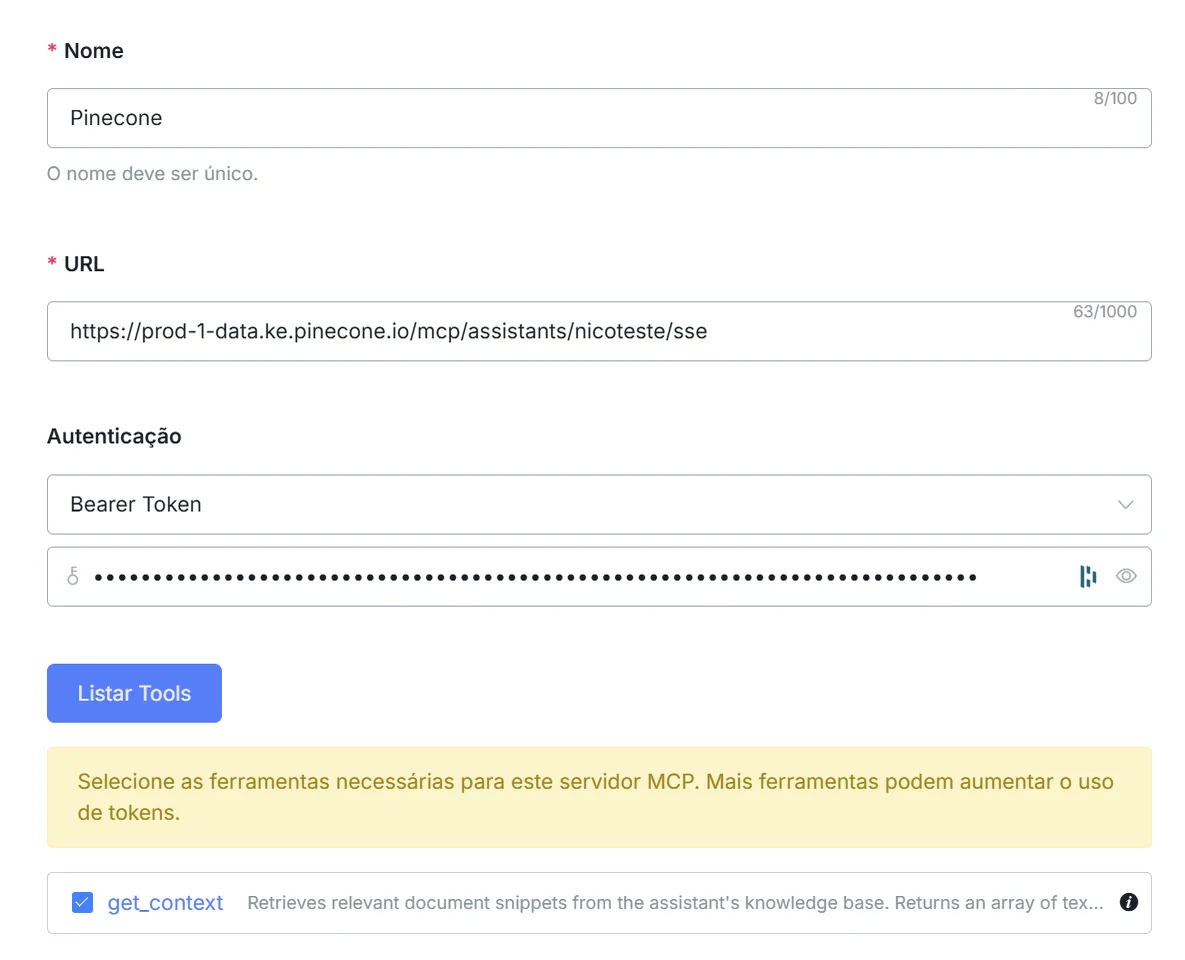
- Fill in the fields as follows:
Field
Value
Name
A simple, unique name (example:
Pinecone)URL
Paste the MCP URL of your Pinecone Assistant
Auth
Select Bearer Token
Access Token
Paste your Pinecone API Key
- Click List Tools so NicoChat fetches the tools available on that MCP Server.
- Select only the tools you want to enable for the AI.
Example: ✅get_context(to fetch vector context).
📌 Learn more about how to set this up in your flow at:
👉 MCP Servers