

PayPal
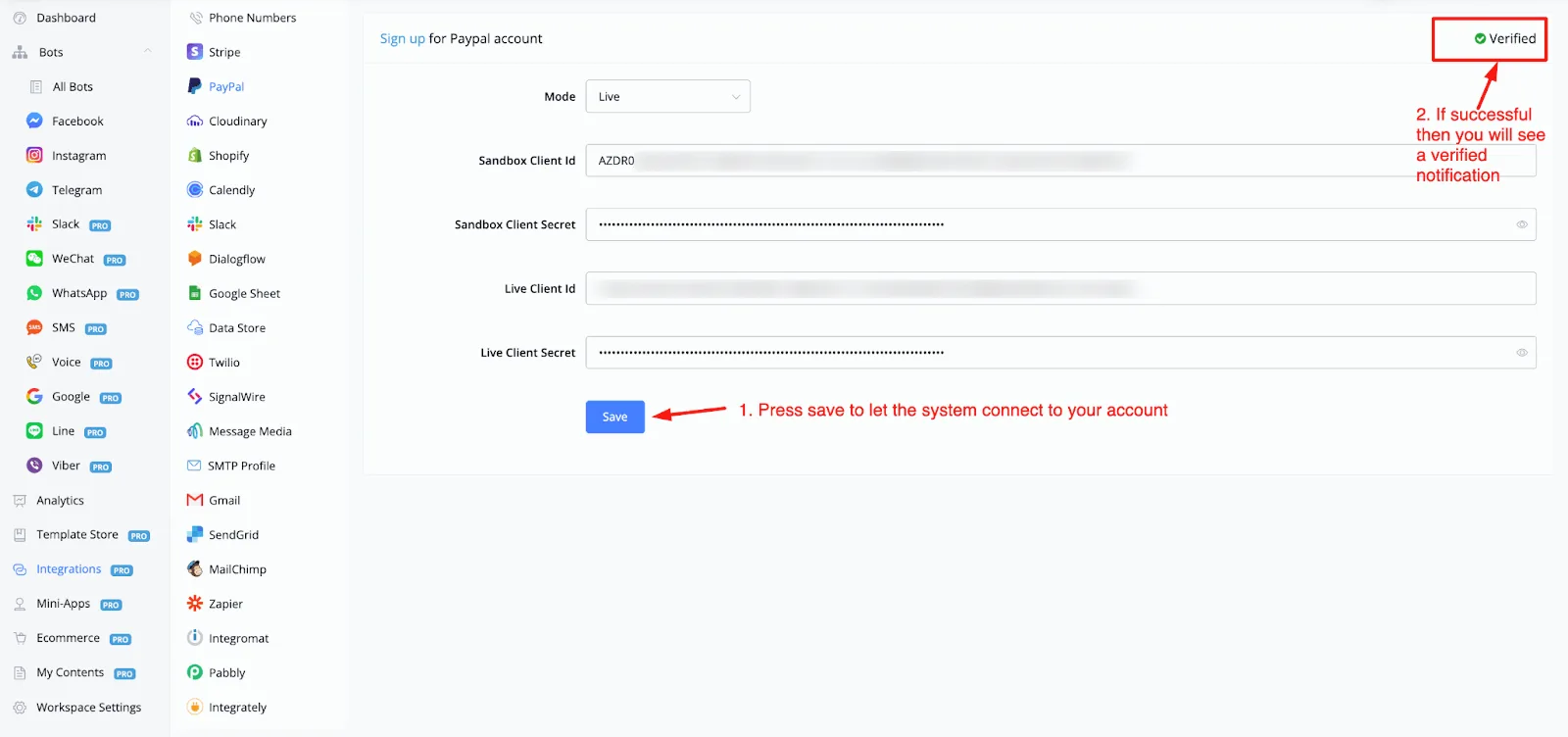
You can now integrate your PayPal account into your workspace. To find the PayPal integration, go to your main dashboard and select Integrations from the left-hand menu. Then select PayPal from the list.
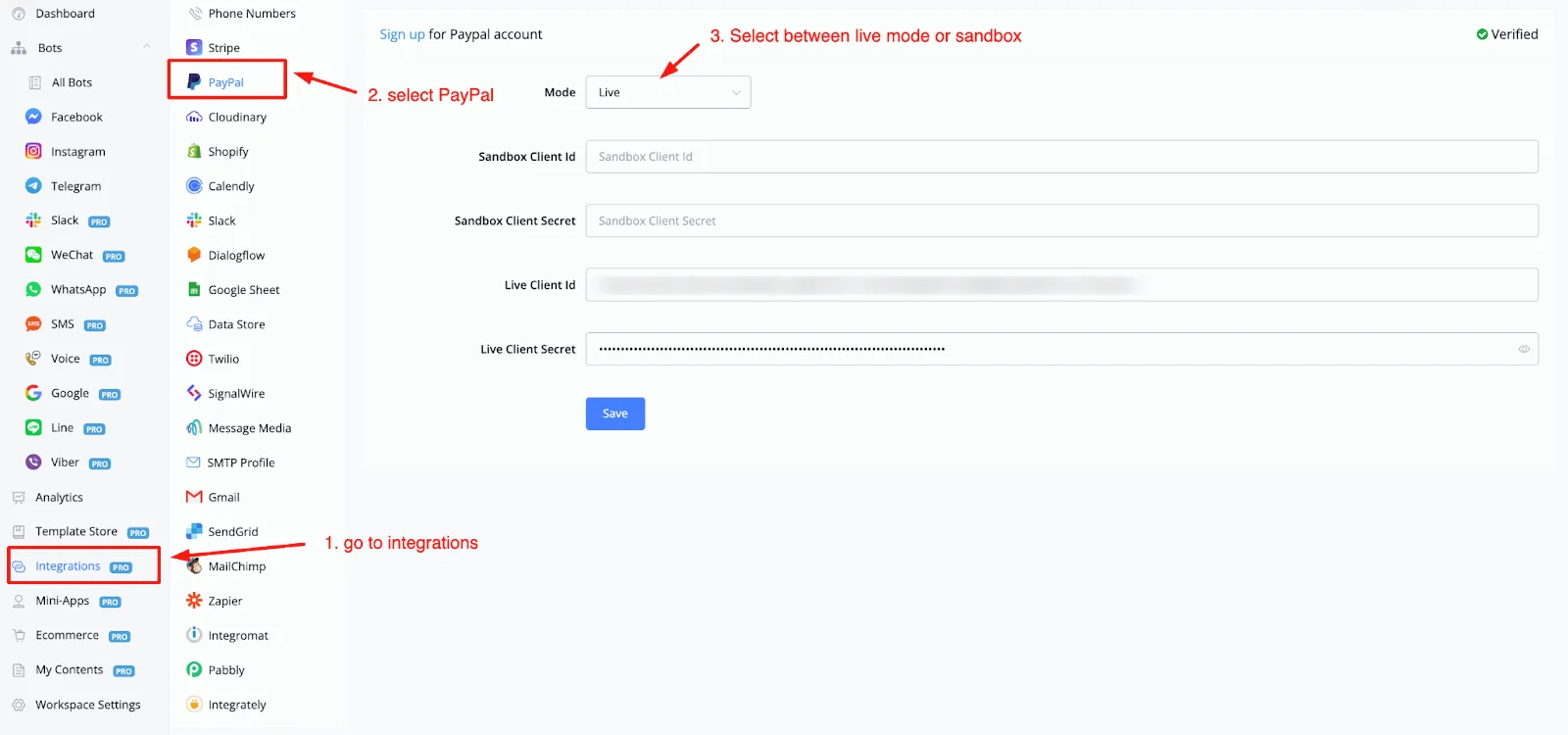
In step 3 you can select which mode you want to activate. We have live mode and sandbox available for you.
To get your credentials, log in to your PayPal account and go to the developer dashboard.
You will see an overview similar to this:
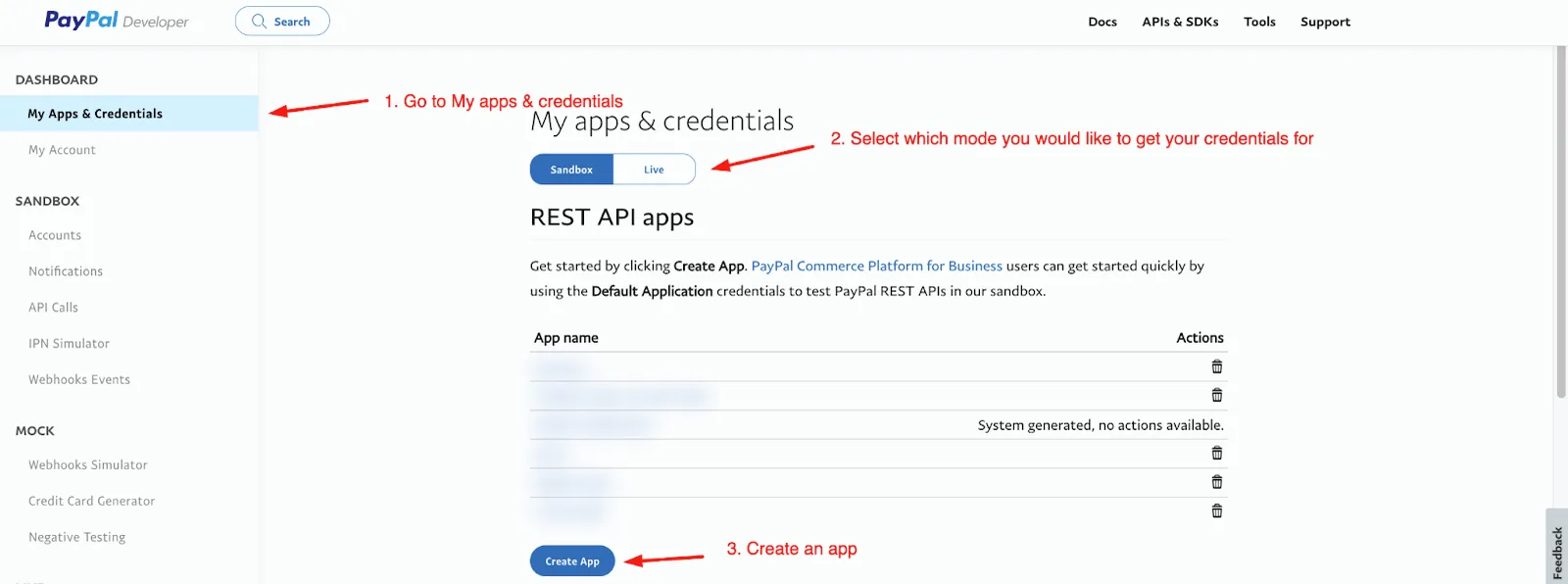
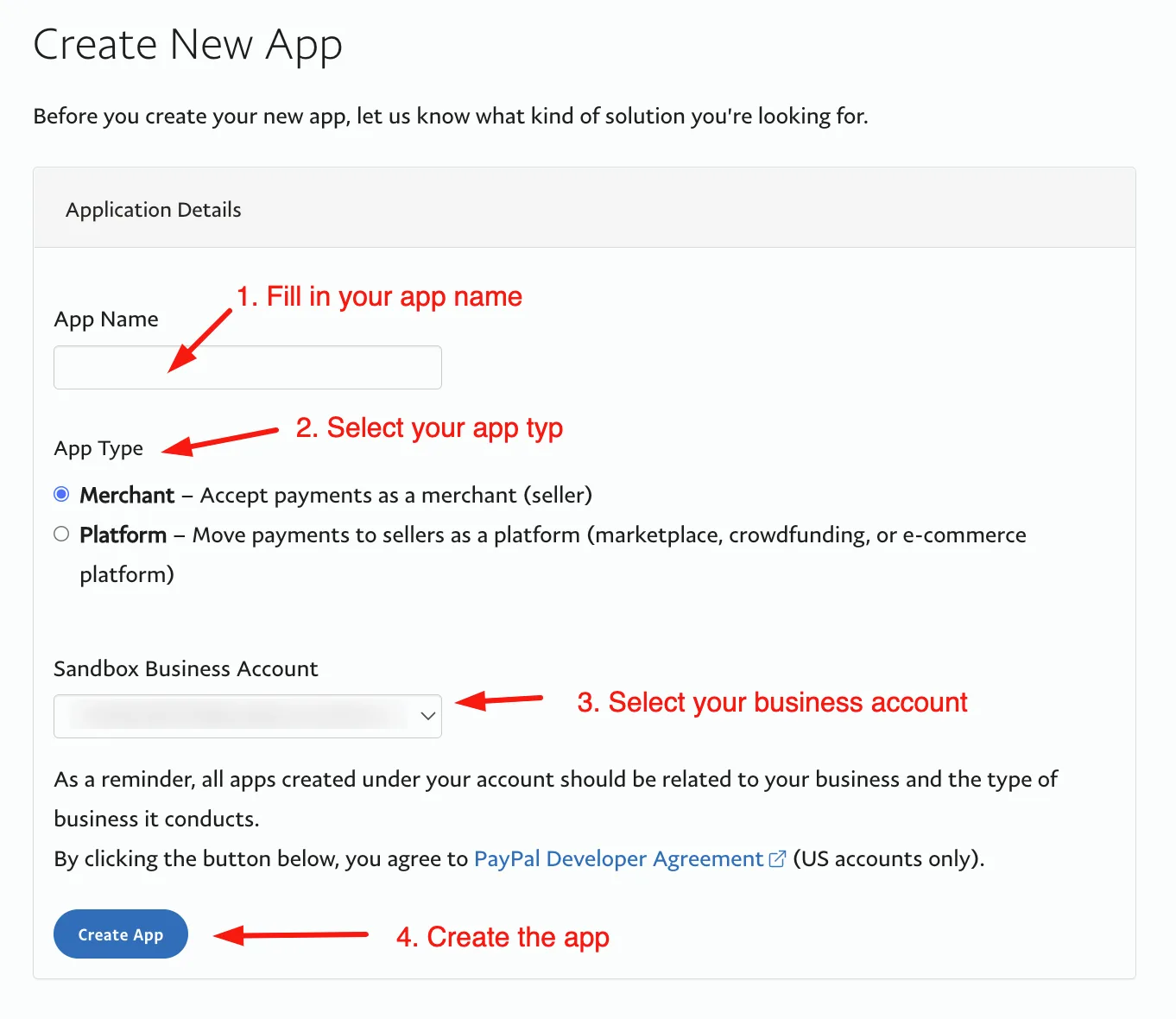
Select a mode before creating an app to receive your credentials. Once you press it, you will be taken to the page where you can create your app.
After you create the app, you will be taken to the page where you can get the client ID and the client secret key and paste them into the PayPal integration settings in your workspace.
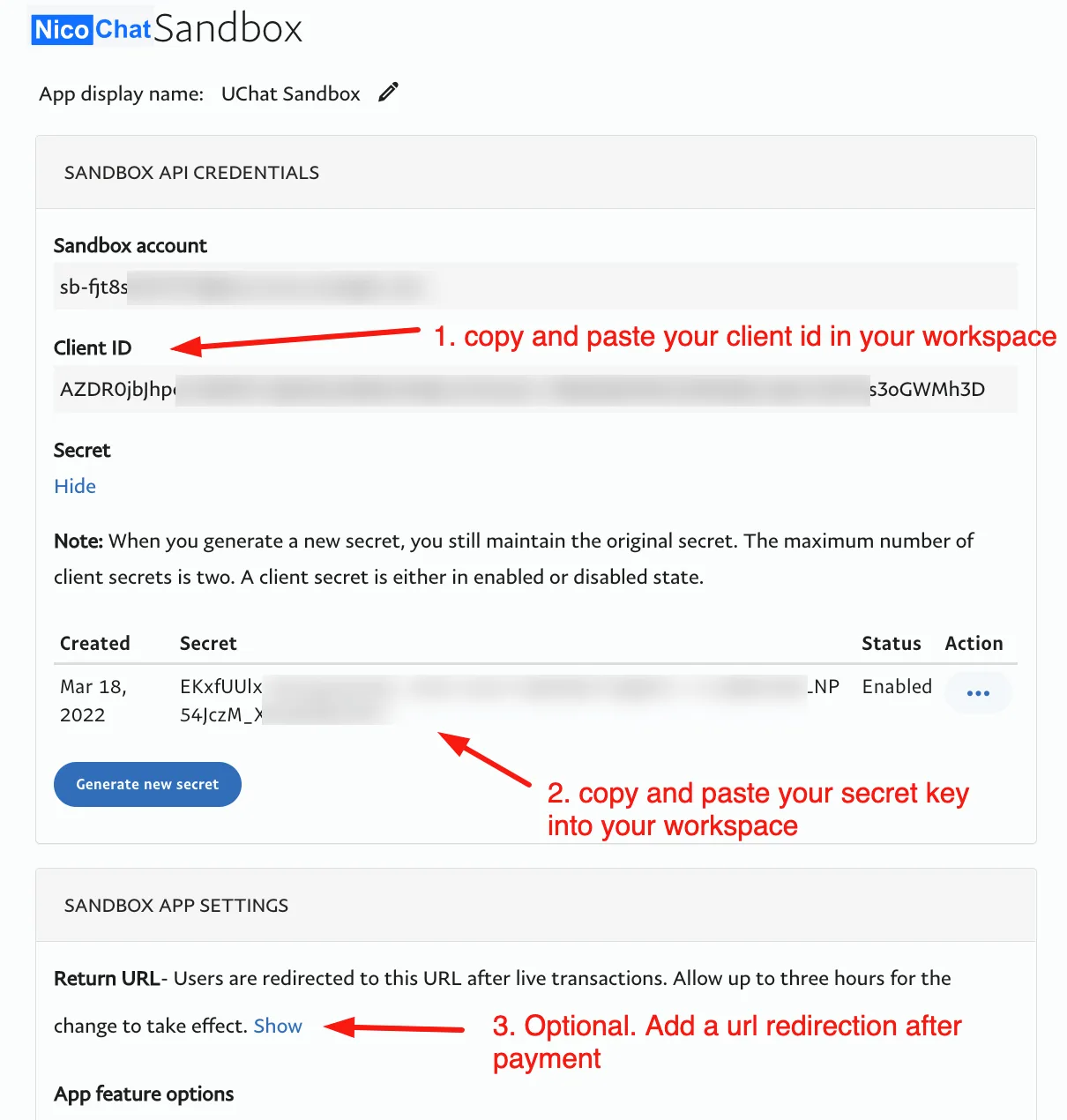
You can also optionally add a redirect after payment. This lets you point to a success flow inside your chatbot, for example, or to a thank-you page.
Once you have copied and pasted all the details into the integration section of your workspace, press save. You will see a verified notification appear in the top right corner.
As soon as your account is connected, you will have two ways to use the integration in your chatbots.
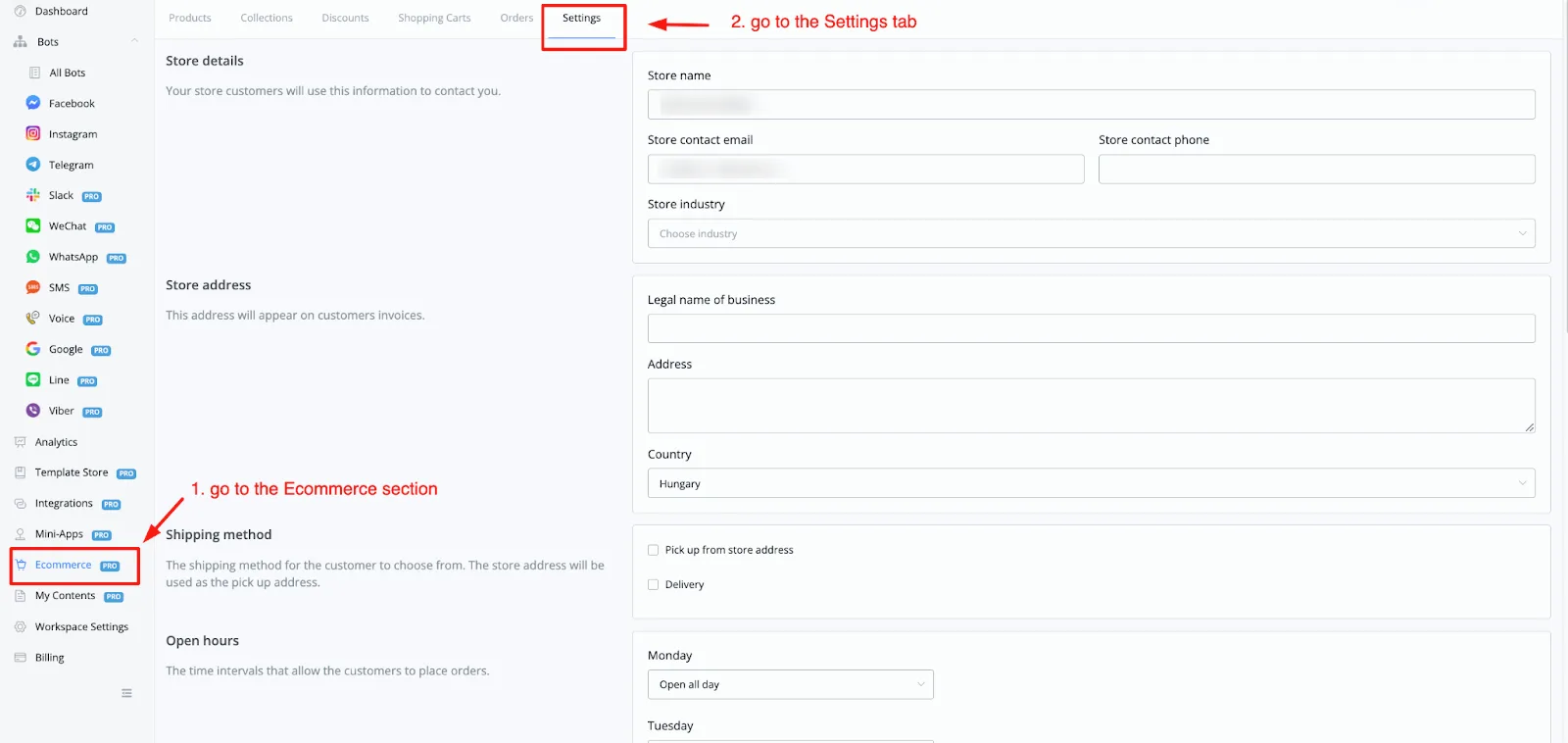
The first thing to do is set PayPal as a payment method in your e-commerce store settings.
From your main dashboard, go to Ecommerce in the left-hand menu.
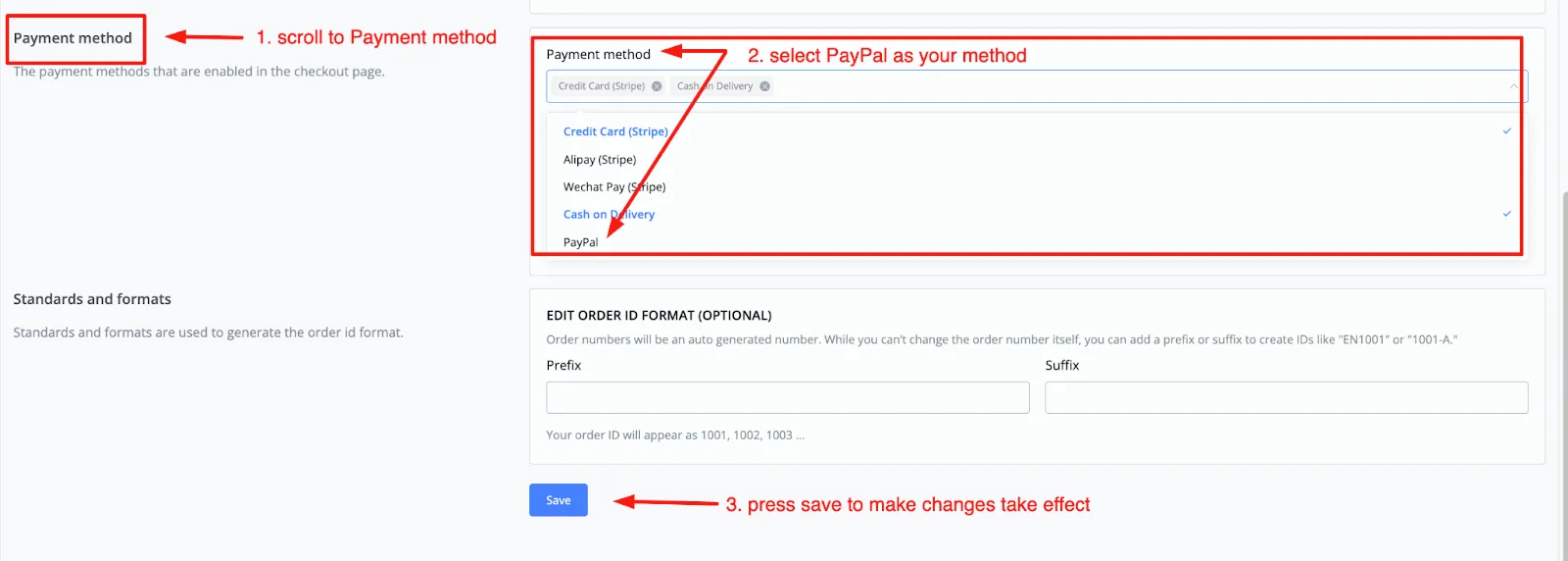
Scroll all the way down until you see the section called Payment Method. There, select PayPal as one of the methods for your e-commerce store. Don't forget to press save so the changes take effect.
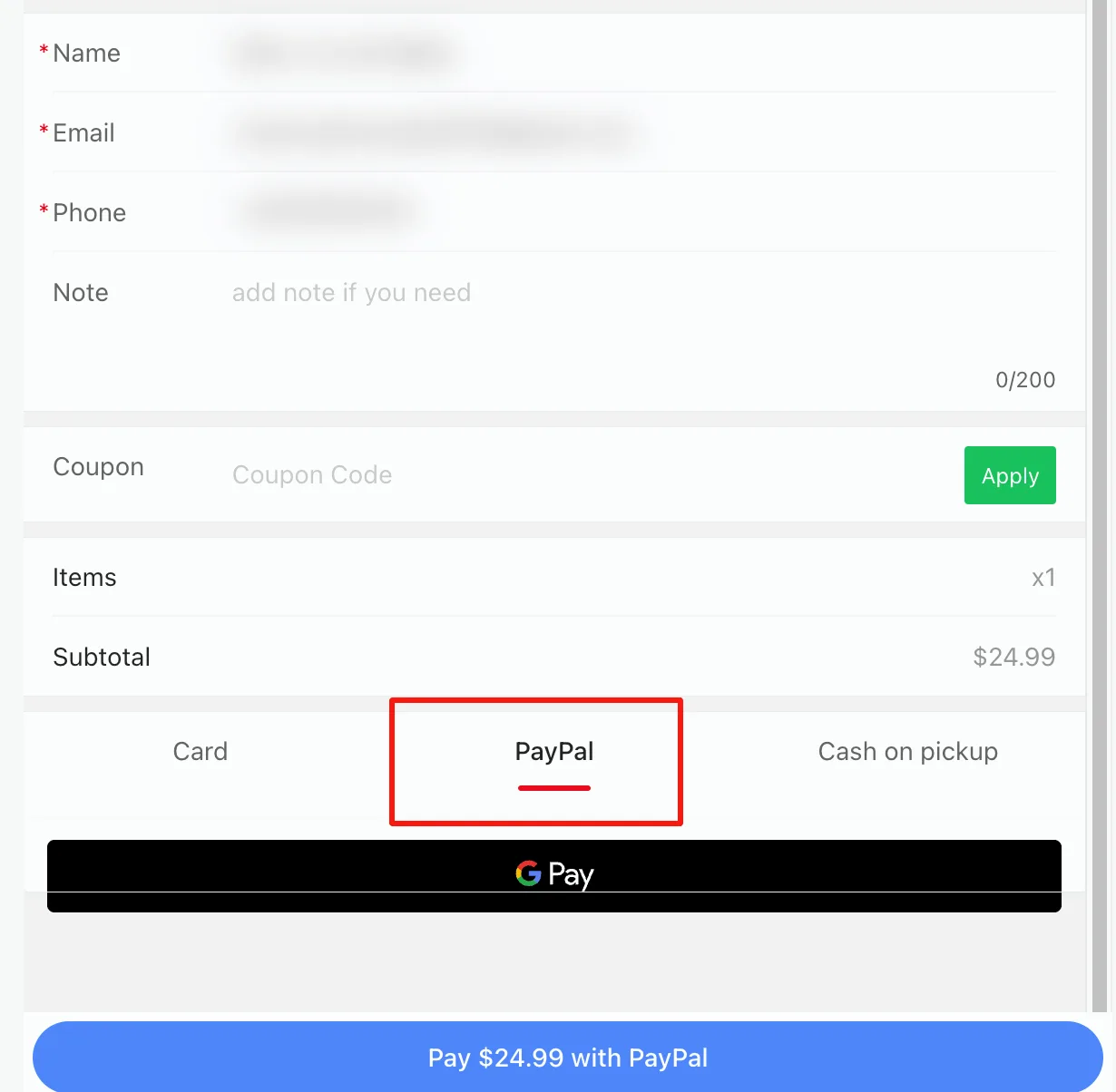
Using the built-in e-commerce store is a fantastic way to sell your products. As soon as the user presses the Checkout button in the conversation, they will be taken to the online checkout section, where they can select PayPal to pay.
Another way to use the PayPal integration is through the direct button. It is very useful when you want to sell just one product or service.
Add a button and, among the options offered, choose the PayPal Buy button.
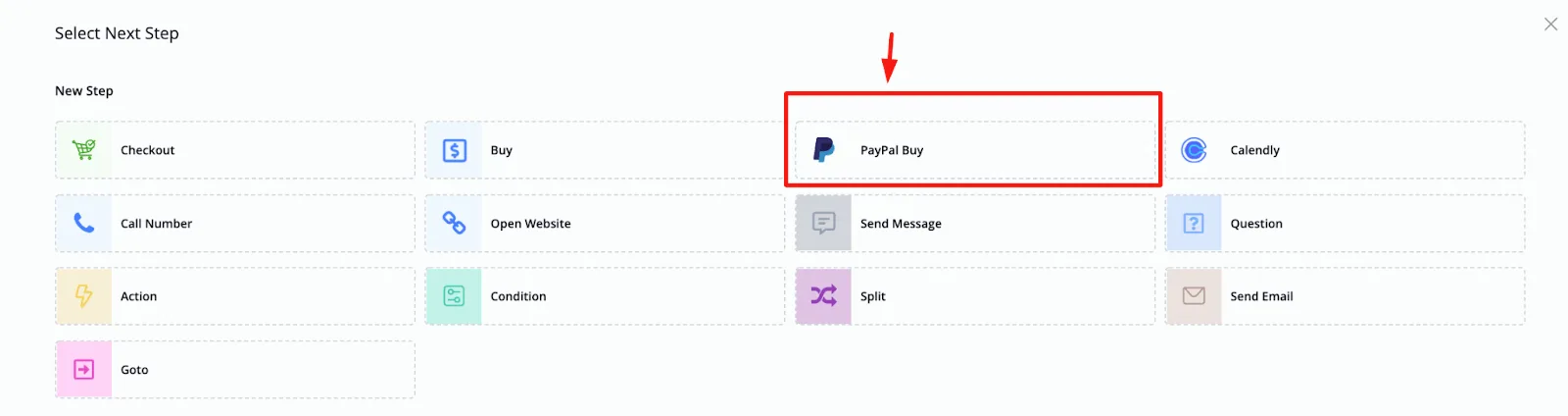
Once selected, you will be able to quickly fill in all the product details, like this:
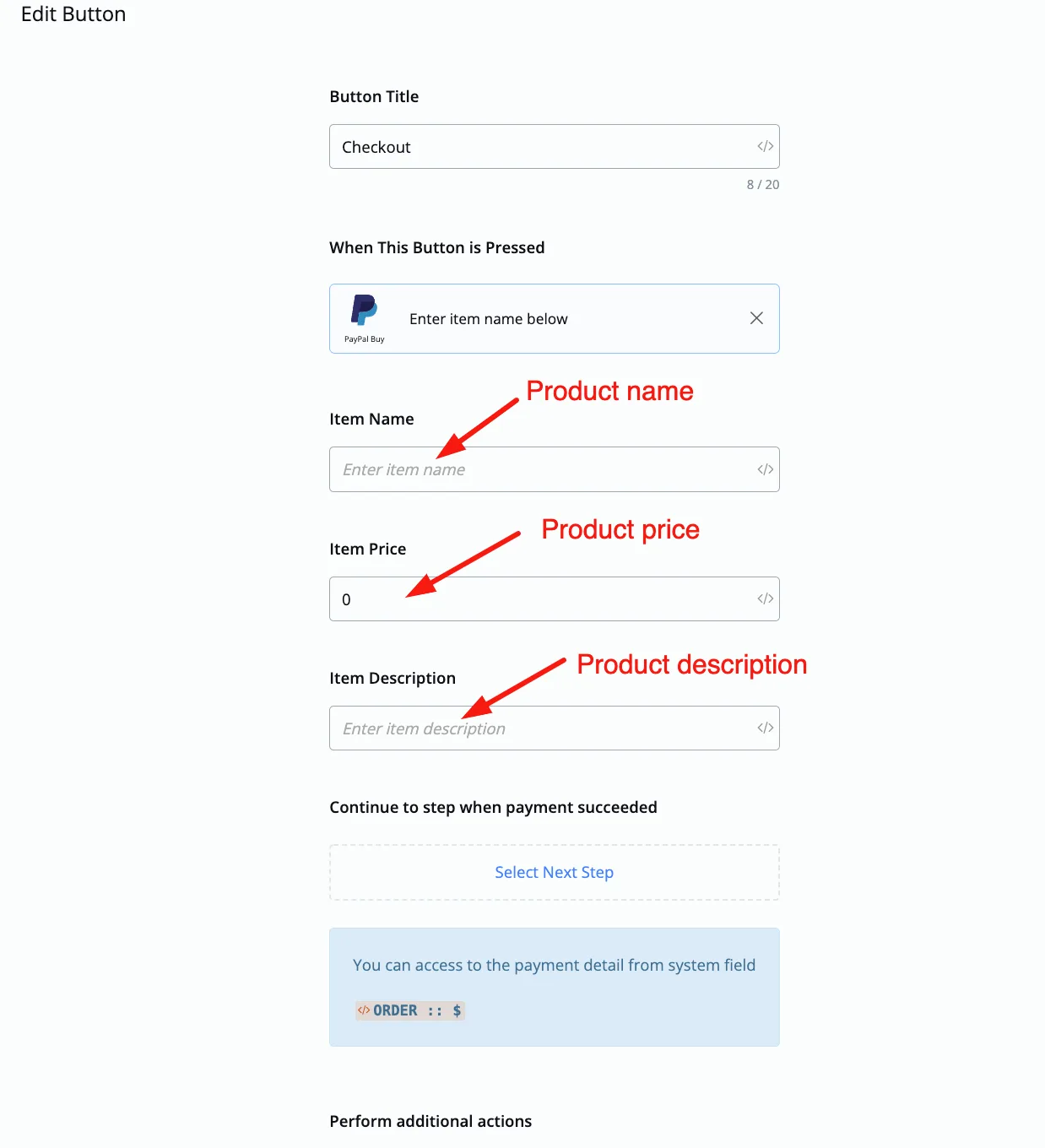
Once everything is filled in, scroll down and press save. You will now be able to sell single products.