

MariaDB - Database
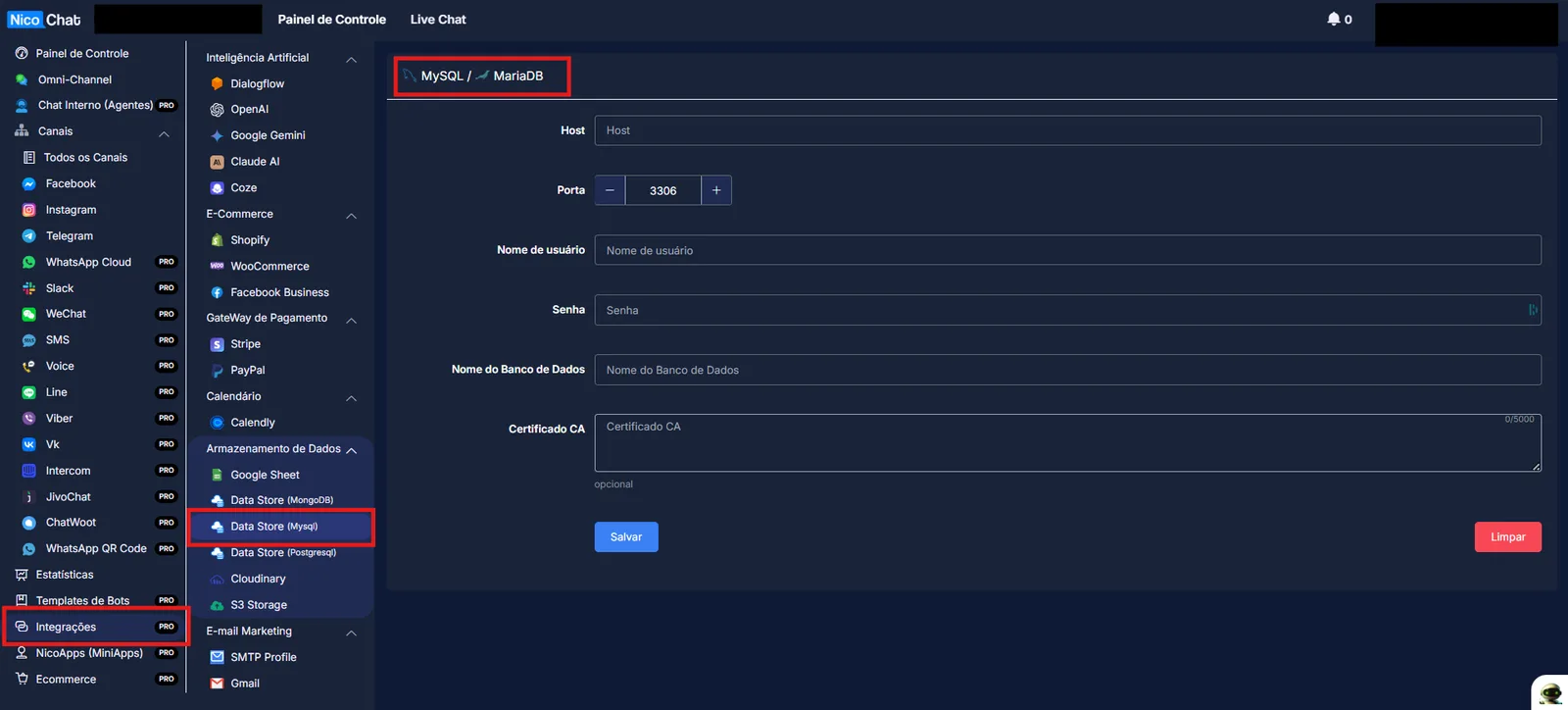
Navigate to the integrations section. Scroll down to the Data Storage section. Locate the MySQL data store.
You can create a free account at console.aiven.io/ or use another MariaDB service.
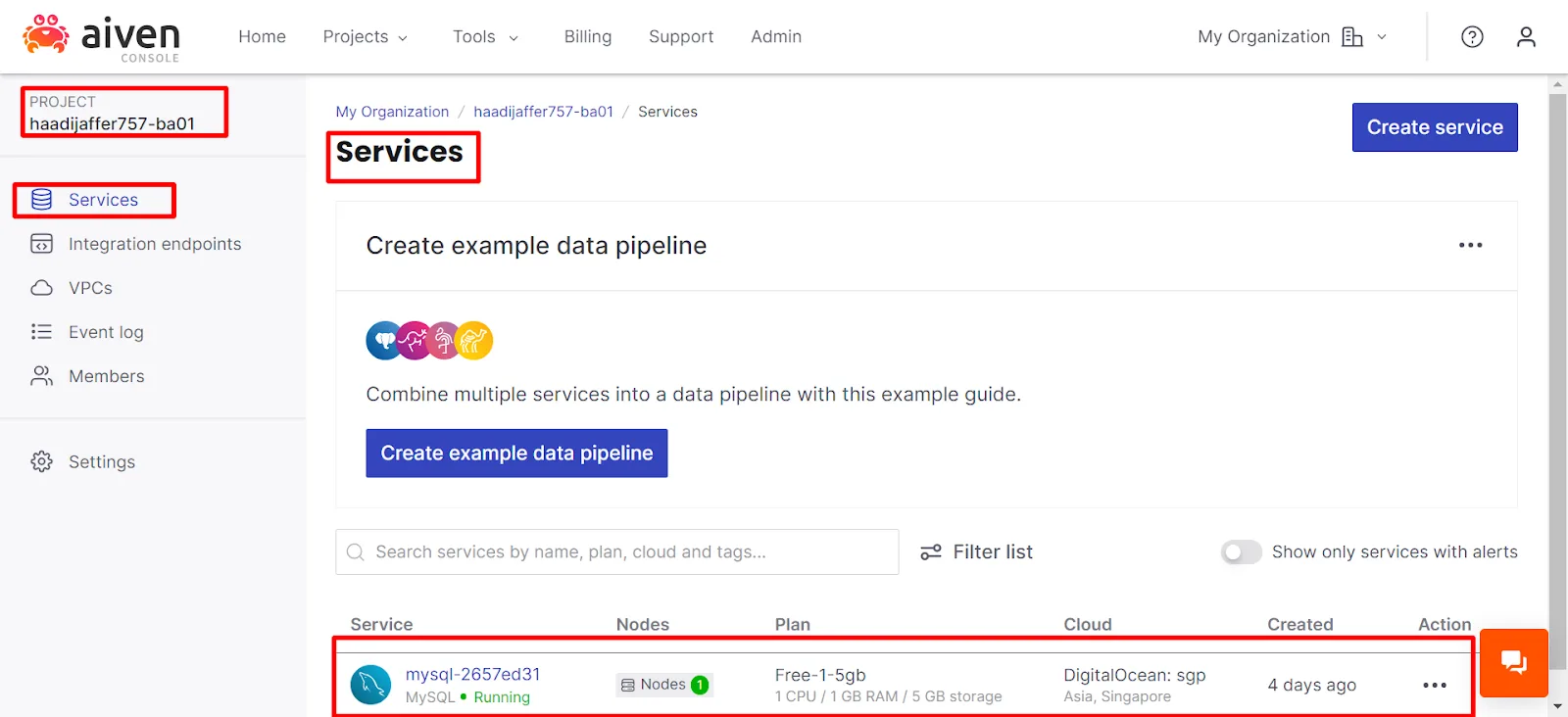
Once you have created your account, open your project, navigate to "Services" and select your SQL service.
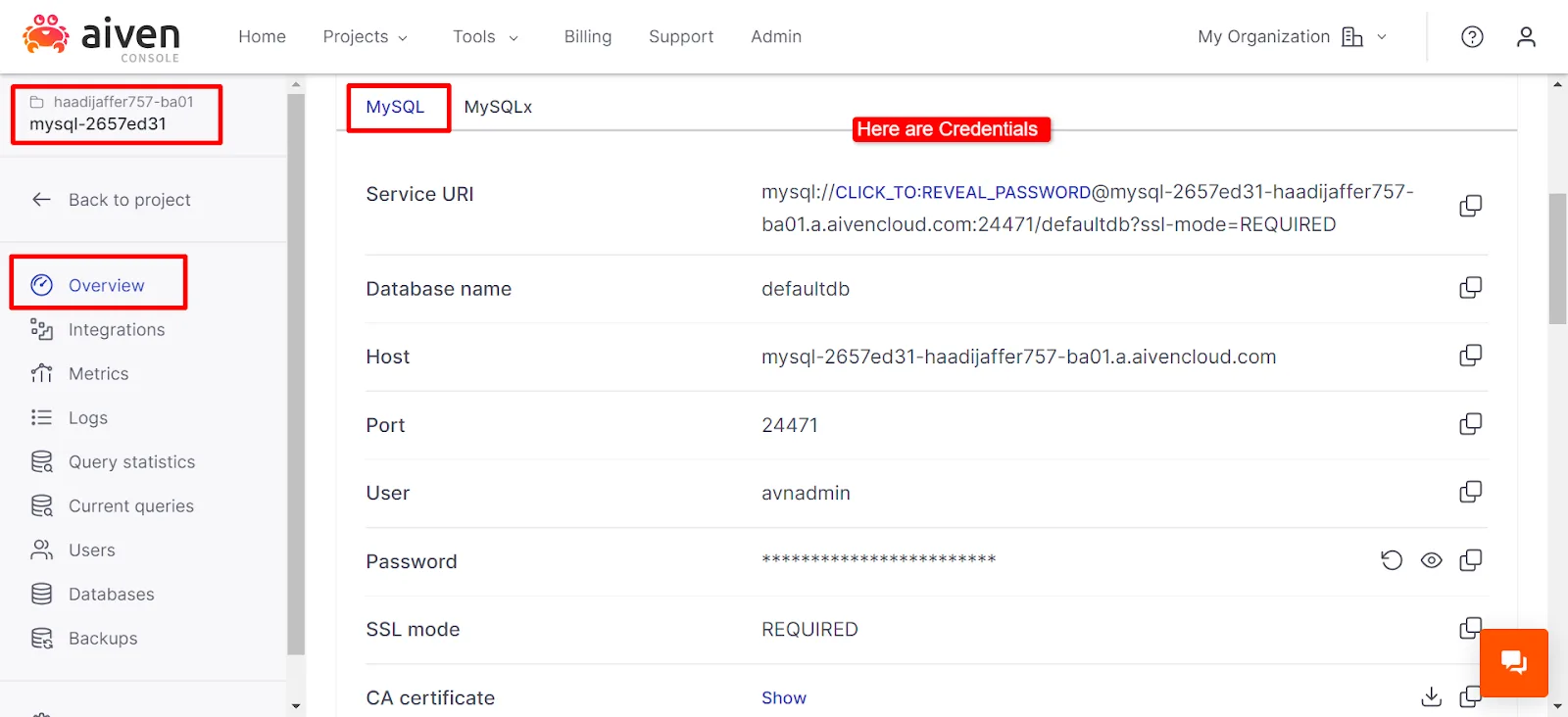
Once you have opened the service, navigate to the "Overview" section and copy the credentials.
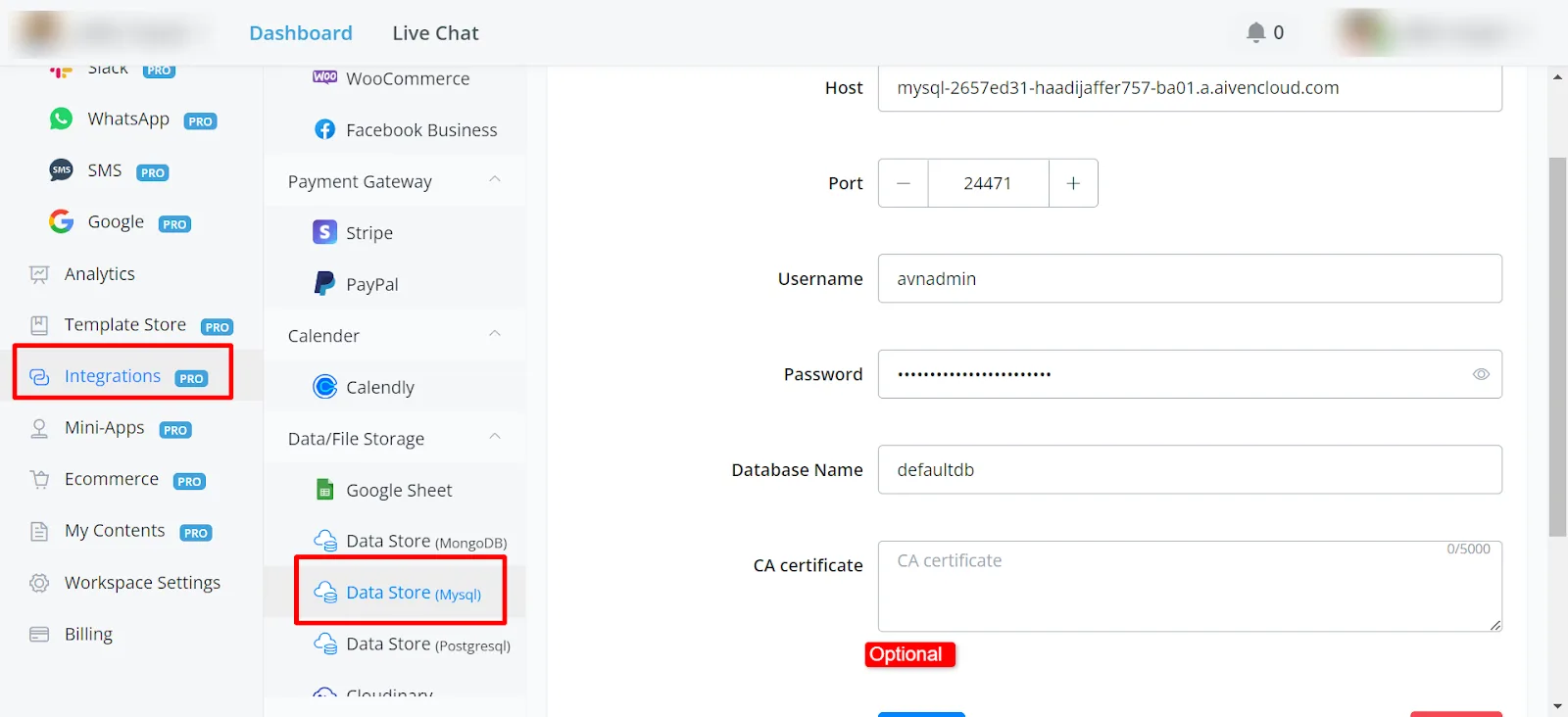
- Obtain your MySQL credentials from the confirmation email received from your MySQL database server.
- Copy the server name and paste it into the Host field. Remove the "HTTP" from the server name.
- Set the port
- Enter your username, which is usually also the name of your database.
- Enter your password (keep it secure).
- Optionally, fill in the CA certificate, if available.
- Add IP addresses to the allowlist, if required by your hosting provider.
Once you have filled in all the details, click “Save”. The status then appears as verified, and you can already sync and create your records.
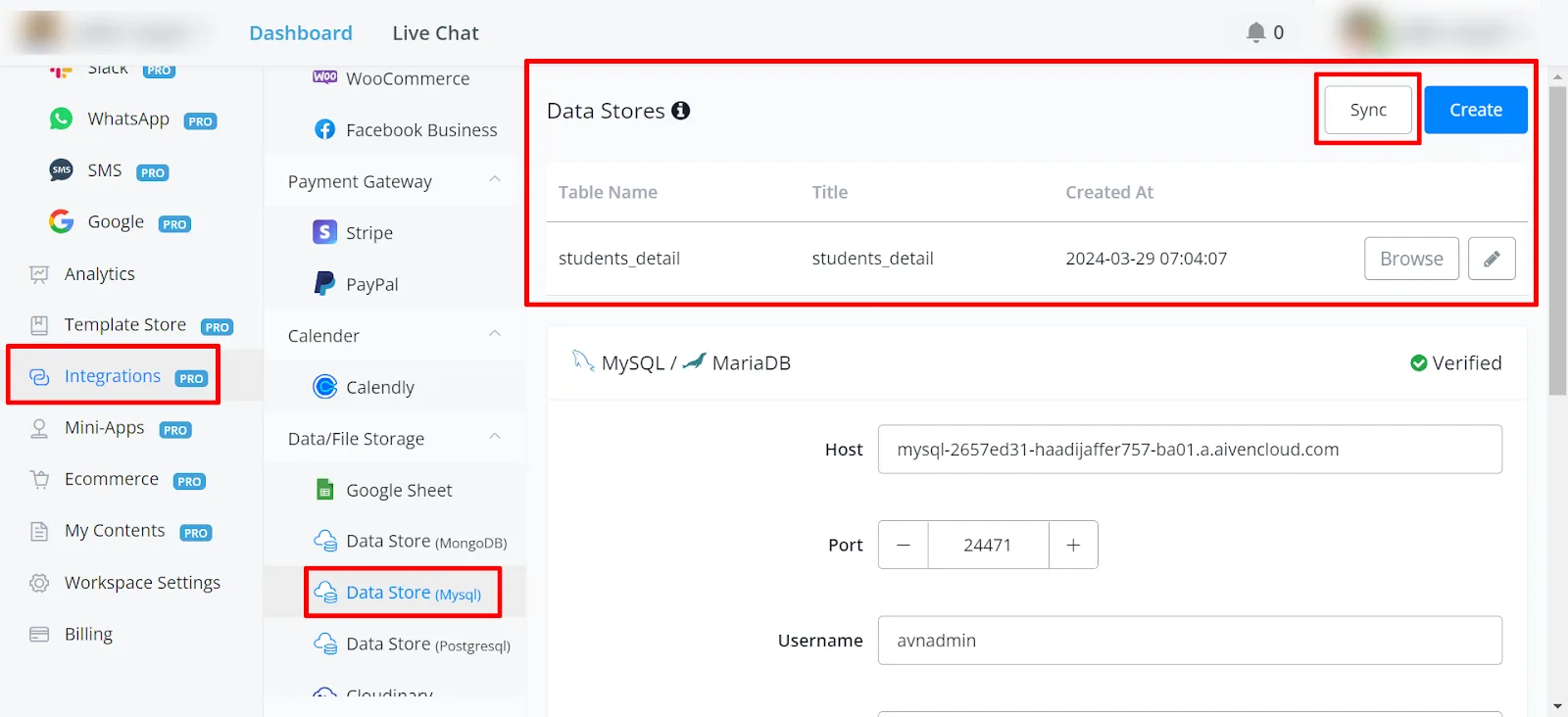
- If you do not have existing data stores, press the sync button to fetch the available data stores.
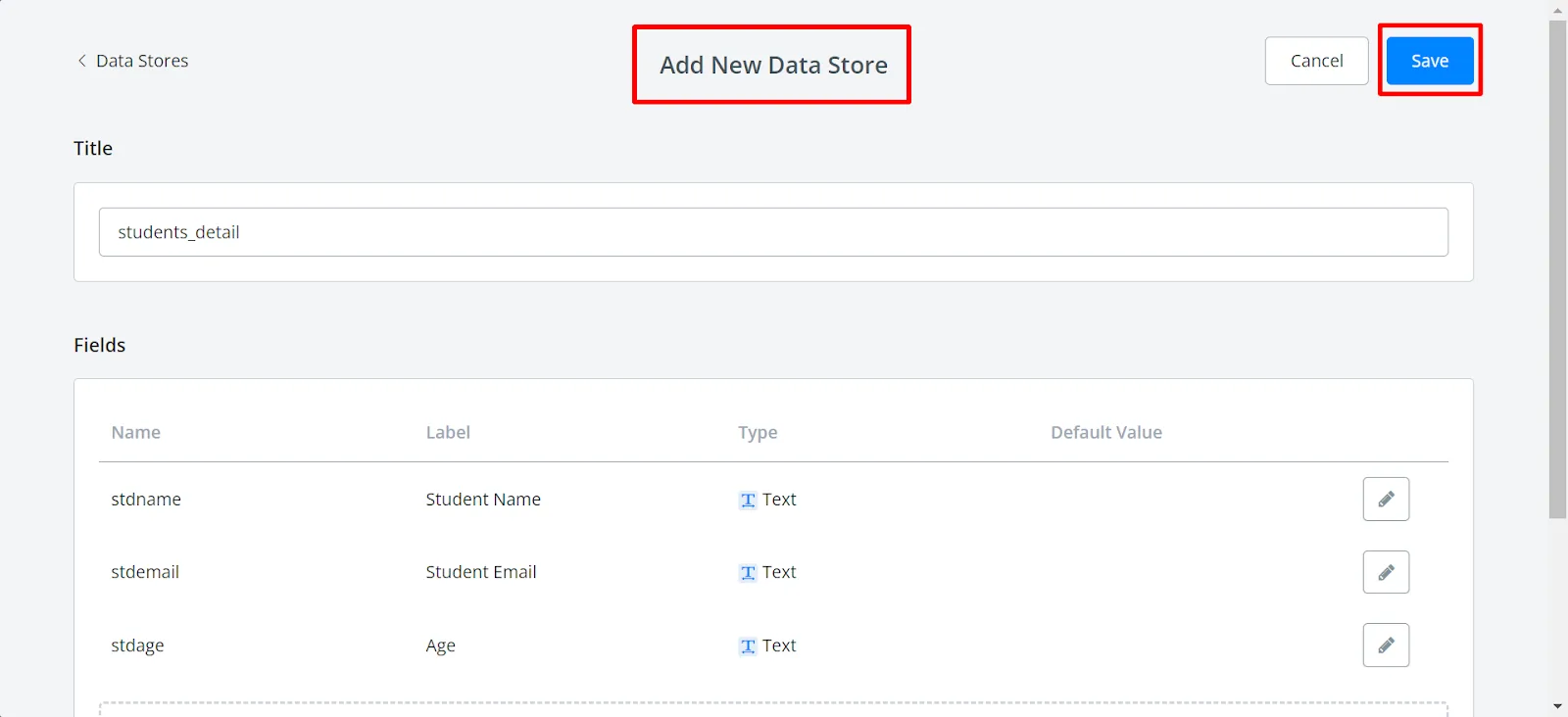
- Alternatively, create a new data store by providing a name (for example, "students_detail") and defining fields (for example, Name, E-Mail, Age).
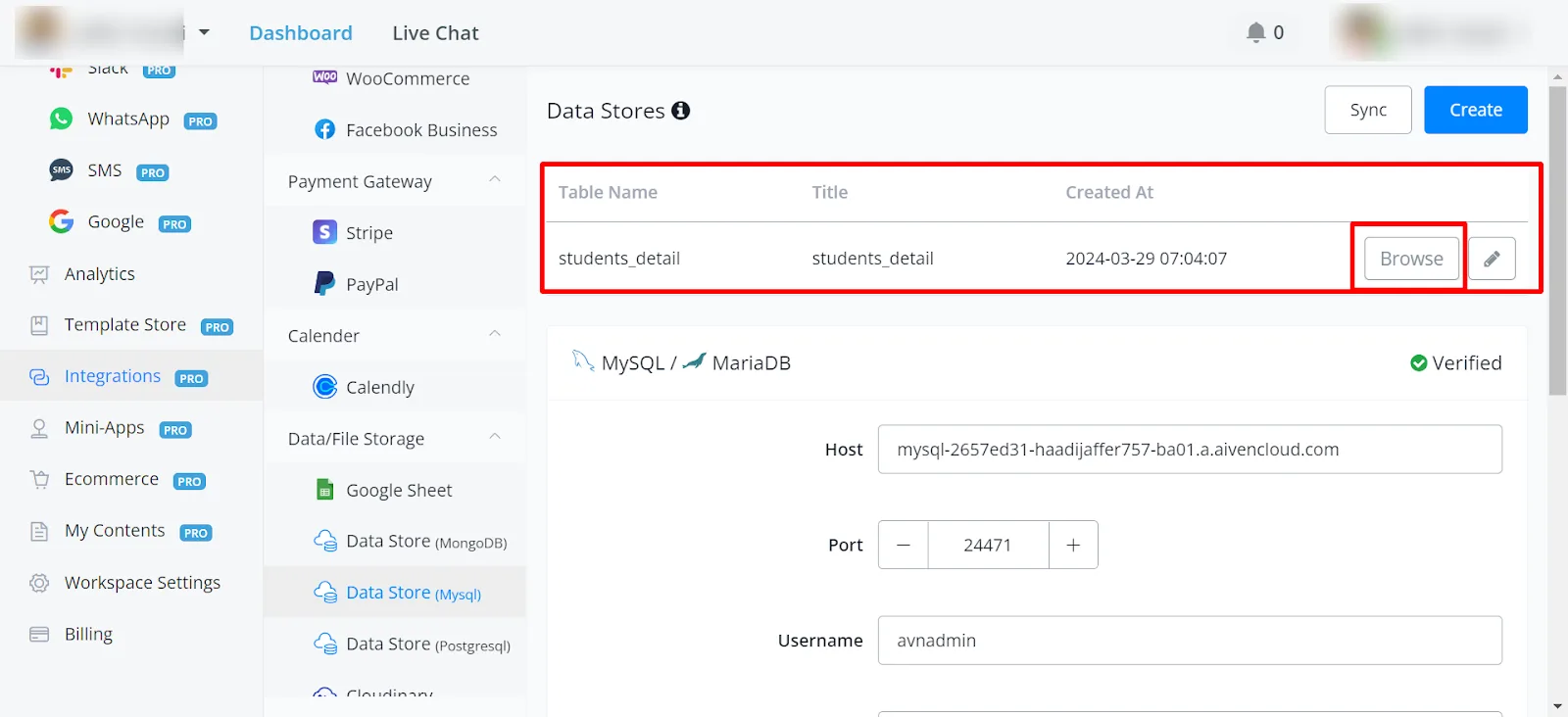
The table has been created. You can view or edit the record by clicking "Browse".
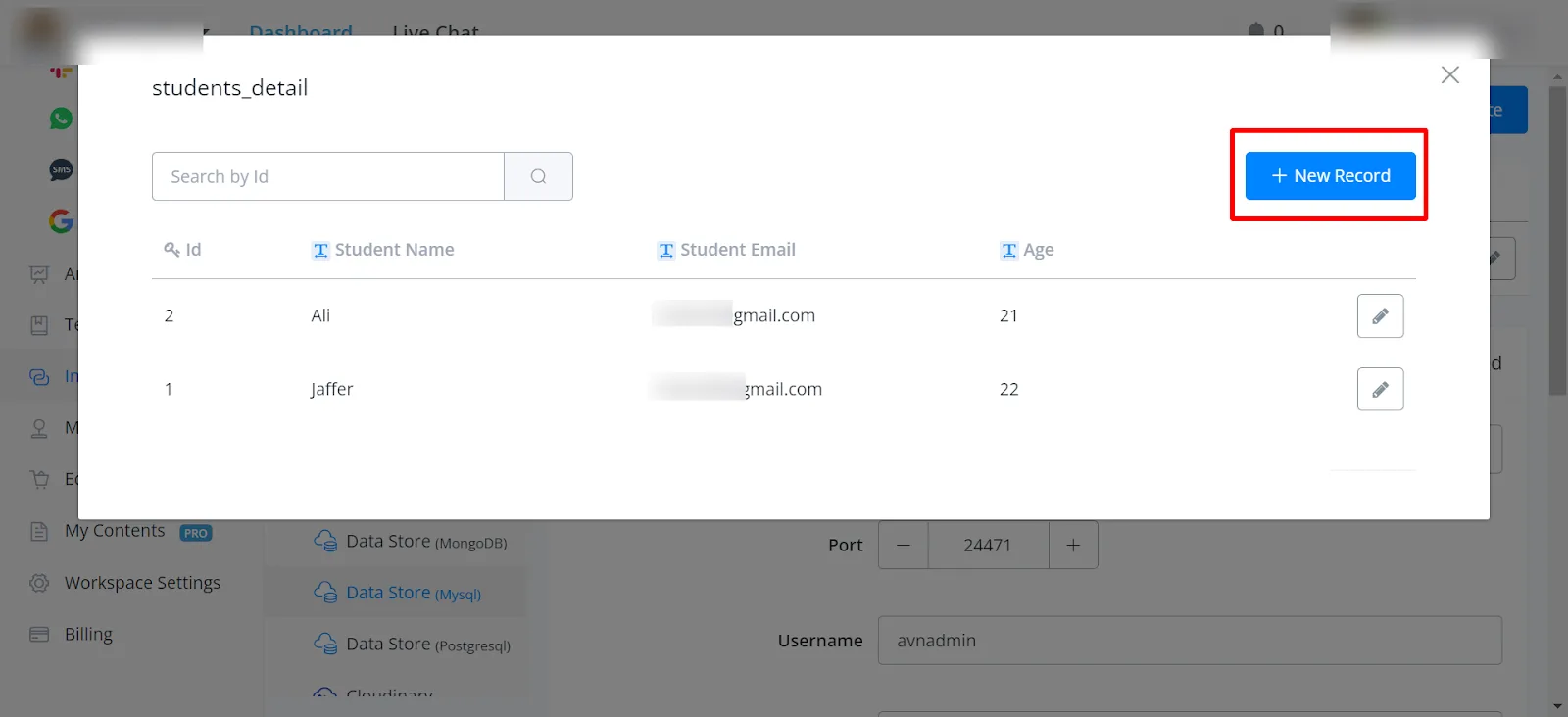
You can view the records inside the table and make edits, as well as add new ones as needed.
- Create a new flow.
- Add the action node and select "Integrations".
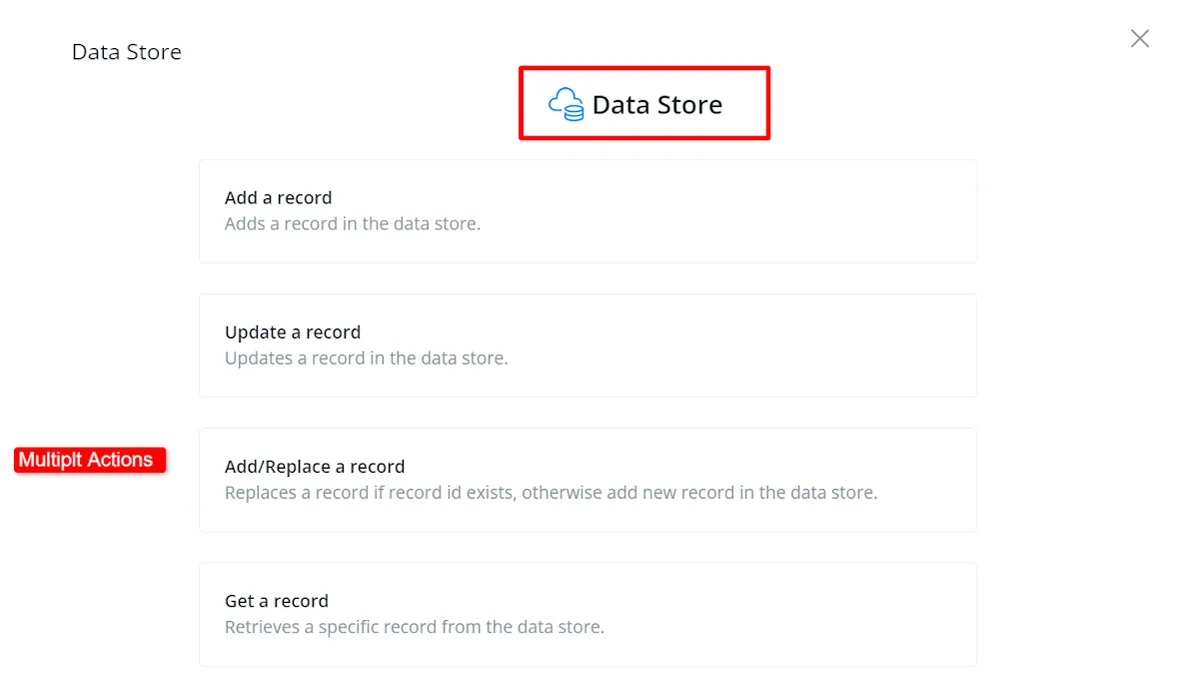
- Select the "Data Storage" actions.
- Select the desired actions, such as adding a new record.
- Fill in the fields and test.
- You can use different functions according to your needs.
After using any of the functions, you can proceed to view and edit the data as needed.