Intercom LiveChat
Intercom is a popular live chat platform. NicoChat's integration with Intercom helps reduce support volume by 80% through chatbot and AI automation
Solve customer support issues with chatbot automation and Google artificial intelligence before they reach your support team.
# No coding knowledge required
You don't need to be a developer or learn to code to use NicoChat. With our drag-and-drop flow builder, you can easily build your automation logic.
Today NicoChat connects your Intercom to your customers on Instagram, Messenger, WhatsApp, Google Business Messenger, Telegram, Viber, Line, SMS, Voice, Slack and WeChat — and new channels keep being added to the platform. Reach your customer through automation and live chat wherever they are.
# Omnichannel flow builder
With our omnichannel flow builder, you build your automation logic once and apply it to all the social channels we support (Instagram, Messenger, WhatsApp, Google Business Messenger, Telegram, WeChat, Line, Viber).
Recognize customer intent with Google Dialogflow and route the customer to your chatbot automation. Transfer only the unrecognized intents to live chat support. This saves a lot of time for your live chat support.
NicoChat has built-in integration with Stripe, Paypal, Cloudinary, Shopify, Woocommerce, Calendly, Slack, Google Sheets, Twilio, SignalWire, MessageMedia, Gmail, Sendgrid, Mailchimp, ActiveCampaign, Zapier, Integromat and Pabbly Connect. You can easily sync leads and sales with your own CRM or project management tools.
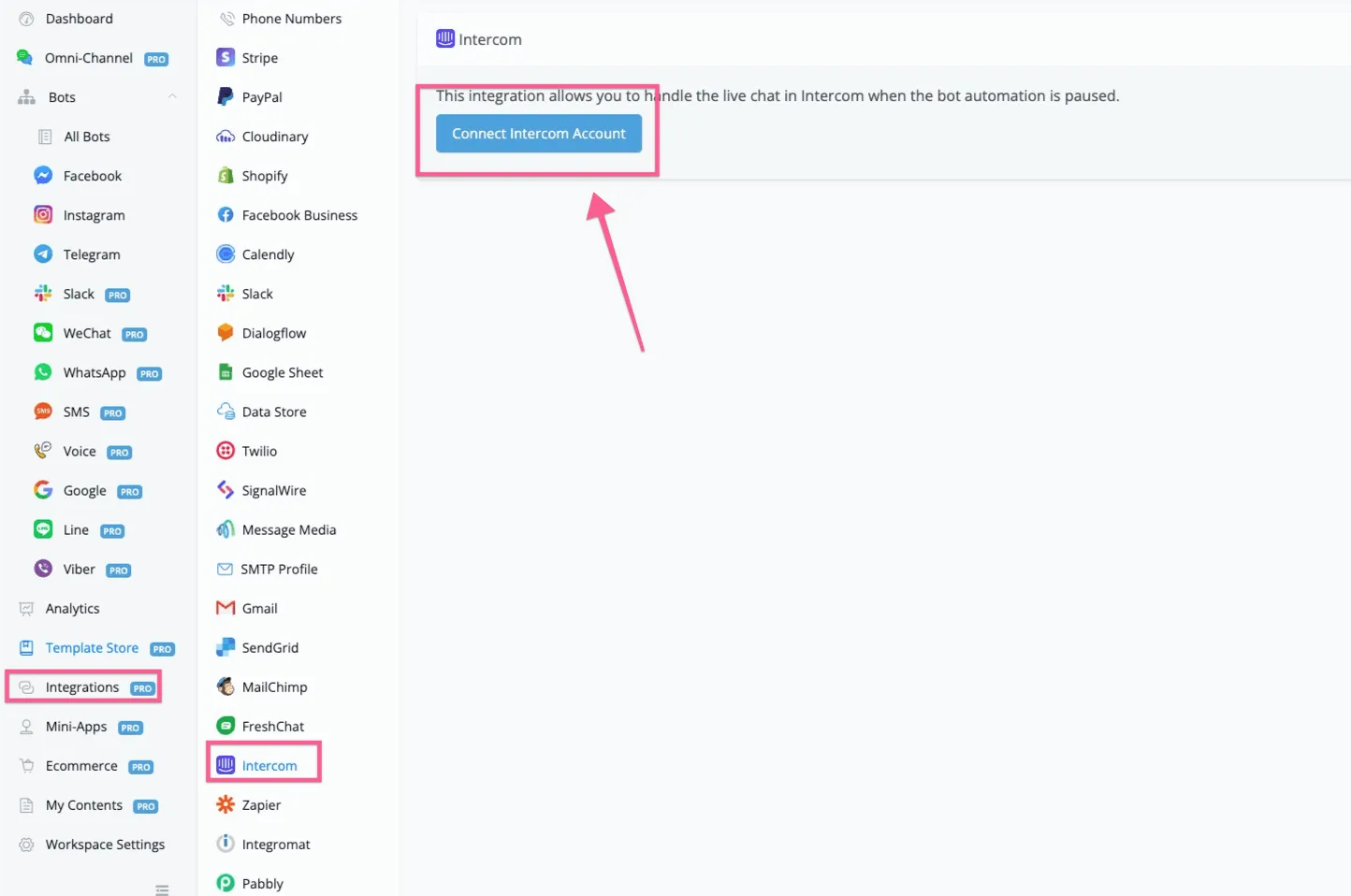
In this step, you need to connect your Intercom account inside NicoChat. After logging in to NicoChat, go to the integration, then to Intercom, and click the Connect Intercom button.
After you click the Connect Intercom button, you will be redirected to log in to your Intercom account and you will see the screen shown above. Click “Authorize access” and the app will be added to your workspace.
After the authorization, the screen looks like the one below.
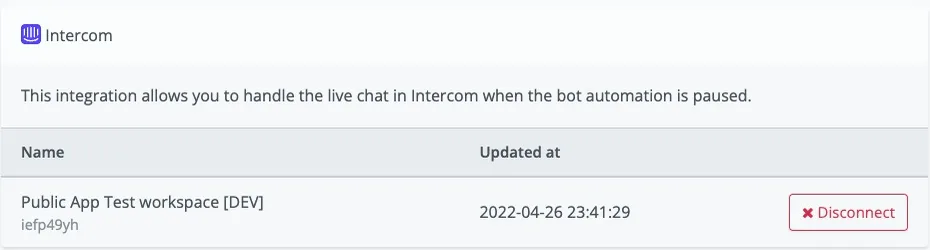
You can disconnect the app by clicking the button to disconnect Intercom from this workspace.
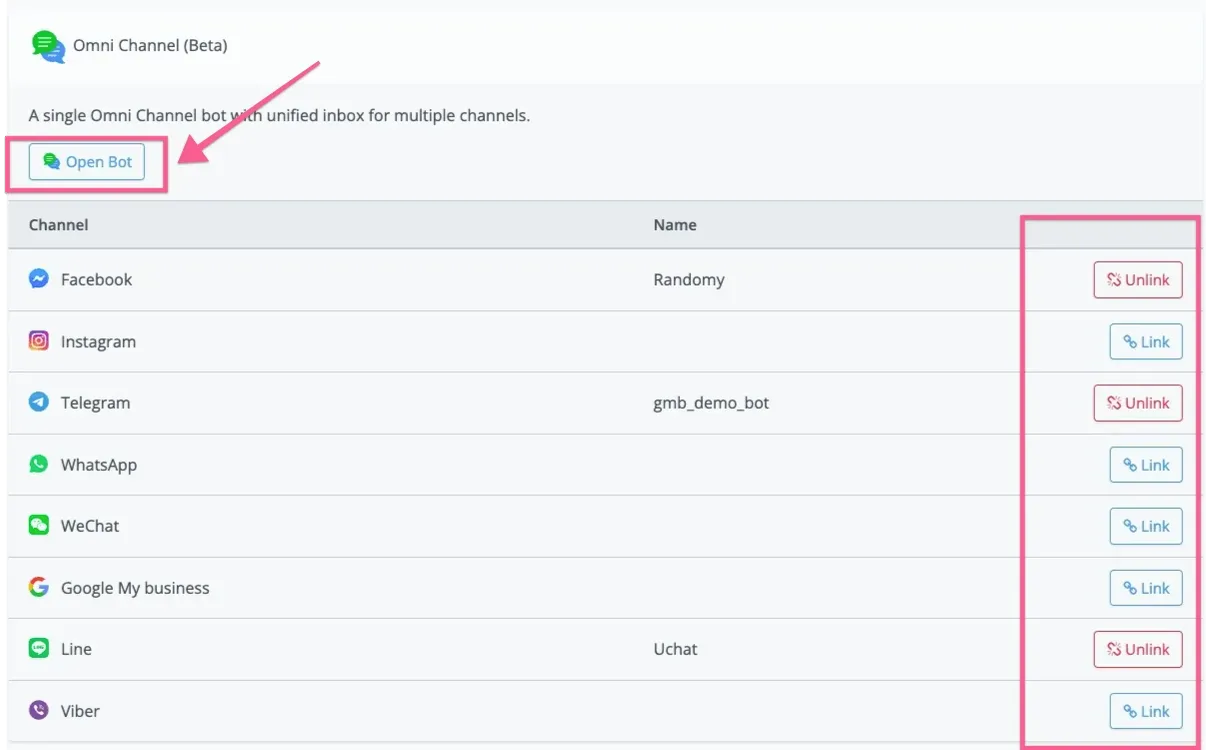
After integrating with Intercom, you need to create an omnichannel chatbot inside NicoChat. You may need to link the channels we currently support (Facebook Messenger, Instagram, WhatsApp, Google Business Messenger, WeChat, Line, Viber, Telegram).
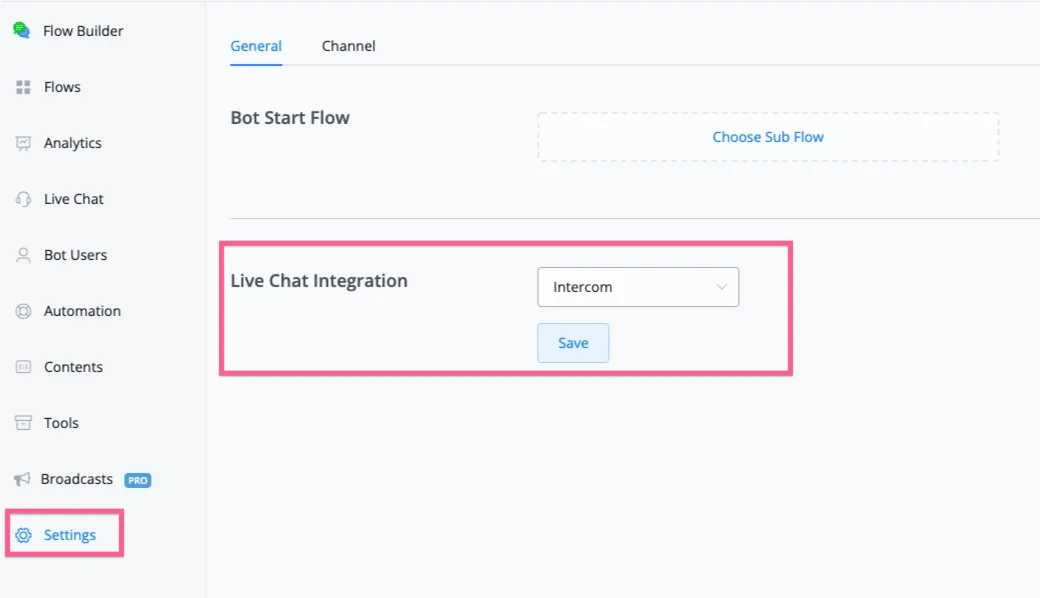
After linking the channel, open the channel, go to the Omni-Channel settings and select Intercom in the live chat integration.
The benefit of using NicoChat with Intercom is that your business can automate at least 80% of support with chatbot and AI. You can easily build your chatbot in our visual flow builder and, if at any point your customer needs help.
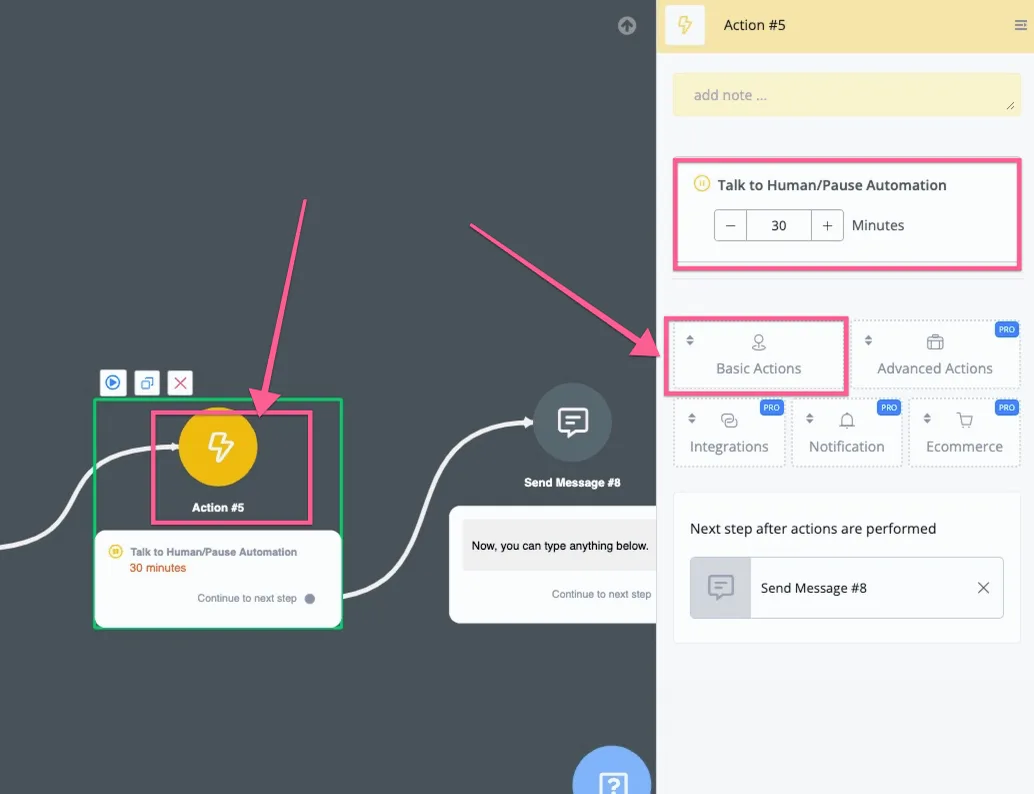
You can connect an action and then go to Basic Actions, where you find “Talk to Human/Pause Automation”. From there, your customer from 11+ social channels talks directly to your Intercom live chat support.
After your customer starts a conversation, you will see the new contacts created on the social channels, along with their questions.
NicoChat pulls the user's profile, email and phone, if there are any, to create the contact.
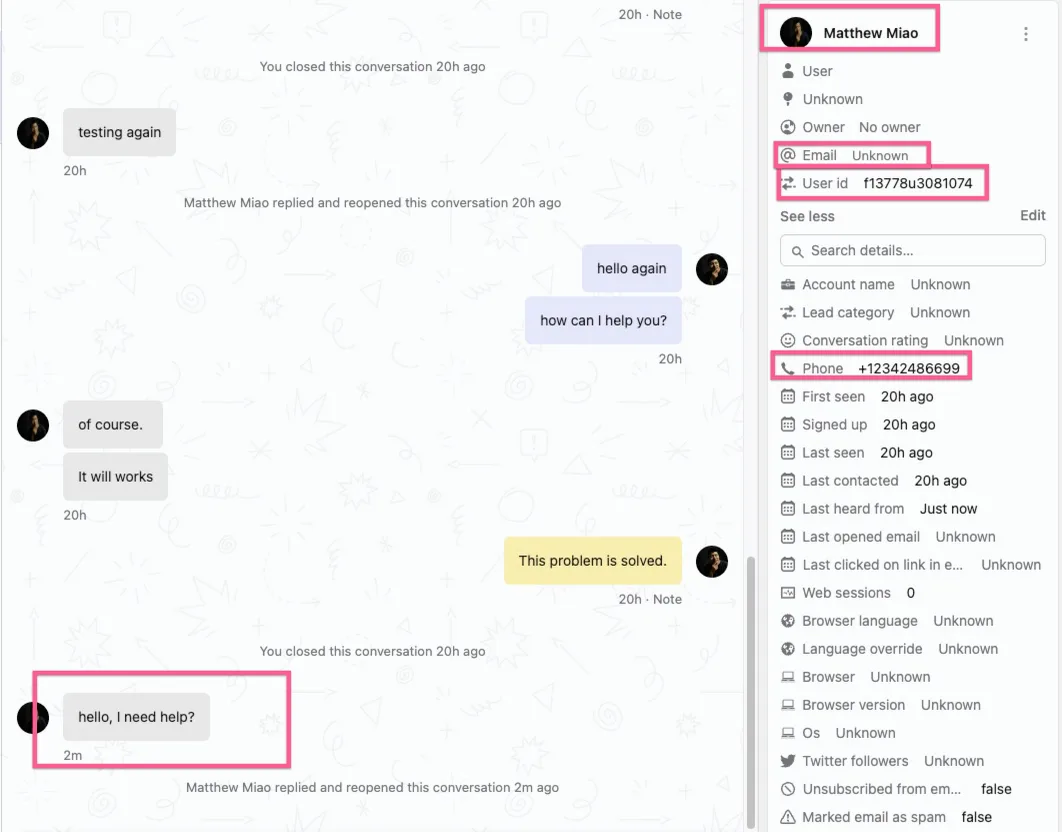
And now your Intercom agent can reply directly to the customer on 11+ social channels.
By default, live chat is set to 30 minutes. After that time, if there is no active conversation, the user is sent back to chatbot automation.
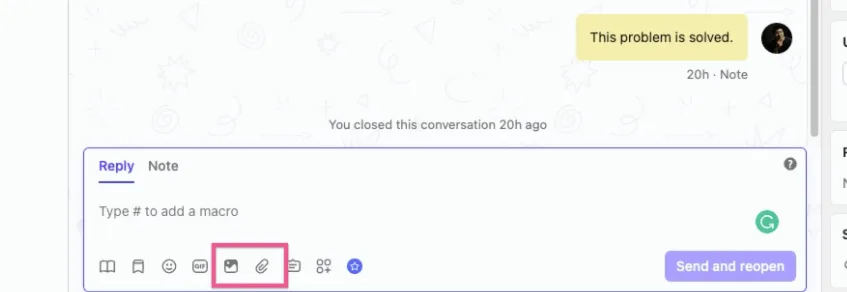
After your customer activates live chat in our flow, they can send text, images and files to your agent.
Meanwhile, your Intercom agent can also send images and files back to the user.
If the Intercom agent adds any note to the customer or to the conversation, the note content will also be synced to NicoChat subscribers.
Note that you can also see the whole live chat history inside NicoChat's LiveChat.
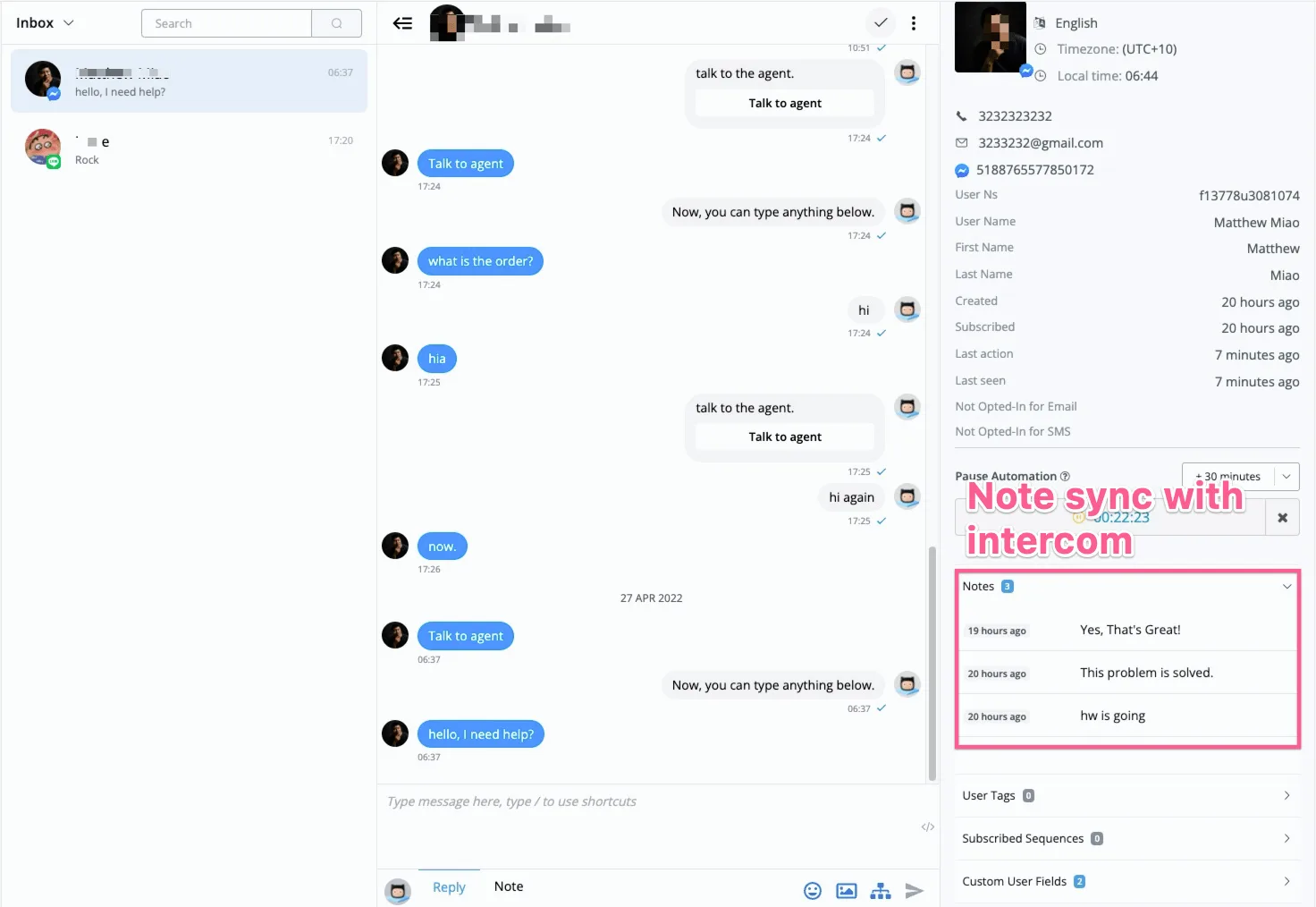
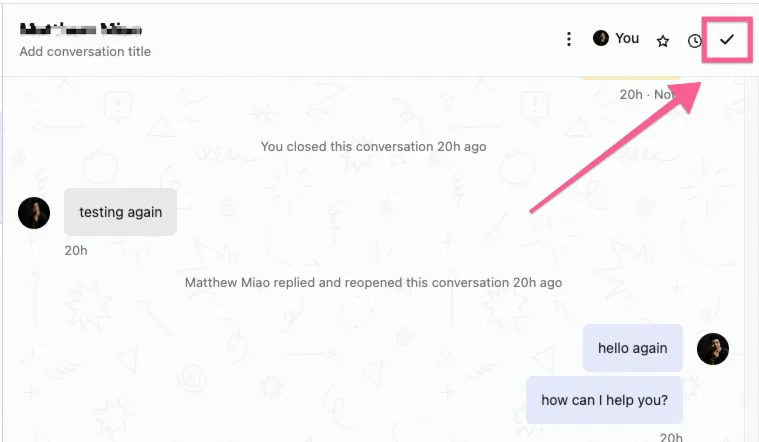
If your Intercom live chat support helps the user solve the problem and closes the conversation, the user is sent back to chatbot automation.
If Intercom live chat decides to follow up on the issue, on certain channels (Messenger, WhatsApp, Instagram) we will deliver the message if it is within the 24-hour window. Outside that window, we will reply that the user is outside the contact window.
If the user is within the contact window, any message from the Intercom agent resets the 30-minute human support window and activates live chat with the user.