

Hubspot - MCP
The HubSpot MCP Server (in public beta since May 6, 2025) lets NicoChat connect directly to your HubSpot CRM. This way, your AI can look up contacts, companies, deals, tickets, tasks, create notes, create associations and much more — all through prompts and according to the permissions you set.
The HubSpot MCP Server (in public beta since May 6, 2025) lets NicoChat connect directly to your HubSpot CRM.
This way, your AI can look up contacts, companies, deals, tickets, tasks, create notes, create associations and much more — all through prompts and according to the permissions you set.
- The HubSpot MCP Server URL is fixed and the same for every user:
Authentication is done via Bearer Token, using your HubSpot Private App Token.
- Go to the HubSpot dashboard: https://app.hubspot.com
- Go to Settings → Integrations → Private Apps.
- Create a new Private App.
- Set the API scopes you want to allow (e.g.: read contacts, write companies, etc.).
- Copy the Access Token from your Private App.
- In the NicoChat side menu, go to:
texto
Centro de IA → Servidores MCP → Adicionar Servidor MCP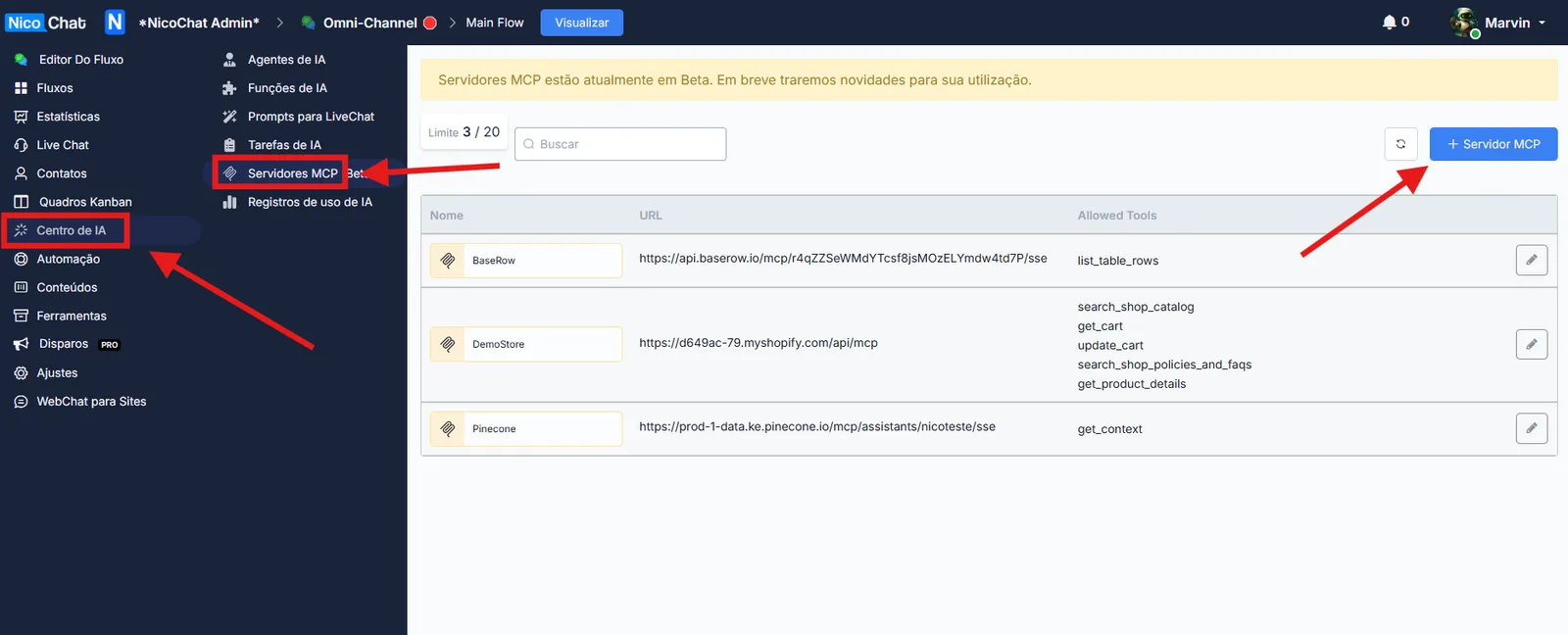
- Fill in the fields as shown below:
Field
Value
Name
E.g.:
HubSpotAuthentication
Bearer TokenAccess Token
Paste the token from your Private App
- Click List Tools to load the available HubSpot MCP tools.
- Select only the endpoints you really need (e.g.:
hubspot_get_active_contacts,hubspot_create_contact,hubspot_get_recent_engagementsetc.).
- Select only the tools the flow needs to use.
- Fewer tools = less risk of exposing sensitive data or of misuse.
- For write/edit operations, make sure the proper scopes are configured in the Private App.
📌 Learn more about how to set this up in your flow at:
👉 MCP Servers