Google Tag Manager
NicoChat now lets your users integrate their Google Tag Manager and Google Analytics 4 accounts and monitor and send tag events to keep analytics and metrics of the relevant flows and data.
For this integration, you need to have the following items:
- GA4 account with the website added as a data stream
- GTM account with a website added
- Web widget already published on a website
To integrate your Google Tag Manager, we first need to connect your website to Google Analytics 4.
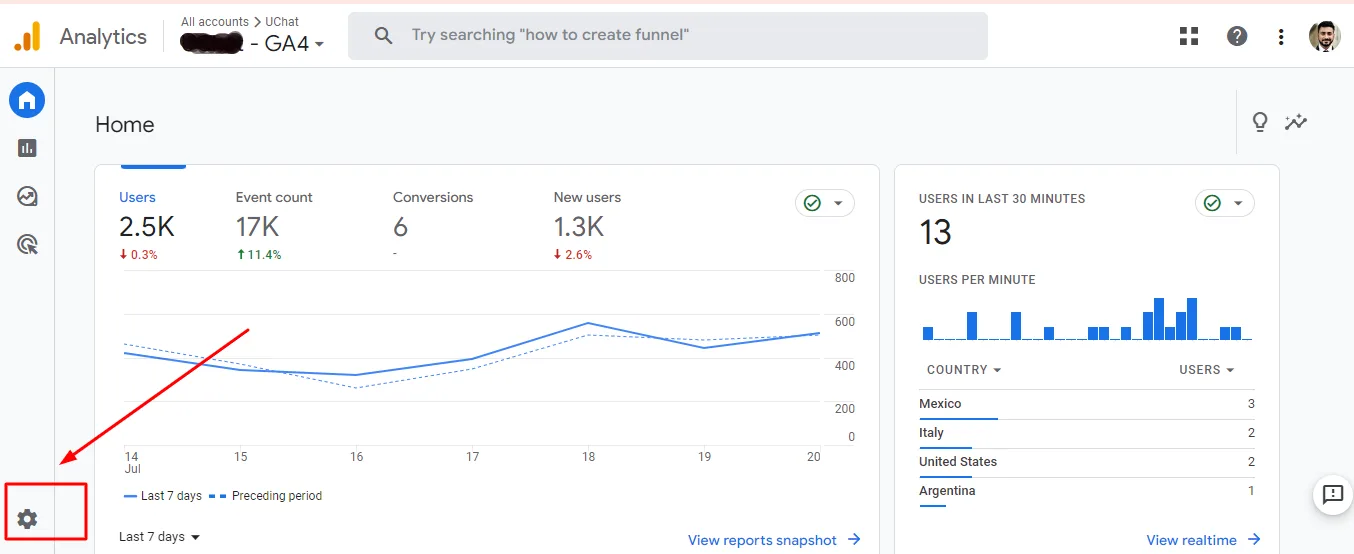
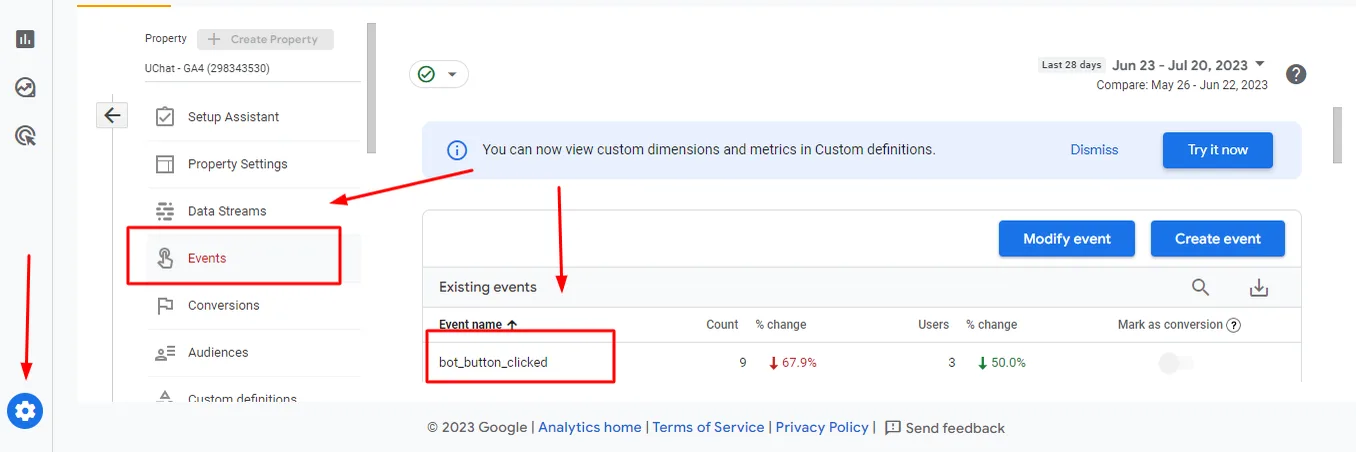
On your GA4 dashboard, click on the admin settings.
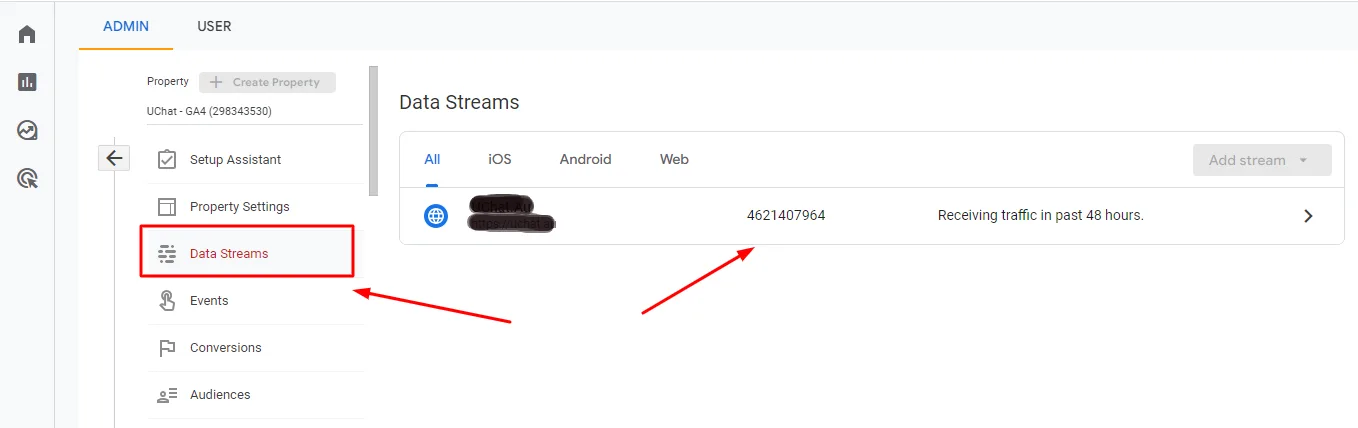
Go to Data Streams and add your website.
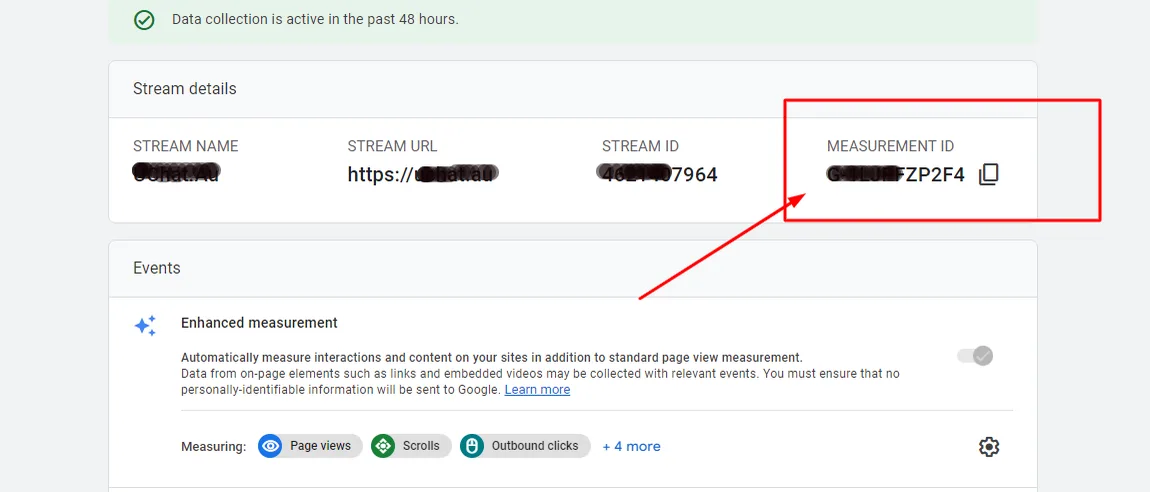
After adding it, click on the website and copy the measurement ID. We will need it to integrate with NicoChat.
On your NicoChat dashboard, click on Integrations and scroll down until you see Google Tag Manager. Click on it and paste the measurement ID.
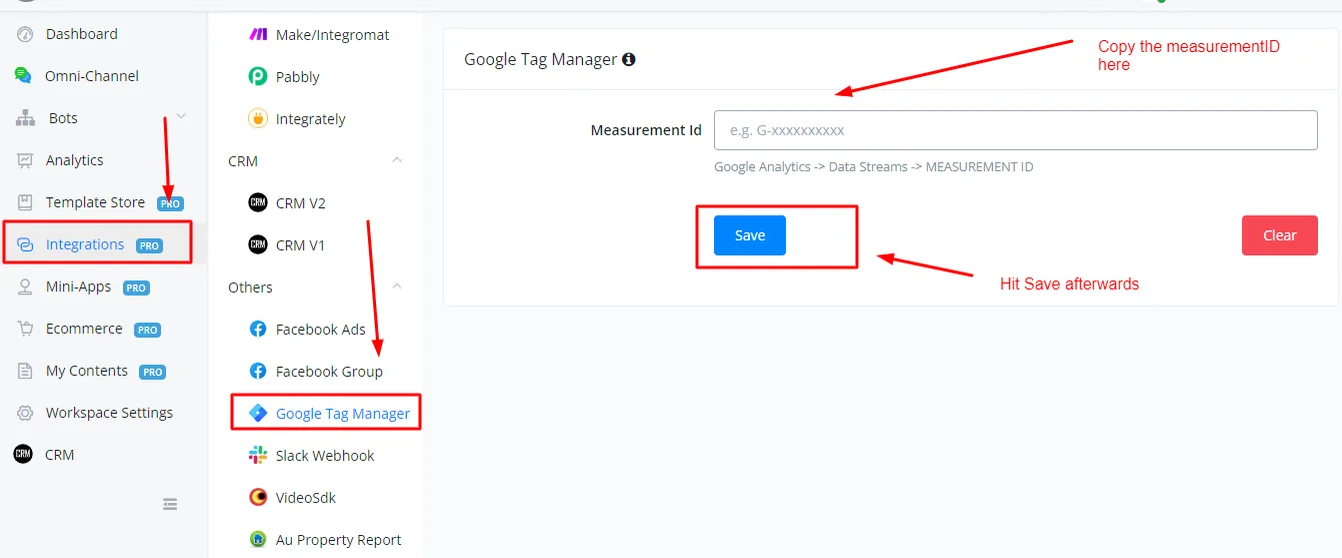
Your NicoChat is now integrated with your Google Tag Manager.
NicoChat sends several events to Google Analytics. They are listed below:
To track them, in your GTM, click on Triggers and then on Create New Trigger.
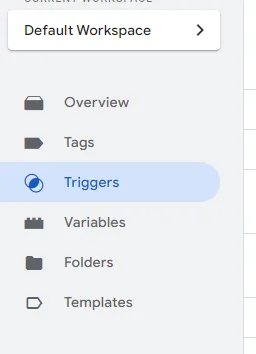
When setting up the trigger, choose Custom Event; the event name must be the same one defined in the table above.
With the trigger set up, you can now create a tag and attach it to that trigger.
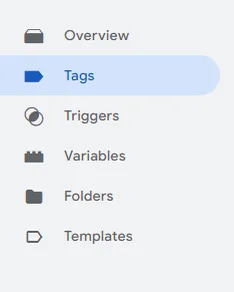
This way you receive in your GA4 the tag you created and you can also keep track of that event.
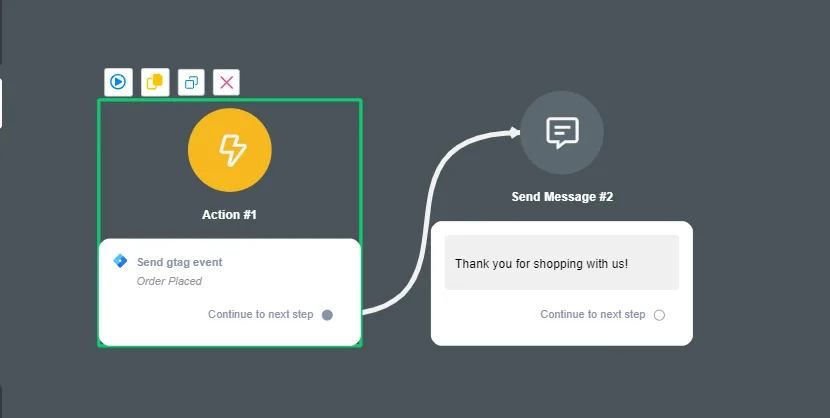
You can send custom events to GTM using the channel's automation flows, inside the Omni-Channel.
In the action block, click on Advanced Actions and select Send gtag event.
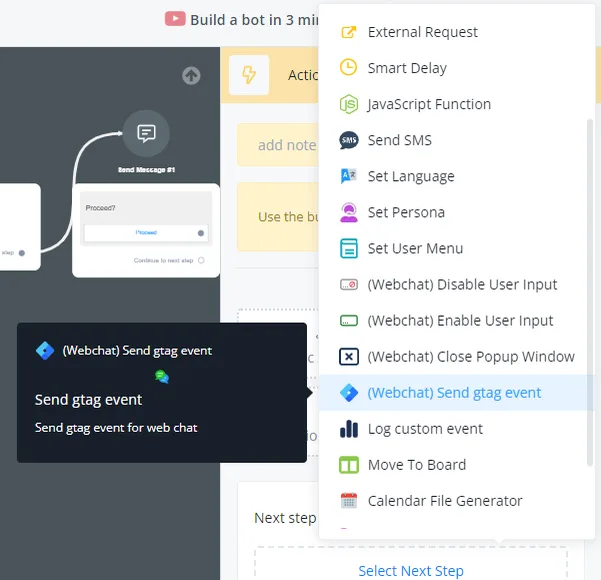
Click on edit the action and create the event.
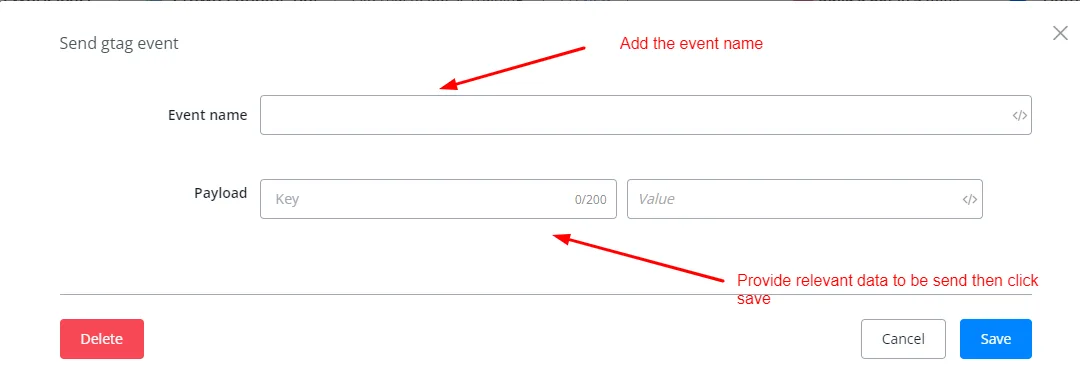
After creating the event, you can now use it in a flow, and the tag will be fired whenever the flow reaches the desired point.