

Google Maps
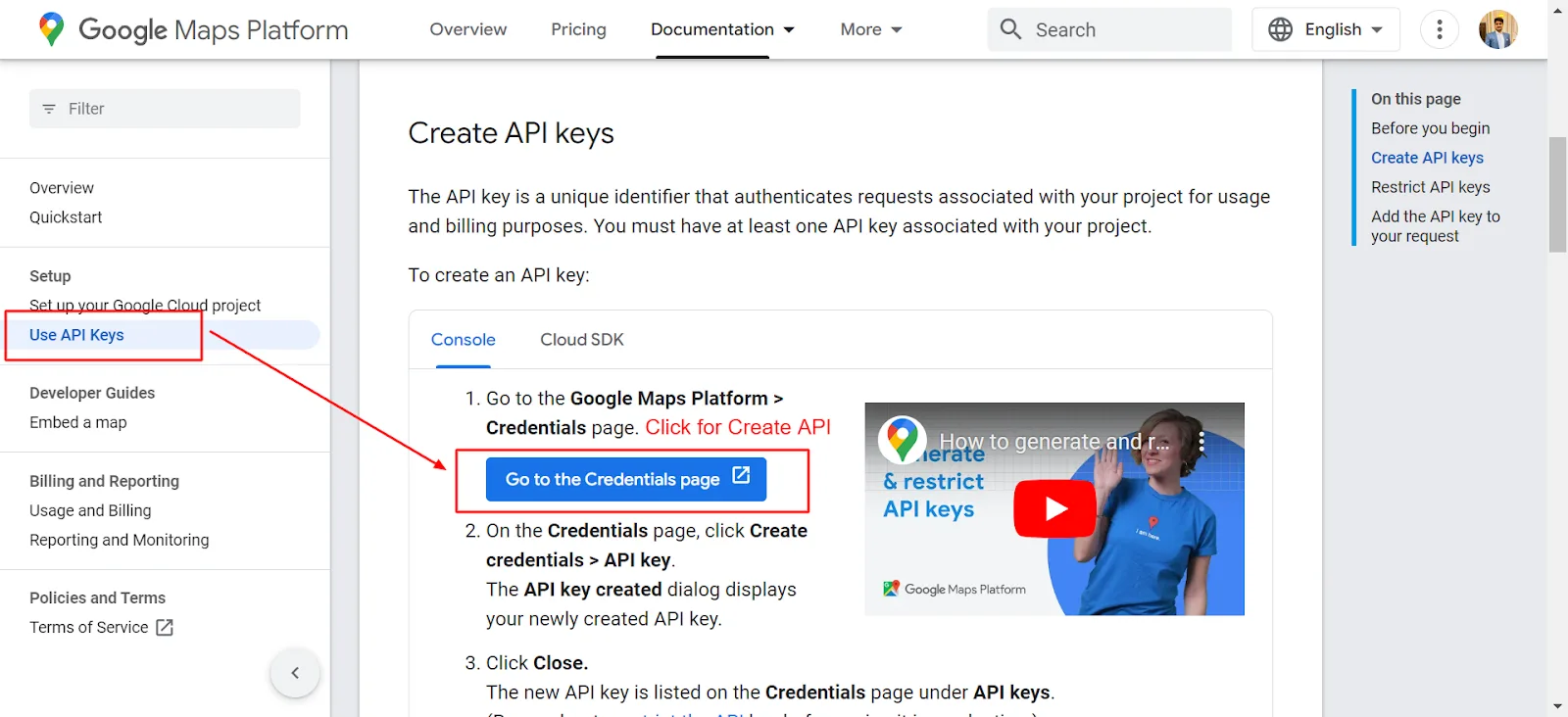
To create an API key, follow the link and the steps:
To create an API key, follow the link and the steps:
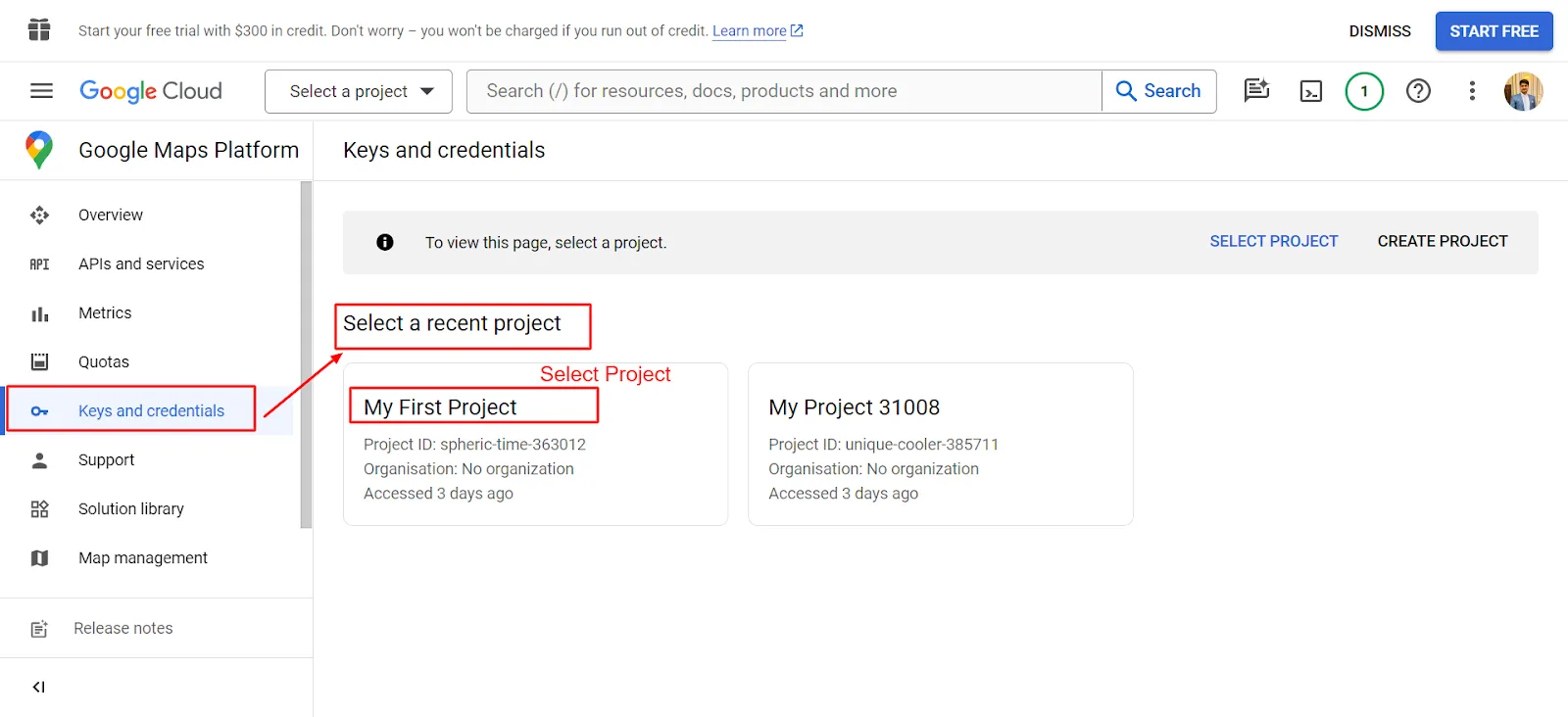
Then select the project.
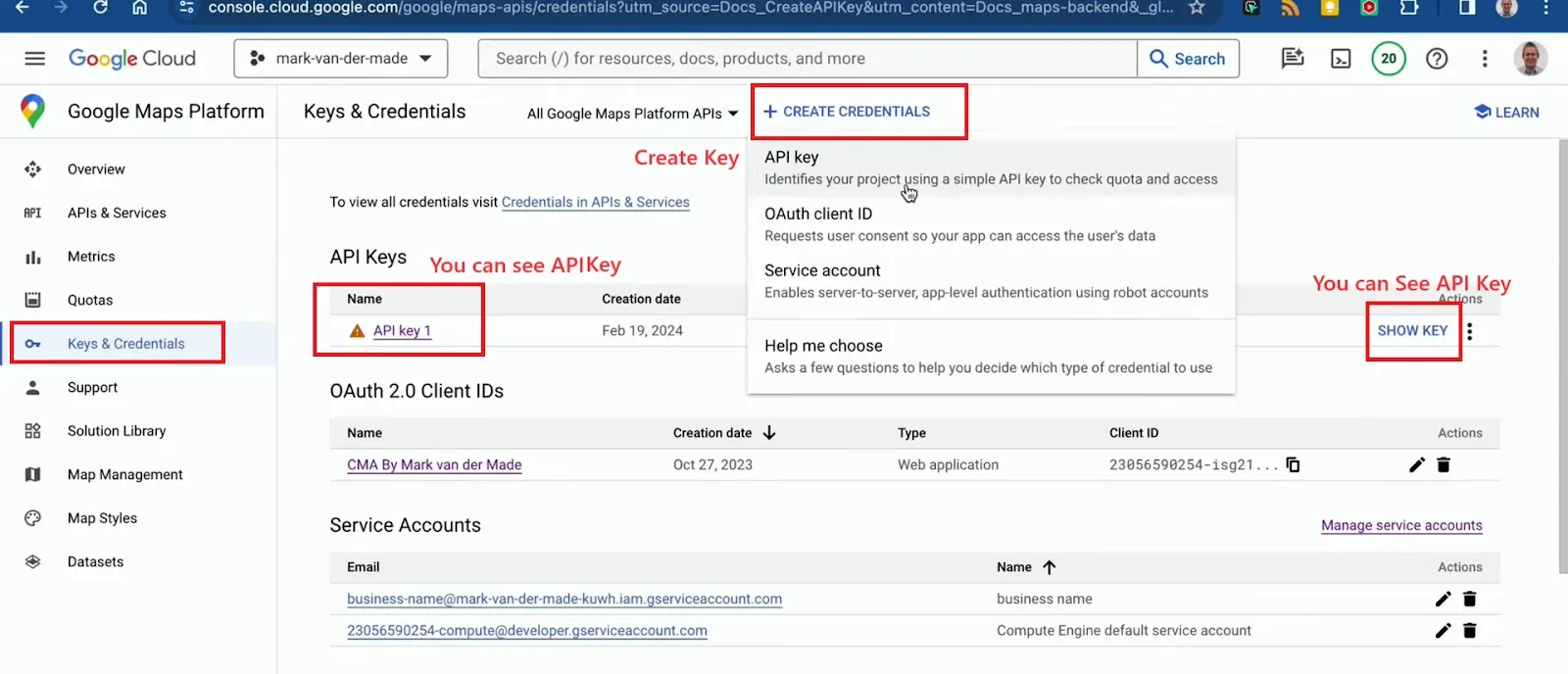
Check whether you already have an API key. If not, create one — it only takes a moment.
You will get the API key. Copy the API key.
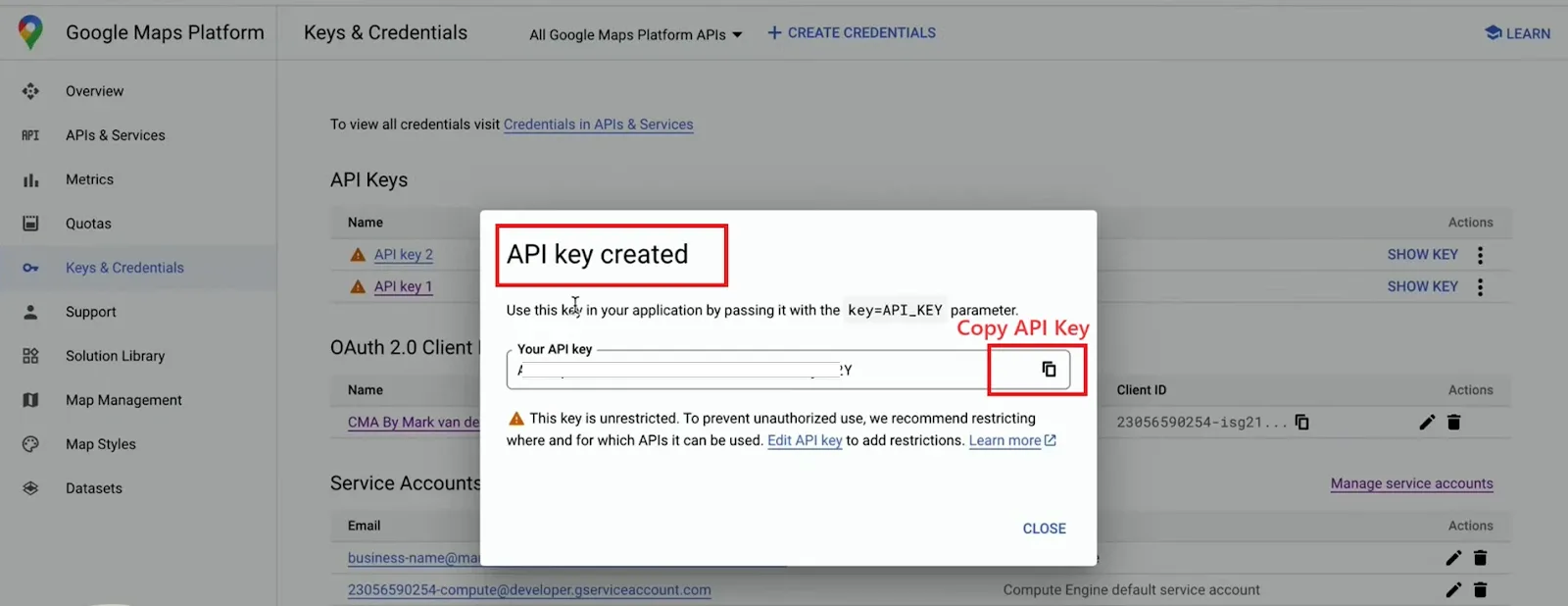
And insert the API key into Integration -> Google Maps
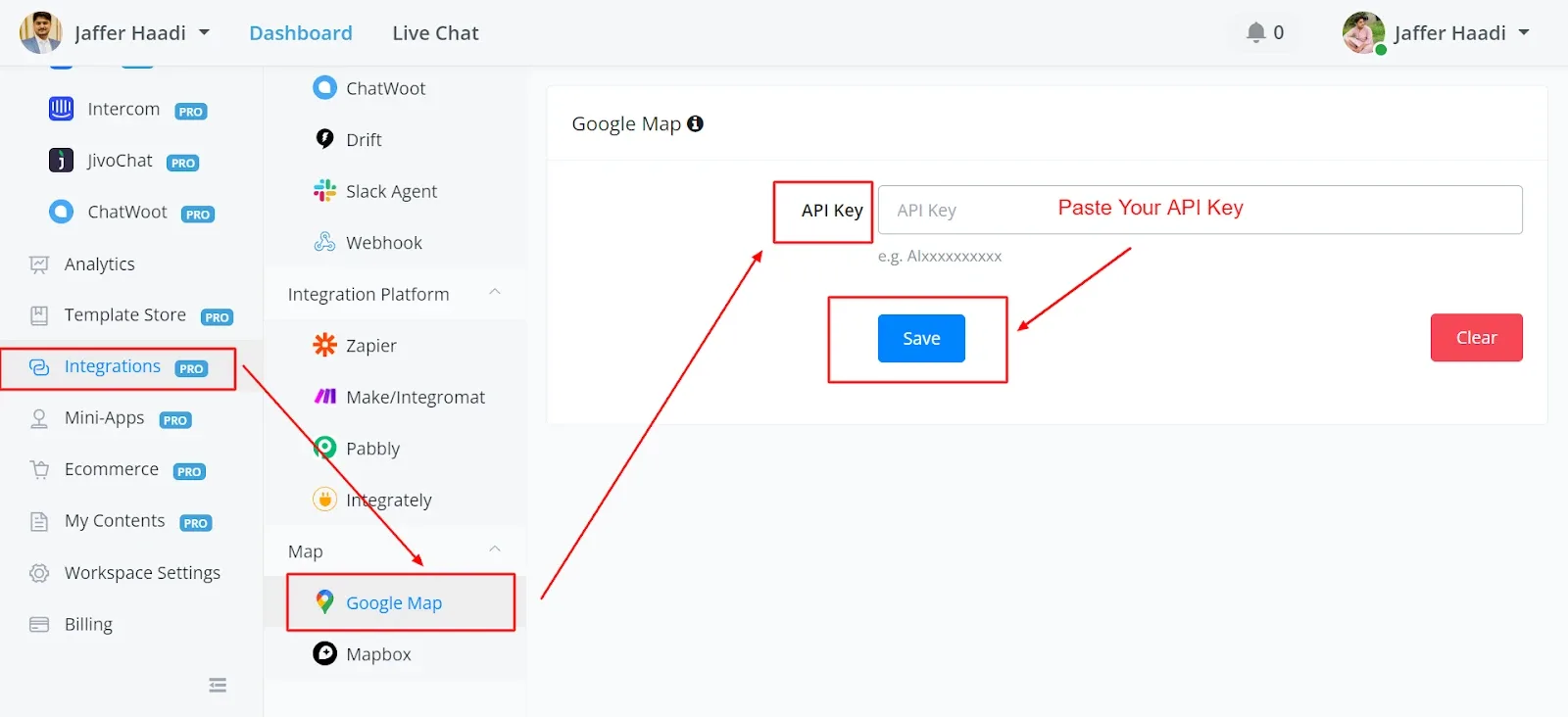
Adding APIs: users need to enable specific APIs to ensure proper integration. The required APIs include the Maps Embed API and the Directions API. The presenter demonstrates how to enable these APIs in the APIs and Services section. Enabling these APIs should grant the permissions needed for the API key to work correctly.
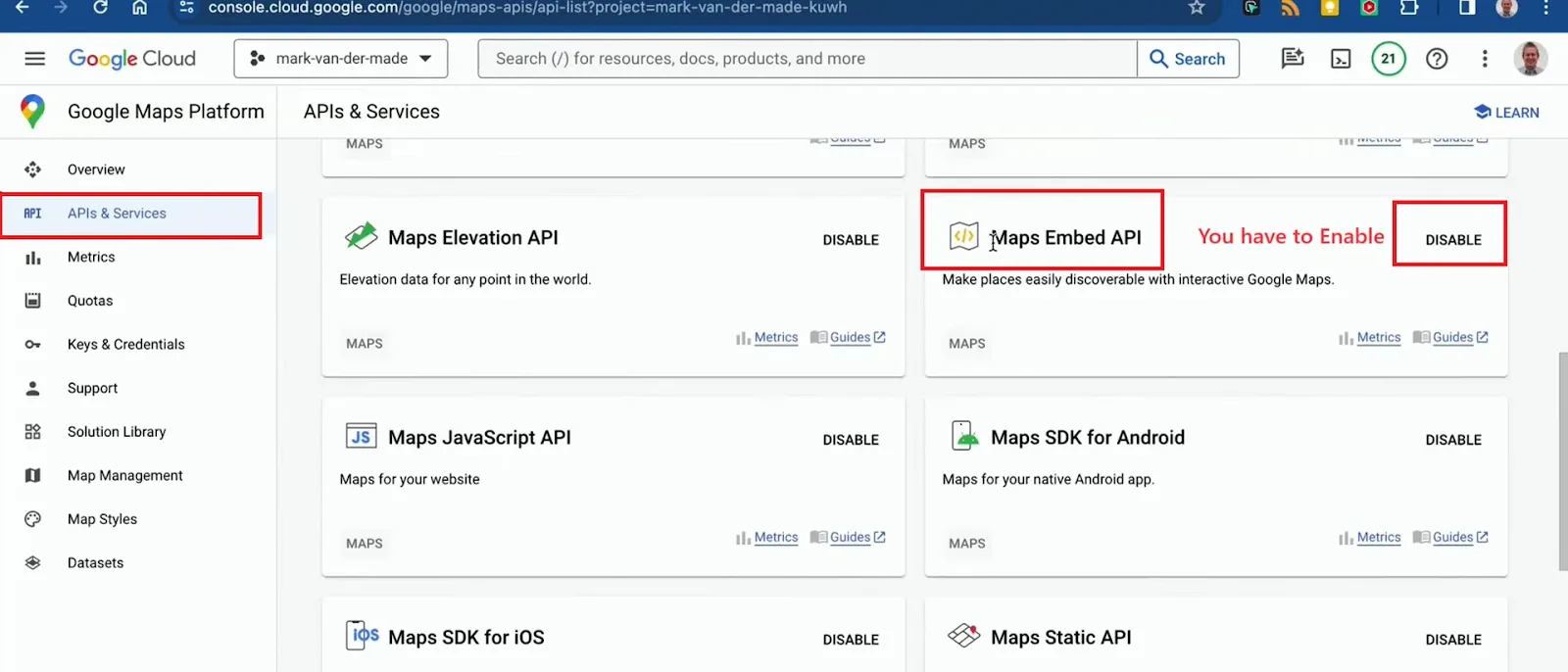
Also enable the Directions API
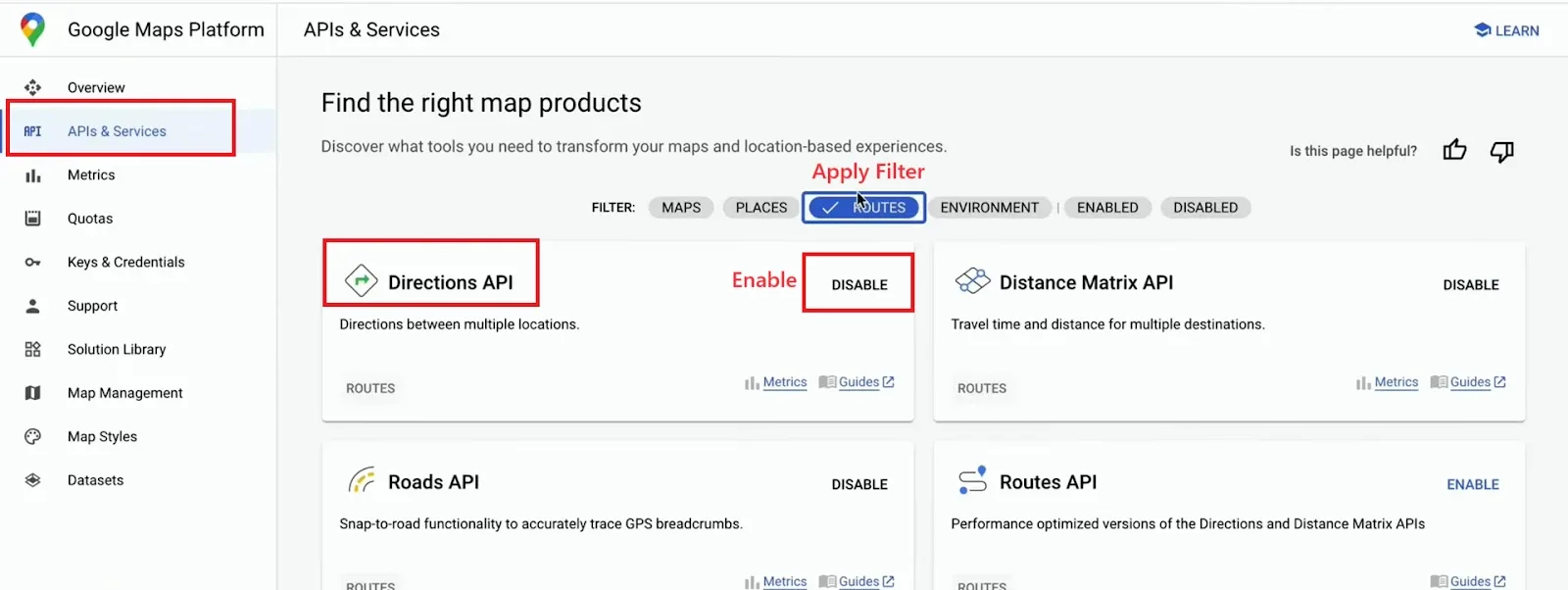
Access the Google Maps integration in the integrations section. Insert your API key and check the status to make sure it has been verified.
Easily add new locations for stores or other points of interest directly in your workspace. Go to Ecommerce -> Location
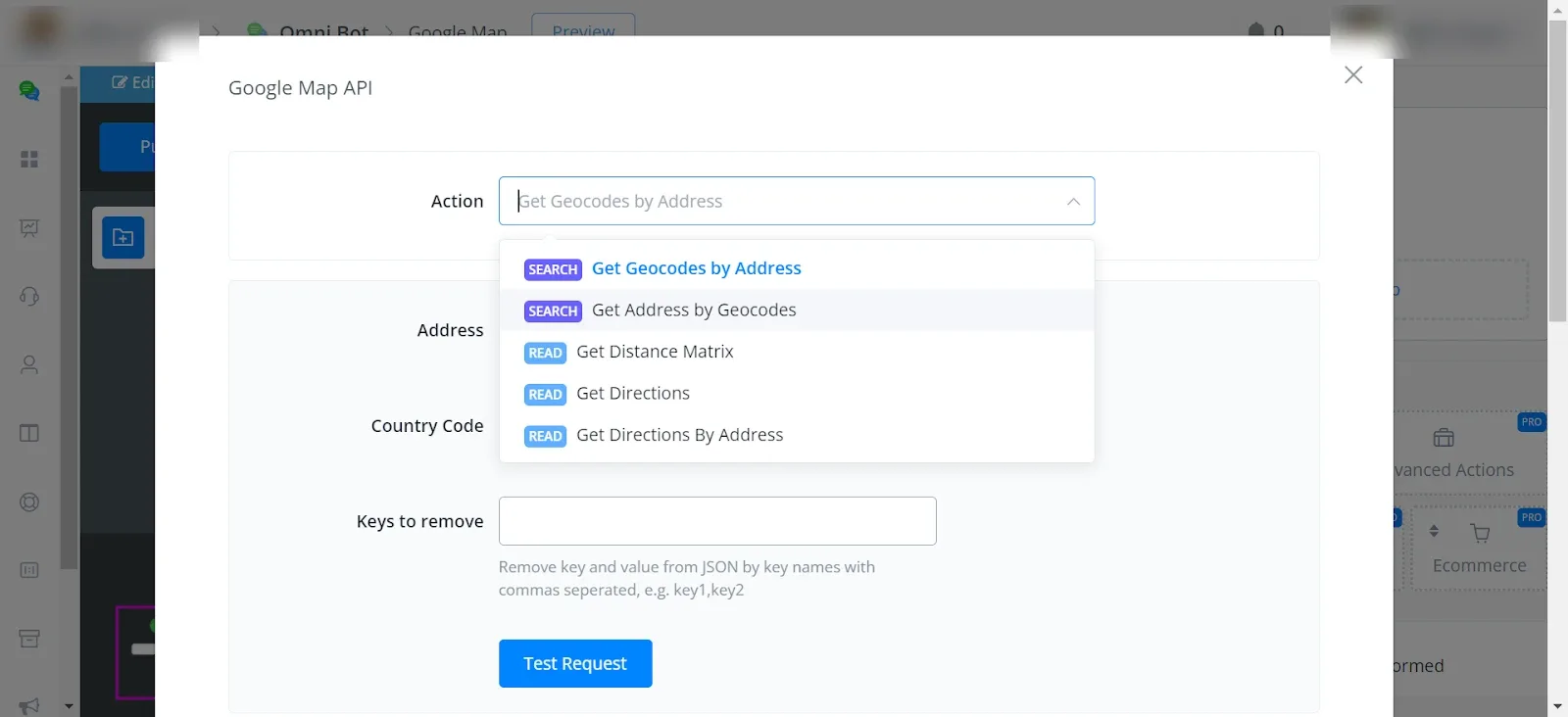
You can access the Google Maps API in the Flow Builder -> Create Action Node -> Integrations -> Google Maps API
Actions:
Geocodes are the latitude and longitude coordinates of an address, which can be used to place markers on a map. Enter the address and fill in the parameters to obtain the latitude and longitude.
You can obtain an address by entering the latitude and longitude coordinates.
You can calculate the distance between two locations by providing either the address names or the latitude and longitude coordinates. You will also need to specify the mode of travel (driving, walking, cycling). The response will include the distance and the duration of the trip.
To obtain the steps from the origin to the destination, you need to enter the latitude and longitude coordinates of both the origin and the destination. This will give you the total distance as well as the steps involved in the journey. You can store the steps in a JSON variable for later use.
Similar to the “Get Direction” action, the difference lies in entering the address instead of the latitude and longitude. However, the resulting payload remains the same.
- Customization:
Customize the output format of the directions and store information using JavaScript to suit your application's needs. - Conclusion:
The Google Maps API offers endless possibilities for customization and integration into various workflows. Experiment with different actions and functionalities to enhance your projects.