

Go High Level (GHL) LiveChat
NicoChat now lets your users integrate Go High Level as a live chat portal. This not only gives agents more flexibility and comfort, it also expands the access of the Go High Level audience to channels it does not support natively.
The live chat feature works with every channel NicoChat supports. Each channel's limitations (such as the 24-hour limit of Meta channels) still apply the same way.
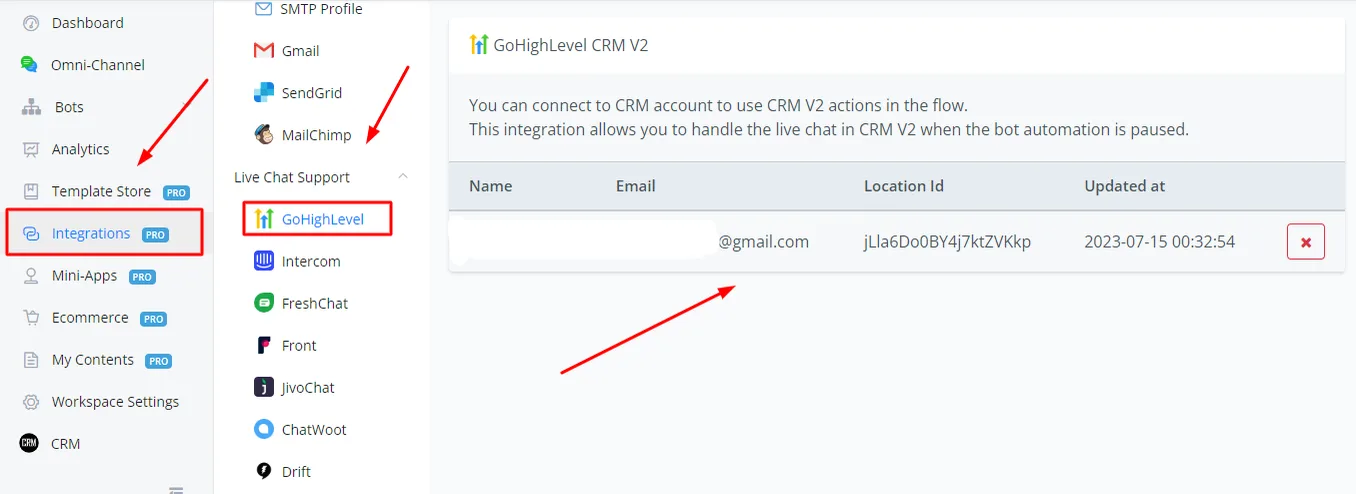
On your dashboard, click the Integrations tab. Scroll down until you see “GoHighLevel” under the live chat tab. Connect your Go High Level account here.
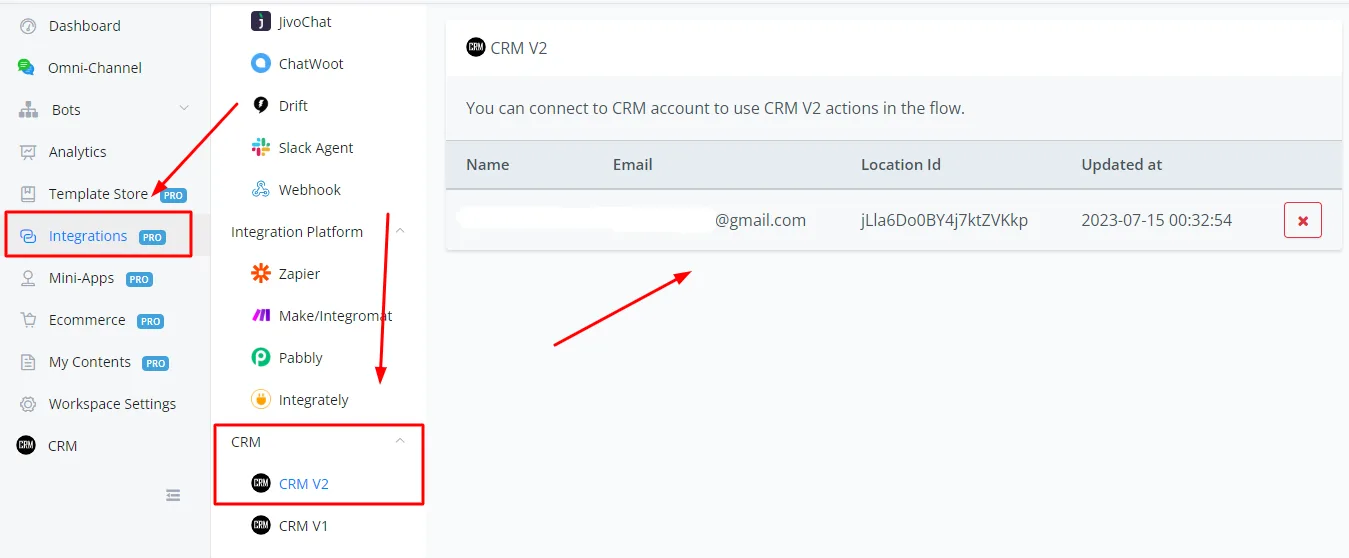
You can also establish the connection from the Integrations tab: scroll until you see the CRM tab and connect your Go High Level account under GoHighLevel V2.
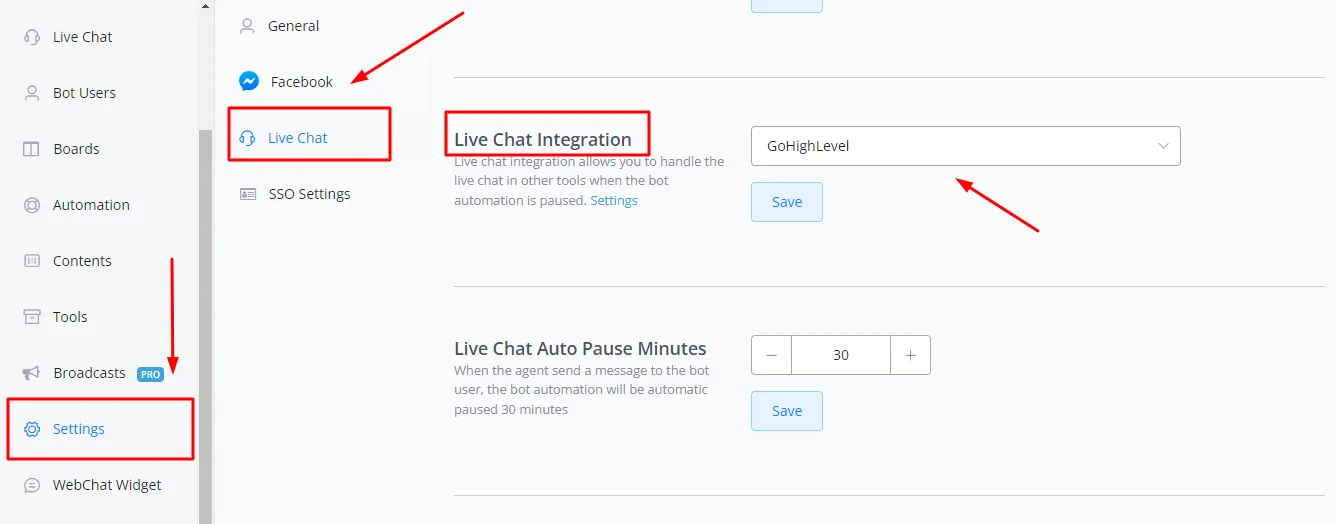
After connecting the account, open the channel you want to connect. Scroll down and select the Settings tab in the side menu. Click the Live Chat tab. Scroll down until you see “Live Chat Integration” and select “GoHighLevel” from the drop-down menu.
To transfer the flow from NicoChat automation to live chat in Go High Level, you need to use two actions together:
- Talk to Human/Pause Automation (mandatory)
- Live Agent Notification (optional)
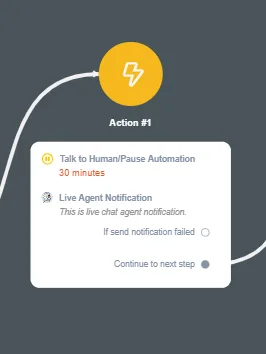
Used in sequence, these two actions first stop the bot automation from going further and then transfer to the agent in the Go High Level live chat portal.
Also, when the contact is created in Go High Level, the user's phone and email are synced to Go High Level.
These are the commands you can type in the Go High Level live chat portal to get relevant information about the user or the automation status.
If you are replying to the customer and get the notice that the user is outside the 24-hour window, use the SMS or the email built into Go High Level to reach out to them.