

Freshchat LiveChat
NicoChat now lets users integrate their live chat with Freshchat, increasing productivity by combining Freshchat's live chat feature with NicoChat's automations.
In the NicoChat dashboard, click the Integrations tab, scroll down until you find the live chat integration and select Freshchat.
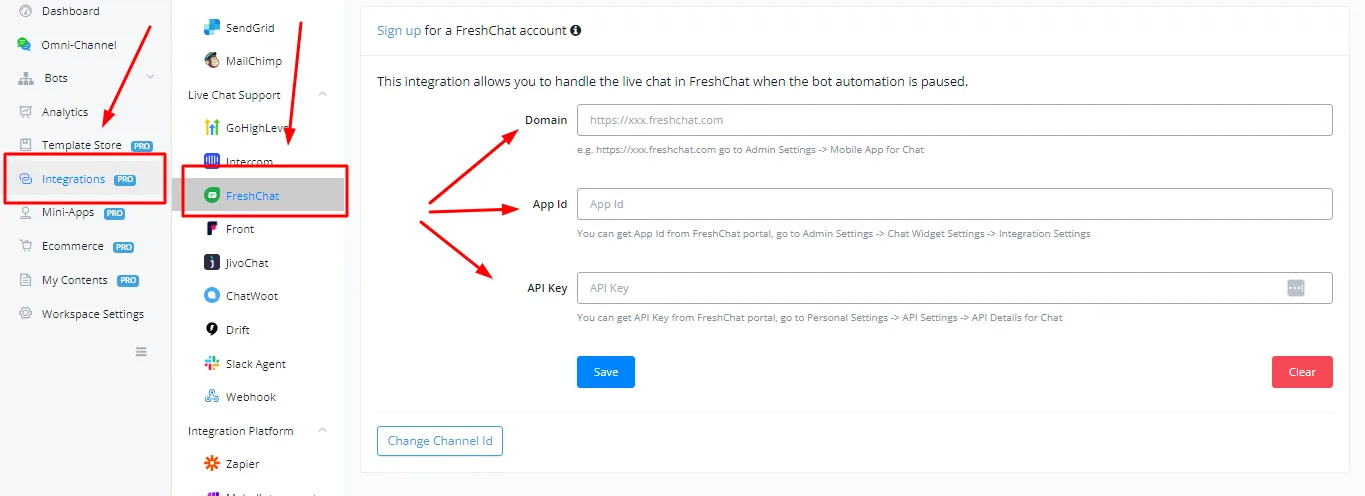
Three pieces of information are required:
- Domain
- App Id
- API Key
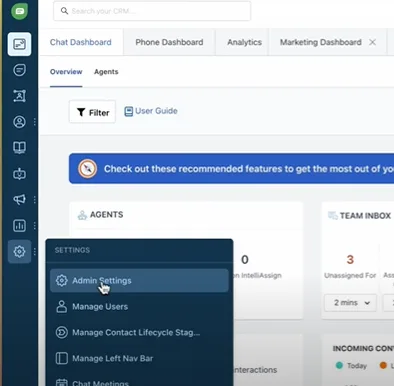
In the Freshchat dashboard, click the gear icon and then Admin Settings.
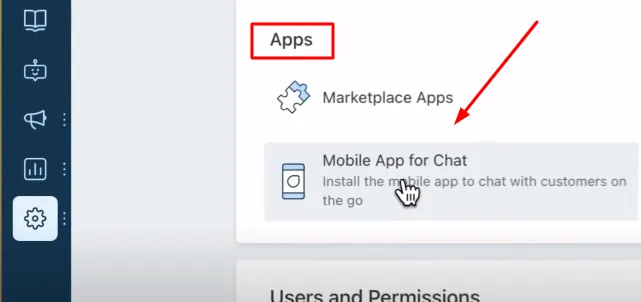
Scroll down to the App section and select “Mobile App for Chat”.
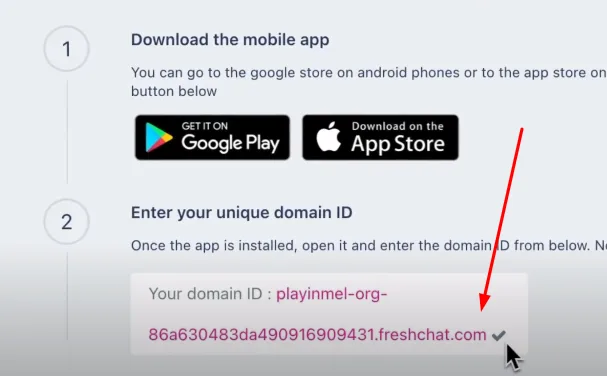
Copy your domain id and paste it into the Domain field in NicoChat.
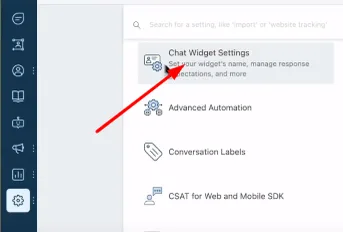
Go to Admin Settings and scroll down until you see the chat widget settings.
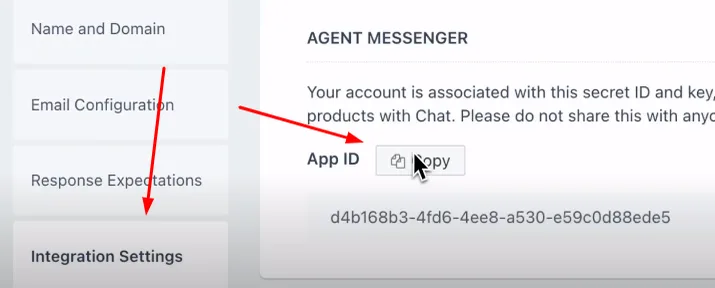
Click Integrations Settings and copy the App Id.
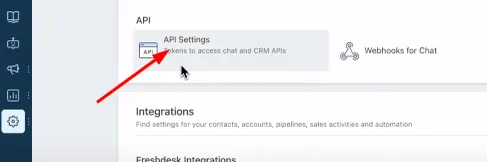
Go to Admin Settings, scroll down to API and click API Settings.
Create the API key, copy it and paste it into NicoChat.
Once the status is verified in NicoChat, copy the webhook back into Freshchat.
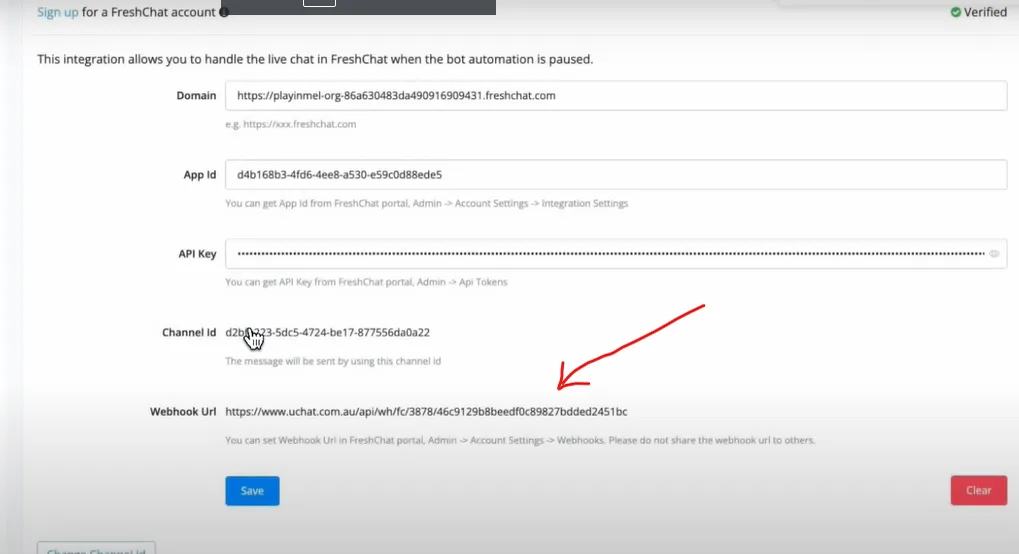
Copy the URL and go back to Freshchat: go to Admin Settings and scroll down to API. Click Webhooks for Chat.
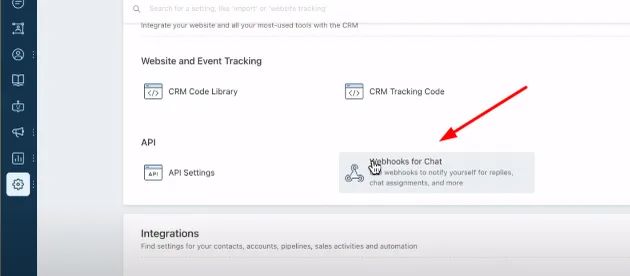
Paste the webhook into the field. The integration is complete.
The channel set by default may be the wrong one. In NicoChat, click the Change Channel Id button.
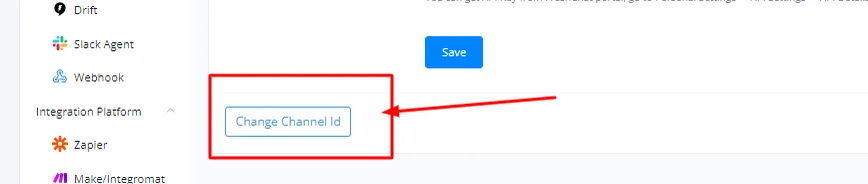
Make sure you have selected the correct channel.
With everything set up, you can now build the chatbot to automate your business. You can also integrate it with Dialogflow to recognize the user's intent and route them to your chatbot automation.
This should dramatically reduce the live agent's support workload. Even so, the user may want to talk to support at any point in the flow.
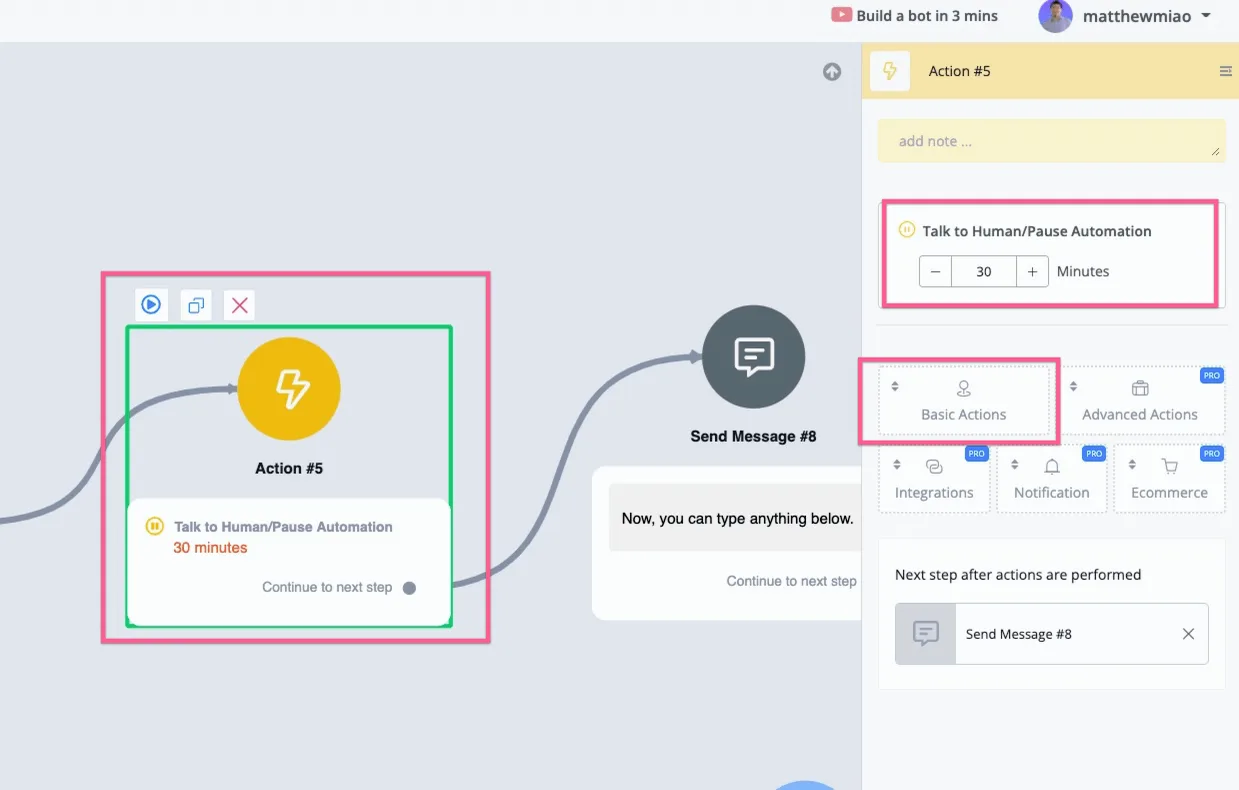
You can use the “Talk to Human/Pause Automation” action, under Basic Actions, and you will also have the option to set the default automation pause time.
All messages sent by the user are forwarded to the Freshchat dashboard. You will be able to see the user in the inbox.
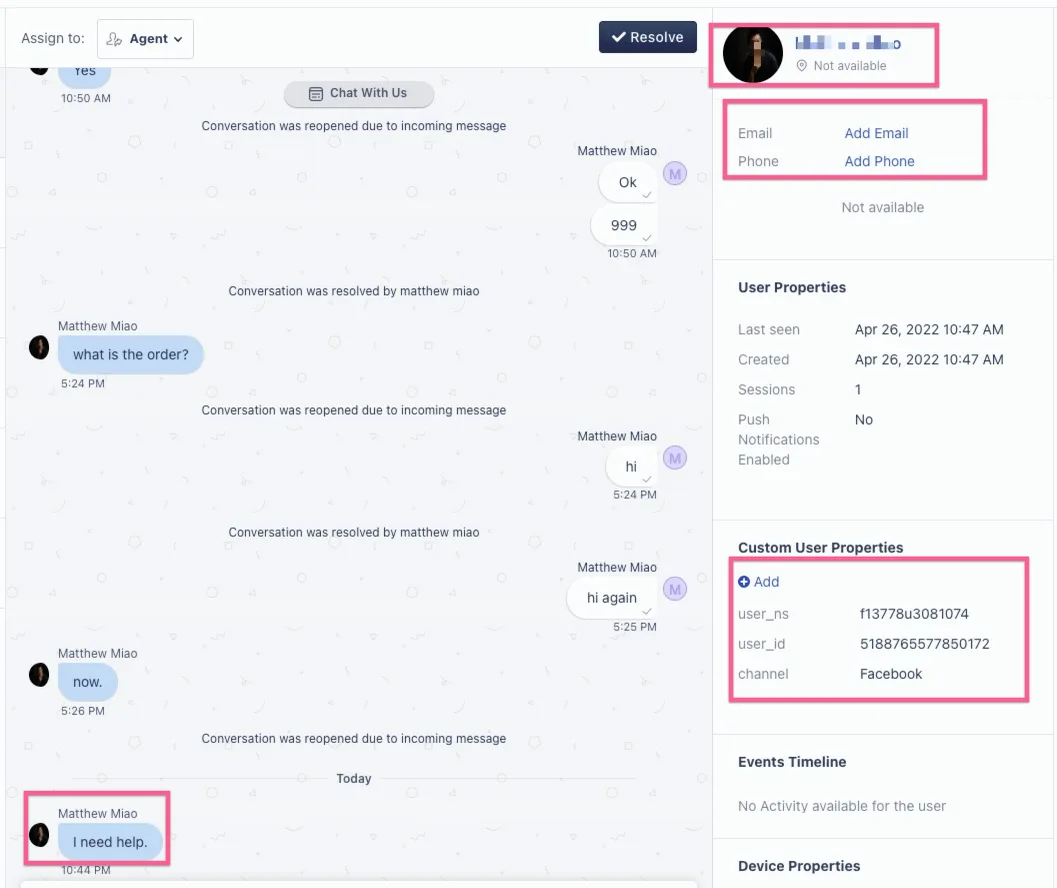
Note that NicoChat sends Freshchat the user's social profile image and name, as well as the phone number and email.
In addition, user_ns, user_id and channel are also added to the user's custom properties.
From there, you can send text, images or files to the user.
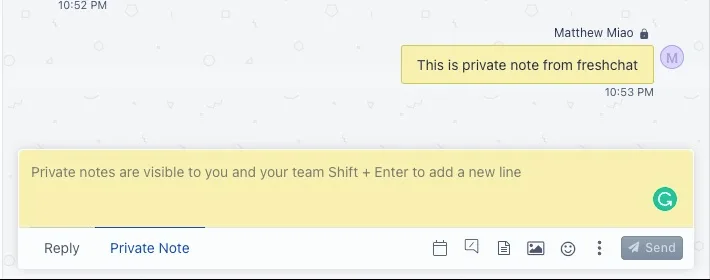
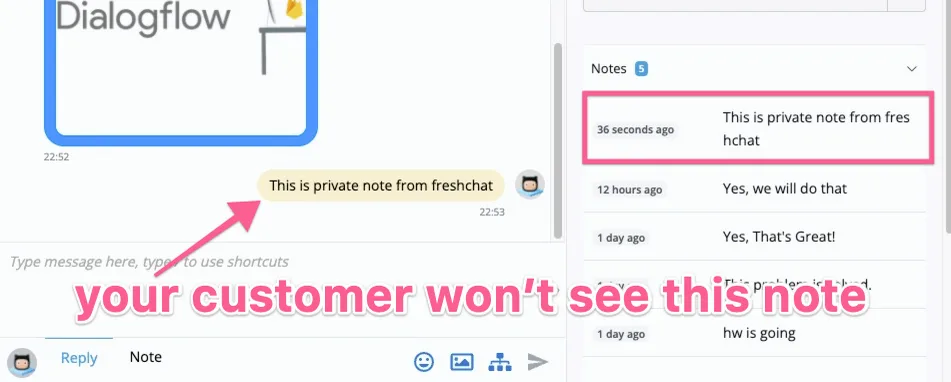
NicoChat also lets you add notes to the user, and the note is synced with the user in NicoChat.
Below is a screenshot of sending a private note from Freshchat.
In NicoChat, you will see that the note has been added to the user.
If the live agent clicks the Resolve button in Freshchat, the live chat session with the chatbot user in NicoChat will be ended.
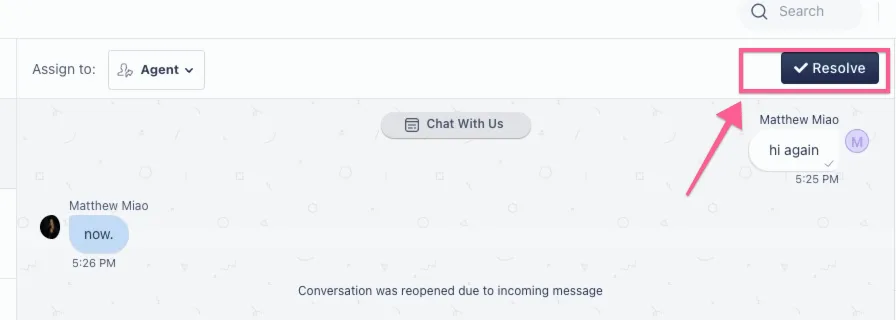
After the Freshchat agent resolves the conversation, any message sent from NicoChat will trigger the chatbot again.
However, the user can trigger live chat again if needed.
It is worth noting that if the Freshchat live chat agent sends a follow-up message from the Resolved folder, the result depends on the 24-hour window restriction: if there is no restriction, the message is delivered to the user and the live chat session is reactivated.
If the user is outside the 24-hour window for a given channel (WhatsApp, Messenger, Instagram), we will return the message “The user is out of contact window, please contact through email or sms”.
Finally, whenever the Freshchat live agent sends a message to the NicoChat user, the timer resets to the default of 30 minutes, so the conversation can continue without accidentally sending the user back to the chatbot.