eNotas
For digital businesses and e-commerce stores, tax management is a pillar just as crucial as sales themselves. With that in mind, the integration between eNotas and NicoChat comes as a game-changing solution.
For digital businesses and e-commerce stores, tax management is a pillar just as crucial as sales themselves. With that in mind, the integration between eNotas and NicoChat comes as a game-changing solution, promising to simplify the complex world of invoices. "You sell, we take care of the invoices" is not just a slogan, it is eNotas's commitment to delivering efficient and accurate automation. By connecting to your payment provider, eNotas automates the issuing of service or product invoices, turning a bureaucratic obligation into an "automagic" process. In this section, we will explore how the partnership between NicoChat and eNotas can optimize your sales and tax management routine, ensuring compliance, efficiency and more time for you to focus on growing your business.
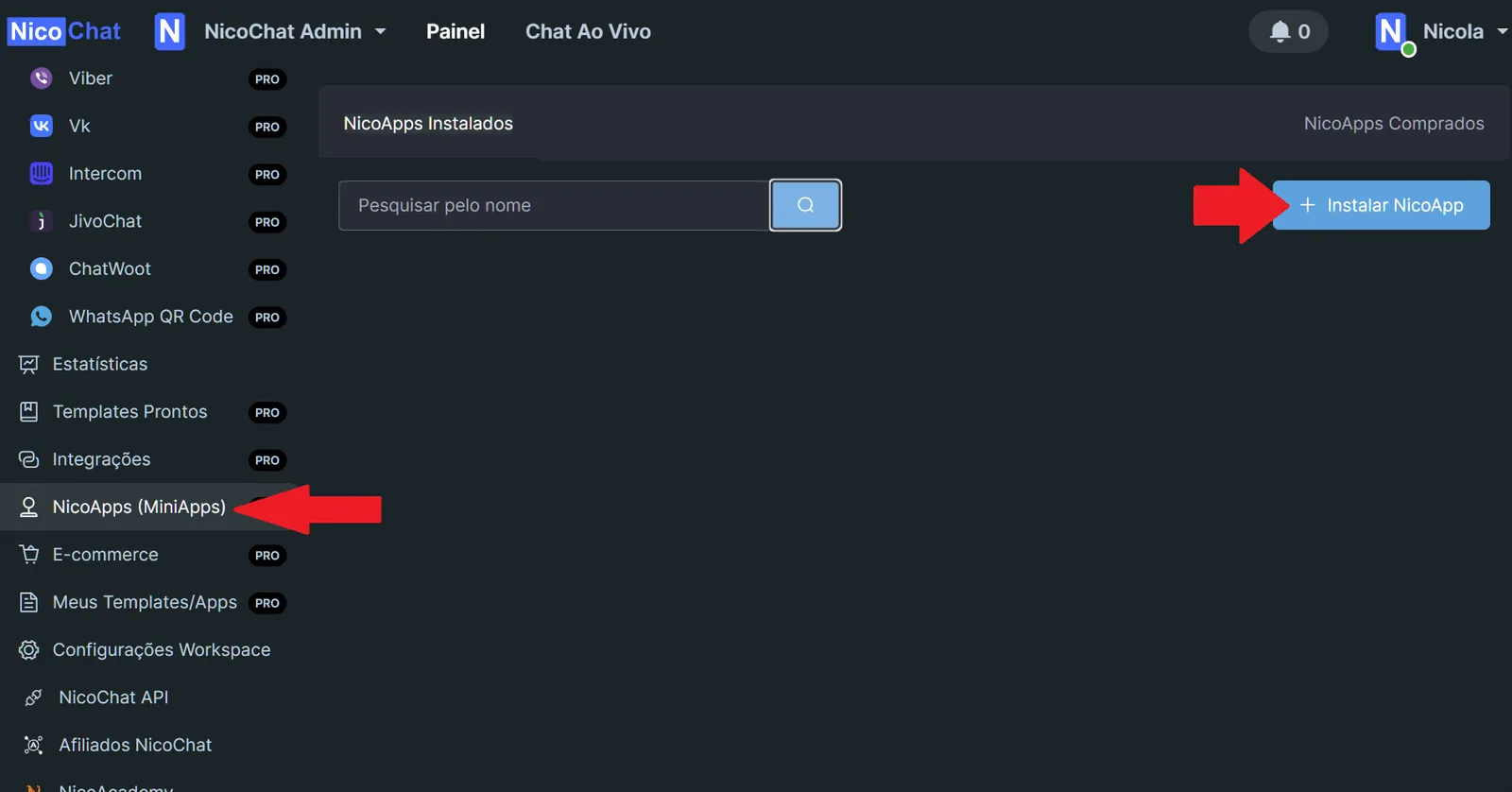
The first thing you need to do to integrate with NicoChat is install the NicoApp. Go to NicoApps and then to “Install NicoApp”. Search for eNotas and install it.
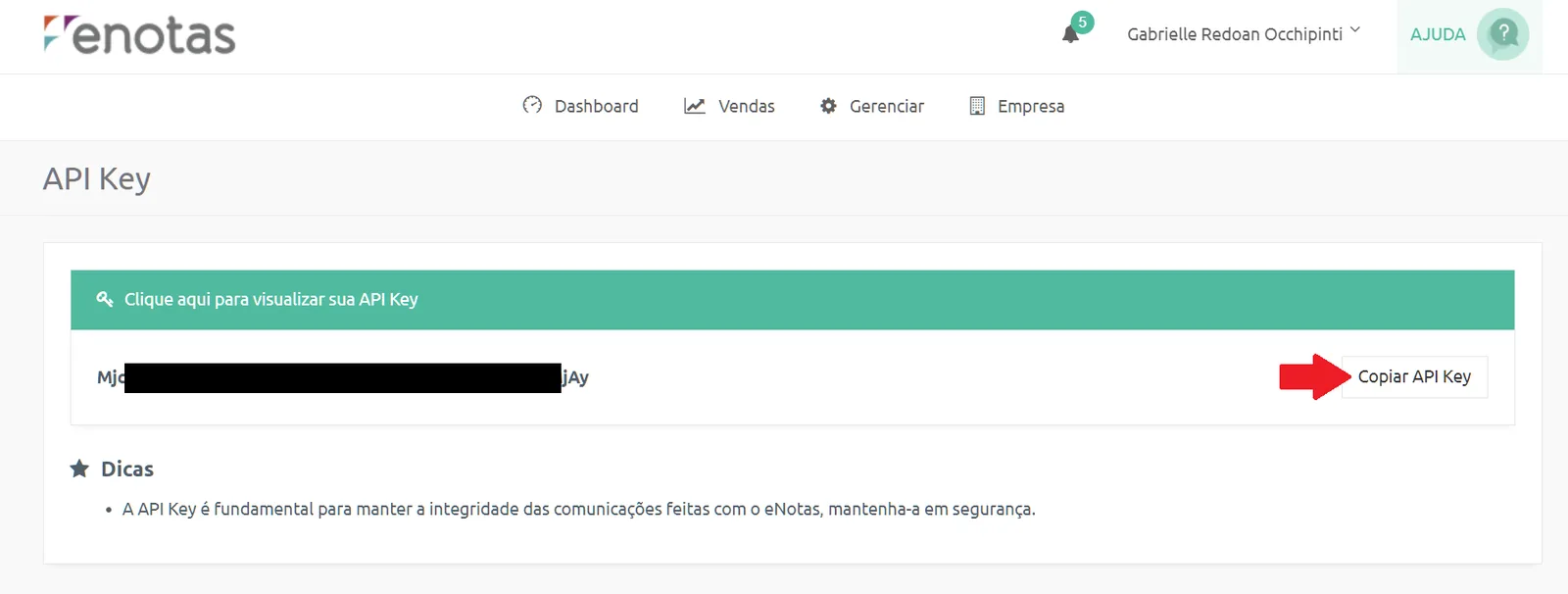
To get the eNotas API Key, click your name, go to “Perfil” and then to “Acessar configurações para nerds”, or go to https://app.enotas.com.br/apikey.
Then copy the API Key.
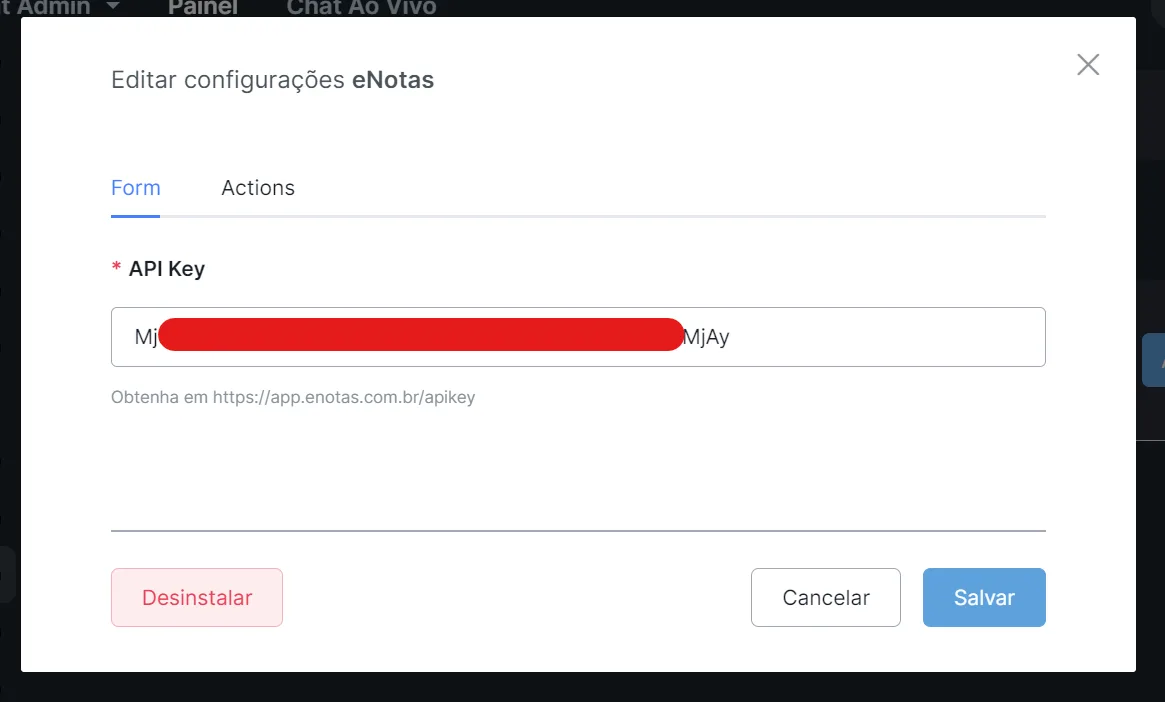
Next, enter the key in the NicoApp.
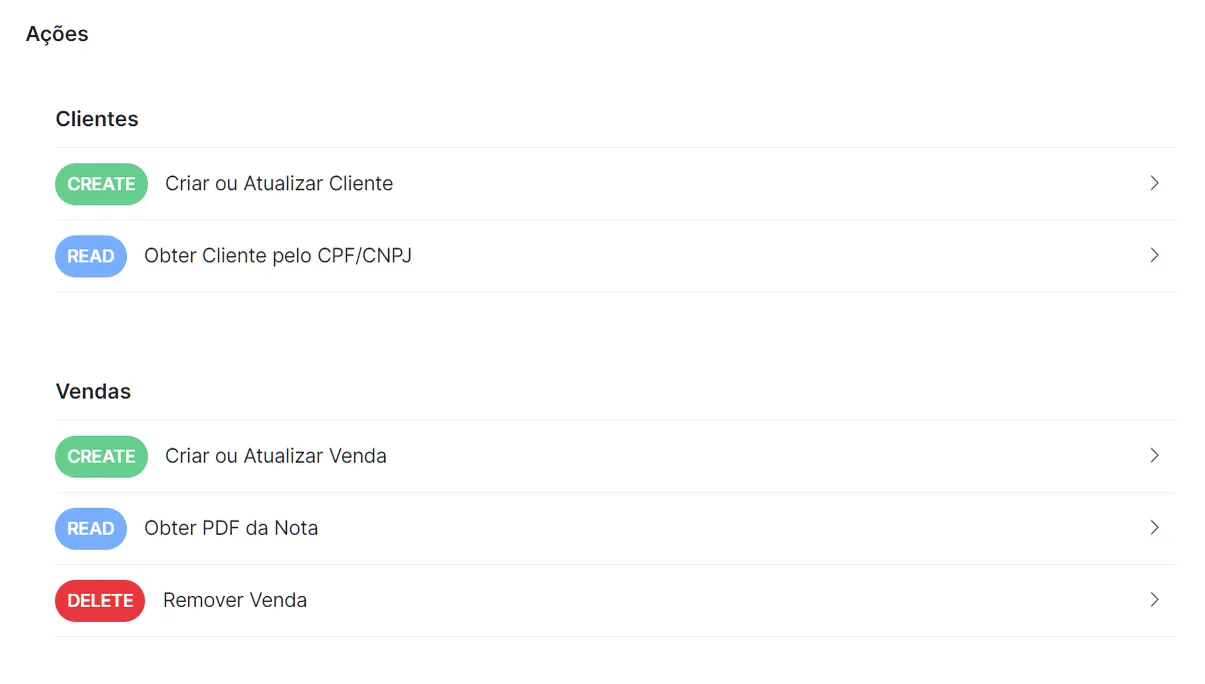
eNotas offers a set of essential actions for efficient, automated tax management. These actions are divided into two main categories: Clients and Sales. Each category has specific operations, identified by the standard API (application programming interface) methods: CREATE (create or update), READ (read or get) and DELETE (delete). Let's go through each one:
- Create or Update Client (CREATE): Lets you add a new client to your database or update the data of an existing client. This is especially useful for keeping an up-to-date record of your clients after each transaction or profile change.
- Get Client by CPF/CNPJ (READ): This operation is used to look up the data of a specific client using their CPF or CNPJ as the search key. It is a vital function for quickly checking the client's information or confirming that they exist in the system.
- Create or Update Sale (CREATE): Similar to the client function, this action lets you record a new sale or update the details of an existing sale. Automating this function ensures that the sales record is always in sync with actual business activity.
- Get Invoice PDF (READ): After an invoice is issued, this function lets you retrieve the document in PDF format. This makes it easy to access it quickly for checking, archiving or sending the tax document to the client.
- Remove Sale (DELETE): This operation is used to delete a sales record from the system. It is an important tool for keeping data accurate in case of cancellations or sales entry errors.
These actions form the basis of the eNotas tax management system, providing a robust integration that simplifies bureaucracy and lets businesses focus on growing and serving their clients, while the tax side is managed intelligently and automatically.