

Dialogflow
With Dialogflow, you can pre-set some frequently asked questions: your bot answers the simple ones for you and transfers the difficult ones. You can also train your bot to understand more human language.
Refer to these tutorials to learn how to connect NicoChat to Dialogflow, how to connect several Dialogflow agents and how to use Dialogflow for slot filling in NicoChat.
With Dialogflow, you can pre-set some frequently asked questions: your bot answers the simple ones for you and transfers the difficult ones. You can also train your bot to understand more human language, including greeting, gratitude, basic interaction, etc.
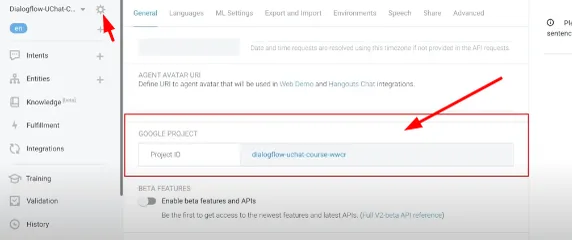
On the Dialogflow dashboard, click the gear icon and then your project URL,
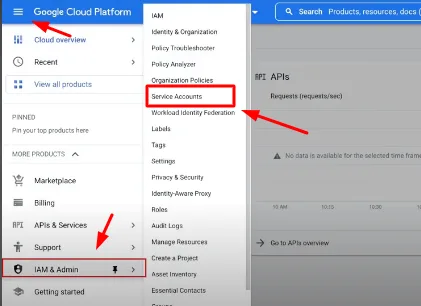
Click the top-left corner and open the options. Scroll down, click the “IAM & Admin” settings and then “Service Accounts”
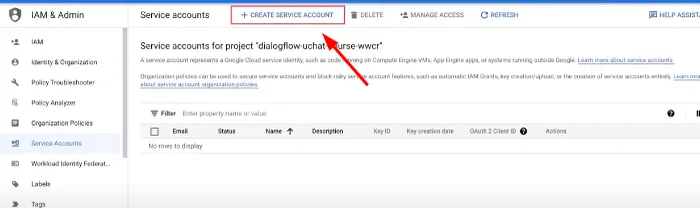
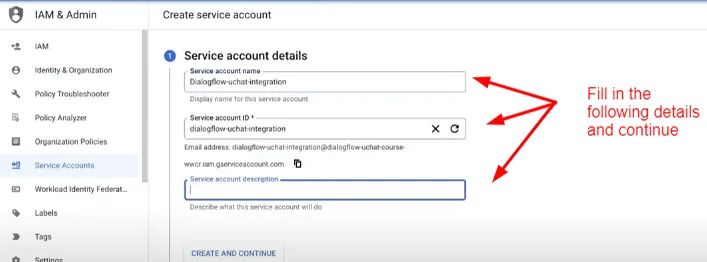
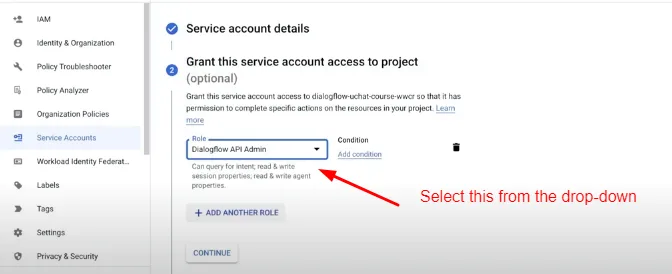
Click “Create Service Account”. Follow the process below.
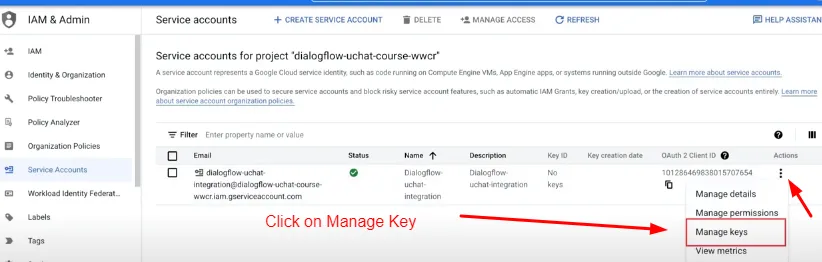
Afterwards, click Manage Keys to create a key.
Click “Add Key”
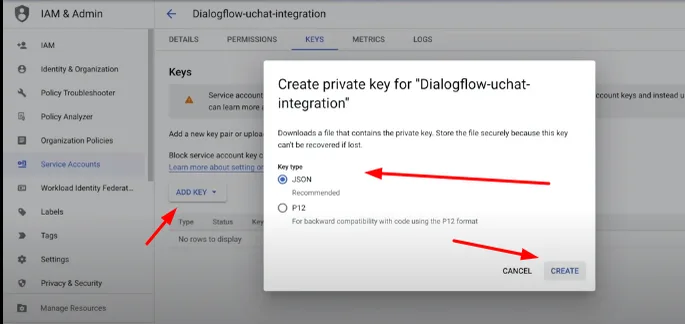
This will download a JSON file. You can then upload it directly on NicoChat.
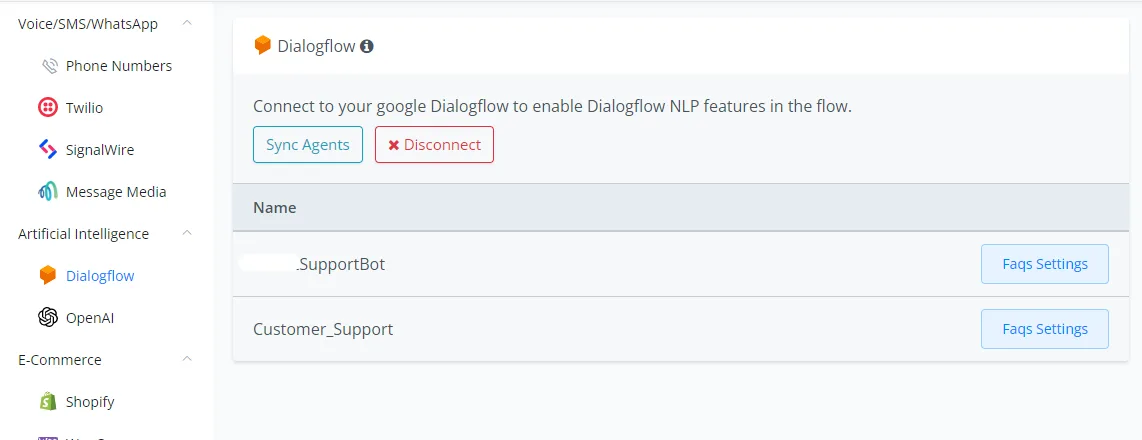
Click Synchronize Agents once the integration is complete.
Click the blue "Allow" button to allow NicoChat to get access to your Dialogflow account.
Visit the Dialogflow website, log in to your Google account and you will see the Dialogflow dashboard like this:
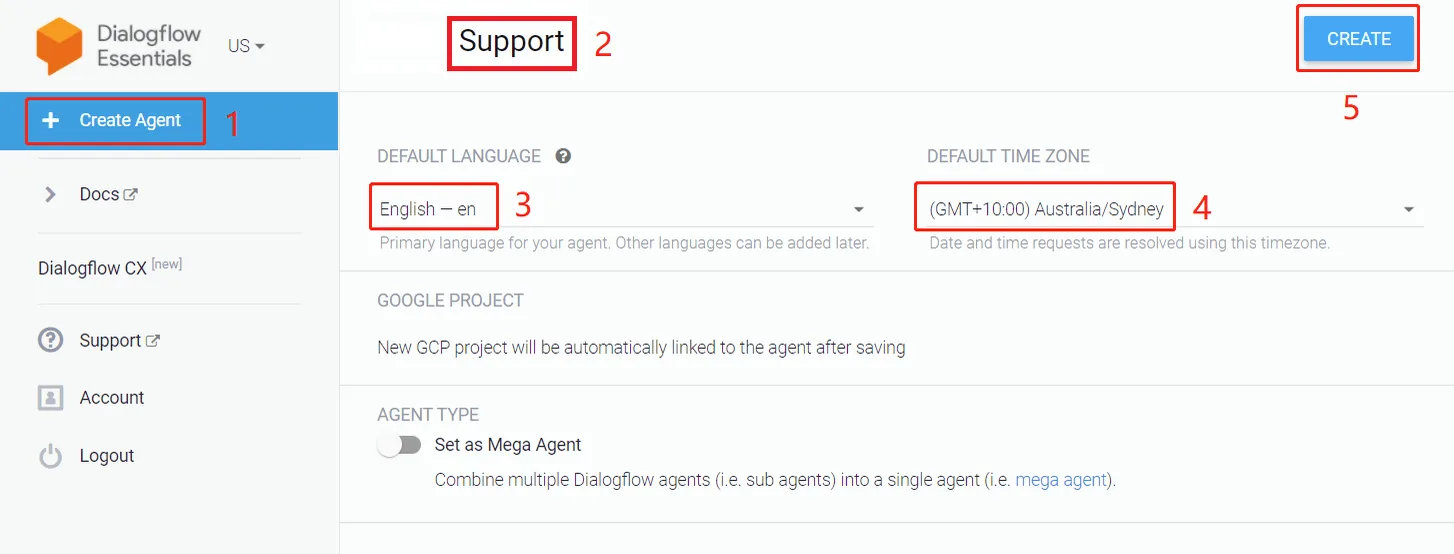
- Click "Create Agent" on the left sidebar
- name this agent
- choose a default language for the bot
- choose a default time zone
- when you are done, click "CREATE"
If you cannot create an agent and the error "Google Cloud Platform service has been disabled. Please contact your administrator to restore service" appears, the Google account may belong to your organization, of the type YourName@YourCompany.com. To solve this, ask your company administrator for Google Cloud Platform authorization or use your own Google account.
After creating a new agent, go back to NicoChat and click “Synchronize Agents” as shown below. All your agents will be listed here.
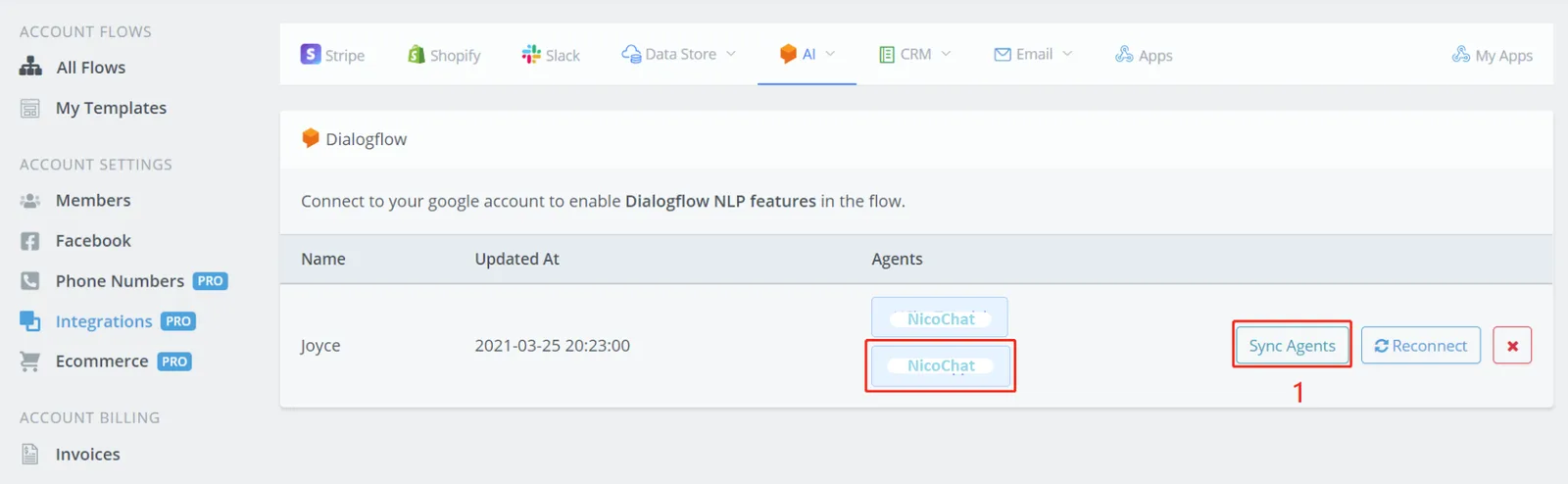
Choose one of the flows that you want the Dialogflow agent to manage.
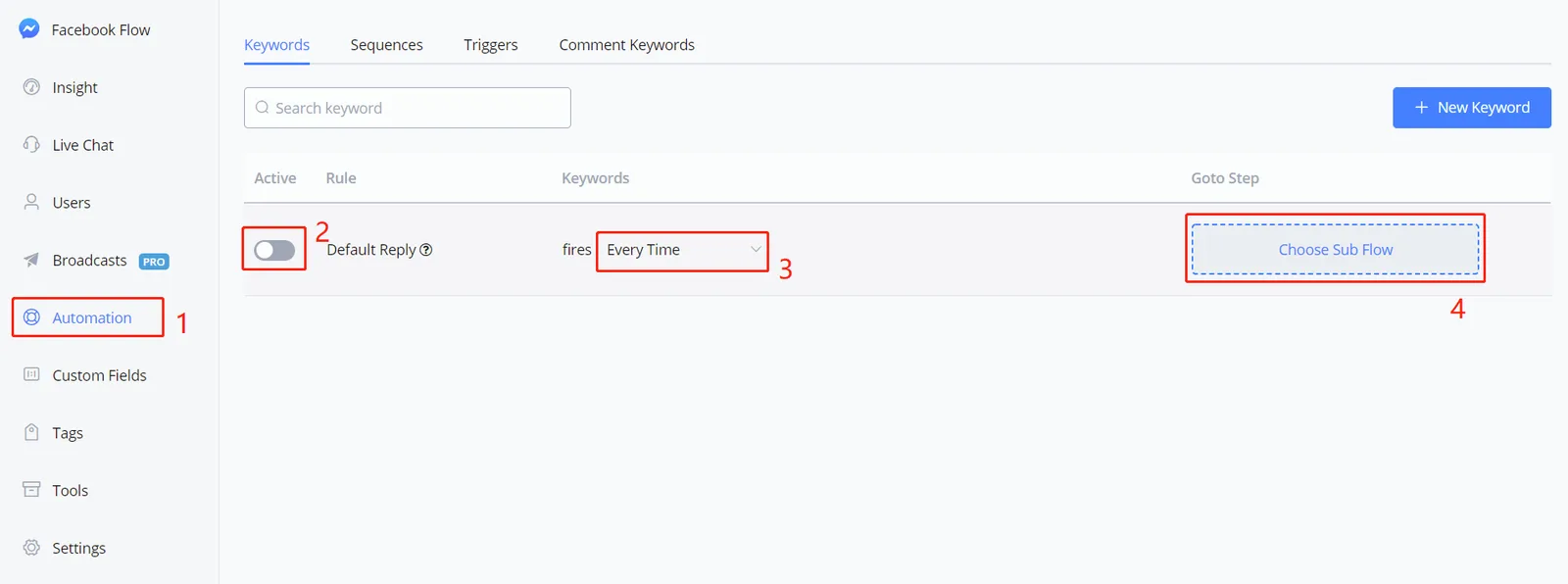
In the flow workspace,
- click "Automation" on the left sidebar
- activate the "Default Reply"
- select the frequency, usually "Every Time".
- click "Choose SubFlow"
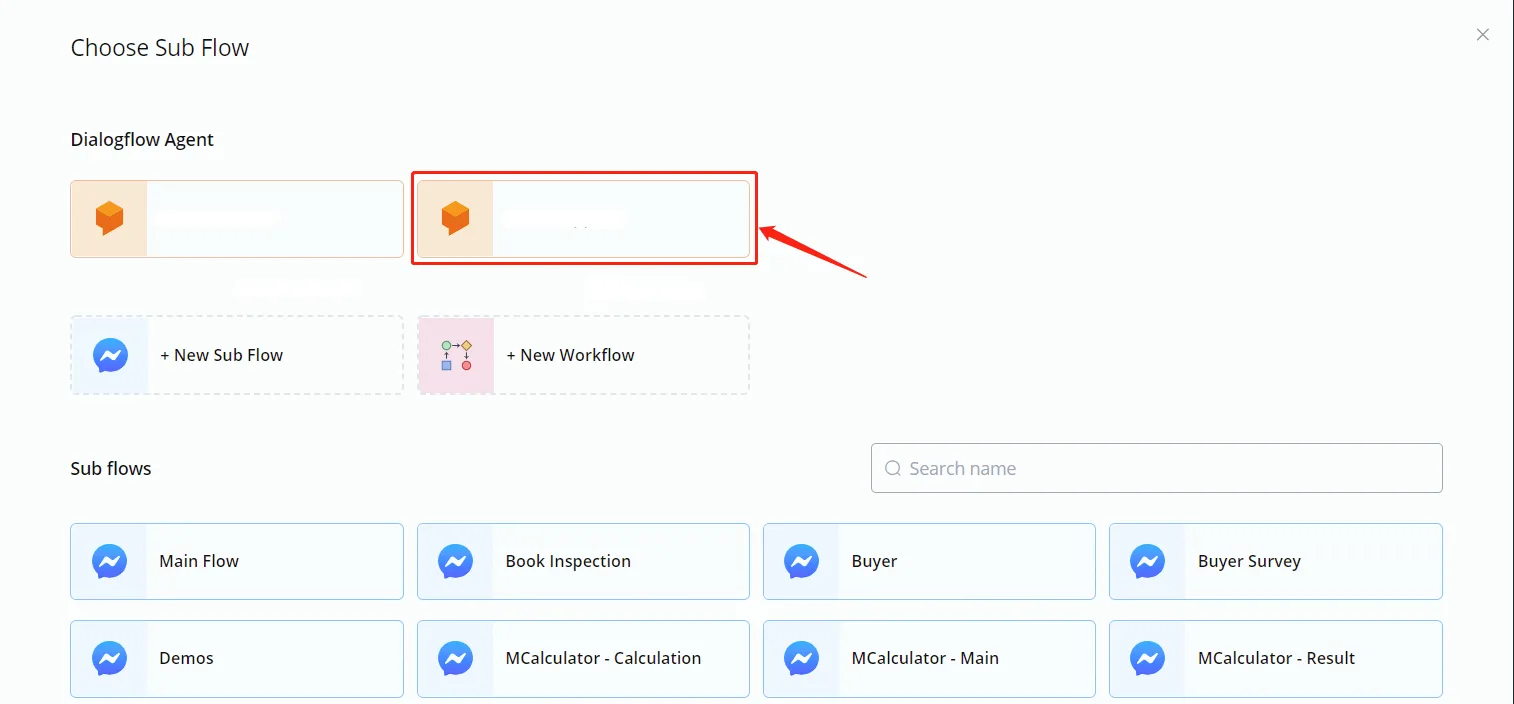
Select your agent and you will then be able to manage your frequently asked questions. Enter the FAQ interface by clicking the "Manage Faqs" button, as below:
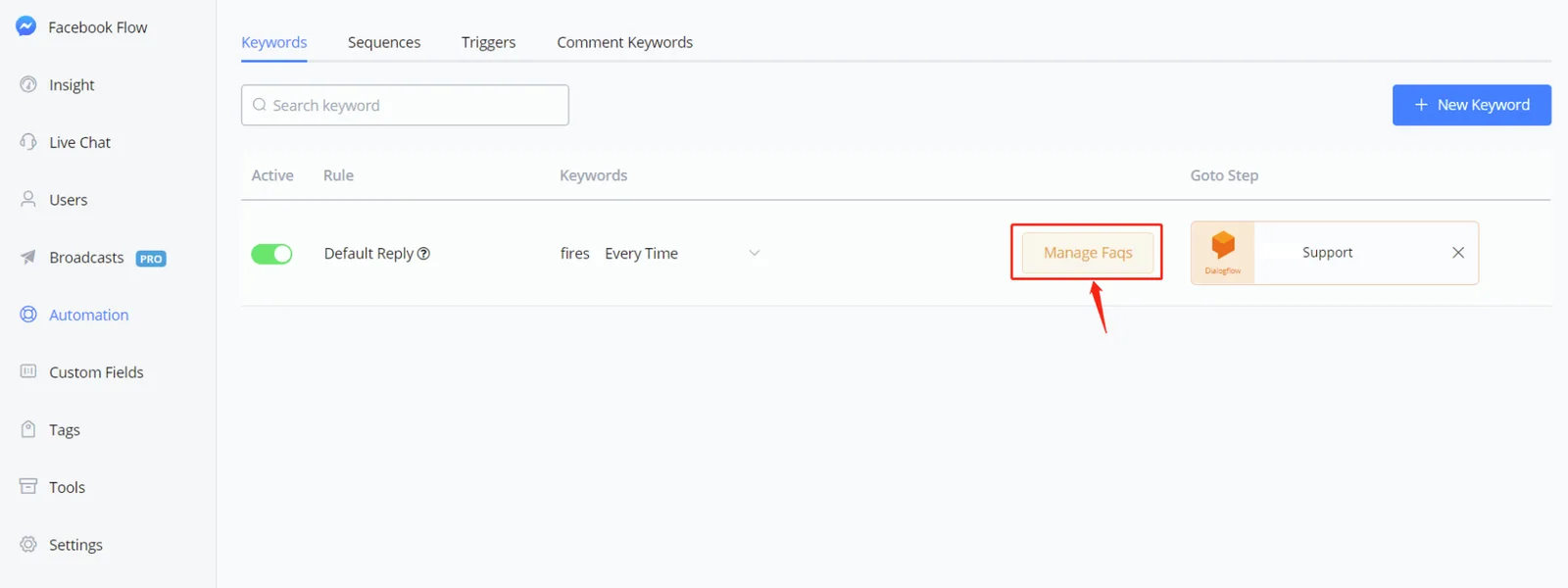
This is what the FAQ interface looks like:
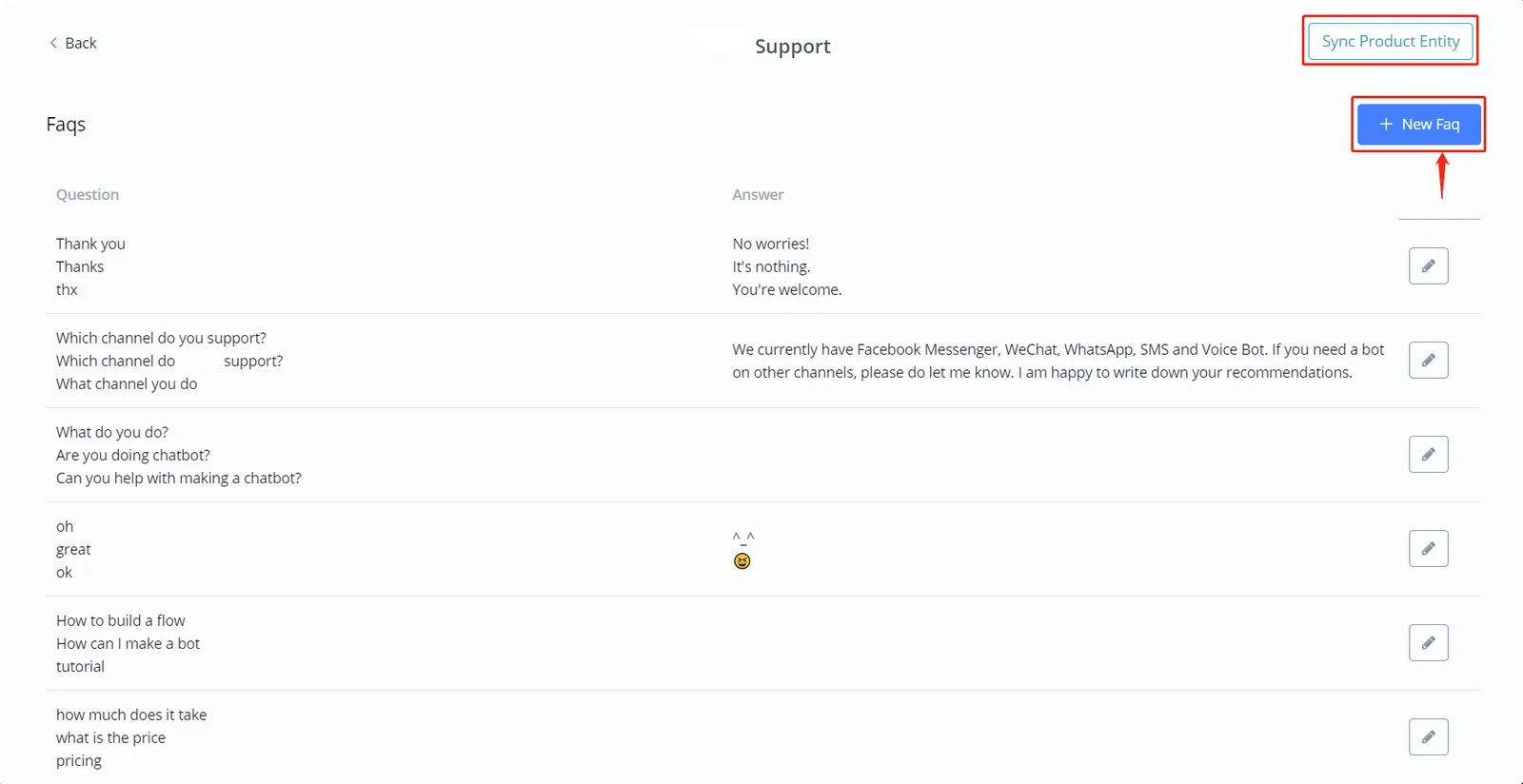
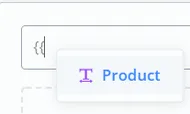
The "Synchronize Product Entity" button is for e-commerce use. By synchronizing the product information from your e-commerce system with Dialogflow, the bot starts to recognize the related products and to reply when users ask about them. To quote a product name, type "{{" and see the image below.
Click "+ New Faq" to start building your smart dialog:
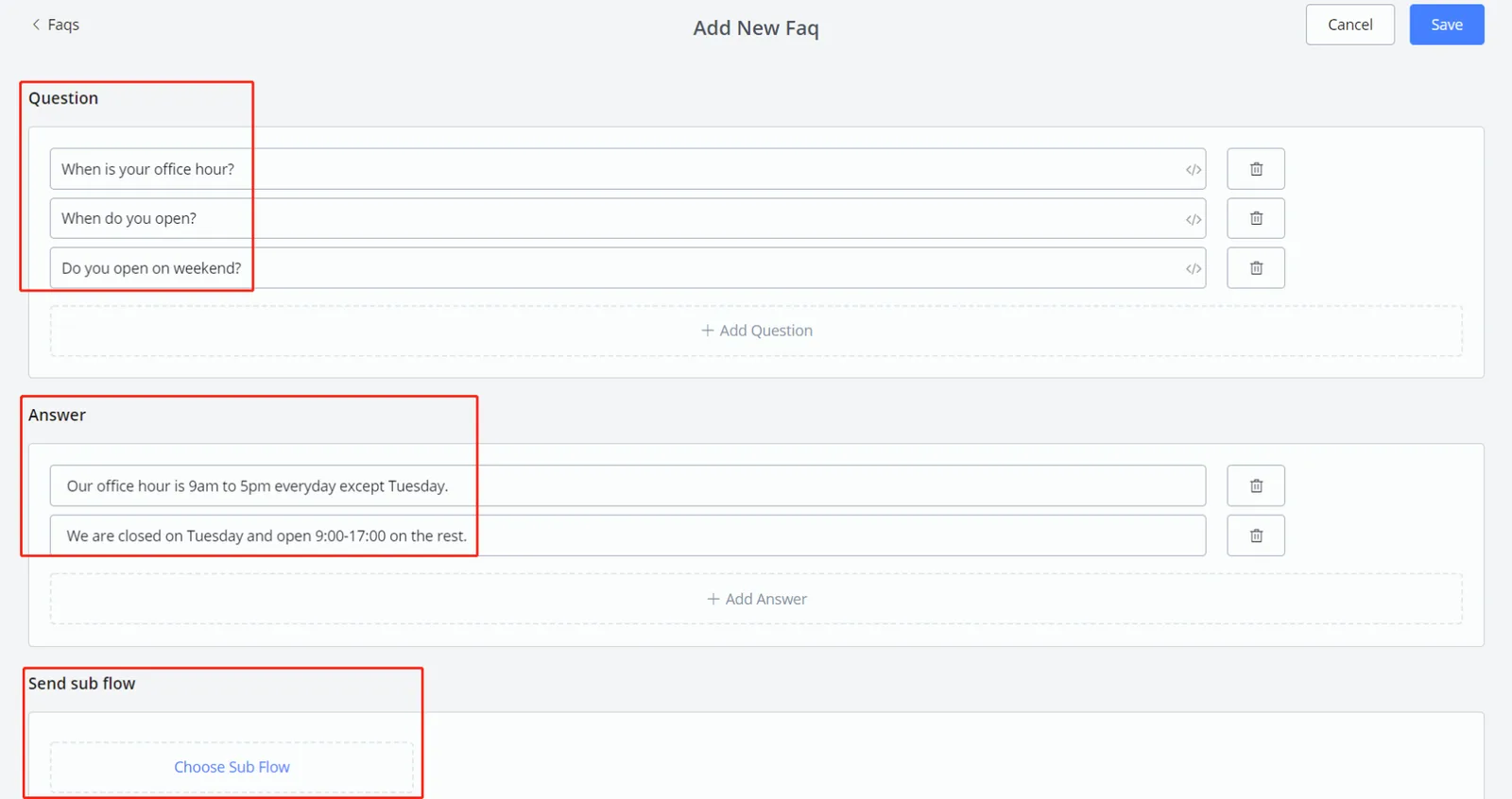
For each frequently asked question, put as many synonymous sentences as you can in the question area; Dialogflow helps with the rest.
You don't need to worry about too many details, because Dialogflow uses fuzzy matching. For example, suppose you have already added "When is your office hour?" and "When do you open?". The bot recognizes that the question is about opening hours regardless of what the user sends — "office hour?", "when u open?", etc. —, even with abbreviations or grammar mistakes. The answer area tells the bot what to reply when a question matches. The bot randomly picks one answer from the list to send.
In the "Send sub flow" area, choose a sub flow if you need one. The sub flow is sent right after the answer.
Finally, click "Save" and that's it: 🎉 your first FAQ is done. The bot already understands more human language! Keep testing and improving it.
Back on the Dialogflow website, you will see that NicoChat created several FAQ intents for you:
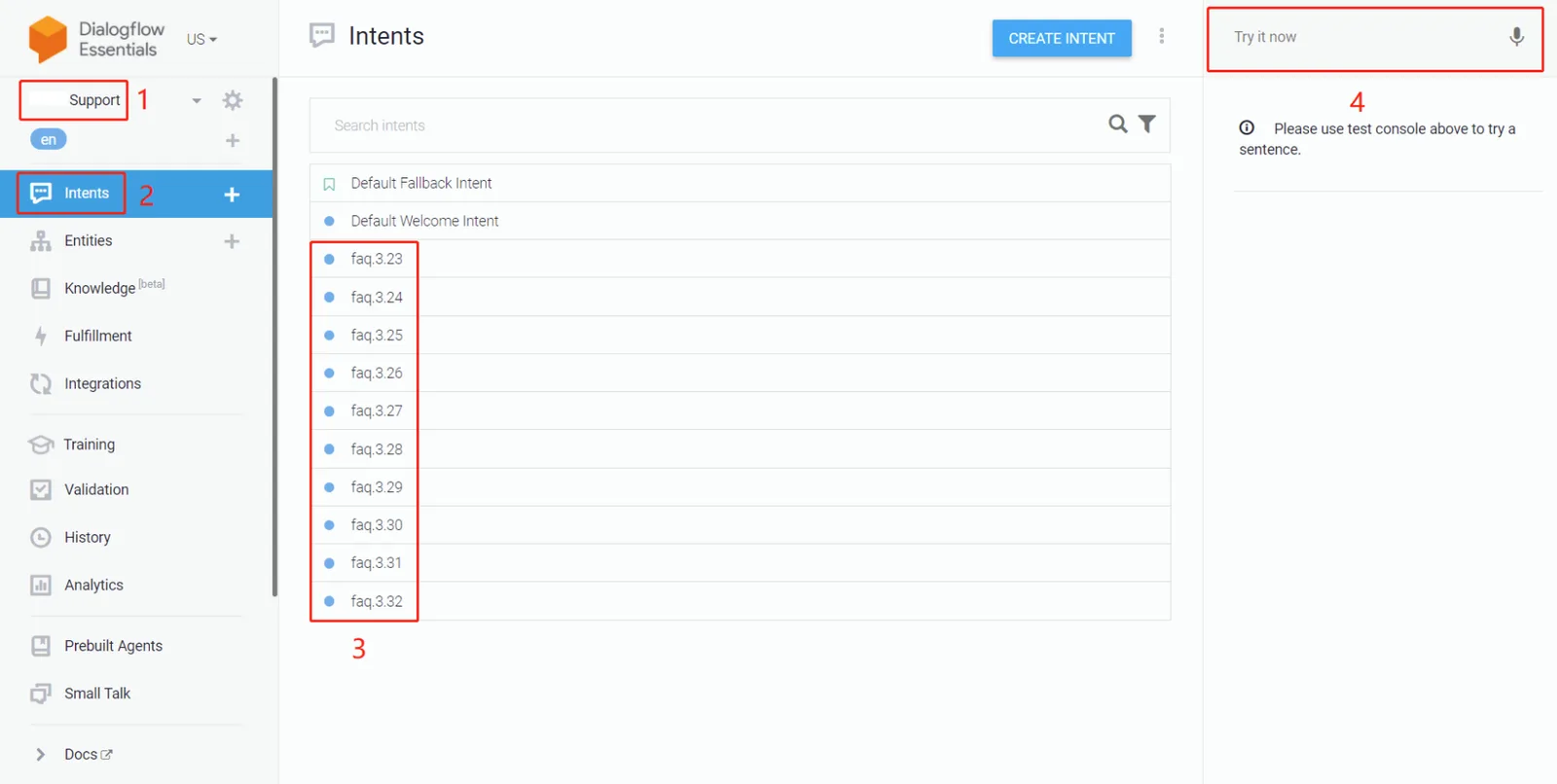
- choose your agent
- click "Intents"
- these are the intents synchronized from NicoChat
- Test your bot here and see whether it understands which FAQ you are referring to.
Check and adjust the "Default Fallback Intent" or the "Default Welcome Intent" if you need to. The "Default Fallback Intent" is triggered when none of the frequently asked questions match.
Select an intent and edit it a little further to help the bot understand better:
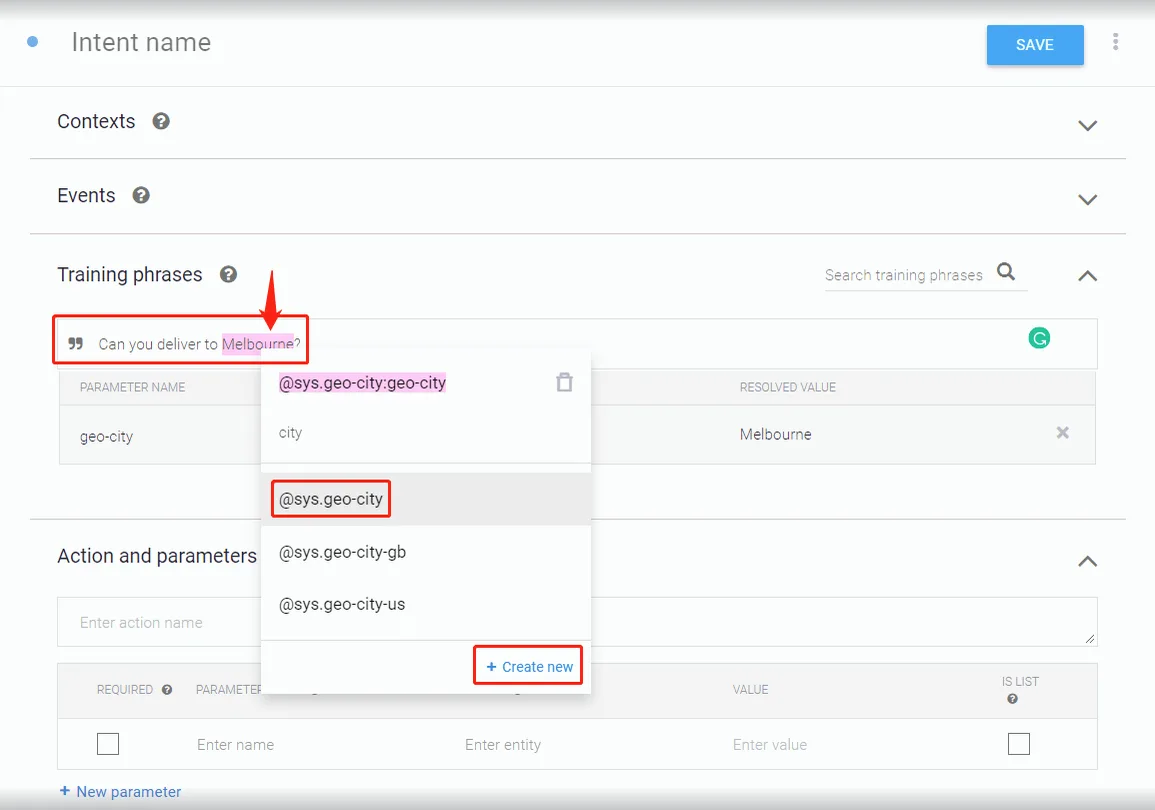
For example, in this case, double-click to select "Melbourne", type the keyword "city" and click "@sys-geo-city". This tells the bot that the word “Melbourne” is a city. So the next time users ask "Do you deliver to Sydney?" or mention other cities, the bot can route the question to this FAQ.
There are several practical built-in lexicons, including color, time, postal code, country, street name, language, etc.
The answer is not limited to text. Try the custom payload!
To begin, create a FAQ in NicoChat with questions only, no answer and no sub flow.
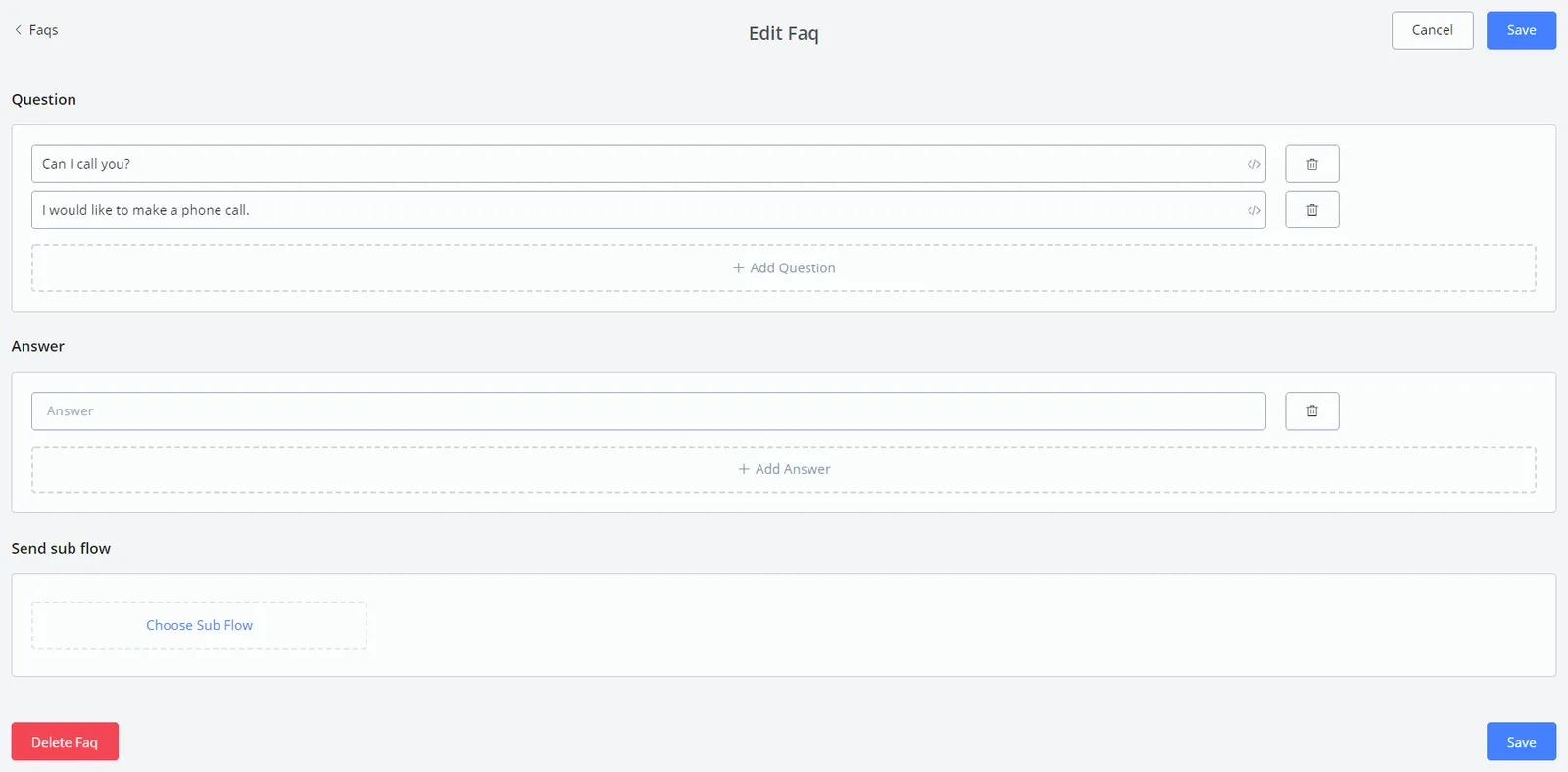
Wait a moment and refresh the Dialogflow intents until the new intent appears.
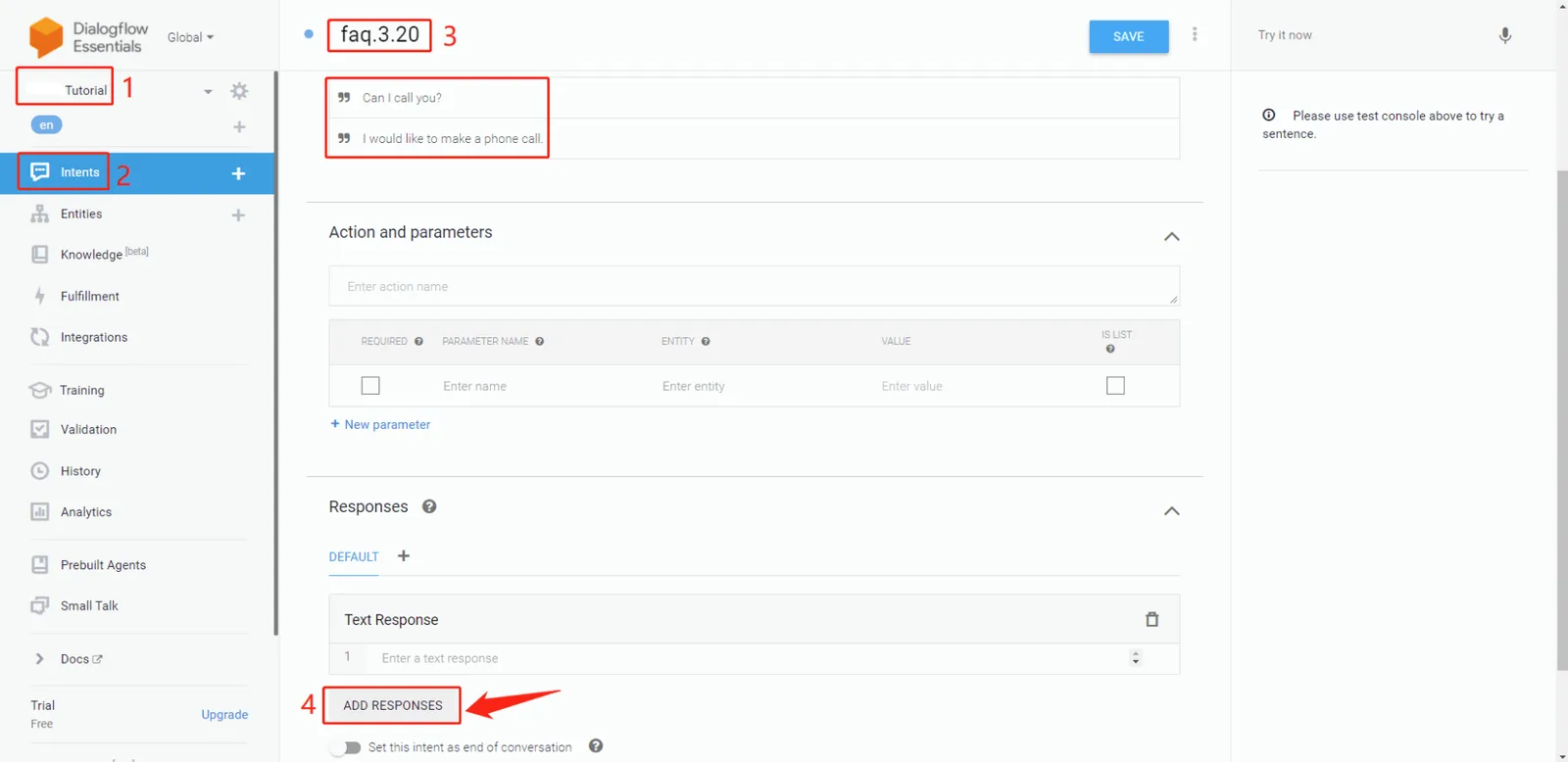
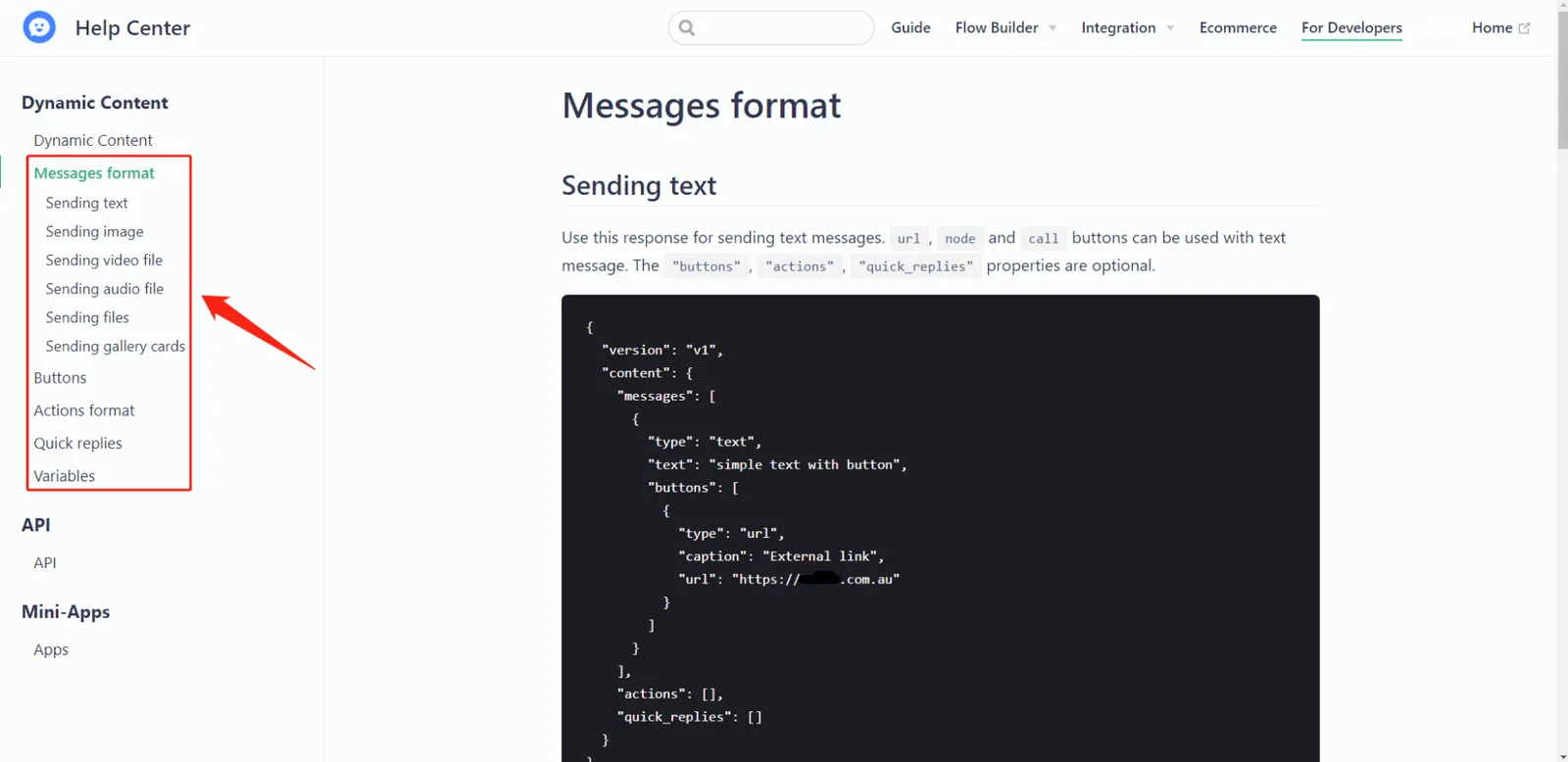
In the new intent, click area 4, "ADD RESPONSES", and then "Custom Payload". Copy and paste here the response format you need: text/media/files, buttons, actions, quick replies and so on.
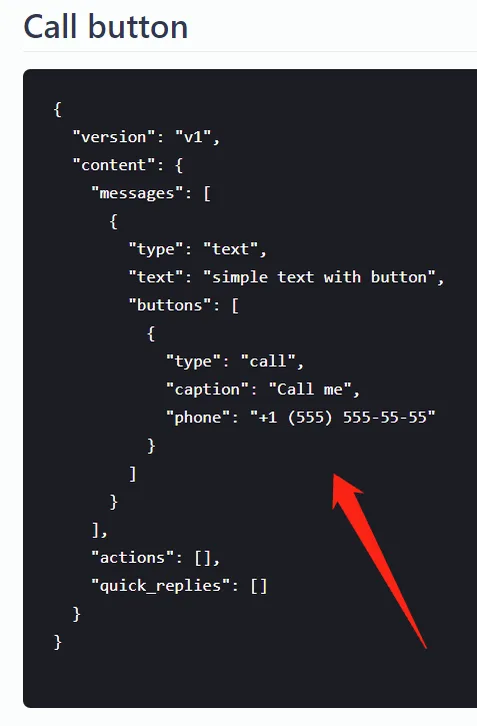
In this case, a call button will be sent. Copy the following code to Dialogflow:
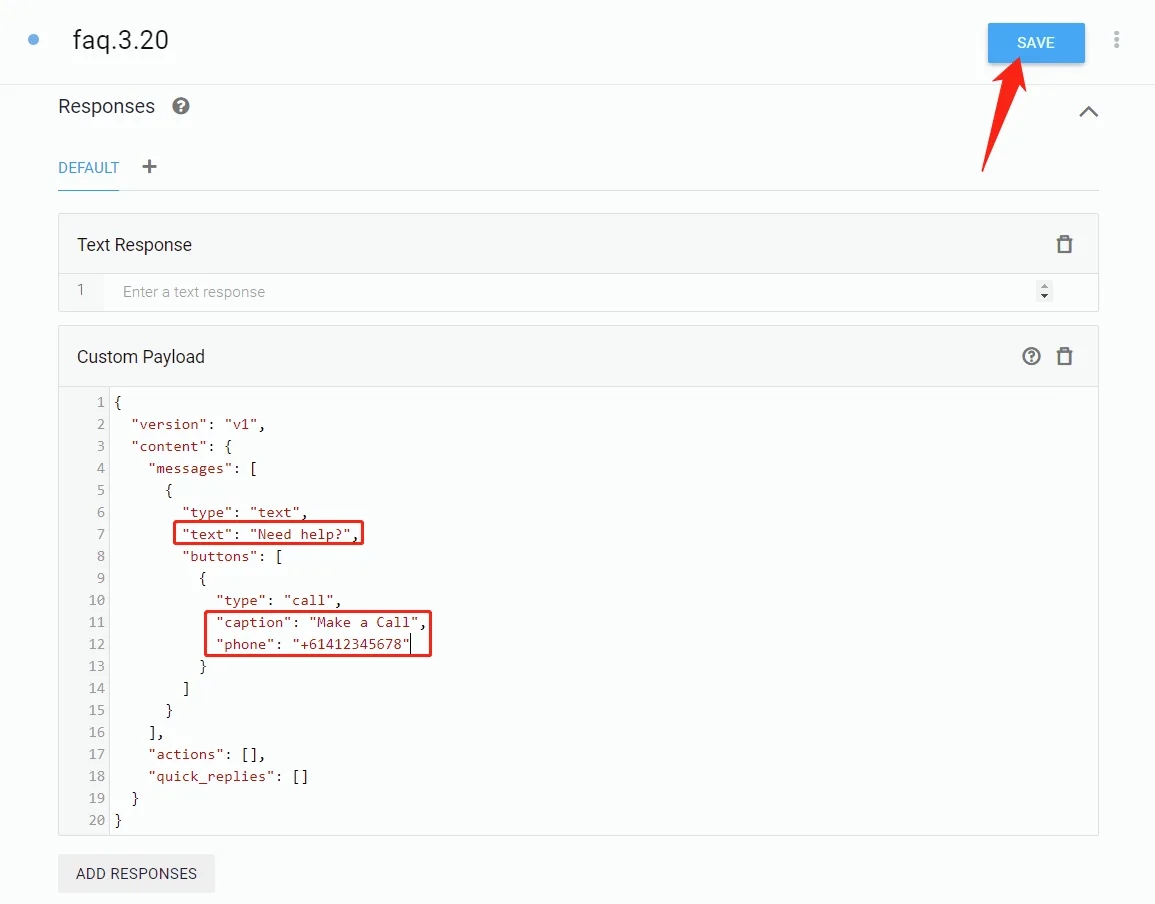
Adjust the text, the button title, the number, etc. as needed and click "Save":
Let's test it in the testing area on the right:
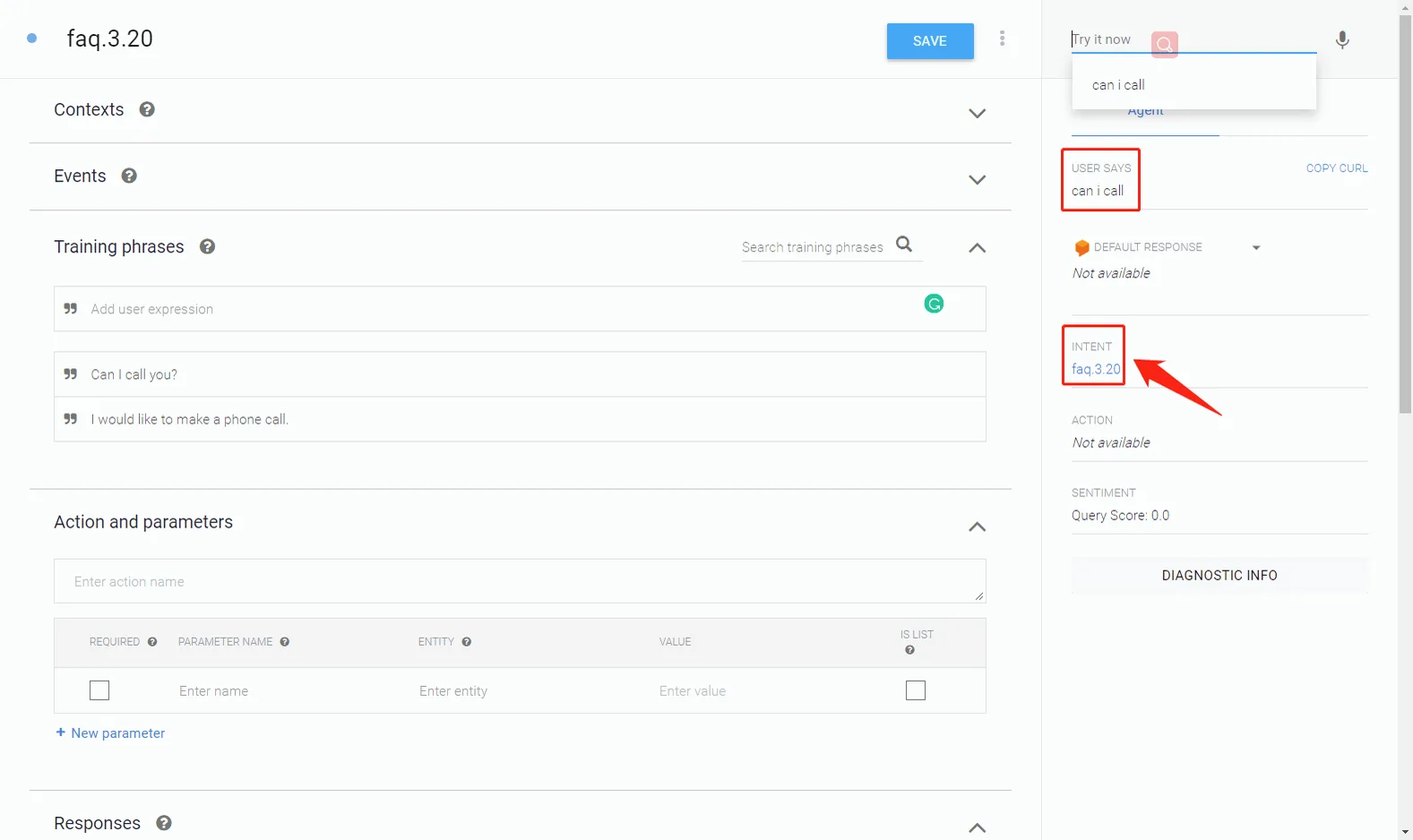
Well done! The bot recognizes that "can I call" matches faq3.20.
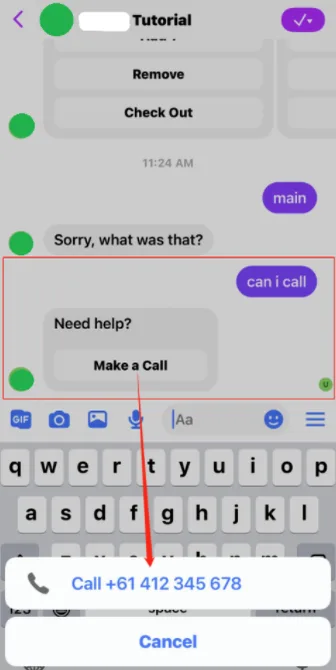
On the user side it looks perfect as well. Feel free to explore other response types!