Coze
NicoChat now lets you integrate the AI models created in Coze with NicoChat’s chat platform, opening up automation possibilities that were not available before.
Creating a bot in Coze
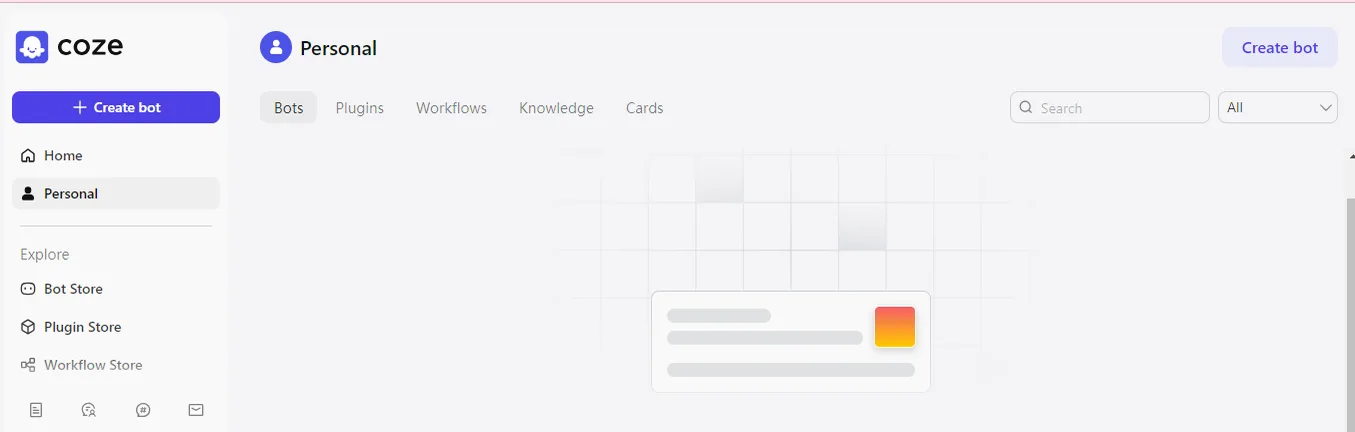
In the dashboard, click “Create Bot”
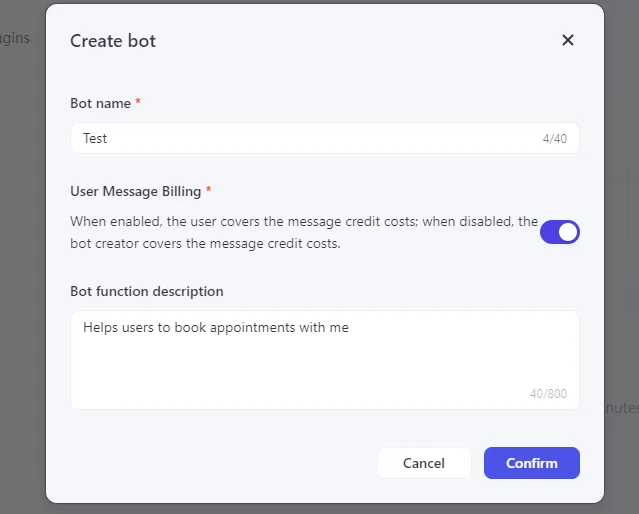
Enter the bot name and other relevant details
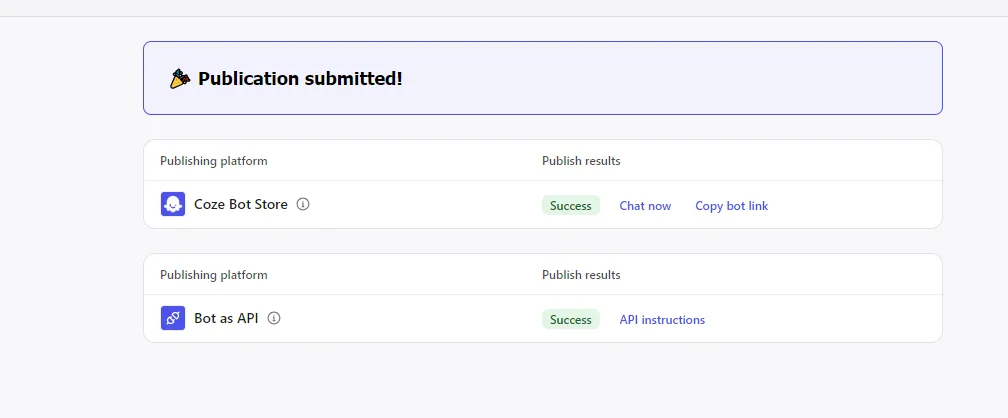
Your bot model is now created. Click Publish to save your progress.
In your dashboard, go to the Integrations section and select “Coze” under the Artificial Intelligence section.
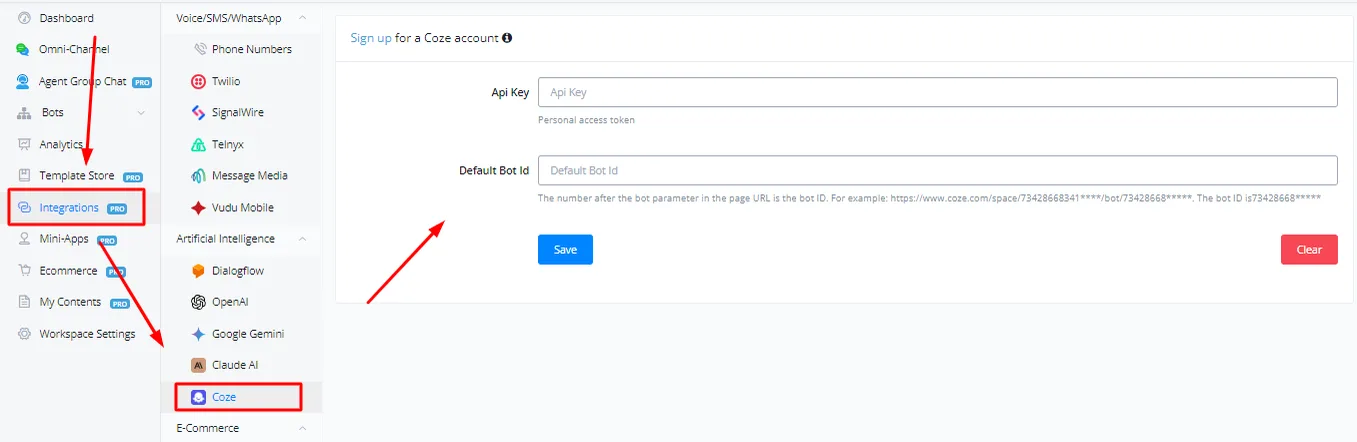
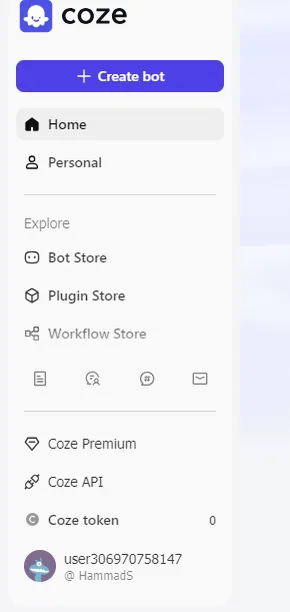
To get the API key, in the Coze dashboard, click the “Coze API” tab in the left-hand menu.
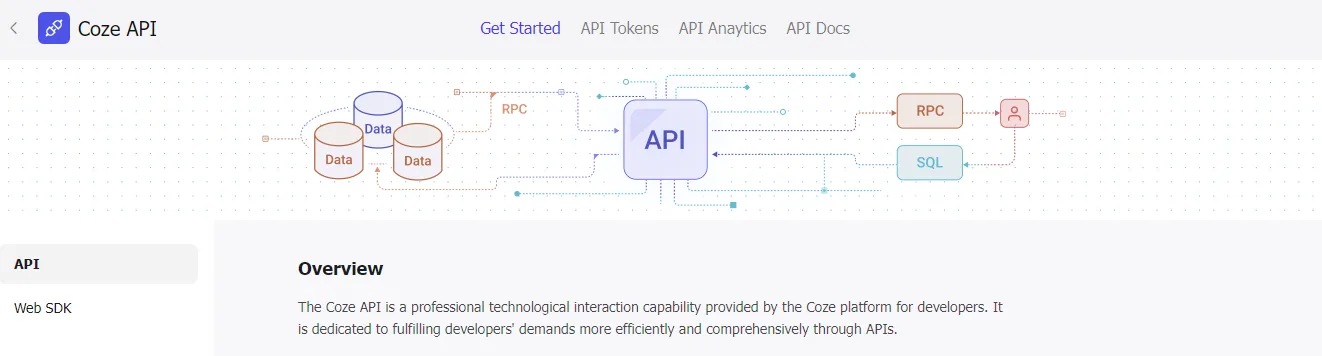
Then click API Tokens
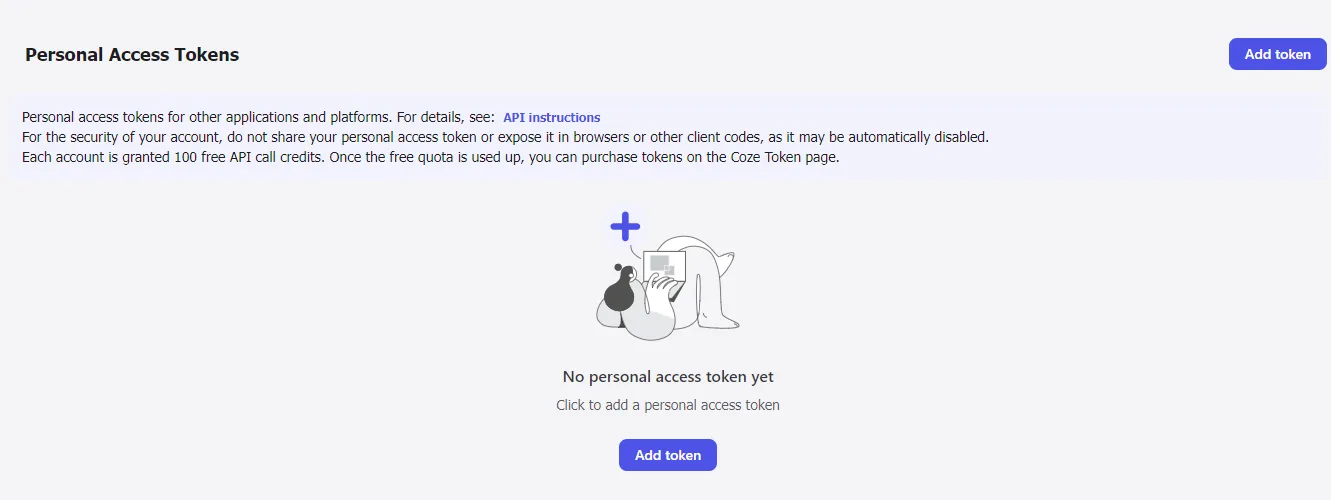
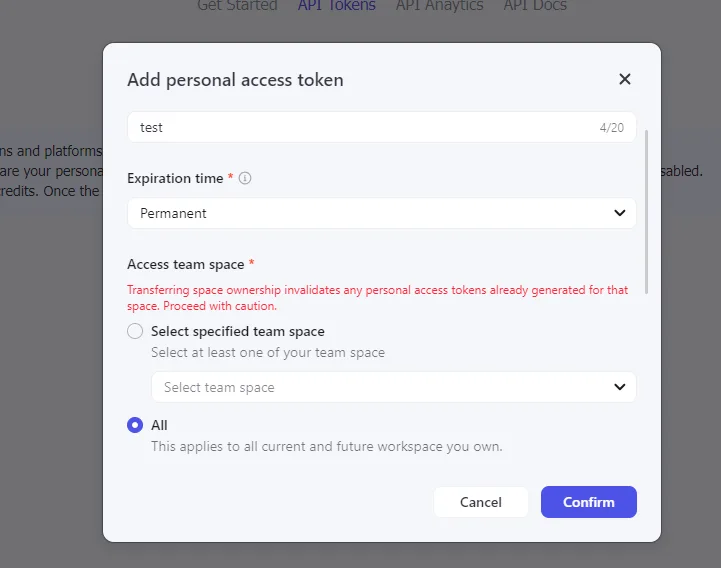
Create a new personal access token
Make sure you have selected all the necessary tabs and permissions
For the default bot ID, open your bot model in Coze and copy the last set of numbers that appears after /bot/ in the URL.
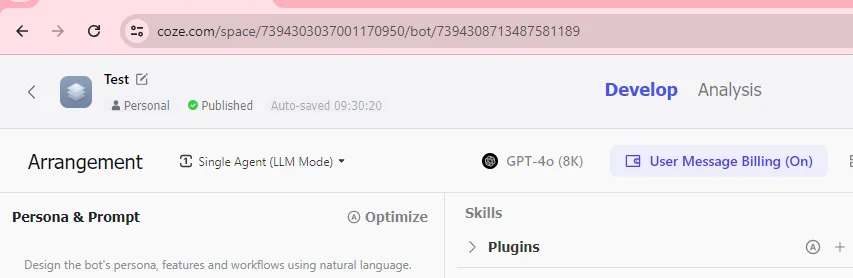
Hint: here the default bot ID is 7394308713487581189
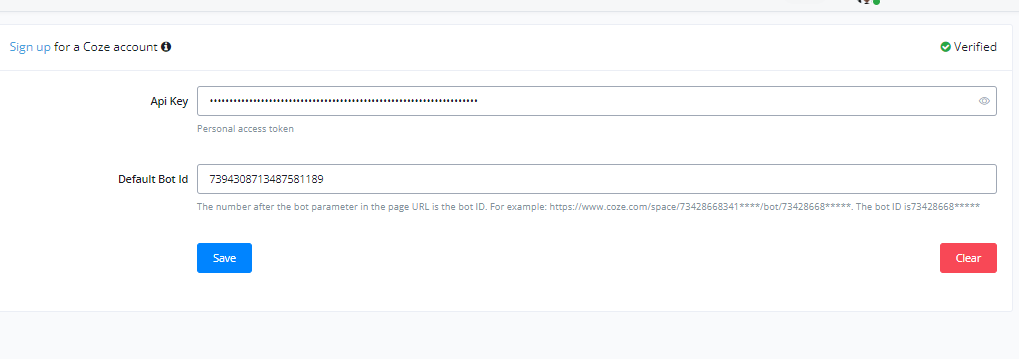
When you are done, copy the details into NicoChat and click Save.
You can find the Coze actions in the Action block, under the Integrations tab.
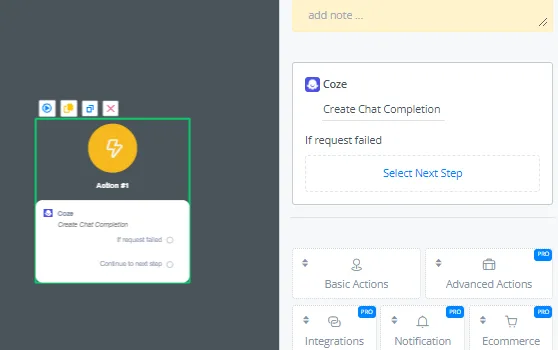
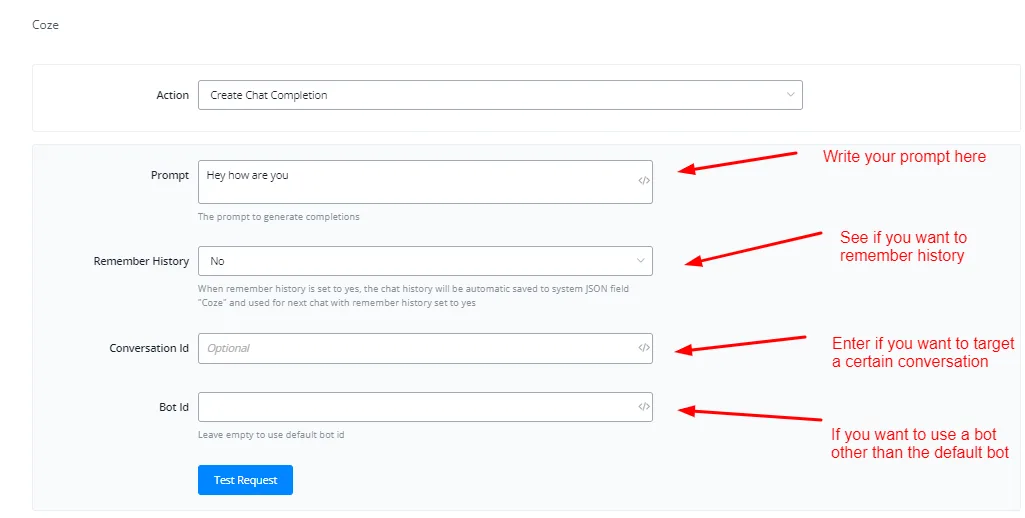
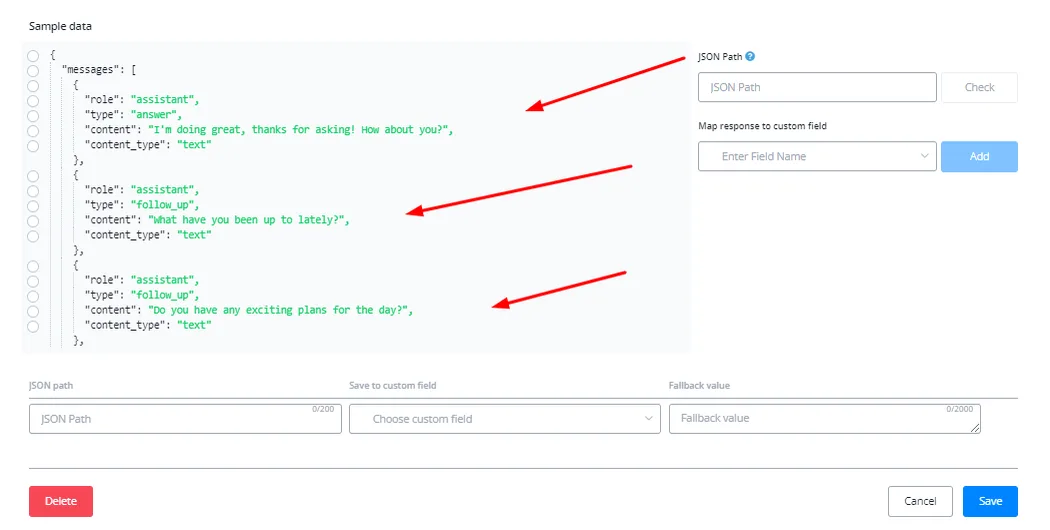
You can now map the responses generated by your bot model and send them to contacts as a reply.