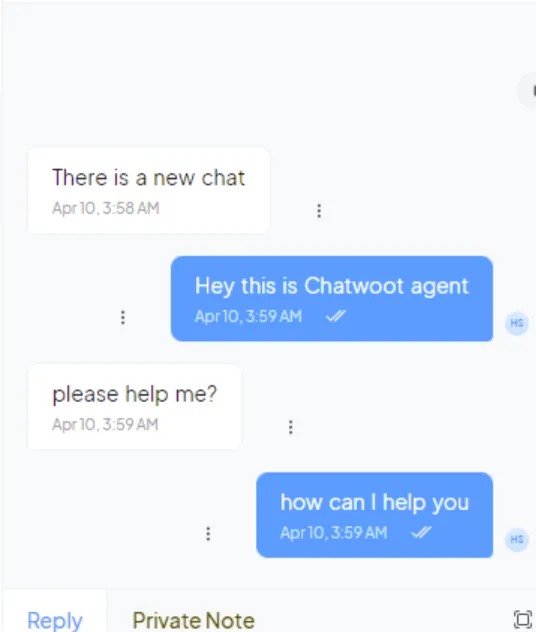
Chatwoot Live Chat
From your dashboard, click on the integrations section, scroll down to the Live Chat tab and select Chatwoot.
From your dashboard, click on the integrations section, scroll down to the Live Chat tab and select Chatwoot.
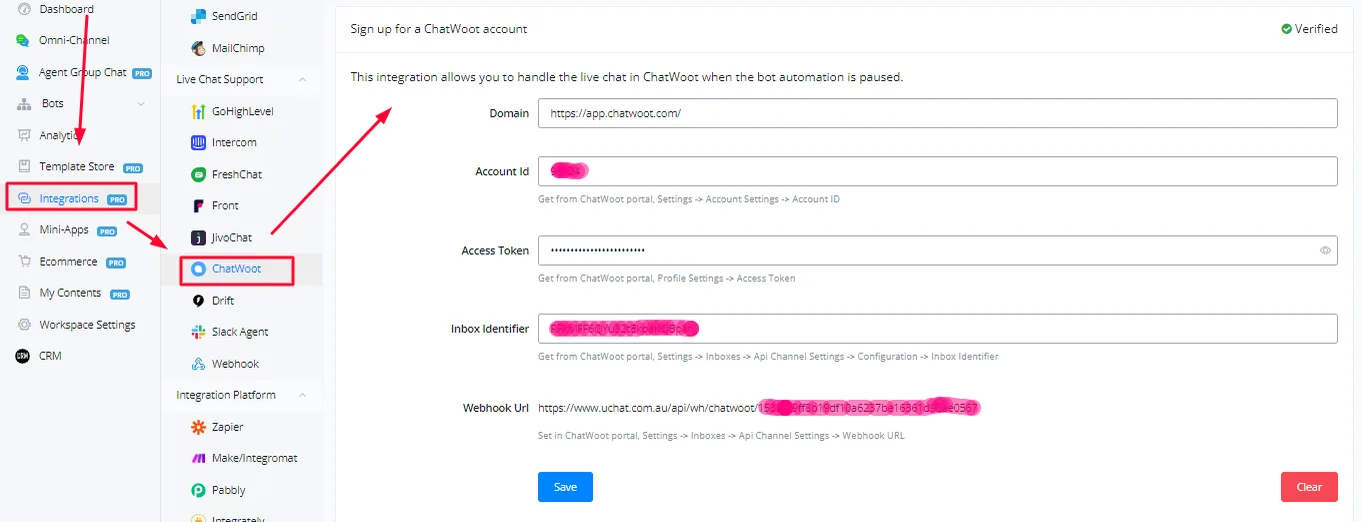
For most users, the domain will be https://app.chatwoot.com/
If you have Chatwoot installed on your own server, the domain will be different.
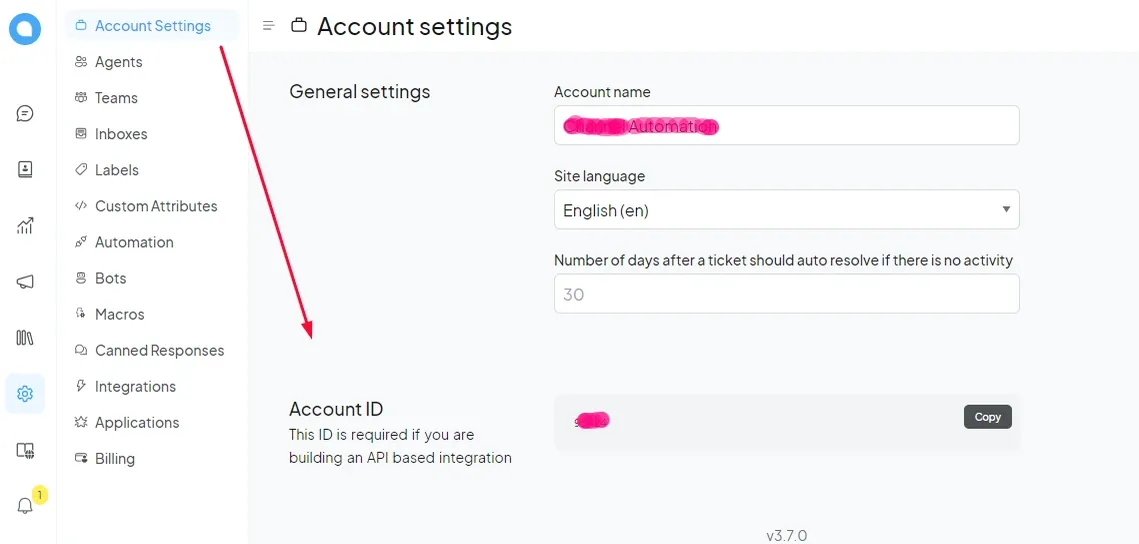
In the Chatwoot dashboard, go to the Settings tab and, inside it, to Account Settings, where the Account Id is.
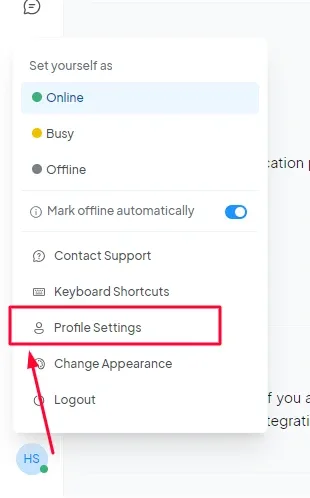
Click on your user profile icon and select profile settings. Then scroll to the bottom of the page to fetch the Access Token.

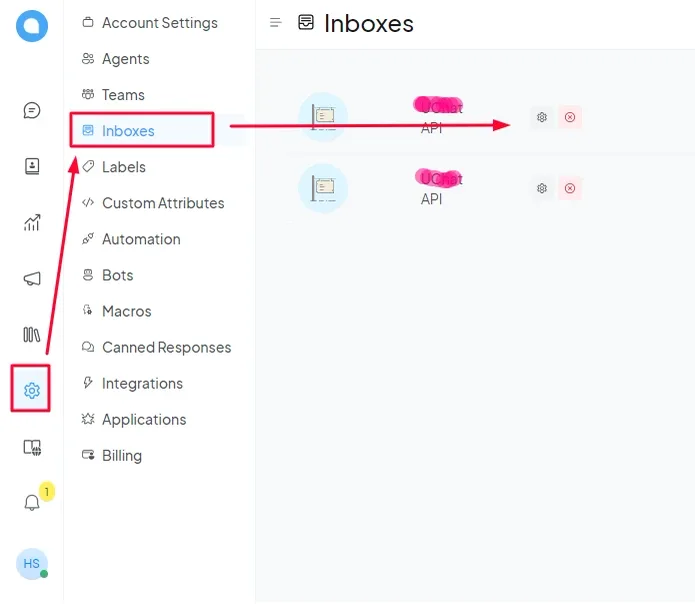
Go to the Inboxes tab, in the Settings section, and click on the gear icon of the inbox you want to integrate with NicoChat.
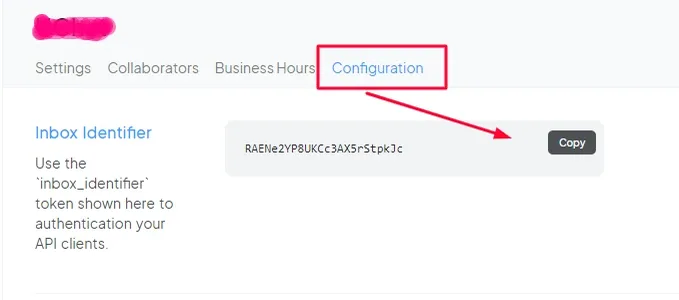
Click on the Configurations tab and copy the Inbox Identifier.
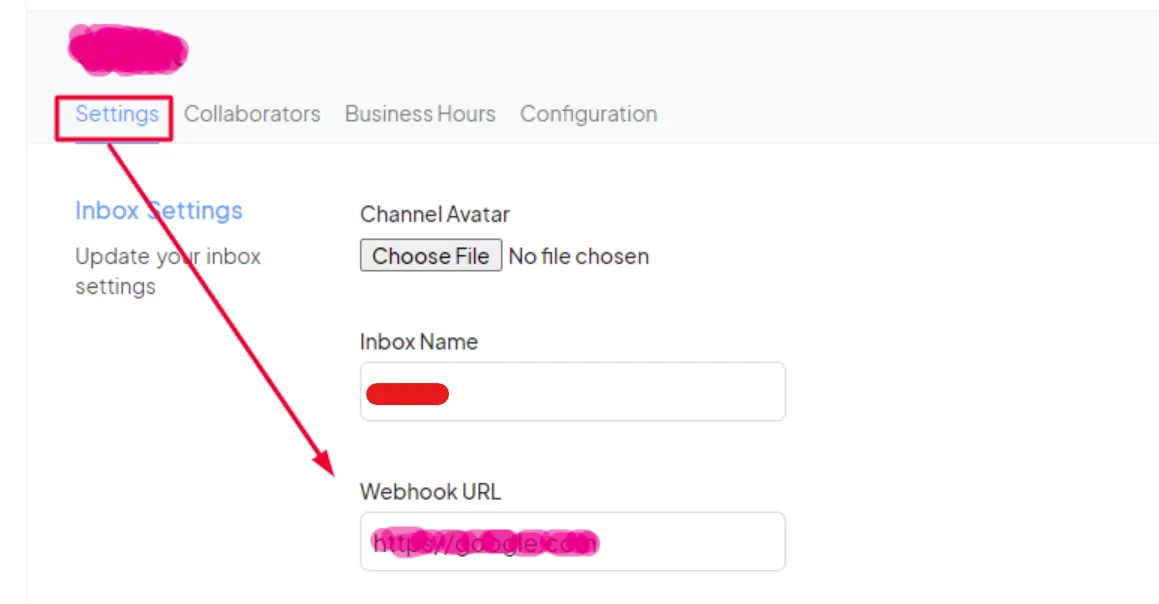
Once this is done, click save and, inside NicoChat, you will already be able to see a webhook:

Copy this webhook, go back to the inbox tab and, in the settings, paste the webhook and click save.
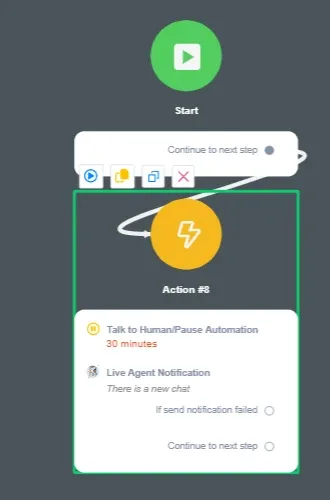
You will be able to use Chatwoot Livechat as soon as the bot is paused and the agent is notified. The following setup can be used to trigger this transition.
And you will already be able to send messages to the user from Chatwoot Livechat.