

Calendly
Calendly is a great way to create bookings for your business or for your clients' businesses.
NicoChat has a native integration that lets you set this up very easily.
From the main dashboard, go to Integrations in the left-hand menu. Then select Calendly from the list.
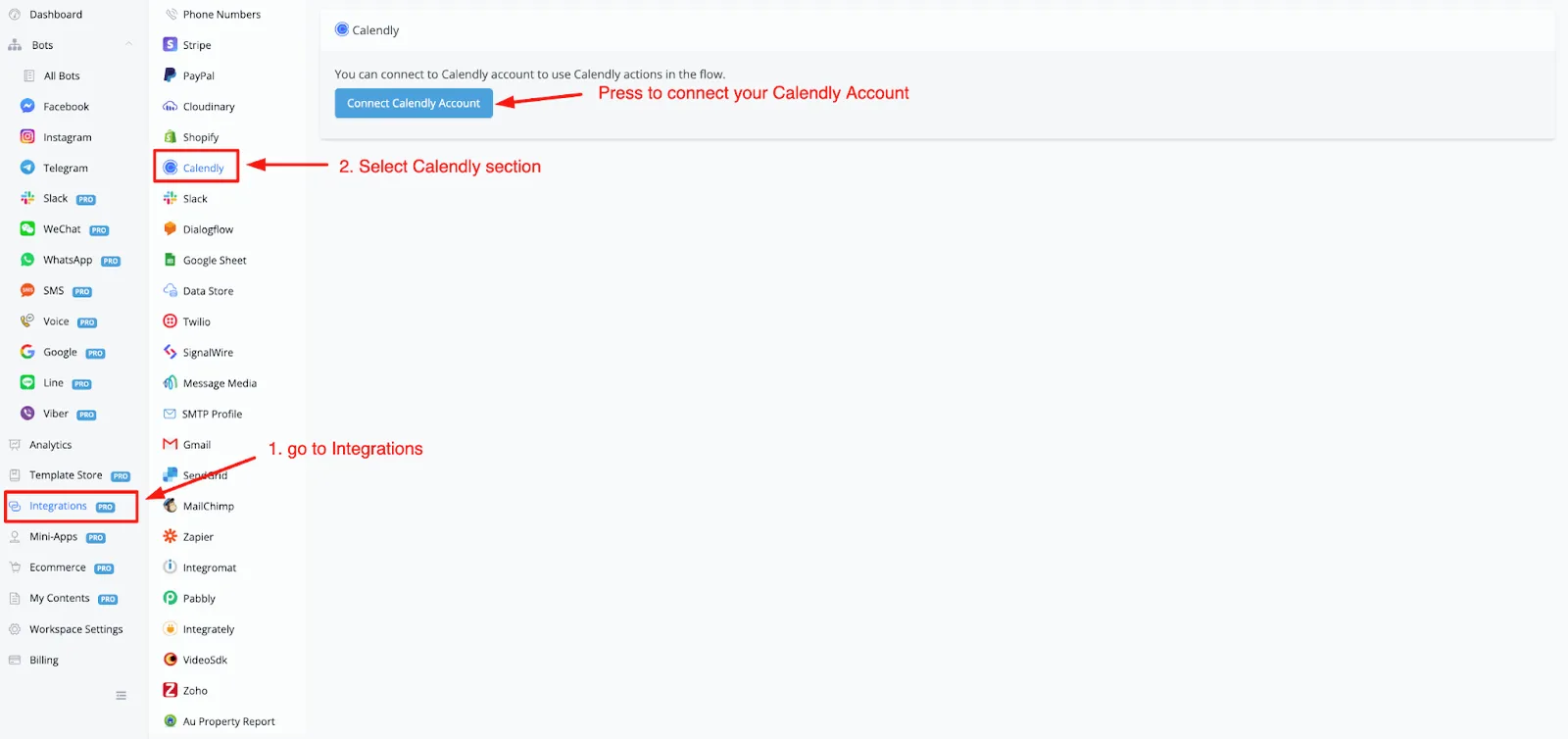
Press the Connect Calendly Account button to go to Calendly and authorize NicoChat to manage bookings for you.
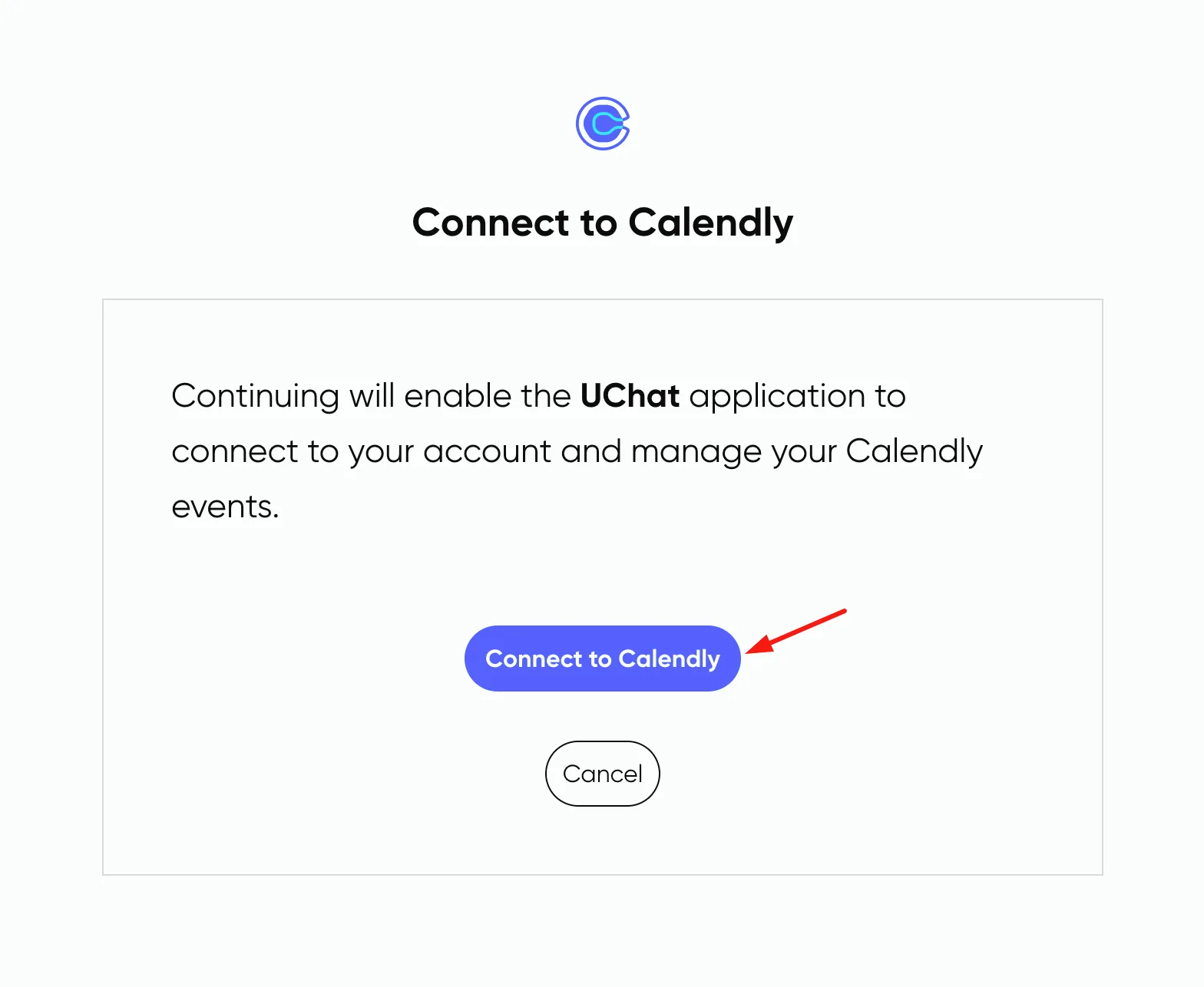
When you are redirected to the Authorization page, be sure to press the button.
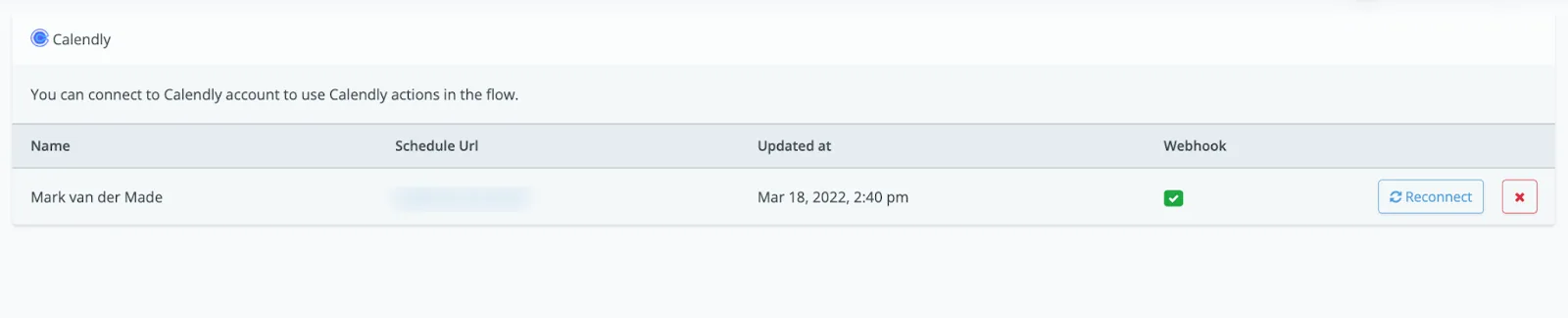
You will be redirected back and your account should appear as verified. If you have a pro account, you will also see a checkmark in the webhook section.
As soon as Calendly is connected, you will be able to use it in any of your chatbots.
Go to a flow, select a text message and add a button. For the button type, you can select the Calendly button.
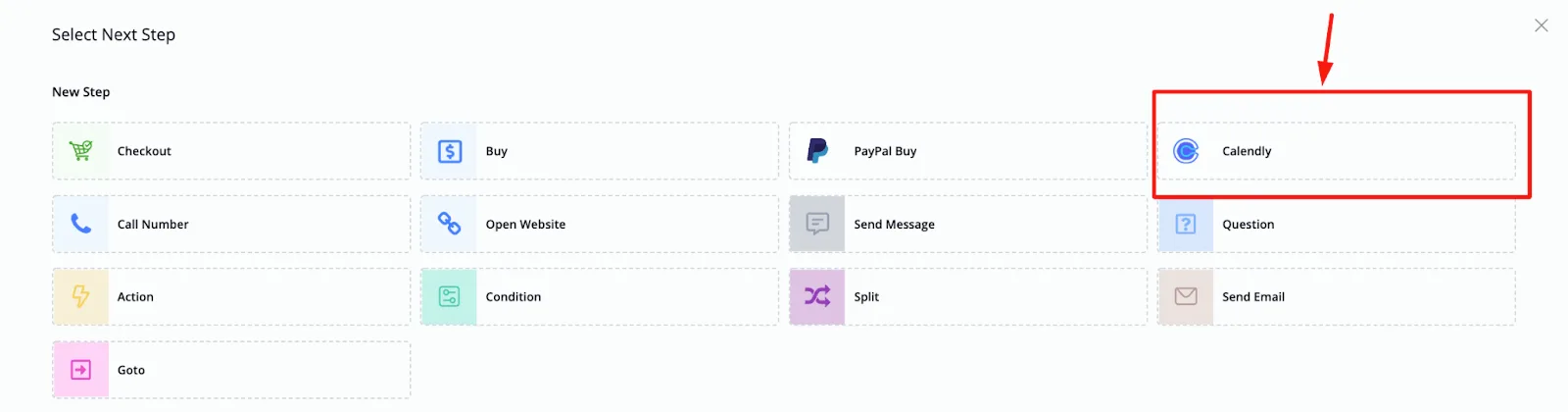
Once done, you will be able to select an event type. These events are fetched from your Calendly account.
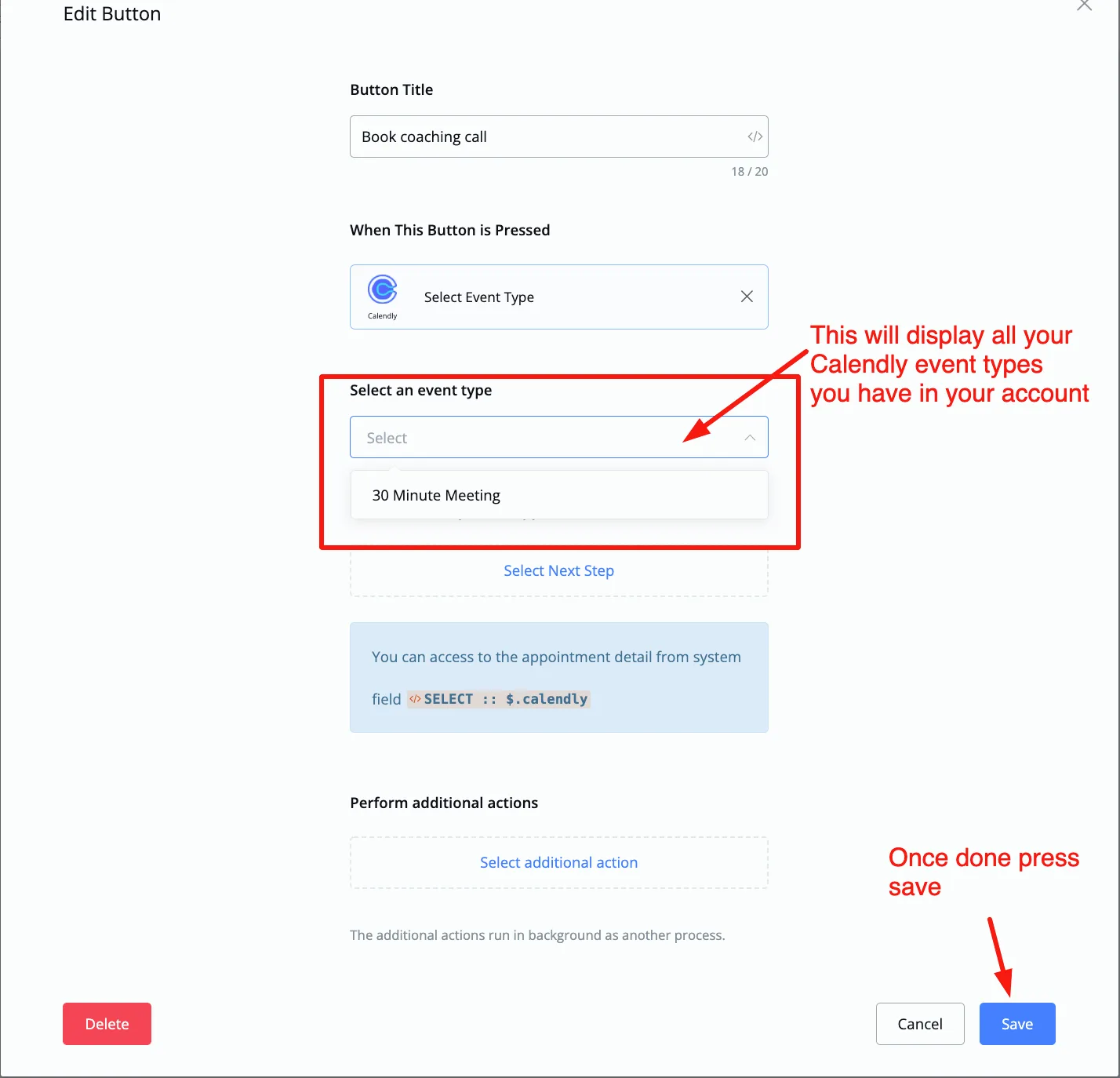
After you send this message with the button to the subscriber, they will be able to book a time using the event you set up.
You can then get the booking details from the Select system field.
Open the system variable list and look for the system field called Select.
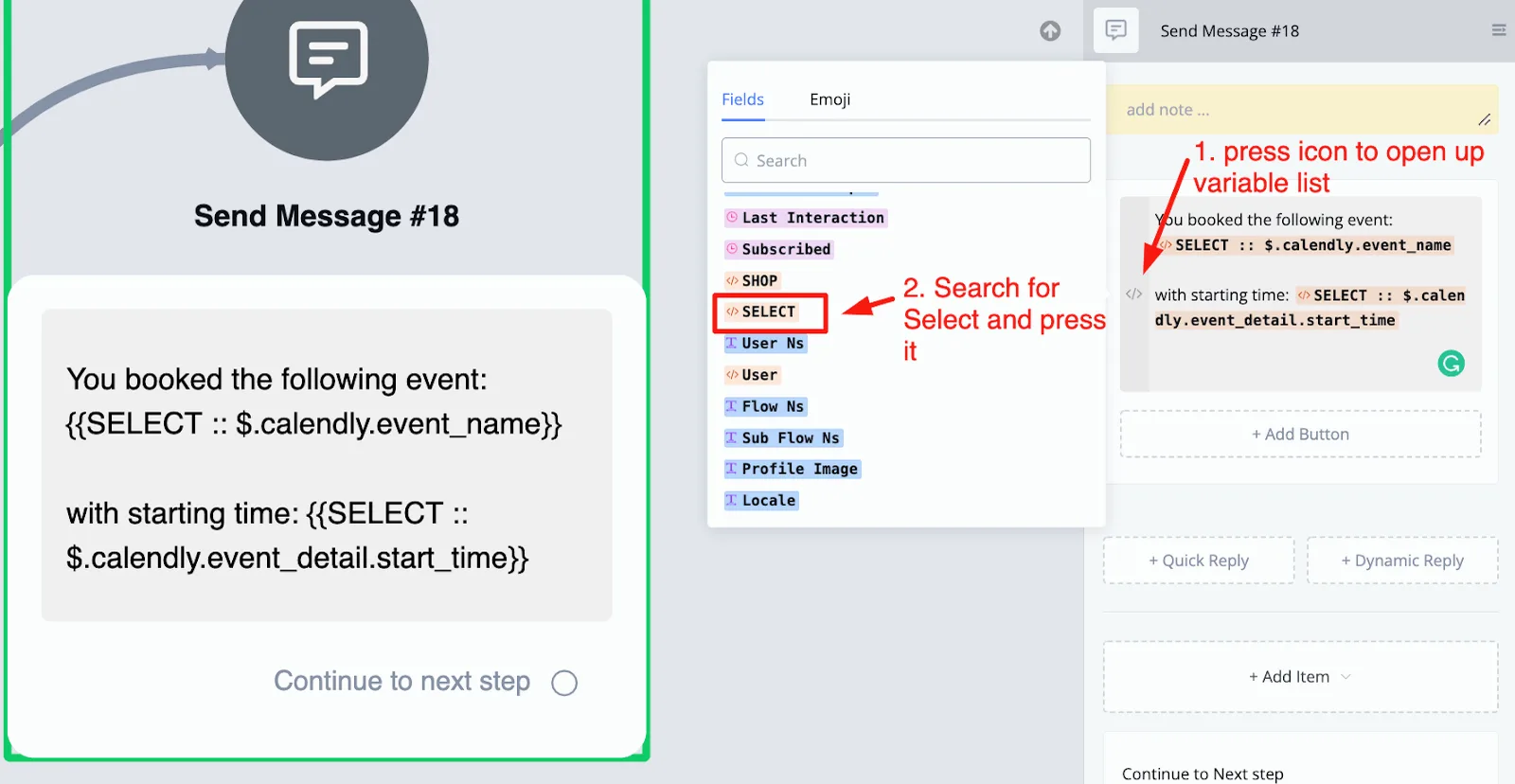
When you press it, you will see a pop-up with all the information you can get from Calendly.
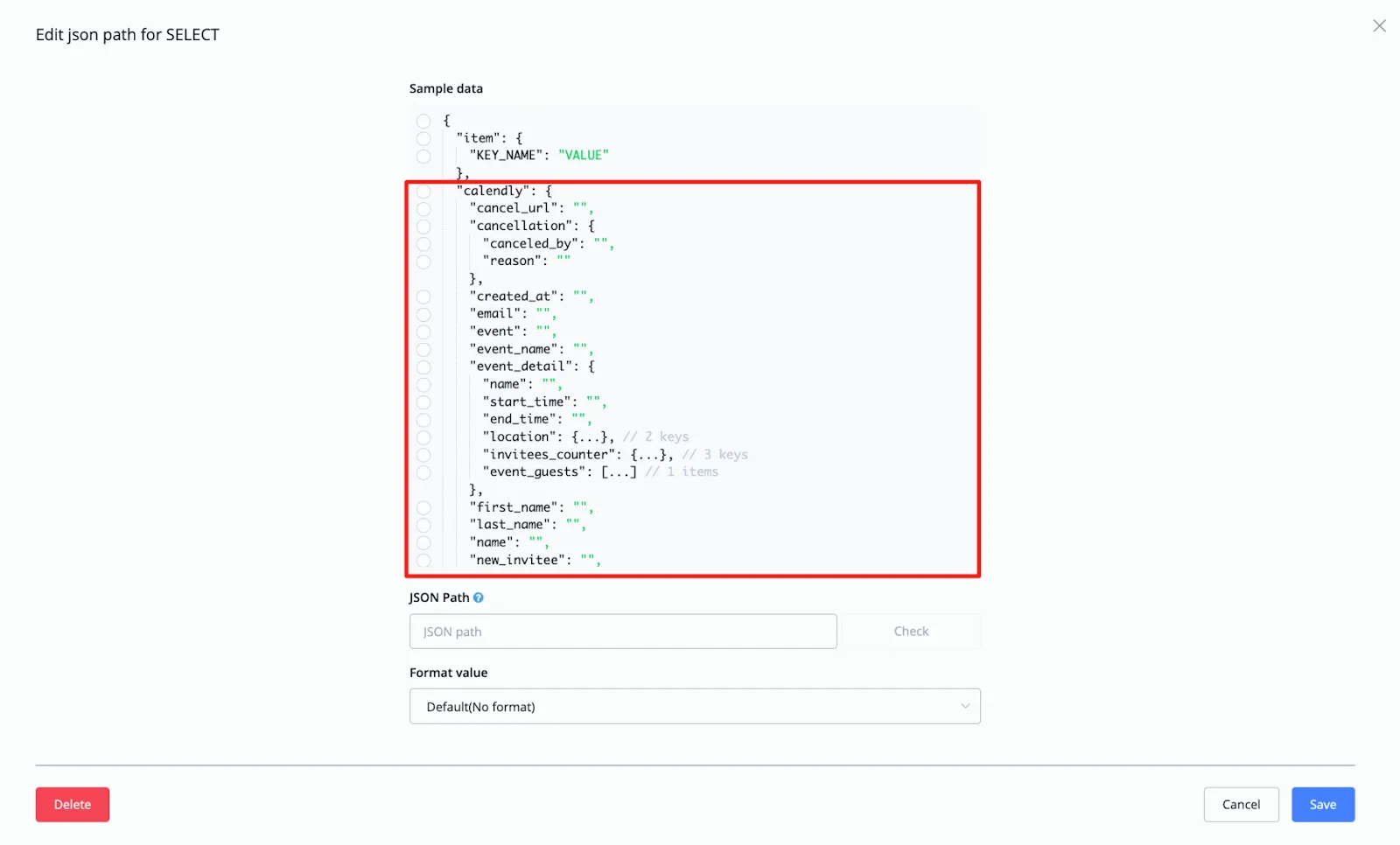
This way you can confirm the booking with the subscriber, as in the image above.