

Data Store
The Data Store is a built-in data storage system provided by NicoChat. With the Data Store, you add, delete, update and check your data easily, manually.
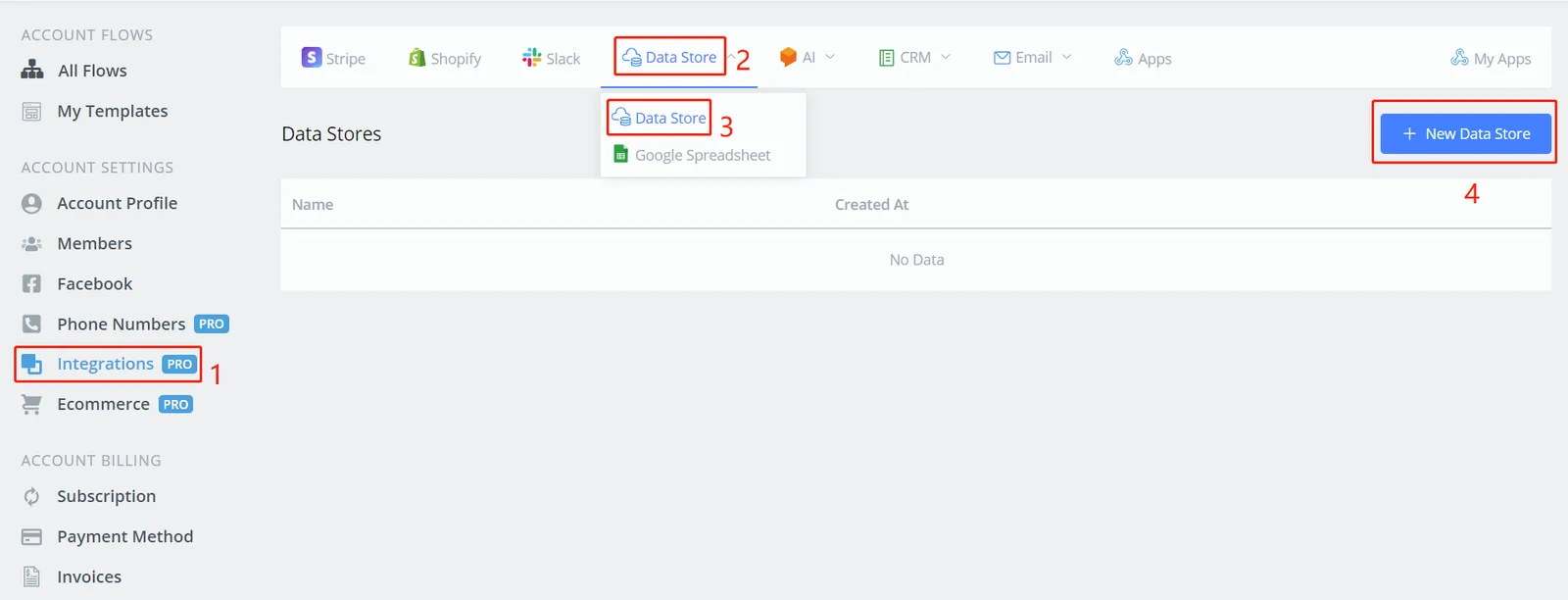
In your dashboard, follow steps 1 to 4 to add a new data store.
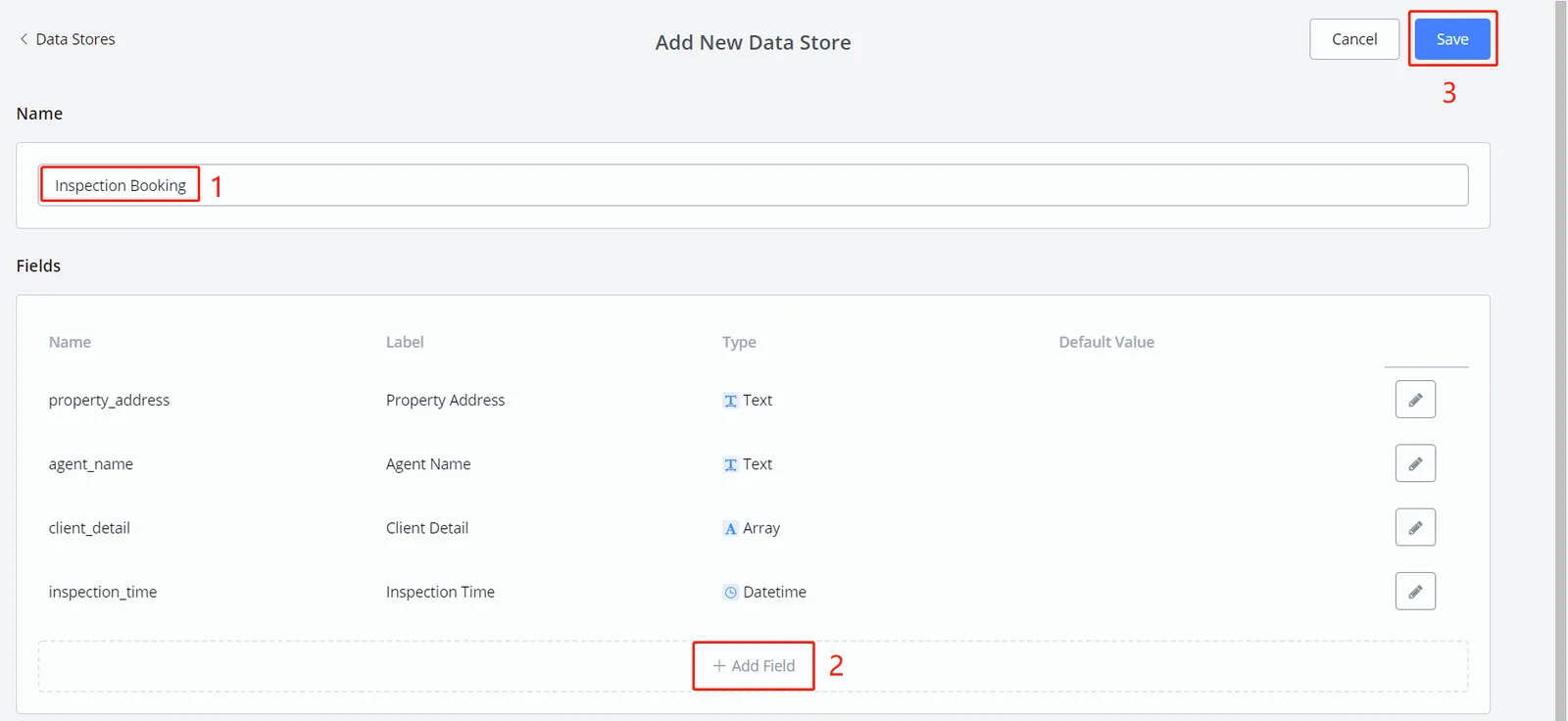
- name the data store
- click "+ Add field"; the following window will appear.
- when you are done, click "Save".
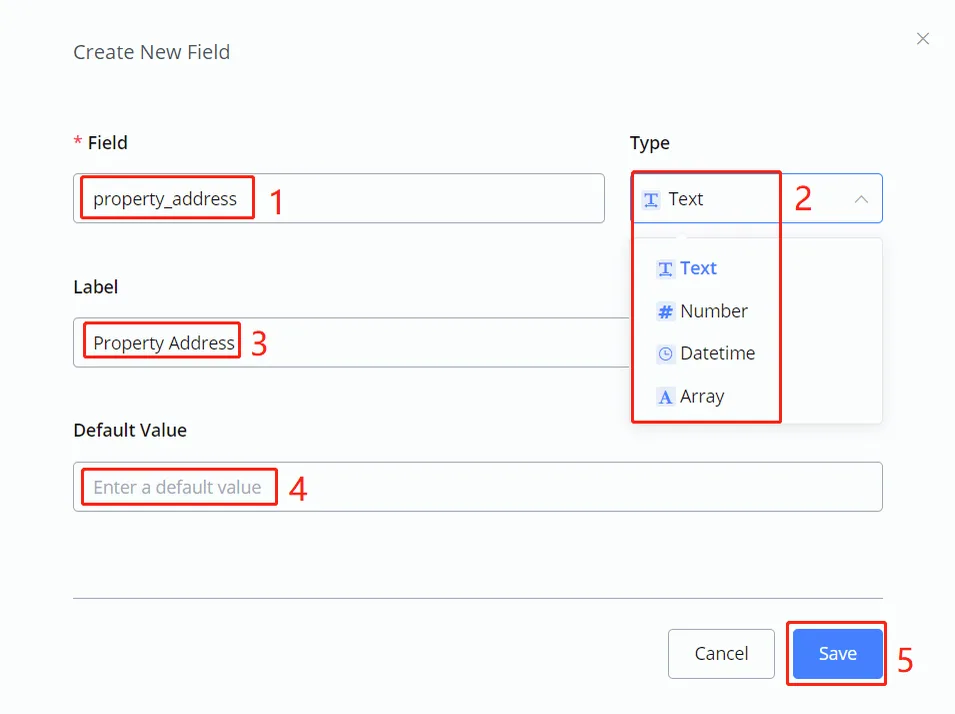
- name the field (used in the system; spaces are not allowed)
- choose a Value Type (an Array can hold several values, like a JSON variable)
- give it a label, if needed (for a clearer display)
- provide a default value, if needed
- when you are done, click "Save"
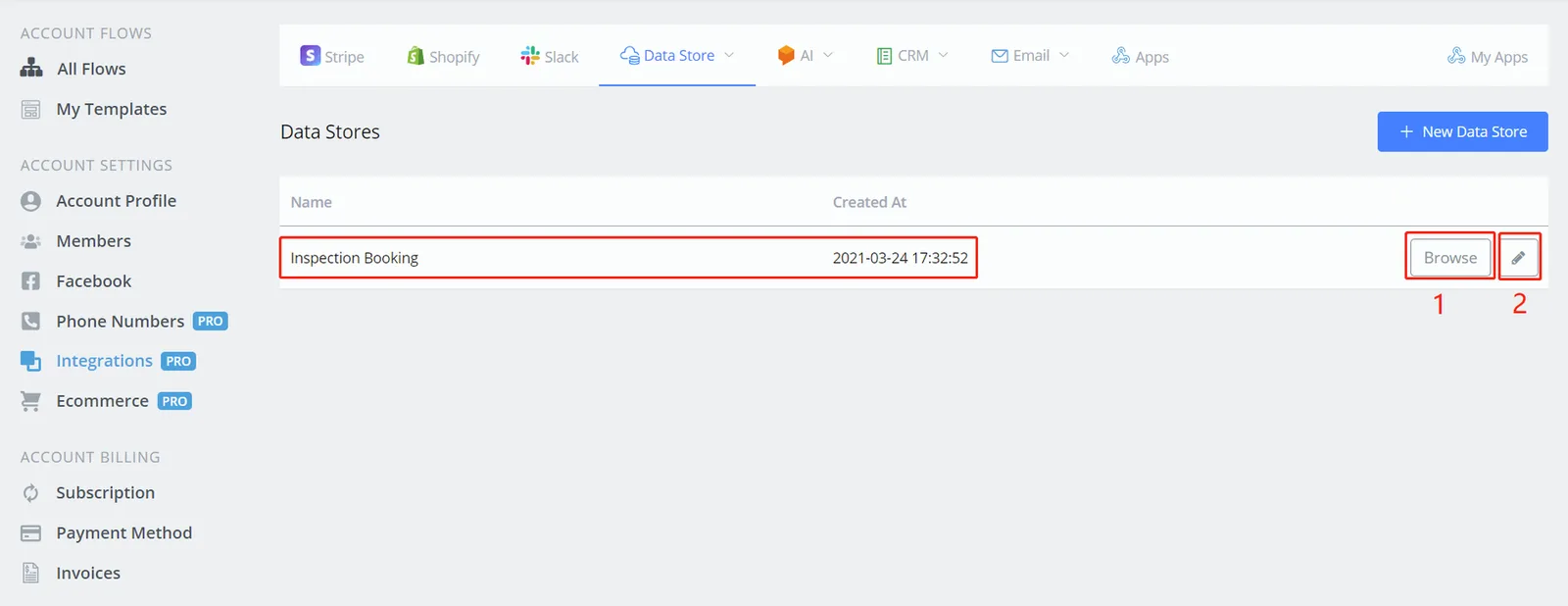
- click "Browse" to view and edit records
- click the pencil icon to edit the Data Store fields
You can add/edit/delete records in the data store in two ways:
- do it manually in the "Browse" window, as in the following image
- use an Action step and the flow automates the process
Note
When you add a new record, the system automatically assigns it a unique "Record Id". You can access this value through the field name "_id".
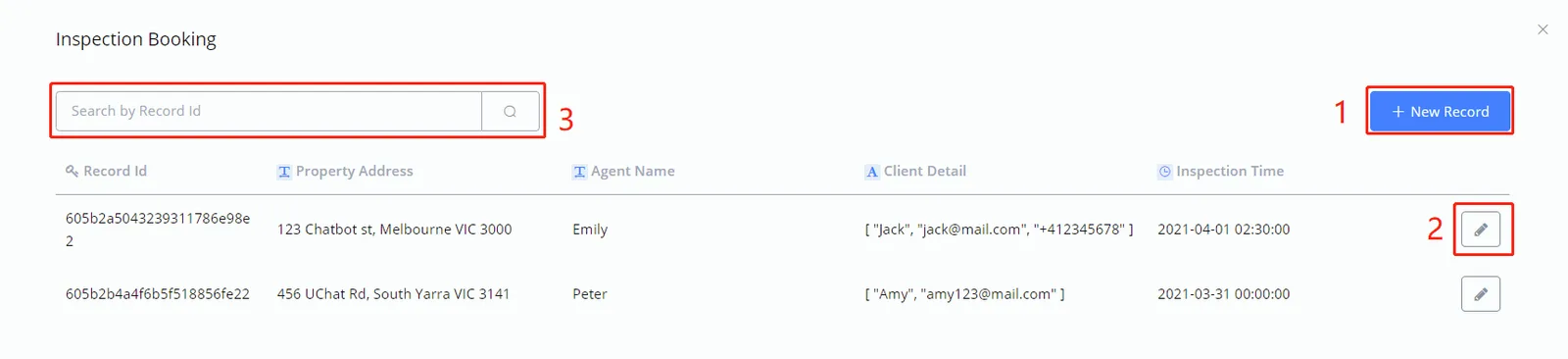
- add new records, as shown in the image below
- edit/delete records
- search records
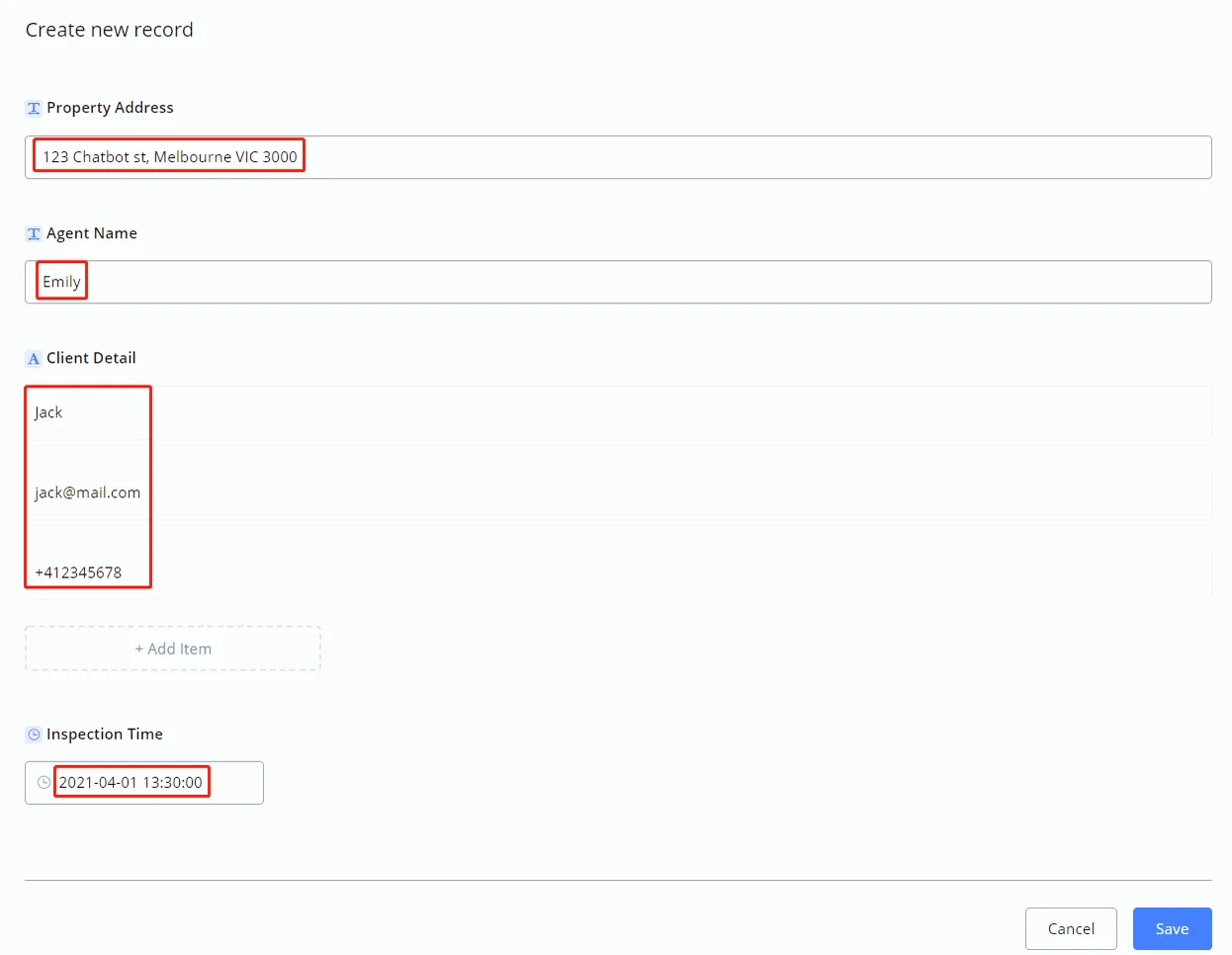
A new record requires values for the fields defined in the data store (the value can be left blank). In the edit window there is a "Delete" button; the rest is the same as shown above.
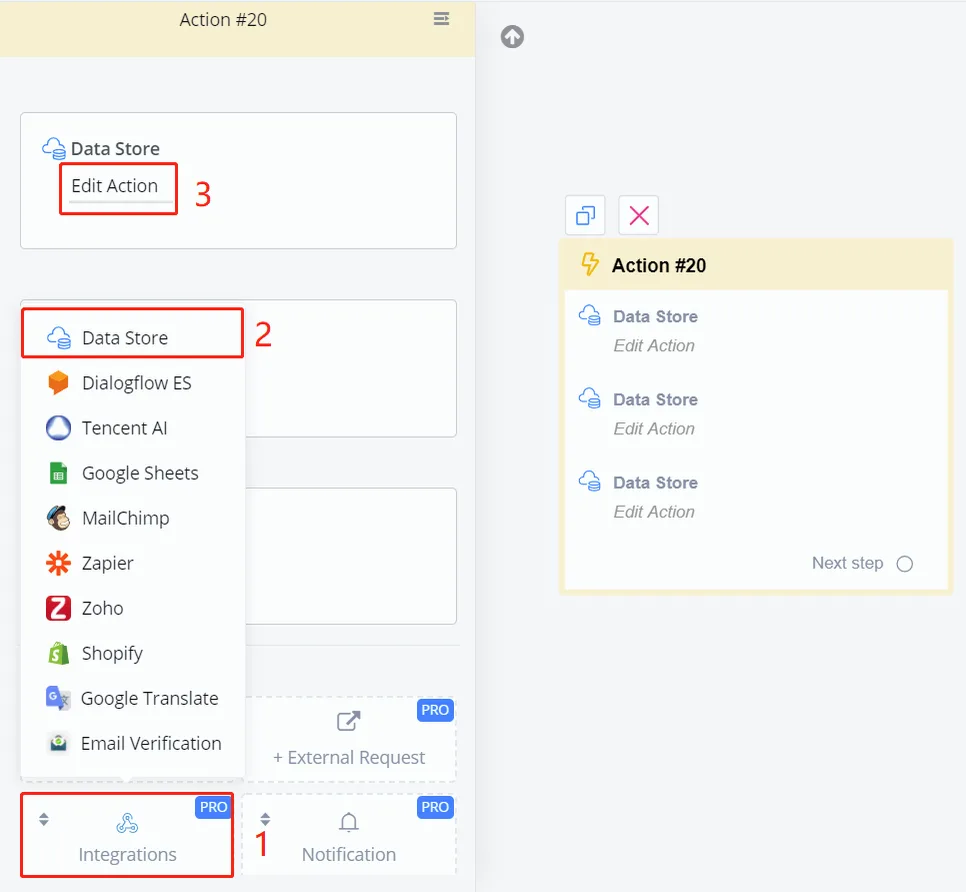
In an Action step, follow steps 1 to 3 of the image above. Then you will see a list of functions.
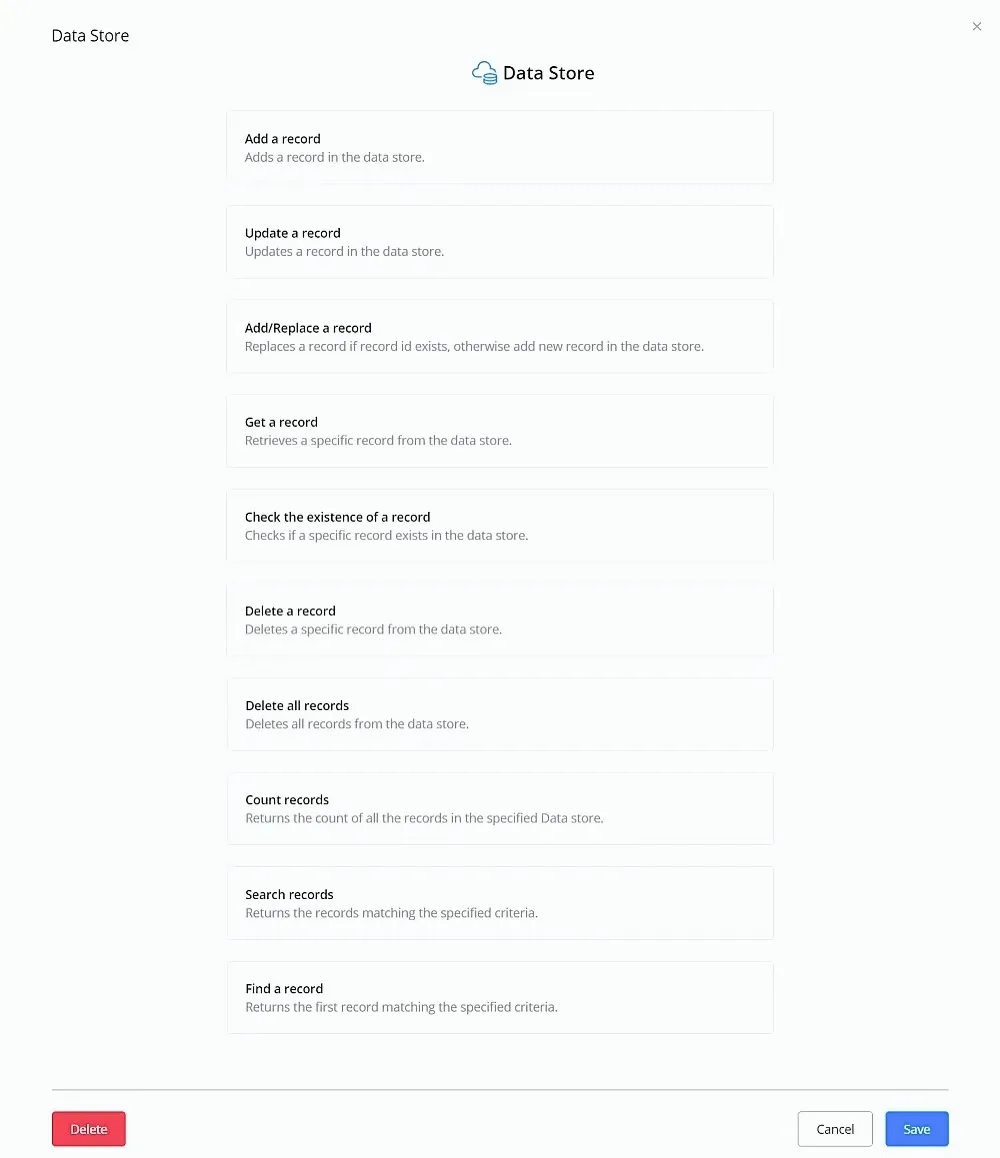
Note
TIP: the functions work through API calls. This means that, by providing some inputs, you get the outputs from the data store. The outputs are saved in custom fields for future use.
Attention
WARNING - You may need to know how to build flows and use variables before reading the functions below. See the links below for guidance.