

WhatsApp Flows (Forms)
WhatsApp Flows is a feature currently under development that lets you create automated chat sequences specifically for WhatsApp interactions. These flows guide users through predefined steps, improve response efficiency, and enhance customer engagement.

WhatsApp Flows is a feature currently under development that allows you to create automated chat sequences specifically for WhatsApp interactions. These flows guide users through predefined steps, improve response efficiency, and enhance customer engagement.
- Navigate to the "Chatbot" section in your NicoChat workspace.
- Select "Content" from the available options.
- Under "Content", locate and click "WhatsApp Flow".
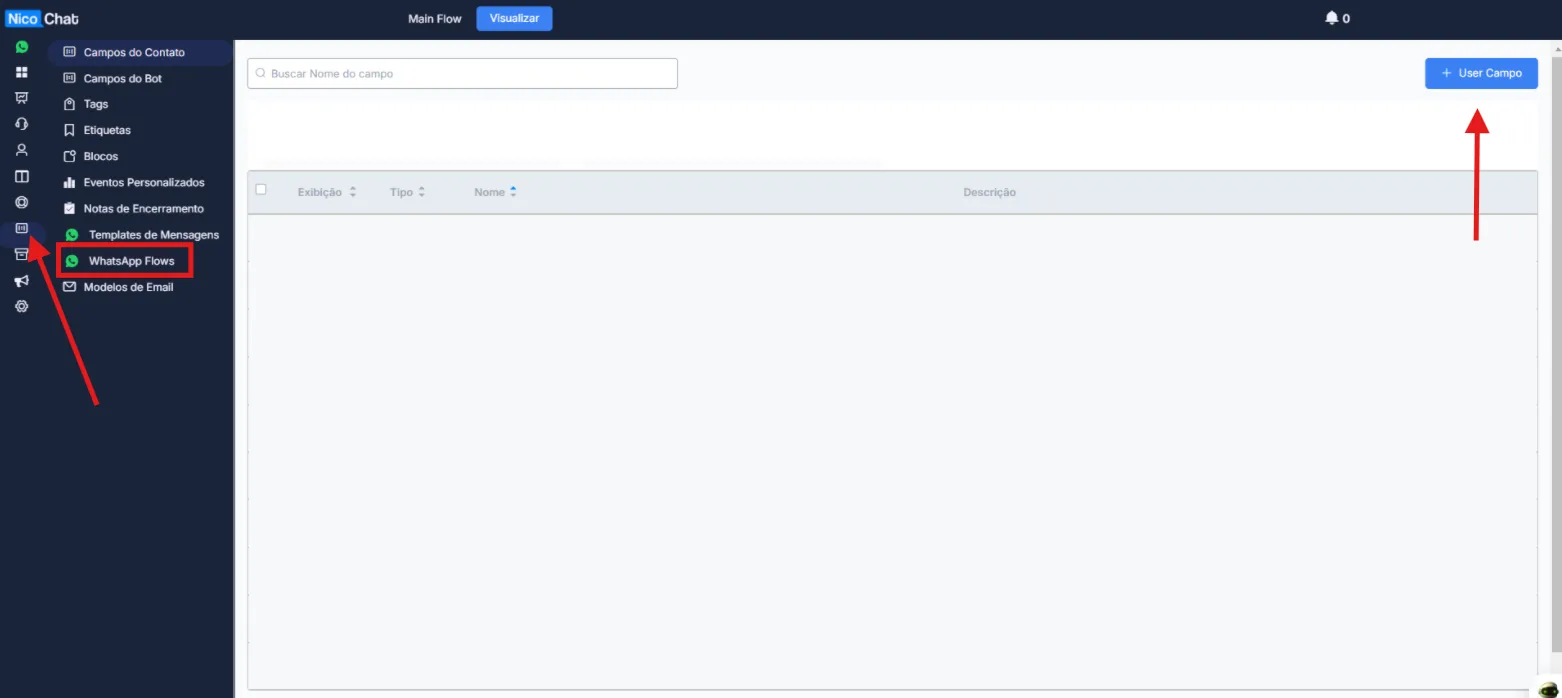
- Click "Create Flow" to start the creation process.
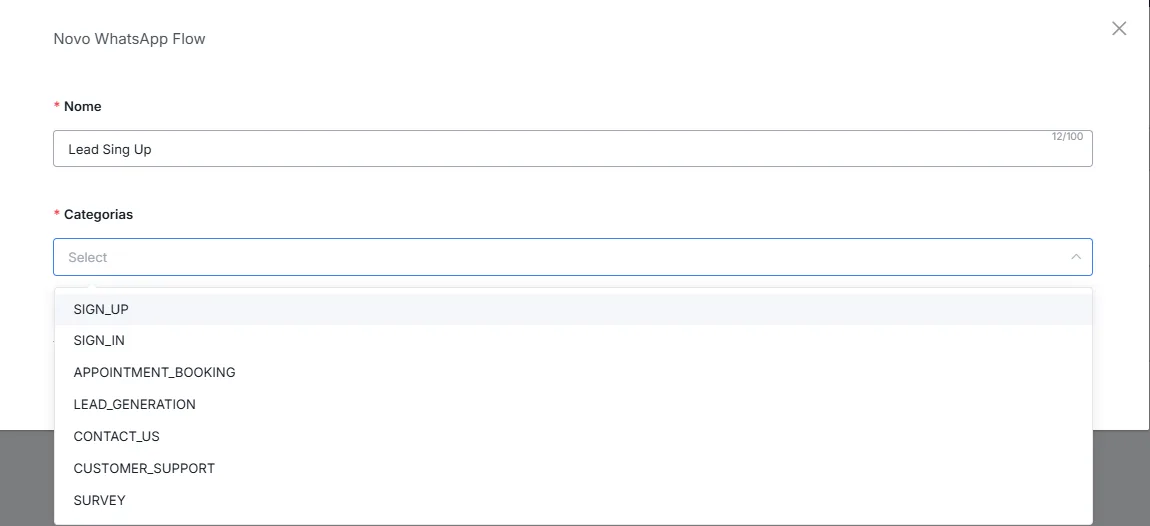
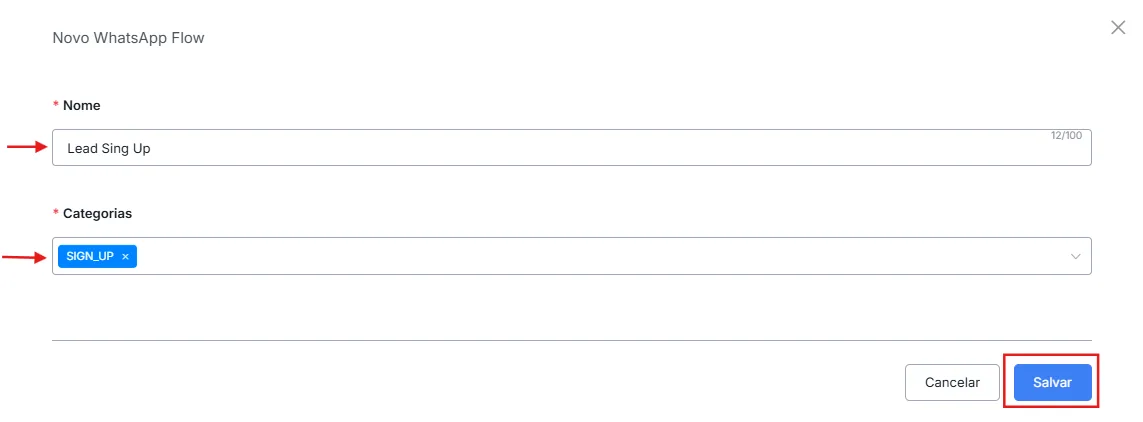
- Give your flow a name (for example, "Lead Signup").
- Choose the category that best describes the purpose of the flow (for example, "Lead Generation").
- Click "Create" to confirm and proceed.
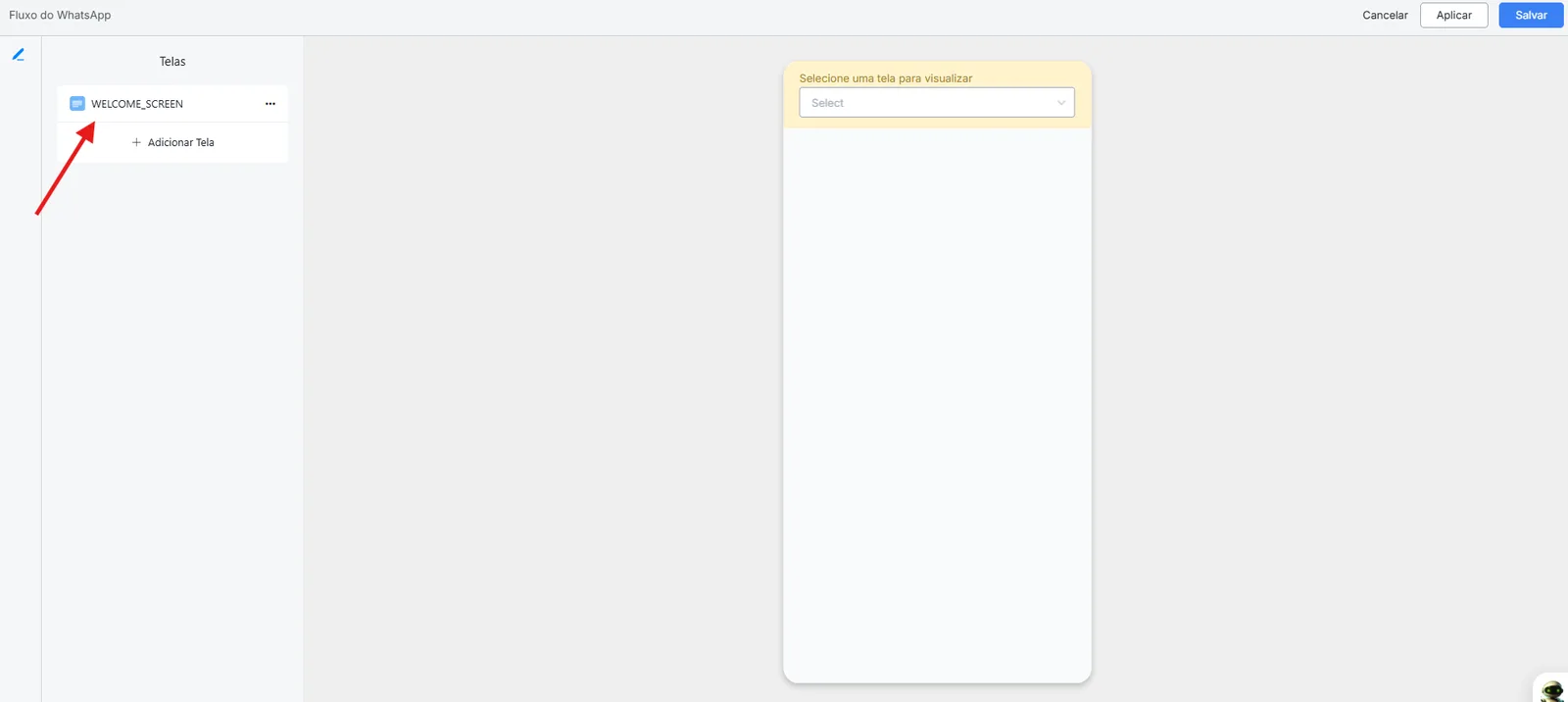
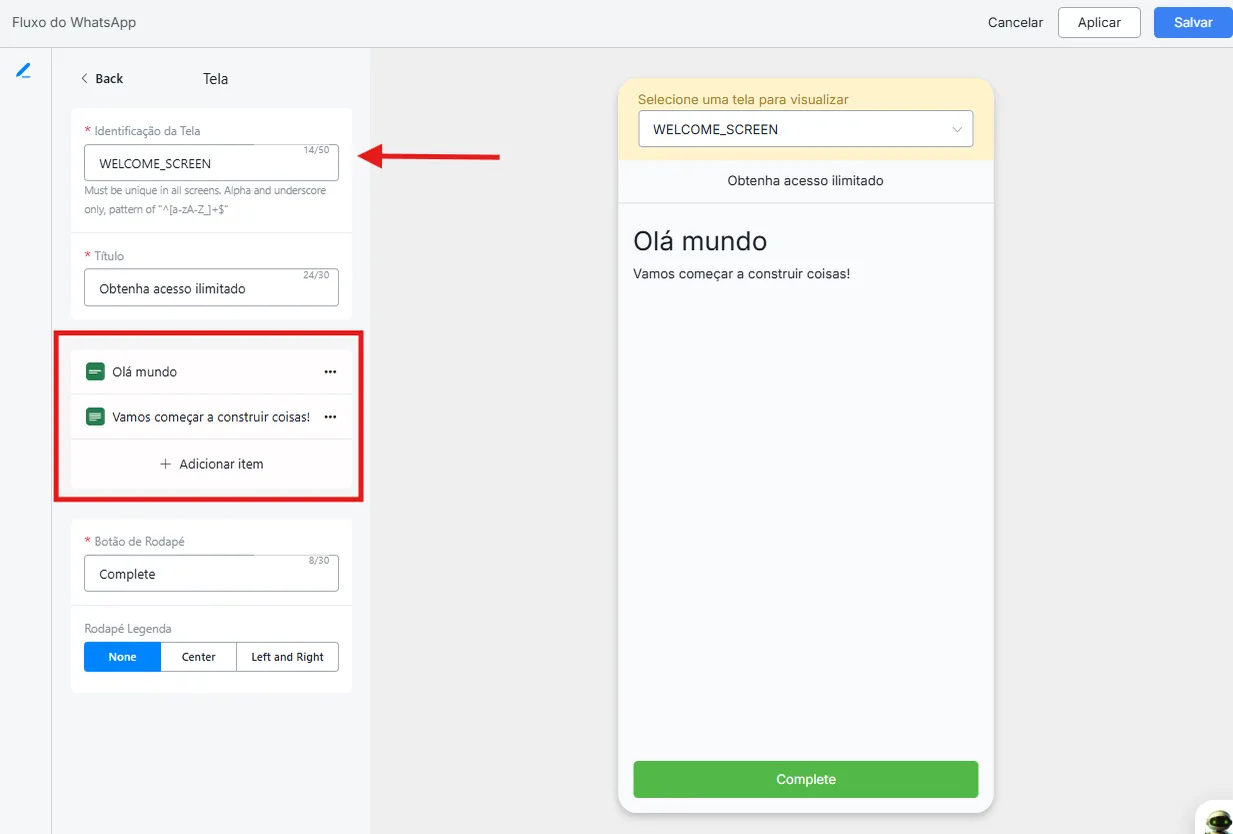
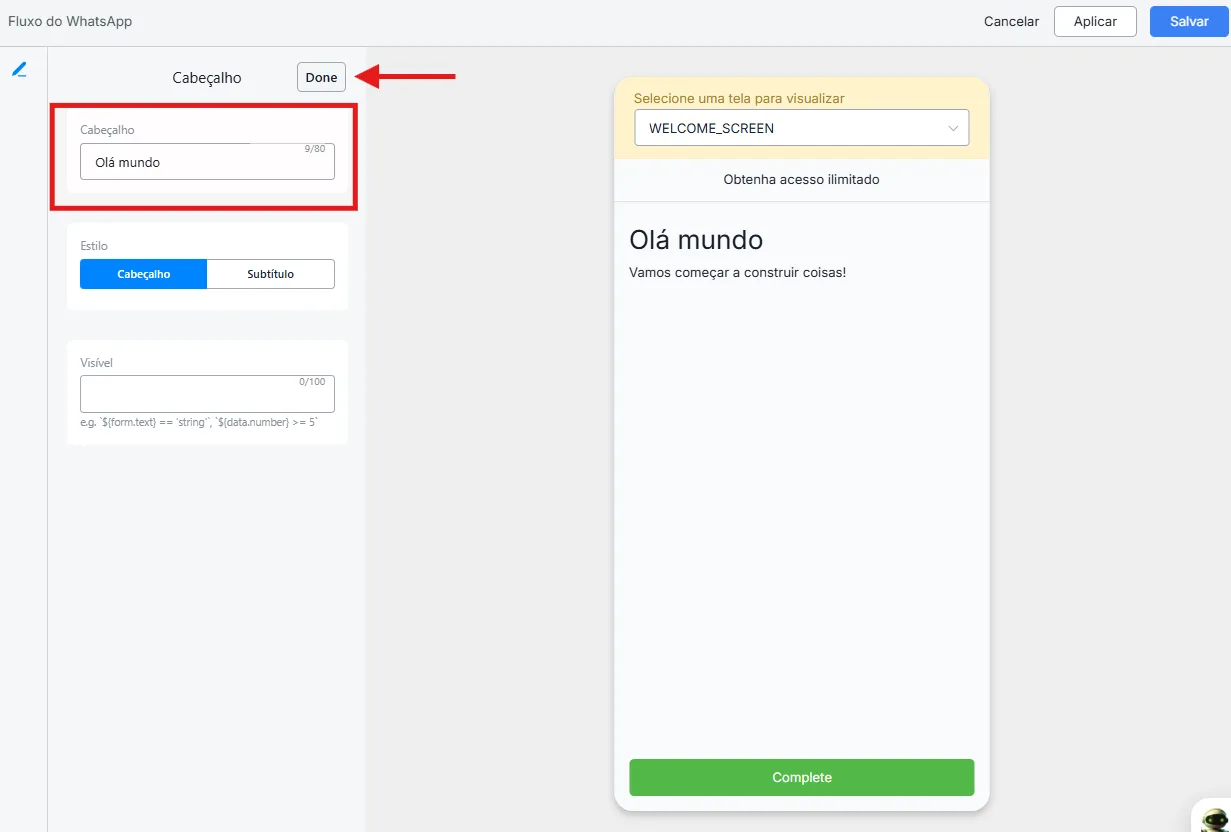
- Welcome screen: edit the text, the heading, and the content displayed on the initial screen that greets users.
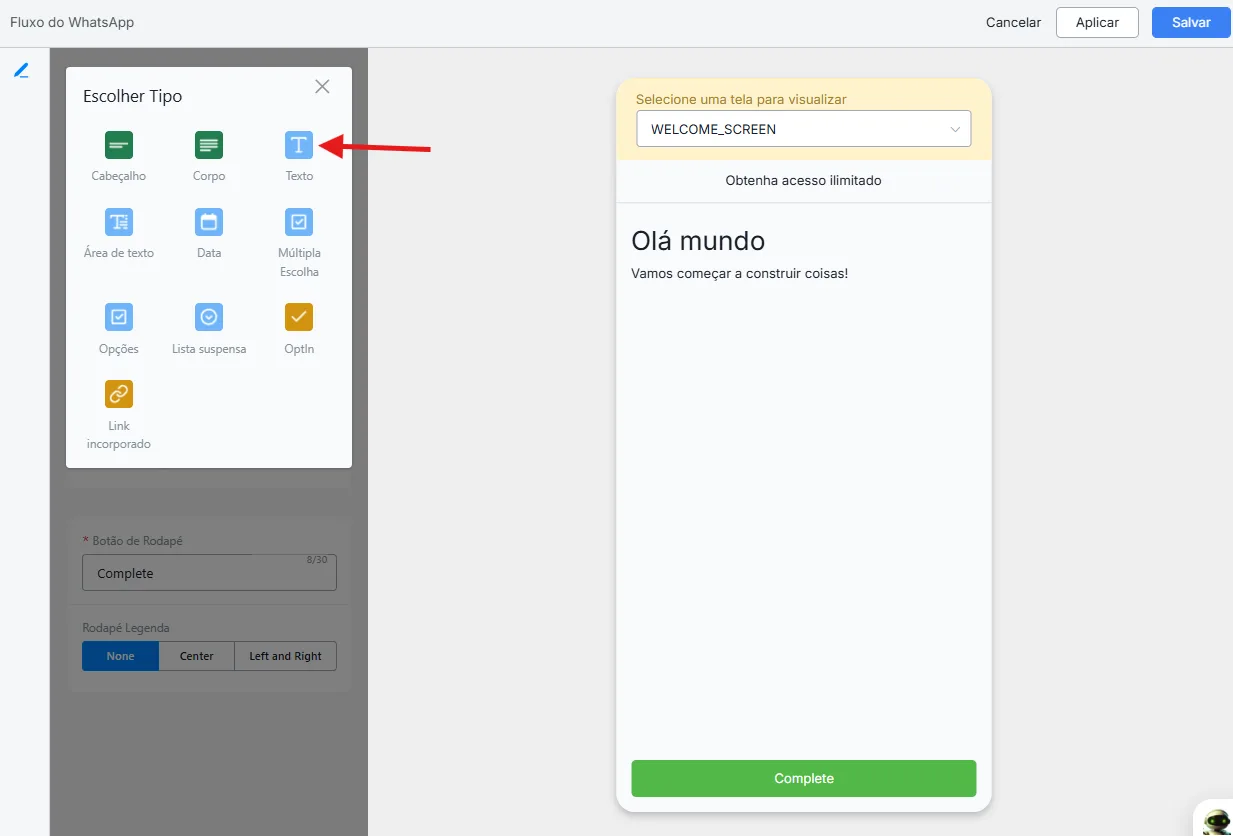
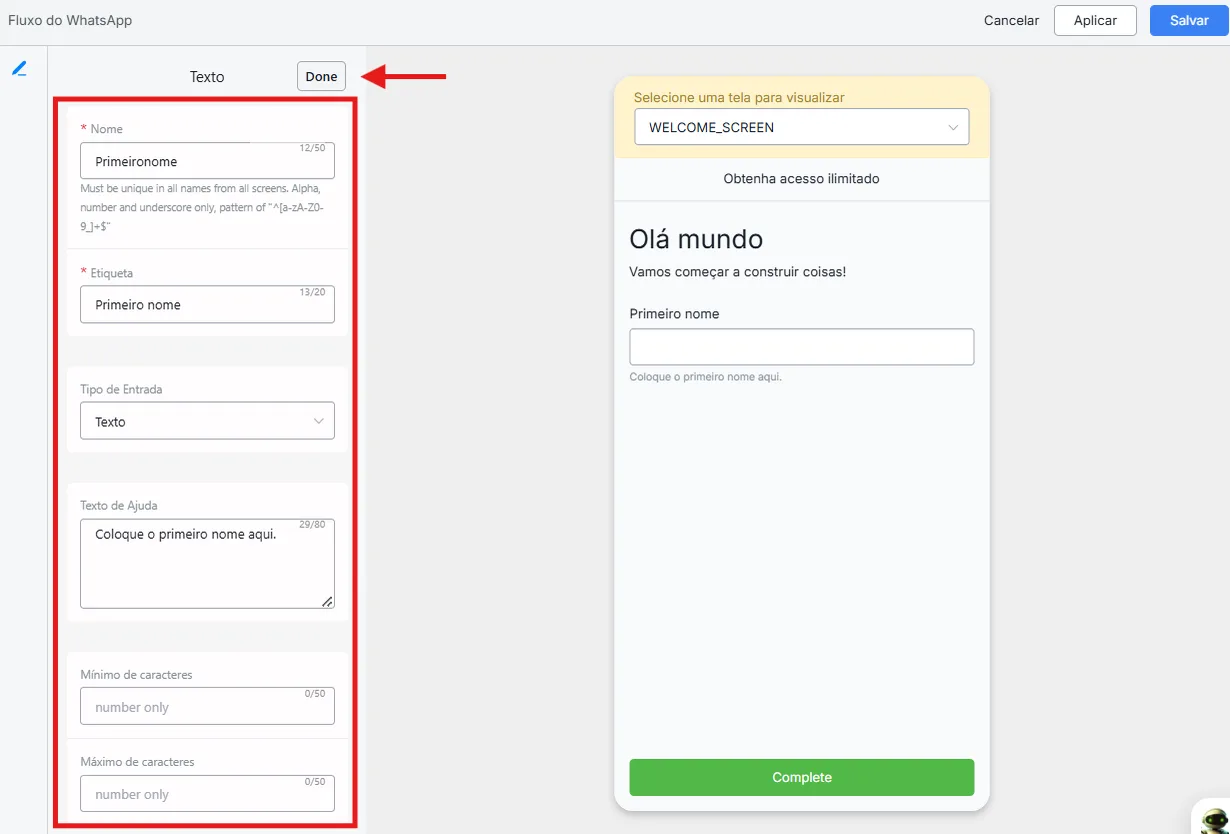
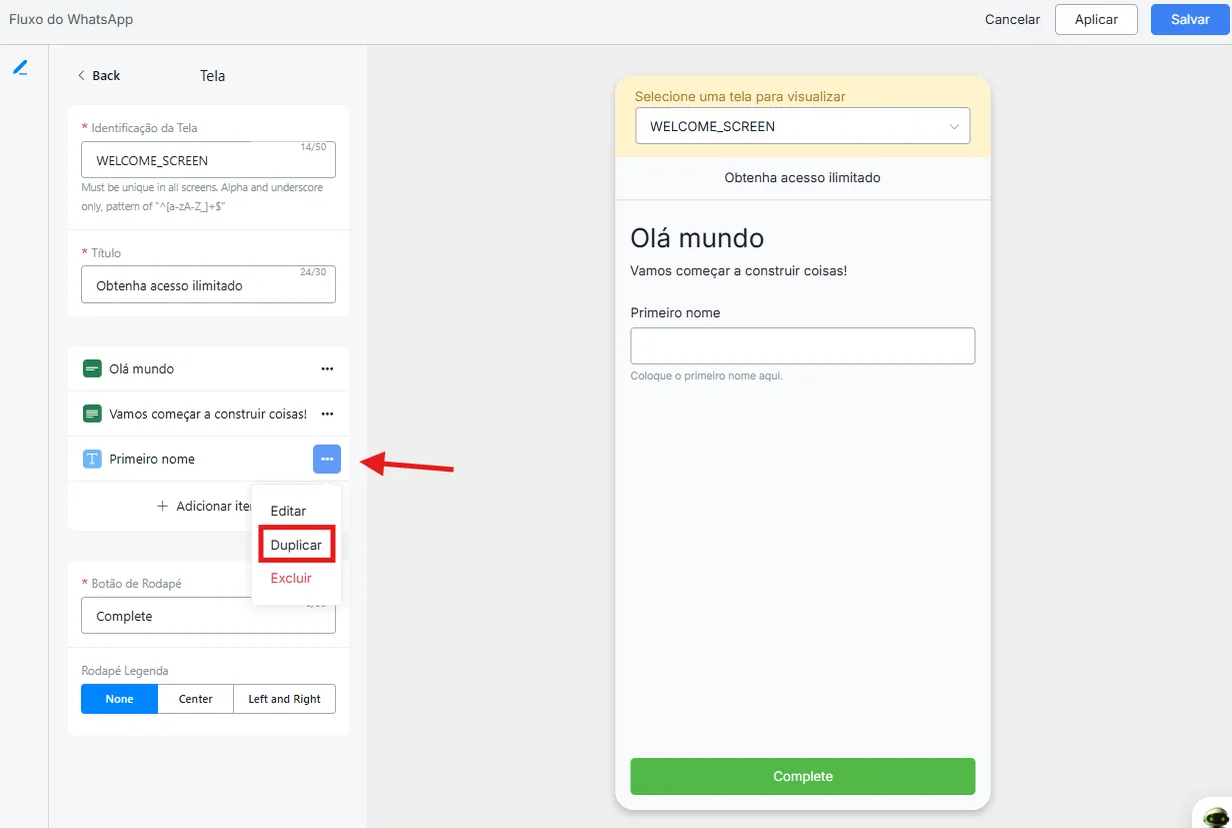
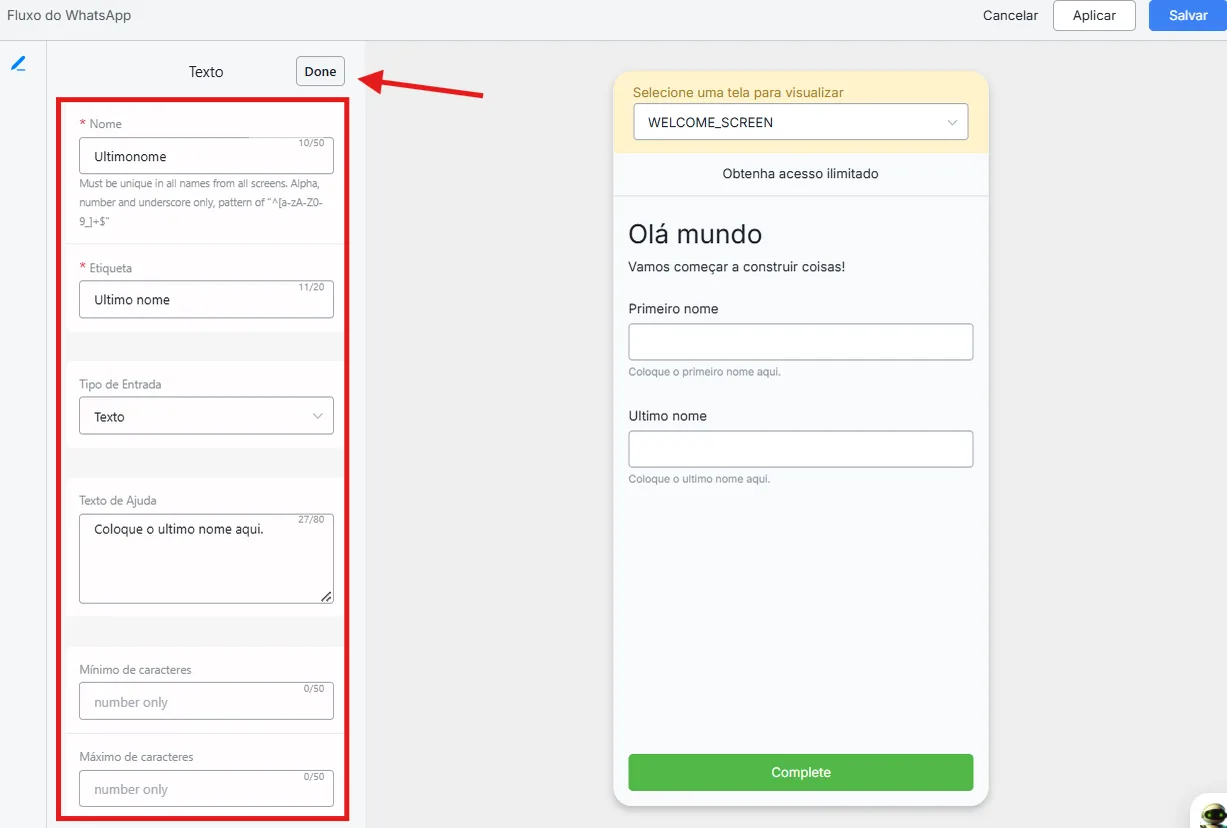
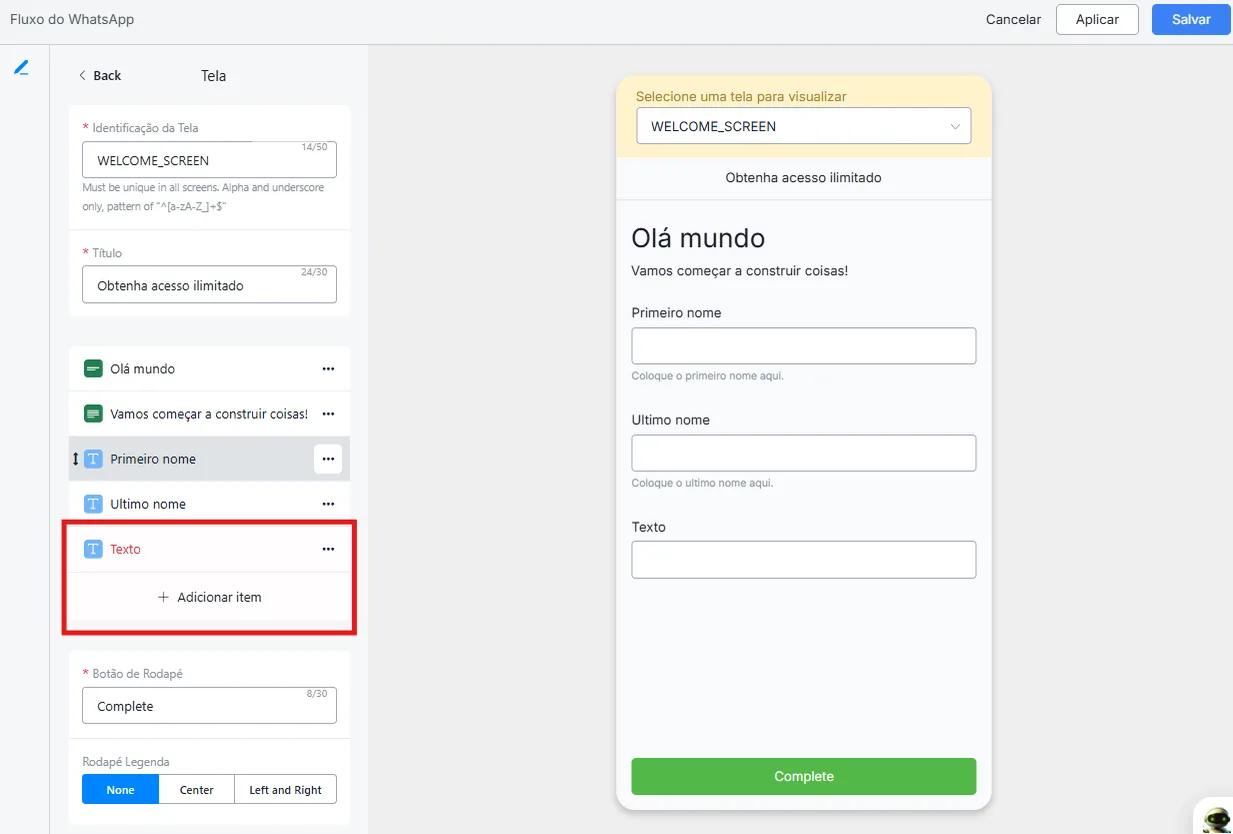
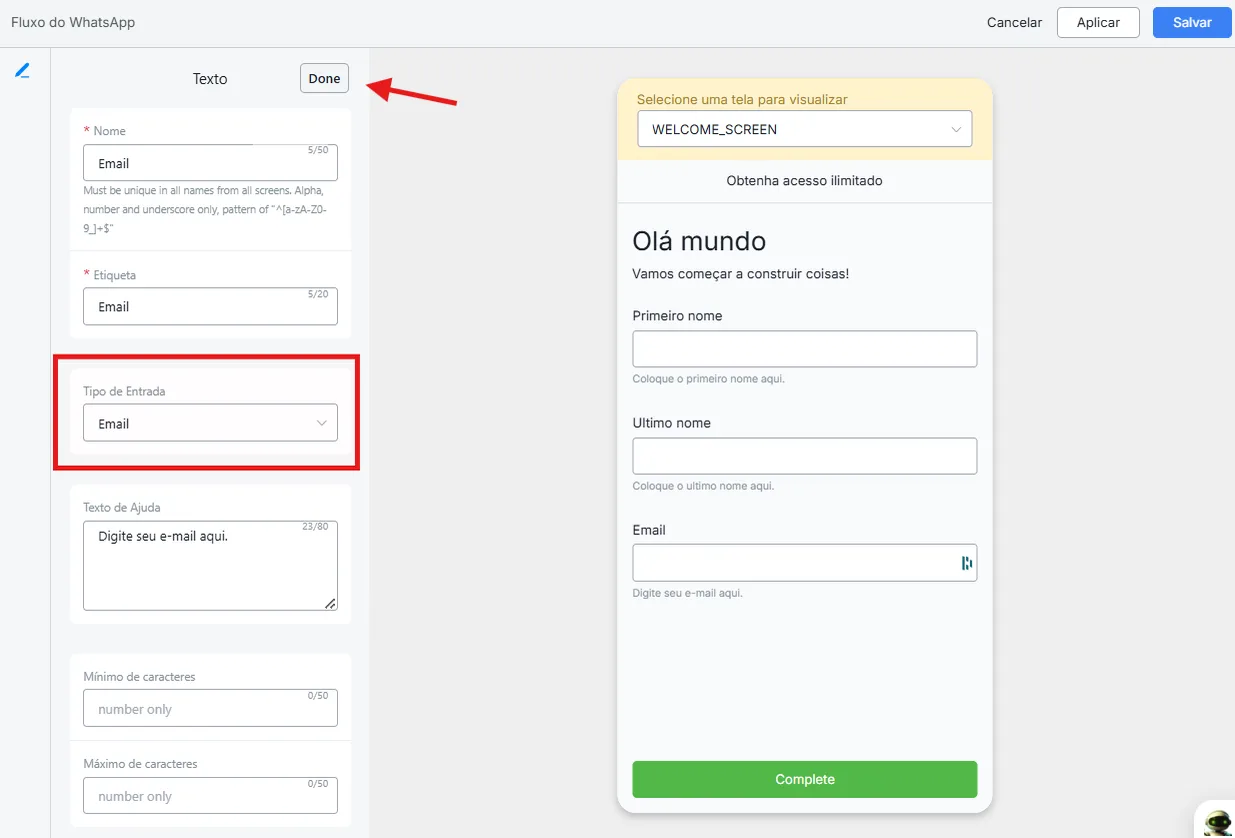
- Add interactive elements: use the editor to include interactive elements such as text capture fields (name, email, etc.), with the desired input types (text, number, etc.) and optional requirements.
- Building a multi-screen flow: build a flow with several screens, adding new screens and guiding users through a sequence of interactions.

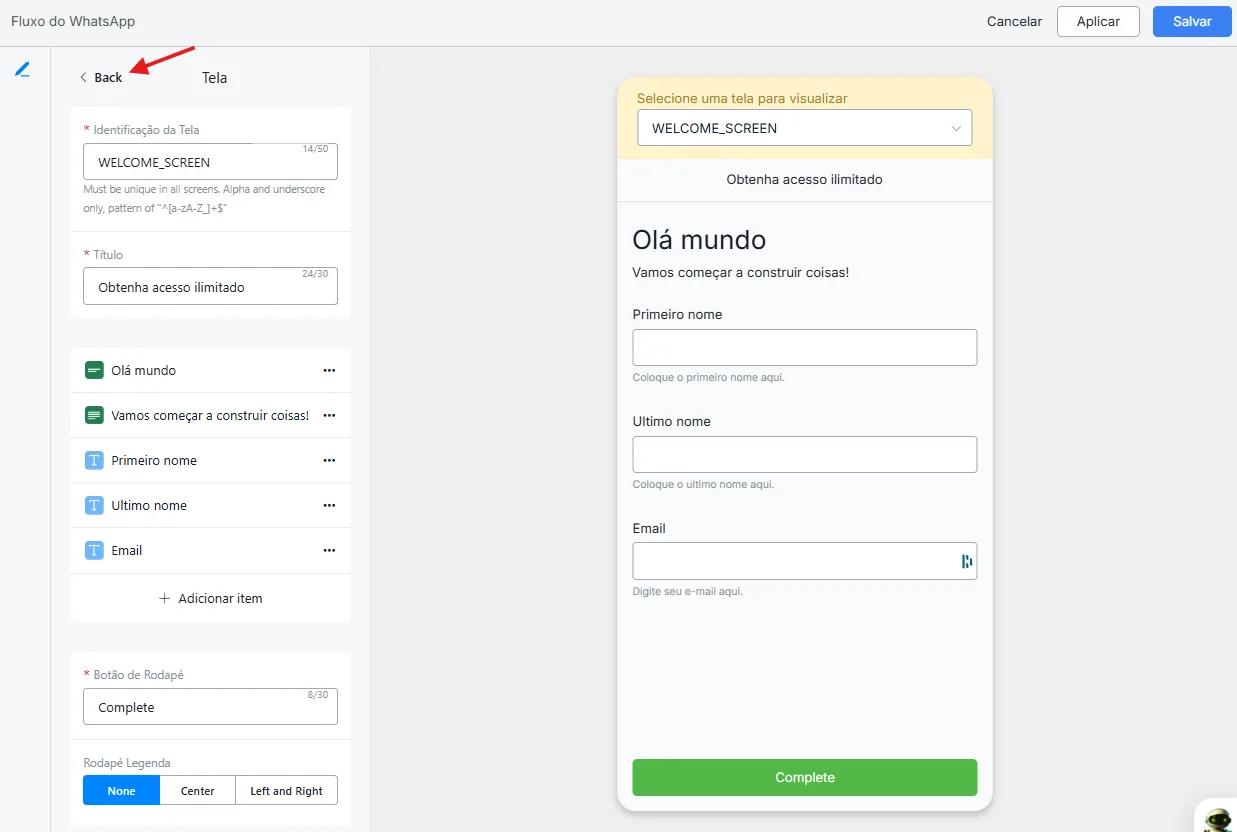
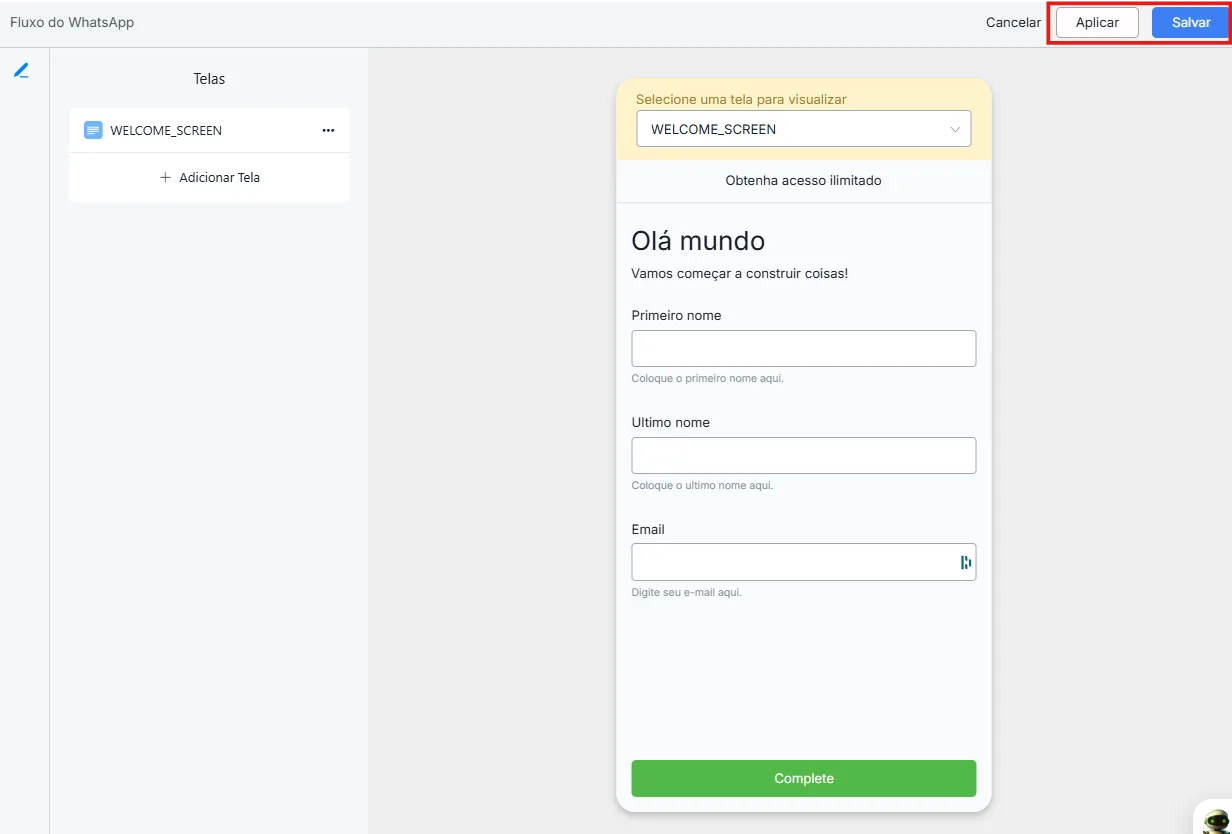
You can now update the screens of your published WhatsApp flows directly from the dashboard!
With the new "Edit Screens" option, making changes is easier than ever: there is no need to unpublish or interrupt the flows that are already live.
This way you stay agile and make real-time improvements effortlessly.
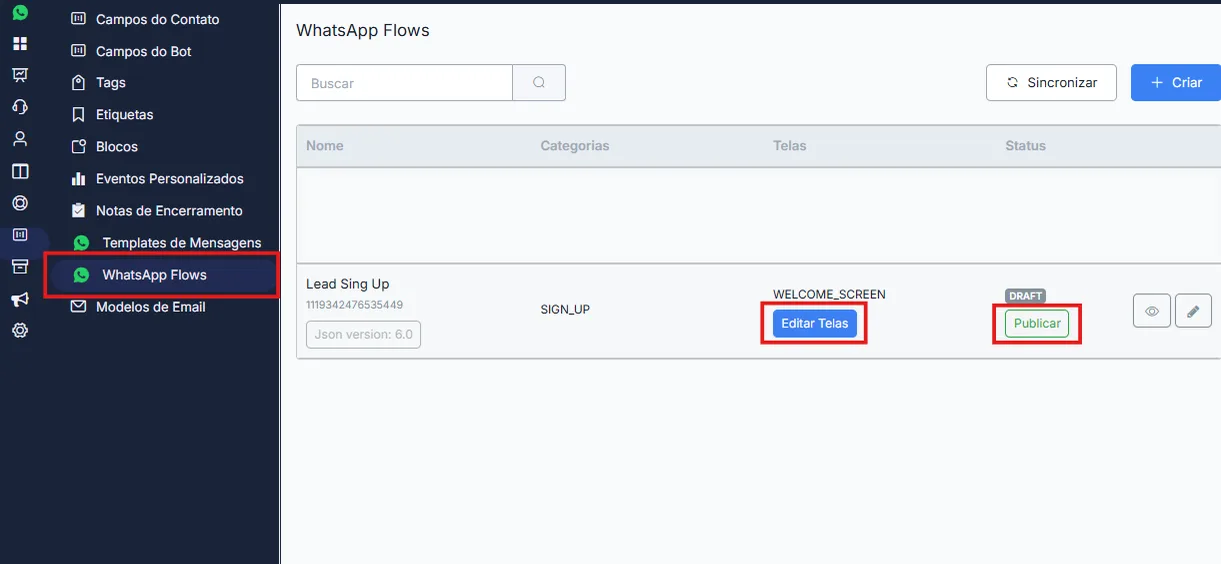
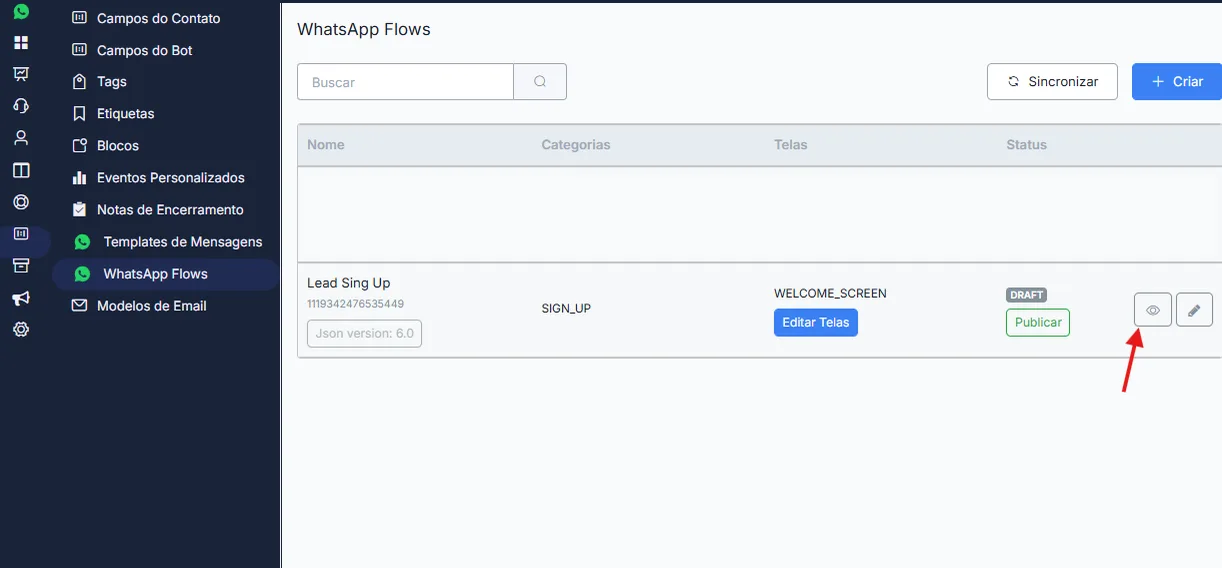
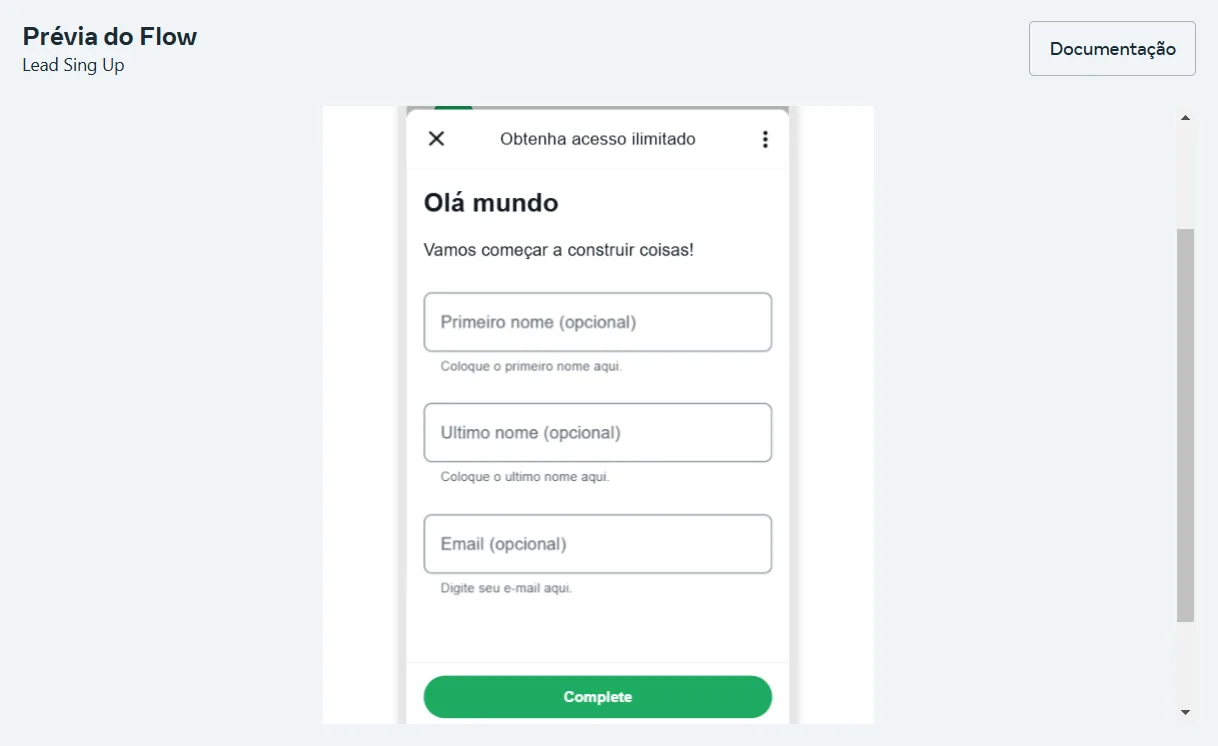
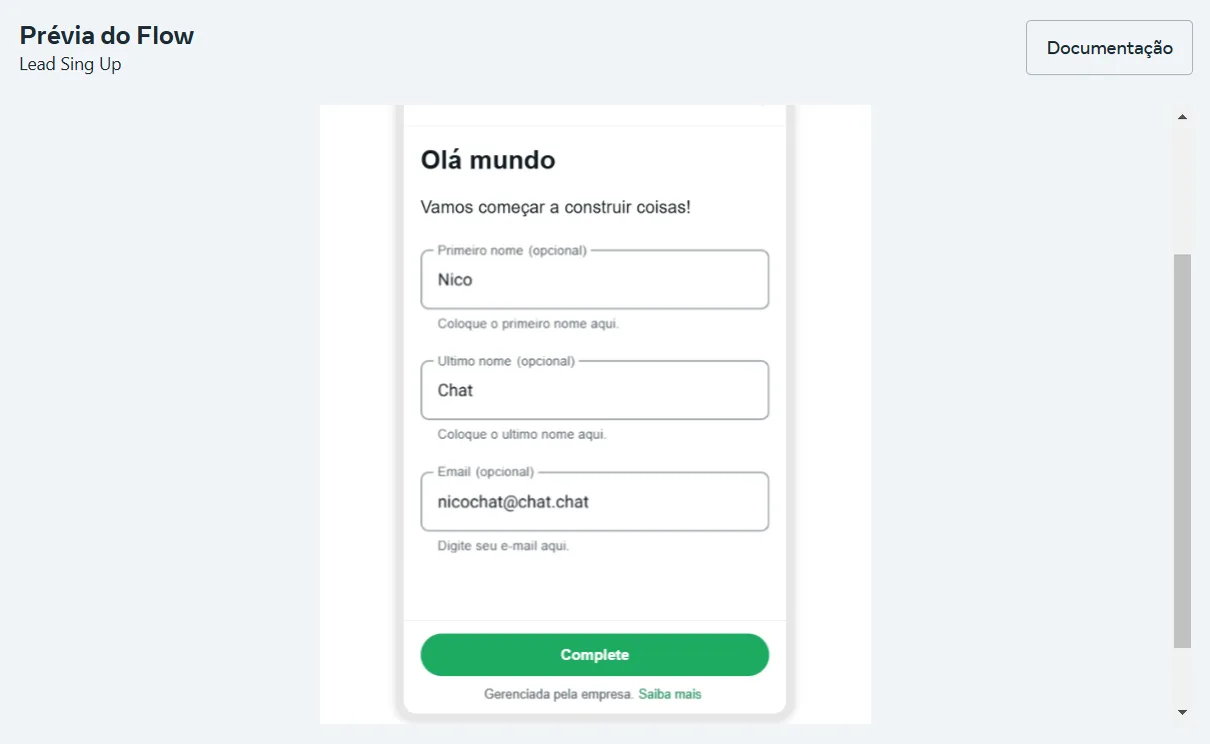
- Flow preview: use the eye icon to see how your flow looks and works from the user's perspective.
- Testing the flow: run a test interaction with the flow to make sure it works as expected.
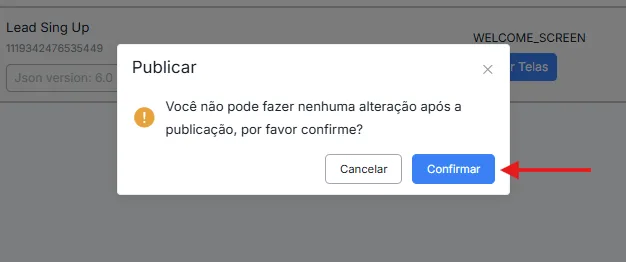
- Publishing the flow: click "Publish" and then "Confirm".
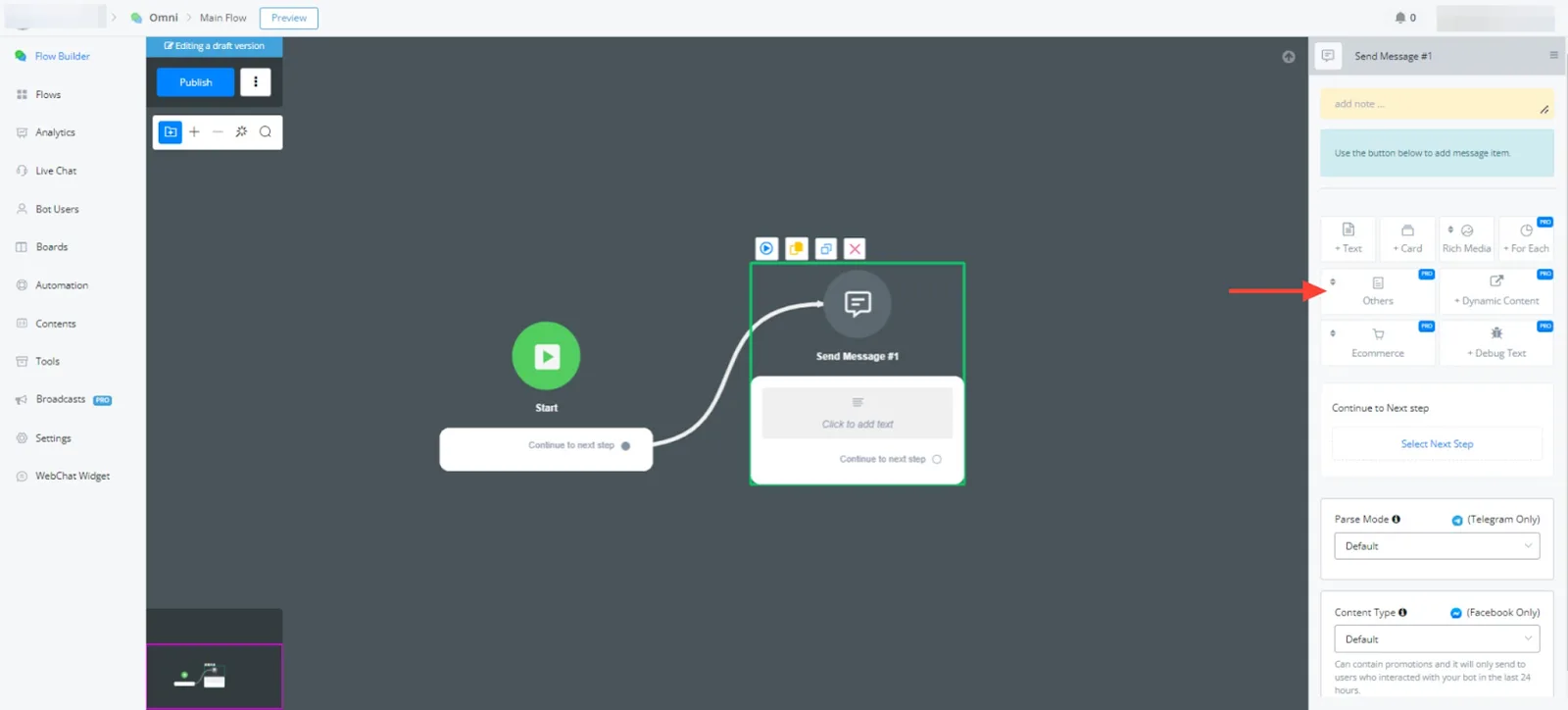
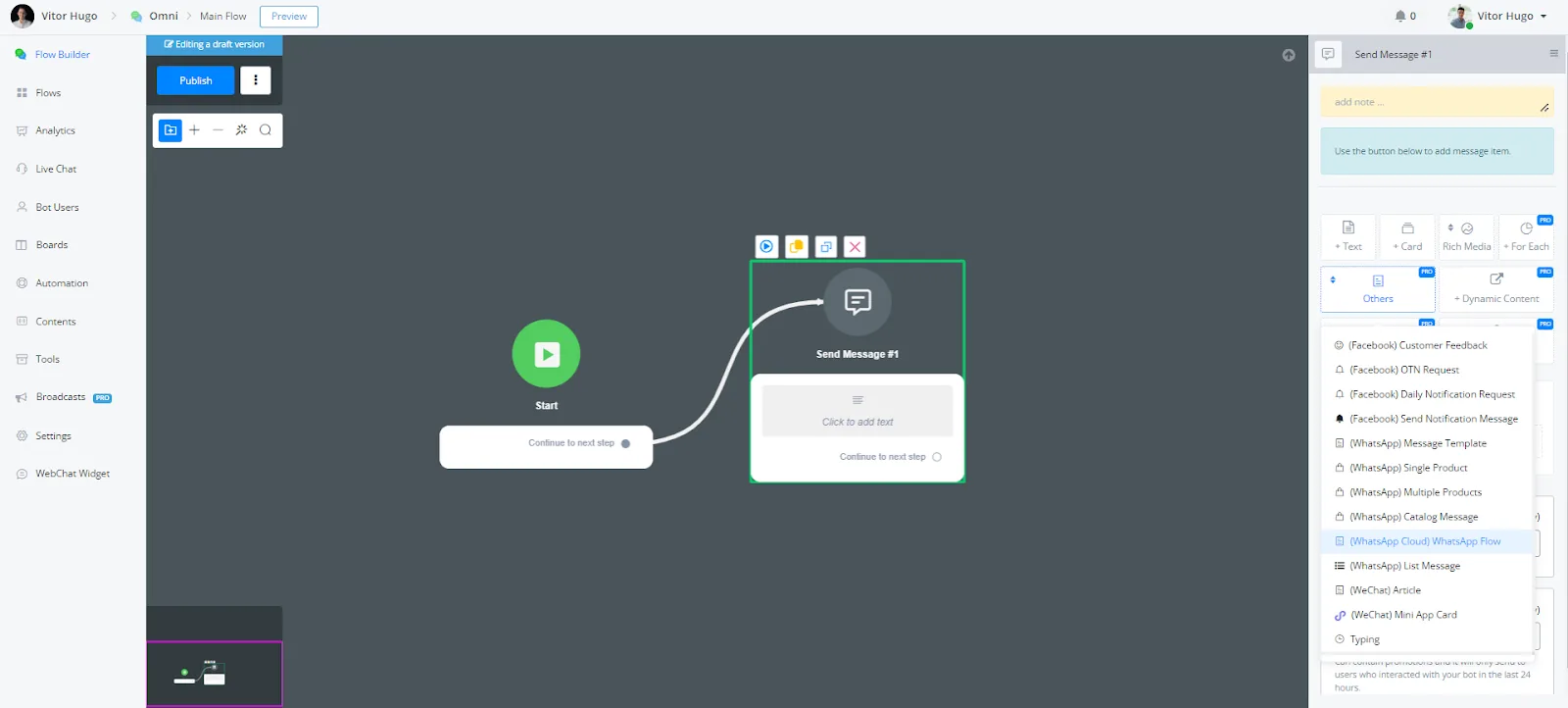
- In the Flow Builder, select "Text Note" in the "Omni-Channel" section.
- Choose "WhatsApp API" and then "WhatsApp Flows" from the available options.
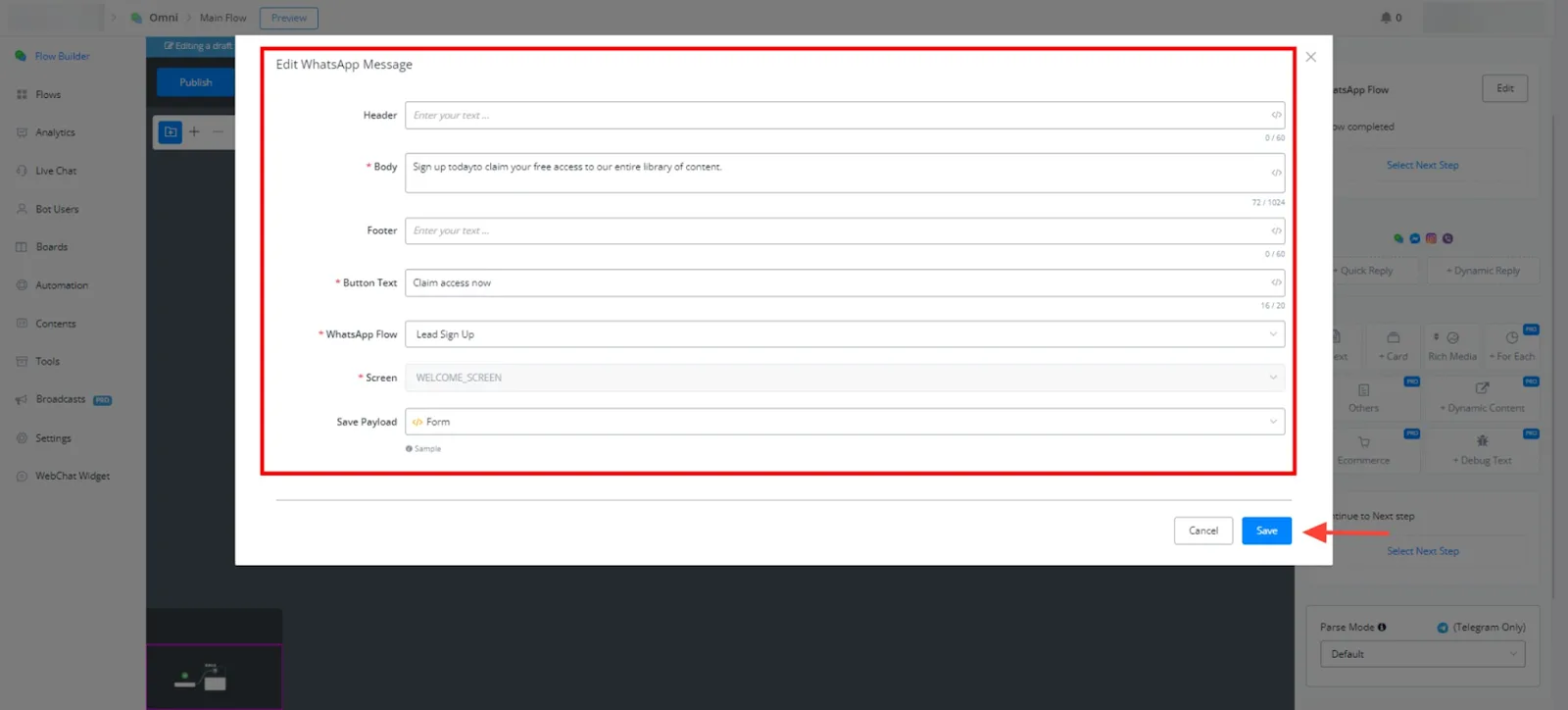
- Edit the content of the message displayed after the WhatsApp flow is completed (for example, "Sign up today").
- Select the desired call to action text (for example, "Claim Access Now").
- Associate the WhatsApp flow you created ("Lead Signup", in this example) with this step.
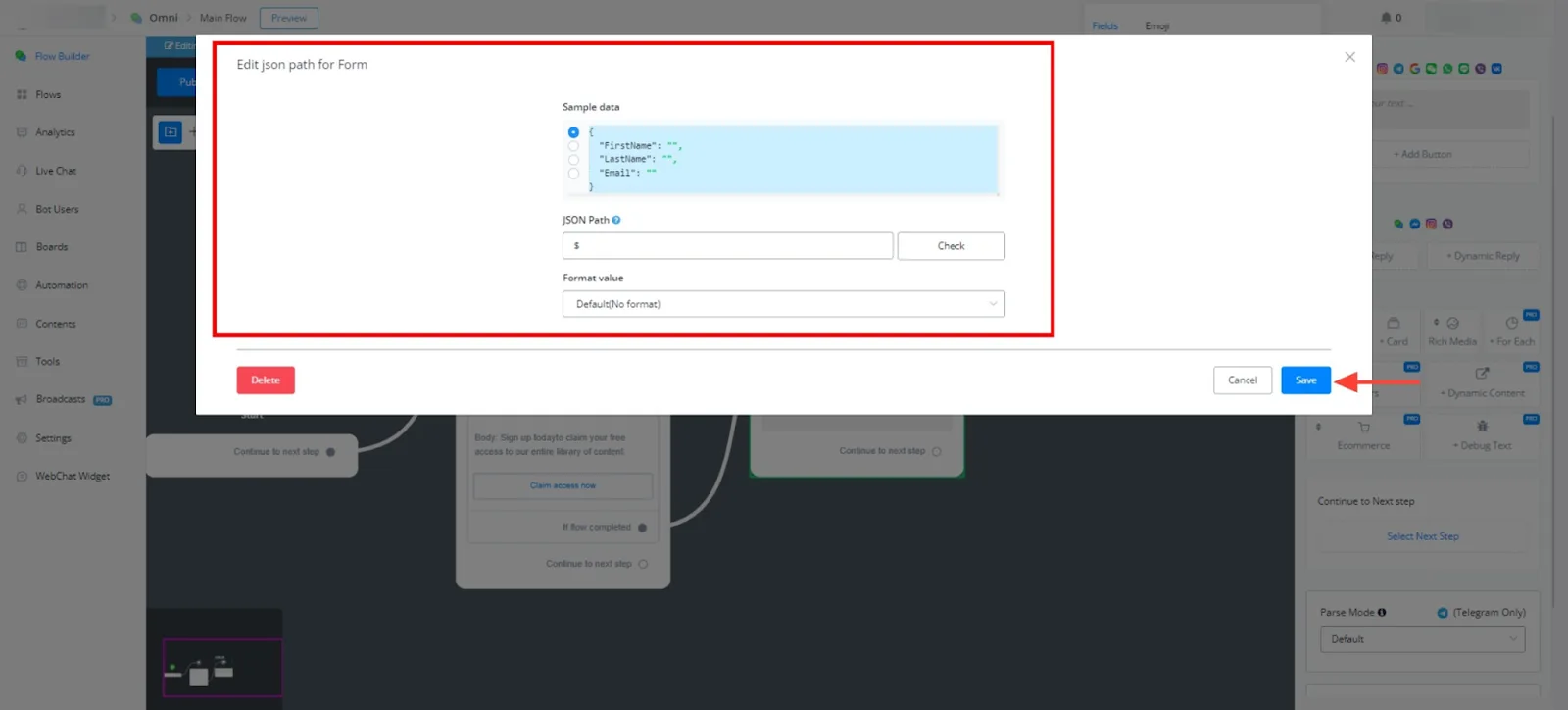
- (Optional) Configure payload saving to a JSON field named "data", to capture the user information collected during the flow.
.webp)
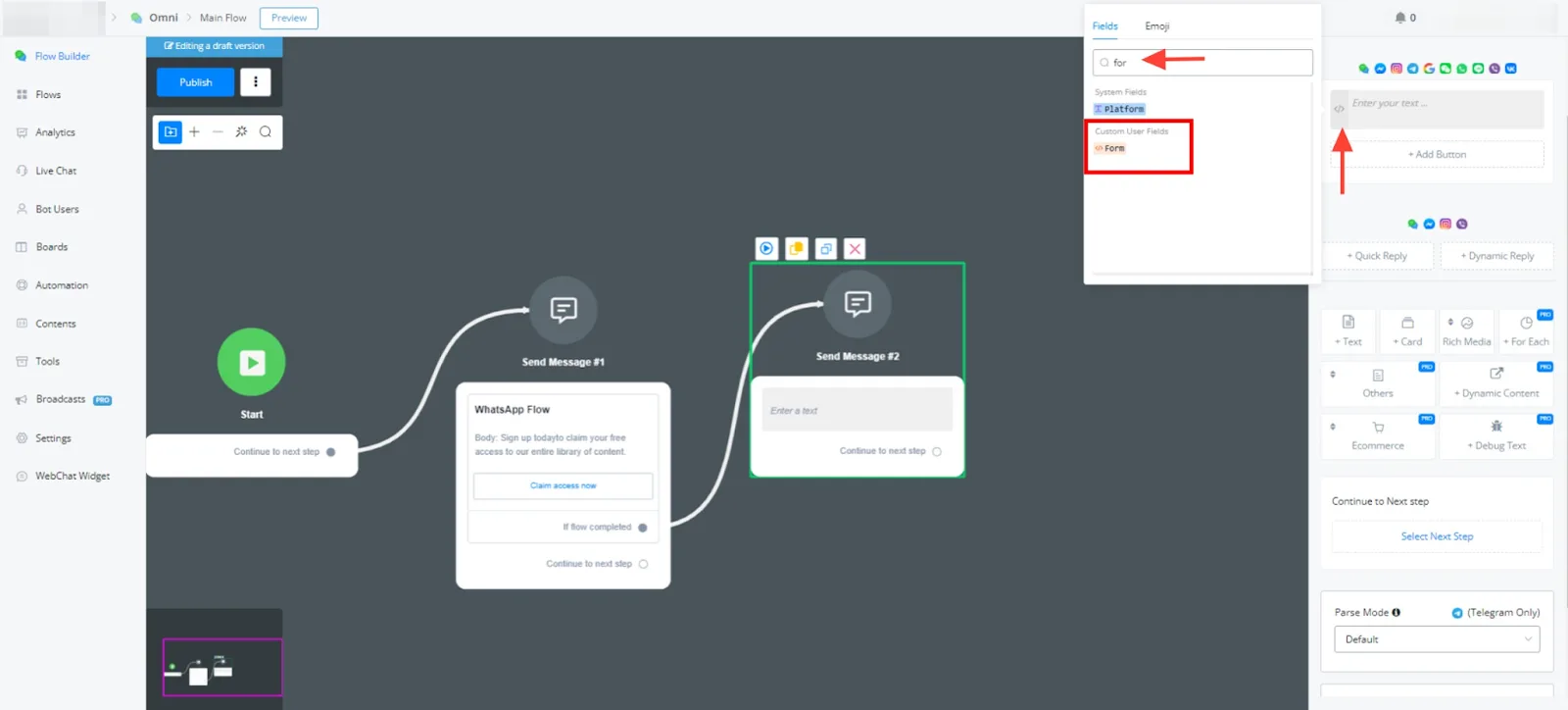
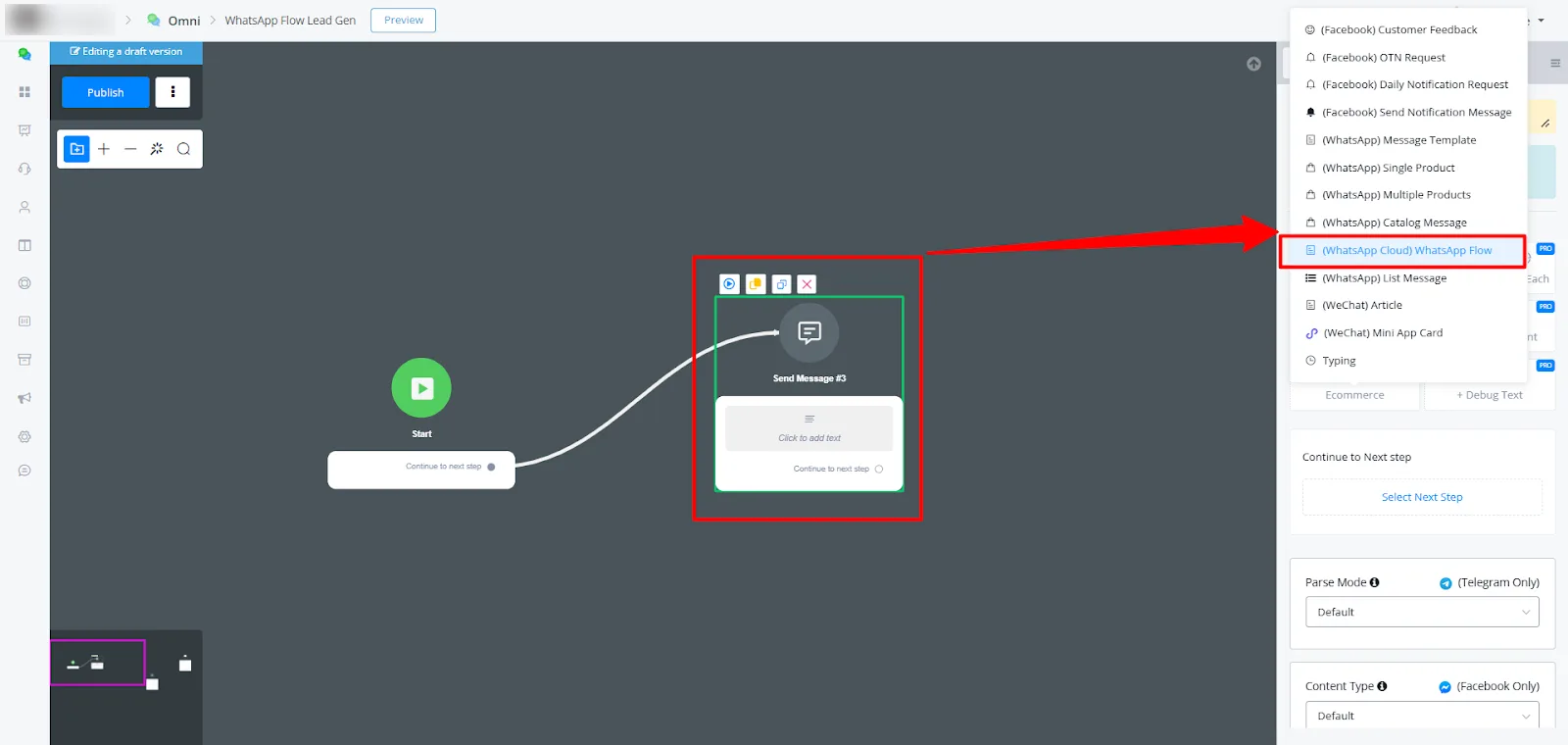
You can now populate sign-up forms with custom user fields directly in the Flow Builder. This allows a more dynamic and personalized experience for the user. Follow these steps:
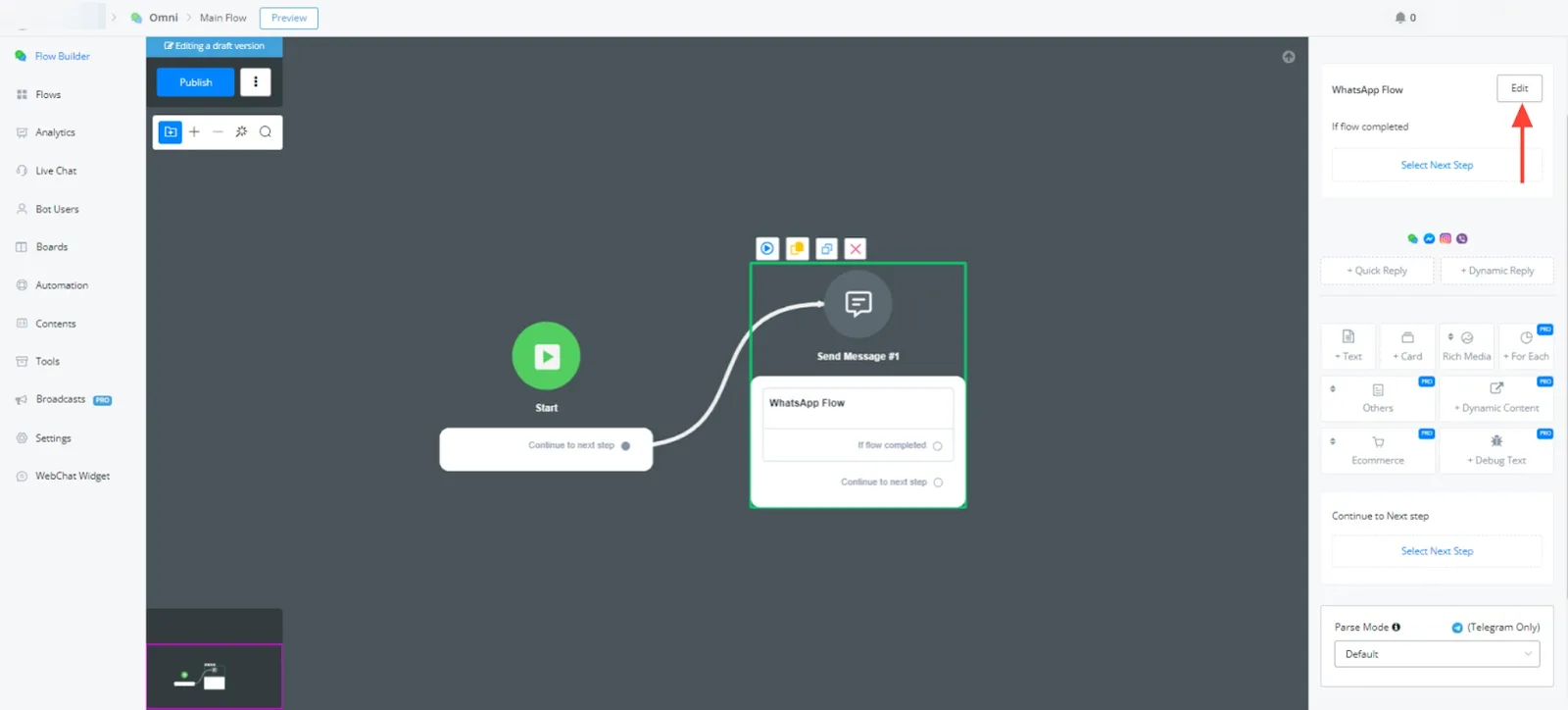
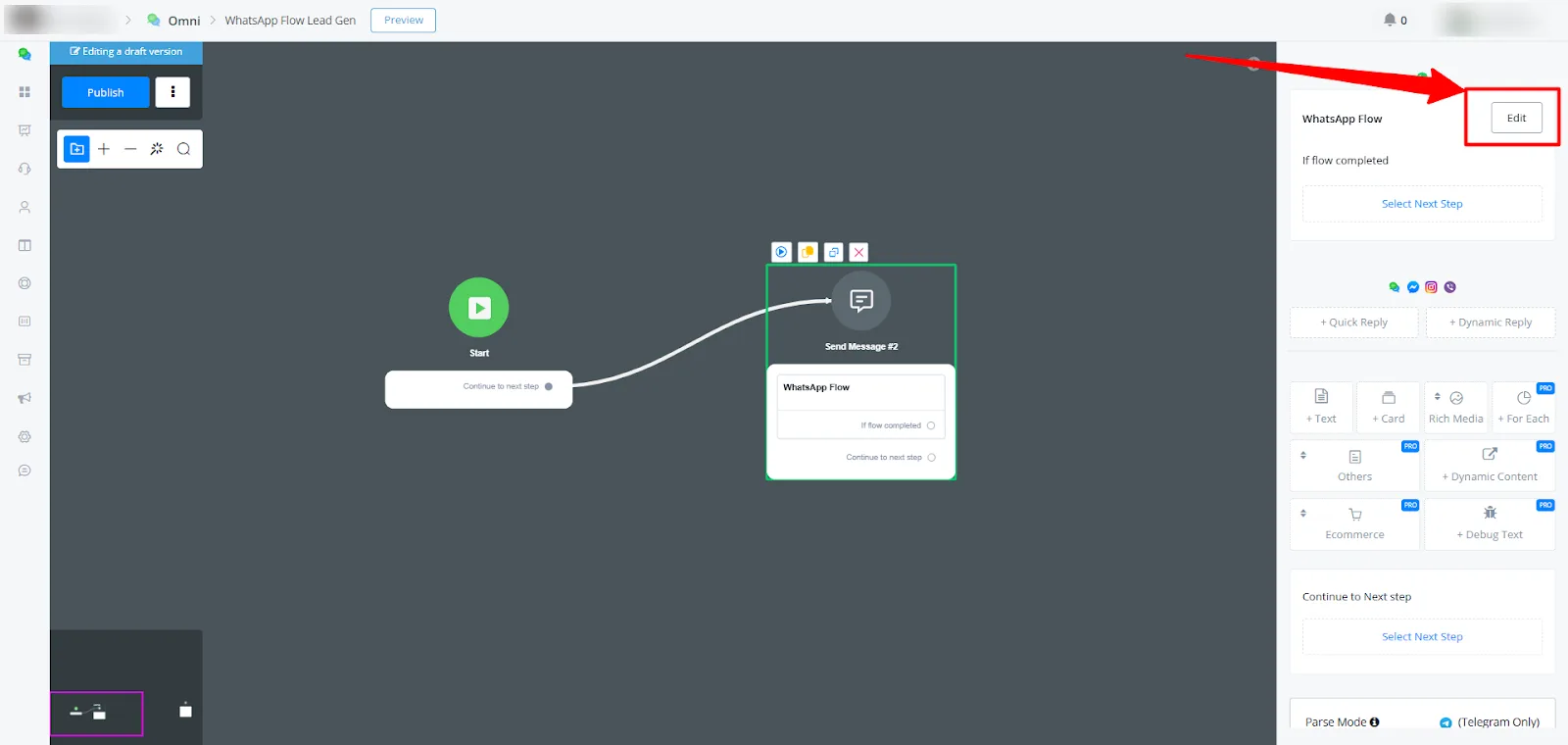
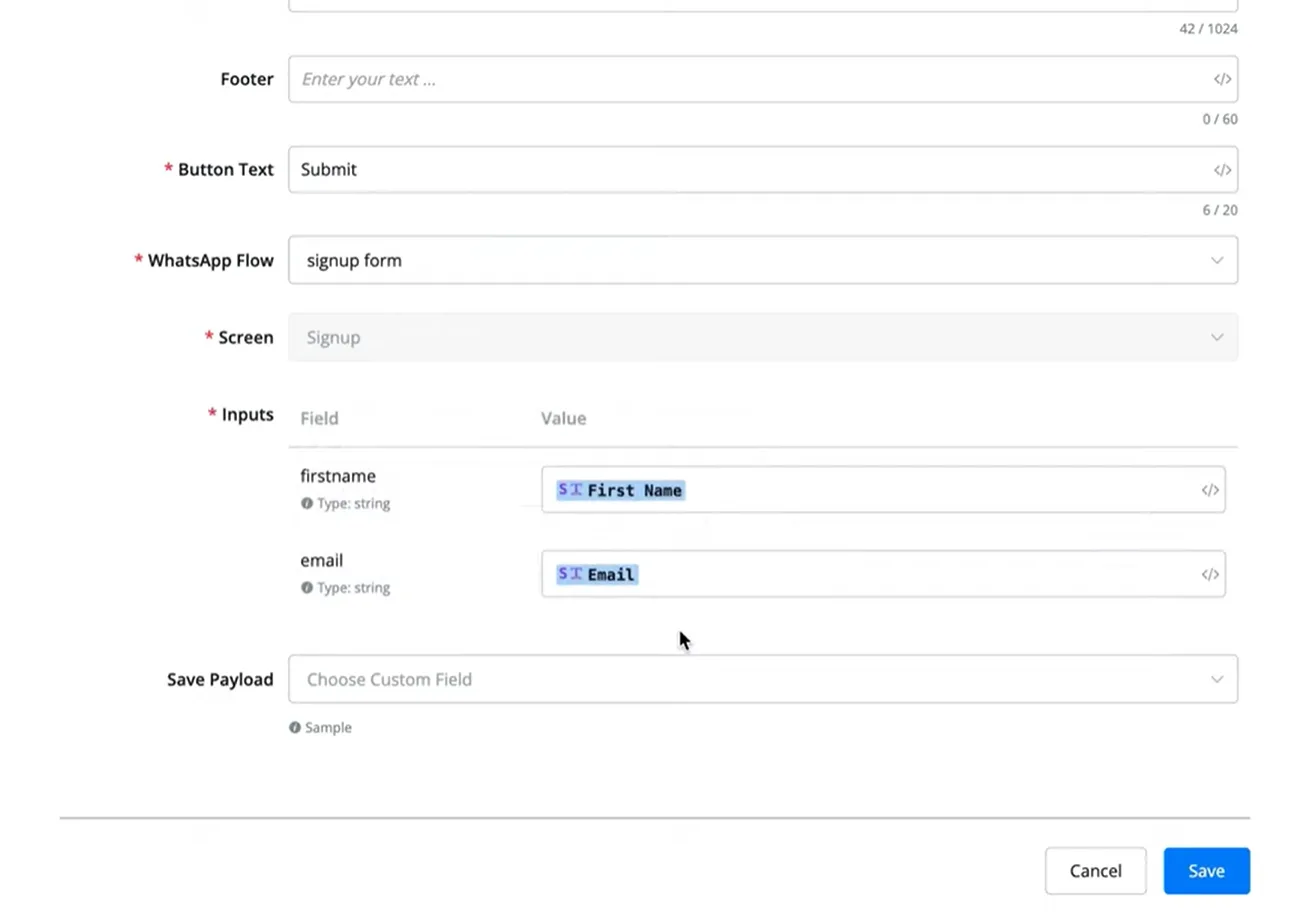
- Click "Edit" to open the WhatsApp Flow settings.
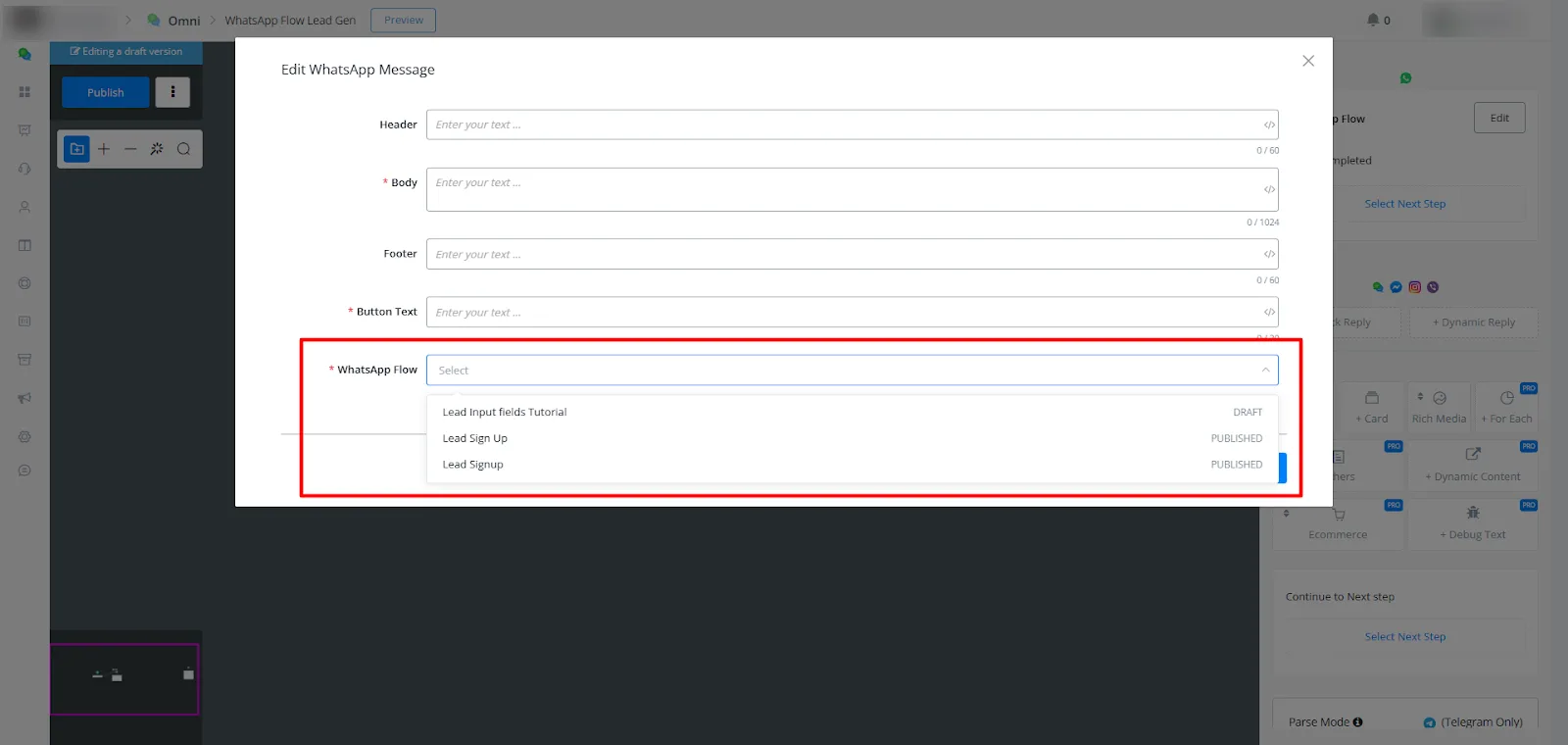
- In the editing pop-up, fill in the data such as Body and Button Text, and select your WhatsApp flow:
- In the "Inputs" section, you will see the option to map the inputs to custom user fields that already exist in your NicoChat account.
- For example:
Field: Name → Map to custom field:{{user_name}}. Field: Email → Map to custom field:{{user_email}}.
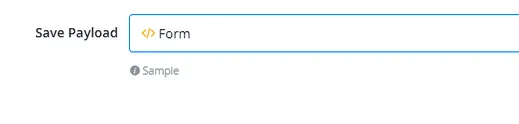
- (Optional) Configure payload saving to a JSON field, to capture the user information collected during the flow.
WhatsApp Flows is a powerful tool for creating and testing automated conversation experiences on WhatsApp. By following this guide and experimenting with the features, you will learn how to leverage this functionality to enhance interactions with your customers.