

Testers
To help you test your flows before they go live, you can invite testers into your chatbot. This helps you troubleshoot any potential problems happening in your flows.
In other words, a tester can view a flow that has not been published yet.
Suppose you have an onboarding flow that is published and accessible to the public, but you made changes in the backend that have not been published yet. You will be able to let testers preview those flows.
To invite a tester, they need to be subscribed to your chatbot.
To invite a tester to your chatbot, just go to Tools in the left-hand menu and select the Testers tab.
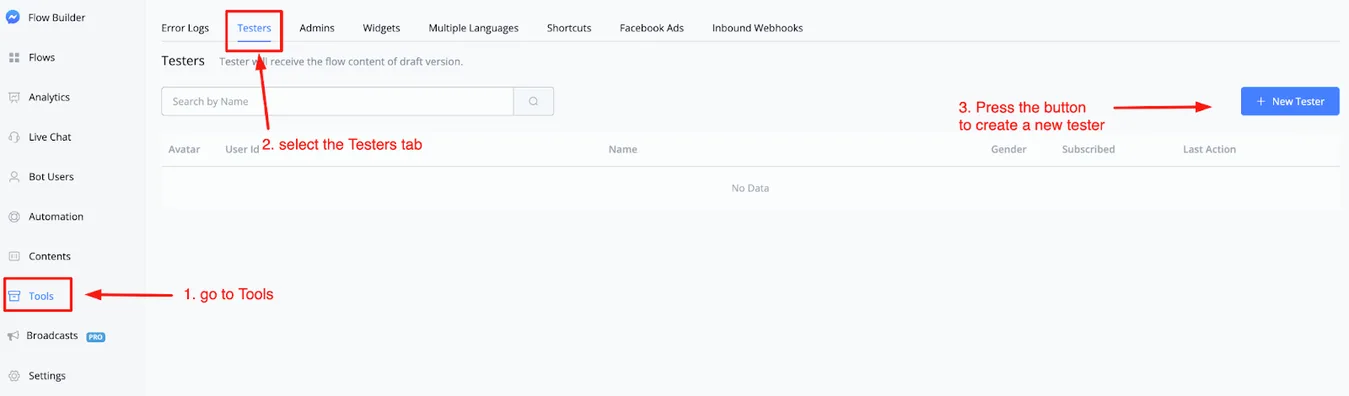
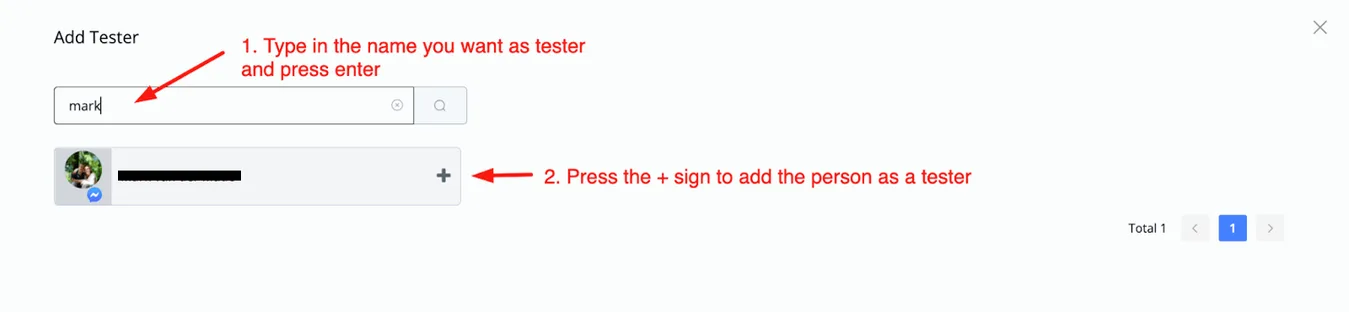
To create a new tester, just click the button in the top right corner named + New Tester. From there, you will be able to type the name of the person you want to make a tester in your chatbot.
It is worth reinforcing: the person you want to appoint as a tester must be an active subscriber of that chatbot.
Once done, you return to the main overview of testers, where you can also manage them.
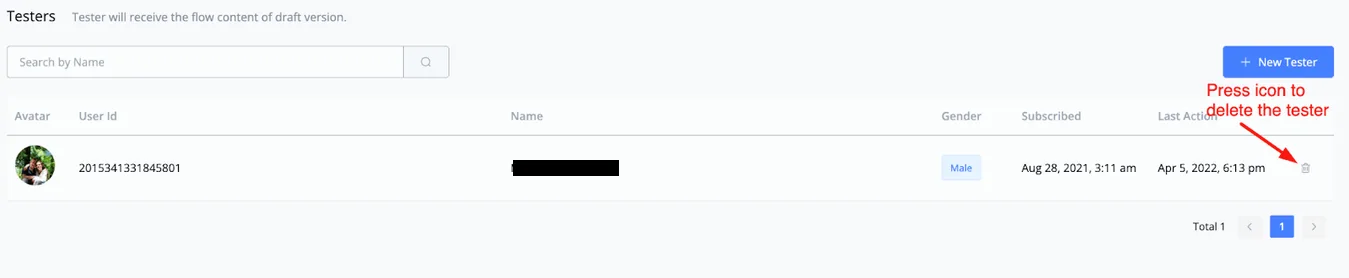
You will see the users you invited as testers and, if you want to delete any of them, just click the trash icon to the right of each user.
You can send testers the draft version of the flows in a few ways.
You can share a link to a specific flow or let them type a keyword that will trigger the flow.
Another way to show testers content that regular users cannot see is to use a condition in the flow builder.
Just go to any flow and insert a condition block. From there, look for the condition named It is Tester.
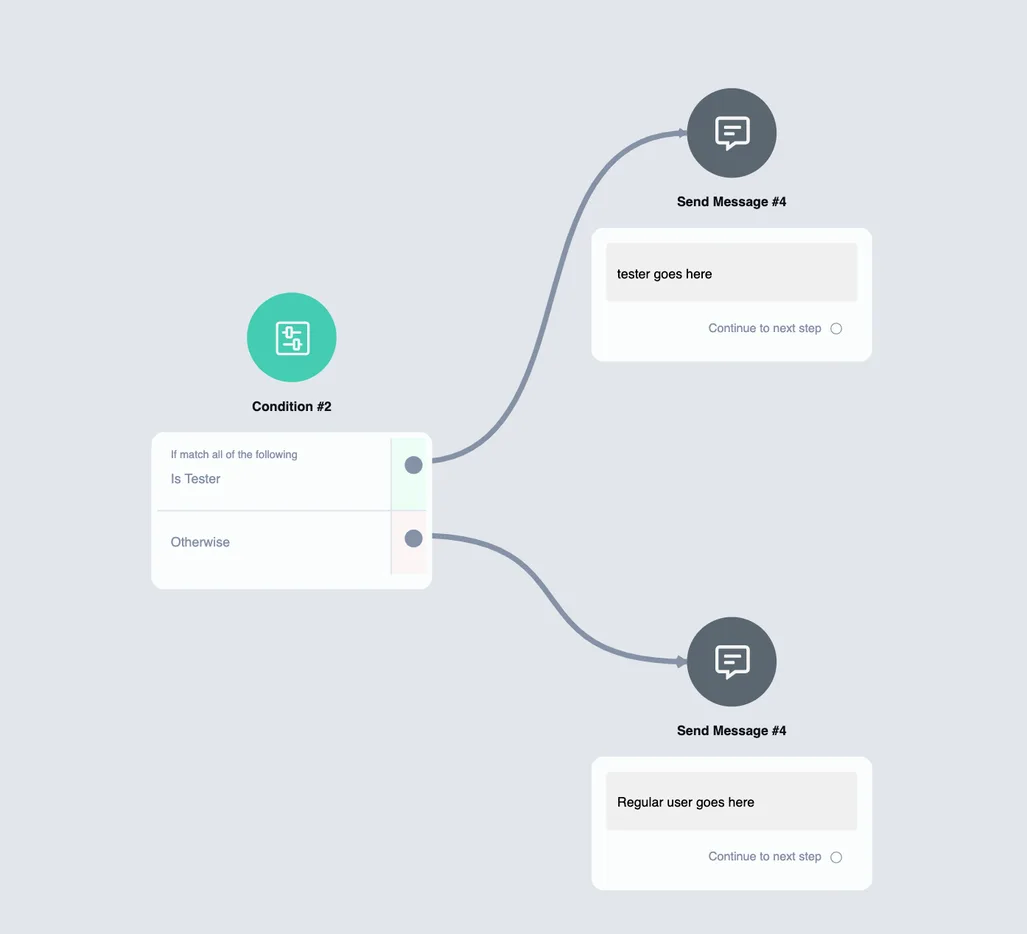
This way, you will be able to send the tester to the part of the flow you want to test, while the regular user just follows the flow that is already fully published.