

Export Jobs
NicoChat now allows your users to export all contacts (or only the filtered contacts) to a CSV file and download that file directly.
Previously, we sent the CSV file by email, but because of SMTP issues for partners and other email-related issues, we changed the feature: the download is now done inside the platform itself.
Attention
The export job expires 7 days after it is created
Open the flow builder and click the contacts tab. Apply a filter to the contacts (or select all of them, if you prefer) and click the download icon in the top right corner.

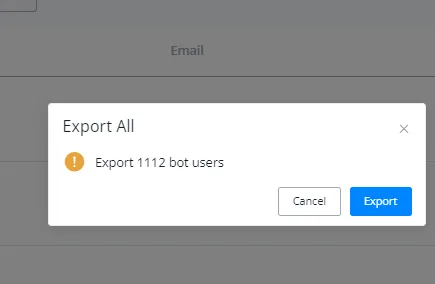
A prompt will appear to export the selected contacts.
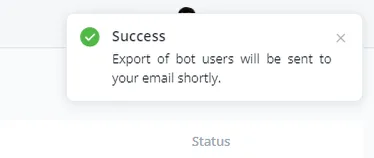
Another prompt will appear. Ignore the wording saying that the exported CSV will be sent to your email and go to the Tools section.
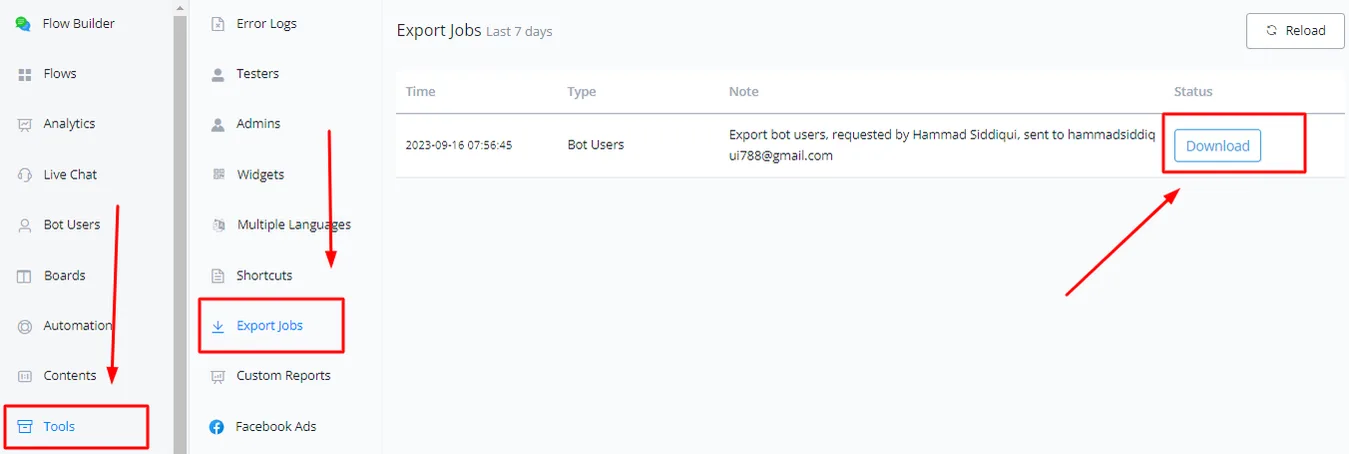
Clicking the Download button will save the CSV file to your device.