

SubFlows
YouTube video (unavailable for embedding)
Just like the "Canvas", the "SubFlow" can also help organize steps. The "Canvas" organizes steps inside a specific subflow, while the "SubFlow" organizes steps across the whole chatbot/flow.
The MainFlow is the flow that already comes ready when you create the Channel; in it you find the Default Reply, which can be changed to another subflow. Other than being the initial default flow (which can be changed) and not being able to be deleted, the MainFlow is no different from the other SubFlows.
Learn more about the MainFlow in the video below:

Go to “Flows” in the sidebar, click “+ New sub flow”, choose a flow type, give it a name and save.
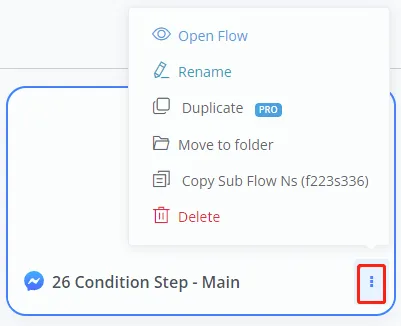
Click on the subflow to enter and start editing it. For more operations, click the 3-dots icon. The SubFlow Ns is a unique subflow ID in the chatbot.
Folders are used to organize subflows.
To move one or more steps to another subflow, select the steps first; then you can:
- use the Move to sub flow button in the editing panel, or
- copy and paste the steps
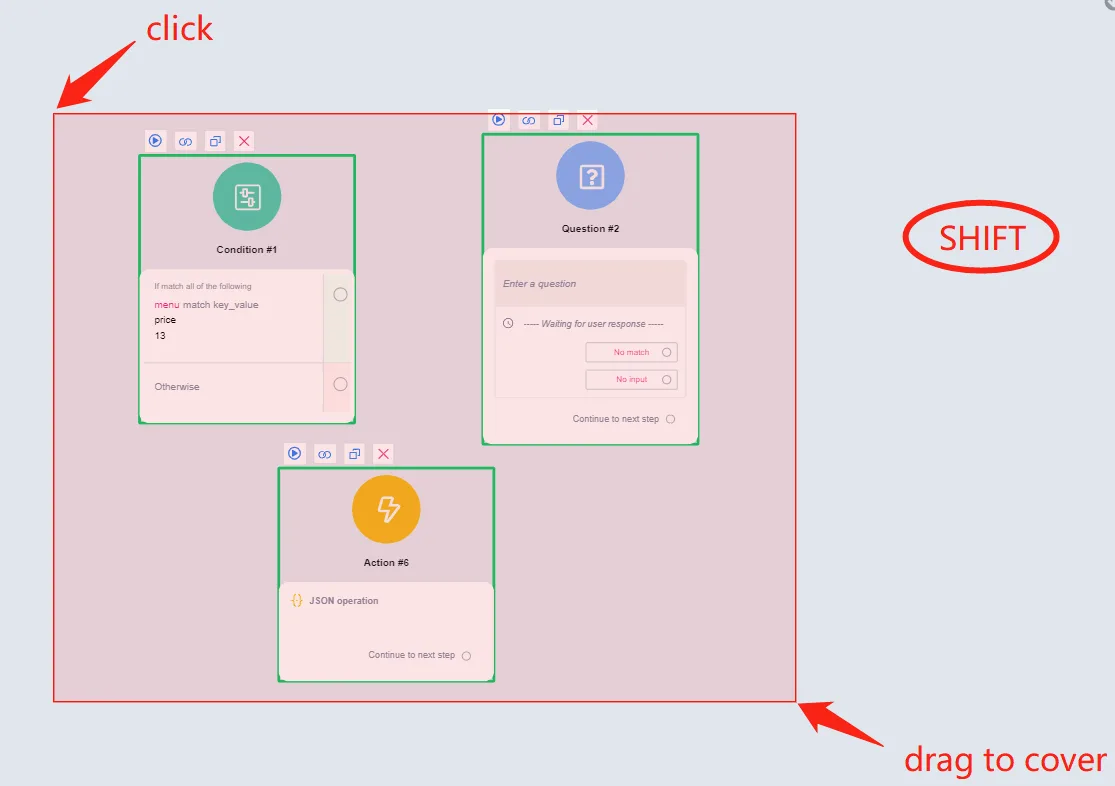
To select multiple steps, hold down the Shift key, click and drag to cover the steps.
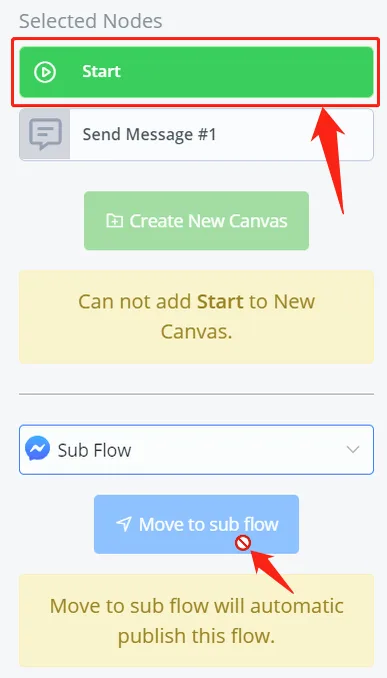
Alternatively, hold down the Ctrl key and click the steps one by one:
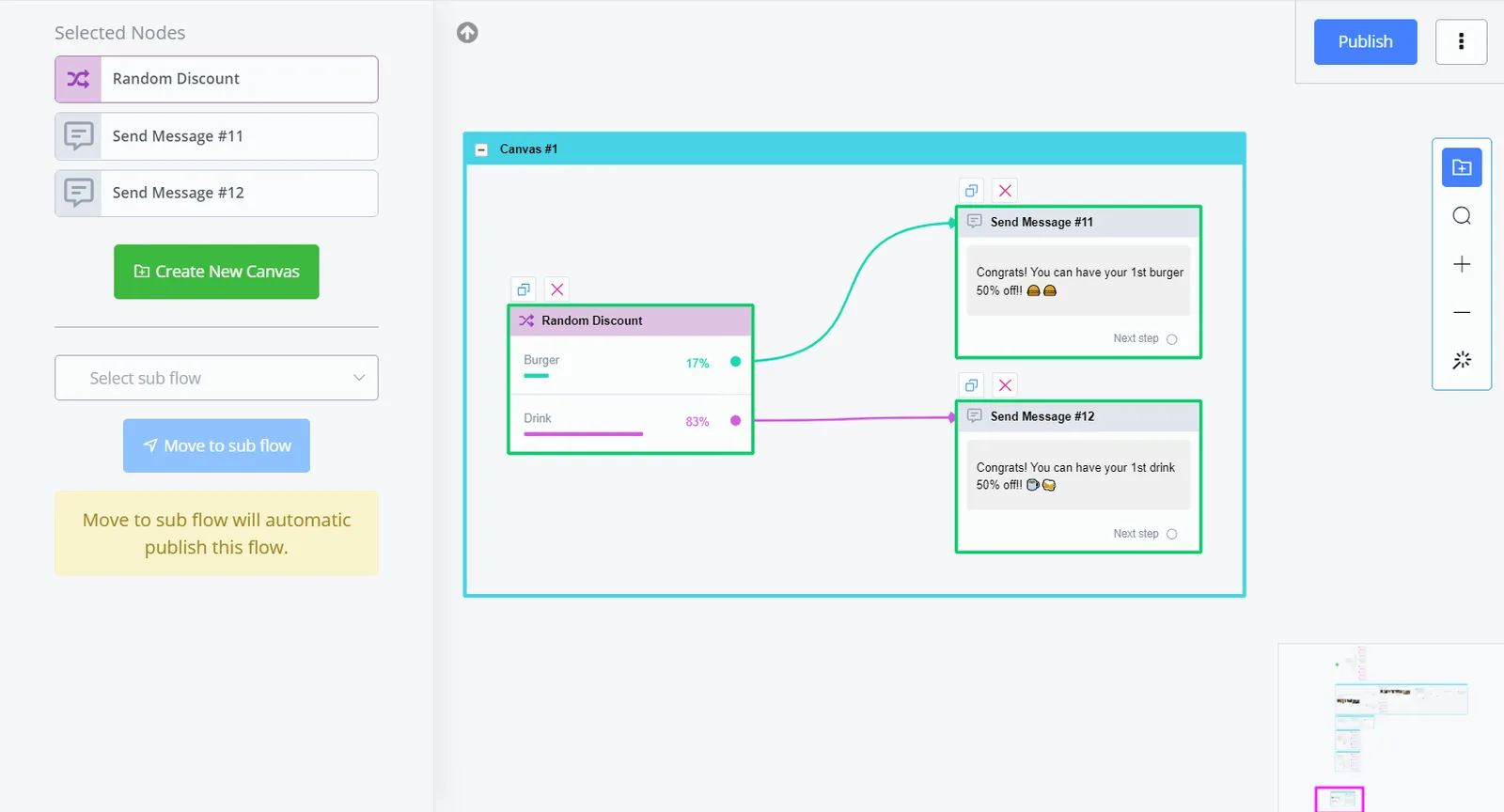
After selecting multiple steps, the editing panel appears. Select the subflow and click "Move to sub flow".
To copy and paste, use Ctrl + C to copy the selected steps, then go to the destination subflow and use Ctrl + V to paste there.
After creating subflows, you can call a subflow via:
- Go to step
- Keyword
- Sequence
- Broadcast
- Facebook Widget
- Comment Growth Tool
- Triggers
- Live Chat
- Menu Items
- Webhooks
- API call