

Sequences
Use sequences to automatically send delayed follow-up messages to customers. You can send several messages with different delays.

Use sequences to automatically send delayed follow-up messages to customers. You can send several messages with different delays.
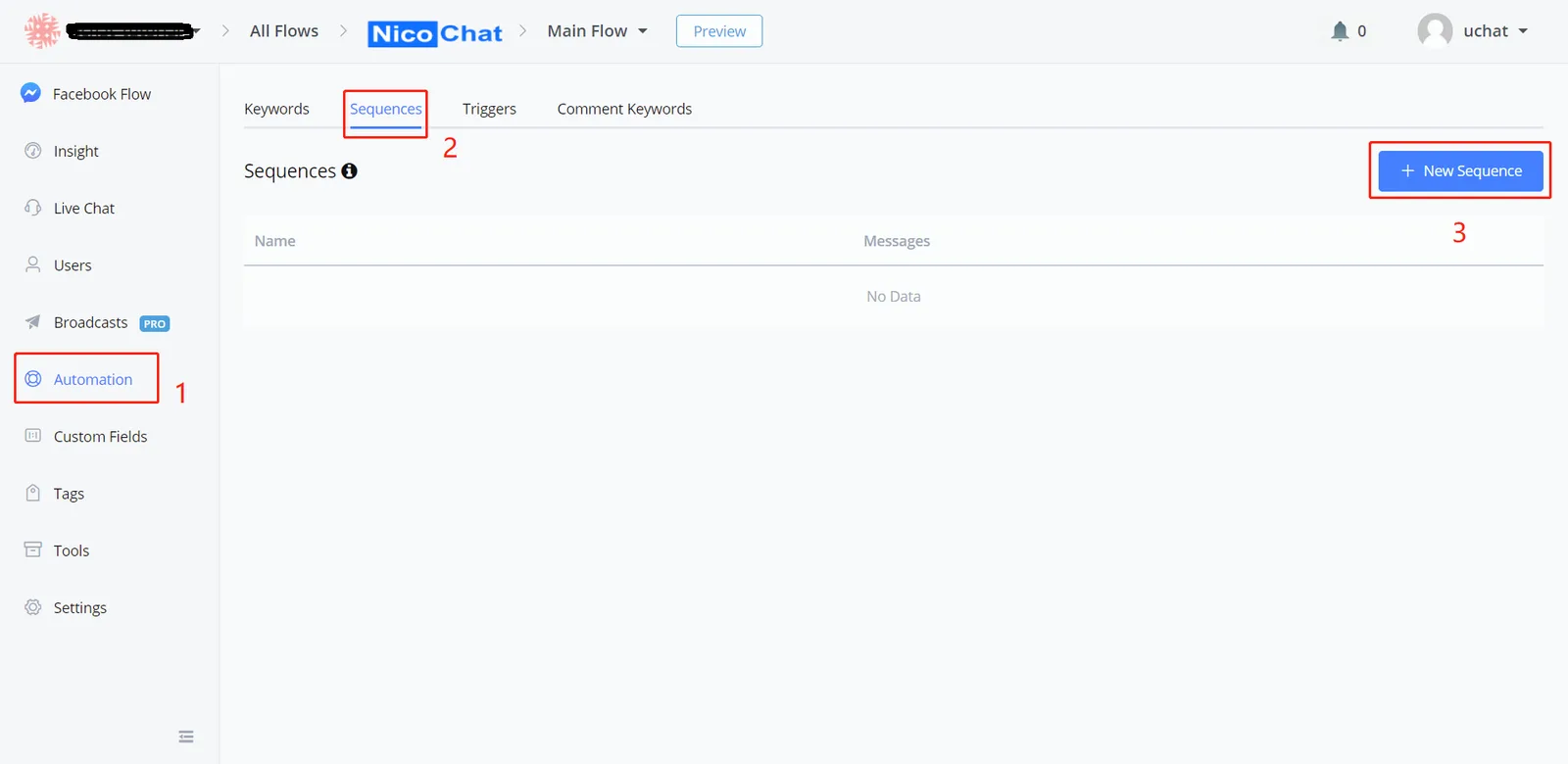
Follow steps 1 to 3 and you will see this:
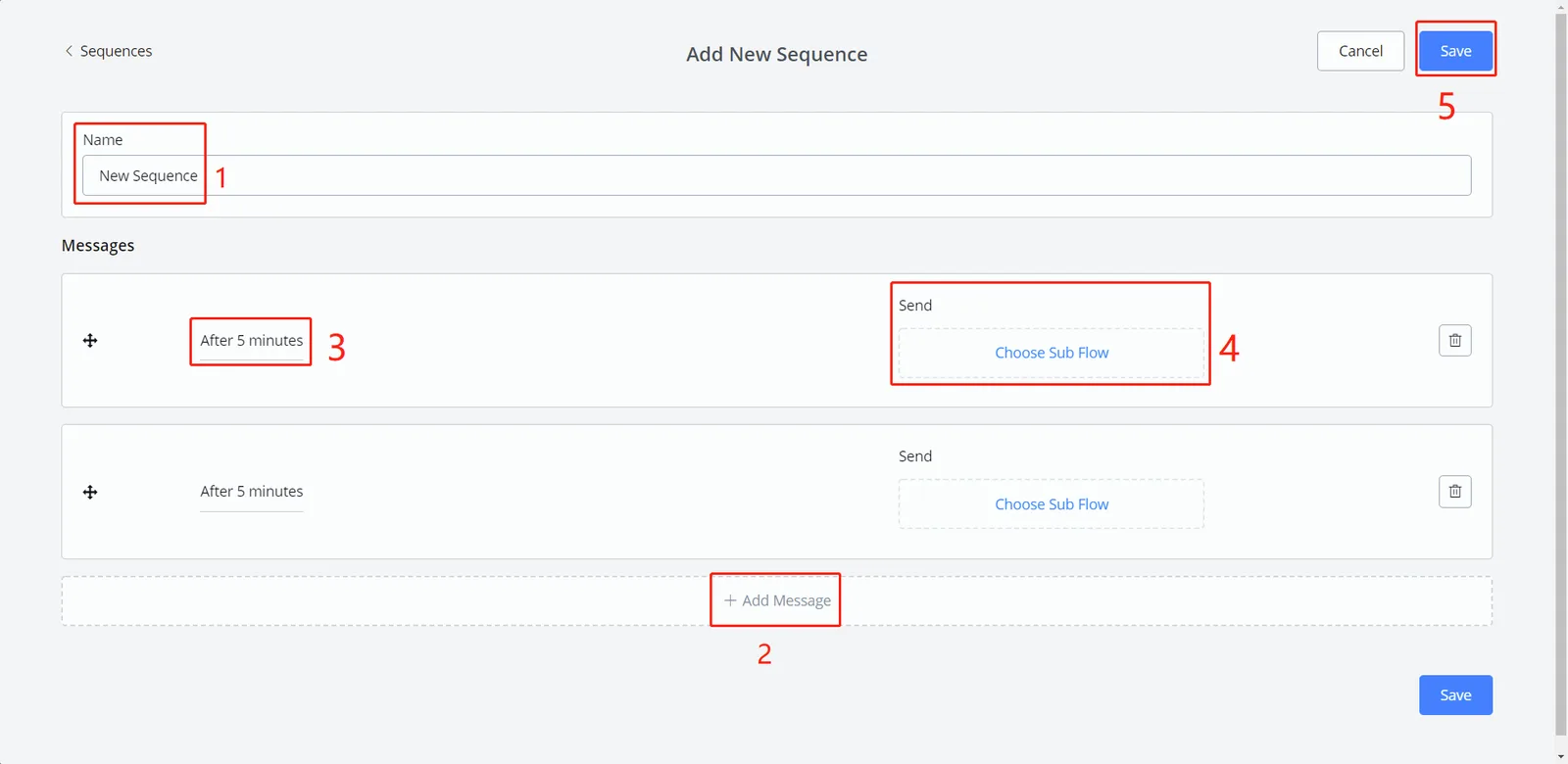
5 steps to create a sequence:
- give the sequence a name
- click "Add Message"
- edit the settings (see Message Settings below)
- choose the SubFlow to send
- repeat steps 2 to 4 to add more messages and click "Save"
This is what the settings window looks like:
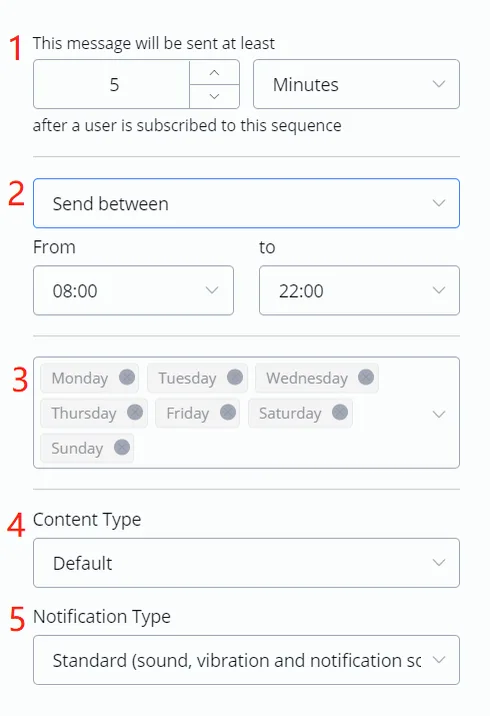
- Messages are sent in order.
- For the first message, the countdown starts when users subscribe to the sequence.
- For other messages, the countdown starts when the previous message is sent.
- For “send at any time”, the message will be sent immediately at the end of the countdown.
- For “send between”, if the countdown ends outside the time range, the message will be held until the next available time.
- Remember to check the timezone issue below.
For example, you don't want to bother users at night, so you set a message to be sent between 9 am and 6 pm. If there is a message that should be sent at 8 pm, the system will hold the message until 9 am the next day.
This can affect the next message, because its countdown starts when the previous one is sent.
- Likewise, if you don't want to bother users on the weekend, deselect Saturday and Sunday. See the example under “send between” above.
- Remember to check the timezone issue below.
- See the "Content Type" introduction below.
- If you are not sure which type you should use, keep the default. Although the message might not be sent because of the 24-hour rule, the system will at least help you avoid being banned by Facebook.
If a channel records the timezone in the user's profile, like Facebook, the system relies on the user's timezone first when checking the "send within a time range" and "send from Monday to Sunday" settings. If the user has no timezone, or if the channel does not provide a timezone in user profiles, the workspace timezone is used instead.
Any message sent more than 24 hours after the subscriber's last interaction must have a content type that matches its purpose (in accordance with the Facebook Policy - Message Tags).
Messages of the “Other” type or without a content type will NOT be delivered to subscribers who interacted with you via Messenger more than 24 hours ago.
Can contain promotions and it will only send to users who interacted with your bot in the last 24 hours.
Send the user reminders or updates about an event they registered for (for example, RSVP, tickets purchased). This tag can be used for upcoming events and events in progress.
Notify the user about an update on a recent purchase, such as transaction confirmations (invoice, receipt) and shipping status notifications (product in transit, shipped, delivered, delayed).
Notify the user about a non-recurring change to their application or account.
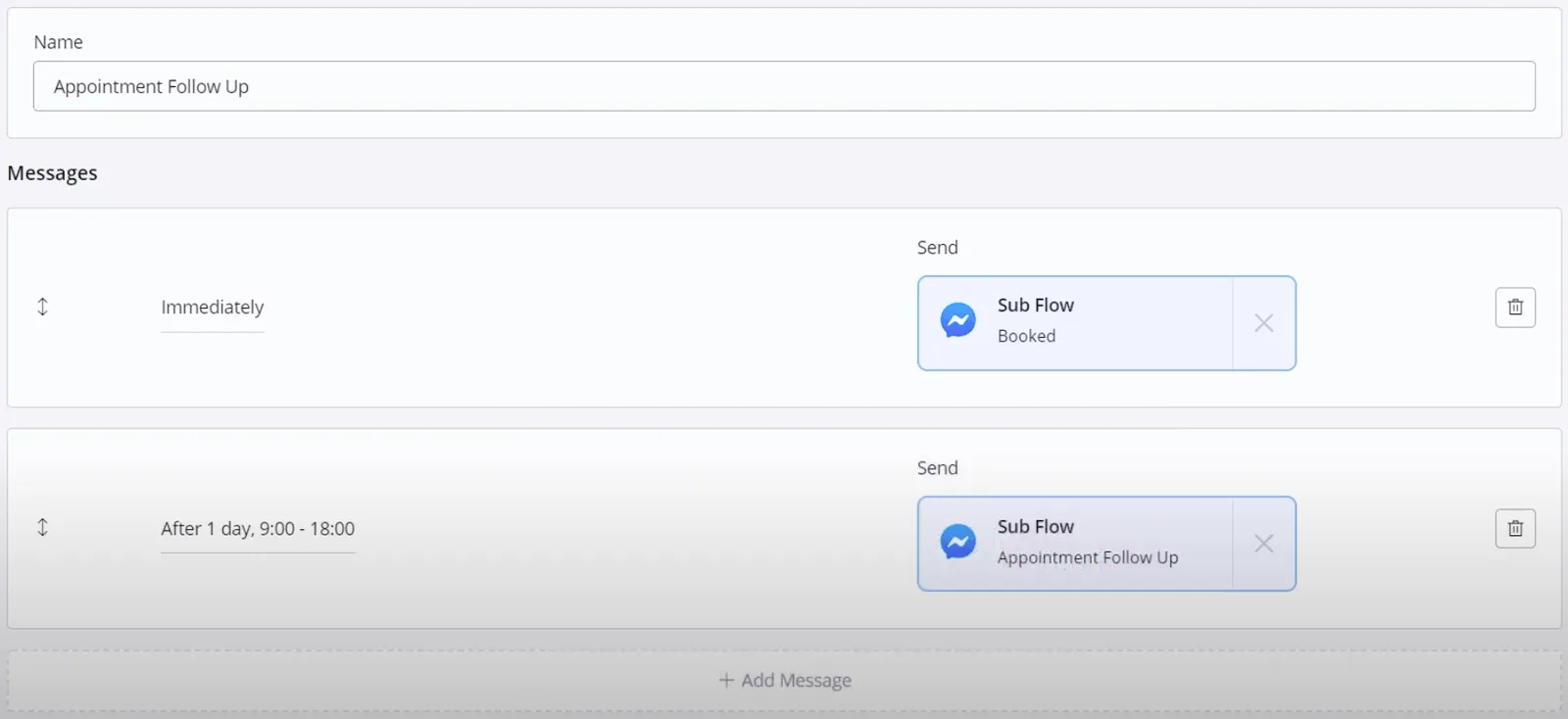
When you send more than one message in your sequence, note that all messages are sent in order.
In the screenshot above, for example, the "Booked" SubFlow will be sent "Immediately" as soon as the user subscribes to this "Appointment Follow Up" sequence, because the first message starts the countdown as soon as the user subscribes.
The next message starts the countdown as soon as the previous one is sent. So the “Appointment Follow Up” SubFlow will be sent 1 day after the “Booked” SubFlow is sent.
Create specific SubFlows to send in your sequences. Note that each "Send Message" step has its own "Message Tag". The tag is set to "Other" by default.
Let's say more than 24 hours have passed since the user's last interaction with your channel. You choose a non-default content type for a message in your sequence. This setting automatically changes the message tag of the first "Send Message" step of the SubFlow you send.
After that, if the user replies, you can send messages normally with the "Default" content type. So you usually will not need to change any message tag in your SubFlow.
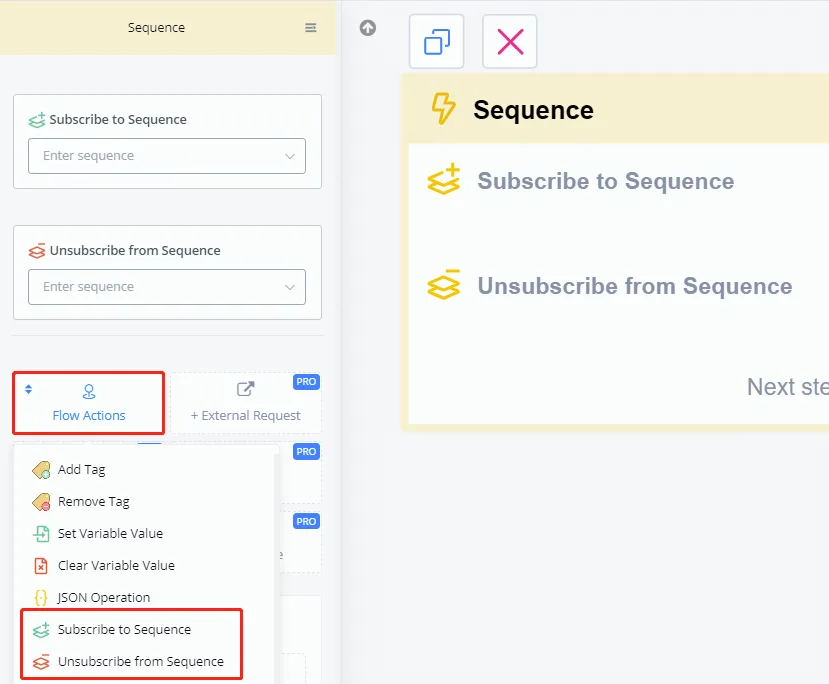
Go to "Flow Actions" and you will find the 2 sequence operations.
Some examples of sequence use:
- " Event Follow Up " - send the confirmation message as soon as the user registers and a follow-up message as a reminder or help
- " Get Feedback " - ask for feedback 2 hours after the user talks to your channel
- " Send Coupon " - send coupons when the user puts something in the cart but does not place the order for a long time