

Quick Replies (LiveChat)
This document explains the new import feature for LiveChat Quick Replies, which lets you save time by importing them in bulk.
LiveChat Quick Replies are predefined snippets of text that you insert into conversations quickly and easily. They are ideal for frequently used information or responses, and they save time and effort.

- Save time: importing shortcuts eliminates the need to create them one by one in the NicoChat platform, especially if you already have a lot of content ready.
- More efficiency: importing shortcuts streamlines your workflow, because it offers a faster way to populate your shortcut library.
- Fewer errors: importing from a well-organized CSV file reduces the risk of typos or inconsistencies that can occur with manual creation.
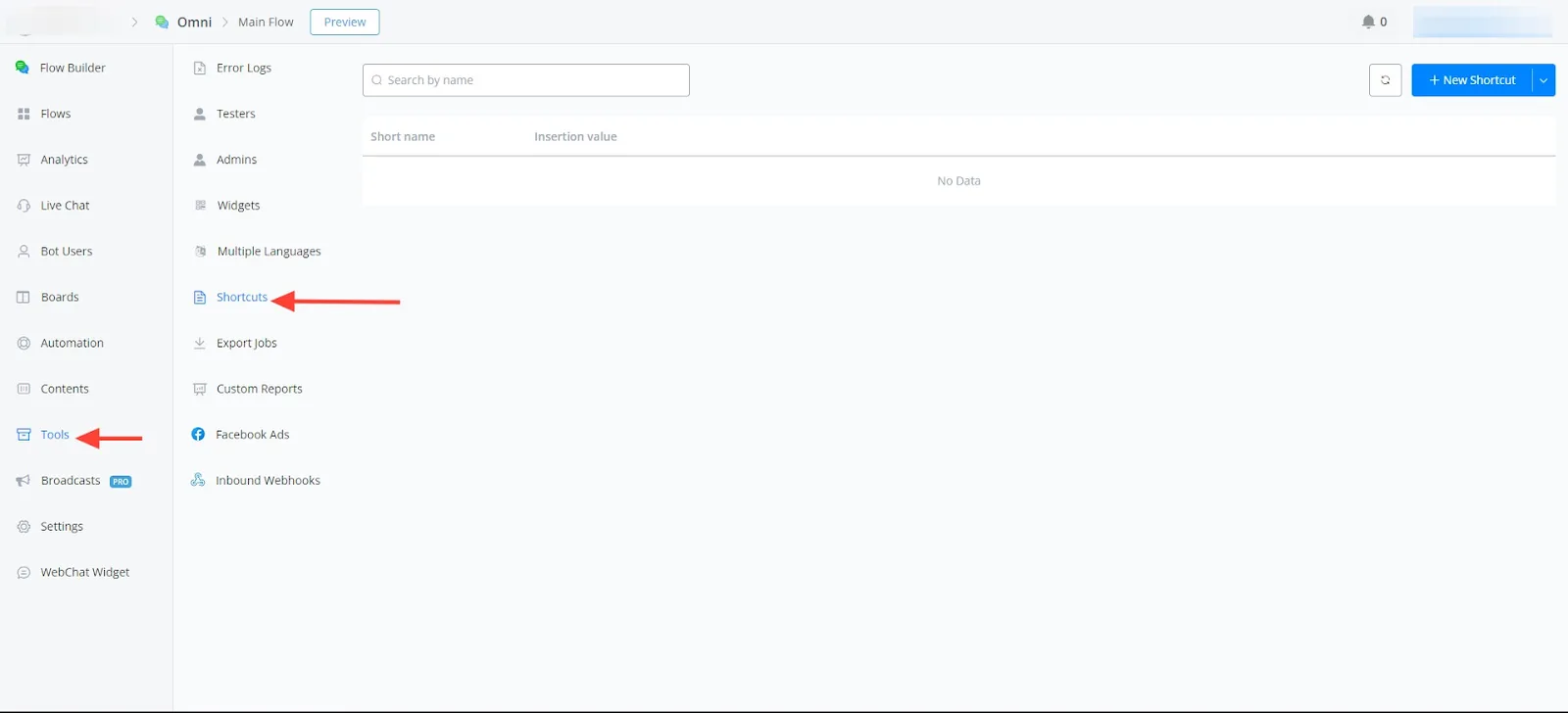
- Go to the Quick Replies (LiveChat) section:
- In your channel, go to the “Tools” section in the NicoChat platform.
- Select “Quick Replies (LiveChat)” from the available options.
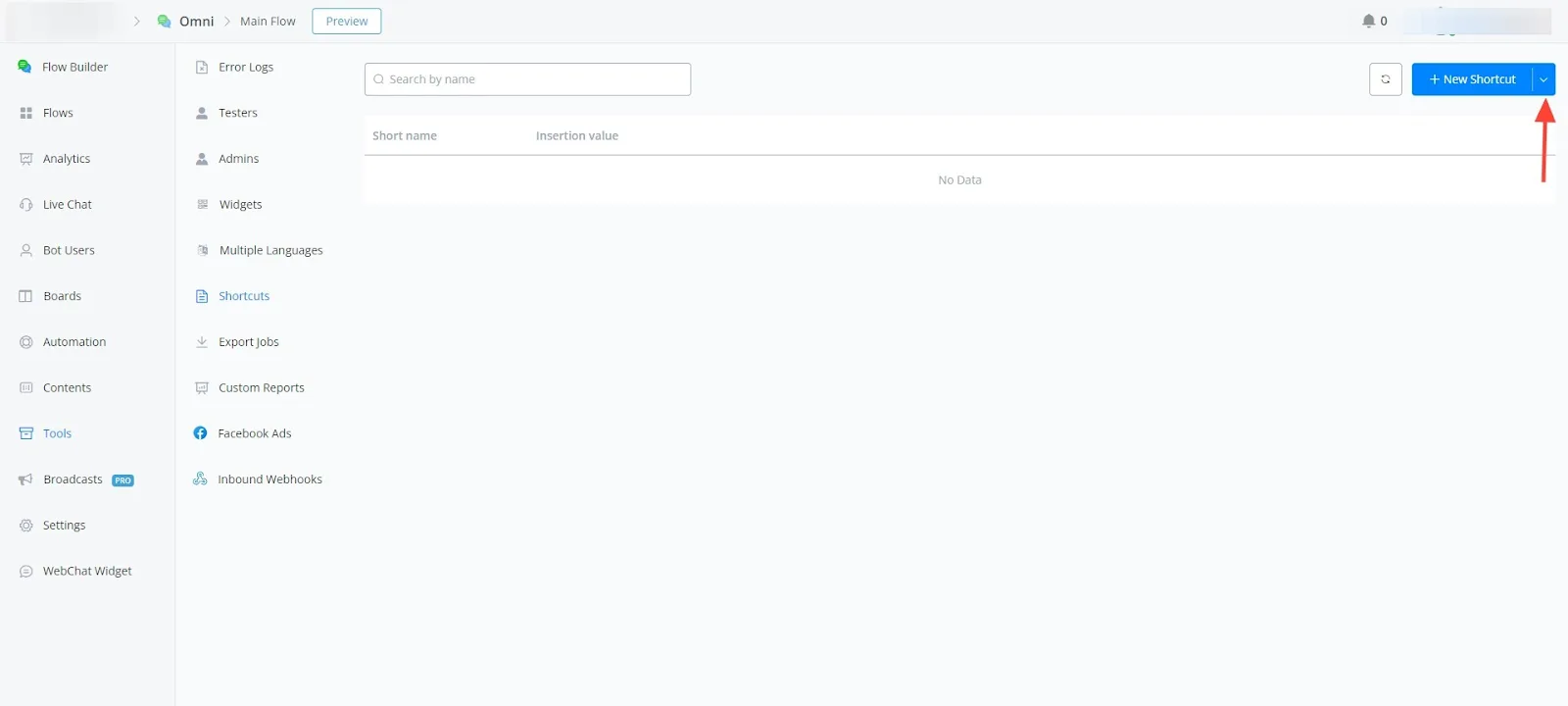
- Locate the import feature:
- Click the dropdown arrow in the top right corner.
- Select “Import” from the menu.
Prepare your CSV file:
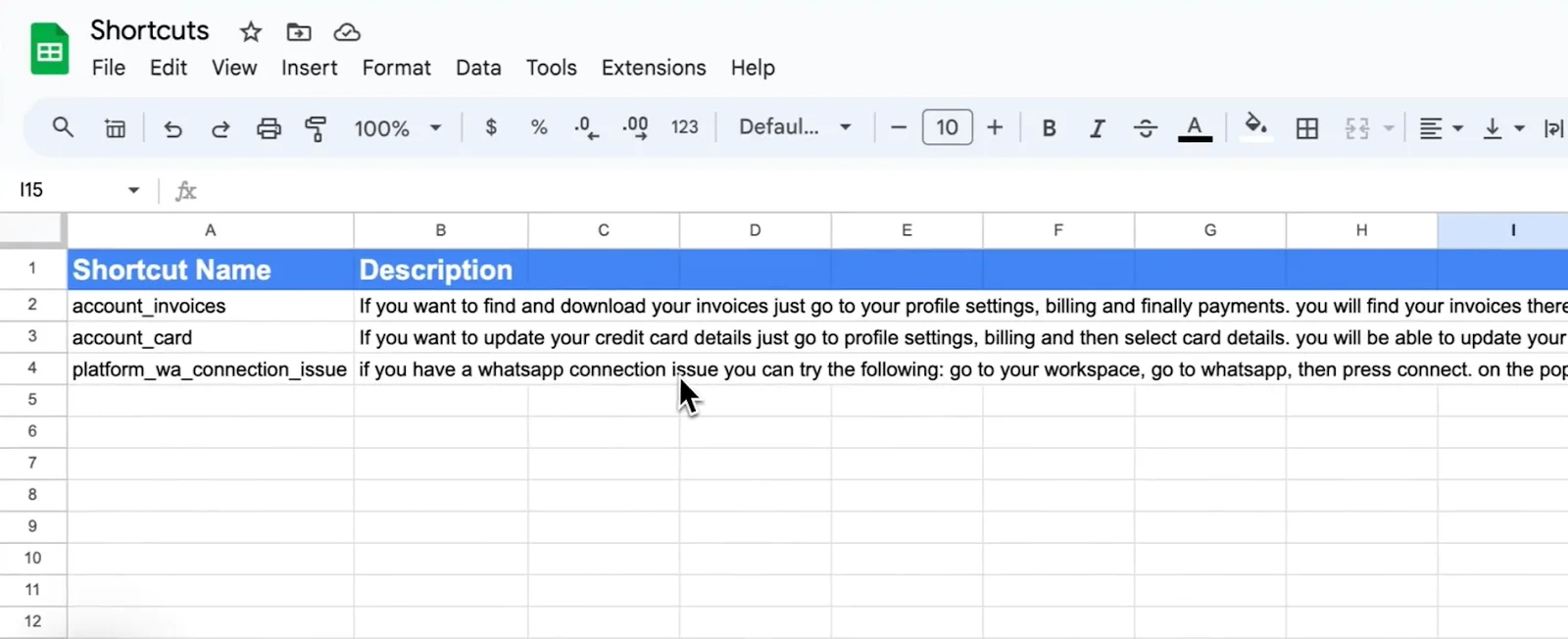
- Use a spreadsheet tool like Google Sheets to create a CSV file.
- The CSV file must have two columns:
Shortcut name: this column will contain the names you assign to each shortcut. Description: this column will contain the text content of each shortcut.
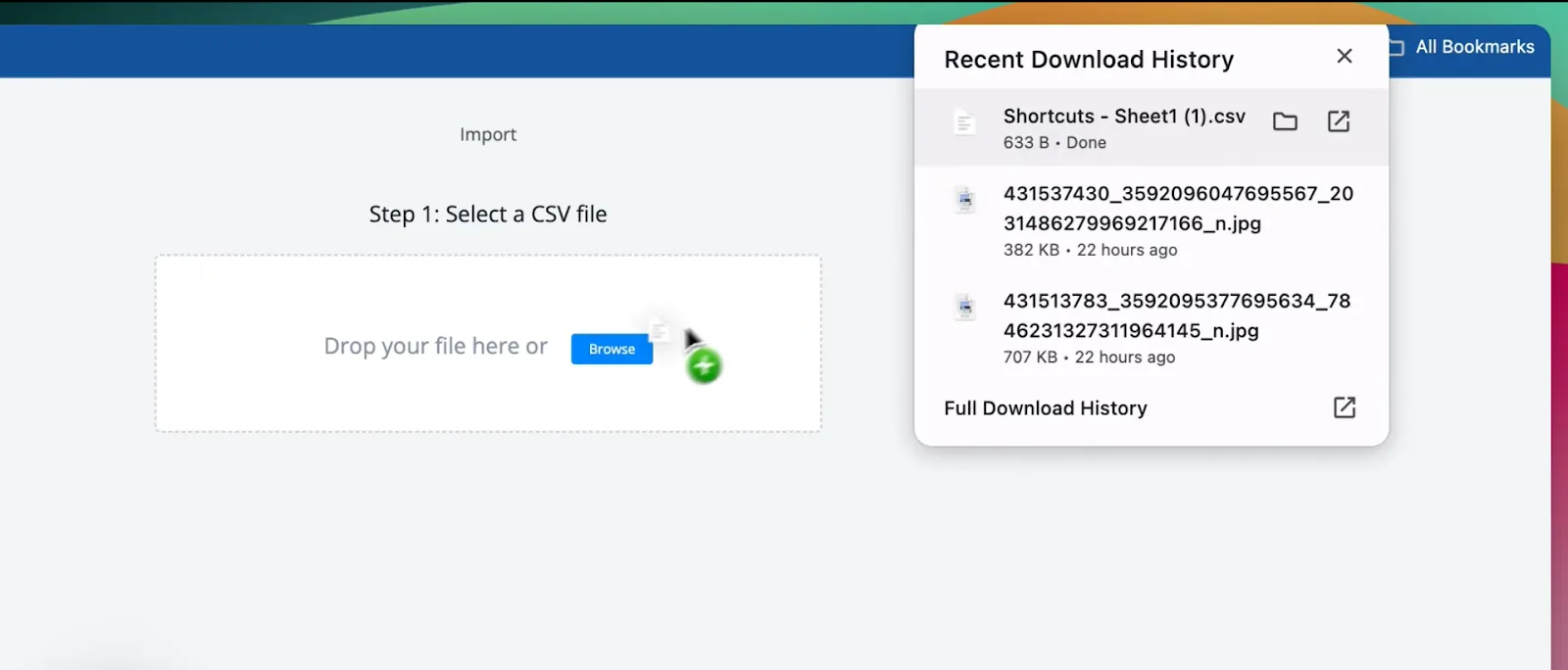
- Click “Download” to save a copy of the formatted CSV file.
- Drag and drop the downloaded CSV file onto the import section in the NicoChat platform.
- Verify that the “Shortcut name” column is mapped to the “Name” field and that the “Description” column is mapped to the “Value” field.
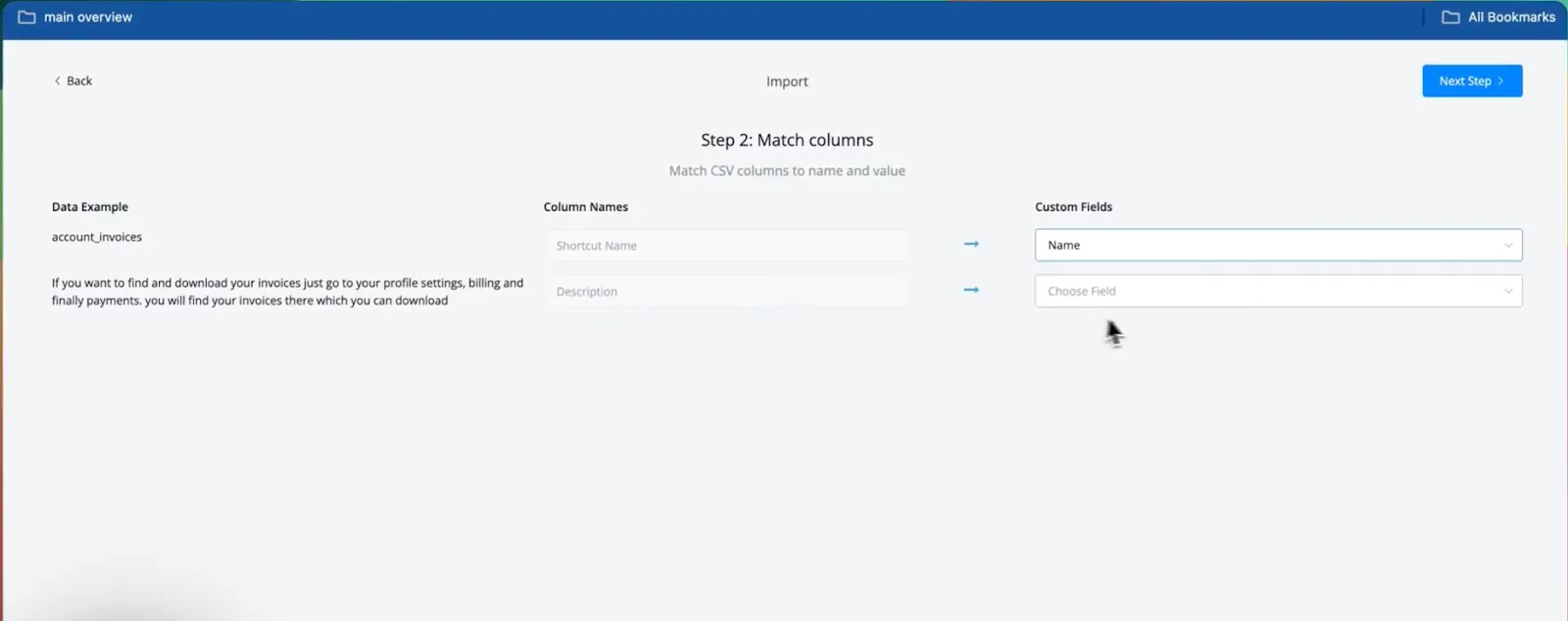
Confirm import:
- Click “Confirm Import” to start the import.
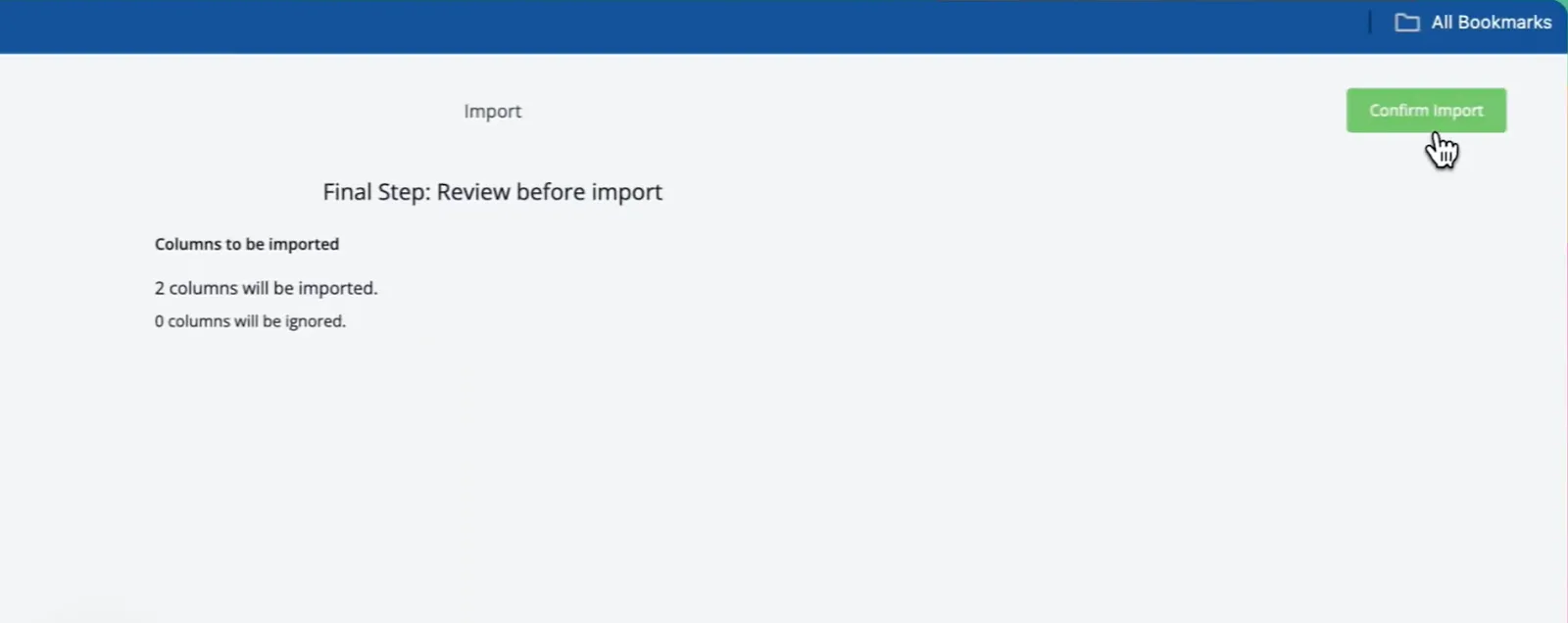
Verify imported shortcuts:
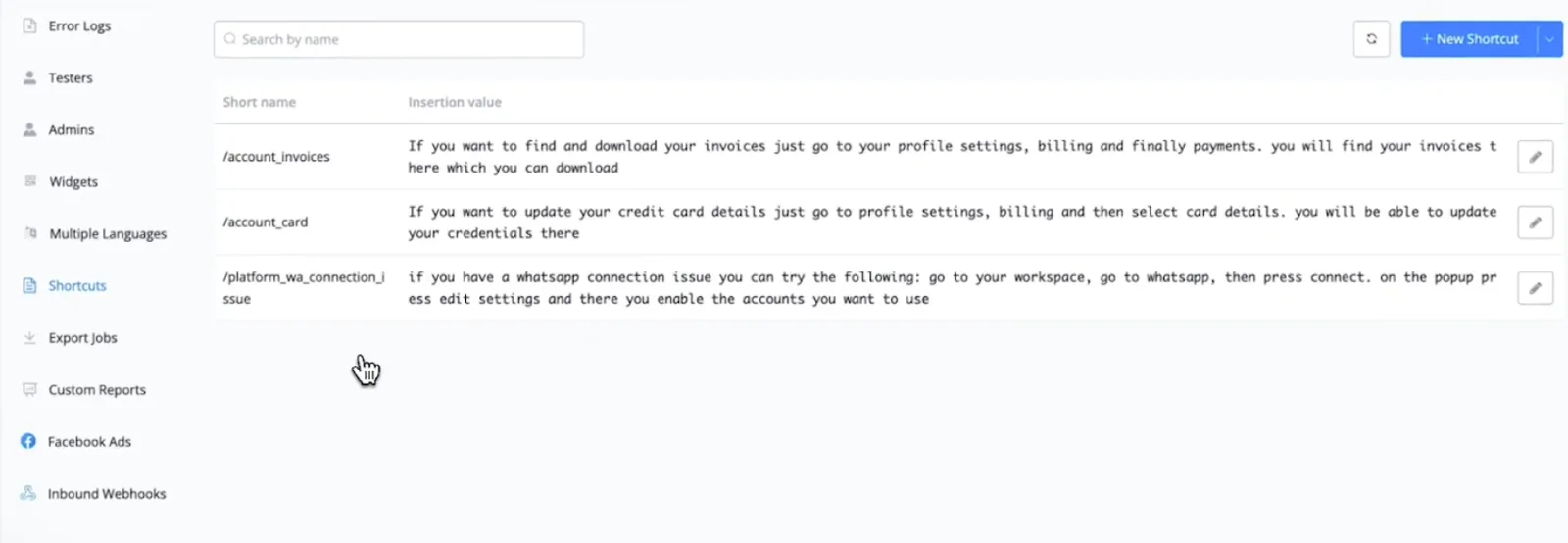
- The platform will display the number of successfully imported shortcuts.
- You can now use these shortcuts in your Live Chat conversations.
- Open a LiveChat conversation:
- Open any LiveChat conversation, new or ongoing.
- Insert a shortcut:
- Type the slash symbol “/” in the chat window.
- A list of your available shortcuts will appear.
- Select the desired shortcut from the list.
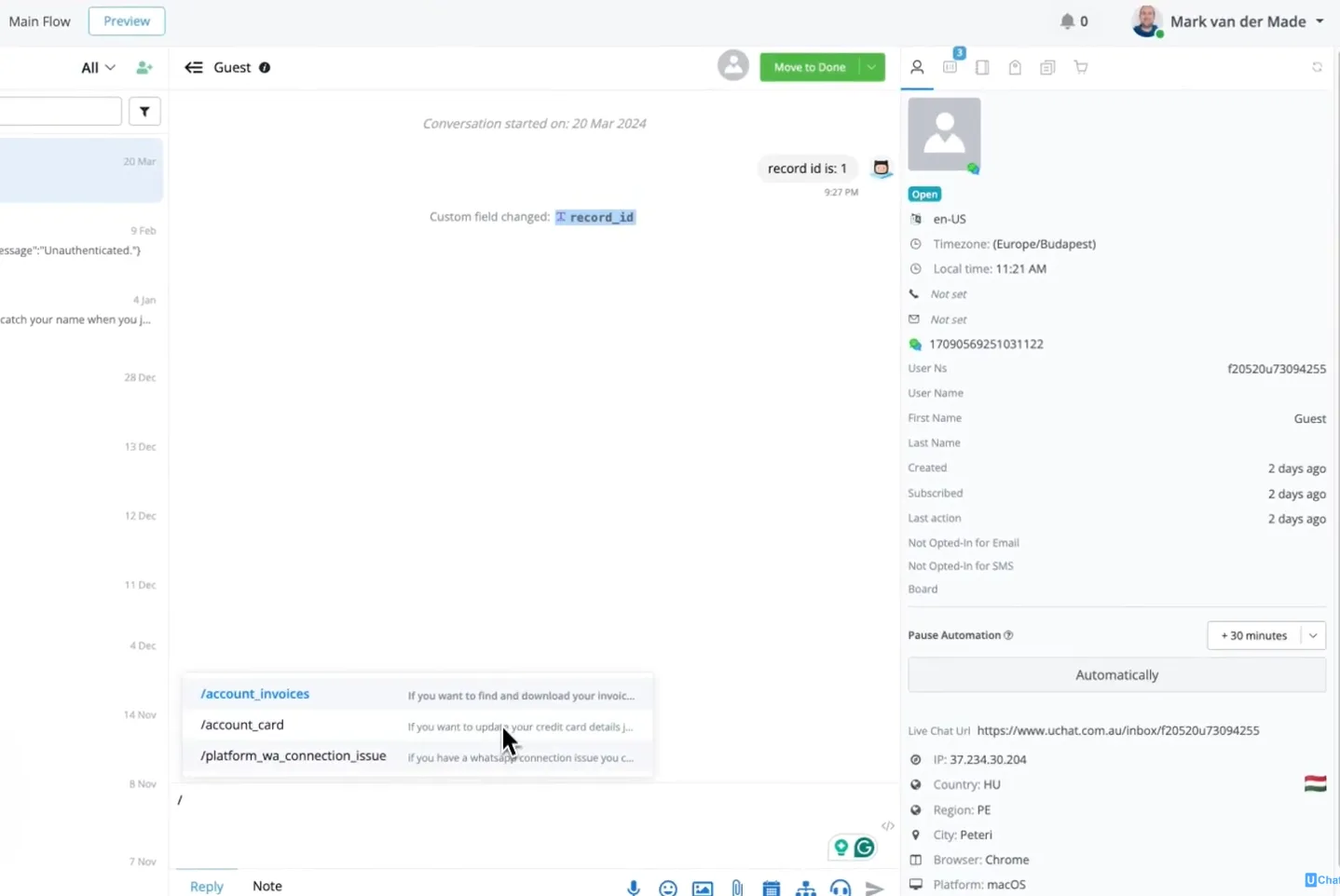
- Send the shortcut:
- The content of the selected shortcut will be automatically inserted into the chat window.
- Press “Enter” to send the message to the customer.
Conclusion
The LiveChat Quick Replies import feature is a valuable tool that increases efficiency and saves time when managing frequently used information in customer interactions. By following these steps and using the import functionality, you can easily populate your shortcut library and streamline communication in Live Chat.