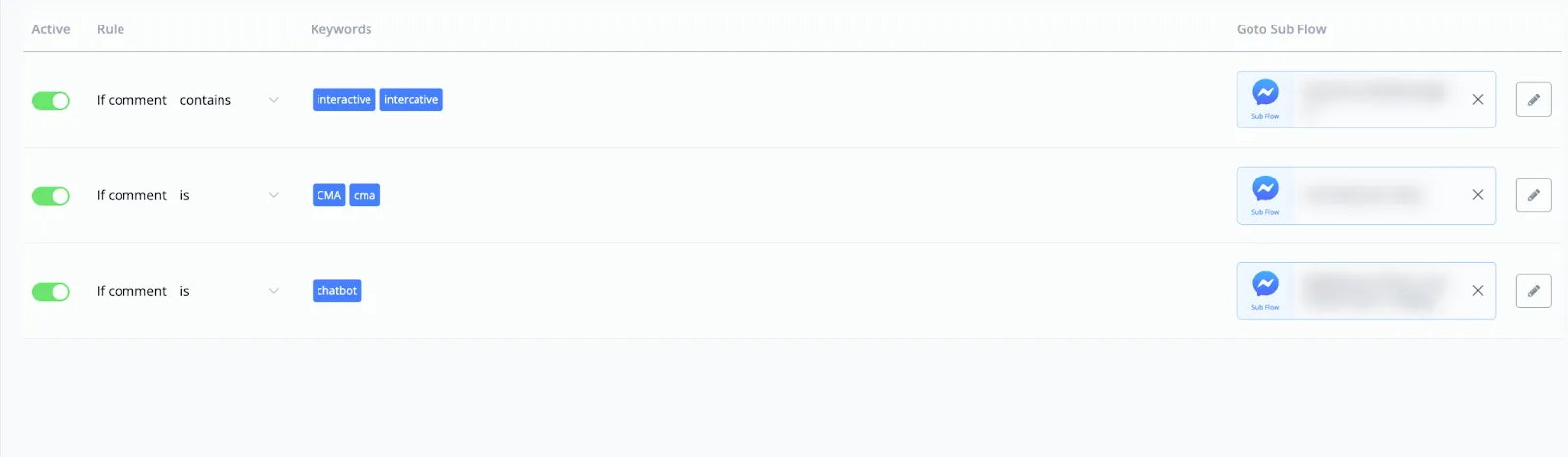
Comment keywords
YouTube video (embedding unavailable)
A very important and excellent feature of NicoChat is the ability to make the chatbot comment, like and send a message to a person when they comment on a post on your Facebook and/or Instagram page.
To get there, go to the left menu, click Automation and select the Comment keywords tab.
On this screen, there is a blue button in the top right corner called + New Comment Keyword.
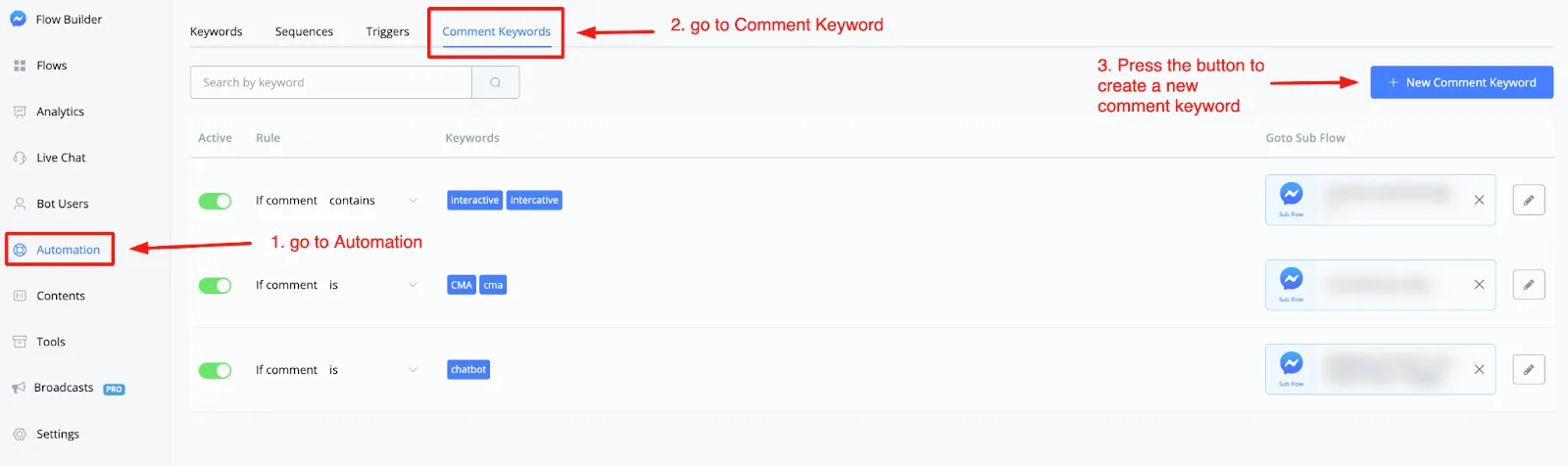
After you click the blue + New Comment Keyword button, a window opens. In it you configure the comment keyword trigger.
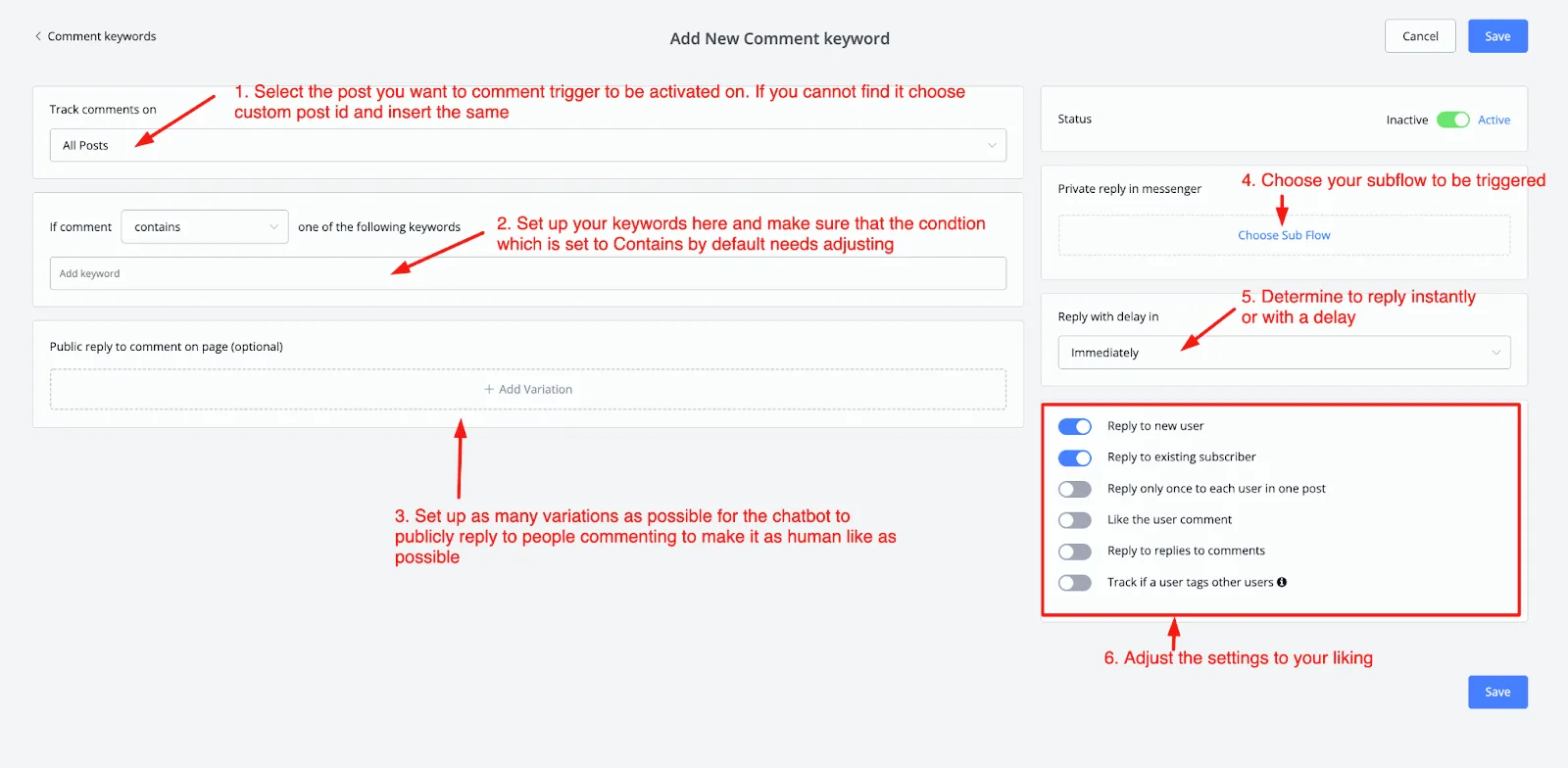
Following the image above, there are 6 steps.
In step 1, you select any post from your Facebook or Instagram page, depending on the channel you are in.
In step 2, you type your keywords and set the condition that fires the trigger. By default, the active option is Contains, but you can choose from the following:
“If the comment: Contains, Start with, Is anything, One of the following keywords”
Note that if you select Is anything, the field for typing the keywords is disabled.
In step 3, you create the variations the chatbot uses to reply to the users who comment on your Page's posts.
We recommend adding at least 5 variations to prevent the algorithm from flagging the replies as spam.
With step 4, you add the flow that will be triggered when the chatbot sends the private message to the person who commented.
NOTE: make sure your initial message contains only 1 text message with a button. Since this counts as the user's opt-in, they need to interact with this message before becoming a subscriber of your chatbot.
In step 5, you can set a delay before the chatbot replies and sends the private message to the user.
This makes the experience more human, but it is entirely optional.
In the final step, you can combine the settings however you prefer.
Once that is done, click the blue button in the top right corner or the bottom button called Save, and your comment keyword will appear in the main overview.