Single Sign-On (SSO)
Single Sign-On (or SSO) gives us the ability to have one master contact, which syncs data between all of your contacts across different channels. This helps a lot in syncing data and identifying contacts when multiple channels are involved.
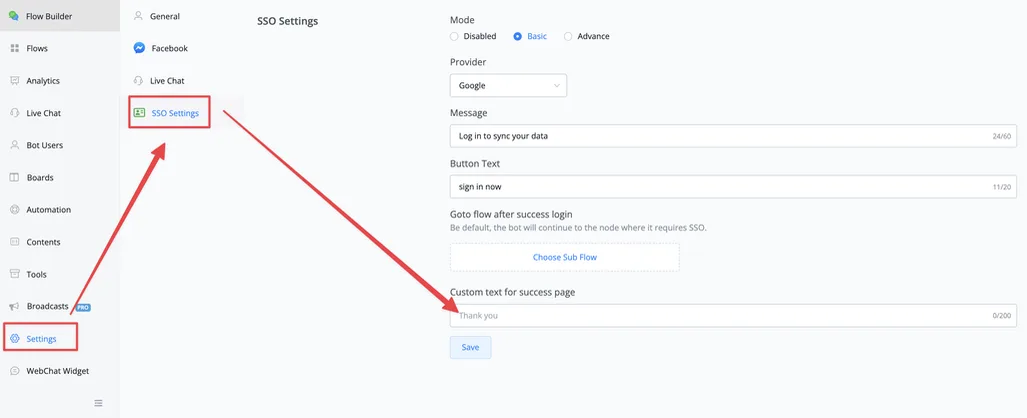
You can enable SSO in the “Settings” tab, at the bottom left of the Flow builder side menu. Then click the “SSO Settings” option.
.webp)
Click the “Basic” tab and fill in the required details.
.webp)
Once that is done, create a new sub-flow. That is where we will set up the SSO logic.
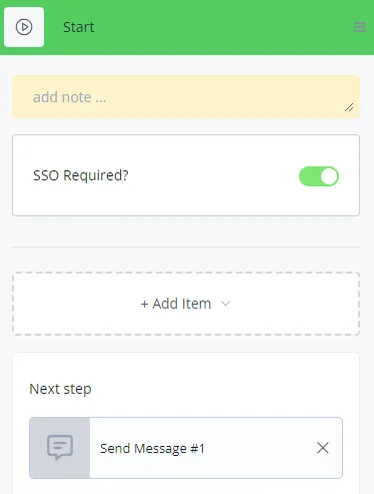
Once SSO is enabled, you will start seeing the “SSO Required” option in the Start nodes of the sub-flows. Enabling this option takes the user to the SSO login and, after a successful login, redirects them to the sub-flow selected in the settings.
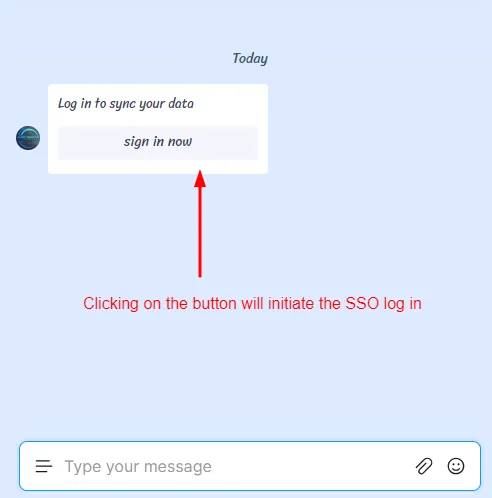
After a successful login, the “Thank You” screen stays visible for 5 seconds and then the user is redirected to the follow-up sub-flow; you can also exit the page manually.

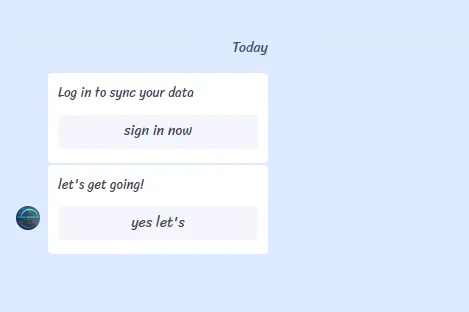
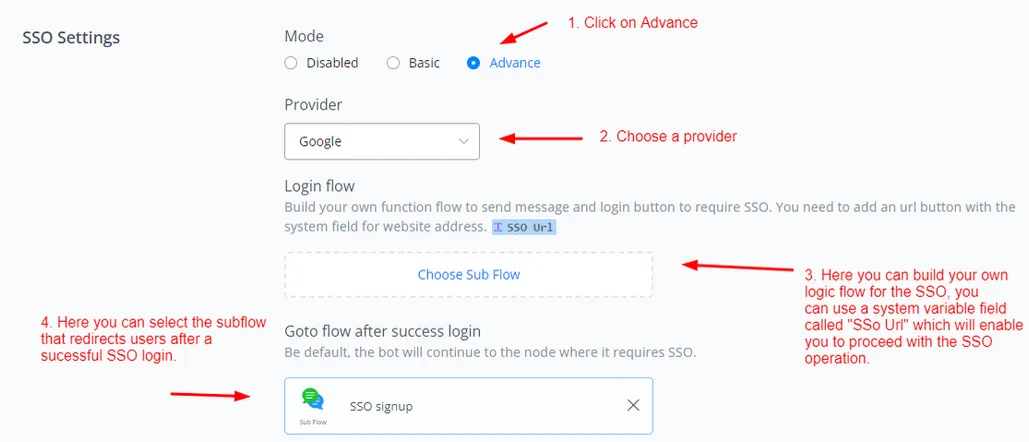
The advanced options let you build your own logic flows for SSO. With them, you can set up SSO in channels where buttons with links are not populated correctly, by using a system variable field called “SSO Url”.
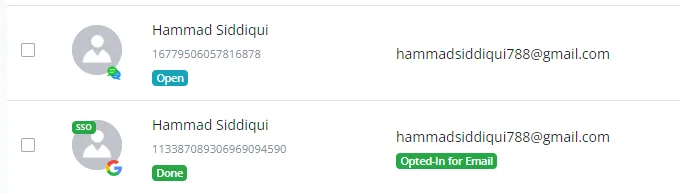
The contact with the SSO tag is the master user, which syncs the data of the same contact across different channels.
If you add a tag or change the value of a variable for the SSO user, the change is also made for the contacts in the other channels.
If you add a tag or change the value of a variable for the contact in other channels, the change is also made for the SSO user.
This makes it possible to sync contact data across multiple channels, which gives more flexibility to anyone working with several channels at the same time.
You can now customize the text on the thank you page however you like. The default text is “thank you”. This feature is available in both Basic and Advance SSO modes.