

Workflow
YouTube video (not available for embedding)
A workflow can be thought of as a backend flow, where you automate tasks such as adding or removing tags, setting custom field variables and making external API calls.
This way, the conversation you are having with the subscriber is not stuck waiting for all those actions to be applied, and the experience is as smooth as possible for that end user.
To create a workflow, go to the flows overview by selecting Flows in the left-hand menu.
Then click the + New sub flow button.
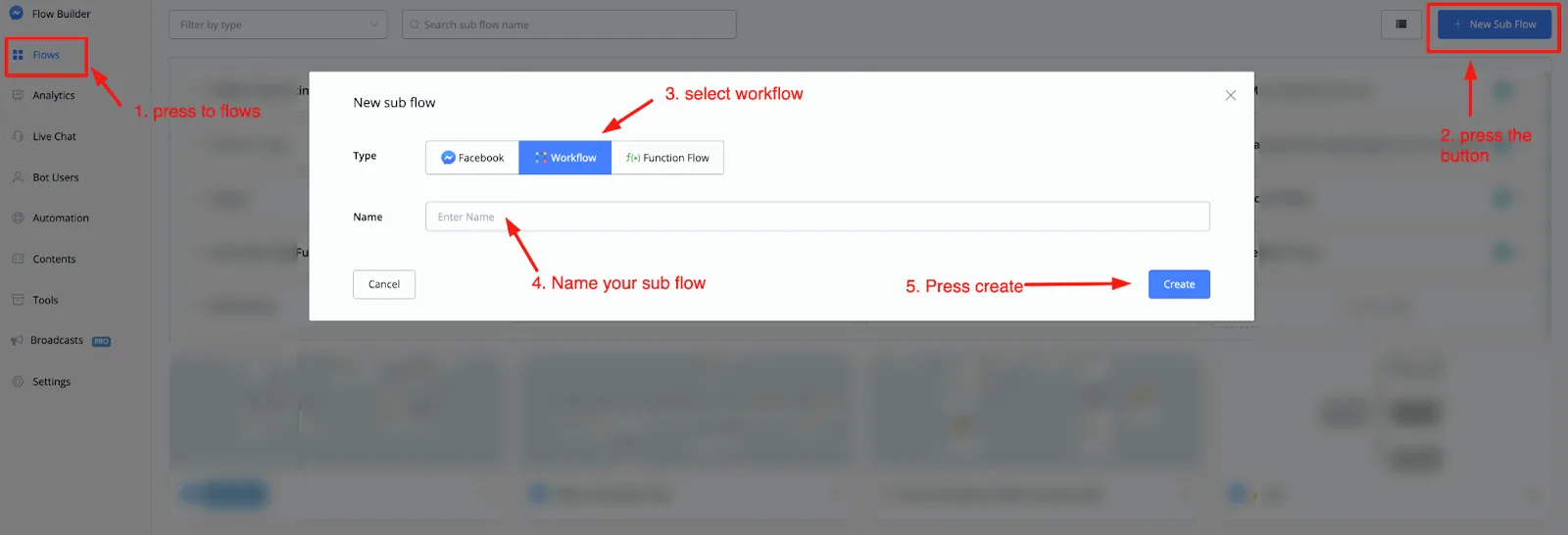
Select the Workflow flow type and give it a name. When you are done, click the Create button to start building your workflow.
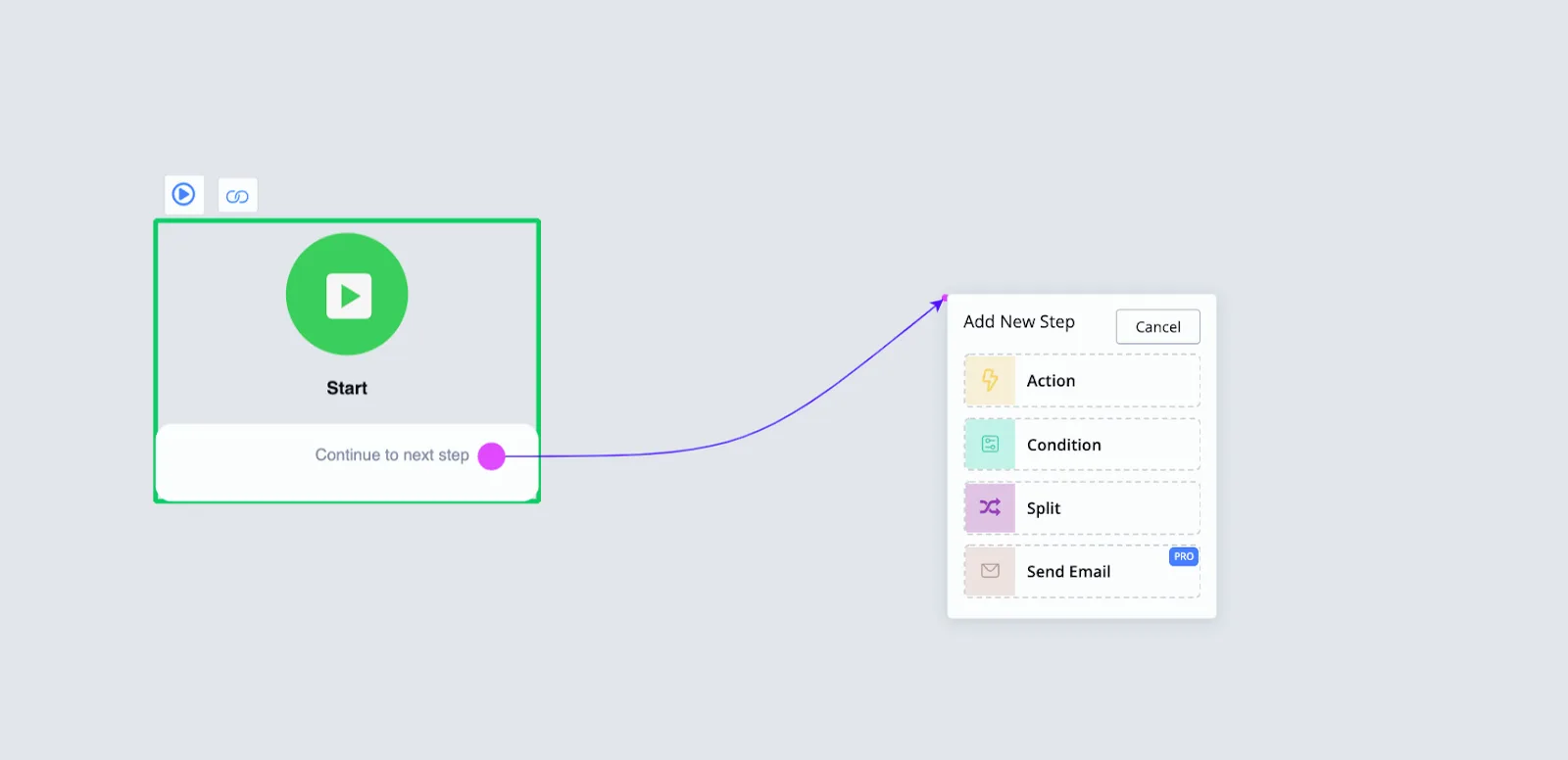
Once you create the flow and reach the flow builder, you will notice that you have access to fewer nodes than when selecting a regular or function flow.
The available nodes are:
- Action
- Condition
- Random
- Send Email
As already mentioned, this flow is meant for creating a backend flow that you can trigger from any other flow in your chatbot to handle system tasks, such as adding tags and setting custom fields, and also sending emails.
Let's look at an example of how a workflow can be used.
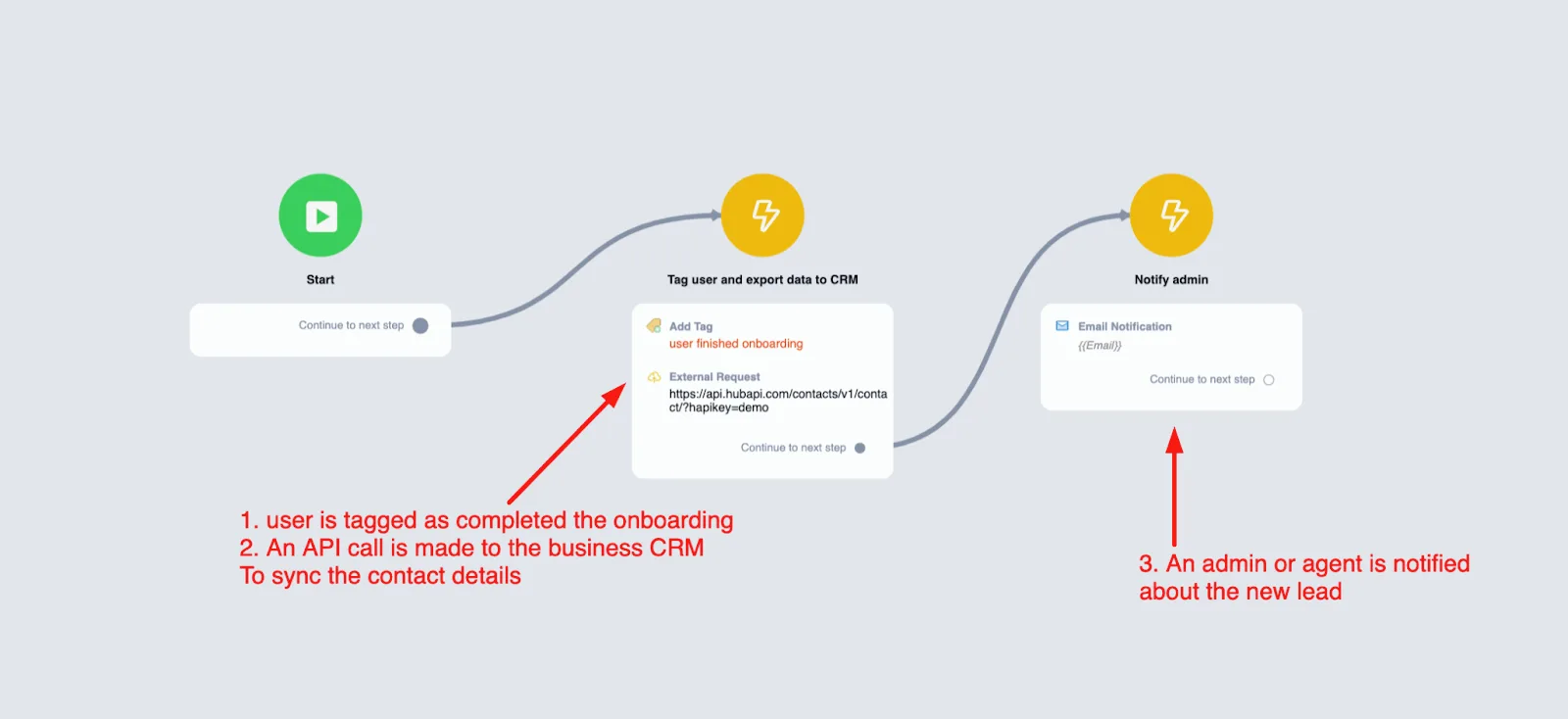
A user signs up with an email and/or phone number, and you want to sync this information with the CRM platform of your choice.
As soon as you get the user's credentials, you can make an API call using the external request node, inside the action module.
You will also want to tag the user inside the chatbot to complete the onboarding step. Once that is done, we send an email notification to an admin letting them know that a new lead has been created for follow-up.
A workflow can then look something like this:
If you were to incorporate this into the flow that contains the actual conversation, it could become a problem: the conversation might be on hold for several seconds or more until all these system processes finish. And you might lose the user, who thinks the conversation is over.
It is very simple to trigger the workflow above inside any other flow you build.
Just insert an action node, go to advanced actions and choose Trigger Workflow at the bottom.
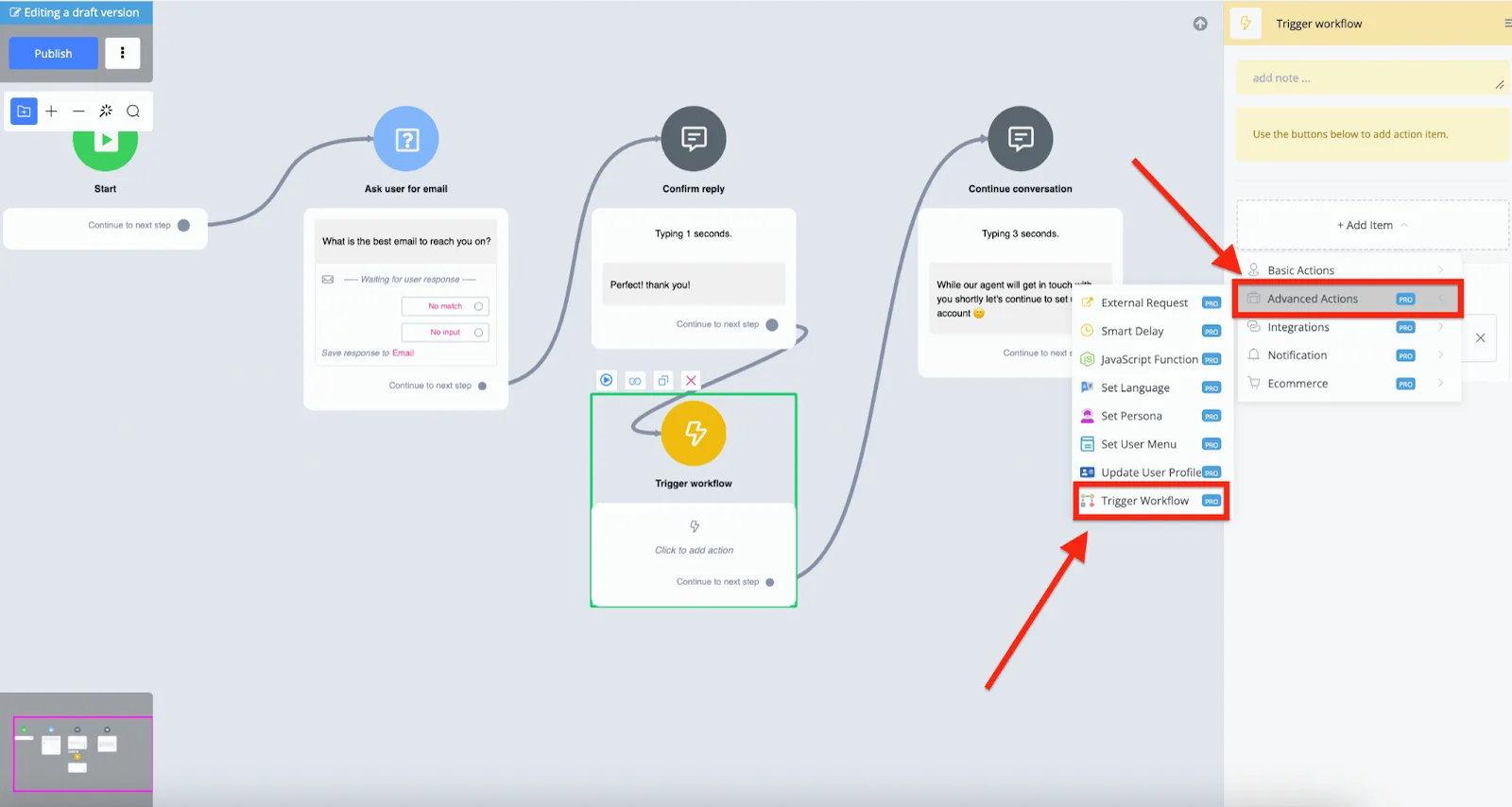
You can then select any workflow you have created. That workflow will be processed in the backend, without affecting the conversation with the user, which continues without any delay.