Custom Events
NicoChat now allows your users to track various events that happen in the channel's automations and to view those events through analytics, in the form of custom events and custom reports.
You can now track any custom events you want and create collaborative analytical reports from them, which gives you more insight into your data and more metrics to track the performance of your channel and your automations.
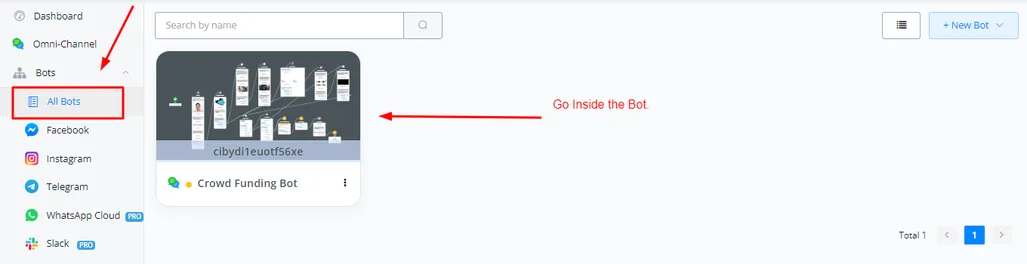
On your dashboard, click the channel and go into the flow builder.
Inside the flow builder, select the Content tab and then Custom Events.
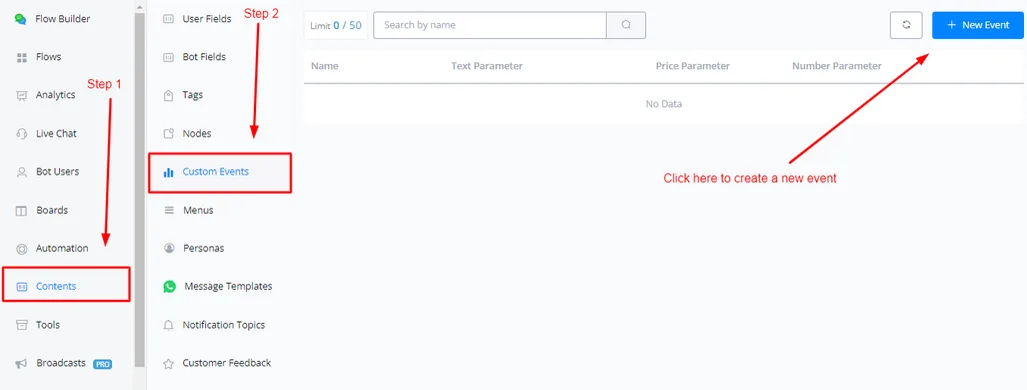
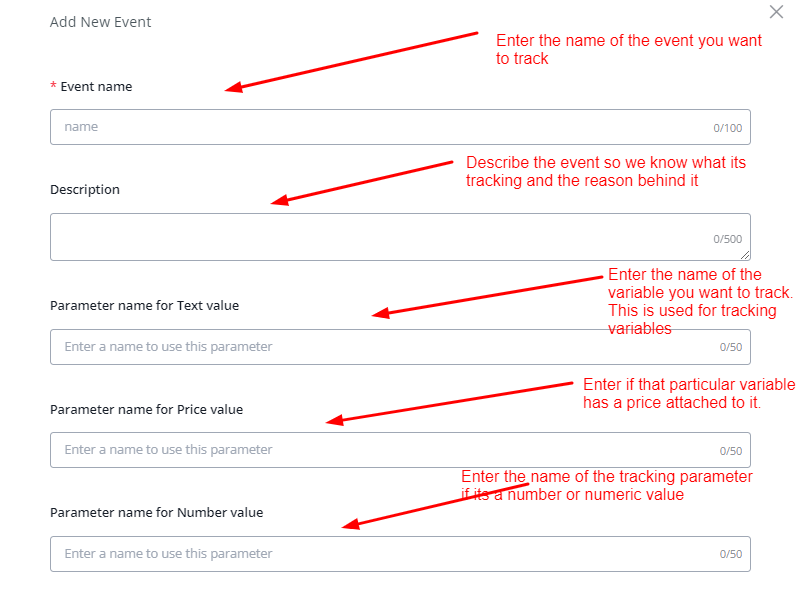
When creating a new event, you need to provide the following parameters.
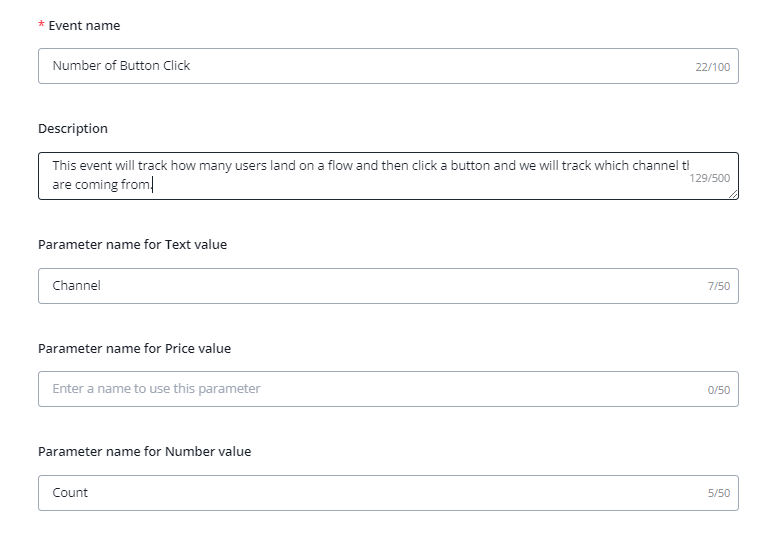
Event name: this is used to name that custom event.
Event description: this is used to describe what the custom event does and what it tracks.
Parameter names: these are the names of the parameters you want to track — for example: product, sales category, person's name, etc.
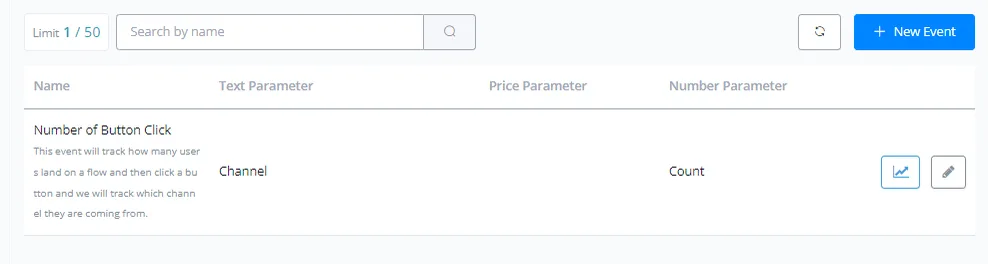
After creating an event, go into the flow builder and add the “Custom Event” action, from the Action block, to start integrating the event and tracking it.
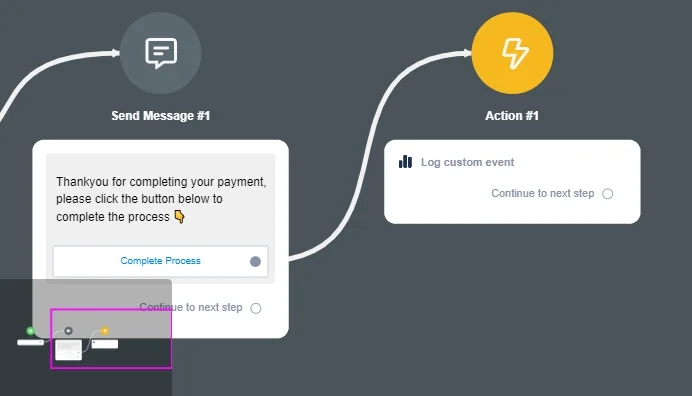
Click Edit Action and start setting up the event.
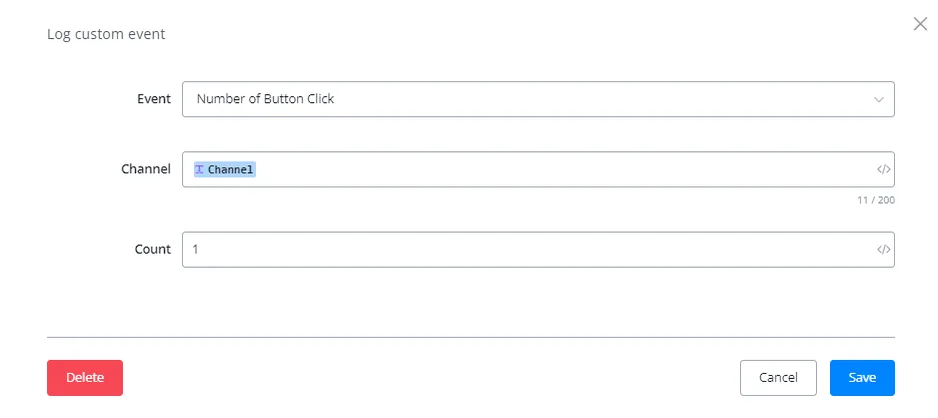
Here the event tracks the Channel the users come from, and the count adds one unit to the total number of events that occurred.
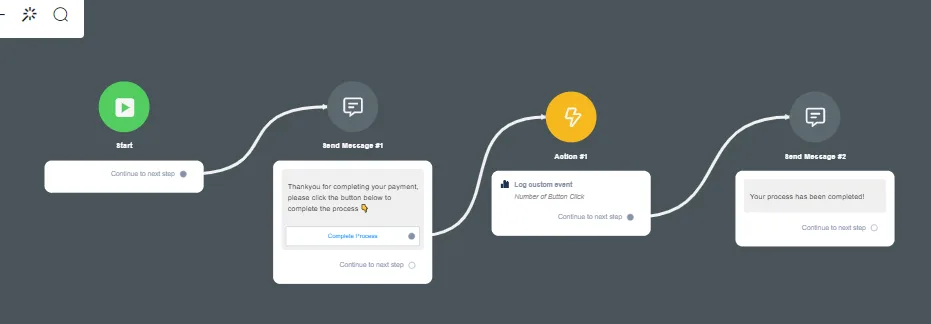
The event is now ready to be tracked.
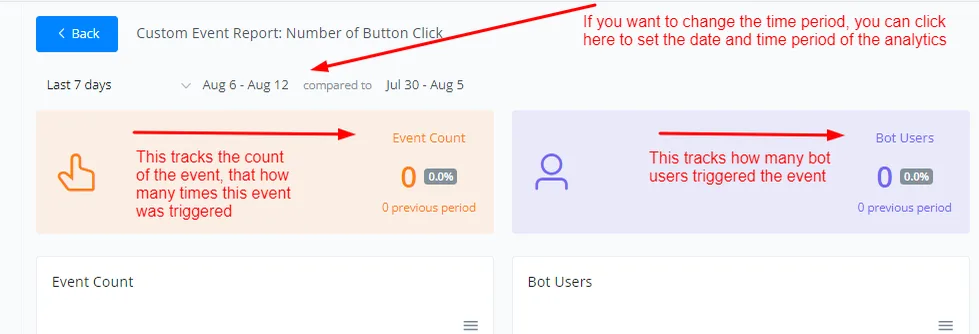
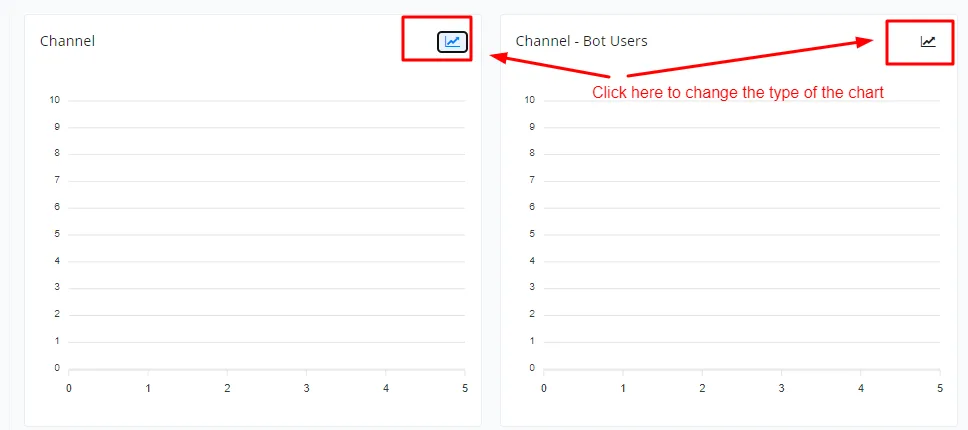
Click the Statistics tab and select Custom Events to view the analytics for that specific event.
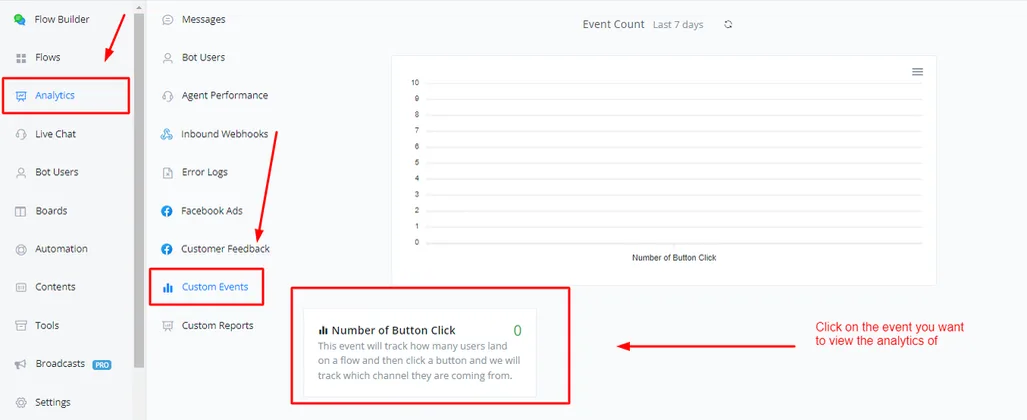
Click the event to view the analytics for that specific event in more detail.